How to install Tidio on Shopify?
The easiest way to install Tidio on your Shopify store is by installing Tidio through a dedicated Tidio app from the Shopify App Market. We explain how to install the chat widget step by step in our article about Installing Tidio on Shopify.
Which plan do I need to use for the Tidio widget on my website?
The good news is that you can use Tidio for Free! However, you can upgrade to our premium plans to enhance your visitors' experience and help your team work more efficiently. To see which plan works best for you, you can visit our article about choosing the best plan for your business.
Can I manage Shopify orders inside the Tidio panel?
Yes! You can see your customers' orders in your Tidio panel, both in live chat conversations and in tickets - look for the Shopify section in the customer's details on the right. Moreover, you can also manage the orders by, for example, canceling the orders, submitting the refunds, or editing the shipping addresses. You can learn more about it in our article about managing Shopify orders in Tidio.
Please note: managing Shopify orders and sending Shopify product cards from the Inbox are available on the Growth plan and above. On a lower plan, clicking on Check all orders or Send a product card opens the upgrade window instead.
How to increase conversions with Tidio?
You're missing out if you're not using our coupon codes yet! At Tidio, we strongly believe in coupon code initiatives for your potential & returning customers. The Send a coupon code action in the flow editor can help you provide quick discounts for your Shopify store customers: you can create a new percentage discount code right from Tidio (it's added to your Shopify store automatically), or pick a code that already exists in Shopify. At the top of your My Flows list, you'll then see how many codes were used compared with how many were sent (Coupons used/sent) and the sales they helped with (Sales assisted). You can learn more in our article about Coupon Codes.
Can I send product recommendations directly through Tidio during a conversation?
Yes, you can! In live chat conversations with visitors who are online, click on Send a product card in the Shopify section on the right to open your product directory. Sending a product, it's super easy! Just click on a product, and it will be sent to your customer via chat. Product cards can't be sent in email and WhatsApp conversations - there, the products are marked with You can’t send on this channel. You can learn more by reading our article about sending Shopify products to customers directly through Tidio.
Can Lyro recommend my products to visitors?
Yes! With Product Recommendations, Lyro (the AI agent) learns your Shopify products and recommends them in conversations, as product cards with a button such as Add to cart. Product Recommendations are part of the paid Lyro AI Agent package - see Product Recommendations (for Shopify) for the details. Lyro can also start conversations by itself, for example when a visitor adds a product to their cart, with the Shopify - Visitor adds to a cart trigger of a proactive role. You can learn more in Lyro - Proactive roles.
Do you have any features that can decrease the abandoning of the carts by potential customers?
Yes! We have dedicated flows ready to be triggered when your website visitors leave the cart. We also allow automatic tracking. You can learn more about tracking abandoned carts using Tidio.
Will my contacts be automatically synchronized with Shopify Panel?
Tidio sends all the contact data collected during conversations held in Tidio (such as email, name, and phone number) to your Shopify admin panel automatically! You can see our article about automatic contacts import if you want to learn more. You can see all the collected contacts through Tidio inside the contacts list.
Do I need to create the flows myself?
You can, but you can also use our ready-to-use flow templates. Ready templates are available for your adjustment in the Flows section, including sales templates designed for online stores. To learn more on how to use & adjust Tidio's templates, read our articles about flow templates.
How to build the flows myself?
You can create your own flows from the Flows section of the Tidio panel. All Tidio flows consist of building blocks called nodes. Each flow starts from a trigger which can be later connected to actions and conditions. You can learn more about flow creation by checking our article about building flows from scratch.
What is the monthly flows limit?
Each Tidio account has a monthly limit on the number of unique visitors your flows can reach - in your Tidio panel, it's called Visitors reached. It doesn't matter how many times your flows run for the same visitor; each visitor counts once a month. On the Free plan, the limit is 100 unique visitors per month. We sometimes refer to it as flows quota or monthly flow limit. You can see our article about the monthly flow limit to learn more about how we calculate it.
How to uninstall the Tidio widget from my Shopify store?
We're always sad to see you go, but you can find more information on uninstalling Tidio from your website in our article about uninstalling the Tidio chat widgets.
I used Tidio's Shopify Bot app; what to do after it's removed?
Due to recent changes in Shopify's private app policy, we have updated the way we support flows (previously known as chatbots) dedicated for Shopify.
If you currently use our Tidio Bot App alongside our main Tidio app, please note that the Tidio Bot App will soon be removed. Don't worry, though - Tidio with all its flows will continue working perfectly fine! We have updated the main Tidio app, so it will be handling everything from now on.
All you have to do now is a simple re-integration, which can be done in a few simple steps. Please find the instruction below:
1. Log into your Tidio project.
2. Go to the Flows section, and access the My Flows list:
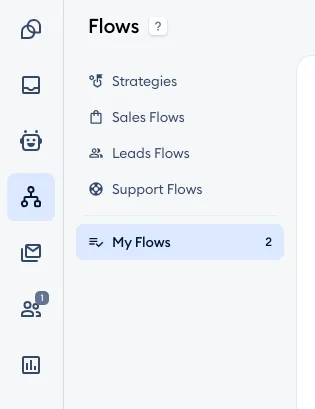
3. Find a flow that uses Shopify nodes (such as the default flow templates for Delivery Tracking, Shipping Zones, or Product Availability).
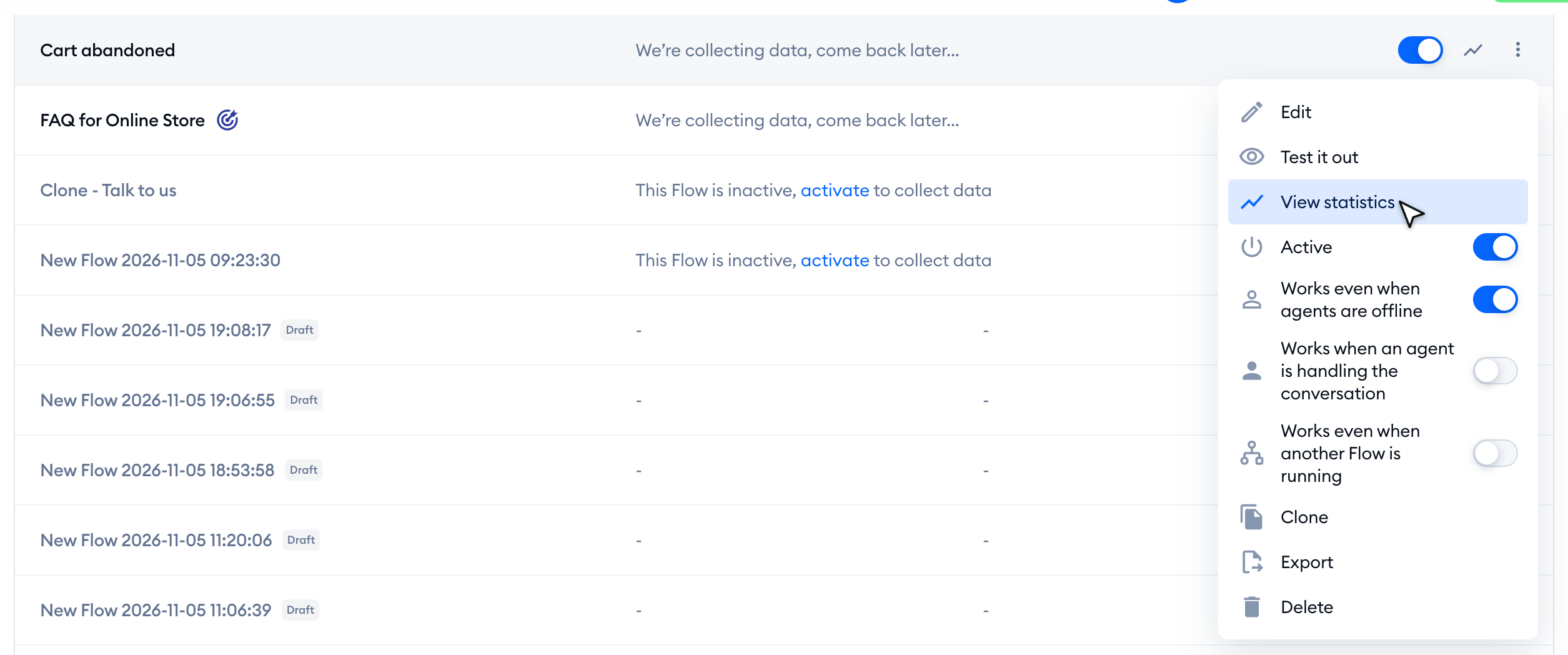
4. Click on the three-dots menu on the right of that flow, and choose the View statistics option:
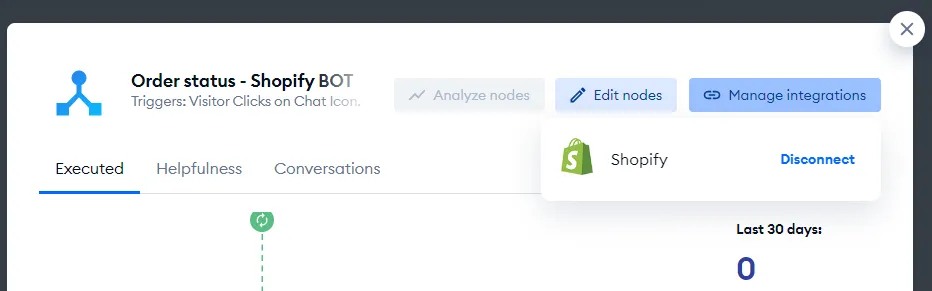
5. In the window that opens, click on the Manage integrations button in the top-right - and use the Disconnect option:
6. Confirm your choice to disconnect with Yes, I want to disconnect:
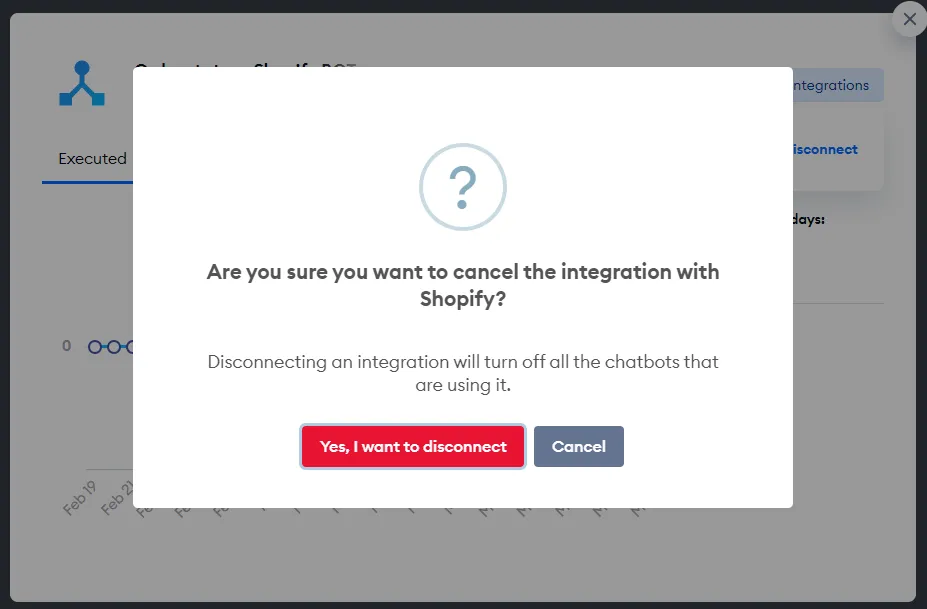
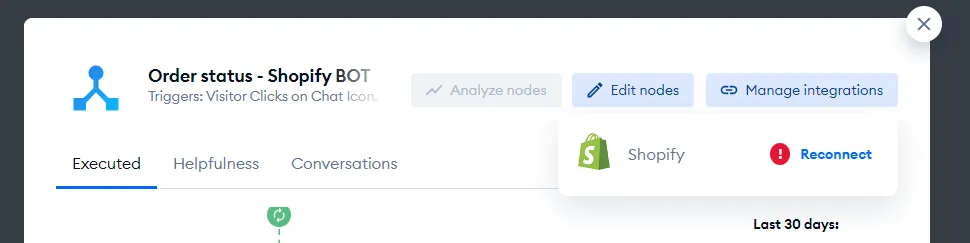
7. In the same window, under Manage integrations again, you should see a new option: Reconnect. Click on that option:
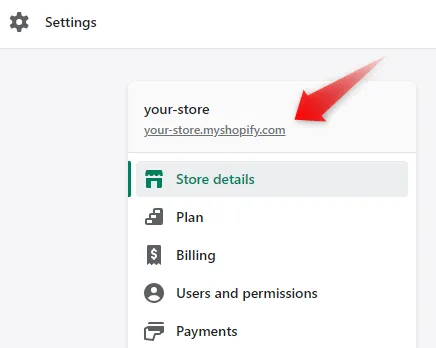
8. You will be prompted to provide your myshopify.com domain name. If you're not sure what it is, you can find it in your Shopify store settings:
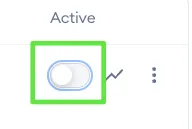
9. Almost done! Now, please check the status of your Shopify-related flows in the My Flows list. Most likely, you'll need to activate them once more:
And that's all! Now that the re-integration is done and your flows are active again, everything should be back to normal.
Further reading
- Manage Shopify orders
- Product Recommendations (for Shopify)
- Coupon Code (flow action)
- Flows dedicated for Shopify
