Tidio’s Product Recommendations is an exciting AI innovation, allowing Lyro to recommend products to your visitors. With this feature enabled, Lyro can recommend items based on what the customer is asking, help choose from among different products (or product variants), offer complementary products, and more!
This guide focuses on the dedicated Product Recommendation tool for Shopify stores, possible through Tidio's Shopify integration. The same kind of integration is also available for WooCommerce stores - please see this article for more details.
Please see this article to learn about the Product Recommendations engine for all platforms, available via OpenAPI.

In this article, you will learn:
- What the Product Recommendations feature is
- Who can use Product Recommendations
- How Product Recommendations work in practice
- What conversation types can be handled
- What communication channels allow Product Recommendations
- How to enable Product Recommendations
- How to update Product Recommendations
- How to fix products that weren't synced
- How to pause Product Recommendations
- How to choose the product card button (Add to cart or View details)
- How to let Lyro read your Shopify metafields
- How to delete your product source
- What the tool's limitations are
The Product Recommendations engine - what is it?
Tidio can import your Shopify products and utilize them as a data source for Retrieval-Augmented Generation (or RAG). This process creates a custom retrieval system based on your own Shopify store; a kind of knowledge base.
When visitors ask questions about your products, the Lyro AI model retrieves relevant product information and generates accurate, context-aware responses by augmenting its knowledge with your specific product data. Please note that Lyro understands your product information in multiple different languages!
Please note: Lyro can detect a visitor's current URL automatically, which allows you to use this information in product-related responses. This is especially valuable if Lyro is asked about a product that the visitor is currently viewing on your website. Lyro will be aware of the product being browsed and won't need to ask the visitor about the details first, nor use any previously-recorded data.
Who are Product Recommendations (via Shopify) available to?
The feature is currently available to Tidio users who:
- Have Tidio integrated via the Shopify app
- Are subscribed to Lyro AI Agent package (or still on their free 7-day trial)
- Have Lyro activated in their Tidio project
- Have a valid Shopify store schema
Please note: when you pick a product source, Tidio may offer you a free 7-day trial of a paid Lyro plan, so you can see Lyro recommend your products before you pay. See The 7-day trial of a paid Lyro plan for the details. If your plan doesn't include Product Recommendations and no trial is offered, clicking a product source shows you the upgrade options instead.
Product Recommendations in practice
Once you synchronise Lyro with your product database (we cover this later in the article), your AI agent will be able to guide your customers to the right products. Lyro will be proactive, asking questions that help find what the customer is looking for, and offering options and advice wherever appropriate.
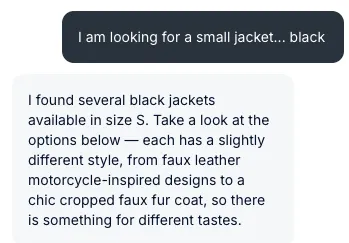
Any recommendation Lyro has will be presented in the form of cards, which can be scrolled horizontally inside the Tidio widget. The cards include pictures, product names, and prices. Each card can be clicked to visit the product page directly as well.
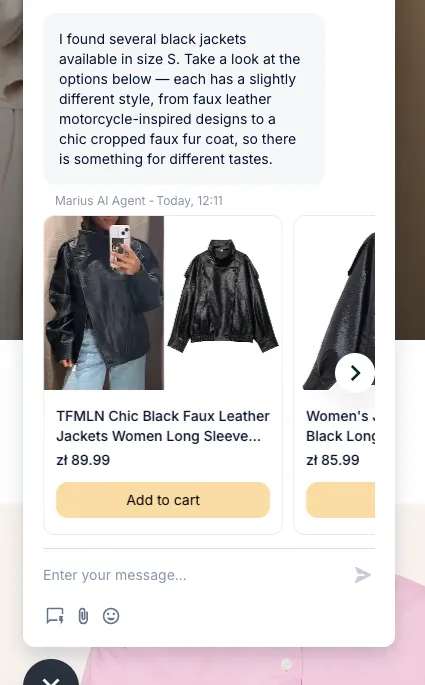
This helps your customers find products and make decisions quickly, without having to browse your store manually in search of the perfect item.
What helps further is the Add to cart button, available for each card (although this is only available for Shopify and WooCommerce stores). Clicking that button lists all the available variants, so that the customer can decide on the option they want:
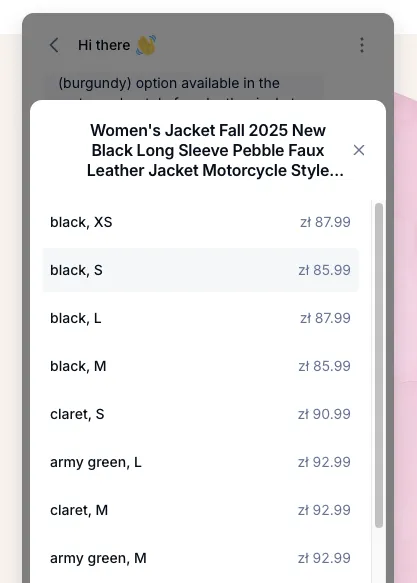
Please note that you can decide to switch the Add to cart button off, and instead use the View details button. That way, any customer who clicks on the button will be taken to the product page to view all of its details on your website directly. Please see more about this option later in the guide.
Lyro is also aware of your stock, so it won't recommend items that are currently unavailable (or it will clearly mention that the item is out of stock). In the panel, you'll find this as Stock awareness in the Sales strategy section - it's part of Product Recommendations and always on.
Conversation types handled by Product Recommendations
Using Product Recommendations, Lyro can help your visitors in the following ways:
- Specific product search - find a specific product
- Broad product recommendation - help choose products
- Product variant recommendation - find products with variant limitation
- Complementary product recommendation - find products that work well together (if mentioned in product description)
- Alternative product recommendation - find products with similar properties
- Product comparison - compare two (or more) products
- Price range recommendation - find products based on price point
- Seasonal product recommendation - find new products or products in collections
Available channels for Product Recommendations
Product Recommendations work in different communication channels available in Tidio. Those channels are as follows:
- live conversations (the Tidio chat widget)
- Facebook Messenger
- Ticketing (email threads)
Please note that the feature is also going to work with the AI-powered Copilot tool, which in turn is available on all the channels listed above. If you'd like to learn more about Copilot, see this dedicated guide.
How do I get Product Recommendations?
Product Recommendations are an integral feature of Lyro, so they're available for your connected Shopify store - as long as you meet the requirements mentioned earlier in this article.
Inside your project's Lyro AI Agent section, go to the Knowledge > Products tab and use the Sync products button to see the available options:
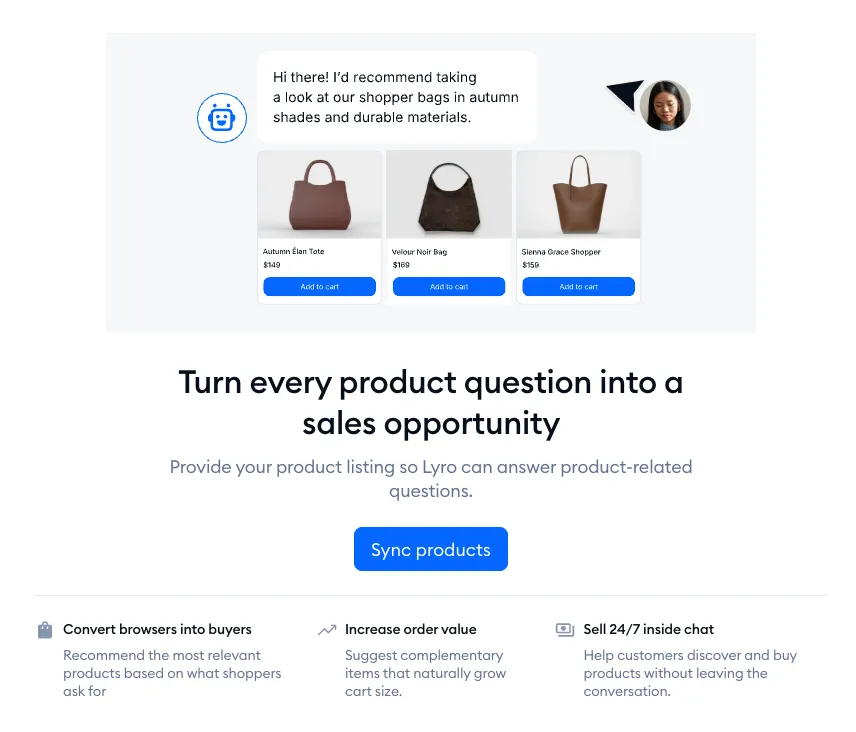
The Add your product listing window will open. What you're interested in this case is the Shopify product sync option:
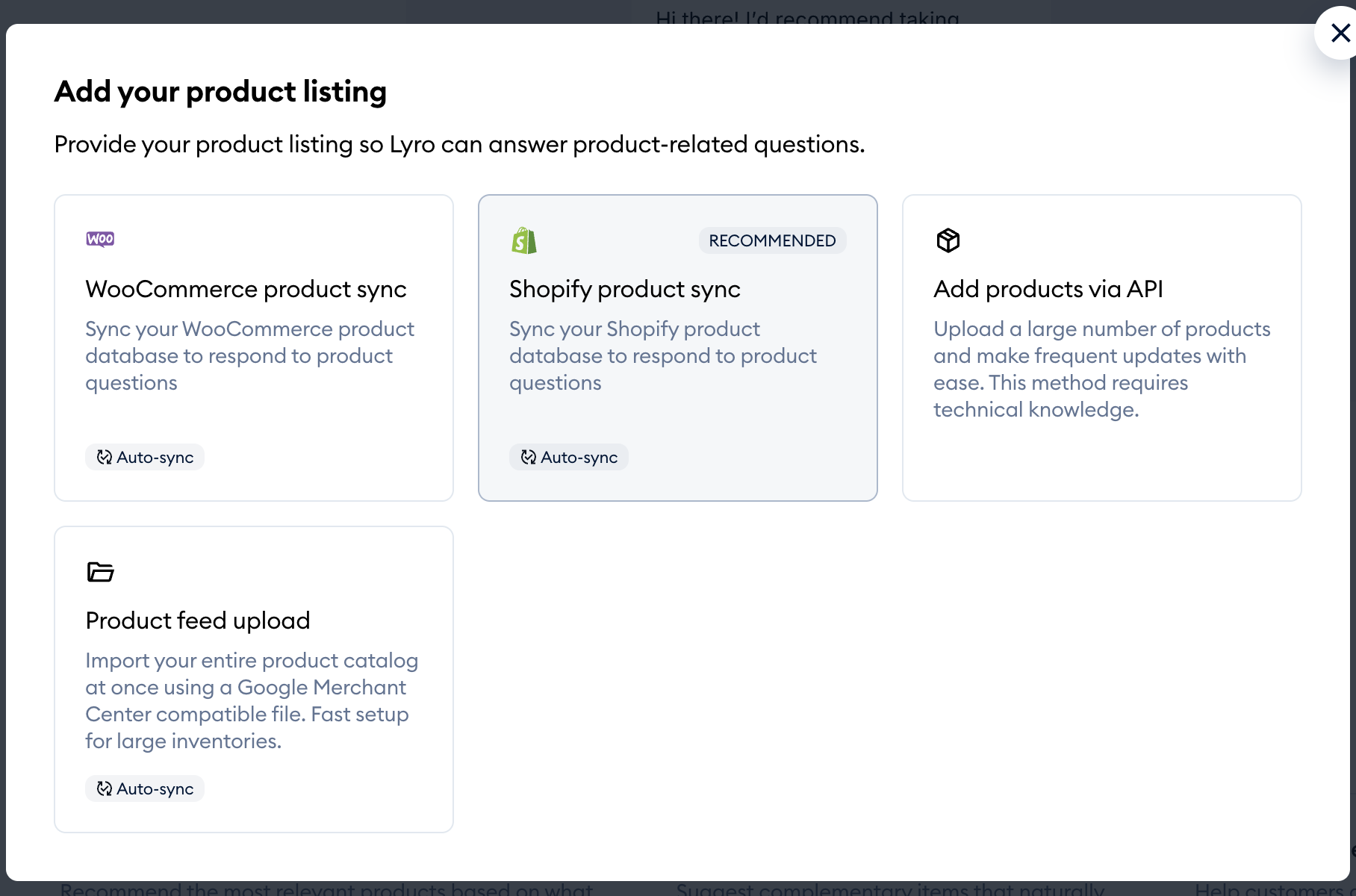
A few things you may notice on the tile:
- If your Tidio project is connected to a Shopify store, the tile is marked RECOMMENDED. If it isn't connected yet, clicking the tile opens the Connect your Shopify store window - hit Continue to go to the Tidio app in the Shopify App Store and install it.
- If your store doesn't pass Tidio's compatibility check, the tile is marked INCOMPATIBLE and can't be clicked (see the limitations below).
- If your Shopify store needs to be reintegrated, the tile is greyed out, and hovering over it shows a Reintegrate link.
- You can add new or previously deleted product sources up to two times within 24 hours. Once you reach that limit, the tiles are greyed out with the message You’ve reached your 2-upload limit for the last 24 hours. Please try again later.
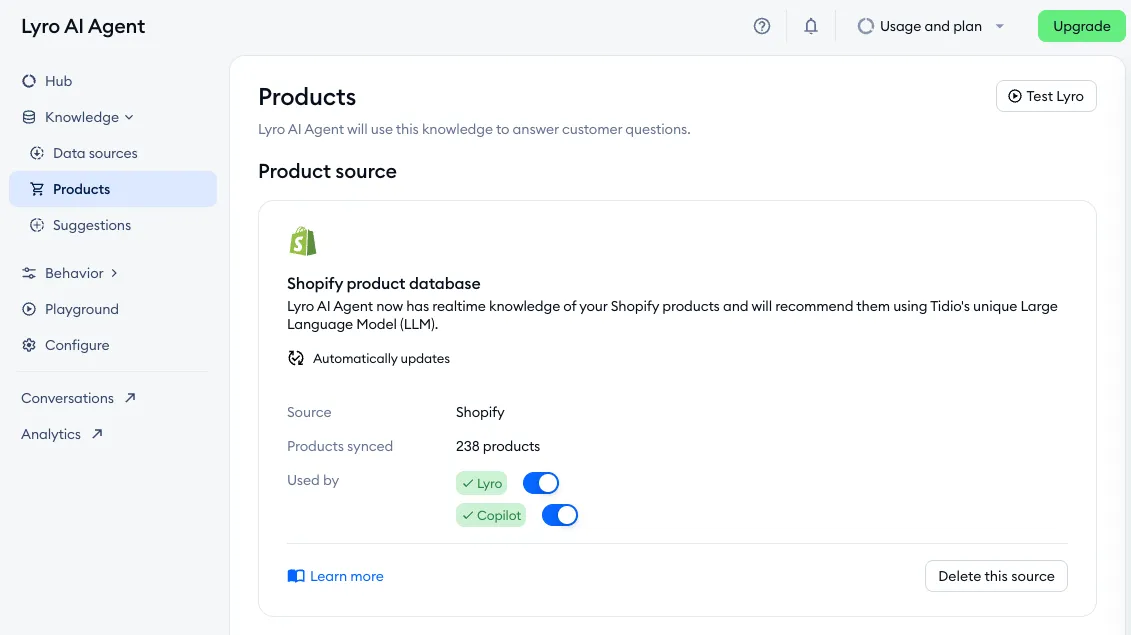
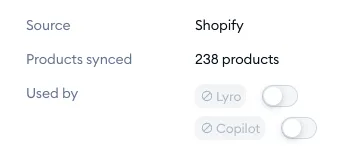
Once you select that option, your products start syncing (you'll see In progress... on the card while it lasts). After that, the Shopify product database card under Product source shows the general status of the products imported from your Shopify store: the Source, the number of Products synced, your Product fields, and the Used by switches that let you disable the feature for Lyro and/or Copilot:
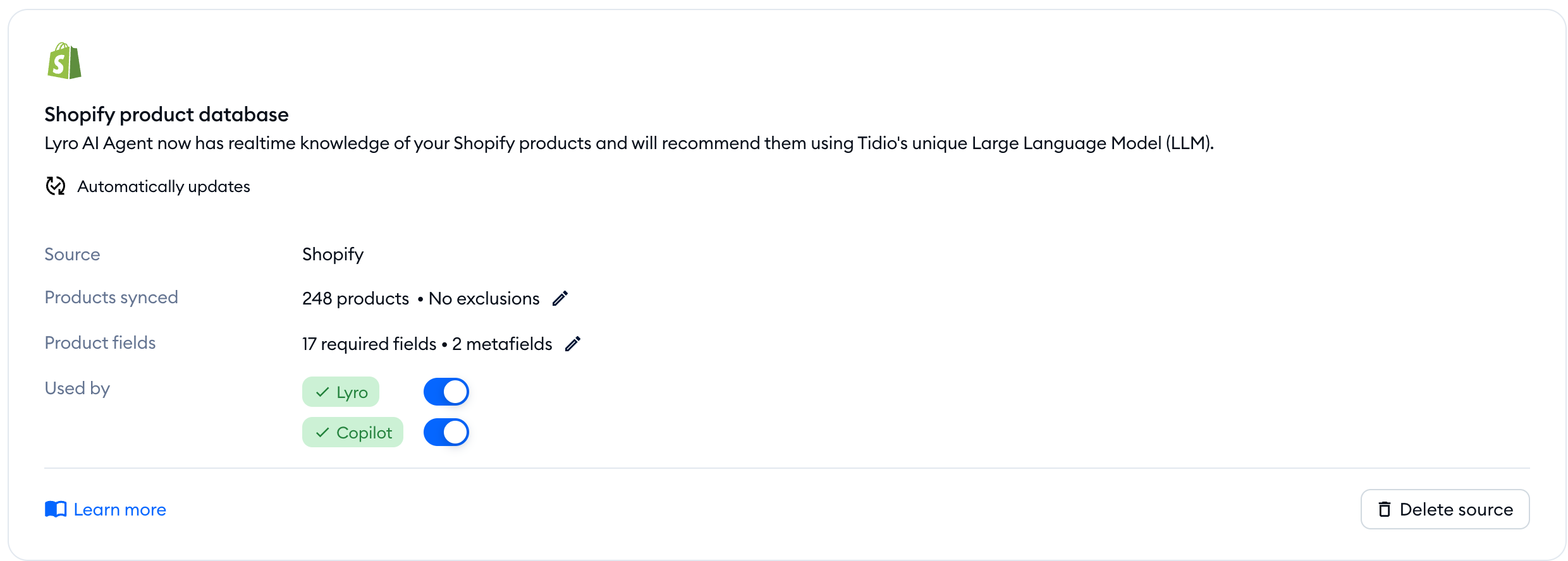
If everything is enabled and up-to-date, you can rest assured that your products have been imported, and that Lyro is already recommending products to your customers!
Further down the page, you may also see Recommended steps: ready-made Lyro Actions for your store that go well with Product Recommendations. Simply click on one to add it.
You can test Lyro's capabilities regarding Product Recommendations by using the Test product answers button in the upper-right of the Products section, after you've connected your database. This lets you try the feature without actually enabling it for Lyro, allowing you to make sure everything is working as expected before going live.
Updating products for Product Recommendations
Good news: there's no need to manually sync your products with Tidio’s product recommendations. Every time you update your products in Shopify (whether it's introducing new product, removing or updating an existing product) - Tidio will update your product list in real time.
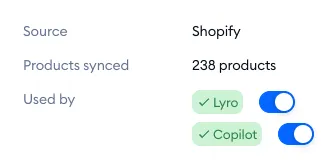
Although Product Recommendations updates automatically, you may want to force an update (e.g. if you notice Lyro giving some outdated information). If that is the case, follow the steps below:
- In the Lyro AI Agent section, go to Knowledge > Products;
- Switch off the toggles for Lyro and Copilot;
- Switch back on the toggles.
Please note: if you see the message Your Shopify store needs to be reintegrated. Product updates are paused, but Lyro will keep using the products synced so far. on the card, click on Reintegrate right next to it. Your products will start updating again once the store is reintegrated.
Products that weren't synced
Sometimes a product can't be synced - and Lyro won't know about it. When that happens, you'll see a counter next to Products in the Lyro menu, a message at the top of the page, and the number of sync issues next to Products synced on the card. Click on Review products to open the Resolve product issues window:
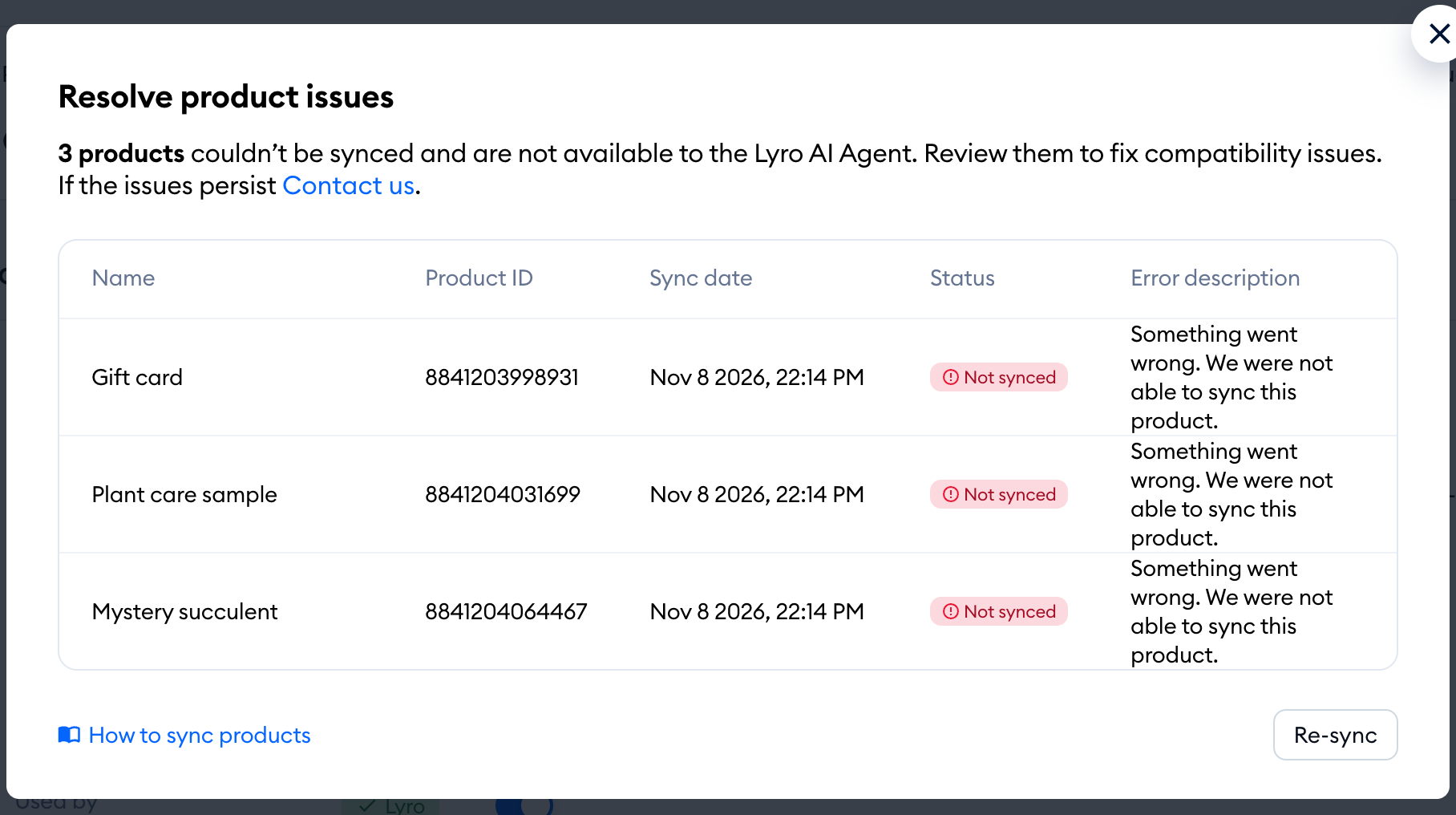
The table lists every product that wasn't synced, with its Product ID and the Sync date. Fix the products in Shopify, then hit Re-sync to check the list again. If the issues persist, use the Contact us link in the window to reach our team. Once all products are synced, you'll see No issues found. All products have been successfully synced.
Pause Product Recommendations
We realise that Product Recommendation might not appeal to all Tidio users, so we made sure you are in full control. You can pause Lyro's Product Recommendations anytime by following the steps below:
- In the Lyro AI Agent section, go to Knowledge > Products;
- Switch off the toggles for Lyro and Copilot.
Deleting your product source
Your project uses one product source at a time. If you'd like to stop using your Shopify products for good, or switch to another source, click on Delete source at the bottom of the card, and confirm with Delete:
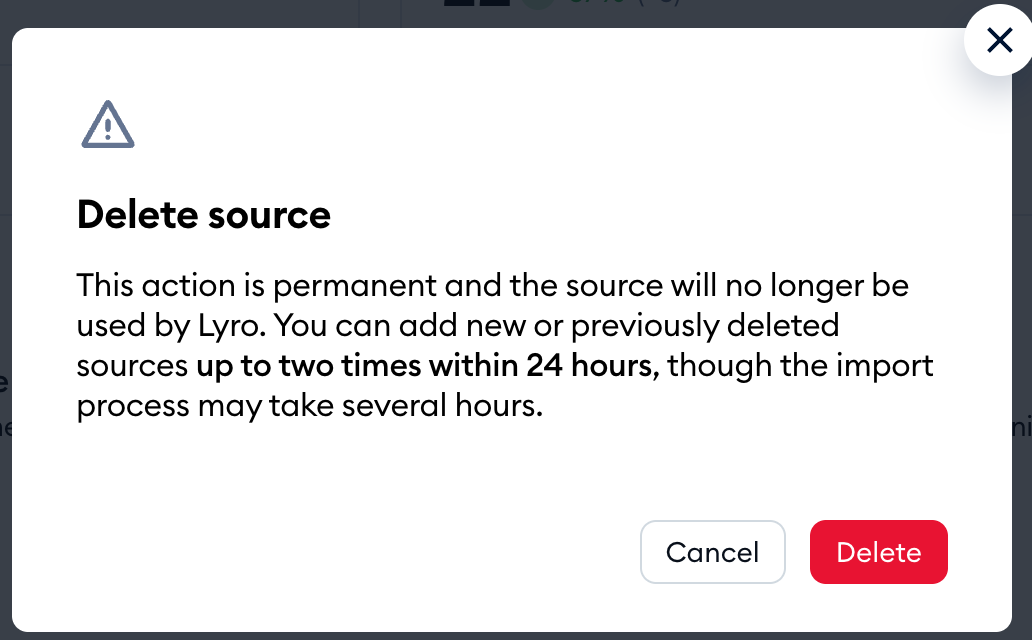
Please note: deleting a source is permanent. You can add new or previously deleted sources up to two times within 24 hours, and the import may take several hours - so if you only want Lyro to stop recommending products for a while, simply switch off the Used by toggles instead.
Choosing the product card button
Inside Lyro AI Agent > Knowledge > Products, you can find the Sales strategy section. Under Default product card action, you can decide whether your product cards show the Add to cart button or the View details button. Either way, clicking the card outside of the button opens the product page.
To change the setting, choose the option you prefer; you will also see an example of a possible product card:
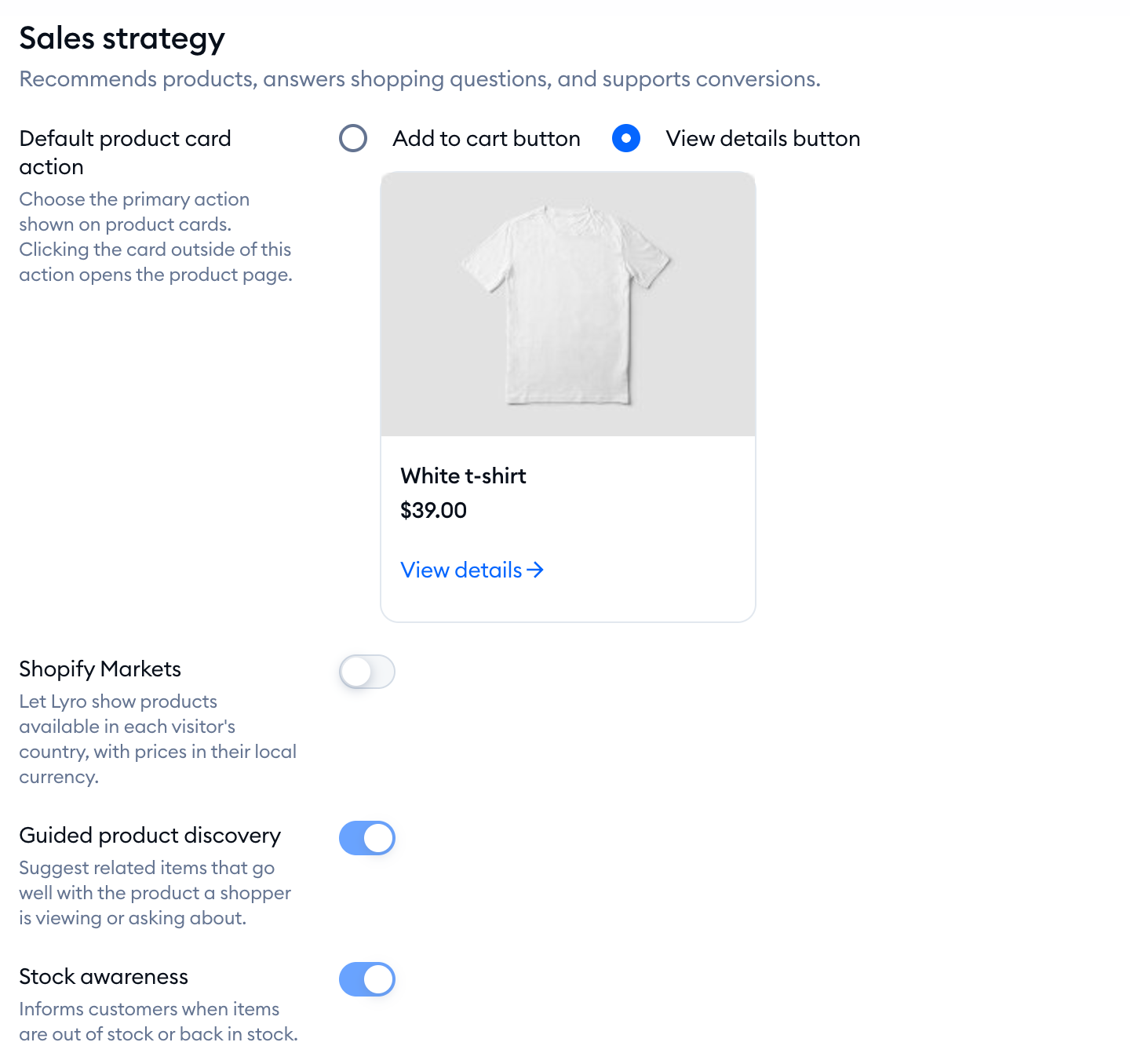
Below, you'll also see Guided product discovery (Lyro suggests related items that go well with the product a shopper is viewing or asking about) and Stock awareness (Lyro tells customers when items are out of stock or back in stock). Their switches are always on and greyed out: as the tooltip says, This feature is part of product recommendations and is enabled by default.
Letting Lyro read your Shopify metafields
Do you keep extra product details - like materials, sizes or care instructions - in Shopify metafields? You can let Lyro read them, too. On the card, click on the pencil icon next to Product fields, and use the Import button to add the metafields you need. See Product fields: let Lyro read your Shopify metafields for the step-by-step guide.
Product Recommendations - the limitations
There are some cases in which the Product Recommendations feature may not be available or work properly. Find the most common cases described below.
Product Recommendations not displayed
For a (small) number Shopify stores, the feature will not display due to an incompatibility with your Shopify schema. Incompatible criteria are as follows:
- Shopify product descriptions are less than 10 characters long
- The store is using a 3rd party for custom descriptions
Product content not in Shopify’s product page schema
Tidio’s Product Recommendations reads individual Shopify product pages (in search for a product) through Shopify's API. It doesn't scrape your individual product's webpage, as the data would not be as accurate. If you’ve built your customer-facing webpage for a product with custom blocks that aren't from the Shopify product schema, Lyro won't be able to parse the data in its responses. If that content is stored in Shopify metafields, you can add those metafields to your Product fields, so Lyro can read them.
Using other Shopify apps for product page enhancement
If you're using 3rd arty Shopify apps to modify your Shopify product schema, then Product Recommendations won't be able to read the data they manage. Common examples include:
- Variant apps - apps which further customise your product variants
- Currency apps - dynamic currency apps
- Stock apps - apps that manage stock levels
If such an app keeps its data in Shopify metafields, you can try adding those metafields to your Product fields.
