Do you keep extra product details in Shopify metafields - like materials, care instructions, size charts or ingredients? With Product fields, you can let Lyro (the AI agent) read them too, so it can answer your customers' questions about these details and recommend the right products.
Out of the box, Lyro already reads the standard details of your Shopify products and their variants - like the title, description, vendor, options, price, SKU and stock. Product fields let you add your own metafields on top of that, at the product level or the variant level.
In this article, you'll learn:
- What you need before you start
- How to open your Product fields
- How to import metafields detected in Shopify
- How to add a metafield manually
- How to remove a metafield
- What happens when a metafield is no longer available
Before you start
Product fields are part of Lyro's Product Recommendations, and they're available for Shopify stores. To use them, you'll need to:
- sync your Shopify products with Lyro, using the Shopify product sync option (see Product Recommendations (for Shopify)),
- wait until at least one product is synced.
Please note: Product fields aren't available for WooCommerce stores, product feeds or products added via API. If your Shopify store needs to be reintegrated, you won't be able to edit your Product fields until you click on Reintegrate on the card.
Opening your Product fields
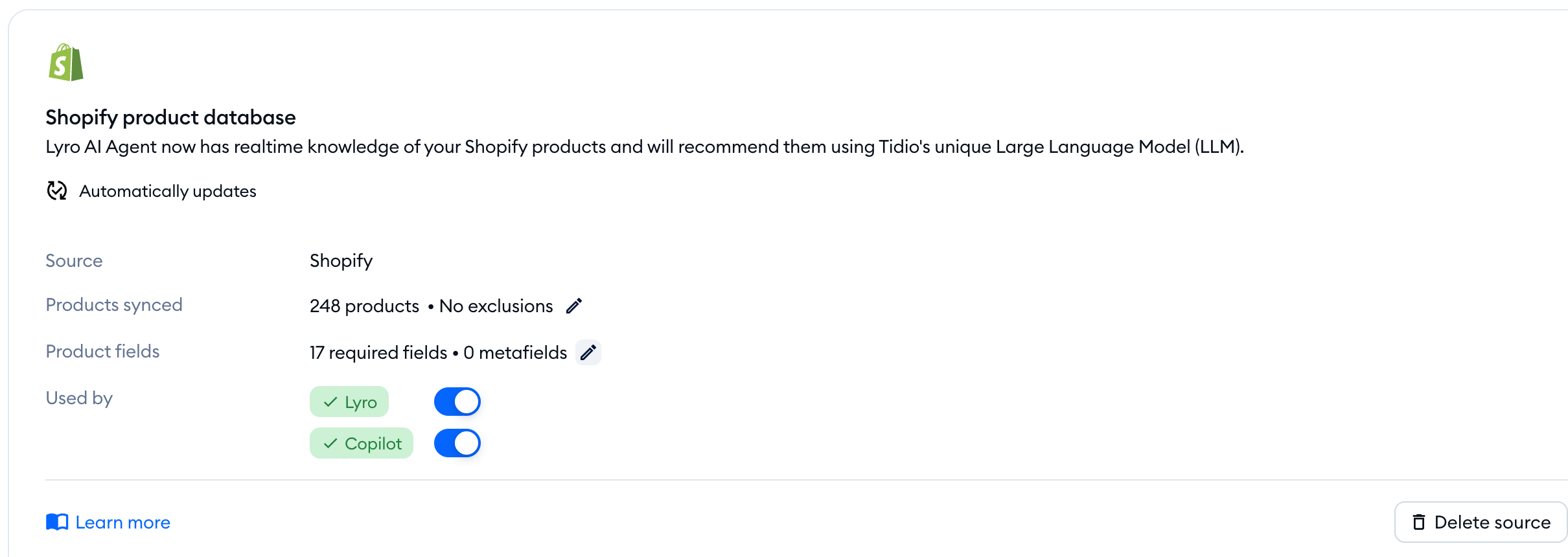
Head over to the Lyro AI Agent section, and open Knowledge > Products. In the Shopify product database card under Product source, you'll find the Product fields row. It shows how many fields Lyro uses - for example 17 required fields • 0 metafields. Click on the pencil icon next to it:
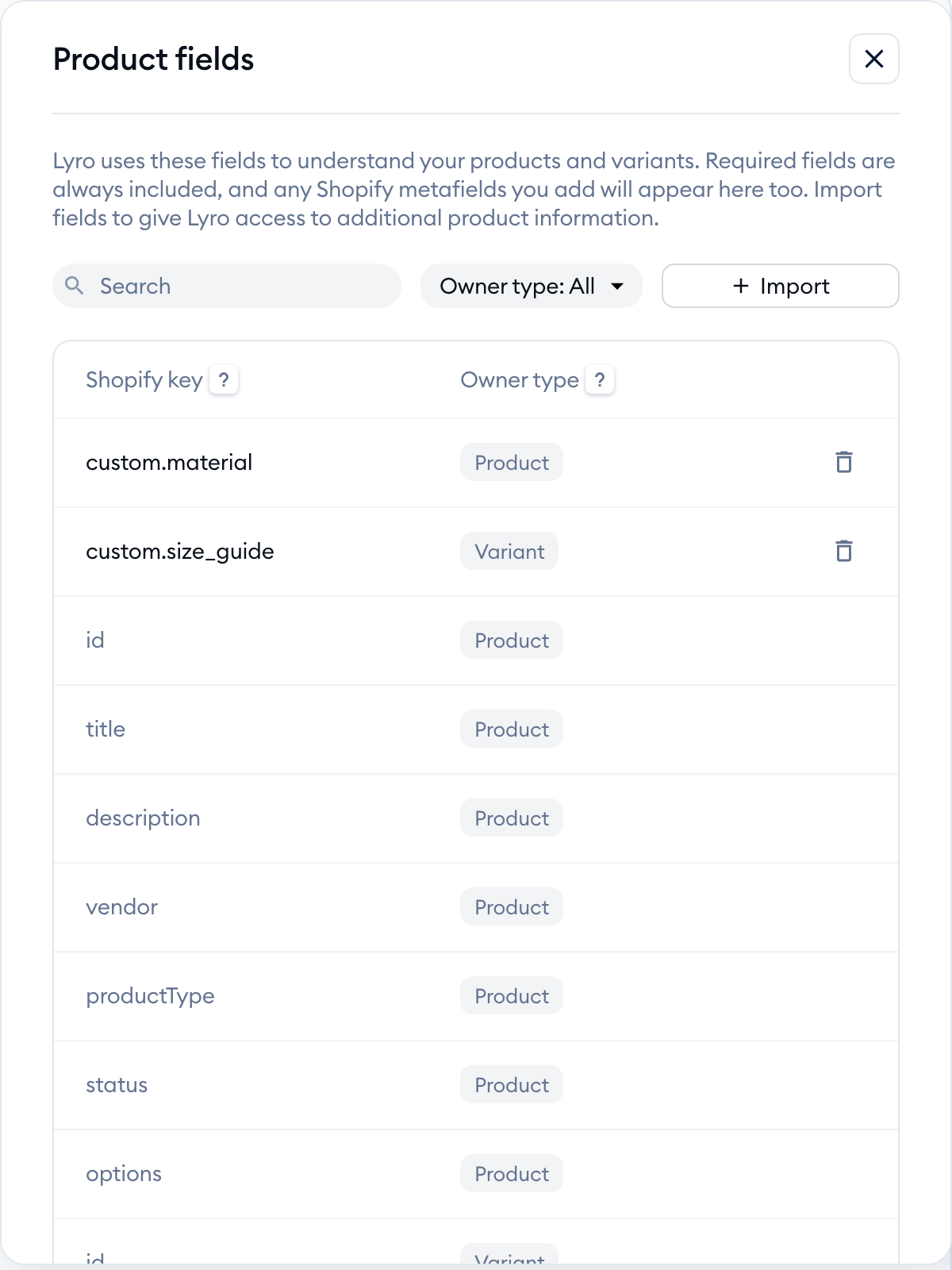
The Product fields panel will open on the right. It lists every field Lyro uses to understand your products and variants, with two columns:
- Shopify key - the unique identifier of the field in Shopify (it's case-sensitive)
- Owner type - whether the field belongs to a Product or to a Variant
The required fields are greyed out: they're added by default and can't be removed. Use the Search box and the Owner type filter above the table to find a field quickly:
Importing metafields detected in Shopify
To add metafields, click on the Import button in the Product fields panel. The Import Shopify fields window will open, listing the metafields Tidio detected in your Shopify store (the ones you've already added aren't listed):
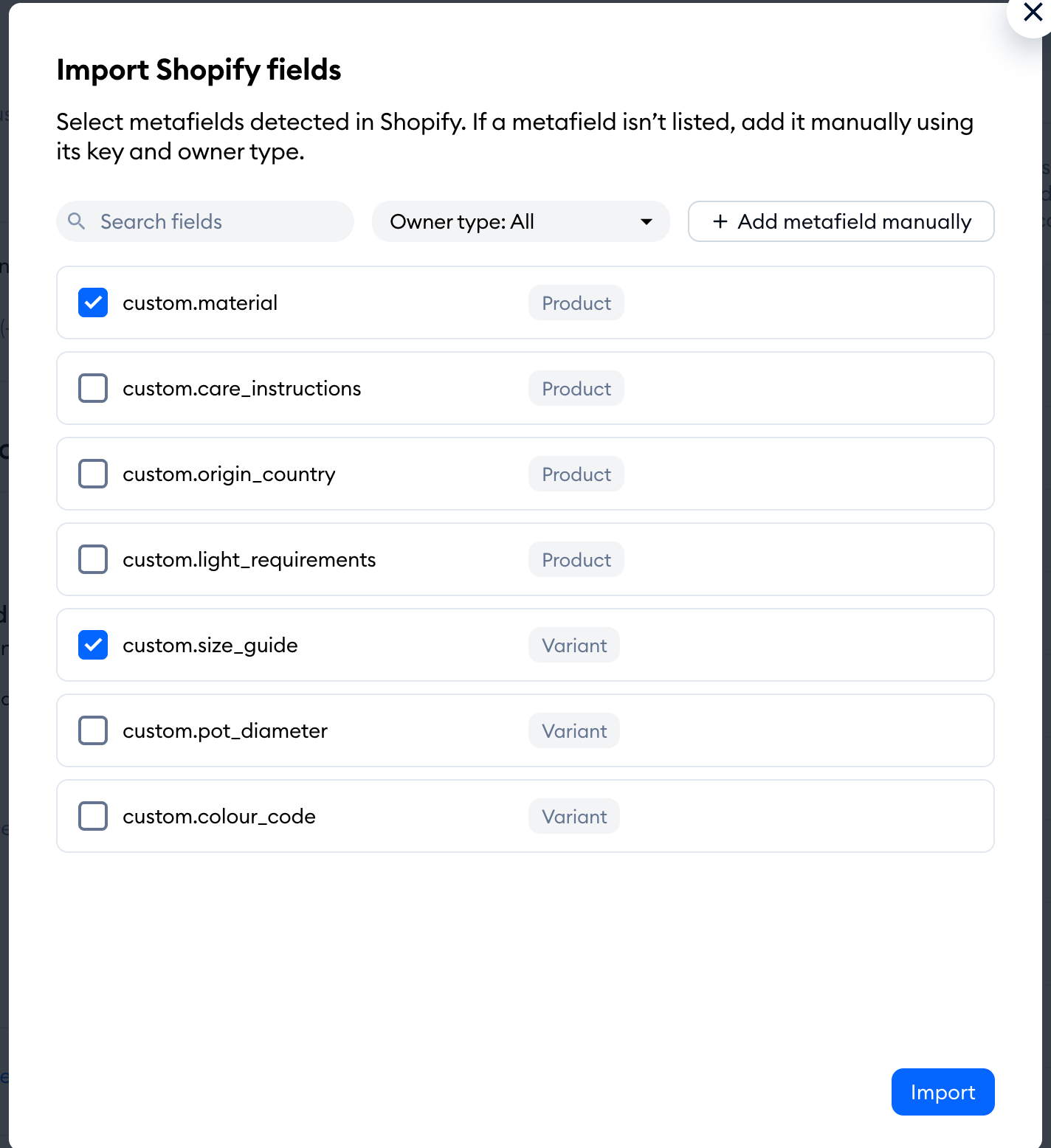
Simply tick the metafields you'd like Lyro to read - you can click anywhere on a row to tick it. Use Search fields and the Owner type filter to find them faster in a long list. When you're ready, hit Import.
That's it! You'll see the message Shopify metafields are syncing. This may take a few hours. While the sync lasts, a loading icon shows next to Product fields on the card - hover over it to see the same message. Once it's gone, Lyro can use your new fields:

Please note: you can add up to 5 variant metafields in total, including those you've already added. If you try to import more, you'll see You can add up to 5 variant metafields in total, including those you’ve already added. and the Import button will be greyed out until you untick some of them.
Adding a metafield manually
Can't find your metafield in the list? You can add it by hand. In the Import Shopify fields window, click on Add metafield manually. A new row will appear at the top of the list:
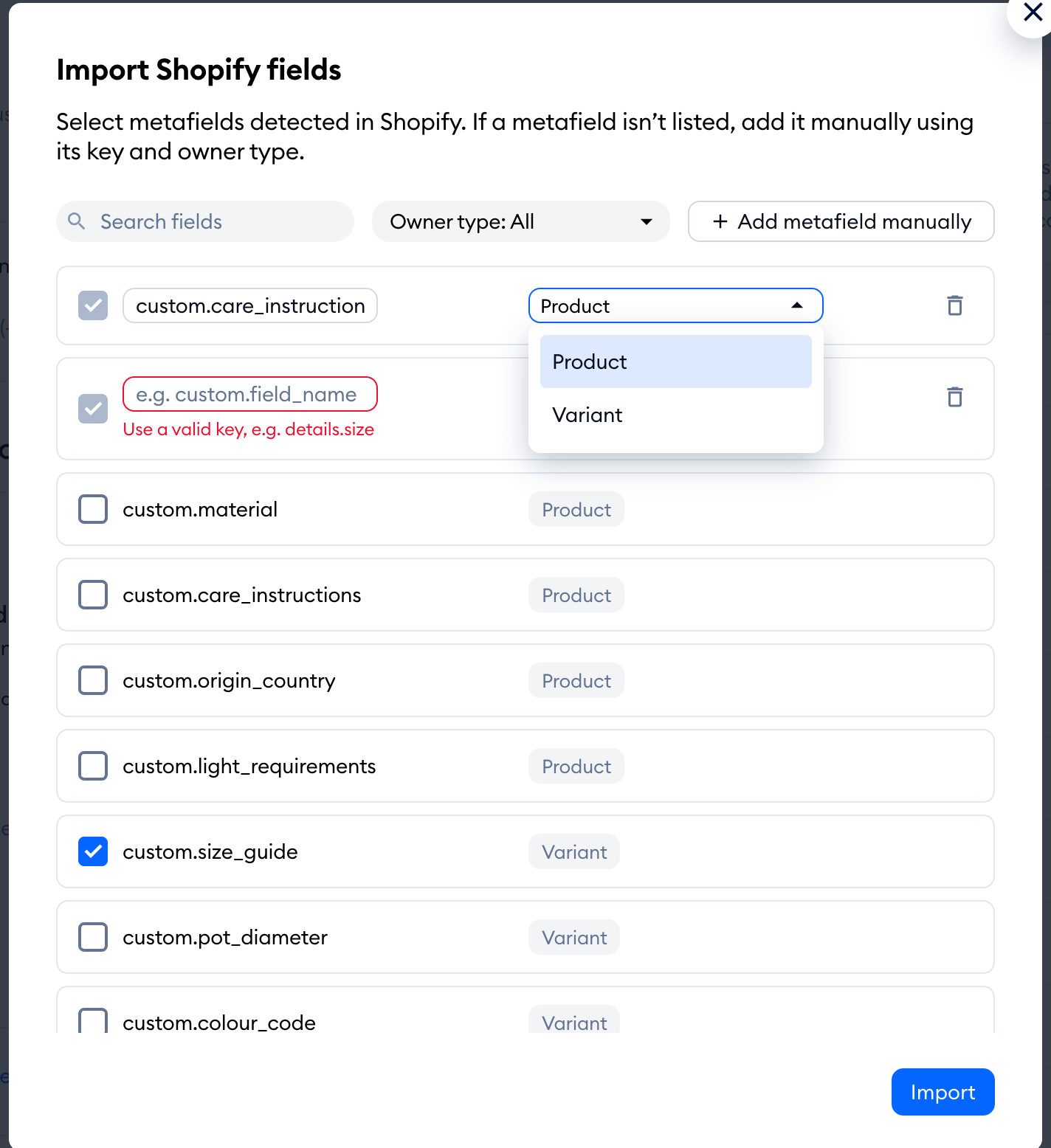
- In the first field, type in the metafield's key as it appears in Shopify - its namespace and key, separated by a dot, like custom.care_instructions (the field shows the example e.g. custom.field_name).
- In the Owner type dropdown, choose Product or Variant.
Need more than one? Click on Add metafield manually again. To remove a row you don't need, click on the trash icon on its right. Then, hit Import, just like with the detected metafields - you can import detected and manual metafields in one go.
If something's missing, the row will tell you: Use a valid key, e.g. details.size when the key isn't in the namespace.key format, or Owner type is required when you haven't picked the owner type.
Removing a metafield
To stop Lyro from using a metafield, open the Product fields panel, and click on the trash icon on the right of the metafield. It's removed right away, and you'll see Field deleted successfully:
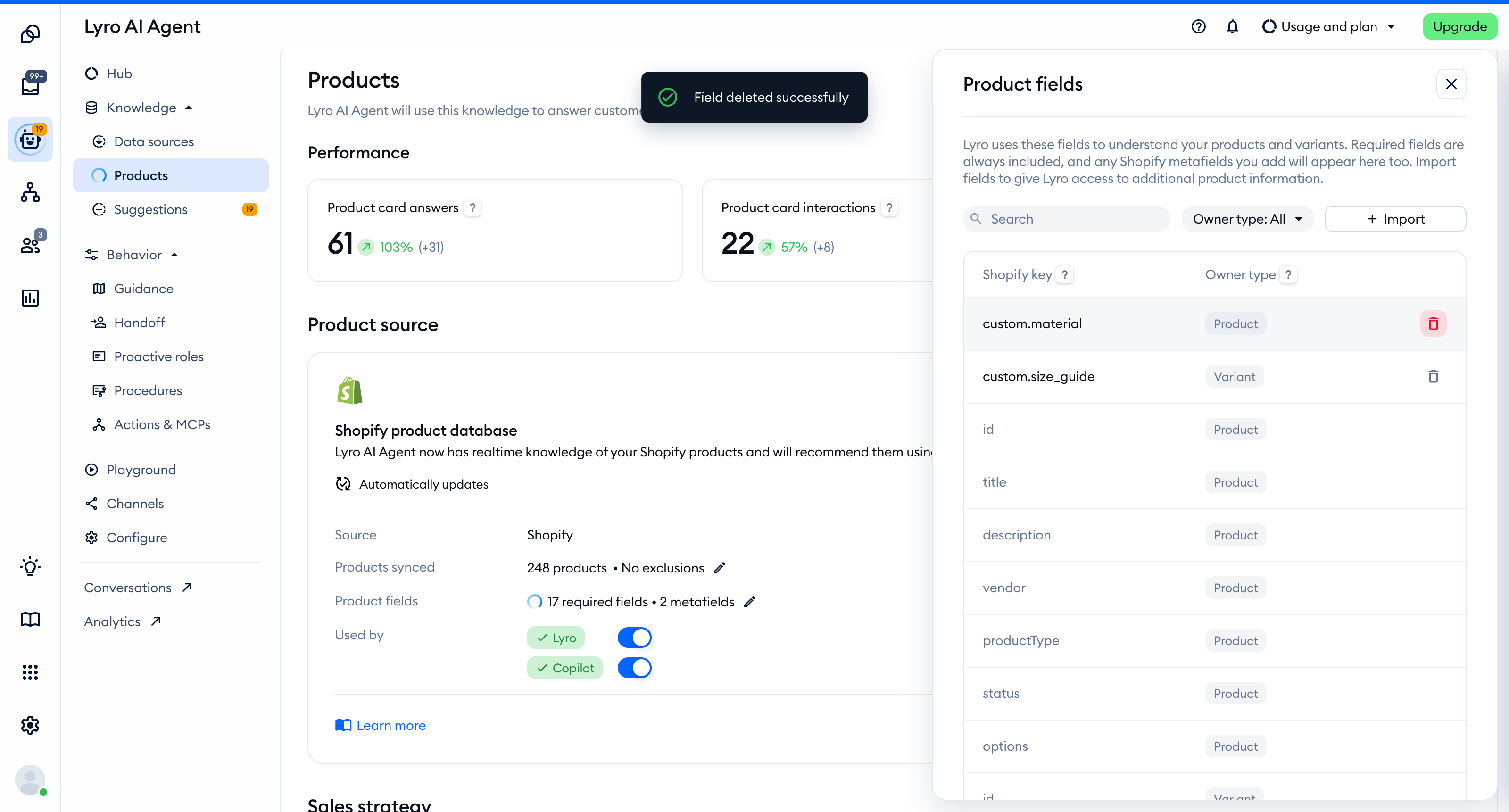
Naturally, this doesn't change anything in your Shopify store - it only removes the field from the list Lyro reads. You can import it again at any time.
When a metafield is no longer available
If you delete or change a metafield in Shopify after importing it, Tidio won't be able to find it anymore. The next time you open the Product fields panel, you'll see the Some metafields are no longer available window, listing them under Unavailable fields:
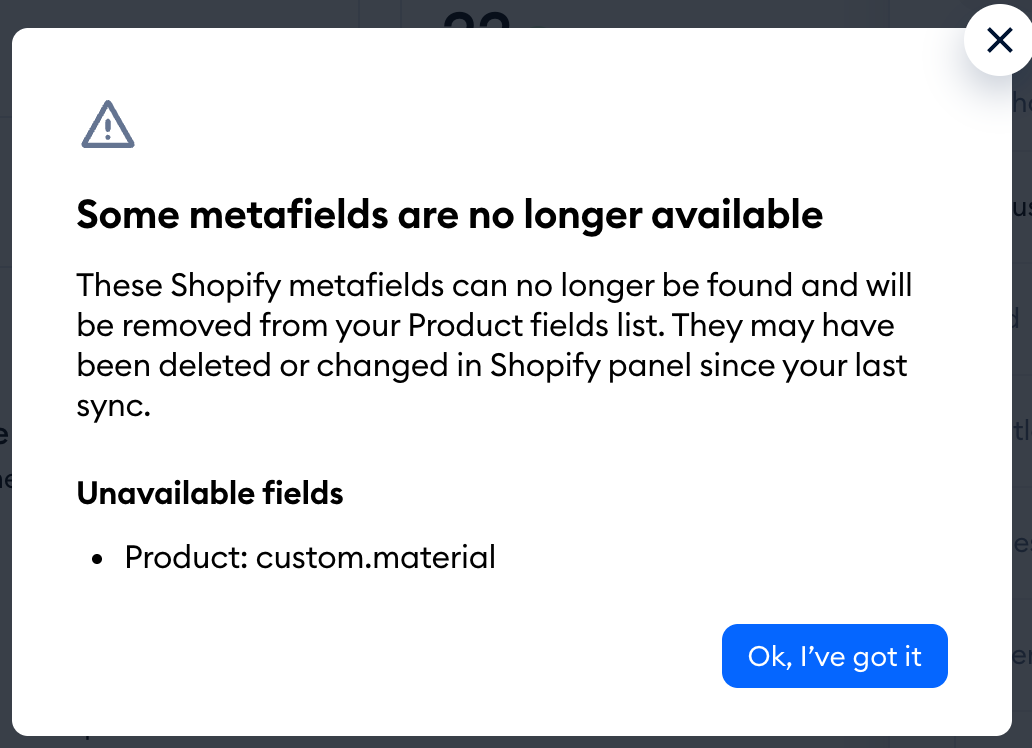
These metafields are removed from your Product fields list automatically. Hit Ok, I’ve got it to close the window. If you still need the information, check the metafield's new key in Shopify and import it again.
Please note: this check covers the metafields you imported from the detected list. Metafields you added manually stay on your list until you remove them.
