Would you like to see Lyro (the AI agent) recommend your products before you pay for it? When you connect your product catalog to Lyro, Tidio may offer you a free 7-day trial of a paid Lyro plan - in the panel, it's called Lyro premium.
During the trial, Lyro gets full access to its premium features, including product recommendations that stay in sync with your catalog. Your paid plan begins automatically after the trial, and you won't be charged until the trial ends.
In this article, you'll learn:
- How to start the trial
- How to confirm it with your card or through Shopify
- What happens during and after the trial
Please note: this trial isn't offered to every account, and it's separate from the 7-day full-featured trial every new project starts with. If you don't see the window described below, choosing a product source simply takes you to connecting your products, or to the upgrade options if your plan doesn't include product recommendations.
Starting the trial
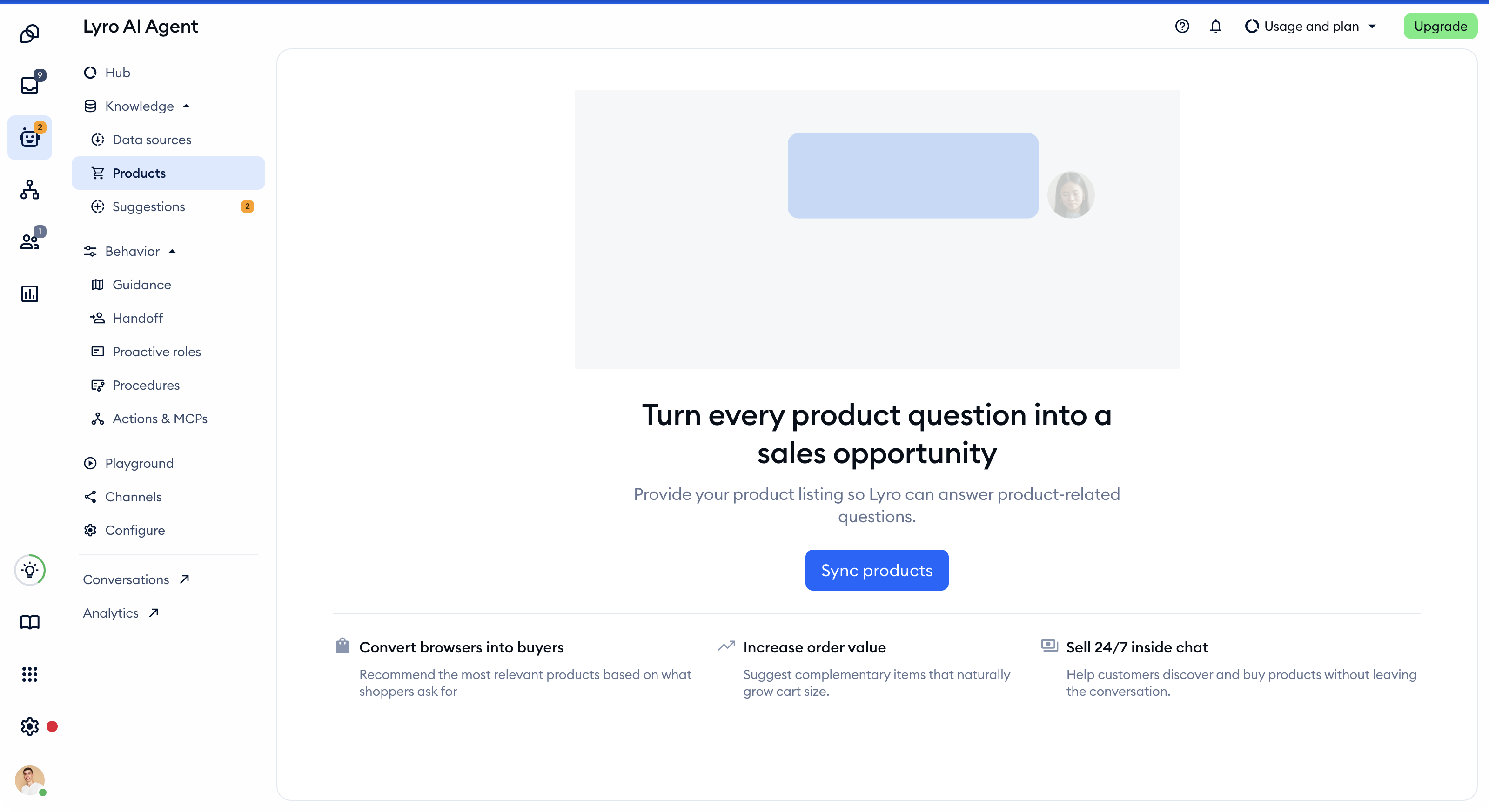
Head over to the Lyro AI Agent section of your Tidio panel, and open Knowledge > Products. If you haven't added any products yet, you'll see the Turn every product question into a sales opportunity screen. Simply click on Sync products:
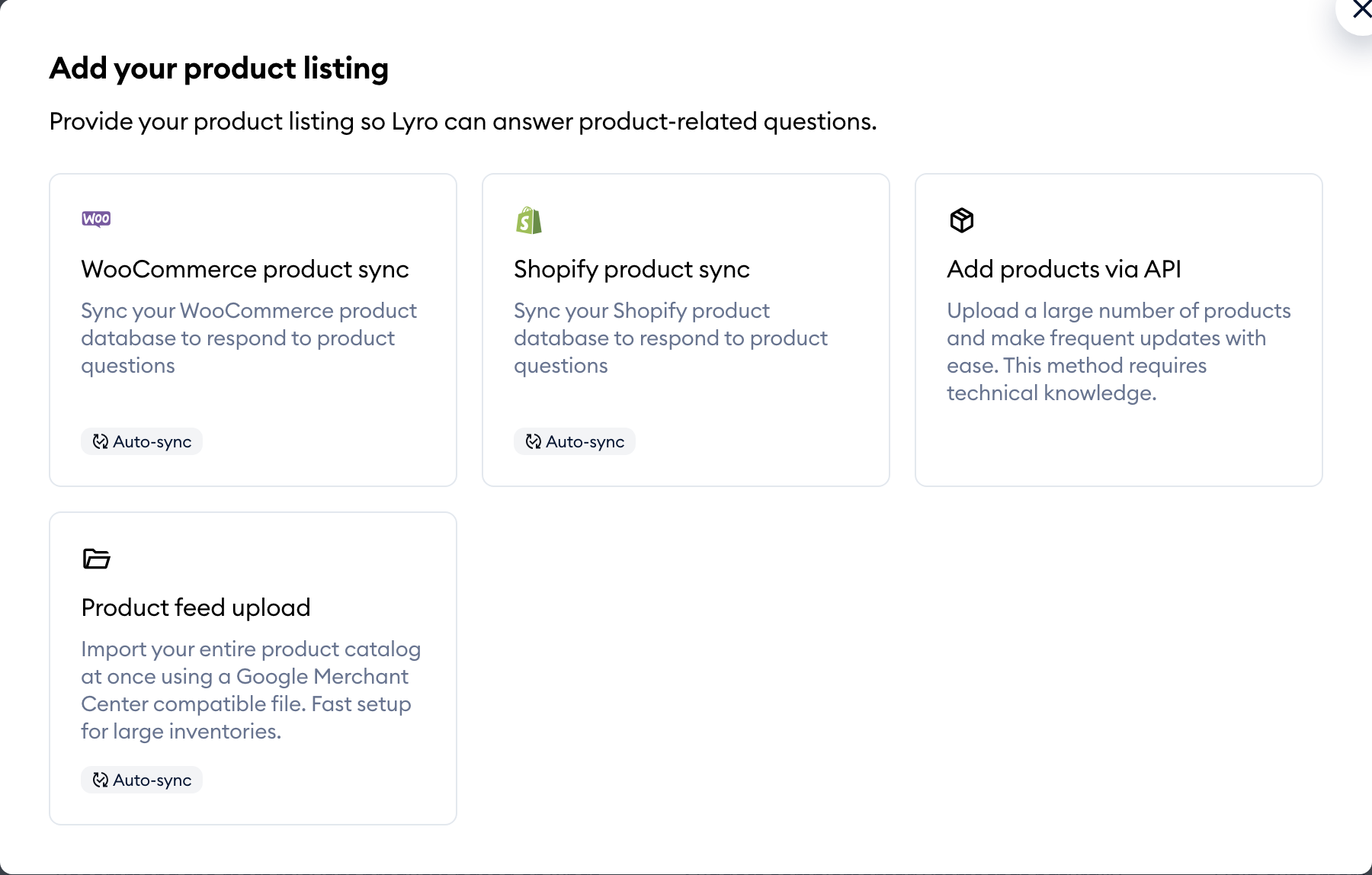
In the Add your product listing window, pick the way you'd like to add your products: Shopify product sync, WooCommerce product sync, Add products via API or Product feed upload:
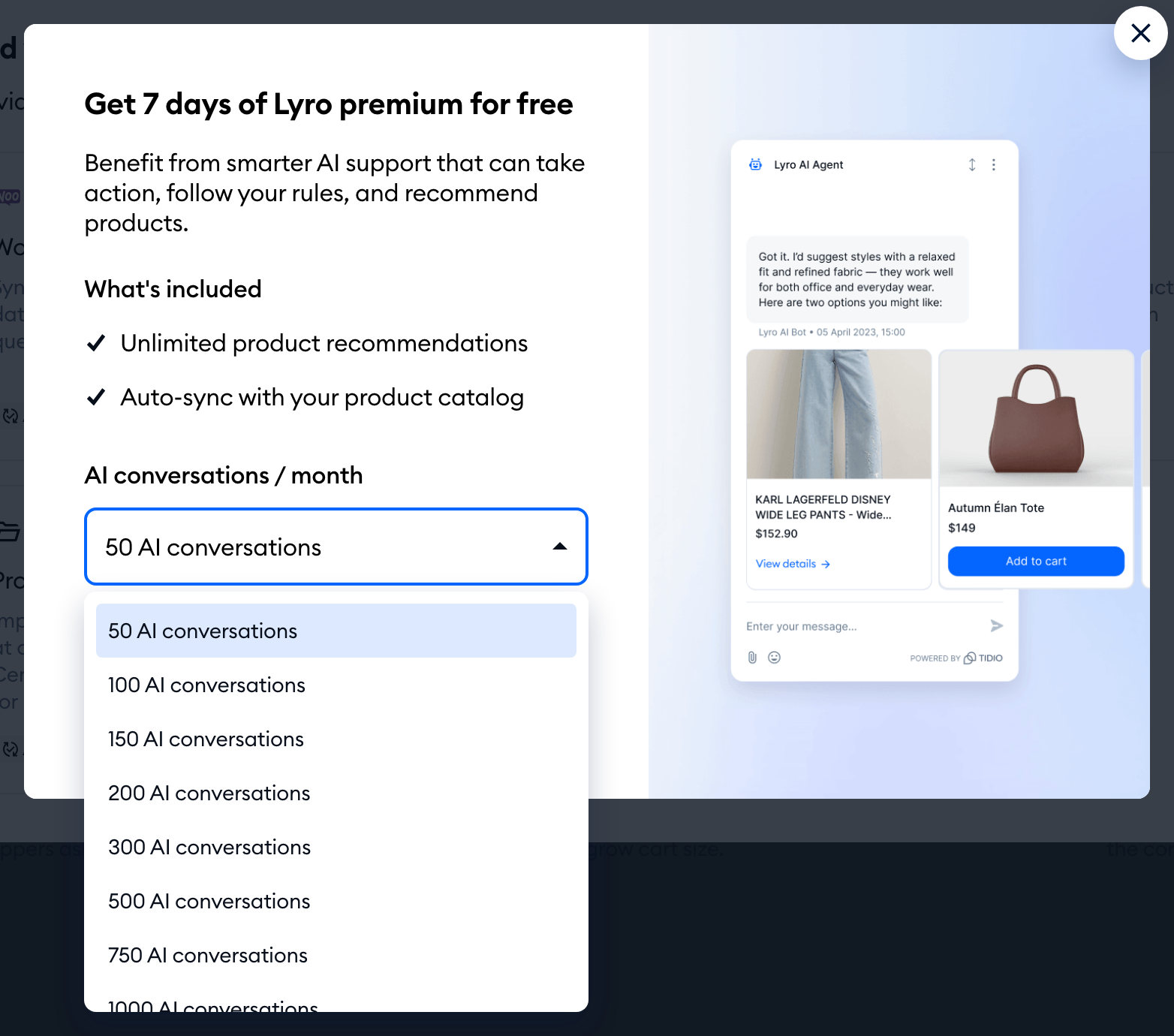
If the trial is available for your account, clicking any of these opens the Get 7 days of Lyro premium for free window. Under What's included, you'll find Unlimited product recommendations and Auto-sync with your product catalog.
Choose how many AI conversations a month you need under AI conversations / month, and hit Get your free trial. Right below the button, you'll see the date until which you won't be charged:
Confirming your trial
What comes next depends on how you pay for Tidio.
Paying by card
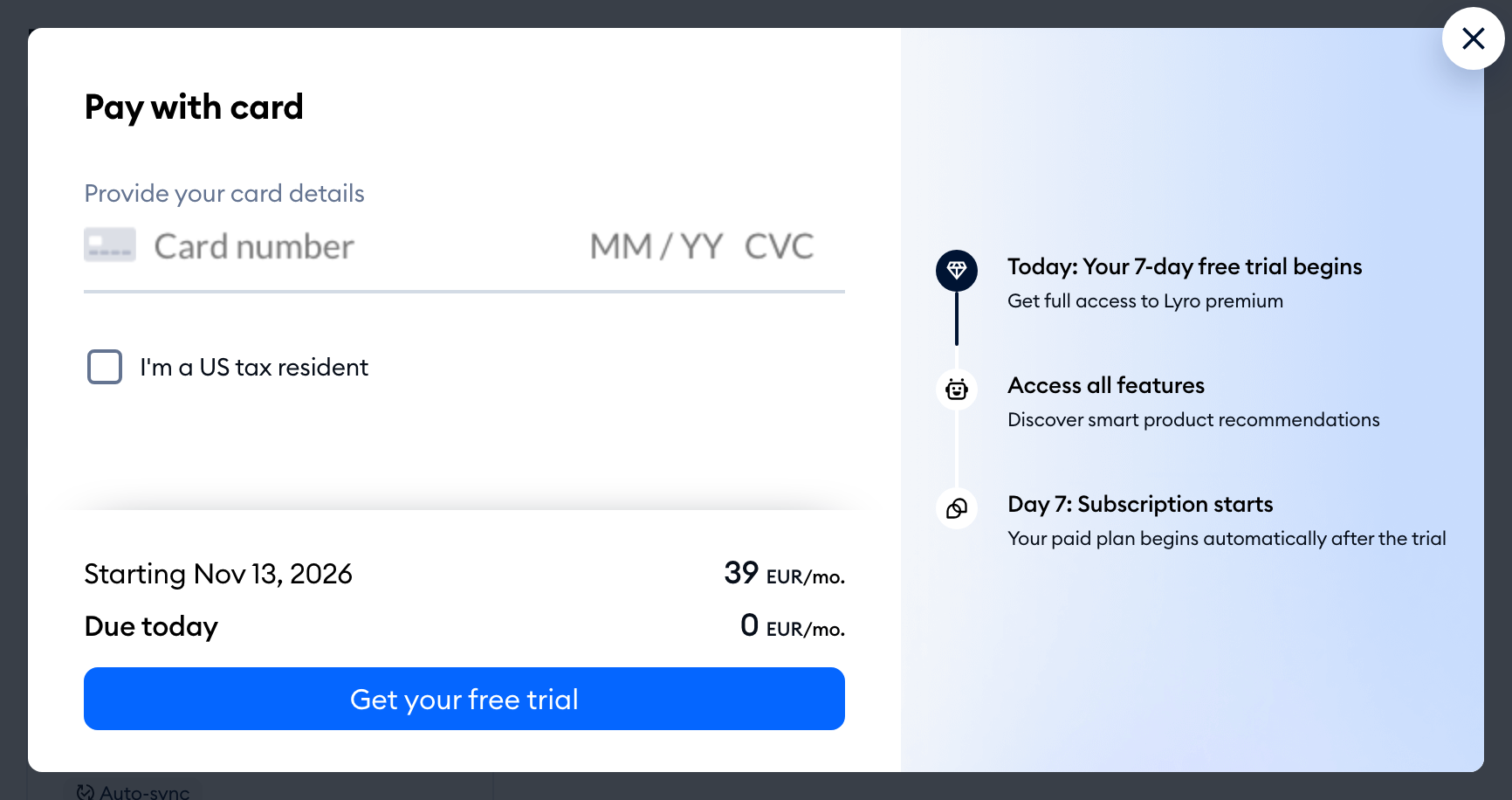
The Pay with card window opens. Fill out your card details - on the right, a short timeline shows how the trial works:
- Today: Your 7-day free trial begins - you get full access to Lyro premium;
- Access all features - discover smart product recommendations;
- Day 7: Subscription starts - Your paid plan begins automatically after the trial.
Under the form, you'll see the price of your plan starting on the day the trial ends, and the amount Due today, which is zero. If everything looks good, hit Get your free trial:
Once the payment method is confirmed, you'll see Congrats! Your subscription is active. Click Ok, got it!, and the panel will refresh.
Paying through Shopify
If you pay for Tidio through Shopify, you'll see the Get your free trial window instead. It shows your Lyro premium plan with nothing due today, the number of AI conversations you've chosen, and the same timeline. As the window says: Confirm your plan, then finish checkout securely in your Shopify admin panel.
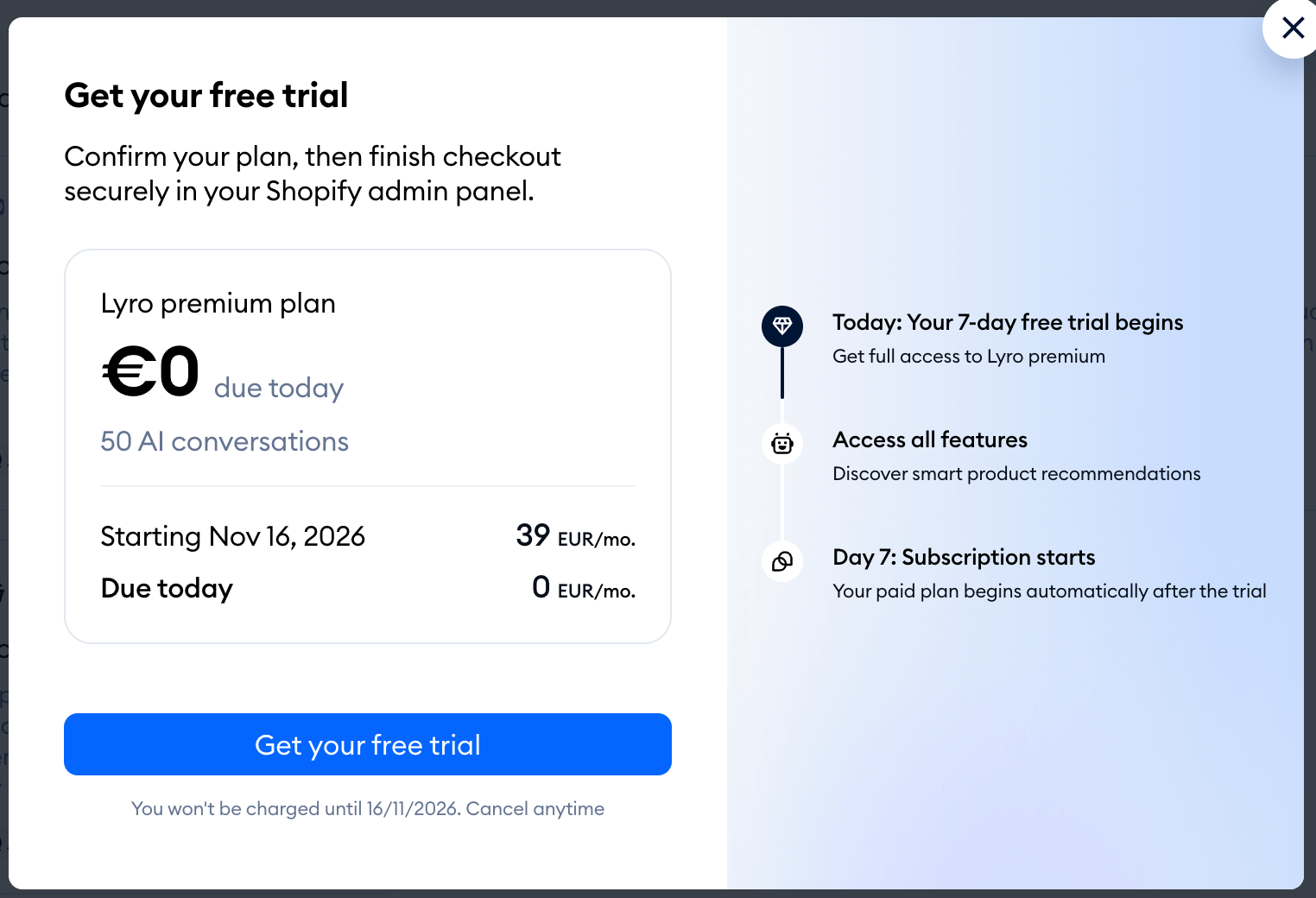
Hit Get your free trial, and finish the checkout in Shopify. When you're done, you'll see Congrats! Your subscription is active and come back to Knowledge > Products, with the Add your product listing window open, so you can connect your products right away.
During and after the trial
While the trial runs, the number of days left in your trial is shown in the top bar of the Tidio panel:

Now you can connect your products as usual - for example, with the Shopify product sync or a product feed upload.
When the 7 days are up, your paid Lyro plan begins automatically. If you decide it's not for you, you can cancel it in Settings > Project > Billing - see Manage your subscription for the steps.
