Tidio’s Product Recommendations is an exciting AI innovation, where Lyro recommends products to your visitors when they ask for specific product advice.
This guide focuses on making Product Recommendations possible by connecting your product feed directly to Lyro through a file (which must be compatible with Google Merchant Center formatting - which we also refer to in this article). If you are using Shopify or WooCommerce, we have dedicated integration methods that will allow you to use Product Recommendations through their dedicated systems; please see our detailed guides on that method here (for Shopify) and here (for WooCommerce). In addition to that, please see this article to learn about the Product Recommendations engine via OpenAPI, if that is a method that suits you better.
In this article, you will learn:
- Who Product Recommendations (via Product Feed upload) is available to
- How Product Recommendations work in practice
- What conversation types can be handled
- How to set up Product Recommendations in Tidio
- How your product feed is updated
- How to pause Product Recommendations
- How to delete your product source
- What the limitations are
Who can use Product Recommendations (via Product Feed upload)?
Product Recommendations lets your Lyro AI agent assist your visitors with product questions. For Lyro to answer these questions, you will need to connect your product database with your Tidio project - which is done by directing Lyro to your raw product feed file. This will allow your product database to be utilized as knowledge for Lyro. Please note that Lyro understands your product information in multiple different languages!
As long as you have a correctly-formatted file, you can connect it with Lyro, and that will serve as the product feed for the Product Recommendation engine. This method is platform-agnostic, meaning that it will work for any store, as long as it is done properly. Importantly, the file must be compatible with Google Merchant Center, and in XML format. You can connect one such file to your Tidio project at a time.
For details on how to make your file compatible, please see this official Google Merchant Center guide where they share the specifications.
The product feed URL must be completely public; not protected by any password, VPN, or IP filtering. If you are using any security plugins on your website site, you might also need to ensure automated fetchers aren't getting blocked.
To use Product Recommendations, you also need to be a subscriber of the Lyro AI Agent package in Tidio (or the custom Plus package, of course). The Product Recommendations tool is also available during the initial free trial.
When you pick a product source, Tidio may also offer you a free 7-day trial of a paid Lyro plan - see The 7-day trial of a paid Lyro plan for the details.
Please note: Lyro can detect a visitor's current URL automatically, which allows you to use this information in product-related responses. This is especially valuable if Lyro is asked about a product that the visitor is currently viewing on your website. Lyro will be aware of the product being browsed and won't need to ask the visitor about the details first, nor use any previously-recorded data.
Product Recommendations in practice
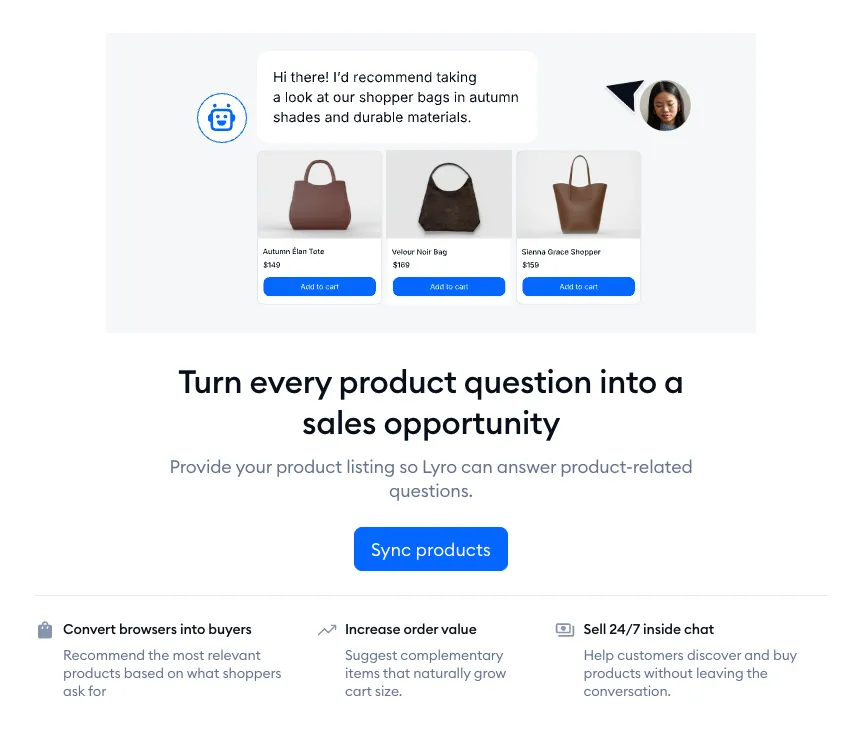
Once you synchronise Lyro with your product database (we cover this later in the article), your AI agent will be able to guide your customers to the right products. Lyro will be proactive, asking questions that help find what the customer is looking for, and offering options and advice wherever appropriate.
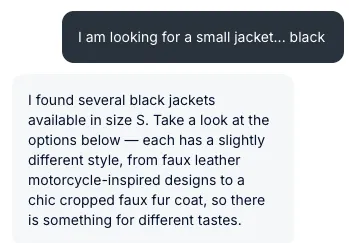
Any recommendation Lyro has will be presented in the form of cards, which can be scrolled horizontally inside the Tidio widget. The cards include pictures, product names, and prices. Each card can be clicked to visit the product page directly as well, in addition to the View details link.
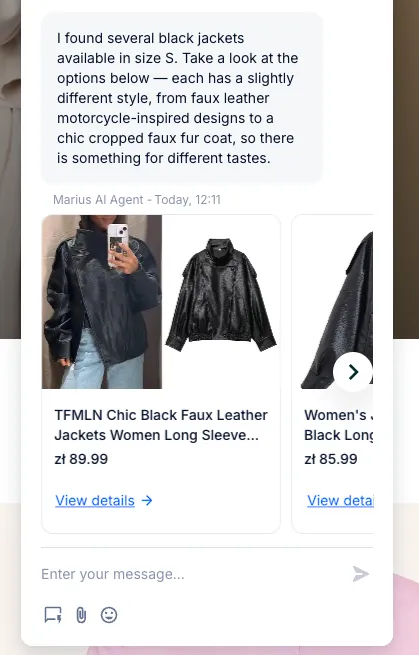
This helps your customers find products and make decisions quickly, without having to browse your store manually in search of the perfect item. If you're using Shopify or WooCommerce, please note that the View details link is replaced by the direct Add to cart button by default - and there is the additional setting of using either option, depending on your preference.
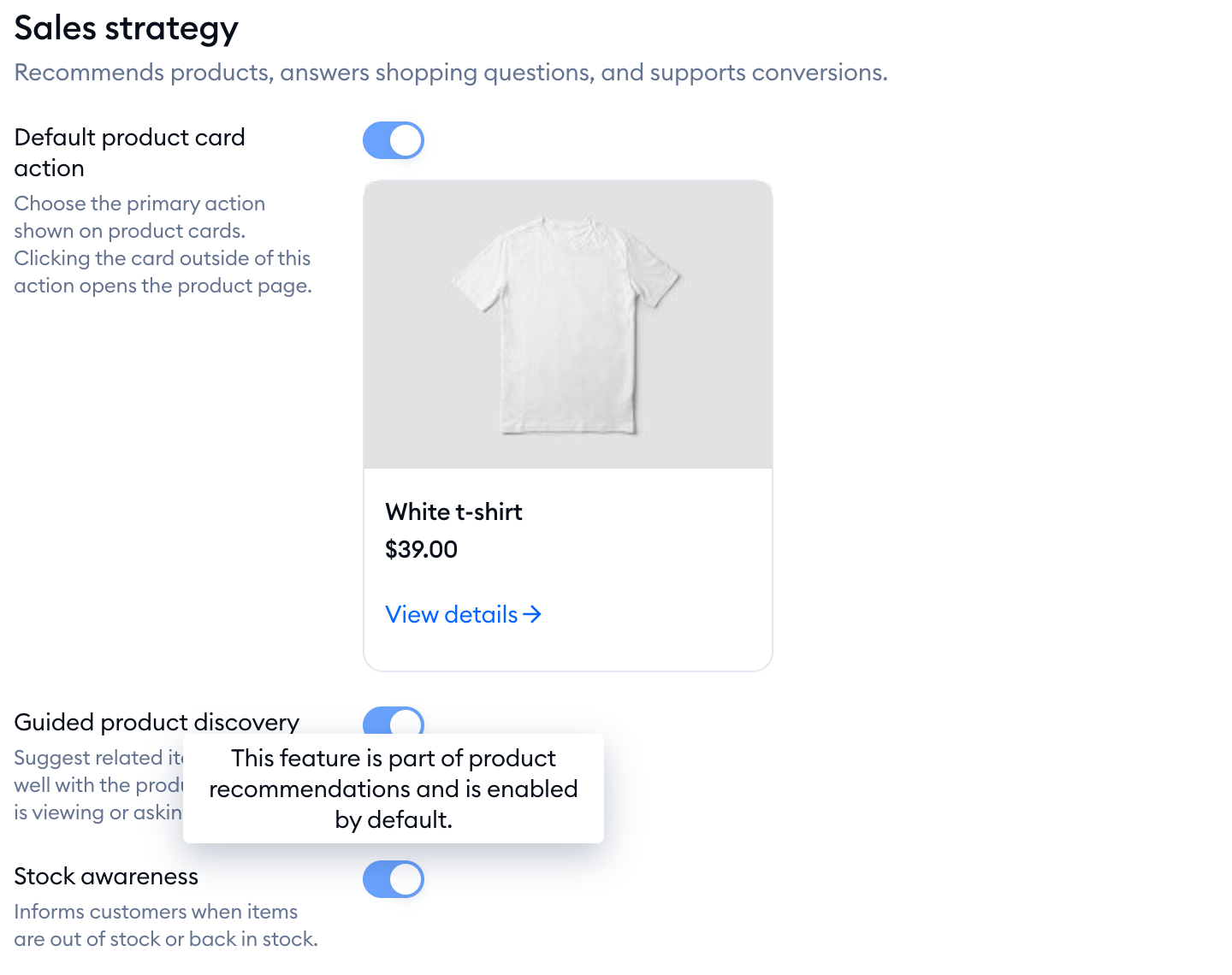
With a product feed, your cards always use View details. In the Sales strategy section of the Products page, Default product card action is switched on and can't be changed, and so are Guided product discovery (Lyro suggests related items that go well with the product a shopper is viewing or asking about) and Stock awareness (Lyro tells customers when items are out of stock or back in stock):
Conversation types handled by Product Recommendations
Using Product Recommendations, Lyro can help your visitors in the following ways:
- Specific product search - find a specific product
- Broad product recommendation - help choose products
- Product variant recommendation - find products with variant limitation
- Complementary product recommendation - find products that work well together (if mentioned in product description)
- Alternative product recommendation - find products with similar properties
- Product comparison - compare two (or more) products
- Price range recommendation - find products based on price point
- Seasonal product recommendation - find new products or products in collections
Setting up Product Recommendations
To begin your setup, navigate to the Lyro AI Agent section in your Tidio panel, and open the Products tab:
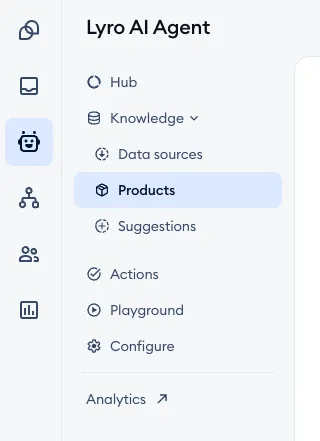
Inside, use the Sync products button to see the available options:
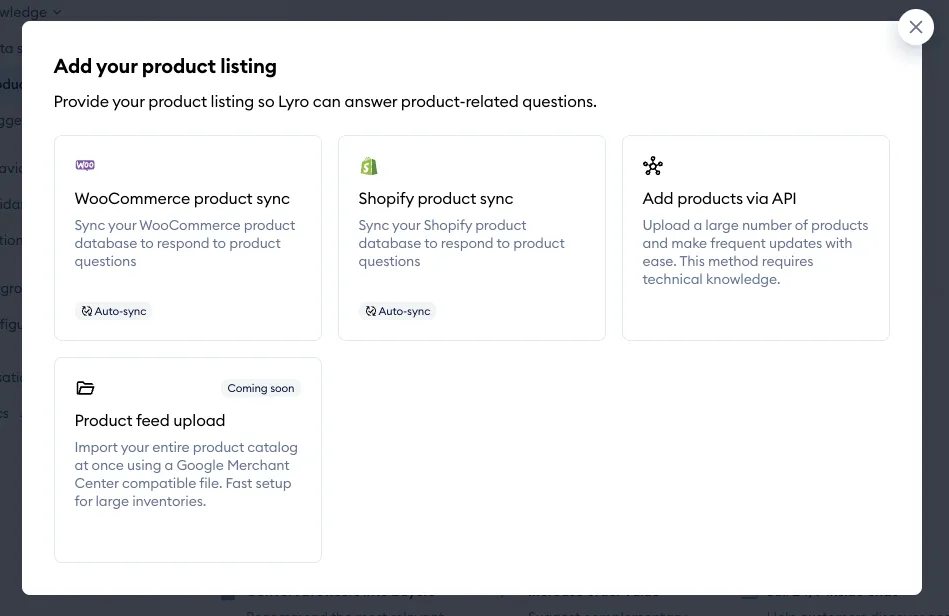
Inside, you will see the available options: WooCommerce product sync (which is described separately in this guide), Shopify product sync (described in this guide), and Add products via API (described in this guide). The option we're covering here is Product feed upload:
Once you click on that option, a popup will appear, prompting you for the file address:
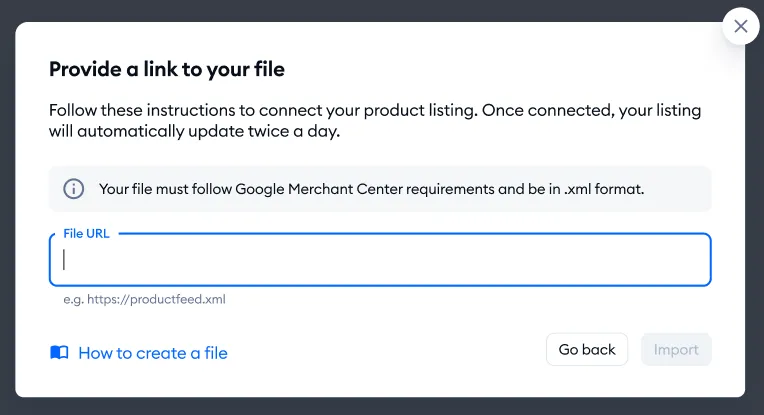
In the Provide a link to your file window, paste the link into the File URL field, and hit Import. As the window says, Your file must follow Google Merchant Center requirements and be in .xml format.
Please note: you must provide the direct link to the file itself, and make sure that the URL is publicly accessible. The link must start with https. If something is wrong with the file, the window tells you what to fix, for example:
- This link is not available. Check if the link is public and correct.
- The provided file is not valid XML. Please provide a valid XML feed.
- Some required fields are missing. Add all required Google Merchant fields.
- Currency could not be detected in the feed. Please ensure your products include valid currency information.
Please note: your project uses one product source at a time. If you've already connected another source (like Shopify or WooCommerce), you'll see Another product source is already connected. Remove it before adding a product feed. - delete that source first. You can also add new or previously deleted sources up to two times within 24 hours; after that, the tiles are greyed out with the message You’ve reached your 2-upload limit for the last 24 hours. Please try again later.
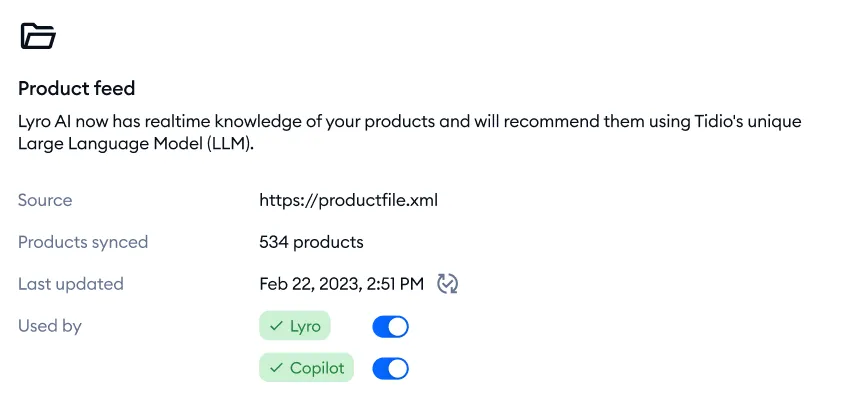
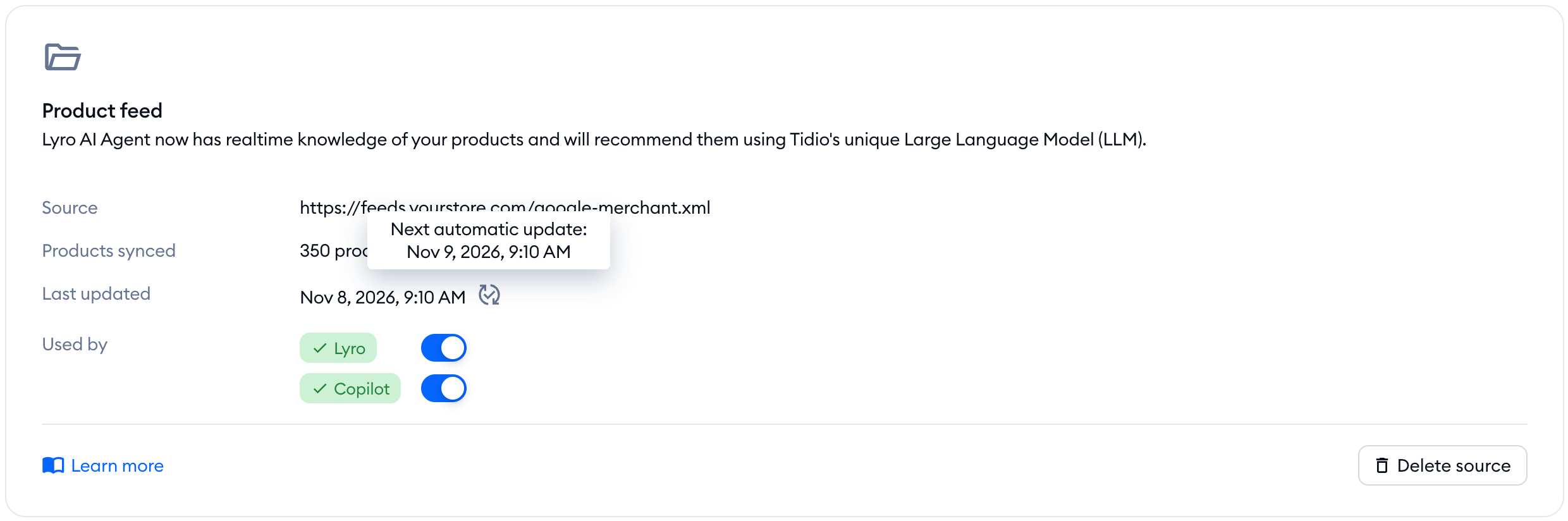
Once the upload finishes, your product database will become visible on the Products page, in the Product feed card: the Source (your file's link), the number of Products synced, the date it was Last updated, and the Used by switches that decide whether the database is used by Lyro and/or Copilot.
From now on, Lyro (and Copilot) will be able to connect with your product database and refer to your products during conversations.
You can test Lyro's capabilities regarding Product Recommendations by using the Test product answers button in the upper-right of the Products section, after you've connected your database. This lets you try the feature without actually enabling it for Lyro, allowing you to make sure everything is working as expected before going live.
Updating your product feed
Good news: once connected, your listing automatically updates twice a day, so simply keep your file up to date. On the card, Last updated shows when the last update happened - hover over the icon next to it to see when the next one is due (Next automatic update):
If an update fails, you'll see a message at the top of the page: We couldn't complete the last sync. It tells you when the next sync is scheduled and links to Review product upload requirements, so you can check that your file is valid. If no products could be synced at all, the message asks you to delete the source and try again.
Some products in your file may also fail to sync. In that case, click on Review products (next to Products synced on the card) to open the Resolve product issues window, with the Name, Product ID, Sync date and Error description of each product. Fix them in your file before the next automatic update.
Pausing Product Recommendations
You can temporarily disable Product Recommendations anytime, from within the Products tab inside your Lyro AI Agent section. Notice the Used by options at the bottom, where you can disable (or enable) the Lyro and Copilot switches:
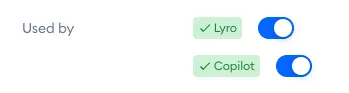
This allows you to keep Lyro (and/or Copilot) from using your Product Recommendations database. You can switch any of these options back on again whenever you like.
Deleting your product source
Want to use a different file, or switch to another product source? Click on Delete source at the bottom of the card, and confirm with Delete:
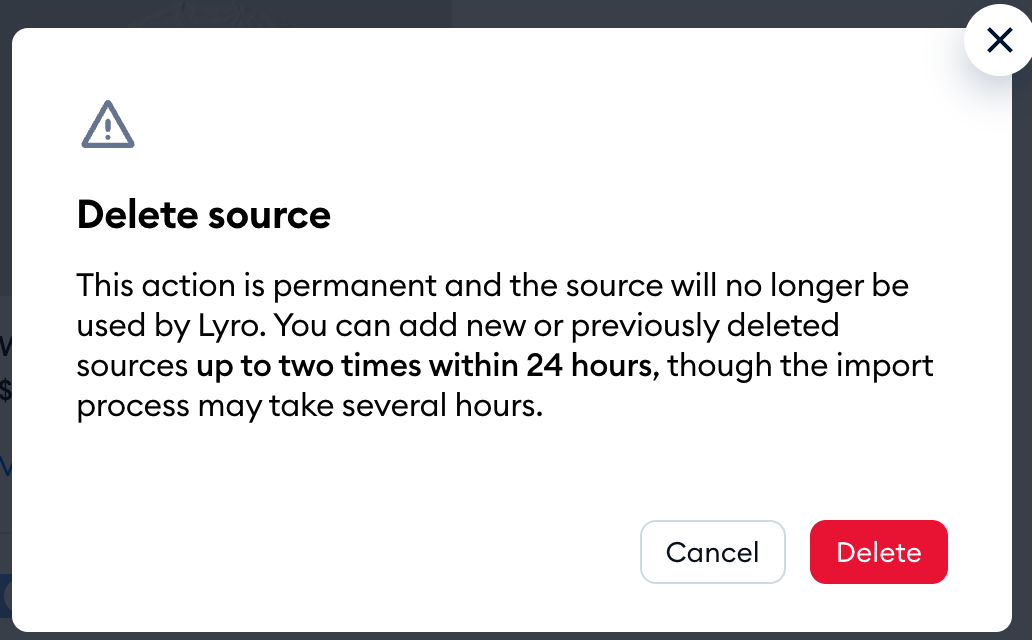
Then, add your new source with the Sync products button. Please keep in mind that deleting is permanent, you can add new or previously deleted sources up to two times within 24 hours, and the import may take several hours.
Product Recommendations limitations
Lyro AI Agent subscription
Using Product Recommendations is only possible if your project is subscribed to the Lyro AI Agent package.
Visitor currencies
Only one currency is supported per product feed upload, and it is detected during your first import only. If the currency in your target file is changed, the product feed would need to be uploaded again.
