Want to use the full power and convenience of AI responses without losing your personalized touch with visitors? Are you curious about Lyro but not quite ready to use it yet? You can give Copilot a try!
Copilot is a tool that will generate suggested responses to incoming chat messages and tickets on request, so that you can modify them before sending (if necessary). Copilot helps you save time and effort, allowing you to focus on providing support your visitors deserve.
Please note: if you are using Guidance, know that the prompts do not affect Copilot. Guidance is restricted to affecting the Lyro AI agent only.
In this article, you'll learn:
- How to enable Copilot
- How to use Copilot
- How to use Copilot's AI improvisations
- How to enable (or disable) automatic response generation
Getting started
You don't need to turn on Lyro (the AI agent), or let it answer your customers, to use Copilot. What Copilot does need is knowledge: it uses the same data sources as Lyro, which you manage in the Lyro AI Agent section. You can, however, make sure Copilot's knowledge is separate or different from Lyro's.
You can learn how to add data sources in our dedicated quick setup guide. Lyro's Suggestions help, too - the answers you review and add there help both Lyro and Copilot respond better.
Once at least one data source is uploaded, you will see it listed in the Data sources tab of the Lyro AI Agent section:
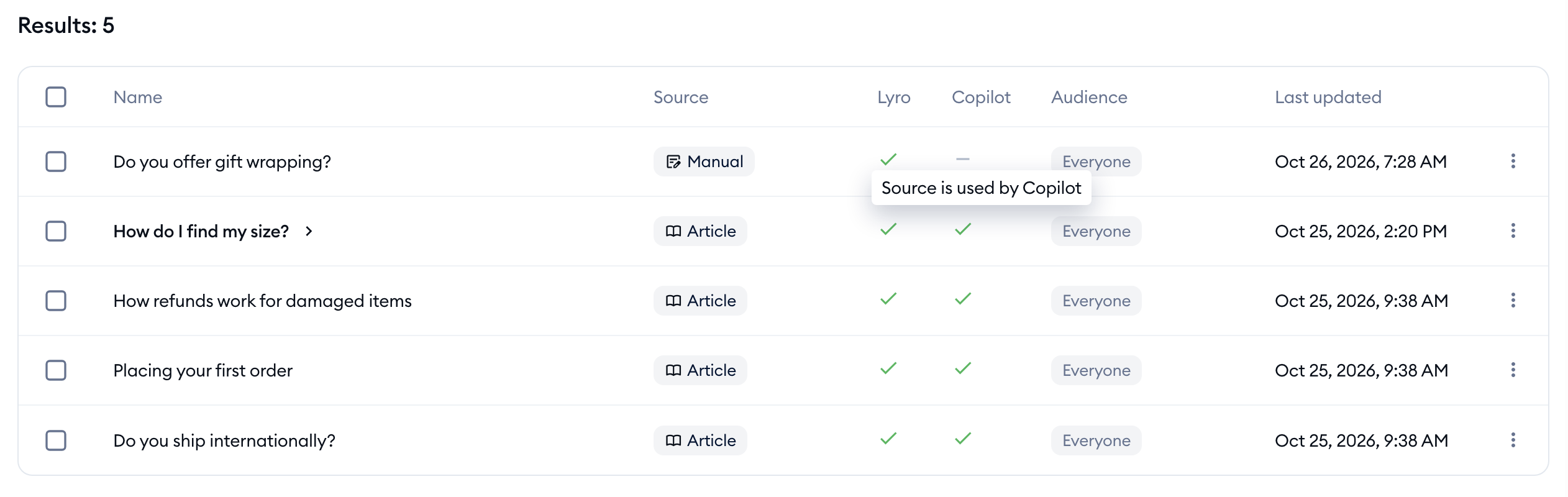
You will notice the Lyro and Copilot columns in the list. A green checkmark means the source is used by Lyro or Copilot, and a dash means it isn't (hover over it to see Source is used by Copilot or Source is not used by Copilot). That allows you to see if a particular source - like a question-and-answer (Q&A) pair - is being used by Lyro, Copilot, both (or neither).
To ensure Copilot is allowed to use the knowledge you've added, click on a specific Q&A pair, and in the Used by section of its details, turn on the Copilot switch:
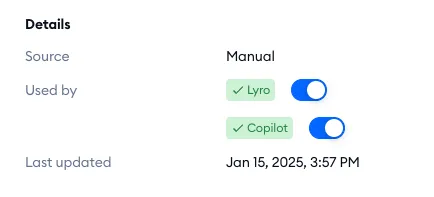
Naturally, you can also decide if the same piece of knowledge is used by Lyro as well.
Using Copilot in a conversation or ticket
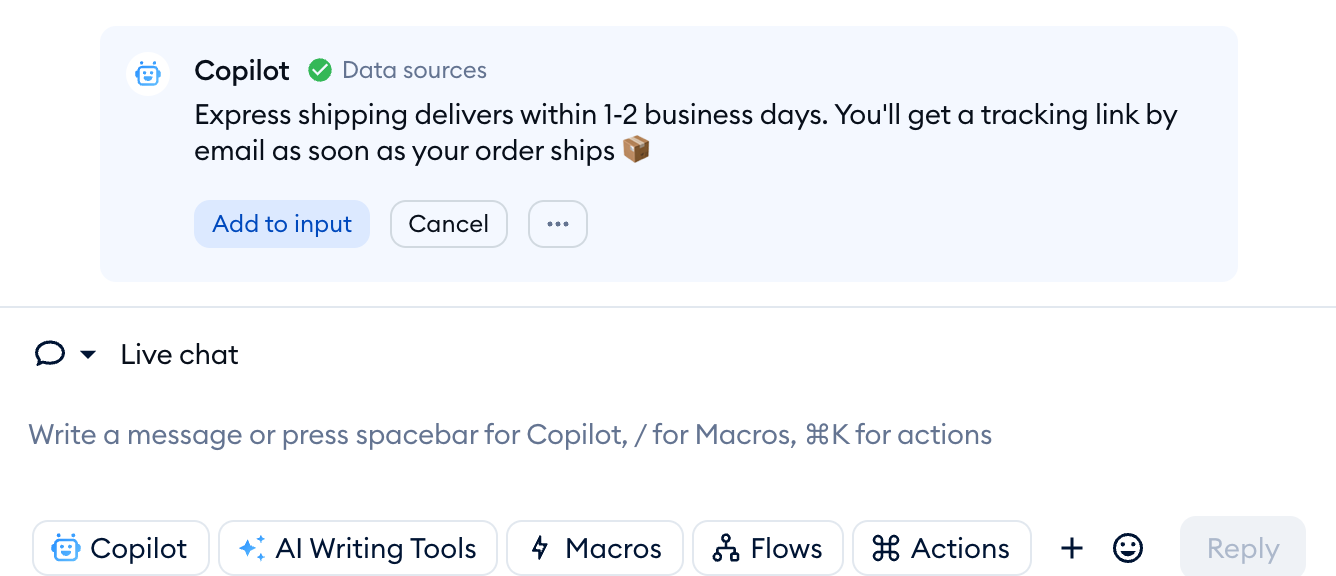
Once everything is set up, the reply box of every conversation will include the Copilot button in the bottom-left. Hover over it to see Copilot answer and its keyboard shortcut:

Even quicker: when the reply box is empty, simply press the spacebar - the reply box reminds you with Write a message or press spacebar for Copilot. You'll also find Copilot answer in Search actions (Cmd + K, or Ctrl + K on Windows).
Once clicked, Copilot will generate an AI suggestion for you to review (while it's working, you'll see Copilot is typing a response... - click on the X to stop it). The suggestion is displayed in the conversation itself, and will allow you to either use the suggestion or discard it completely with Cancel:
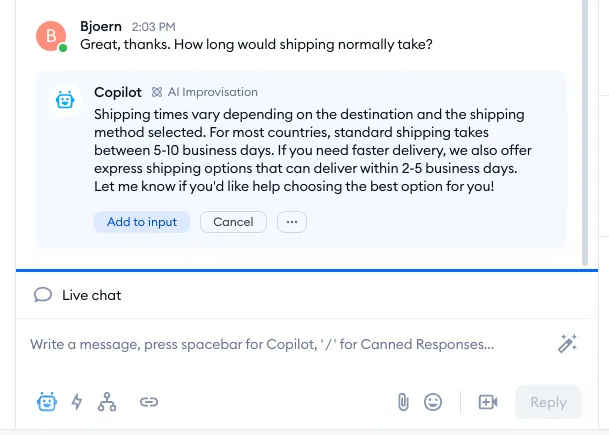
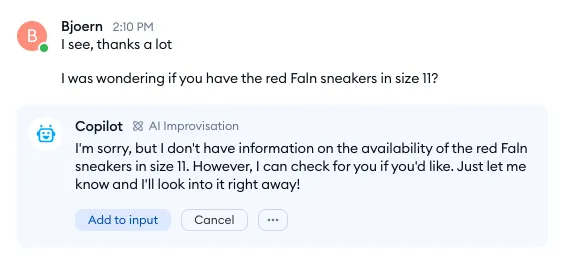
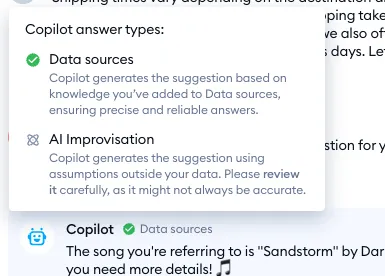
Notice how Copilot's suggestion (in the example above) includes the AI Improvisation tag above the suggested response; that means the suggestion is not based on any data sources. In cases like this, Copilot can entirely improvise a suggestion; see more on that in this section of the article. If Copilot's suggestion is based on your existing data sources, then the tag Data sources will be used instead:
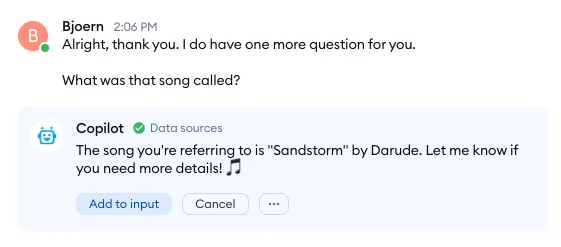
Once you click on the Add to input option, the message will appear in your input window - which means you will be able to either send it immediately, or modify it in any way you like first. In a live conversation, you need to join it first - until you do, Add to input is grayed out with the tip Join conversation first:
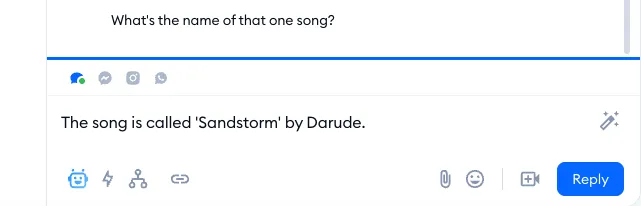
Naturally, you can also use Copilot when responding to tickets - note the same Copilot button in the bottom-left of the reply box. It's there when you reply to the customer, not when you write an internal note:
Copilot works in the Tidio mobile app too: in a conversation, tap the Copilot icon among the shortcuts next to your reply.
Please note: Copilot is one of the features of the Inbox AI add-on, together with AI Writing Tools, AI summaries and AI translations. If Copilot isn't included in your subscription, you'll still see the Copilot button, but clicking on it opens an upgrade window: Copilot drafts replies from your knowledge sources so your team can answer customers faster. In Search actions, Copilot answer shows a small diamond badge. Copilot also has a monthly limit - once it's reached, you'll see You’ve reached the limit of 1000 responses. It will be reset next month.
Using Copilot's AI improvisations
Copilot is not limited to just using your data sources; it can also improvise if no information is available. This means that Copilot will never leave you without any suggestion; it allows the tool to be more flexible and still give you elegant-sounding responses. Please keep in mind that these suggestions are not based on any data at all, so it's crucial to review and modify them!
Whenever Copilot generates a suggestion that is improvised, it will be tagged with AI Improvisation above the suggestion itself:
You can hover your cursor over that tag and see more details on what the possible tags mean:
In some cases, the suggestions can include placeholders, i.e. places in the message that you need to replace with actual information. This can relate to specific numbers or names (e.g. order numbers, prices, etc.), where it would be inappropriate for Copilot to simply improvise some data:

As with all AI improvisations, you should review this type of suggestion and modify it as necessary.
Please note that you can navigate to the Data sources section directly from a conversation or ticket, where Copilot had to improvise for a suggestion. That way, you can add any missing information and make sure that Copilot has the appropriate knowledge next time.
Click on the three dots below Copilot's suggestion, and use the Manage knowledge button:
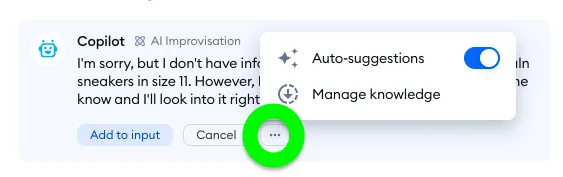
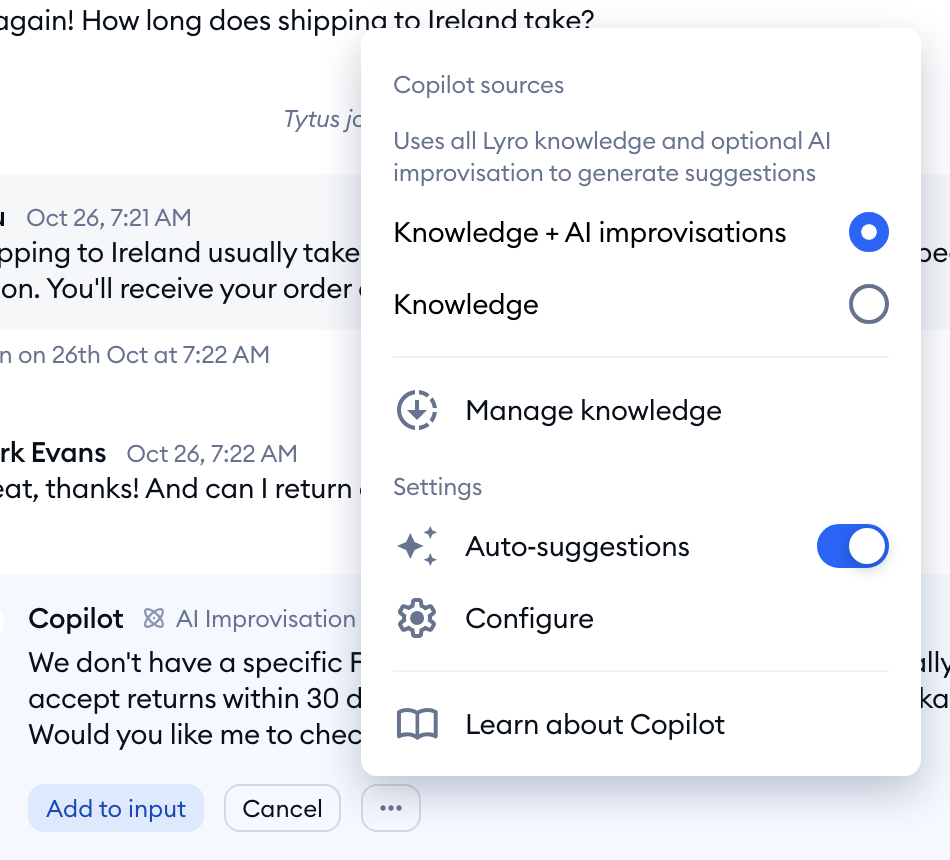
You will be taken to the Data sources section, where you can manage existing knowledge and add new data sources.
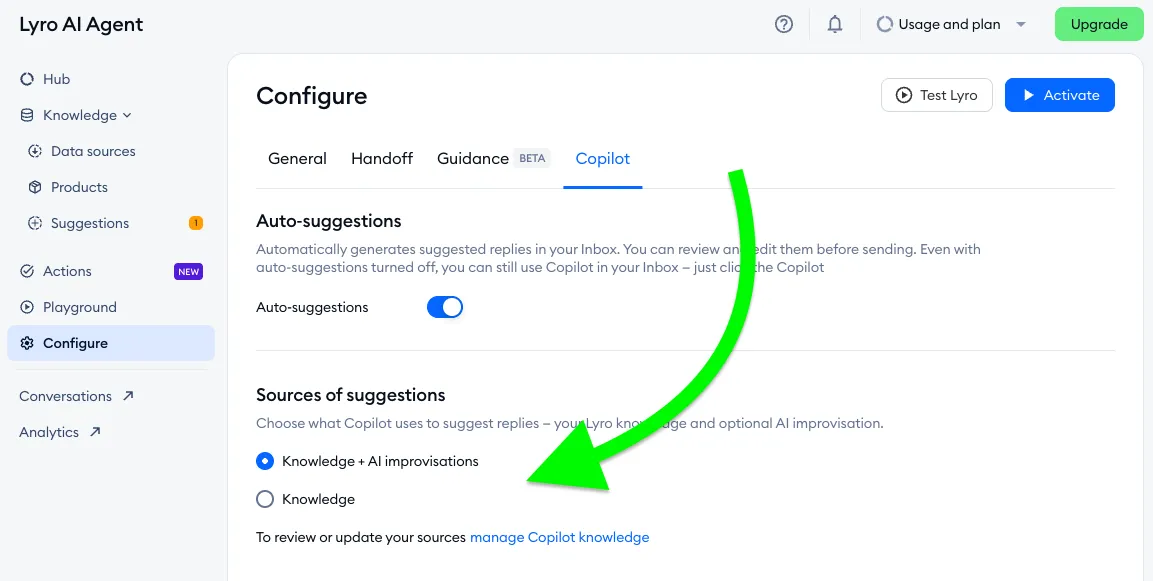
It is also possible for you to disable these AI improvisations entirely. You will find that option inside the Lyro AI Agent > Configure section, inside the Copilot tab. In there, find the Sources of suggestions options, and select the option you prefer - Knowledge + AI improvisations, or Knowledge only. You can also switch between the two in the three-dots menu below any Copilot suggestion, under Copilot sources. With Knowledge only, if your data sources don't cover a question, Copilot will tell you it doesn't have enough information about the topic, with an Add knowledge link:
Enabling (or disabling) automatic Copilot responses
While Copilot is always available for agents thanks to the dedicated Copilot button, you can use an additional feature: generating responses automatically. This feature is enabled by default. Thanks to this auto-suggestion feature, Copilot will automatically suggest a response whenever the customer was the last one to write; you won't have to use the Copilot button for these interactions. Auto-suggestions work in:
- conversations from live chat, Messenger, Instagram and WhatsApp - as long as the conversation isn't solved and no bot is handling it,
- tickets - except Facebook and Instagram comments and voice tickets.
You can enable (or disable) this feature via the Copilot tab, in your Lyro Configure section. Find the Auto-suggestions option there:
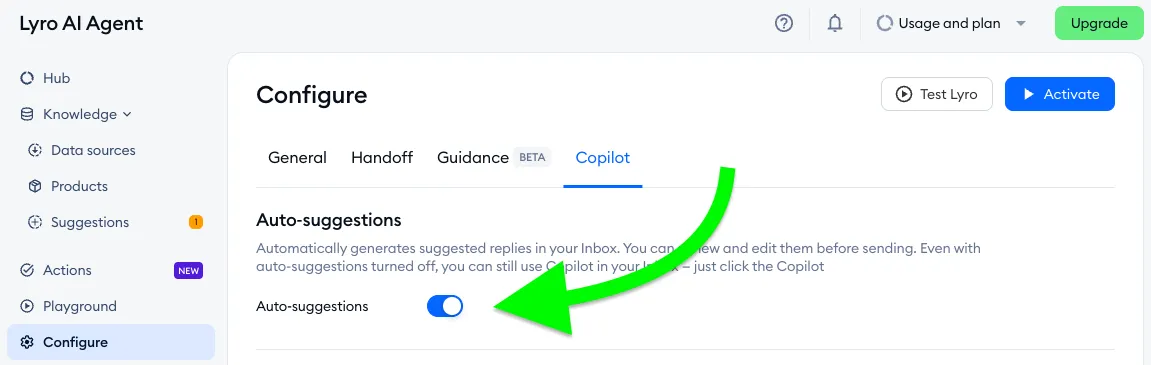
In addition to the option above, you can also disable (or enable) the automatic suggestions directly from the conversation or ticket. Simply click on the three dots underneath Copilot's suggested response, and use the Auto-suggestions switch:
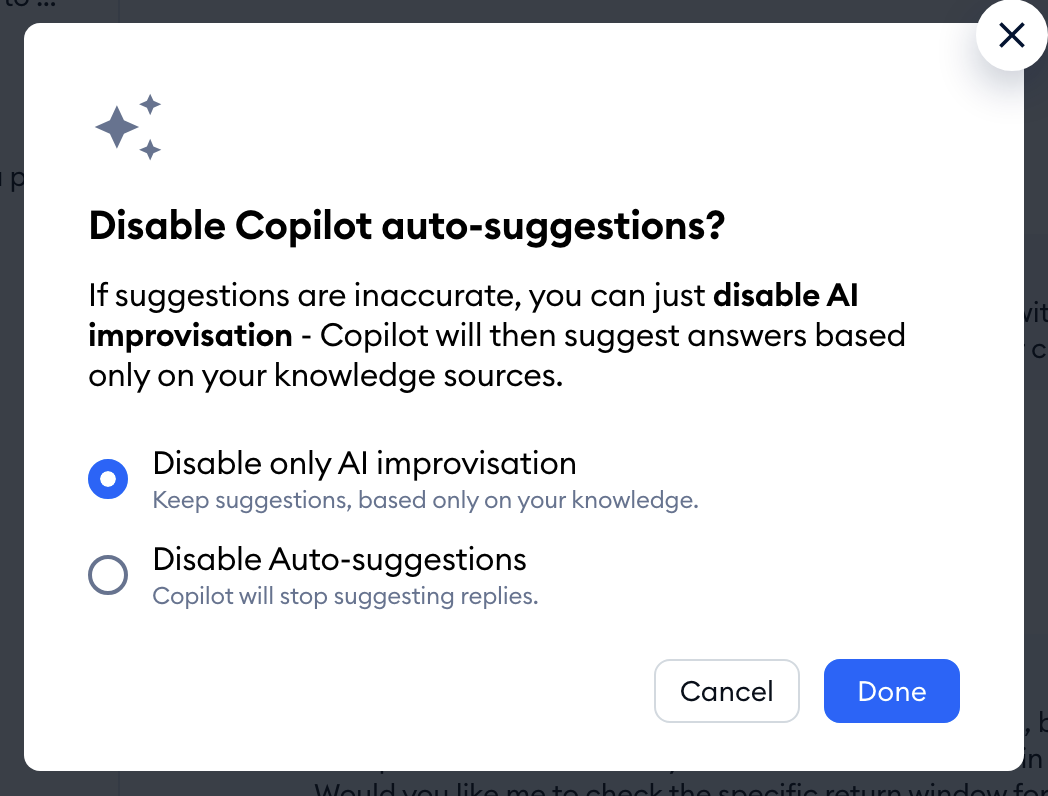
If AI improvisations are on when you switch auto-suggestions off, Copilot asks what you'd like to do in the Disable Copilot auto-suggestions? window. Choose Disable only AI improvisation to keep the suggestions but base them only on your knowledge, or Disable Auto-suggestions, and click on Done:
Further reading
- Lyro - the conversational AI agent
- AI summaries on tickets
- AI Tools (the reply assistant)
- Lyro Suggestions
- Lyro Guidance
