Lyro Guidance allows you to define specific behaviors and preferences for how Lyro should interact with your customers. With Guidance, you can give Lyro instructions about the preferred communication style, escalation rules, and other custom directions; you can think of this as prompting Lyro to behave a certain way. It is also possible to determine specific audiences that your Guidance should apply to.
On top of that, you can also decide about Lyro's use of emojis and Lyro's preferred tone of voice.
Note that Guidance does not affect Copilot functionality; Guidance is restricted to the Lyro AI agent only.
In this article, you will learn:
- How to navigate Lyro Guidance
- How to manage Lyro's use of emojis and tone of voice
- How to create Guidance instructions
- How to enable (or disable) Lyro Guidance
- How to determine Audiences for Guidance
- How to check conversations where Guidance was used
- What the Guidance limits are
- Useful tips on using Guidance
Navigating Lyro Guidance
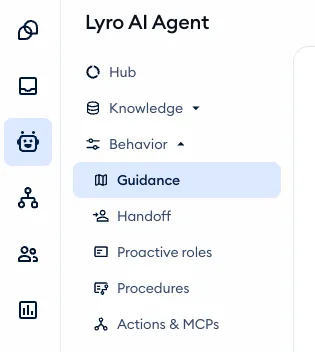
In the Lyro AI Agent section of your Tidio project, open the Behavior > Guidance panel:
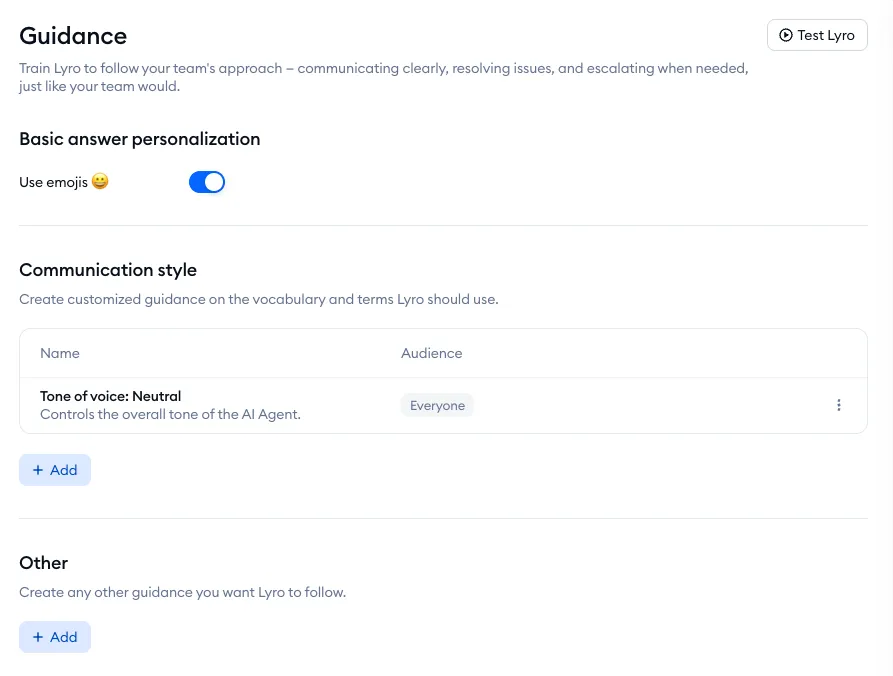
Inside, you will find the different available options, like Basic answer personalization and different Guidance instructions:
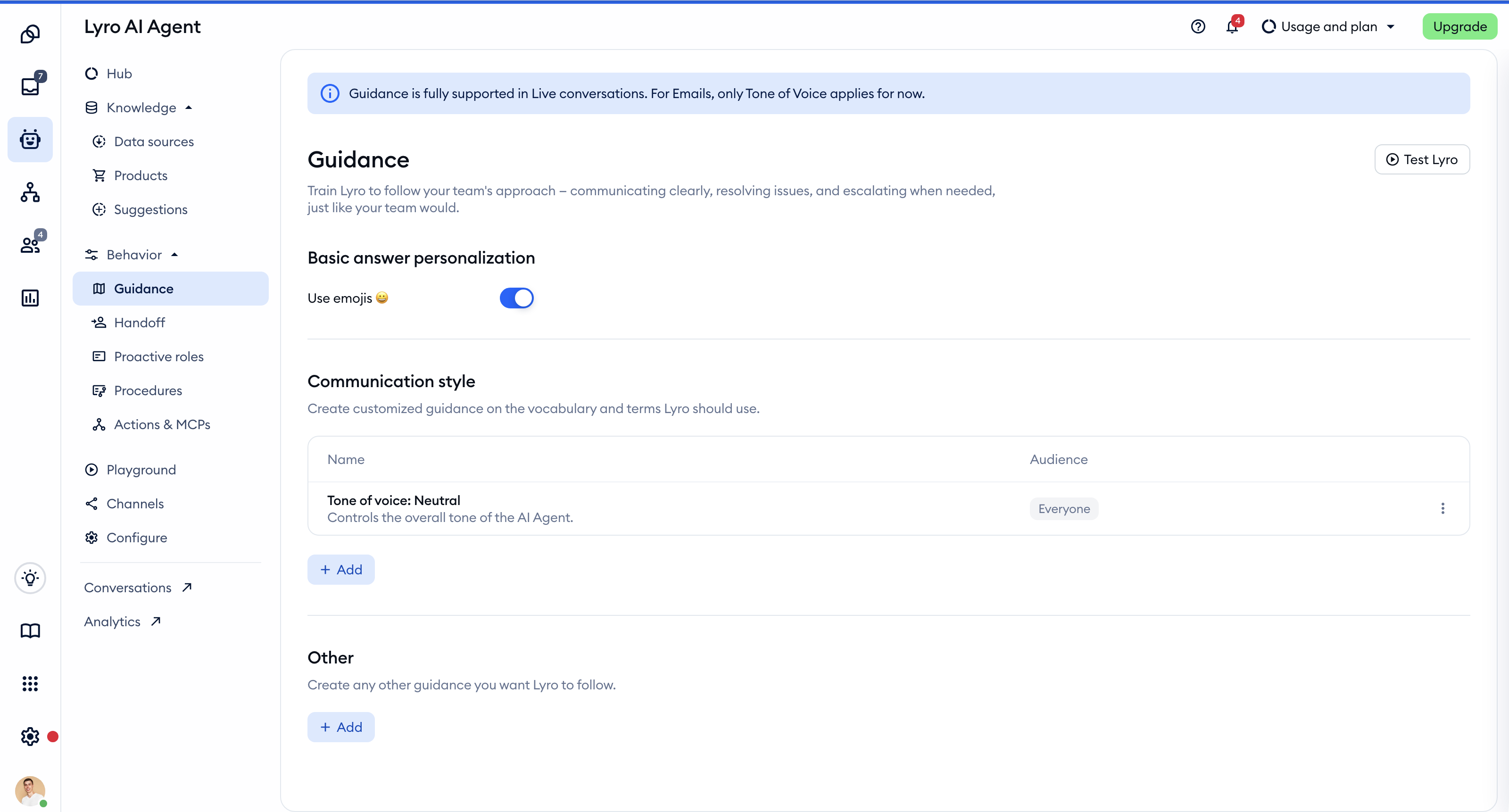
Please note: if Lyro also answers your emails, you'll see this note at the top of the Guidance page: Guidance is fully supported in Live conversations. For Emails, only Tone of Voice applies for now. Your other pieces of guidance keep working in live conversations. To learn how Lyro handles email threads, please see Lyro on email: answering whole email threads.
Emojis and tone of voice
Apart from using Guidance for relatively advanced instructions on how Lyro should behave (which we cover later in this article), you can decide about several simpler aspects as well - in the Basic answer personalization section of the Guidance tab.
Emojis
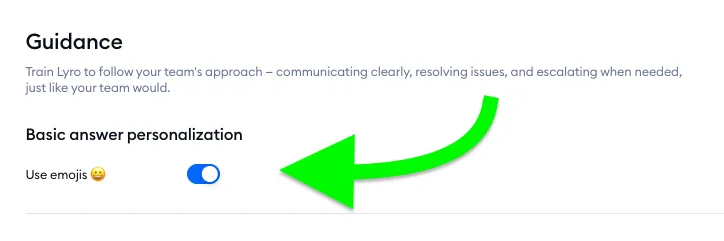
By default, Lyro uses emojis in its responses. You can make sure Lyro does not use any emojis during conversations - this may be more appropriate for your business.
Toggle the Use emojis switch to disable (or enable) them:
Tone of voice
Lyro helps you offer support that matches your brand and your customers' needs. You will find the available options in the Communication style section of Guidance:
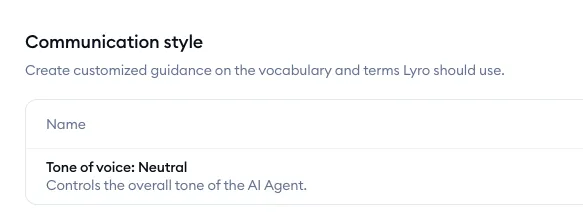
These options allow you to connect with your customers in a way that aligns best with your preferences.
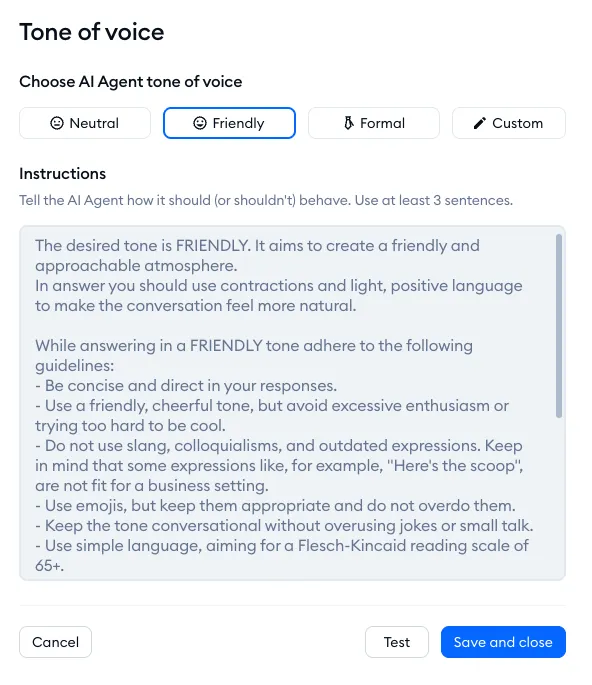
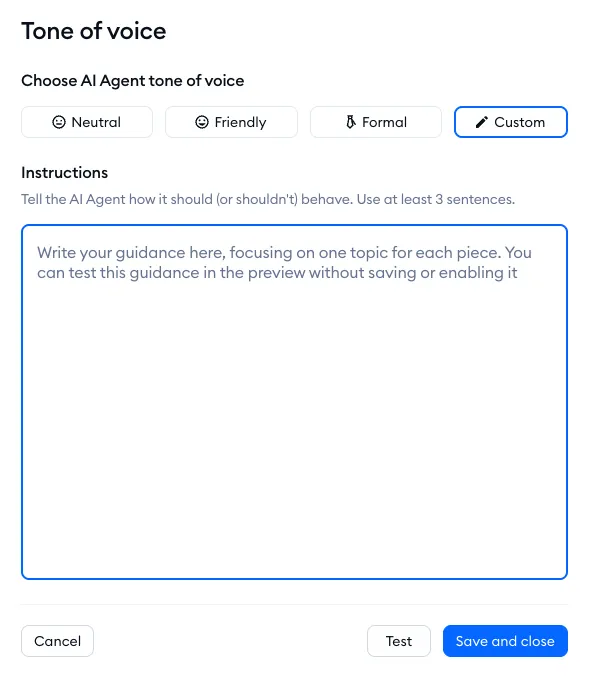
You can choose one of the predefined tones: neutral, friendly, or formal. You also get the option to create your own, custom tone, by creating a detailed prompt for Lyro.
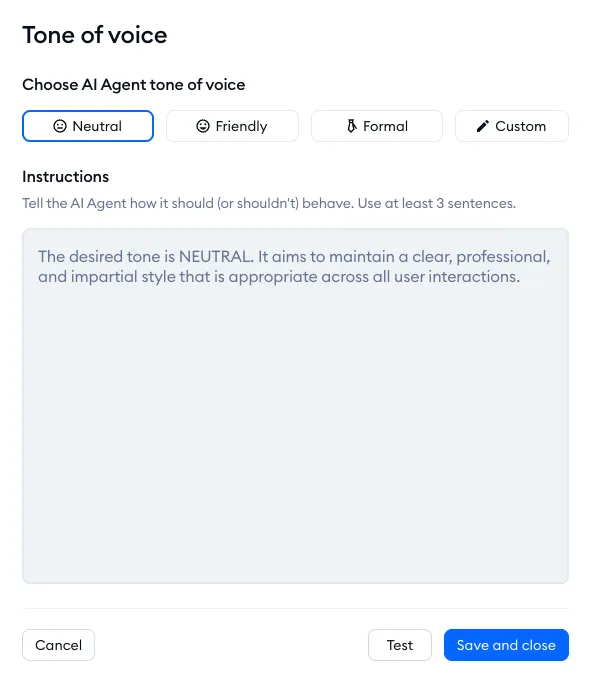
Select one of the predefined tones to see a detailed set of instructions:
Use the Custom tone option at the end if you'd like to create your own set of instructions:
Creating Guidance instructions
In the Guidance panel, you can instruct Lyro on the following aspects:
- Communication style
- Other
- Handoff and escalation (on the separate Handoff page)
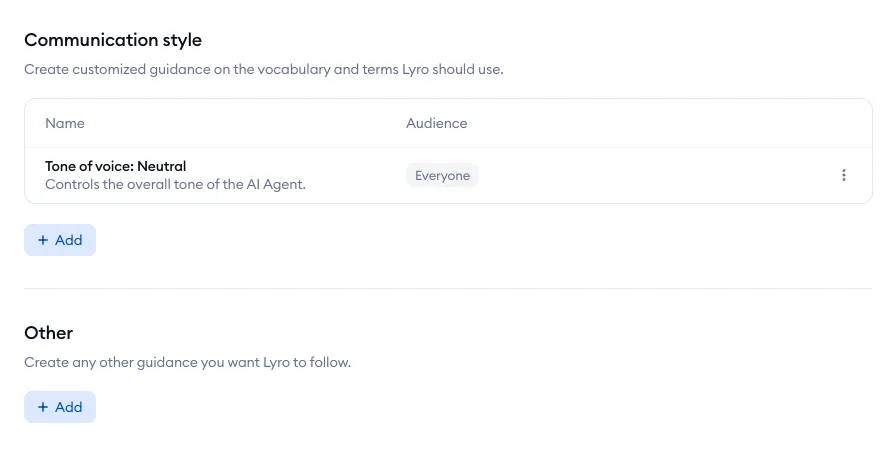
Here you can instruct Lyro on the preferred communication style, escalation rules, and other custom directions. You can think of this as prompting Lyro to behave a certain way. Note that the Tone of voice instructions are already part of the Communication style guidance.
Please note that guidances cannot:
- instruct Lyro to use specific data sources;
- call Actions;
- change your Contact Properties or Lyro settings. Guidance can read contact properties (see below), but to have Lyro update them, use Procedures.
Adding and defining new pieces of guidance
Each of these sections (Communication style and Other here, and the handoff guidance on the Handoff page) allows you to add multiple pieces of guidance, and then manage them individually as needed. These guidances don’t follow a fixed order - they’re all evaluated independently and can run in parallel. However, be careful not to create guidances that conflict with each other, as this may lead to unpredictable behaviors.
To add new guidance to a particular subsection, use the Add button. You will see a new screen, where you define the name, audience, and instructions. Note the preview on the right, where you can safely test your new guidance when ready:
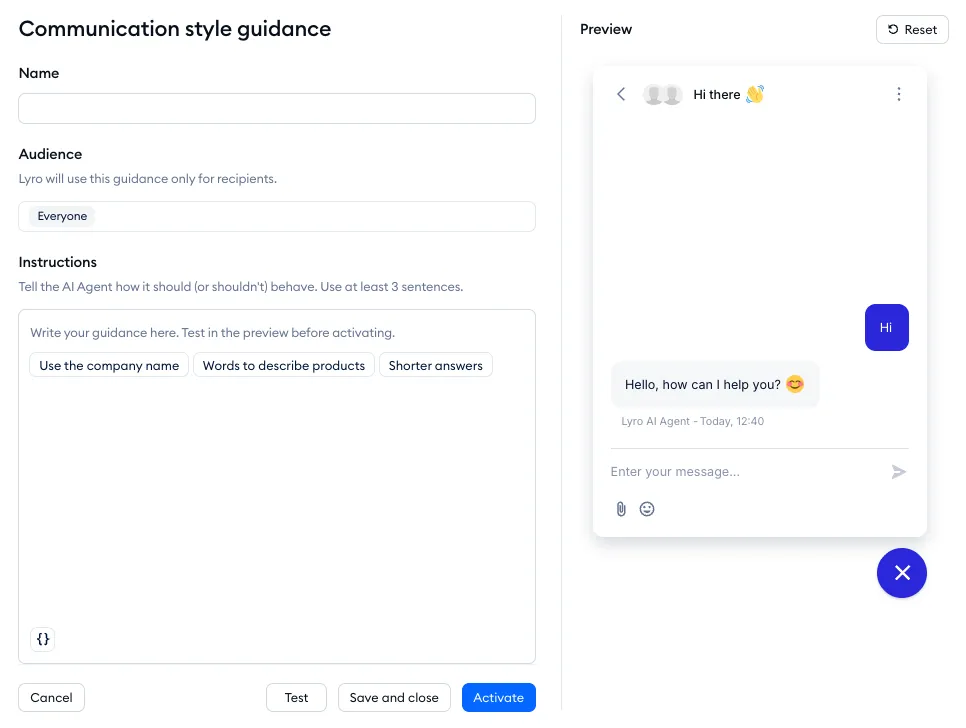
The name is just a label for you to quickly identify this piece of guidance later on; it is not seen or used by Lyro in any way.
The audience allows you to determine which custom audiences will be affected by this specific guidance. If you've created any custom audiences, they will be listed. See more about audiences in this section of the article.
The instructions are the guidance itself, prompting Lyro to act the way you'd like. Make sure your instructions are as detailed as possible, so that Lyro fully understands your requirements and context. You can also use one of the simple pre-made prompts listed at the bottom of the instructions field for inspiration.
Each piece of guidance can be up to 2,500 characters long - a character counter shows up under the field as you type.
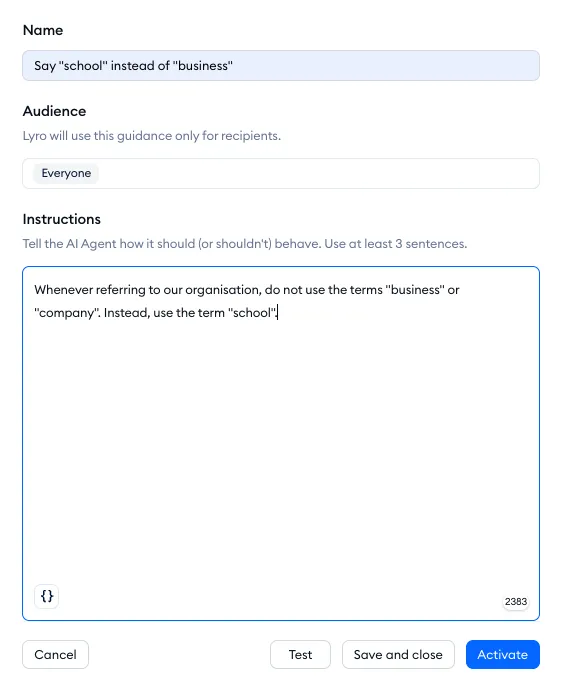
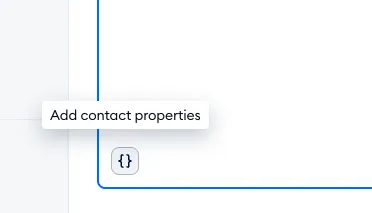
Note that you can insert your Contact Properties (default or custom, if you've created any) by using the Add contact properties icon in the bottom-left of the instructions:
The list has two parts:
- Visitor properties - Name, Email, Current URL and Timezone, which Lyro can always read;
- Custom contact properties - only the ones you've allowed Lyro to read in Configure > General, in the Contact properties field of the Access permissions section. Use Manage contact properties at the bottom of the list to go there. If you haven't allowed any yet, you'll see No properties available.
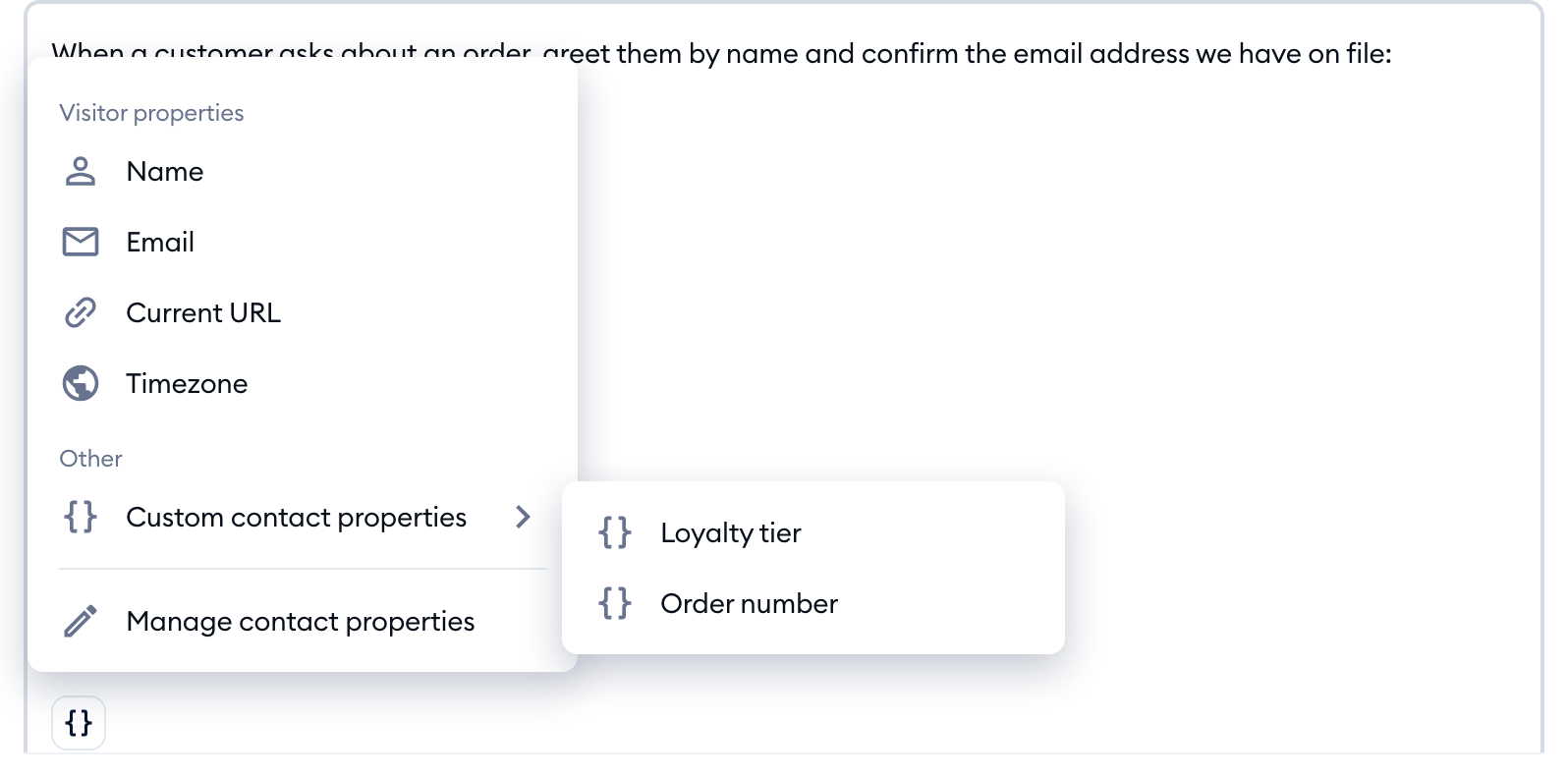
Guidance only reads these properties: it can't save or change them.
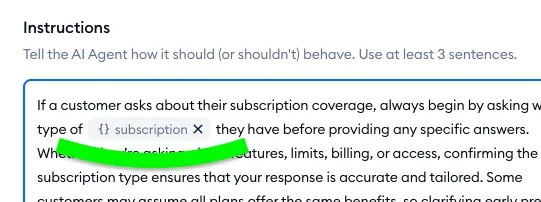
This lets you select one of your existing properties and dynamically insert it into the text (instead of typing it). Please note that inserting properties this way is not necessary, as Lyro has the same knowledge and capabilities. When viewing your instructions, it will be very clear where the custom properties are referenced, which you may find useful:
On the right, use the preview to see how your new guidance works in context:
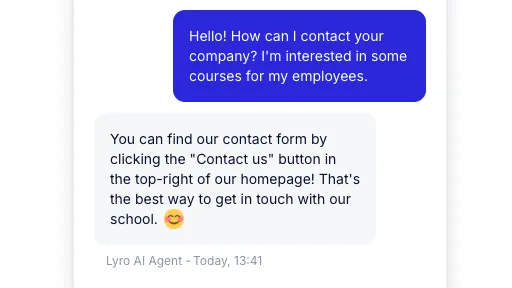
Once you're satisfied with the results, click on Save and close to save your instructions (or Activate, if you want the guidance to be enabled right away).
Communication style
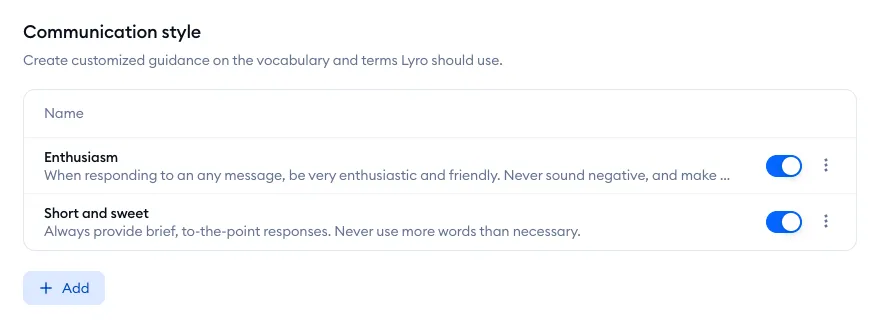
The Communication style guidance allows you to define the overall tone of Lyro’s replies. If you'd like Lyro to communicate in a certain way, e.g. use specific vocabulary or avoid certain things, this is a good place to add your prompts.
Please note that the Tone of voice instructions are already part of this guidance.
Here are some examples of guidance:
- Use simple language: Lyro will prioritize clear, jargon-free responses to improve understanding for all users.
- Keep answers concise: Lyro will keep its responses as short and to-the-point as possible, avoiding lengthy explanations.
Other
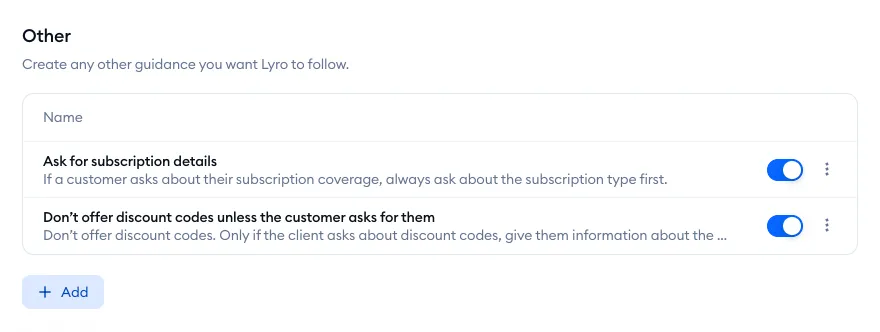
In the Other category of guidance, you can create any additional rules you'd like Lyro to follow. These can be specific behaviors or edge cases not covered elsewhere.
Some examples may include:
- Ask for subscription details: If a customer asks about their subscription, make sure to get their account details first.
- Limit discount codes: Don't offer discount codes unless directly asked about available discounts.
Handoff
Handoff guidance can be managed in a separate section of your Lyro settings - Handoff:
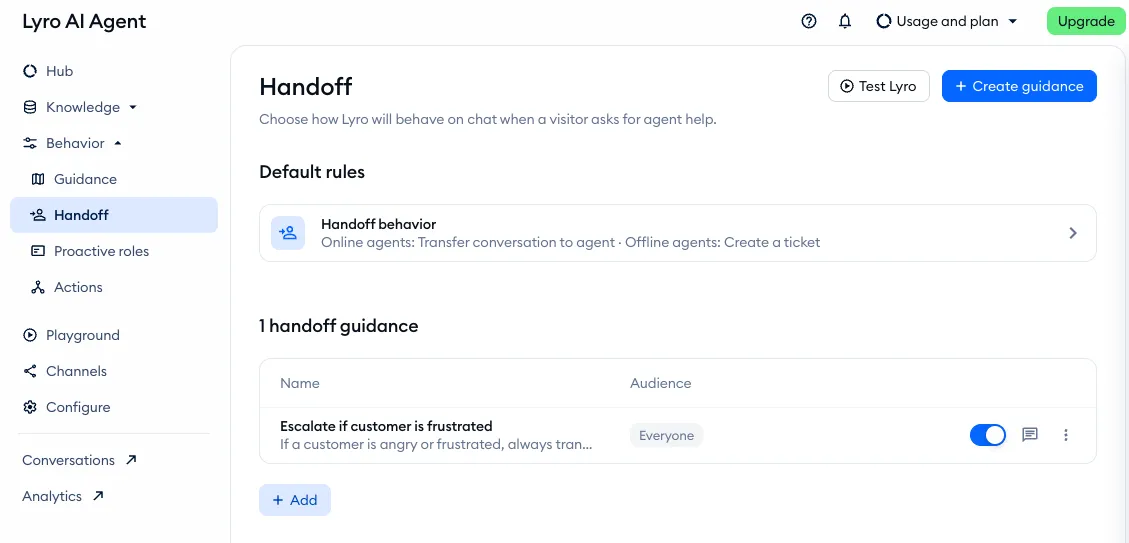
With Handoff guidance, you can instruct Lyro on when to pass the conversation to your human support team. This type of guidance is great for handling sensitive or complex topics where a simple escalation process might not be ideal.
Here are some examples of handoff/escalation guidance:
- Cancel and refund: Escalate to a human agent if the visitor requests a refund or wants to cancel an order.
- Escalate if customer is frustrated: Escalate to a human agent immediately if the customer is angry or annoyed.
When you write handoff guidance, the button under the instructions is Add tool instead of the contact properties icon. Besides Add contact properties, it offers Escalation > Create a ticket, which adds a step that tells Lyro to create a ticket for your team:
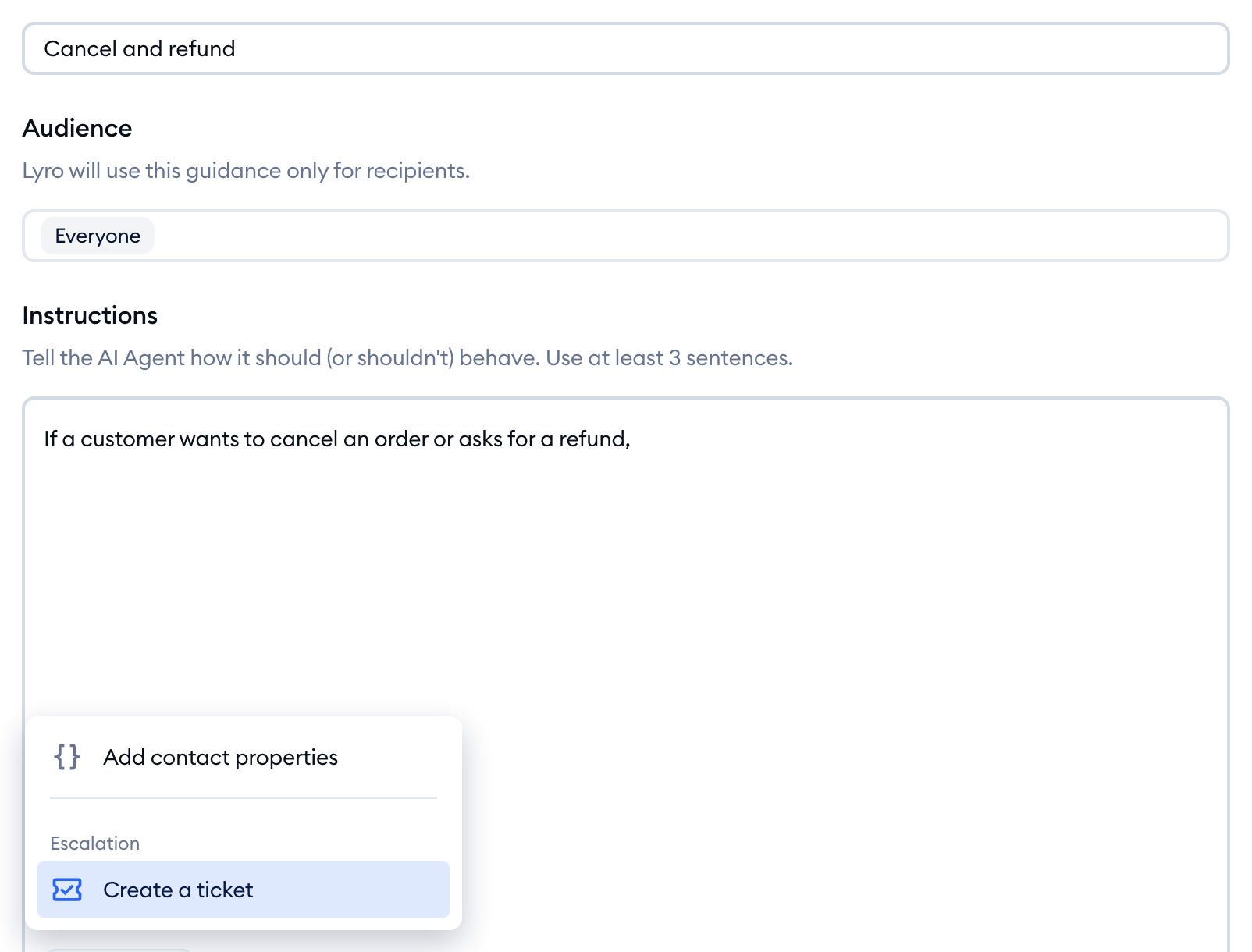
On some projects, Create a ticket also lets you choose the department the ticket goes to.
Enabling and disabling Guidance instructions
Any piece of guidance you add can be managed separately in the Guidance tab.
To disable (or enable) a specific piece of guidance, toggle the switch on the right. This lets you turn off a particular set of instructions, without permanently removing it:
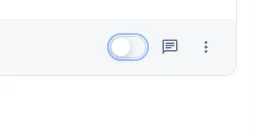
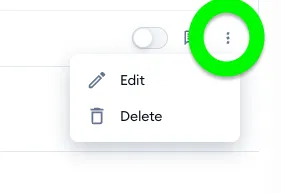
To permanently delete a piece of guidance (or simply modify it), click on the three dots instead, and use the option you need:
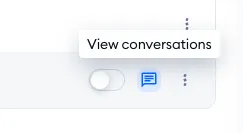
If your guidance has already been used by Lyro, you can see a list of those conversations when you click on the View conversations icon:
Specifying custom Audiences for Guidance
For each piece of Guidance that you add, you can also set up its Audience: the target group of users who meet specific conditions. Audiences must first be created through Lyro's Configure > Audiences tab, however; please see this guide on managing your Audiences in detail.
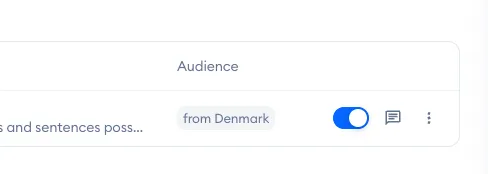
Any piece of Guidance you add will display its Audience in your list, for quick reference:
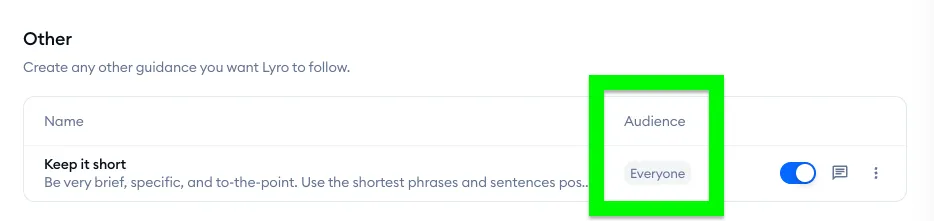
The Audience is set to 'everyone' by default, but you can modify it by editing your Guidance:
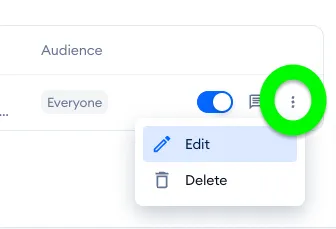
Inside the editor, you can see the Audience section. By clicking on the field, you will see the list of available Audiences to select, as well as the option to manage all your existing Audiences:
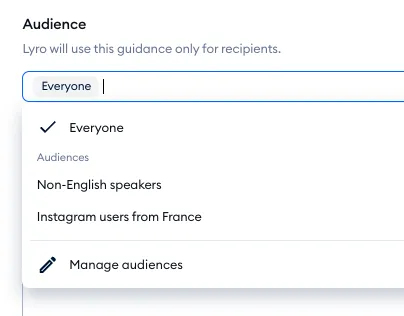
Once you set the Audience you like, you can save your Guidance setup - and you will see the new setting in your Guidance list:
Browsing conversations where Guidance was used
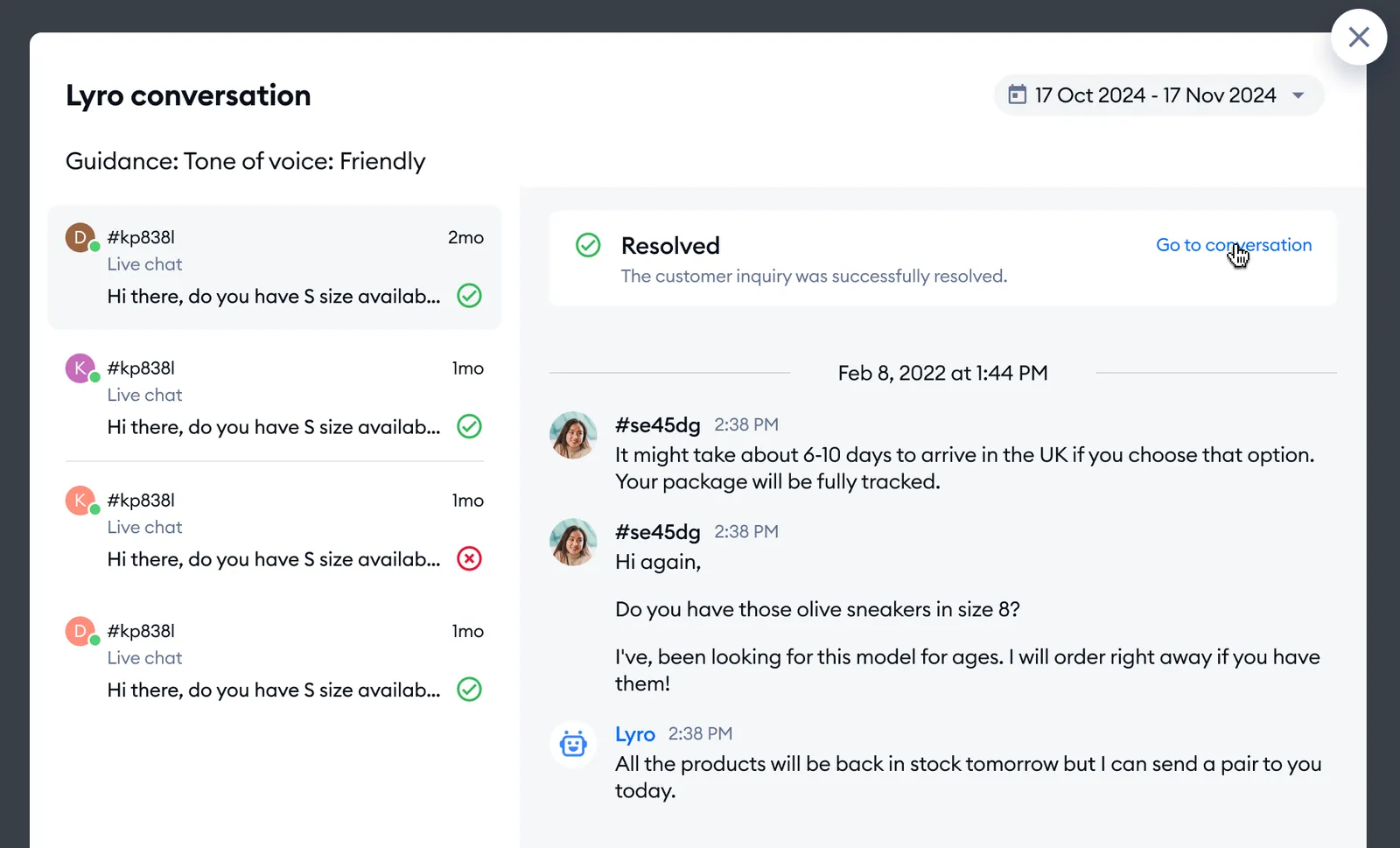
If you've added any of your own custom pieces of Guidance, you will be able to check all the conversations where that particular Guidance was used.
Inside the Guidance section, each added Guidance in your list will include the View conversations button on the far right:
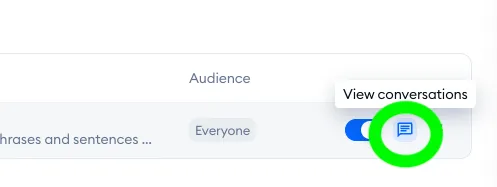
Once you click on it, you will see a window pop up. It will list all the conversations where these specific instructions have been used, so that you can review Lyro's performance in that regard. You can also use the calendar option in the top-right to select a specific timeframe that you're interested in.
The limits of Guidance
There is a limit on the amount of active Guidance in your Tidio project (switched on, including your handoff guidance), and this limit changes with your paid subscription.
- In general, you are allowed up to 5 pieces of Guidance on your Tidio project. This limitation is the same for the initial 7-day trial, the free version of Tidio, as well as any paid version of Tidio that is not the Plus or Premium package;
- Subscribers of the Plus package are allowed up to 10 pieces of Guidance;
- More than 10 pieces of Guidance are allowed for subscribers of the Premium package.
If you have a certain amount of Guidance active and you downgrade to a package that allows fewer pieces of Guidance - the most executed piece of Guidance will remain active, while the rest gets disabled. Of course, you can decide which piece of Guidance is enabled and which isn't, as you can change this manually.
A few more things to keep in mind:
- Active Proactive roles count toward the same limit as your Guidance. For example, with a limit of 5, three active pieces of guidance and two active Proactive roles use up the whole limit.
- The tone of voice doesn't count toward the limit.
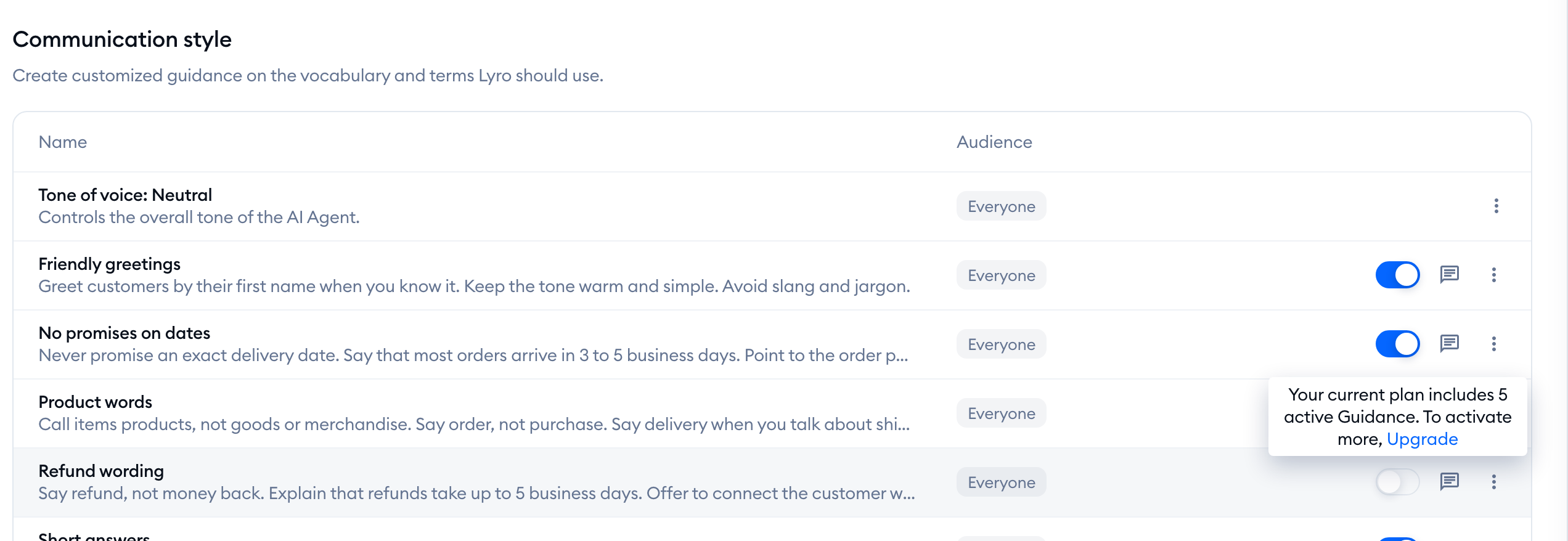
- Once you reach the limit, the switch next to any inactive guidance is grayed out. Hover over it to see Your current plan includes 5 active Guidance. (with your plan's number) and, if you manage billing, an Upgrade link. To switch on another piece, switch one off first.
- Separately, a project can have up to 100 pieces of Guidance in total, active or not. When you get there, the Add button is grayed out with the message You’ve reached the limit of 100 Guidances. To add a new one, please delete an existing Guidance.
- Each piece of guidance can be up to 2,500 characters long.
Tips on using Guidance
Language use
You can instruct Lyro to behave differently depending on the visitor's language. For example, you can add guidance that says "If the client is speaking French, mention that we offer individual consulting sessions"; or "If the client is speaking German, only use formal language."
Of course, you do not need to instruct Lyro to simply respond in the visitor's language - Lyro does that on its own by default (as long as you have your language settings configured properly in Tidio). Please see more about Lyro's multilanguage support in this dedicated guide.
Responding to greetings and gratitude
If you want Lyro to respond in a specific way when visitors greet you or send their thanks, you can add pieces of guidance that will instruct Lyro accordingly. The AI agent will not use any predefined message, nor say something that may be less than ideal for your business; with Guidance, you can control the way Lyro reacts to many common phrases, even if they feel like minor details.
Working with links
You can add hyperlinks to your guidances, but be aware that if you want them to display as some specific custom text, you need to use Markdown notation. Use the format below as a general rule:
[Title](link)
Here are a couple of examples to illustrate this:
Without Markdown:
-
www.tidio.comwill appear as: www.tidio.com
-
Go to www.tidio.com/blogwill appear as: Go to www.tidio.com/blog
With Markdown:
-
[Tidio homepage](www.tidio.com)will appear as: Tidio homepage
-
Go to [our blog](www.tidio.com/blog)will appear as: Go to our blog
Math and time calculations
Lyro does not perform built-in math or time calculations on its own. To handle this, create a Lyro Action that connects to an external service (e.g. Tray.io or Zapier) to run the calculation and return the result.
Please see this guide in using Lyro Actions and their advanced API functionality.
Using a visitor's recorded name and email
If a customer of yours has already provided their name or email and it's saved as a Contact Property in your project, Lyro is able to access that information. While Lyro doesn't normally use a customer's name or email on its own, Guidance can be used to instruct Lyro otherwise. For example, you can instruct Lyro to ask if the customer's email on file is best for contacting them later.
Using a visitor's current URL
Lyro can detect a visitor's current page address automatically, which allows you to use this information in responses. This can be especially valuable if Lyro is expected to advise on something that is related to the page that the visitor is browsing at the moment. For example, if Lyro has access to your product database (either via Shopify integration or OpenAPI), it can provide information on the product the visitor is currently viewing. This way, Lyro doesn't need to ask the visitor about the product first, nor use any previously-recorded data.
Agent availability
Lyro knows when an agent is online or offline, which allows you to instruct Lyro to behave differently depending on the current availability.
Further reading
- Lyro - the conversational AI agent
- Lyro on email: answering whole email threads
- Test Lyro before it goes live
- Lyro Procedures
- Lyro - Proactive roles
- Lyro Actions
