Not sure how Lyro will answer your customers? You don't have to find out live. Tidio gives you a safe test environment where you play the customer: ask Lyro (the AI agent) the questions your visitors usually ask, see its answers, check which knowledge it used, and fix anything that's missing - all before Lyro talks to a single real customer.
And the best part: test questions in the Playground don't count toward Lyro's conversations limit, so feel free to test as much as you like.
In this article, you'll learn:
- How to test Lyro in the Playground
- How to test Lyro's email replies
- How to see which sources Lyro used
- How to add an answer Lyro didn't know
- How to test Lyro from any Lyro screen
- How to test Guidance, Procedures, Actions and Proactive roles before you save them
Testing Lyro in the Playground
Head over to the Lyro AI Agent section, and click on Playground in the menu on the left. You'll land on the Live chat tab:
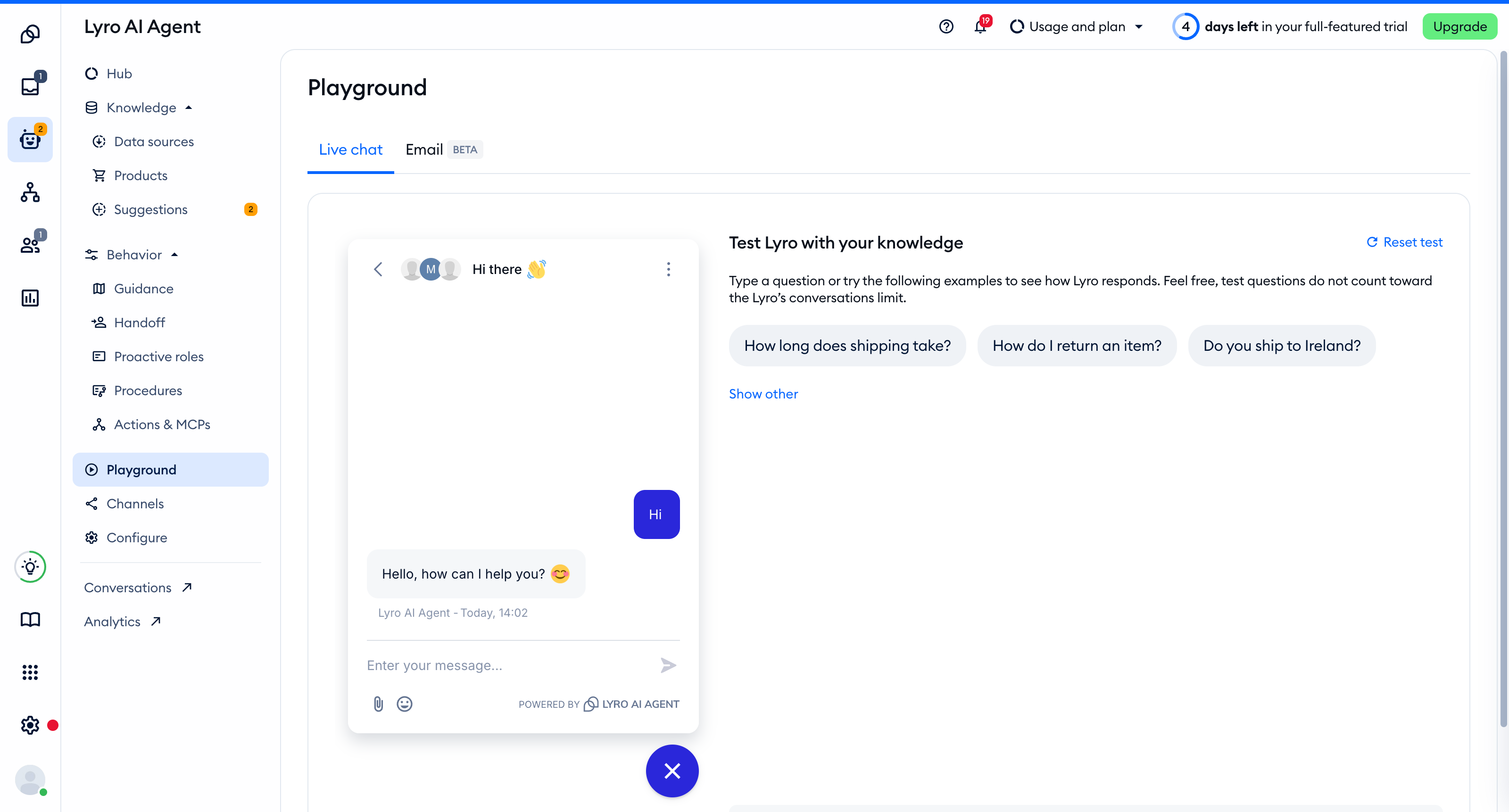
On the left, you'll see a test version of your chat widget. Tidio starts the conversation for you with a short greeting in Lyro's default language (for example, "Hi"), so Lyro is ready to answer right away. Simply type a question in the widget, just like a visitor would.
No ideas what to ask? On the right, under Test Lyro with your knowledge, you'll find example questions taken from your knowledge. Click on any of them to send it to Lyro, or click on Show other for a new set of examples.
When you'd like to start over with a fresh conversation, hit Reset test in the top-right of the questions panel.
Please note: Lyro needs knowledge before you can test it. If you haven't added any yet, the Playground will say Lyro needs knowledge to answer customer questions - click on Add knowledge to Lyro to add your first data sources. If you have Q&As but none of them is used by Lyro, you'll see Adjust Q&A status to use playground instead, with the Change Q&A status and Add knowledge buttons.
Testing Lyro's email replies
Lyro can answer your customers' emails too, and you can test that as well. Click on the Email tab at the top of the Playground (it's marked beta):
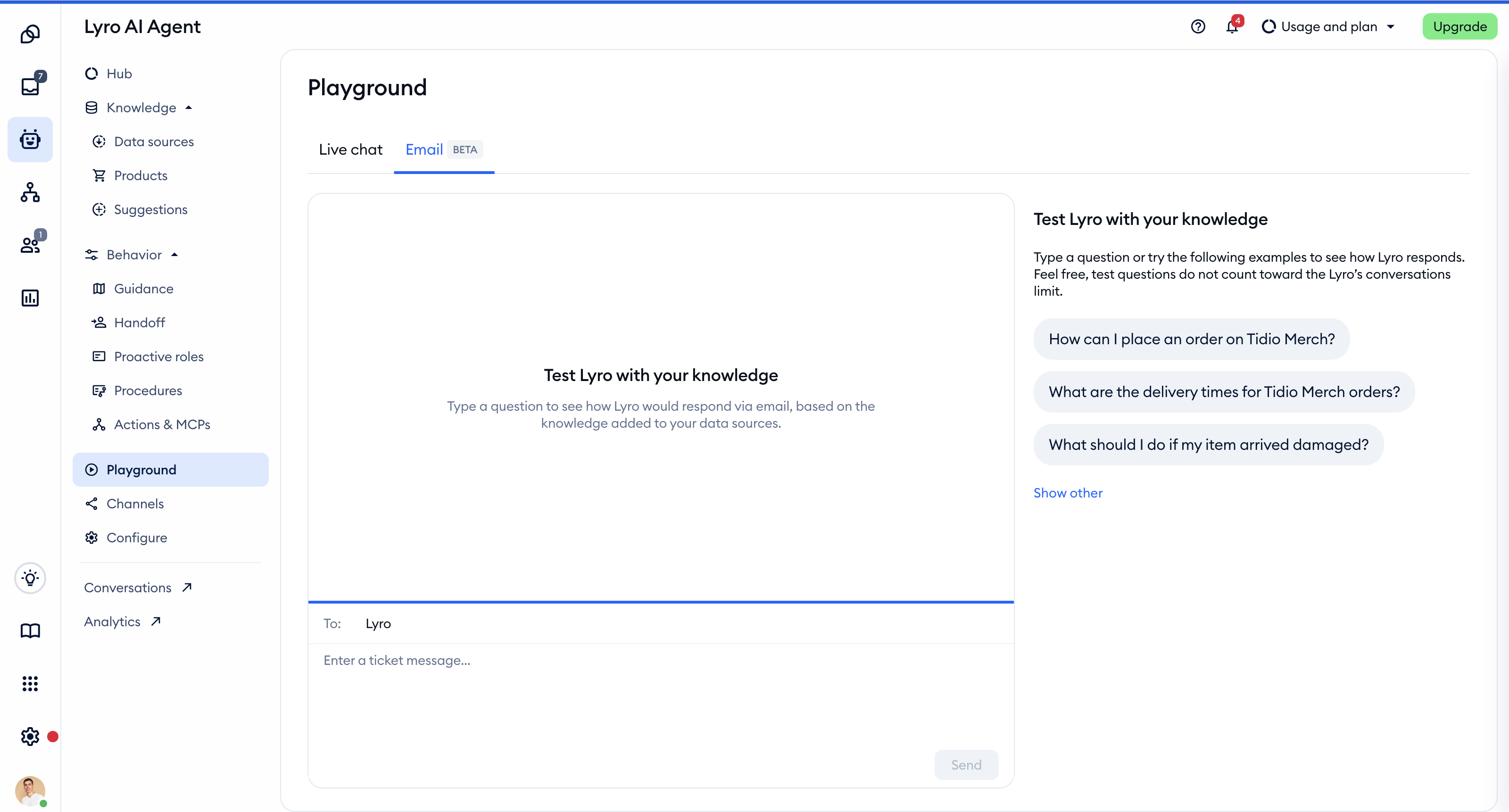
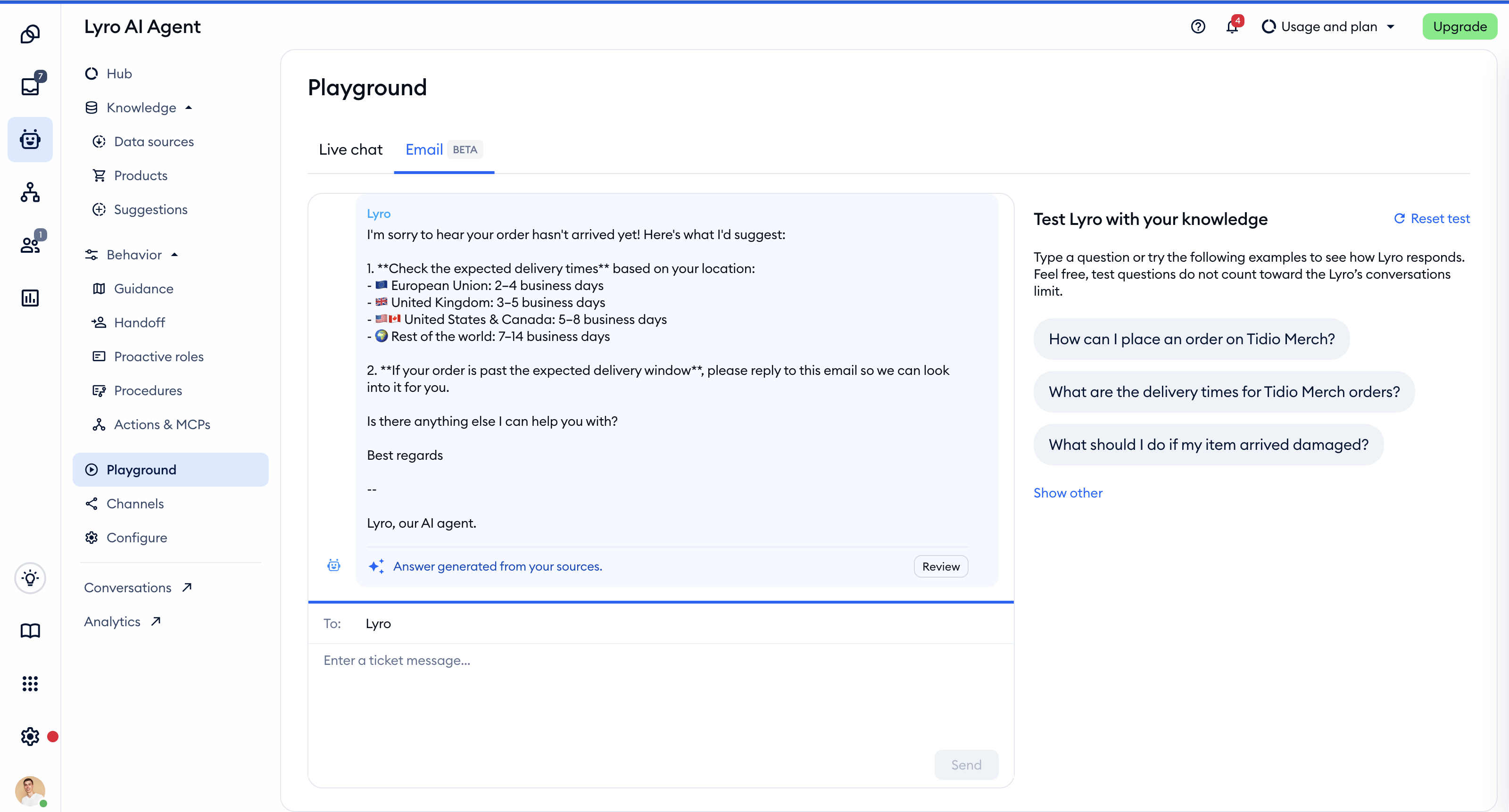
Write an email to Lyro in the composer at the bottom (or click on one of the example questions on the right), and hit Send. After a moment, you'll see Lyro's reply in the thread, just as your customer would get it by email.
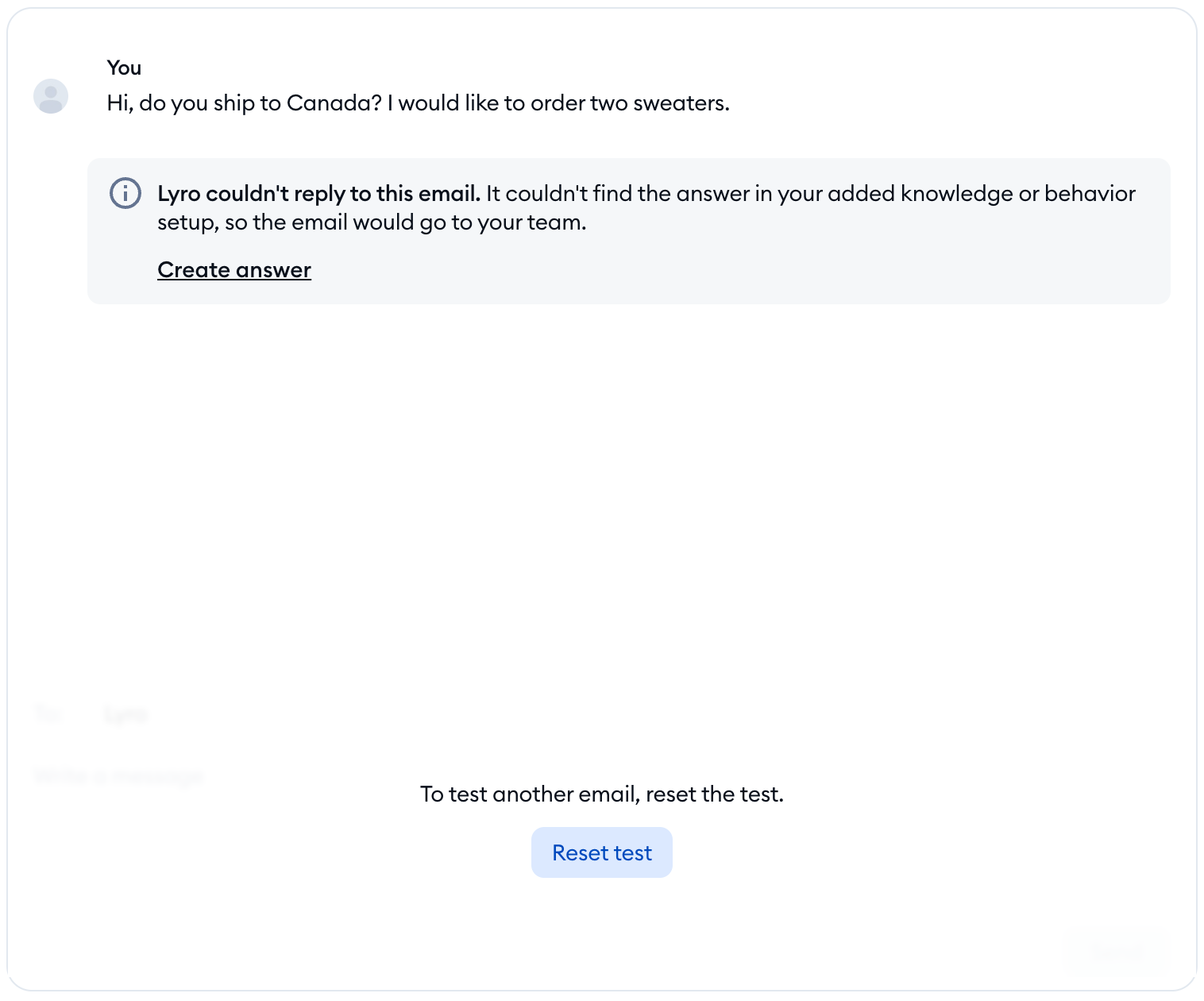
Not every email gets an answer, and that's on purpose. Lyro only replies when it finds a clear question it can solve. If it doesn't, the Playground tells you why, and that the email would be assigned to a human agent. In the same way, if Lyro doesn't have the knowledge to answer, you'll see Add missing answer (more on that below). To try another question, click on Reset test.
Since Lyro also answers customers' replies in the same email thread, you can test that too: once Lyro has replied, simply write a follow-up email in the composer and hit Send again.
Please note: you can test emails even if Lyro doesn't answer your emails yet. In that case, the Email tab shows a message that Lyro for Emails isn't activated, with a Set up Lyro for Emails link that takes you to Lyro's email settings. The Email tab is in beta, so the way it looks may still change.
Seeing which sources Lyro used
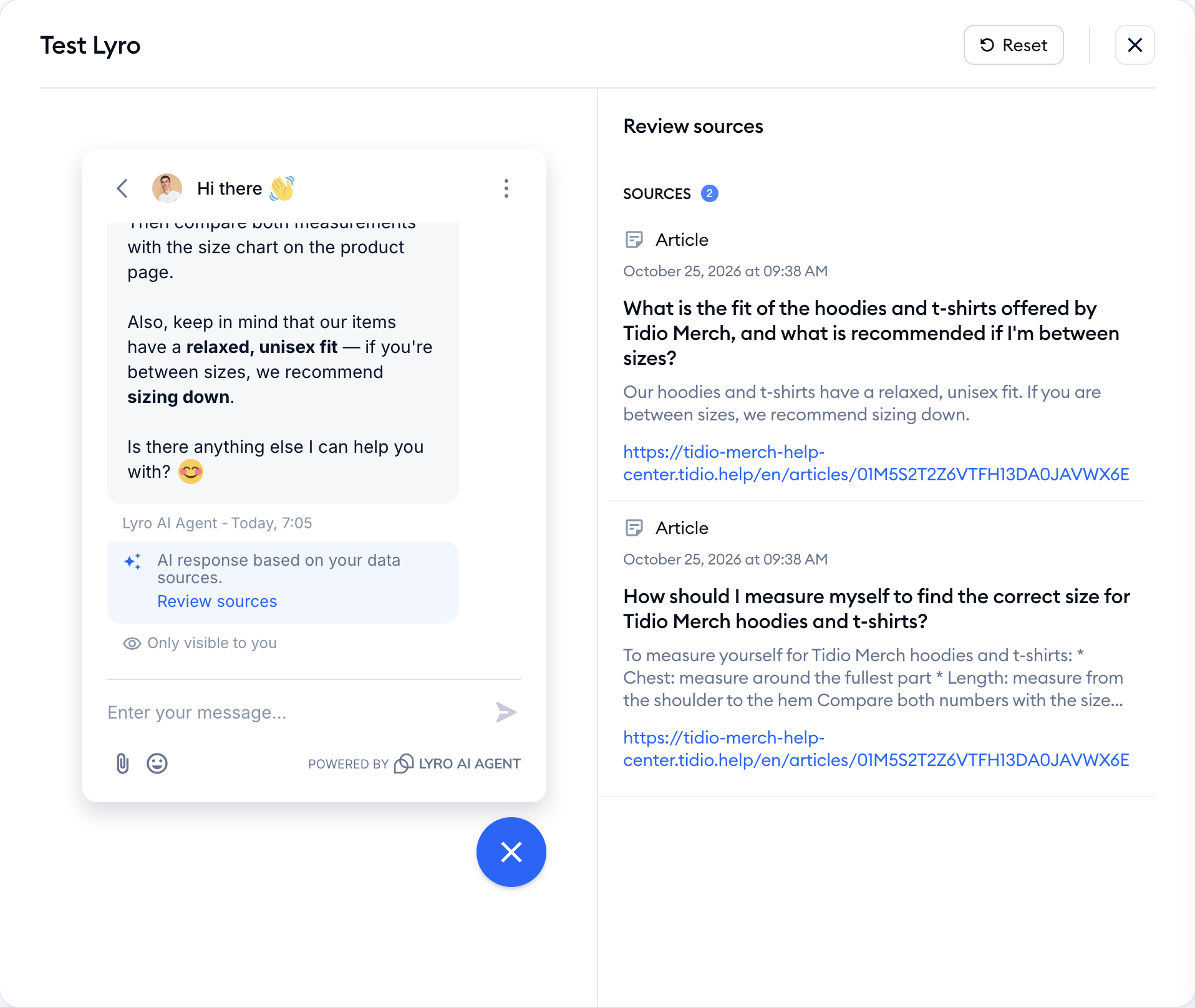
Got an answer you didn't expect? Every test answer lets you look behind the scenes. In the live chat test widget, use the option to review sources under Lyro's answer; on the Email tab, click on the Review button below Lyro's reply. The Review sources panel will open:
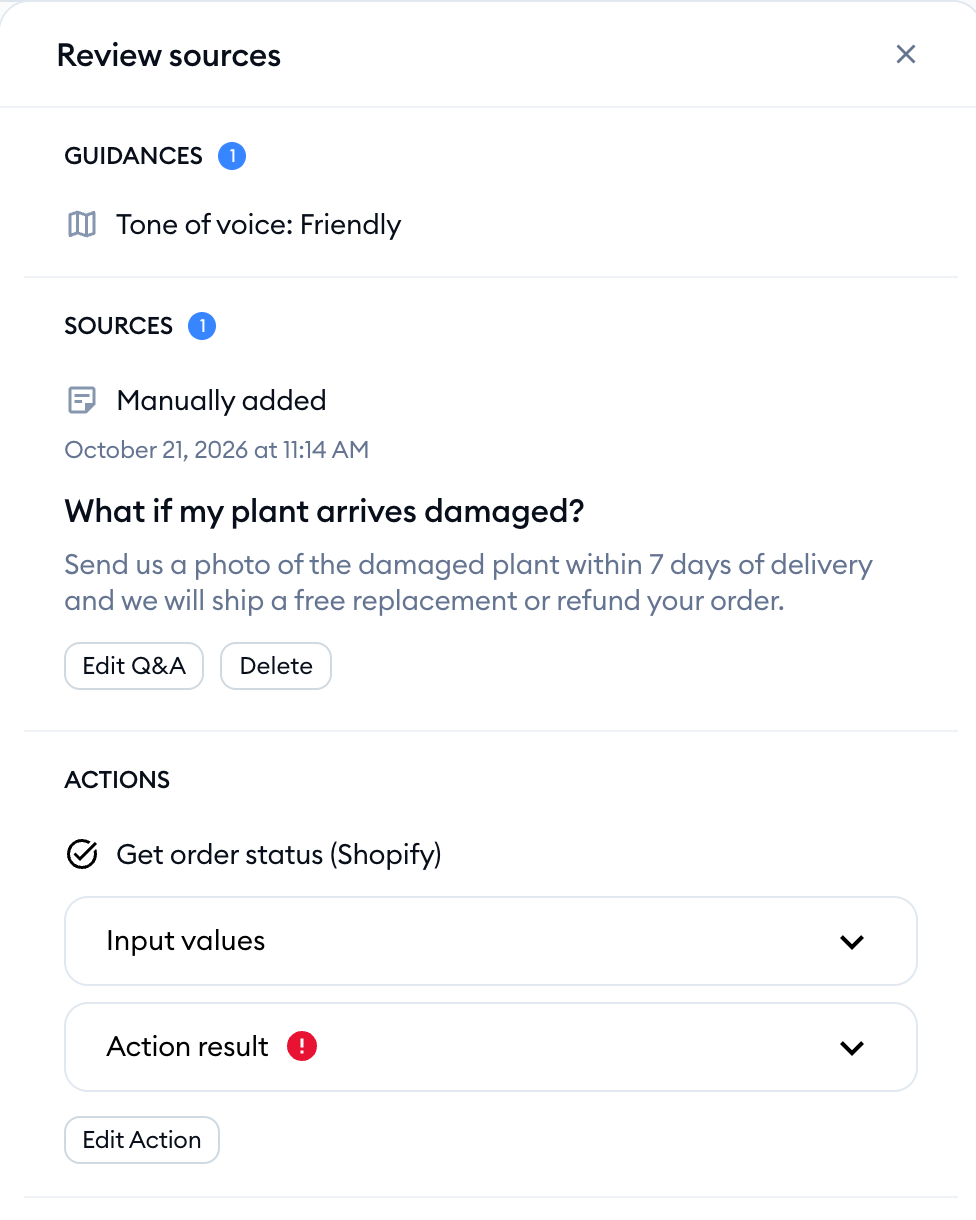
Depending on the answer, the panel lists:
- Guidances - the Guidance Lyro followed when writing the answer
- Sources - the knowledge it used: your Q&As (Manually added), Website pages, PDF files and other data sources, with the date each one was added or Updated
- Products - the products Lyro recommended, if it recommended any
- Actions - the Actions Lyro ran, with their logs; click on Edit Action to open the Action in a new tab and change it
If a source is wrong or out of date, you can fix it on the spot: click on Edit Q&A to change a Q&A, or Delete to remove the source. Then reset the test and ask again to see the difference.
That's exactly the same panel your agents see in the Inbox when they click on Review under Lyro's messages in real conversations and email tickets, so you can keep improving Lyro after it goes live, too.
Adding an answer Lyro didn't know
When you ask Lyro something it can't find in your knowledge, you can teach it right away. In the live chat test widget, Lyro will offer you the option to add an answer; on the Email tab, you'll see the Add missing answer box with the Add answer button:
Click on it, and the Create a new Q&A window will open, with your test question already filled in the Question field. Type in the answer, and hit Create Q&A:
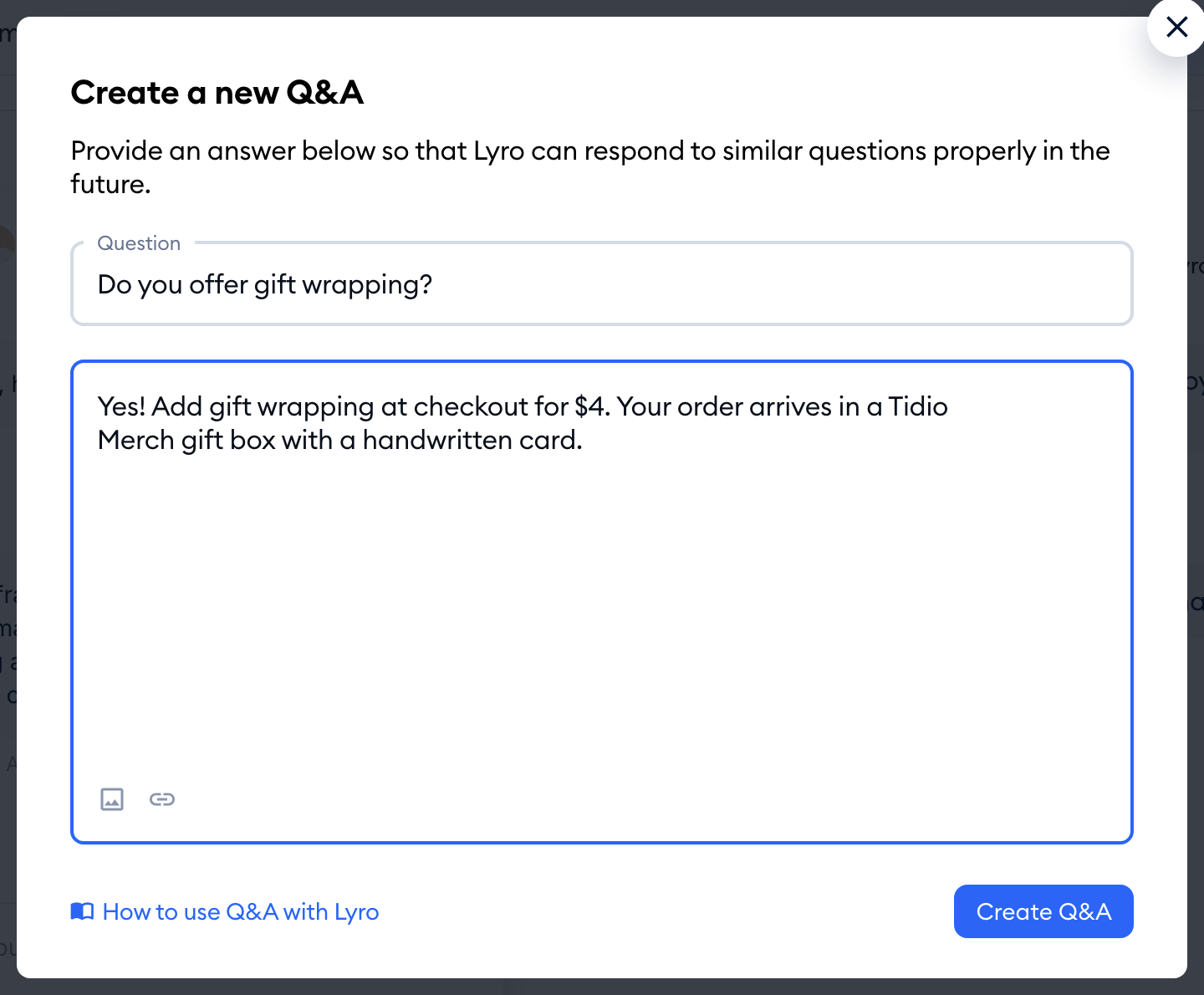
That's it! The new Q&A is added to Lyro's data sources, and Lyro will use it the next time someone asks a similar question.
Testing Lyro from any Lyro screen
You don't have to go back to the Playground every time you change something. Many screens of the Lyro AI Agent section (like the Hub, Data sources, Guidance, Procedures and Actions & MCPs) have a Test Lyro button in the top-right. On the Products screen, once your products are imported, it's called Test product answers:

Click on it, and the Test Lyro panel will slide in, with the test widget on the left. On the right, you'll see the sources of any answer you open in the widget. Use the Reset button at the top to start a new test conversation:
Please note: the Test Lyro panel tests live chat only - to test email replies, use the Email tab in the Playground. The button is greyed out until you've added knowledge in the Data sources tab.
Testing changes before you save them
When you're writing Guidance, a Procedure, an Action or a Proactive role, you can test it right there in the editor - before you save it or switch it on. Your test uses the version you're working on, so your customers won't see anything until you're happy with it.
- Guidance and Tone of voice - the editor has a Preview with a test widget on the right. After you change the instructions (or pick another tone), click on Reset above the preview to test the new version.
- Procedures - fill in the Name, When to use and Instructions fields, and click on Test it out at the bottom. A test widget will open next to the form.
- Actions - click on Test it out at the bottom of the Action editor. The Test Lyro panel opens, and you can chat with Lyro and give it the details it asks for. Open the sources of Lyro's answer to see the Action's log, with the API request and response.
- Proactive roles - fill in the Trigger, First message and Instructions, and click on Test it out. The test widget opens with your role's first message, so you can reply to it like a visitor would.
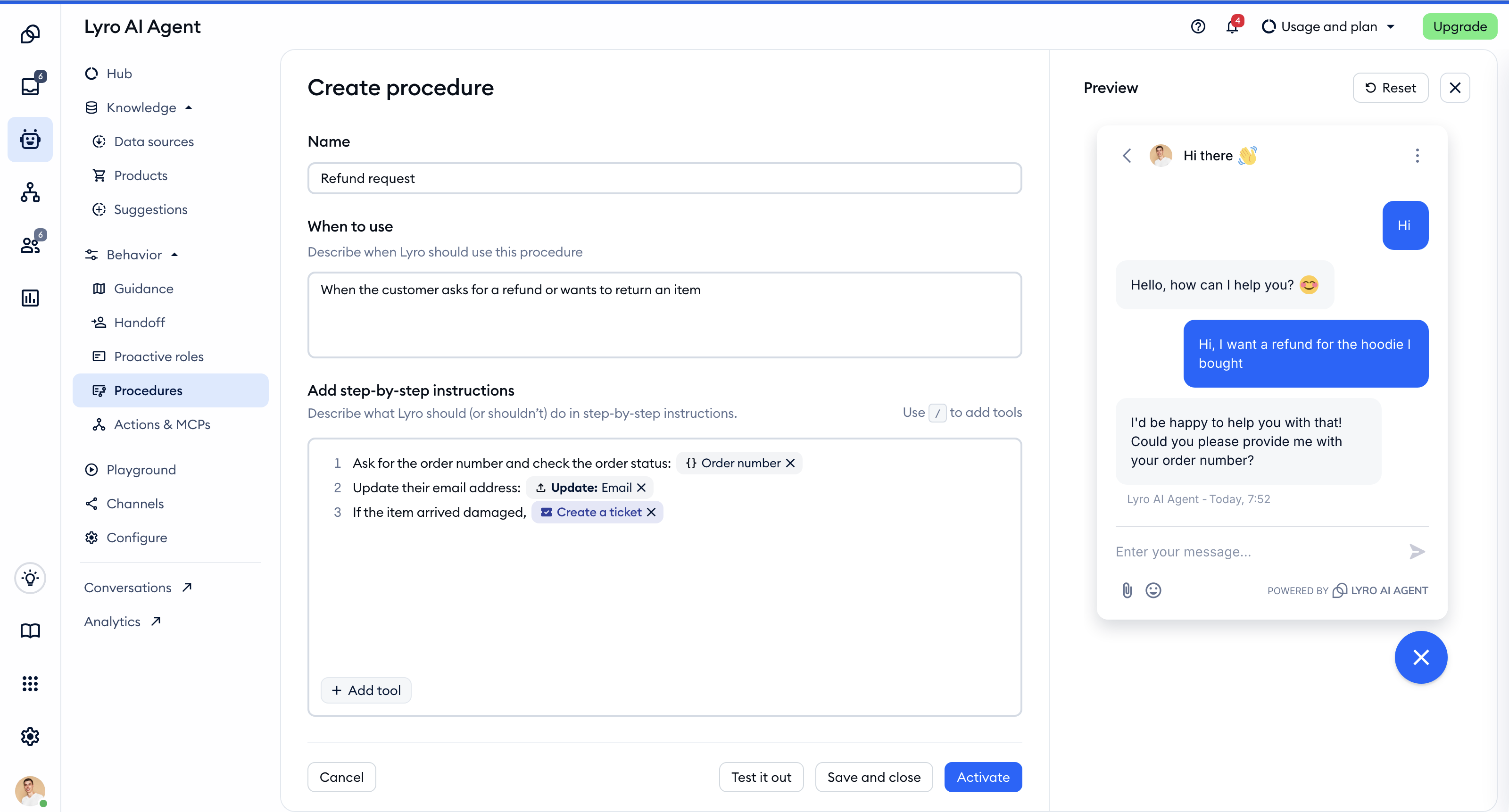
In each of these tests, you can open Lyro's sources and add missing answers, just like in the Playground. Once everything works the way you want, save your changes and switch them on.
Please note: an Action test is a real API call. If your Action changes something in another system (for example, updates an order), it will really change it - so test Actions on test data, like a test order or a test store.
Further reading
- Lyro - a quick setup
- Data sources - Lyro's knowledge base
- Lyro Guidance
- Lyro Actions
- Lyro on email: answering whole email threads
- Lyro - the conversational AI agent
