Customers rarely stop at one email. They write back with a thank-you, a second question or the order number Lyro (the AI agent) asked for. Starting October 26, 2026, Lyro handles the whole email conversation: it answers the first email in a thread, and it keeps answering your customer's replies in that same thread.
Lyro answers emails and contact forms that arrive in the mailboxes you choose. It answers from your data sources, so it's a good idea to review them - together with your Guidance, Procedures and Actions - before Lyro takes over your email threads.
Please note: answering follow-up emails turns on for every project on October 26, 2026, and it can't be switched off on its own. If you don't want Lyro to answer emails at all, you can turn off the Email channel for Lyro - see this section.
In this article, you'll learn:
- How Lyro handles email threads
- How to let Lyro answer emails from your mailboxes
- How to prepare Lyro for follow-up emails
- How to follow and review Lyro's emails in the Inbox
- How to measure Lyro's results on email
How Lyro handles email threads
When a new email arrives in one of Lyro's mailboxes, Lyro reads it and replies if it can find a clear question it's able to solve. Then:
- If your customer writes back, Lyro answers the follow-up in the same thread, the way it answered the first email.
- If Lyro doesn't know the answer, it doesn't reply, and the email is assigned to a human agent on your team.
- If Lyro can't find a specific issue to address (for example, the email has no question, or there isn't enough information), it doesn't reply either, and your team takes it from there.
Before October 26, 2026, Lyro only answered the first email of a thread, and any reply from your customer went to your agents. That's the part that changes - everything else about Lyro on email stays the same.
Turning it on before October 26
Until the change reaches everyone, you'll see the Lyro now handles the whole email conversation callout at the top of Lyro AI Agent > Channels > Emails (and a short banner on Lyro's main page with a Go to Channels link). If Lyro already answers your emails, the project owner can click Turn it on, and confirm with Turn on in the Let Lyro continue email conversations? window. Lyro starts answering customers' replies right away.
Please note: only the project owner can turn this on early - other agents will see the Turn it on button grayed out, with the tooltip Only the project owner can turn this on. Once it's on, you can't switch back. After October 26, the callout disappears, as follow-up emails are on for every project.
Letting Lyro answer emails from your mailboxes
Before Lyro can answer emails, you need two things: at least one mailbox connected to Tidio (in Settings > Email), and Lyro switched on. If you haven't connected a mailbox yet, please see Forward emails to Tidio first.
Then, head over to Lyro AI Agent > Channels, and open the Emails tab. Make sure the switch at the top says Lyro is active, and turn on the Email switch:
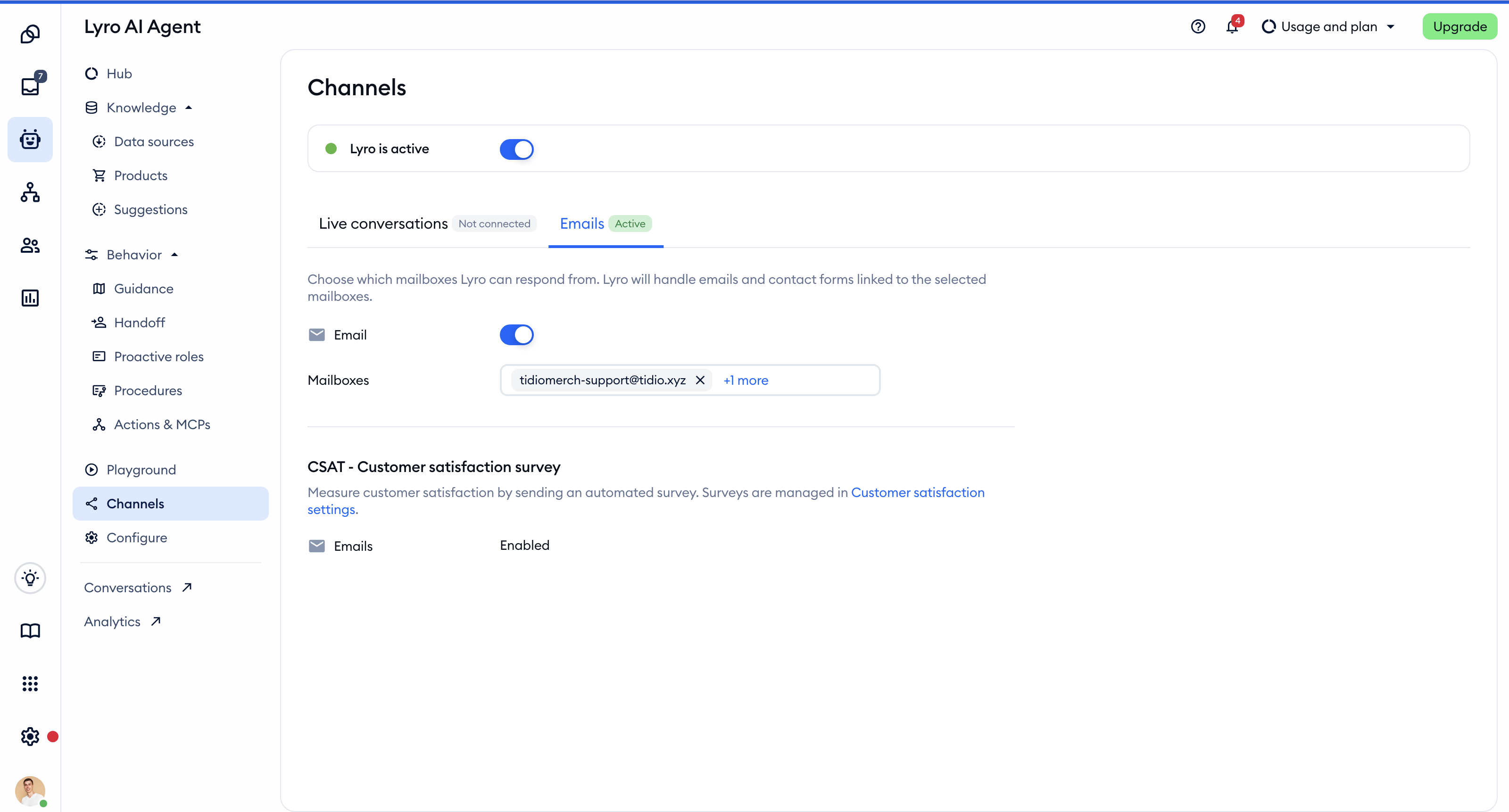
Next, choose which mailboxes Lyro should answer from in the Mailboxes field. When you turn on the Email switch for the first time, your connected mailboxes are added there for you. Simply remove the ones Lyro shouldn't answer from, or click on the field to add another one - you'll also find a Connect new mailbox link at the bottom of the list:
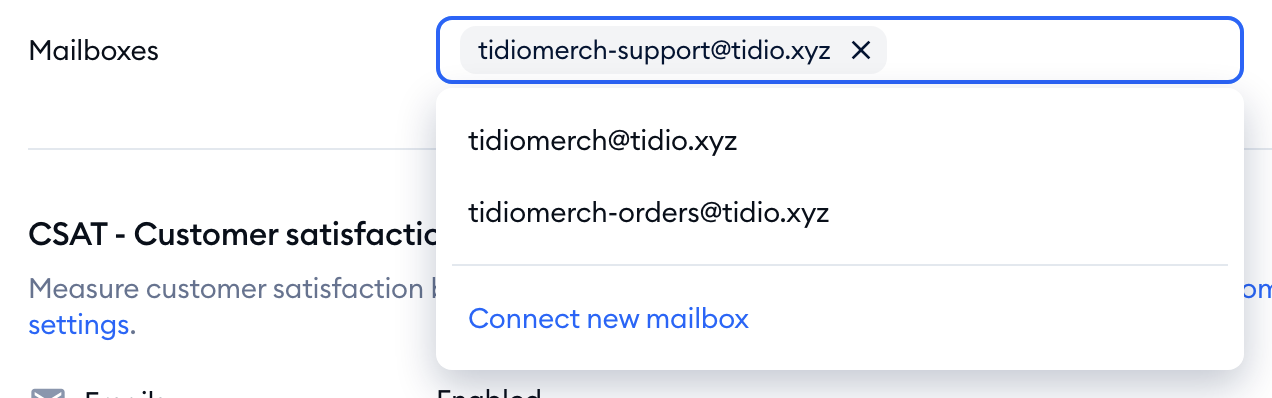
That's it! Lyro will now handle emails and contact forms linked to the selected mailboxes.
A few things to keep in mind:
- If the Email switch is grayed out, Lyro isn't active yet (hover over it to see To use this channel, activate Lyro first), or no mailbox is connected - in that case, you'll see a Connect mailbox link next to the switch.
- If you remove every mailbox from the Mailboxes field, Lyro stops answering emails.
- To stop Lyro from answering emails, turn off the Email switch. Lyro keeps working in your live conversations.
- Only agents who can edit Flows in their permissions can change these settings.
Lower on the same tab, you can turn on the CSAT - Customer satisfaction survey for emails. The survey itself is managed in Customer satisfaction settings - for details, please see Collect customer feedback.
Please note: every email ticket Lyro replies to counts toward your Lyro conversations limit, just like a live conversation. To learn how the limit works, please see The Lyro AI agent limit.
Preparing Lyro for follow-up emails
Follow-ups are where customers share details, ask for changes or push back, so before Lyro takes over your email threads, take a moment to review your:
- Guidance - how Lyro should talk and behave (on email, the Guidance page notes that only Tone of Voice applies for now),
- Procedures - step-by-step instructions for specific cases (if you see Procedures in Lyro's menu),
- Actions - tasks Lyro can carry out, like looking up an order.
Go through them once, and check that they make sense in an email as well as in a chat.
The best way to see how Lyro will answer is to test it. Head over to Lyro AI Agent > Playground, and open the Email tab. Type an email as your customer would, and hit Send. Once Lyro replies, you can write a follow-up in the same thread and see how Lyro answers it:
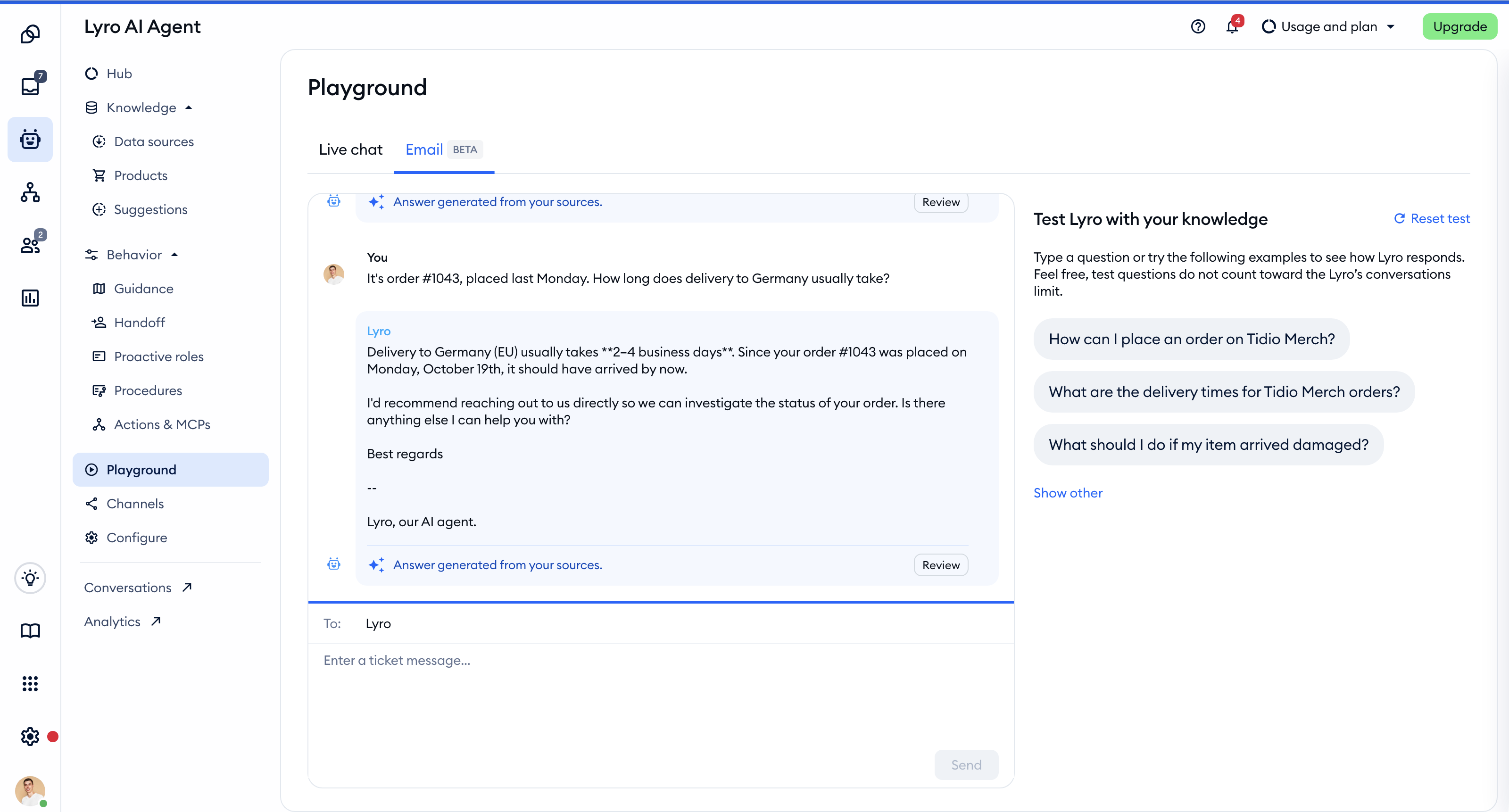
Click on Review under any reply to see the sources, Guidance and products Lyro used. When you want to start over, click Reset test. For everything about testing Lyro, please see Test Lyro before it goes live.
Following and reviewing Lyro's emails in the Inbox
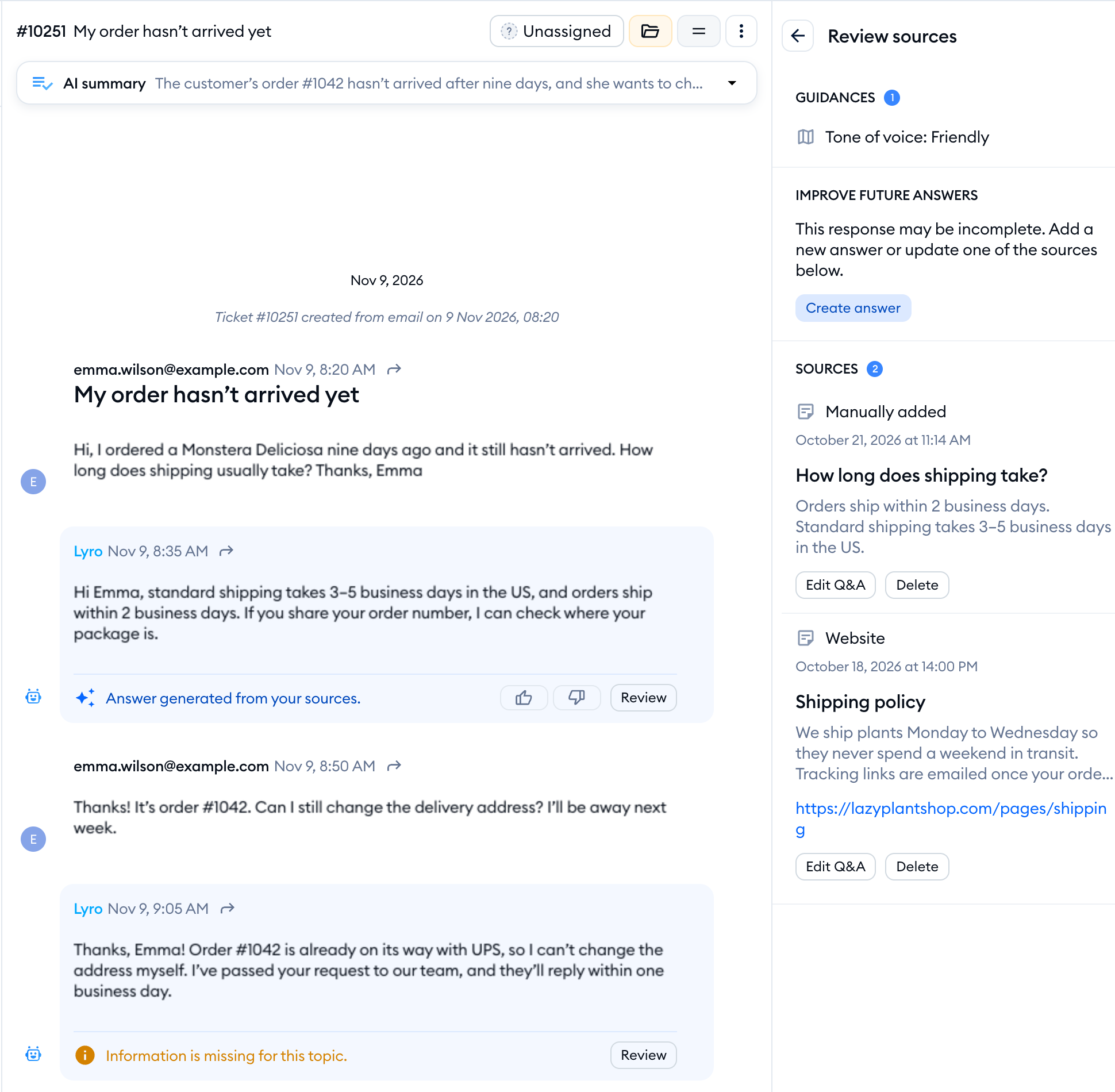
Every email Lyro handles is in the Inbox. Click on Lyro AI Agent in the Inbox menu, and open the Emails tab (next to Live conversations):
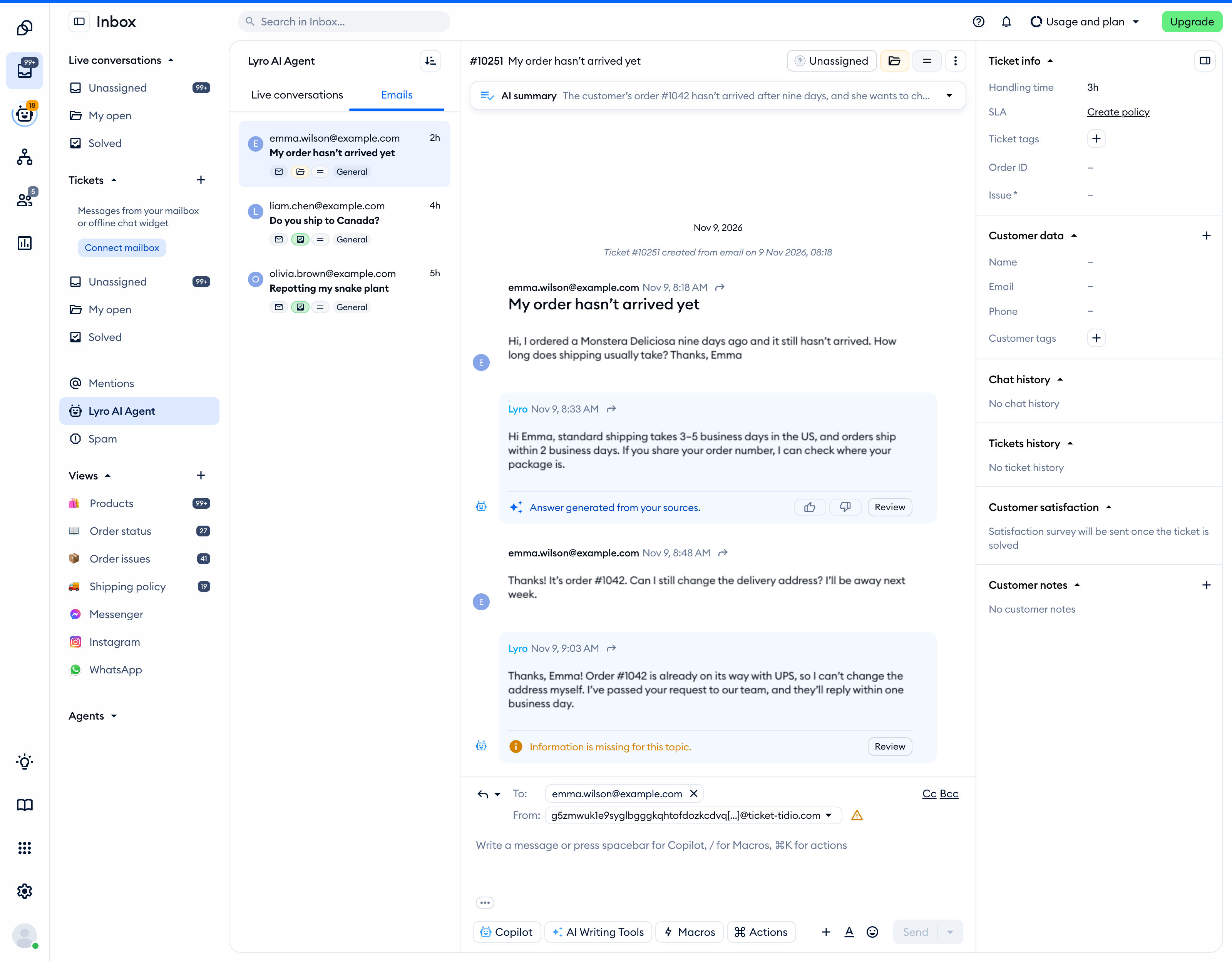
Below each of Lyro's replies in a ticket, you'll see a short line that tells you how the answer came about:
- Answer generated from your sources. - Lyro found what it needed. Use the thumbs up or thumbs down icons to rate the answer.
- Information is missing for this topic. or AI Agent didn't have enough information to fully answer. - Lyro's data sources didn't fully cover the question.
- Unable to run a Lyro Action due to an error, please review. - one of Lyro's Actions failed while it was answering.
Click on Review next to the line to open Review sources on the right. If information was missing, you'll see Improve Future Answers at the top, where you can click Create answer to add the missing answer to Lyro's data sources:
When Lyro doesn't reply to an email, the email is assigned to a human agent, so your team can pick it up as usual. For more on working with tickets, please see Email (Ticketing).
Measuring Lyro's results on email
To see how Lyro does on email, head over to Analytics > AI support, and open the Emails tab:
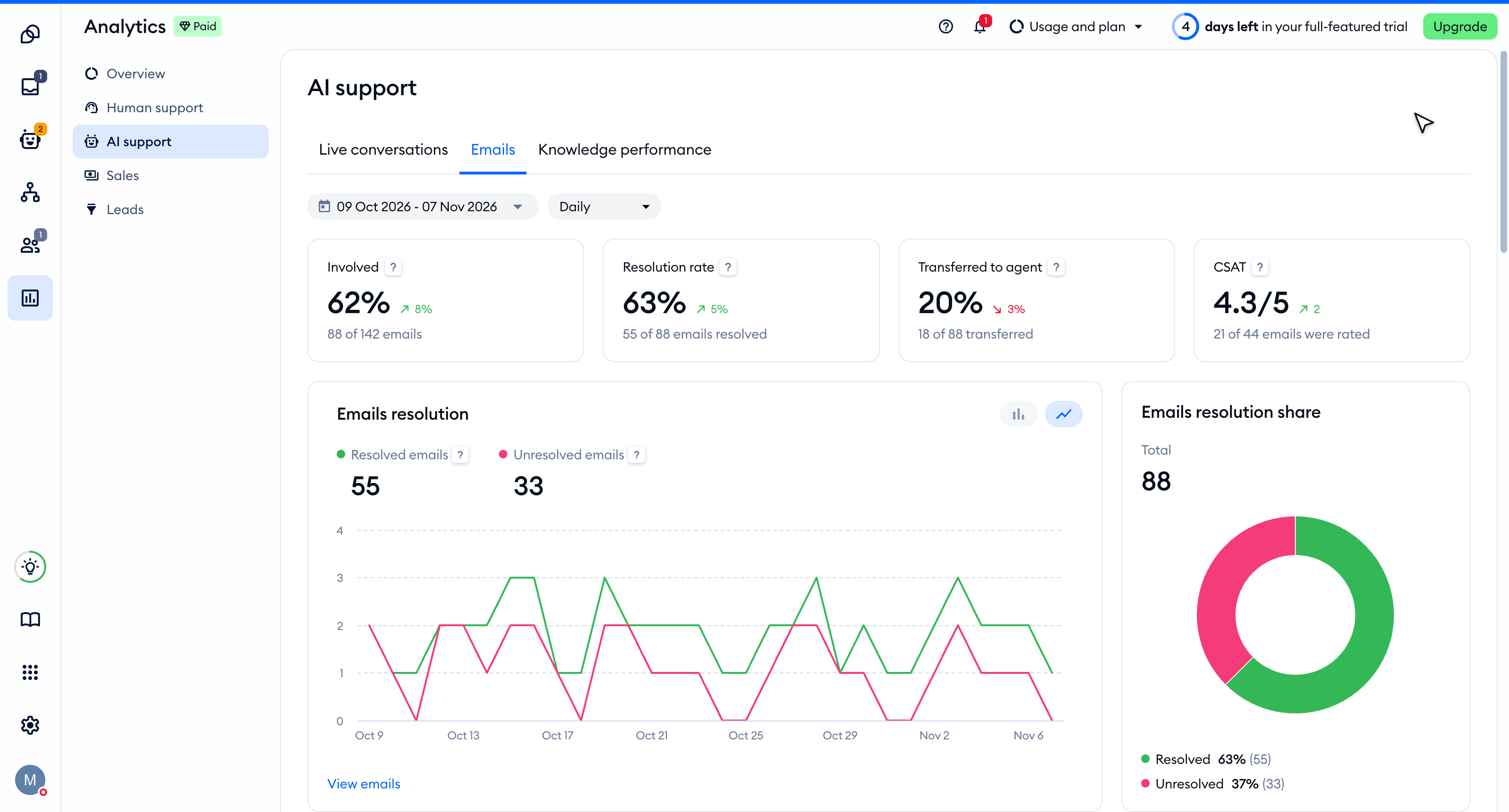
- All emails - the total number of emails handled by Lyro.
- Resolved emails - email tickets Lyro resolved without your agents' help.
- Resolution rate - the percentage of email tickets Lyro resolved without your agents.
- First-answer rate - the percentage of first emails from customers that Lyro answered.
For more on Lyro's reports, please see Lyro Analytics.
Further reading
- Lyro - the conversational AI agent
- Test Lyro before it goes live
- Lyro Procedures
- Lyro Actions
- Forward emails to Tidio
- The Lyro AI agent limit
