Lyro can follow complex, multi-step workflows in specific situations (e.g. refund requests) while guiding the conversation throughout the entire process. The Procedures tool allows you to define scenarios and their necessary steps in an intuitive way.
In this article, you will learn:
- How Procedures work and what they're useful for
- What the limits of Procedures are
- How to set up a Procedure
- How to manage your Procedures and see where they were used
How do Procedures work?
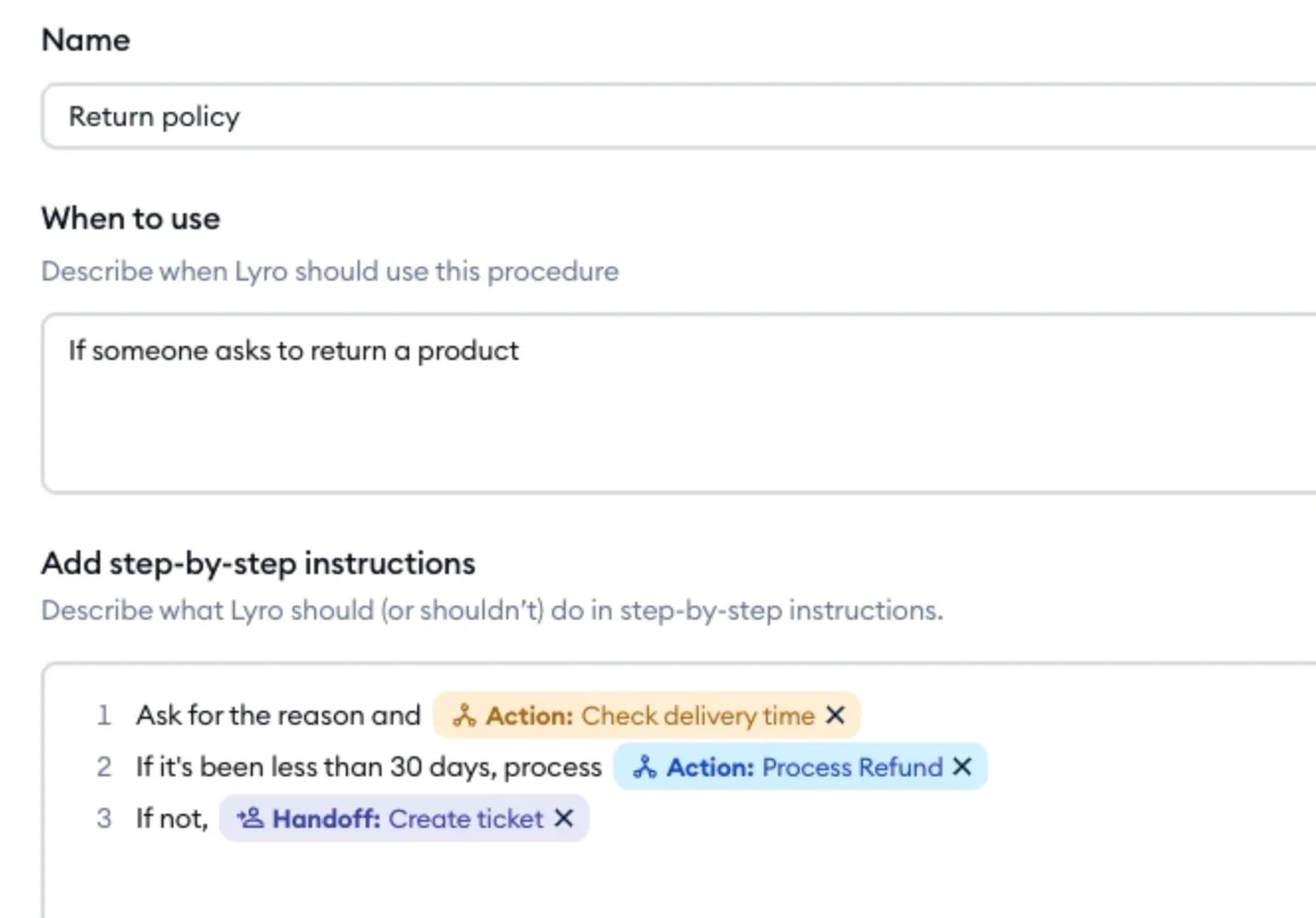
Procedures let you give Lyro step-by-step instructions for handling specific situations from start to finish, including when to call your external systems via API (through the use of Lyro Actions). Think of it as writing down your company's own process, in plain language, and having Lyro follow it exactly. Instead of describing a rule (or set of rules) in detail, you define a sequence of specific and clear steps.
Each step in your Procedure can use Actions, tools from your MCP servers or Contact Properties, as well as create a ticket for your team to handle later. Unlike a rigid Flow (or similar pre-made automation), Procedures are AI-driven. This means Lyro doesn't just follow the script robotically - it holds the process in mind while still responding naturally, handling typos, unexpected visitor replies, or side questions; without losing track of the overall goal or leaving the visitor stuck.
How are Procedures different from Guidance?
If you've ever used Lyro Guidance, then Procedures will feel familiar - while solving a different problem.
Guidance helps you shape Lyro's general behavior and personality - tone of voice, formatting preferences, and simple rules that apply broadly across conversations.
Procedures help you define a specific, structured workflow that Lyro should run from beginning to end, often involving multiple different API calls to your connected systems. A Procedure can therefore be quite complex.
Guidance and Procedures are separate tools, so you can keep your brand voice and general guidelines in Guidance, while using Procedures for the parts of your support flow that need a defined sequence of steps.
What can I use Procedures for?
Procedures are especially useful for processes that involve several steps and may need to connect with external systems along the way. Some common examples include:
- Booking or ordering: Walking a visitor through a multi-step booking process, such as choosing a service, confirming a date, and collecting the details needed to finalize it.
- Lead qualification: Collecting a specific set of details from a visitor before taking further action, like creating a lead in your CRM.
- Diagnostics or troubleshooting: Asking a structured set of questions to narrow down an issue before suggesting a resolution or escalating it to your agents.
- Ticket creation: Gathering the right details from a visitor and creating a support ticket automatically once the process is complete.
What are the limits for Procedures?
A Procedure cannot tell Lyro to trigger a Flow, as that would effectively interrupt the entire process from Lyro's side. Lyro can, however, create a ticket as part of a Procedure.
Additionally, the number of active Procedures (switched on at the same time) differs depending on your subscription:
- Free: 1 Procedure
- Starter / Growth / Lyro AI Agent: 5 Procedures
- Plus: 10 Procedures
- Premium: 10 or more Procedures
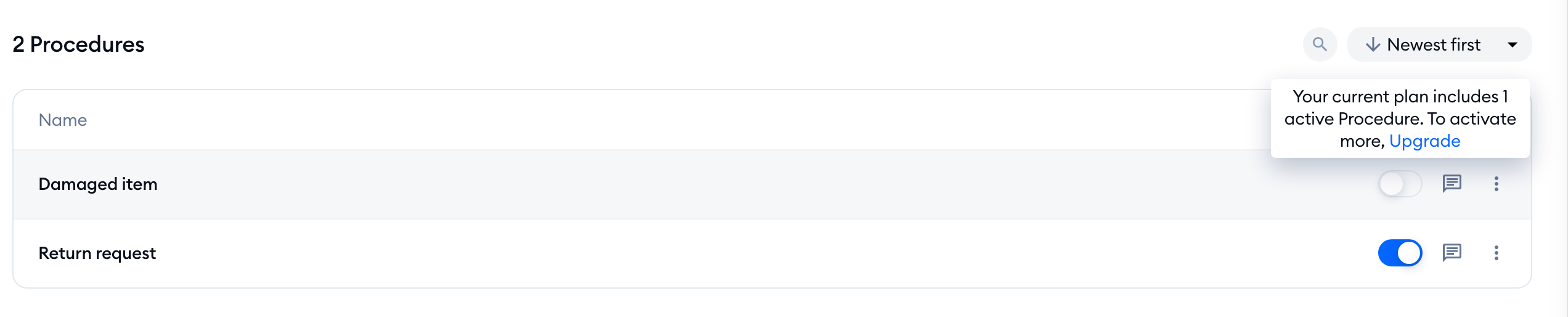
You can create and save more Procedures than that - they simply stay inactive until you switch them on. Once you reach the limit, the switch next to your inactive Procedures is grayed out; hover over it to see how many active Procedures your plan includes (e.g. Your current plan includes 1 active Procedure. To activate more, Upgrade). Using Activate in the Procedure creator at that point opens an upgrade window instead:
Setting up a Procedure
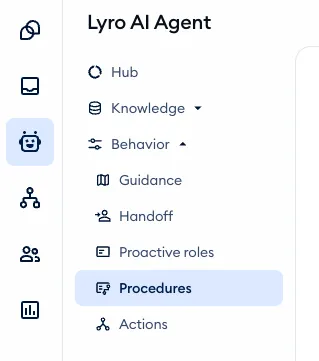
You'll find the Procedures tool in the Lyro AI Agent section, under Behavior > Procedures:
Please note: Procedures aren't switched on in every Tidio project yet. If you don't see Procedures under Behavior in your Lyro AI Agent section, the tool isn't available in your project at the moment.
From there, you can create new Procedures from scratch or modify existing ones, and test everything out as well.
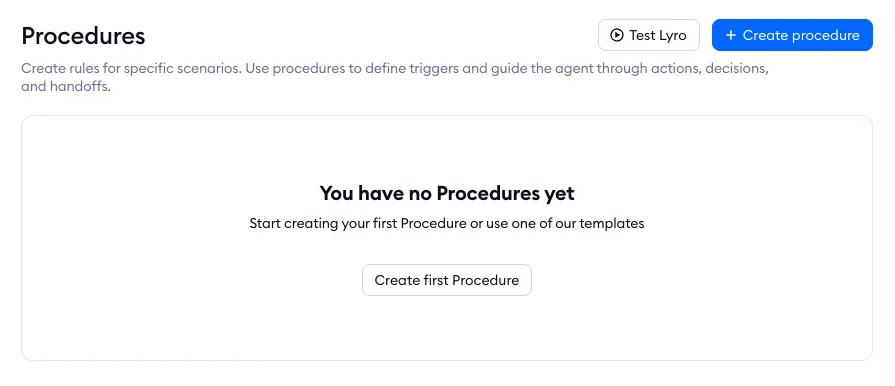
When you use the Create procedure button in the top-right, you will be taken to the Procedure creator, comprised of three sections:
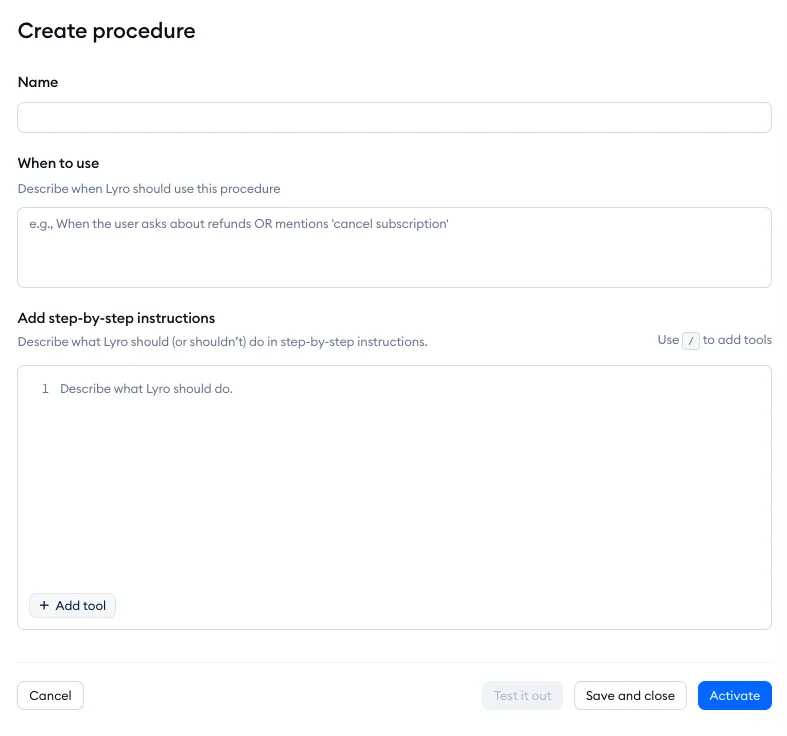
Name
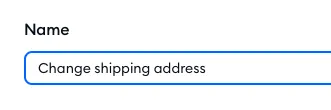
This is what your Procedure will be titled, and it's only for your organisational purposes.
When to use
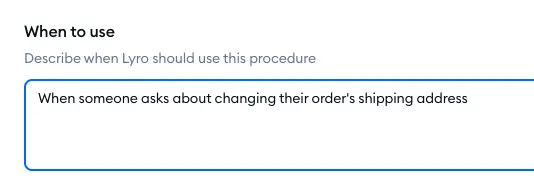
Here you define what triggers the Procedure; you need to describe when Lyro should start it.
Add step-by-step instructions
This is the main section. Here you determine all the steps, one by one, that must be carried out once the Procedure starts. You can not only type specific instructions, but also trigger Actions, reference and update Contact Properties, as well as tell Lyro to create a ticket. Keep in mind that it's always a good idea to be as detailed and clear as possible with your instructions, which will give Lyro more context to carry out the Procedure properly.
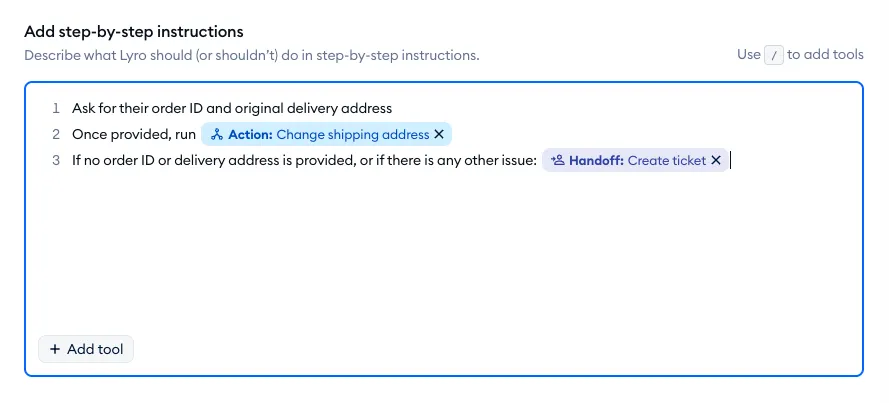
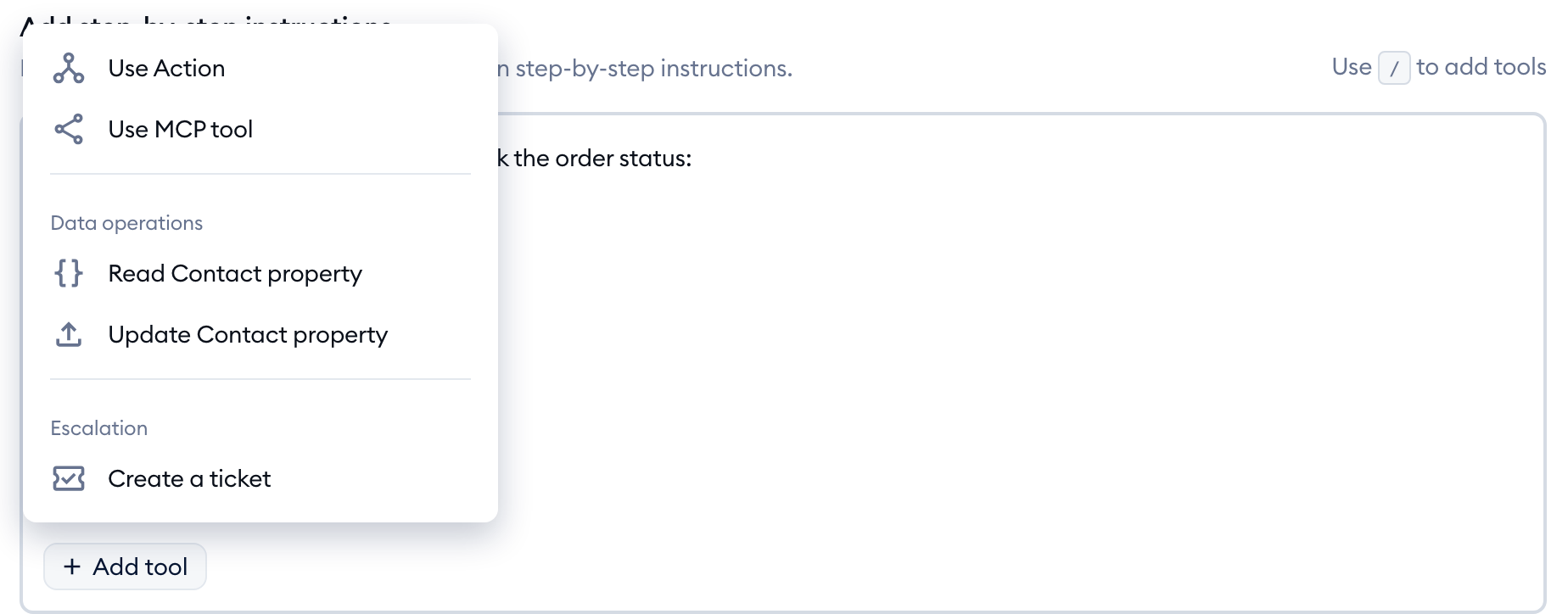
Apart from typing your instructions, in the bottom-left corner you will find the Add tool button (or simply type / in the instructions). Once clicked, it will give you several options:
- Use Action
- Use MCP tool
- Read Contact property / Update Contact property (under Data operations)
- Create a ticket (under Escalation)
Use Action
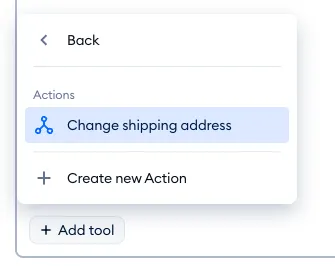
The Use Action option lets you insert one of your existing Lyro Actions into the Procedure. All your active Actions will be listed, and you also get the option to Create new Action without leaving the Procedure. Adding an Action to your Procedure tells Lyro that the given Action needs to be launched at that moment, taking into account the overall context of the whole Procedure.
To learn more about Lyro Actions, please see this dedicated guide.
Use MCP tool
If you've connected Lyro with an MCP server, the Use MCP tool option lists the tools you've switched on, grouped by server. Pick one to tell Lyro to use that tool at this step. If a tool is later switched off or removed, the Procedure will show a warning on it, so you know to fix it.
To learn how to connect an MCP server, please see Connect Lyro with MCP servers.
Read Contact property / Update Contact property
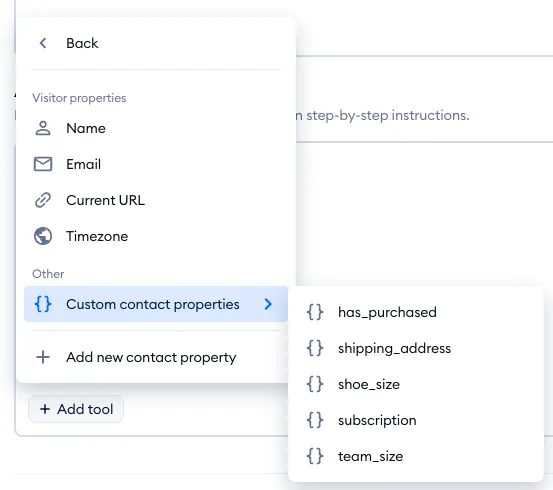
The Read Contact property option tells Lyro to access that specific property and take note of its value (if any is present for the current visitor). In the list, you will see four default properties (Name, Email, Current URL and Timezone), as well as the custom properties that Lyro is allowed to read.
In addition to that, you can use Update Contact property to tell Lyro to modify a given property with a new value. Here, you'll see Name and Email (the only default properties Lyro can change), and all of your custom properties. Both lists also give you the option to Add new contact property.
Please note: for a custom Contact Property to be visible in the Read Contact property list, it must first be made available to Lyro. That can be managed via Lyro's Configure > General tab, as described in this guide.
Create a ticket
The Create a ticket option is used for handoff, and tells Lyro to create a new ticket for live agents to handle later.
When you are done with your Procedure, you can use the Test it out button at the bottom. This will open a Tidio widget for you to use Lyro as a real visitor would on your website. The button becomes available once the Name, When to use and instructions are filled in, and Lyro has at least one data source to learn from.
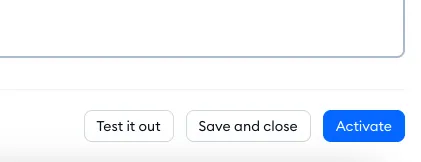
Once you're happy with how things are working, you can hit the Save and close button - this will save all your changes and close the Procedure creator. The Procedure will remain inactive until you enable it, however; if you use the Activate button instead, the Procedure will be saved and also enabled right away.
Managing your Procedures
Any Procedures you create and save will be listed in Lyro's Procedures section:
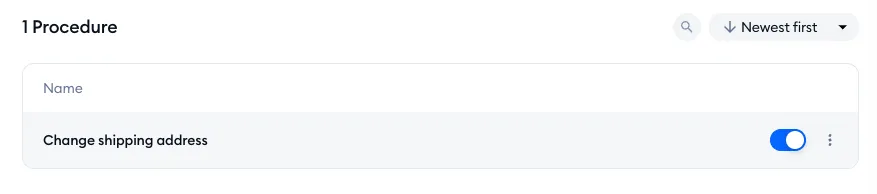
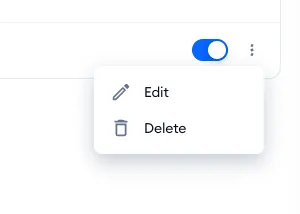
From there, you can enable or disable existing Procedures by using the toggle on the right. Click on the three-dots menu to see the Edit and Delete options as well:
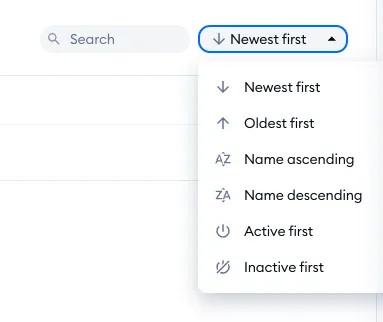
In the upper-right, you will also see the Search tool for quickly finding the Procedure you're looking for, as well as sorting options for your list:
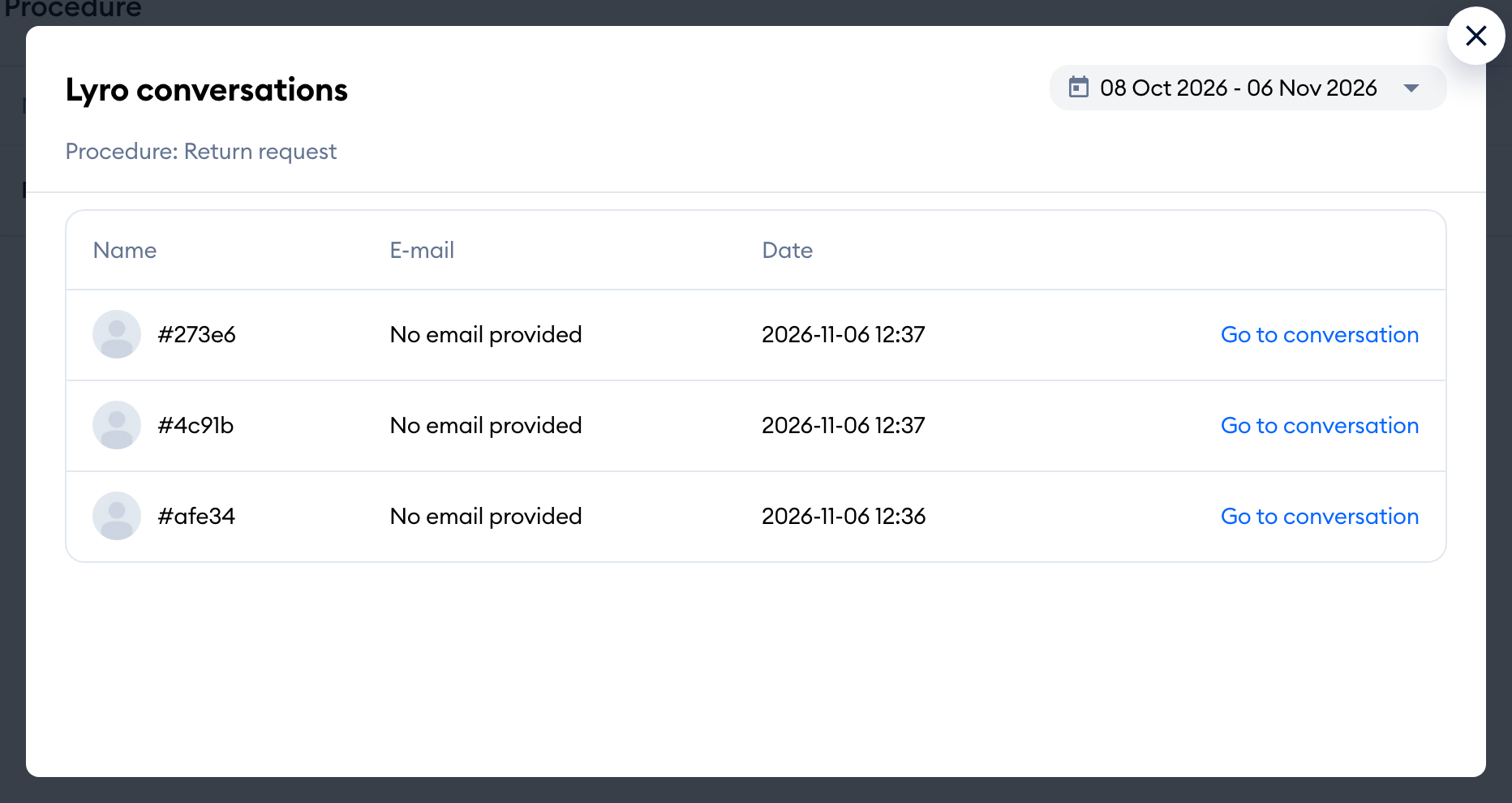
Want to see a Procedure at work? Click on the speech bubble icon (View conversations) next to its switch. A window will open with the Lyro conversations where that Procedure was used: the visitor's Name, E-mail and the Date, for the date range you pick at the top. Use Go to conversation to open any of them in the Inbox: