You can connect your Lyro AI agent with MCP (Model Context Protocol) server. This allows you to securely bridge Lyro with external tools, data sources, and services. Whenever the MCP server is updated in any way, this is reflected in your Lyro connection as well - no manual modifications necessary.
In this article, you will learn:
- How to connect an MCP server with Lyro
- How to manage your MCPs
- What the limit of active MCP tools is
Please note: the MCPs tab carries a beta badge, so connecting Lyro with MCP servers is still in beta and may change.
Connecting Lyro with MCP servers
You can navigate to your MCP setup in Lyro by accessing the Actions & MCPs section:
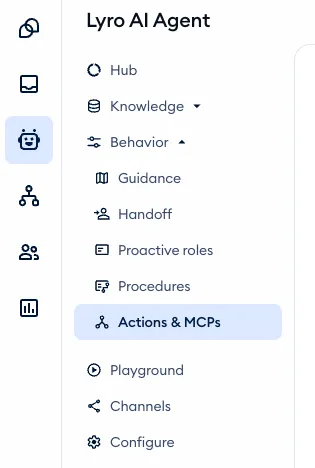
Once inside (you'll find it under Behavior in the Lyro AI Agent section), open the MCPs tab - this is where you manage all the details:
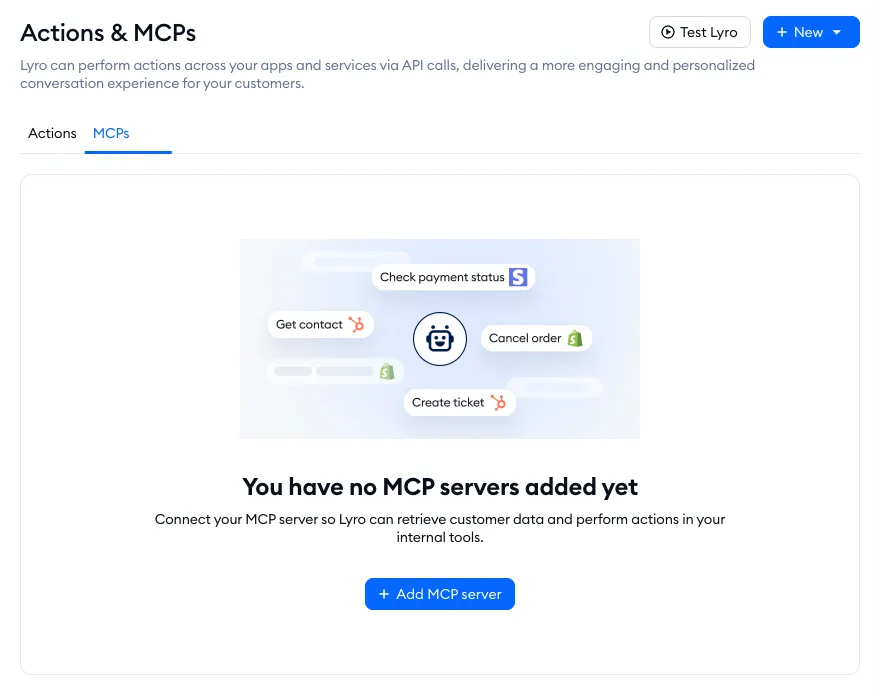
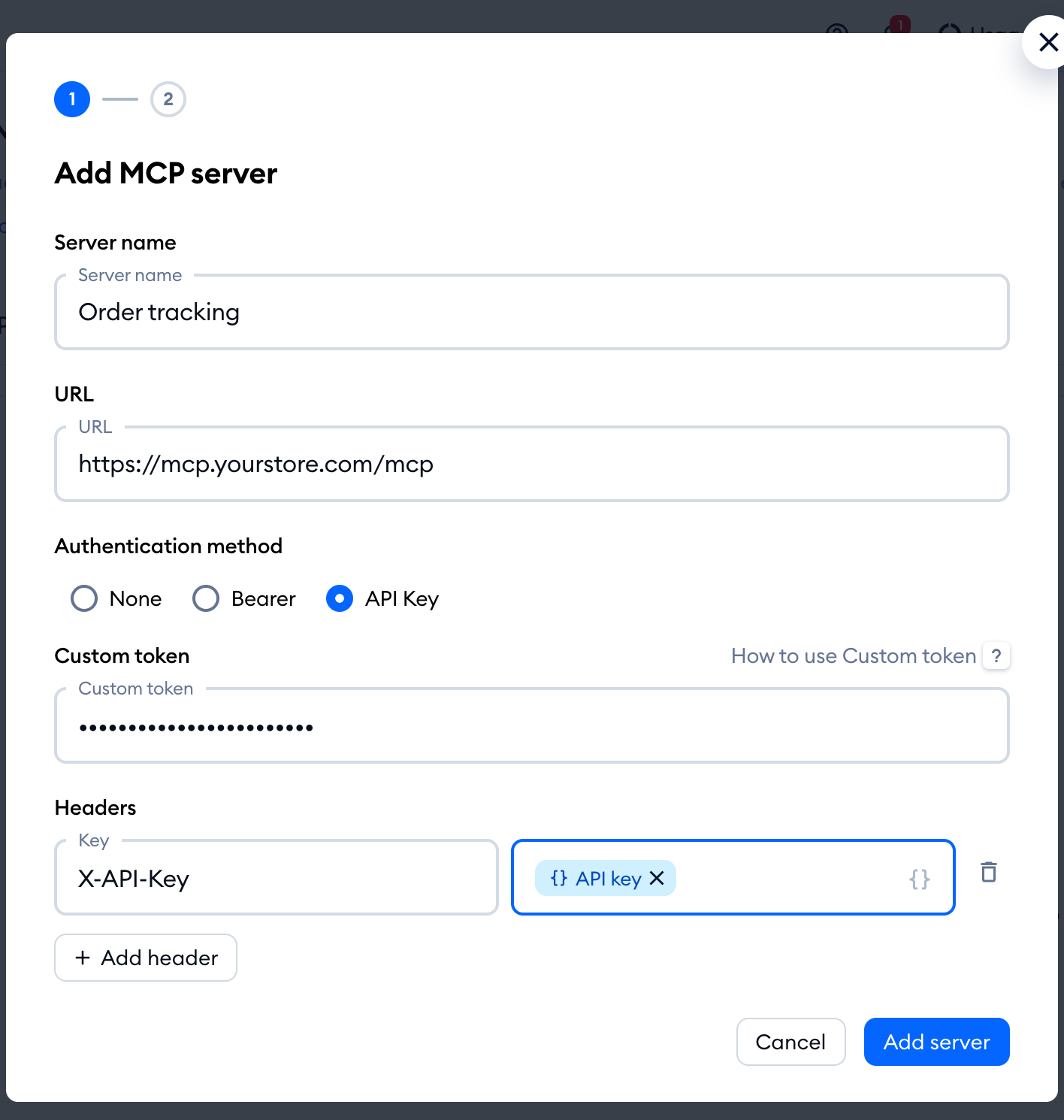
Use the Add MCP server button to configure your first MCP connection (you'll find the same option under the Create button in the top-right, too). You will see a new window pop up with all the associated options:
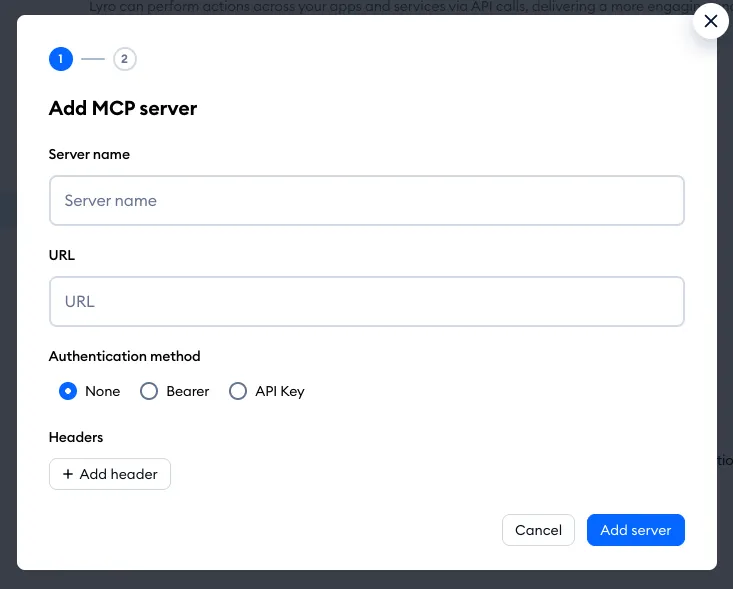
Here you can enter the Server name and provide its URL. If there is any authentication required, you can also set up the appropriate Authentication method, as well as add any relevant Headers with Add header.
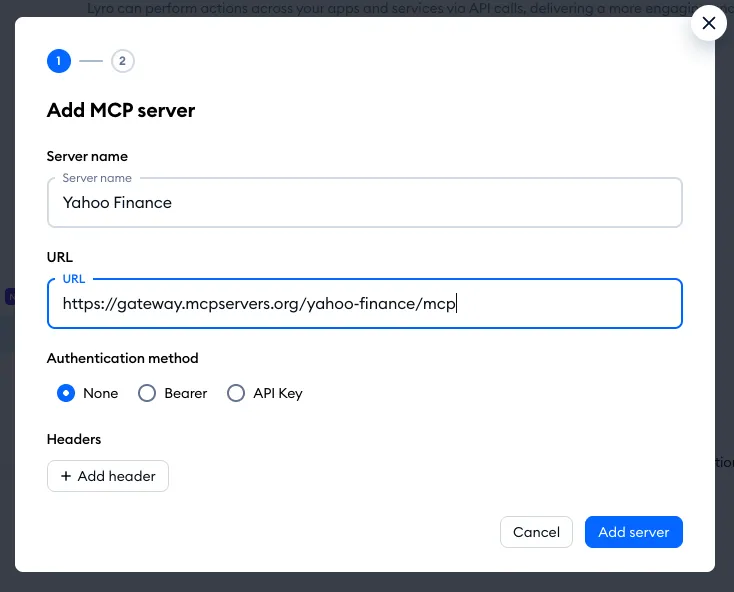
In the example above, we are connecting to an open, public MCP server - so no authentication is necessary. If your server does need it, there are three authentication methods to choose from:
- None - for open, public MCP servers.
- Bearer - paste the bearer token provided by your MCP server into the Access token field.
- API Key - paste the API key provided by your MCP server into the Custom token field, then put it into a header value with the Insert API key button.
Either way, the token is encrypted and securely stored. Please avoid typing secrets straight into a header value - if a header looks like it contains a plaintext API key, token or password, you'll see a warning suggesting the API Key method instead:
Once you hit the Add server button in the bottom-right, a connection will be attempted. If successful, a list of available tools from that particular server will be shown. You can select the ones you need for your purposes (or tick Select all tools), and then hit the Add tools button to finish up. All the tools you add are switched on right away. Not sure yet? Use Set up later to add the server now and pick its tools later:
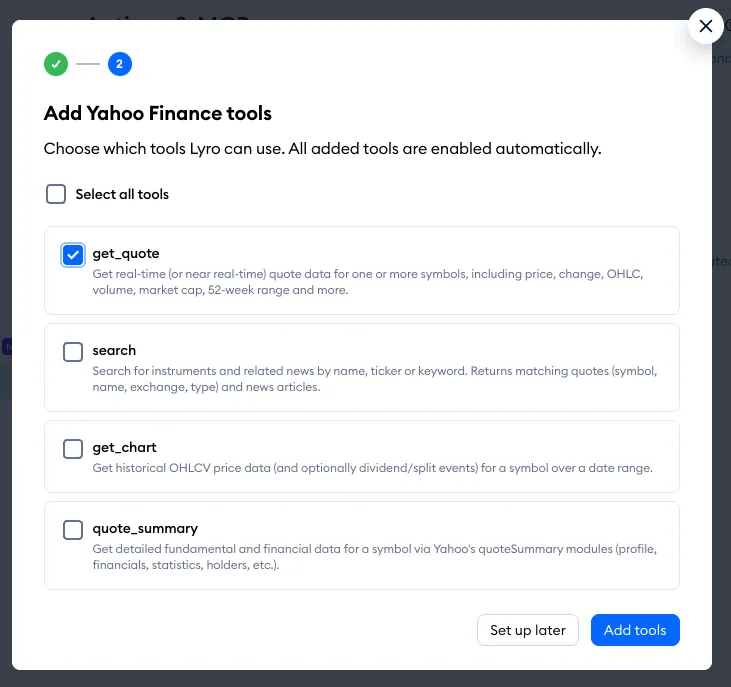
In our example, we want Lyro to be able to provide quote for a chosen currency, based on the particular Yahoo Finance server we're connecting to.
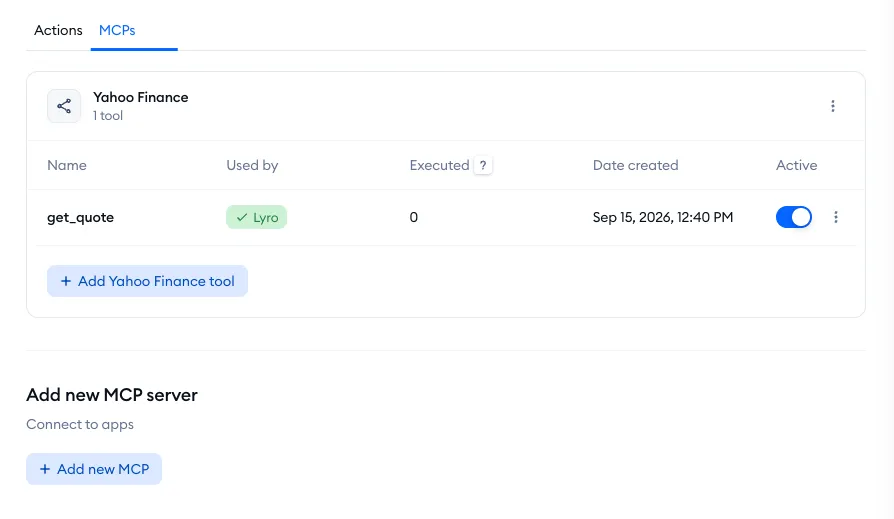
Any tools you add will be listed under the MCP server you've connected, and available there to manage. You can add more tools (if available) by clicking the Add [server name] tool button. Naturally, you can keep adding other MCP servers by using the Add new MCP button at the bottom:
You can test Lyro and how it uses the MCP servers by hitting the Test Lyro button in the top-right any time. In our example, we know Lyro is able to get data on currencies - so we tested if the connection is working well for that purpose:

Managing your MCP servers in Lyro
Under the MCPs tab, inside the Actions & MCPs section of your Lyro settings, you can see all your MCP servers listed - and each one with its particular tools:
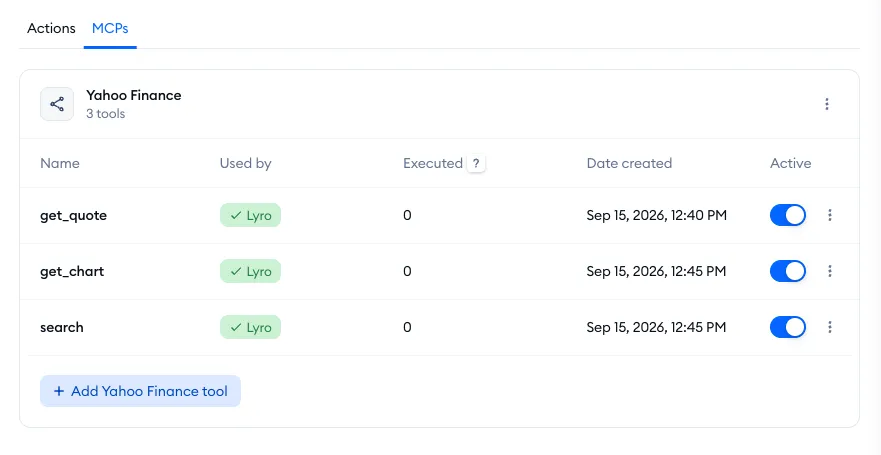
From that tab in general, you can add more MCP servers, but also manage everything that's already there.
Each tool in the list has a usage counter in the Executed column; it shows the number of times this specific tool was used in the last 30 days. The list also features each tool's creation date and time, as well as the Active switch - which you can use to disable/enable the tool anytime. Note the Used by column as well: it just lets you know that the tool is active and available to Lyro. By clicking on the options menu to the far right, you can also completely delete a given tool:
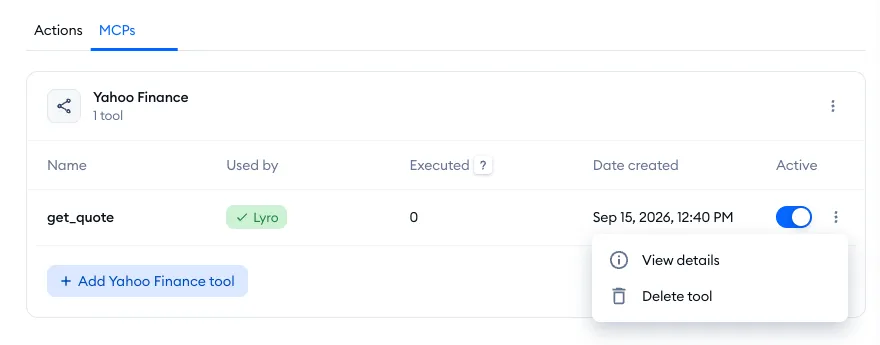
Clicking on the View details option shows you one additional piece of information: the tool's description, as provided by the connected MCP server itself:
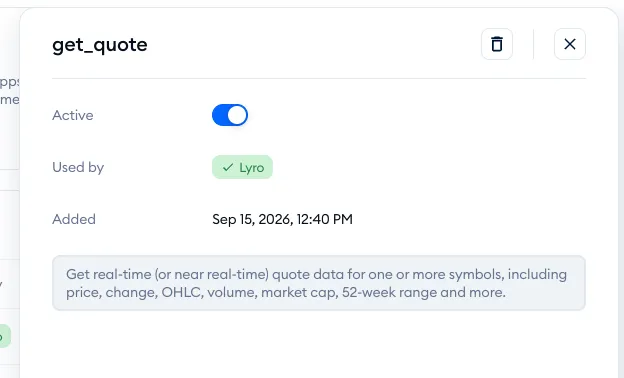
Naturally, you can also use the options menu for the entire MCP server:
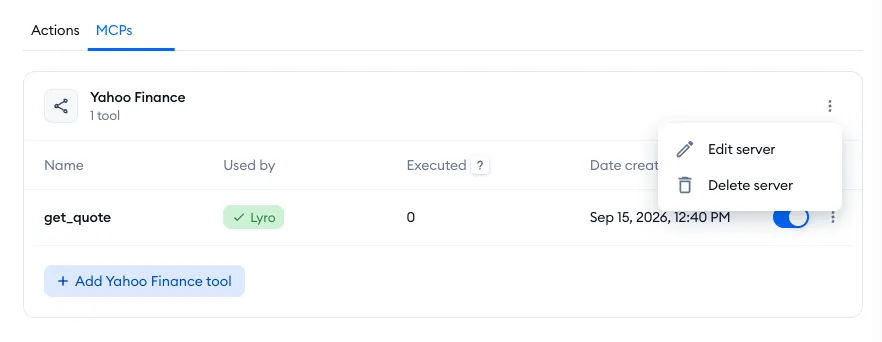
Using the Edit server option allows you to modify the MCP's name and authentication method, as well as manage headers. Changing the URL is not possible at this stage; if you need to use a different URL, then adding a new MCP server from scratch is required. You can use the Delete server option as well, which lets you remove the entire connection and all of its tools.
Using Procedures? Your switched-on MCP tools are also available there, with the Use MCP tool option - see Lyro Procedures.
The limit of active MCP tools
The number of active MCP tools (switched on at the same time, across all your servers) depends on your plan. Once you reach it, the Active switch next to your inactive tools is grayed out - hover over it to see how many active MCP tools your current plan allows, with an Upgrade link to activate more. Adding more tools than your plan allows opens an upgrade window, too:
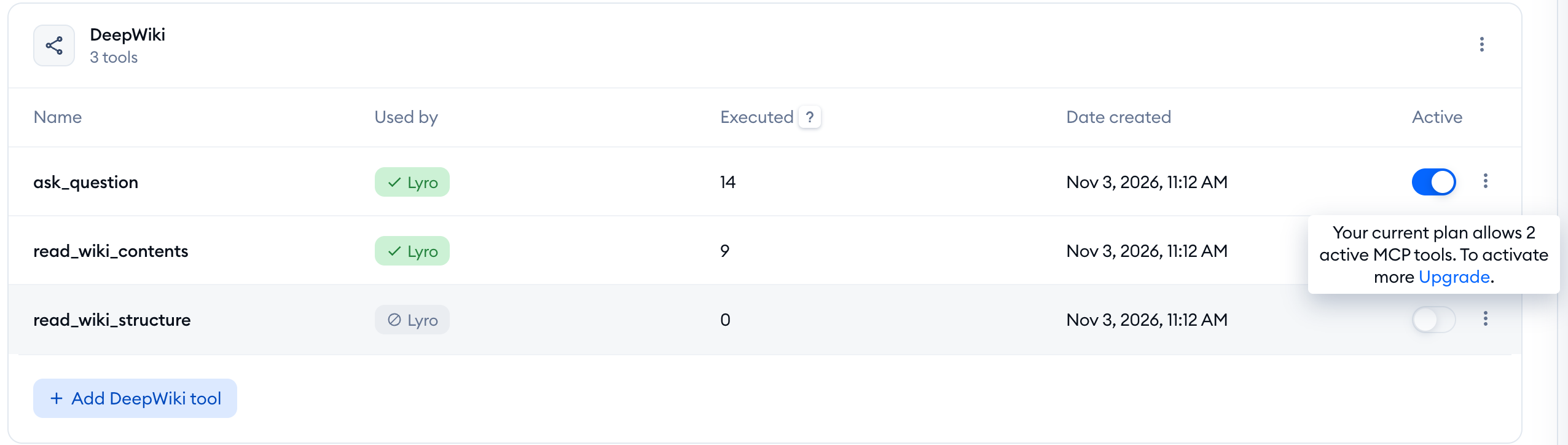
To activate another tool, simply switch off one you don't need any more - or upgrade your plan.
