Customer feedback is crucial for improving your products or services. After all, you intend to sell something to other people. However, providing excellent services, products, and experiences is a never-ending commitment.
To ensure you're on the right track, you must be up-to-date with your customers' expectations. You should also be aware of how they perceive your goods, services, or customer care.
In this article, you'll learn:
- How customer satisfaction rating works
- How to enable the survey (for agent chats, Lyro, and tickets)
- How to check the results
- How to collect feedback through flows
- Why you should collect feedback
Customer satisfaction rating
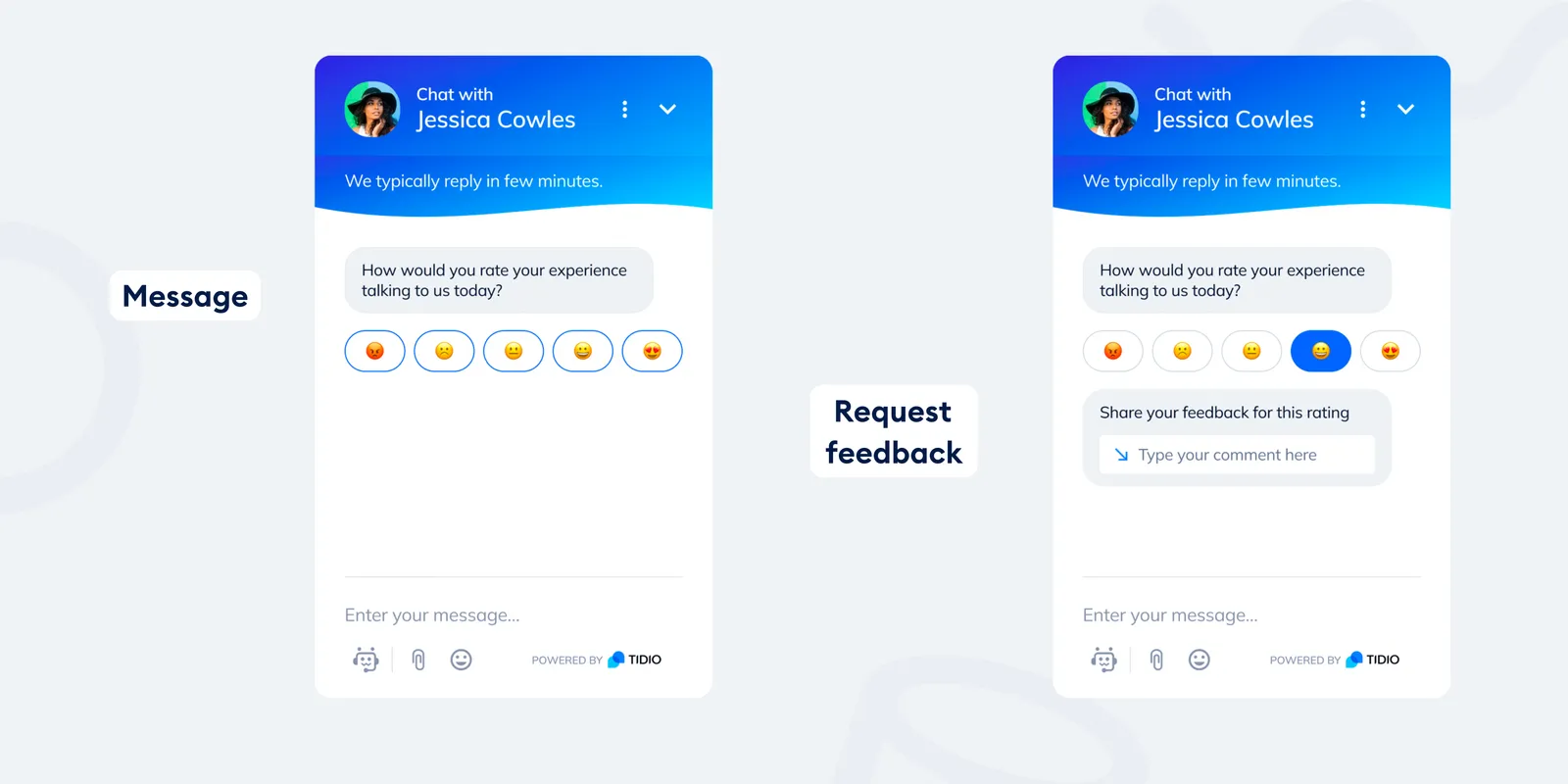
The Customer satisfaction tool allows you to ask your visitors for a rating on a scale comprised of five options (emojis). This is possible for both live chat conversations and tickets. Whenever an agent closes a conversation or solves a ticket, the customer will be automatically asked for a rating and comment on their experience. The survey is also sent after Lyro solves a conversation (or ticket).
For live chat rating, the survey is shown immediately; for tickets, you can decide about the amount of time after which the survey will be sent. Of course, you can modify all the default texts for each survey.
You can later check the effectiveness and satisfaction rate in the Analytics section, which you can learn more about here.
Please note: the automated satisfaction survey is available on the Growth plan and above (see Which upgrades do I need?). On a lower plan, switching on any of the survey options opens the upgrade window instead.
Enabling the satisfaction survey (live chat and tickets)
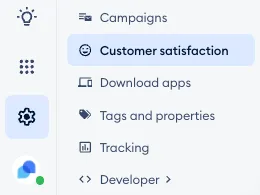
To collect your customers' feedback after each closed conversation or ticket, head to the Settings > Customer satisfaction section:
... and enable the rating you want by switching on the toggle (each available in its own tab - Live conversations or Tickets). On the Live conversations tab, you'll find Send survey for conversations handled by agent and Send survey for conversations handled by Lyro; on the Tickets tab, Send survey for tickets handled by agent and Send survey for tickets handled by Lyro:
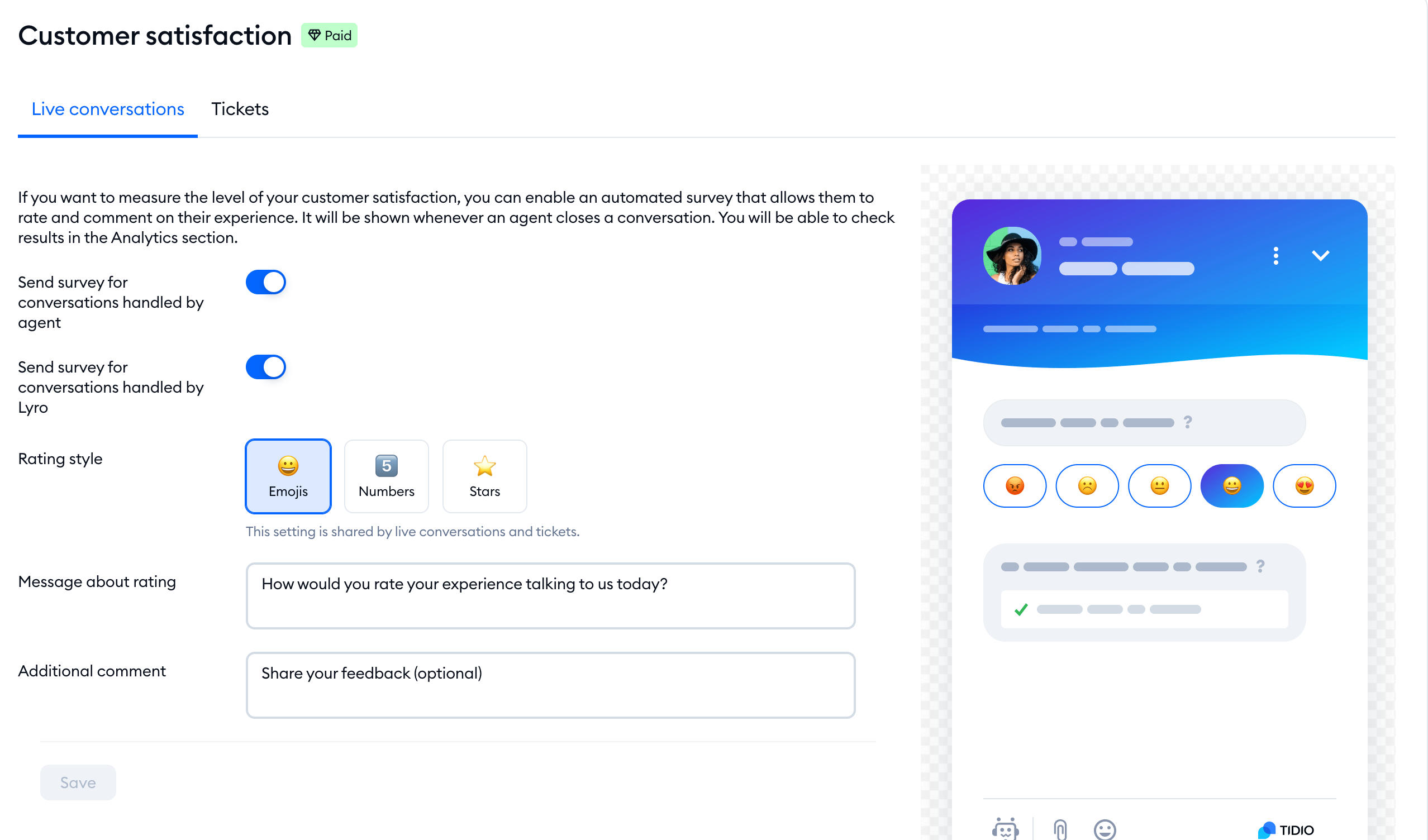
Note that you can separately decide if the satisfaction survey is triggered when a live agent closes the conversation, or when Lyro (the AI agent) closes it. You can select either of the options or both at the same time (or none, of course).
Please note: if a live chat is solved by Lyro, but the visitor doesn't complete the satisfaction survey shown directly in the widget, they will also be asked to leave a rating via email 24 hours later.
Now, you'll be able to adjust the Message about rating that will be visible above the rating options and the Additional comment text visible above the comment field. Don't forget to hit Save.
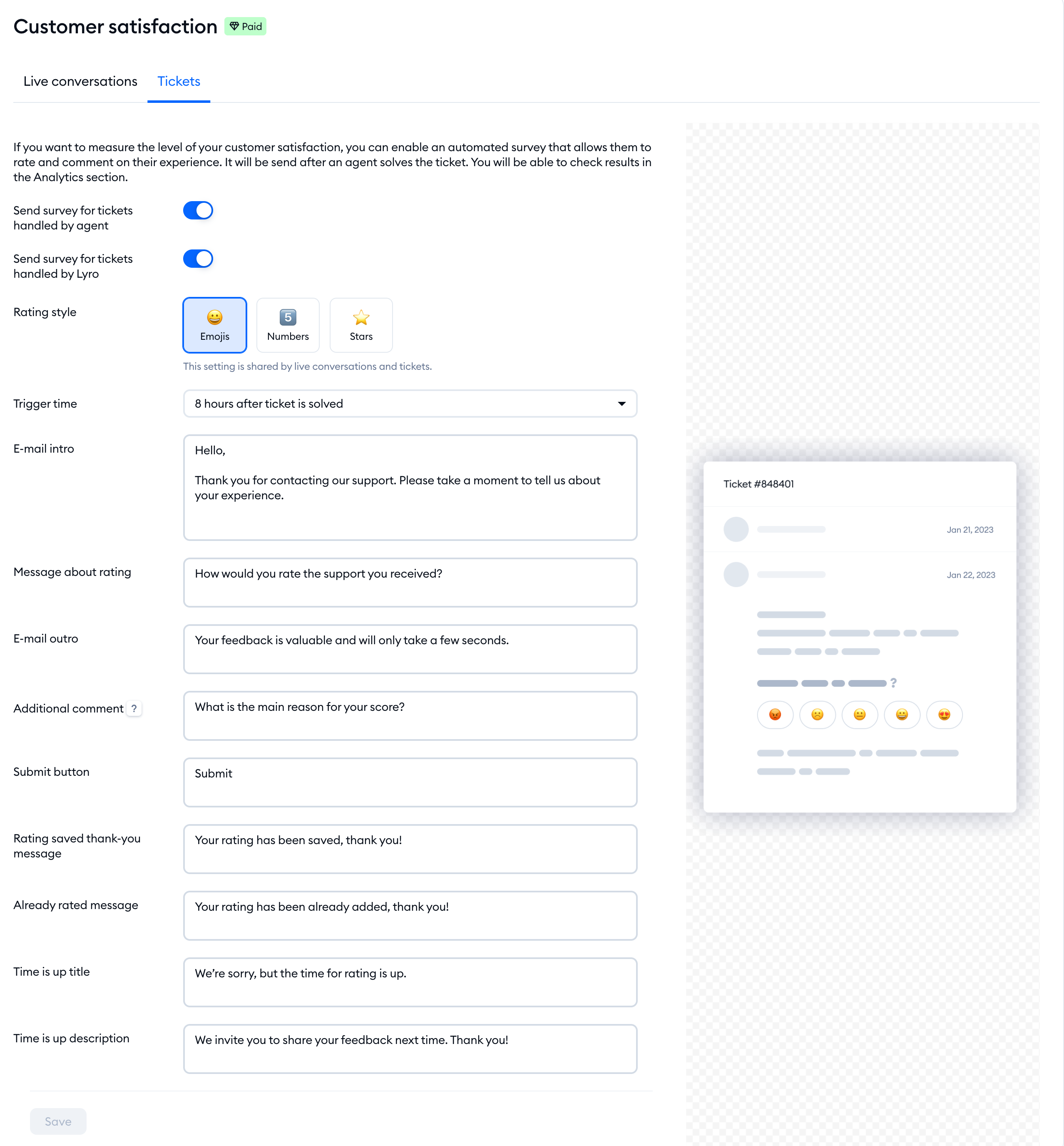
The rating tool for tickets is separate, and has some other options that you can adjust as well - like the Trigger time (Immediately when ticket is solved, or 2, 4 or 8 hours, 1, 3 or 7 days after the ticket is solved) and particular sections of the email itself (E-mail intro, Message about rating, E-mail outro and Additional comment):
Here's an example of what such a satisfaction survey email may look like on the customer's end:
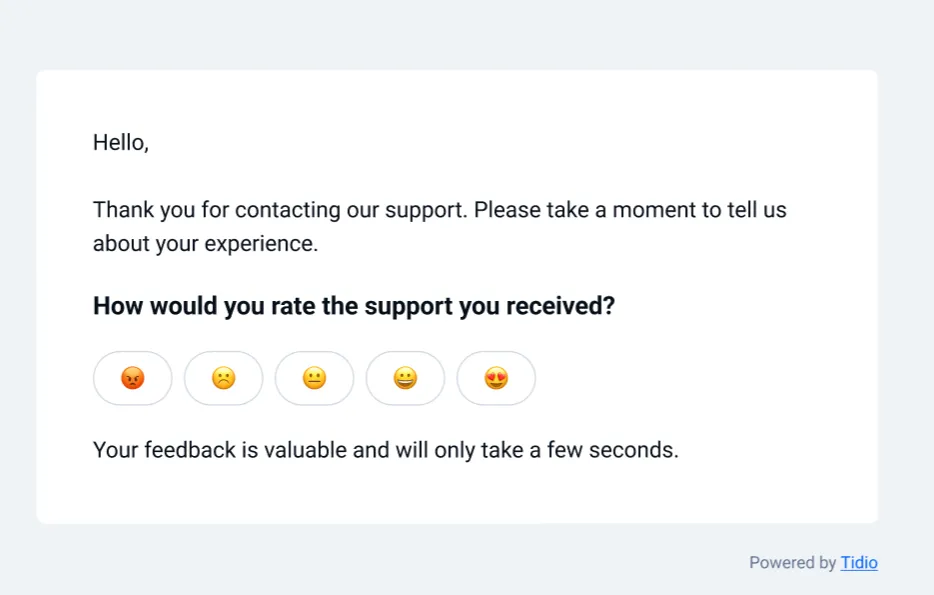
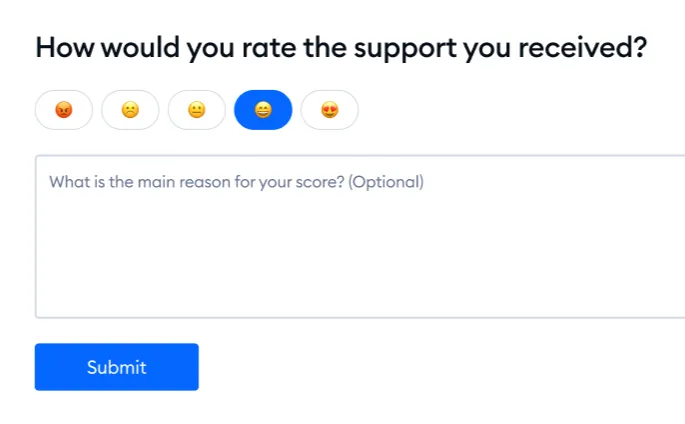
If the customer clicks on one of the ratings in the email, they will be taken to a separate landing page, where they will have the option to leave an additional comment:
Checking the survey results
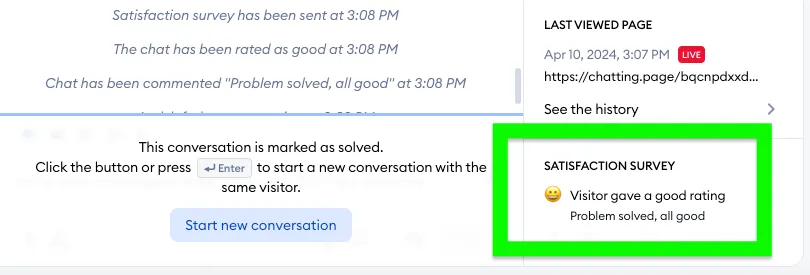
The results from the customer satisfaction rating can be viewed inside the chat conversation (or ticket) - in the visitor's details section on the right (or in the Analytics section).
In the Analytics section, you can check the ratings in their respective tabs: Human support or AI support. You will see specific numbers as well as charts for a selected time period. You also get the option to see all rated conversations in a list, sorted by rating. These options are available for both live conversations and tickets - in AI support, you'll find Lyro's satisfaction rate for chats and for emails.
AI support is available on every plan. Human support is part of advanced analytics, available on the Growth plan and above.
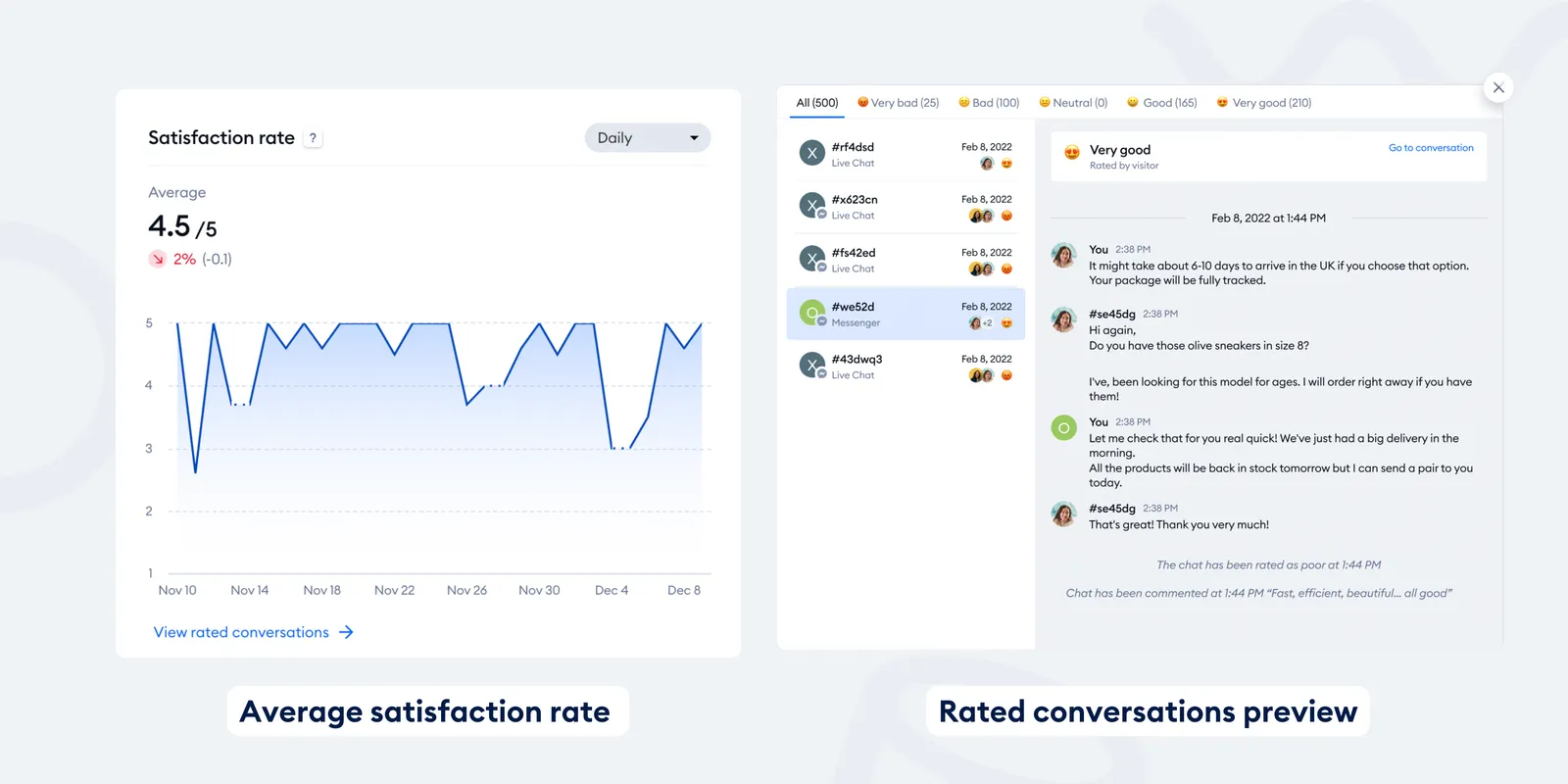
You can also find the average live chat (or ticket) rating for each agent in the Human support > Agents performance tab of the Analytics section.
You can learn more about the Analytics section in this dedicated guide.
Collecting feedback through Flows
Flows are one of the many tools that you can use to collect feedback and other customer insights.
With the trigger Agent marks conversation as solved, your flows will automatically activate to request and collect the feedback you need. This trigger activates your flow when your agent ends the chat with a customer (by using the Solve option).
This trigger works on any platform that you use to access the Tidio app (desktop, web, mobile).
Please note that a flow like this and the automated survey can both run when a conversation is solved. If you already have an active flow with this trigger, the Live conversations tab of Settings > Customer satisfaction shows a warning: You already have a Flow that activates after the agent solves the conversation. - use the See Flows link to review it, so your customers aren't asked for feedback twice.
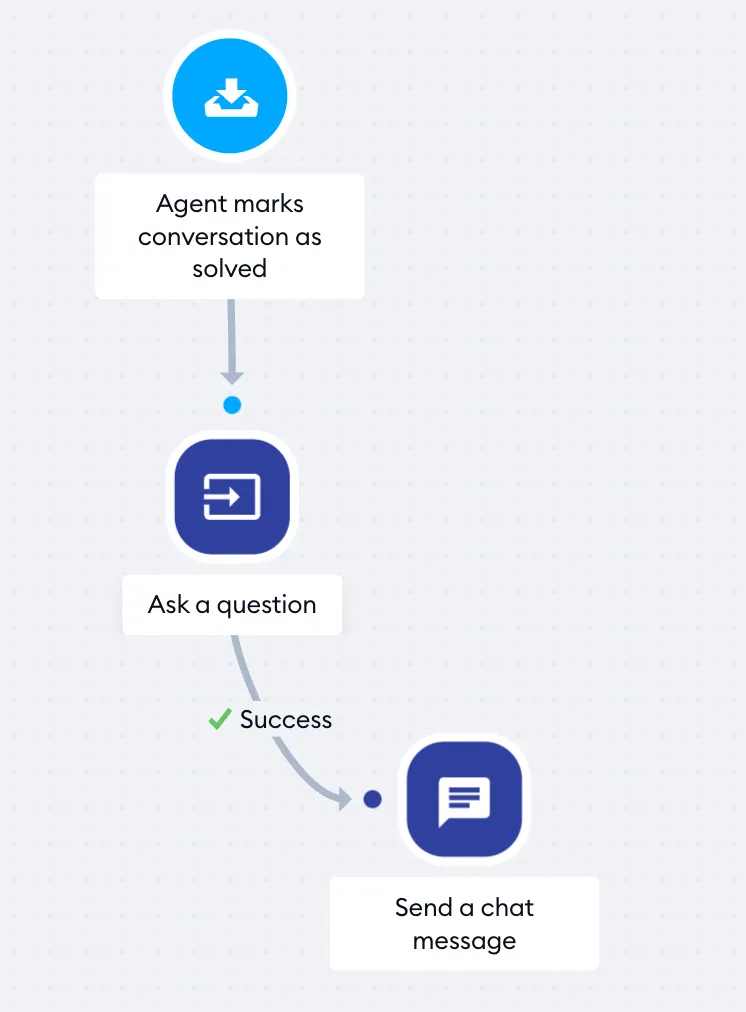
In the example above, the trigger makes the flow send a chat message to the customer who has just ended a chat with a live chat agent.
Each time the conversation has ended, you can:
- ask for feedback
- ask for a review
- surprise your client!
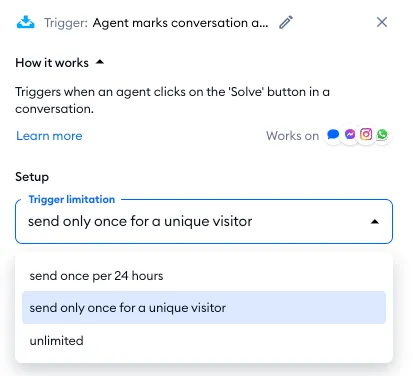
Similar to other triggers, you can set the limitations of the Agent marks conversation as solved trigger. Click on the trigger to access its settings and select how often you want the flow to activate:
The core structure of the flow you have used to collect feedback previously remains unchanged. You can connect the Agent marks conversation as solved trigger to any action or condition you believe will work best for you and your customers.
Here's an example of how you can use it:
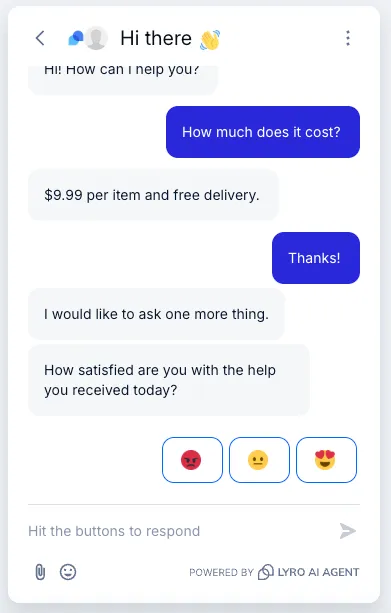
Below, you'll find a template for this flow.
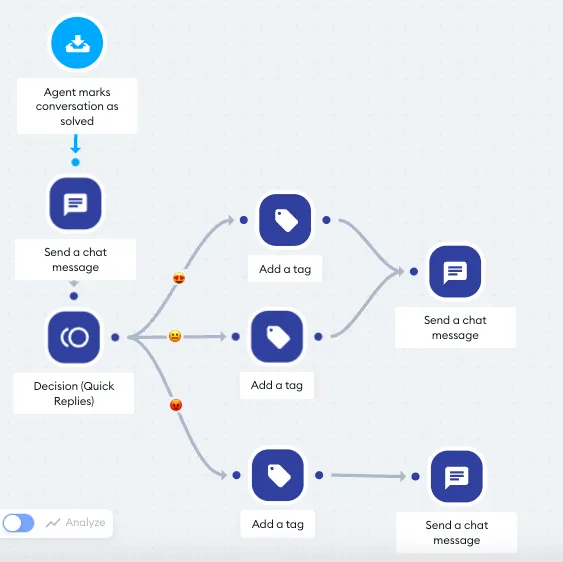
In this case, the flow sends a message followed by the Decision action. The reply the customer selects results in them being tagged.
Later on, you could send collected information (tags) via Zapier to the app of your choice (e.g. Google Sheets) that will allow you to organize and analyze all the feedback you get. You can read more about such an option in our article about Zapier.
Why collect feedback?
The benefit of collecting user feedback is two-fold.
First, it makes your feedback collection more efficient. When you finish helping one customer, you are free to move on to pick up another pending chat. The flow will remember to ask the customer for a review for you.
Second, customer satisfaction is a crucial differentiator between strong and poor brands. It has become an essential element of business strategy.
In order to measure (and improve) your customer satisfaction, you need feedback. The more data you collect, the richer your metrics will become. They will help you gain and retain more satisfied customers and accelerate the growth of your business.
There are different satisfaction metrics that aim to measure customer satisfaction. The most popular ones are:
NPS (Net Promoter Score)
Net Promoter Score asks customers how likely they are to recommend a given company to other people (i.e. their friends, family, etc.). This allows you to measure the level of the emotional attachment of your customers to your brand. This, in turn, will show you whether your customers' loyalty is strong enough to become your repeated clients or not.
CSAT (Customer Satisfaction Score)
Customer Satisfaction Score's real-time responses focus on how well businesses manage to meet (or exceed) their customers' expectations. CSAT metric is very useful in managing and monitoring the business' performance. High CSAT is often set as one of the main KPIs (Key Performance Indicators) within a company.
CES (Customer Effort Score)
Customer Effort Score allows you to measure how easy it was for a customer to complete an individual action (e.g. ordering a product online, solving a problem using your product or service, etc.). It helps companies identify and overcome important issues that discourage further interactions with their websites or online stores.
If you want to learn more about these metrics, please visit our step-by-step guide on how to measure customer satisfaction.
