Lyro's ability to understand and communicate in multiple languages turns global traffic into opportunity. Your AI agent answers in the same languages your customers use - so nothing gets lost in translation.
Product names, details, and tone stay true to your brand. The result? Fewer drop-offs, quicker resolutions, and happier customers in every market you serve.
In this article, you will learn:
- The benefits of Lyro's multilanguage capabilities
- How Lyro's multilanguage system works
- How to set Lyro's default language
- How to add or exclude specific languages
- How to give Lyro different knowledge for each language
The benefits
With Lyro, customers feel understood, while your team spends less time clarifying, and more presale questions turn into sales. Go global with confidence, as Lyro makes sure your customer service speaks every language of your business.
Protect brand trust in every language
Have Lyro answer natively in your customer’s language, preserving product names, details, links, and tone. Let your AI agent handle global chat spikes without needing to grow your team or missing SLAs.
Make conversations clear and reliable
Use Lyro’s stable language handling to prevent mid-chat switches and awkward translations, so that more customers get proper help.
Grow globally without extra overhead
Choose your supported languages in Lyro and apply them across channels to serve more regions with confidence. You can expand to new markets and prevent checkout abandonment.
How does Lyro handle multiple languages?
Lyro's multilanguage system is independent from your general Tidio widget settings (which you can learn about in this dedicated guide). That means your widget translations do not impact how Lyro chooses its language.
It is also worth mentioning that Lyro works natively in the customer’s language instead of translating messages to English (internally) first. This results in more natural, accurate, and consistent communication.
Lyro's multilanguage system works on all Tidio projects where Lyro is enabled. There are currently fifty-one (51) supported languages, English included:
| Arabic (Modern) Bengali Bosnian Brazilian Portuguese Bulgarian Catalan Chinese (Simplified) Chinese (Traditional) Croatian Czech Danish Dutch English Estonian Finnish French German |
Greek Hebrew Hindi Hungarian Icelandic Indonesian Italian Japanese Kazakh Korean Latvian Lithuanian Luxembourgish Malay Mongolian Norwegian Norwegian (Bokmål) |
Persian Polish Portuguese Romanian Russian Serbian Slovenian Spanish Spanish (Latin America) Swahili Swedish Tagalog Thai Turkish Ukrainian Urdu Vietnamese |
Lyro automatically detects the customer’s language during a conversation, and replies in the same language - as long as it’s allowed in your project's Lyro configuration. We cover this later in the article.
Please note: as the Languages section in Lyro's settings says, some languages are still in testing. If a language can’t be detected, Lyro will fall back to the default one.
Data sources (like FAQs, uploaded website content, or knowledge base articles) are processed directly in their original language as well, and do not require any translation to English first. This improves accuracy and preserves names, tones, and links.
Also, if you are using Lyro Guidance, note that you can tell Lyro to differentiate between variations in a given language. For example, Lyro can be instructed to use informal German, as opposed to formal German.
Setting Lyro's default language
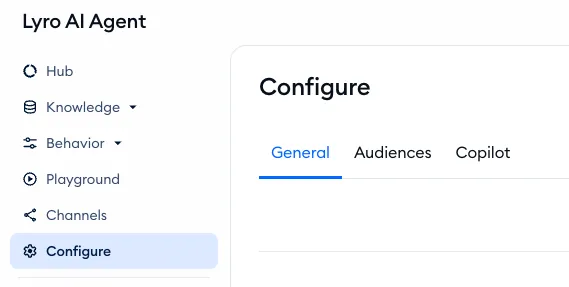
The list of languages that Lyro can use (and the current default language) is visible in the Configure > General tab of your Lyro AI Agent section:
In there, scroll down to the Languages subsection, and you will see the option to select your AI agent's default language:
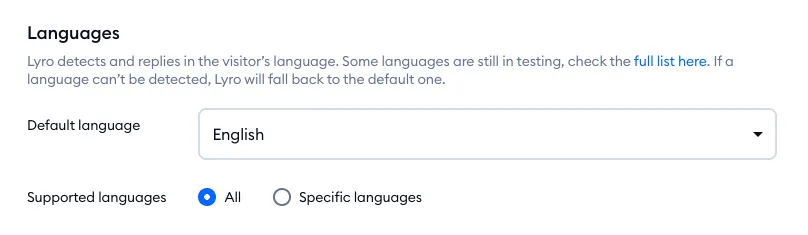
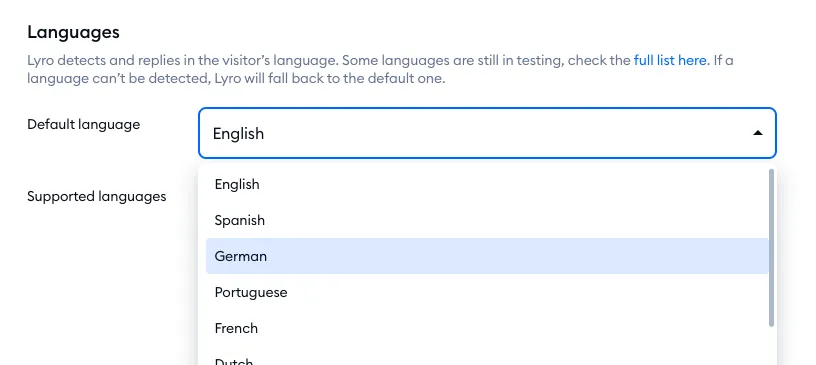
Select the default language you prefer from the list of available options. Please note: this does not mean Lyro will only communicate in that language; the default language simply acts as a fallback when another language isn't supported or allowed.
Adding and excluding languages
You will also find the Supported languages option underneath the Default language setting.
You can decide to select the All option, which allows Lyro to use all of its supported languages whenever needed (hover over the question mark icon next to All to see the full list). However, you can select the Specific languages option instead - this allows you to limit the languages Lyro is supposed to use during communication with your customers.
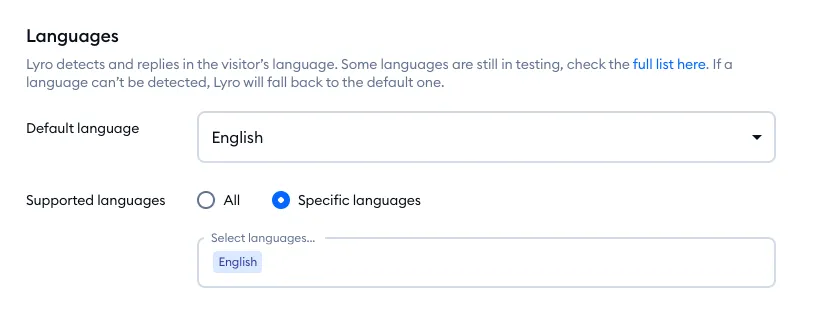
If you select the Specific languages option, you will be able to list the particular language you are interested in. Naturally, the default language (selected earlier) will already be listed - and it stays on the list as long as it's your default. To remove any other language, click on the x icon next to it:
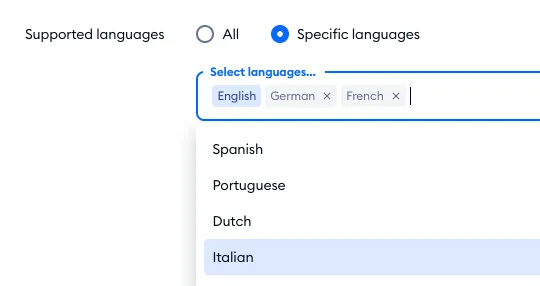
This way, you can decide about the languages you wish to support for your business. For example, you might only want to serve customers from specific regions of the world; or perhaps your live agents can only speak some of Lyro's supported languages - limiting Lyro's language list may be beneficial for your team.
If a customer writes in a language that is not supported for the project, Lyro will clearly say it doesn’t support that language, and will use the default. Note that Lyro can still understand the customer's language (if it's supported in general), but will not communicate in that language if it's not added by you manually to the Specific languages list.
Giving Lyro different knowledge for each language
Selling in several markets? You can make sure Lyro uses the right knowledge for each language - for example, your German shipping policy for visitors who browse in German. That's what Audiences are for.
Head over to Configure > Audiences, click on Add audience, and give the audience a name. Then, add a condition with the Browser language filter, and choose the language (or languages) it should match:
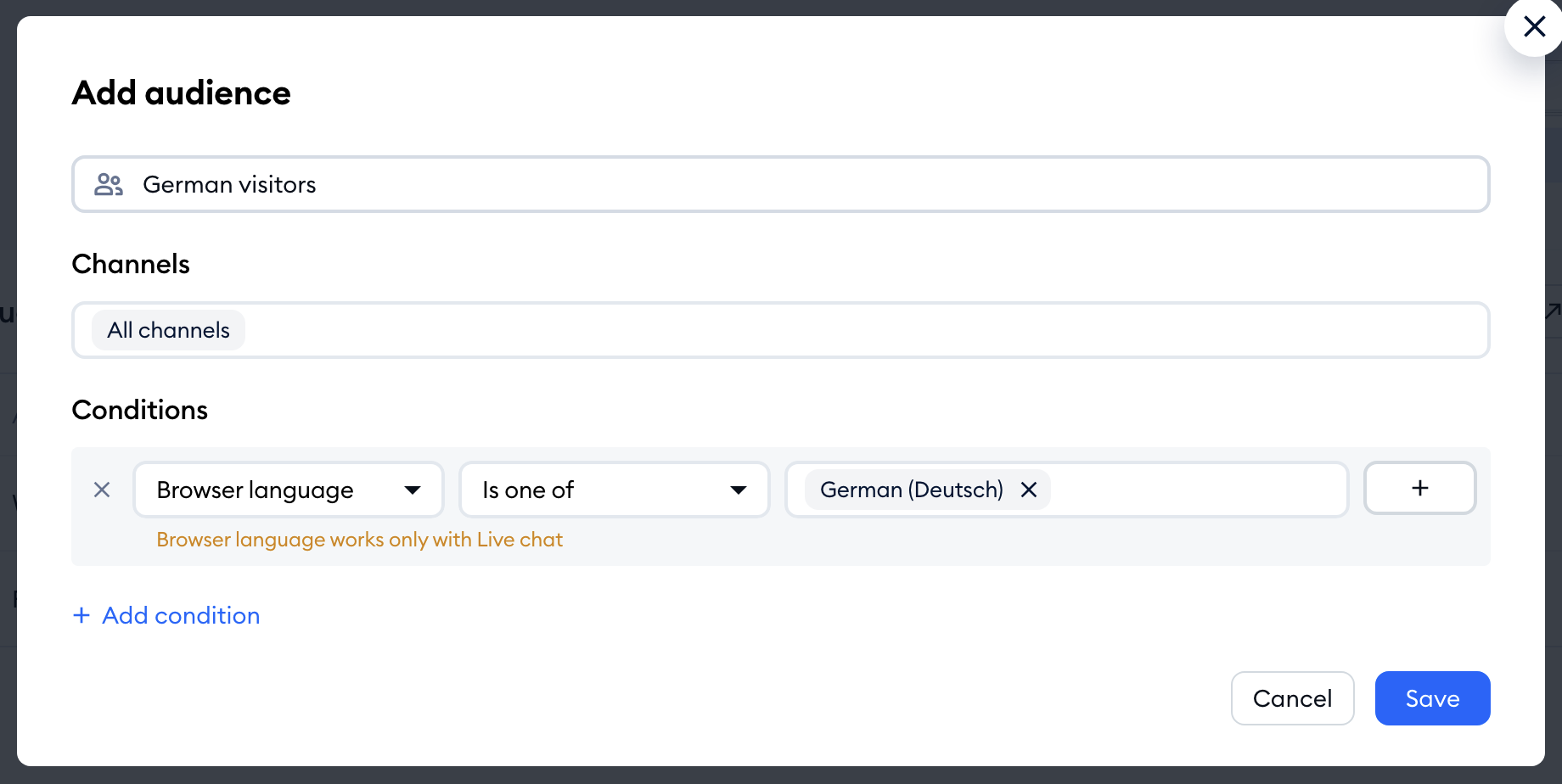
Once you Save it, you can assign the audience to your data sources, so Lyro uses them only for visitors who match it. For everything about Audiences, please see Lyro - the conversational AI agent.
Please note: Audiences for data sources are available on the Plus plan. The Browser language condition works only with Live chat.
Further reading
- Lyro - the conversational AI agent
- Data sources - Lyro's knowledge base
- Lyro Guidance
- Change and add Languages in your Chat Widget
