Tidio's multilanguage settings offer a seamless solution for websites with multiple language options. By automatically detecting the visitor's default browser settings, Tidio can ensure that the chat widget is displayed in the appropriate language.
In this article, you'll learn:
- How to add a new language
- How to translate the phrases manually
- How to troubleshoot language settings
Adding a new language
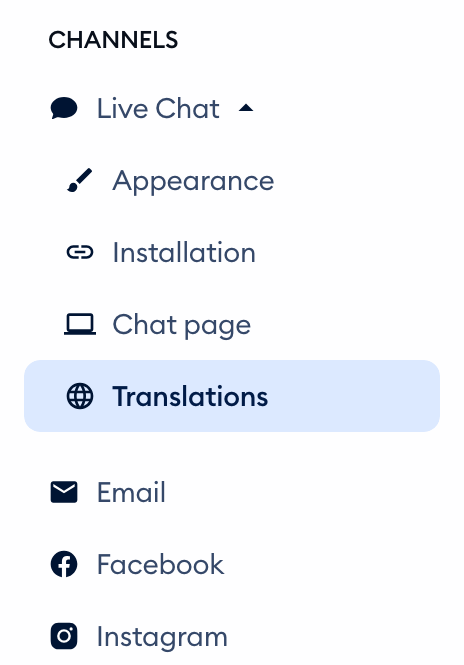
To access the multilanguage option, navigate to Settings > Live Chat > Translations, where you can add a new language or customize existing translations to suit your needs.
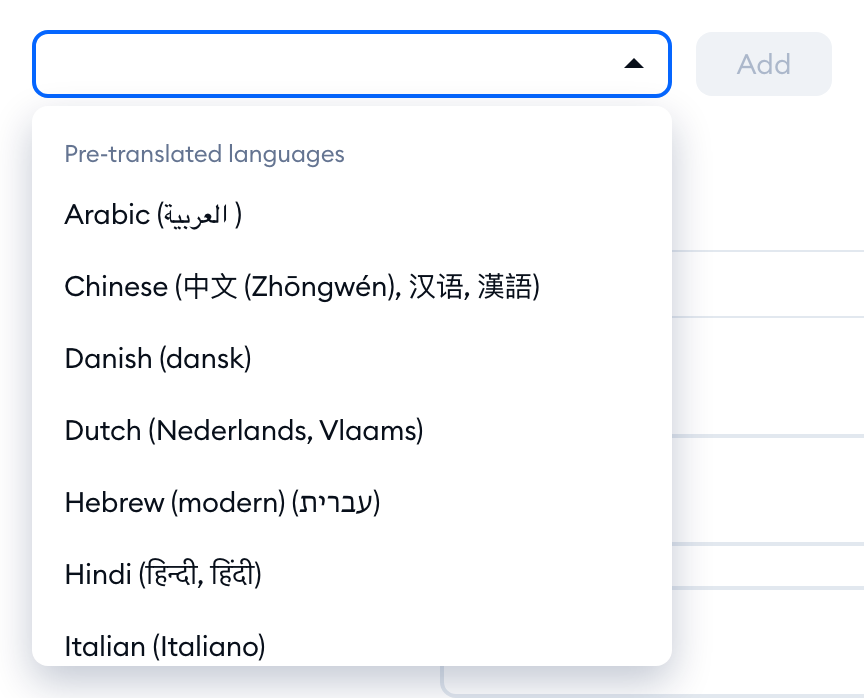
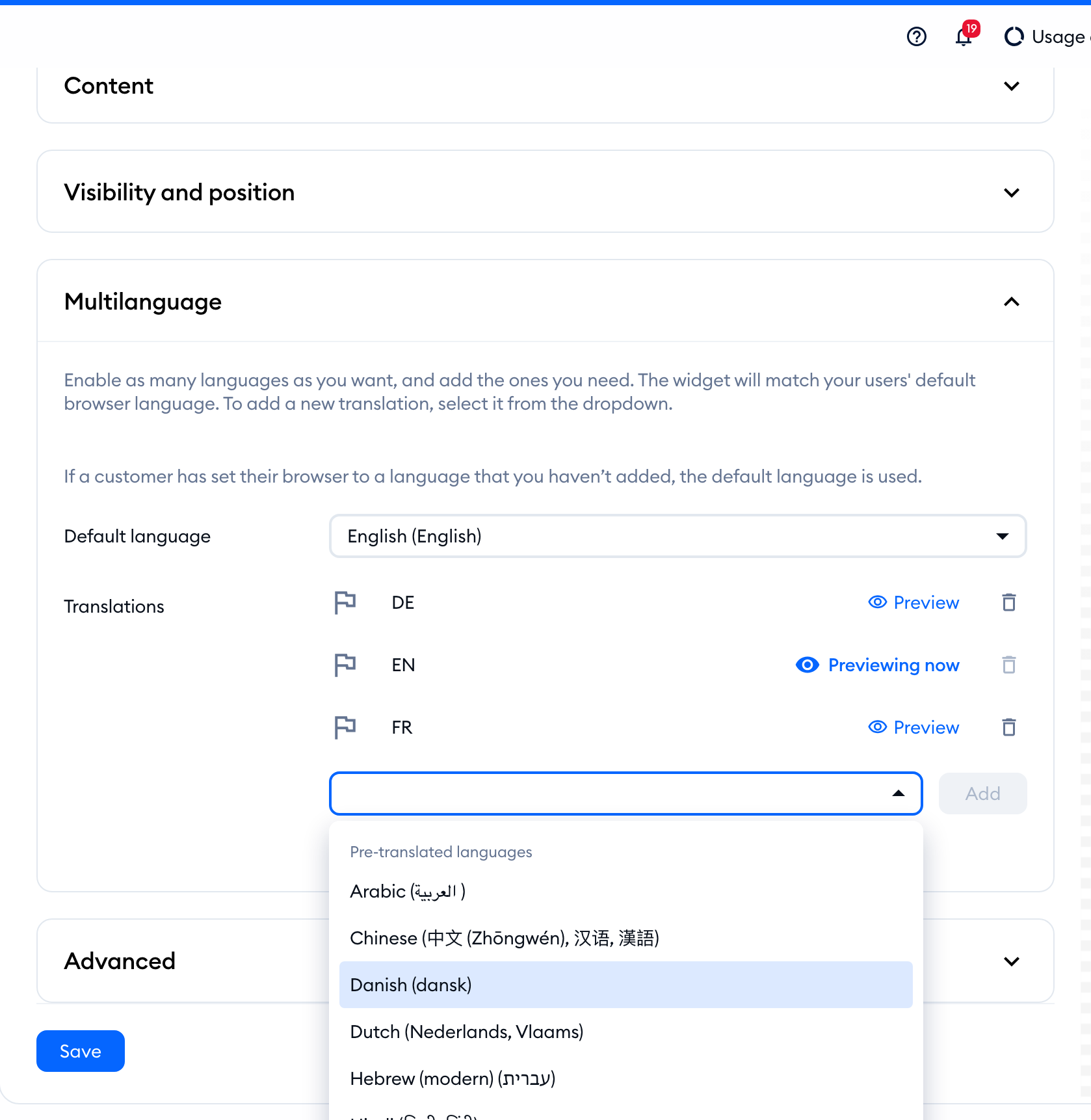
Tidio provides 21 pre-translated language packs: Arabic, Chinese, Danish, Dutch, English, French, German, Hebrew, Hindi, Italian, Japanese, Korean, Persian, Polish, Portuguese, Brazilian Portuguese, Romanian, Russian, Spanish, Swedish and Turkish. In the dropdown menu, you'll find them under Pre-translated languages; every other language is listed under Needs own translation. To add a new language, select it from the dropdown menu (you can type to search) and click the Add button - you'll see Added! once it's there.
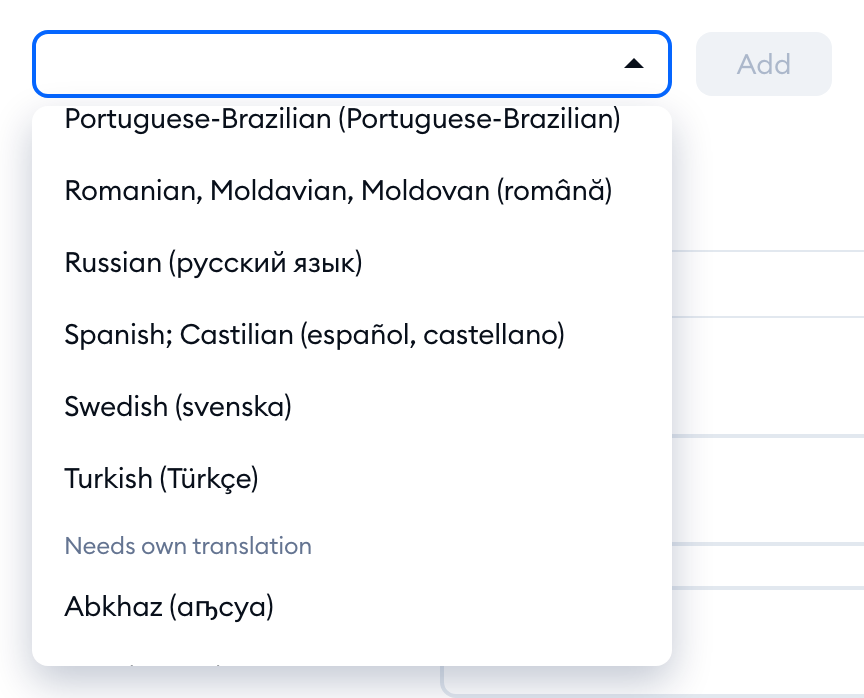
If the language pack you need is not pre-translated, or if you wish to customize each phrase individually, you are free to edit the current pack by modifying each field individually. You can also use this function to simply customize certain default phrases, e.g. if they do not fit your business or preferred tone.
A quick overview of your language configuration is also available at the bottom of Settings > Live Chat > Appearance, in the Multilanguage section near the bottom:
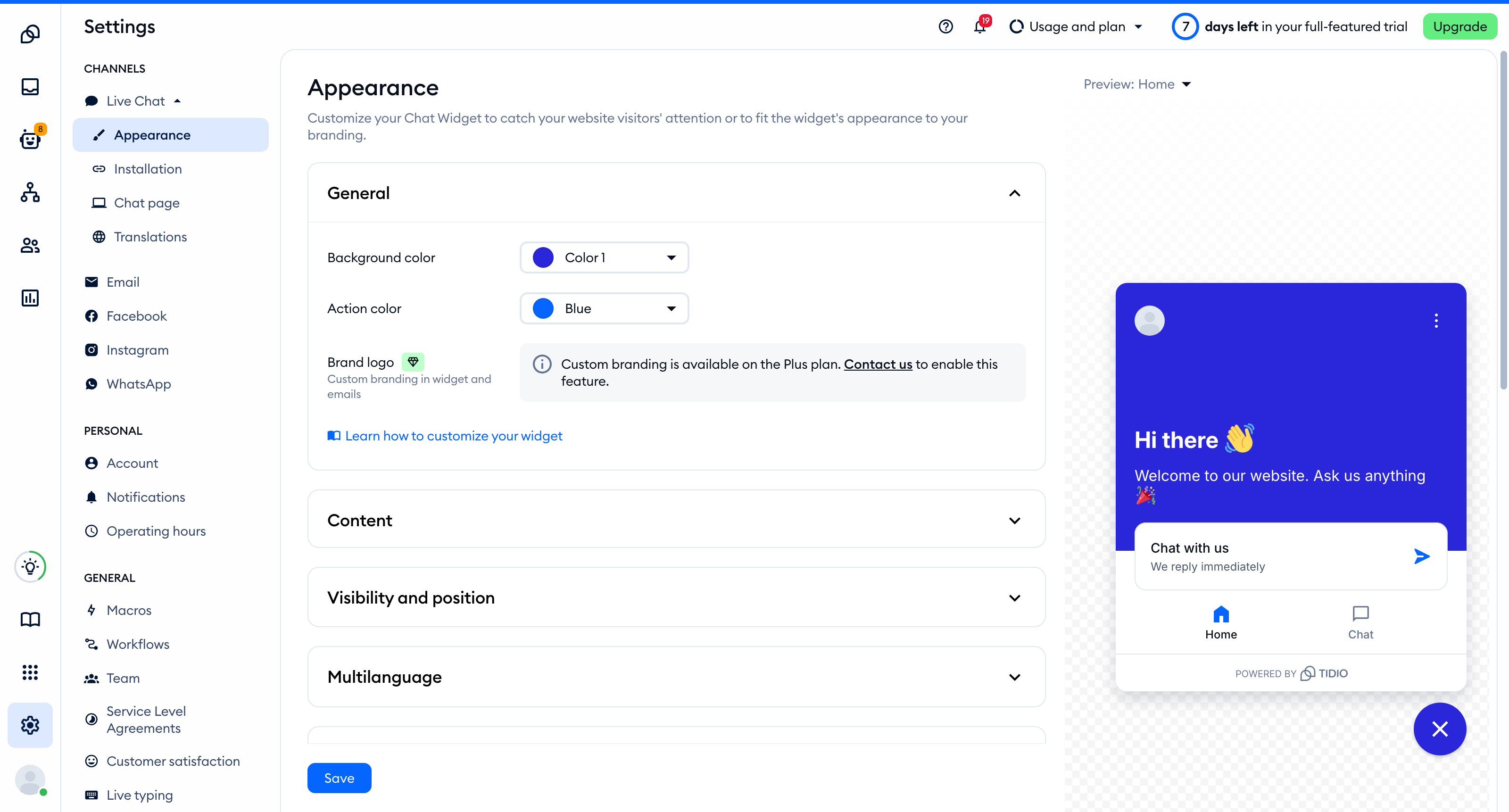
Once inside, you can select the Default language, and that pack will serve as the main language version for your Tidio widget. You can only select one language pack here. If a customer has set their browser to a language that you haven't added, the default language is used.
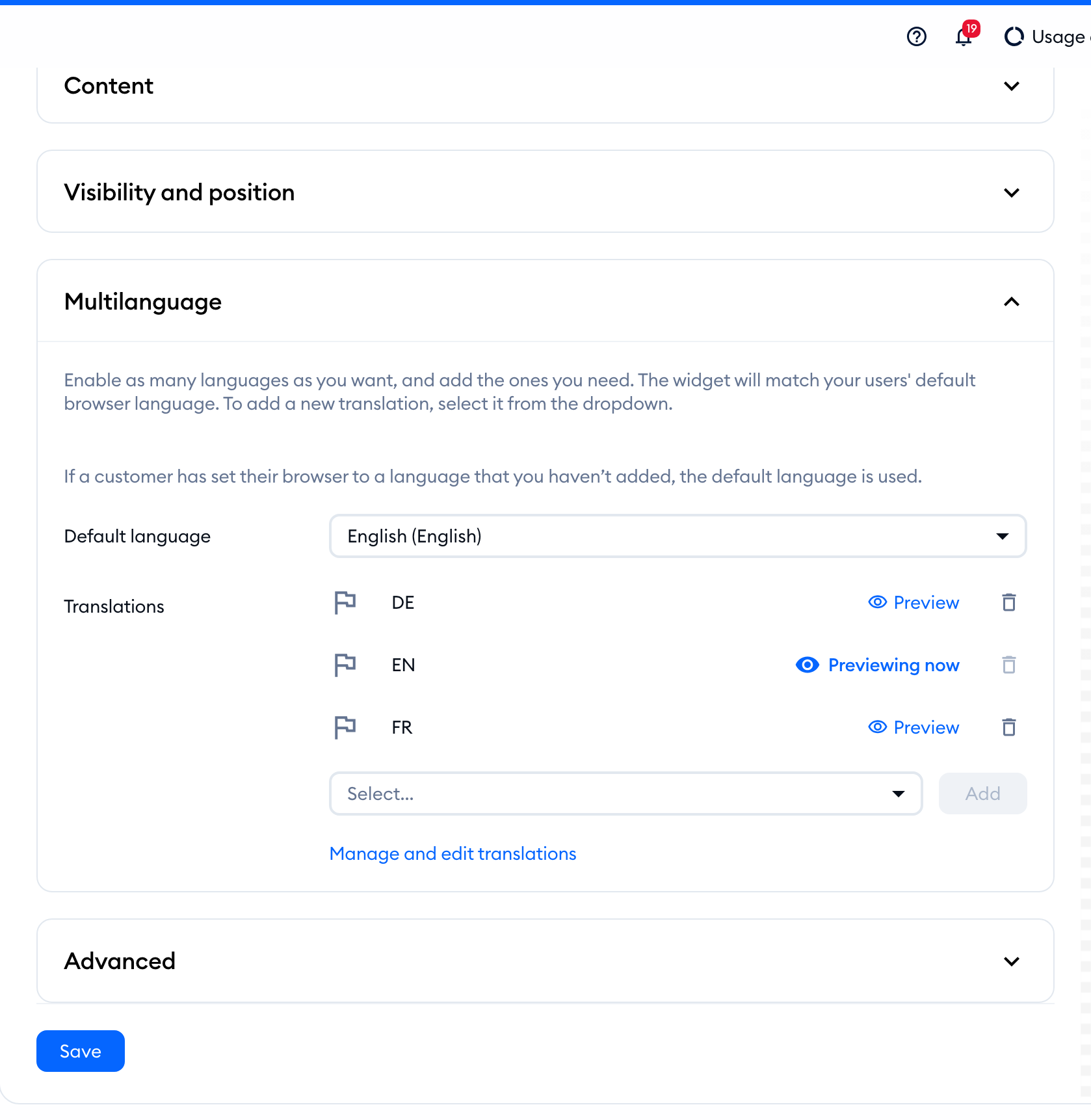
Under Translations, you'll see the languages you've added, and a drop-down menu with the Add button to add more language packs (just like in the Translations section, mentioned earlier), which can allow your chat widget to support multiple language versions.
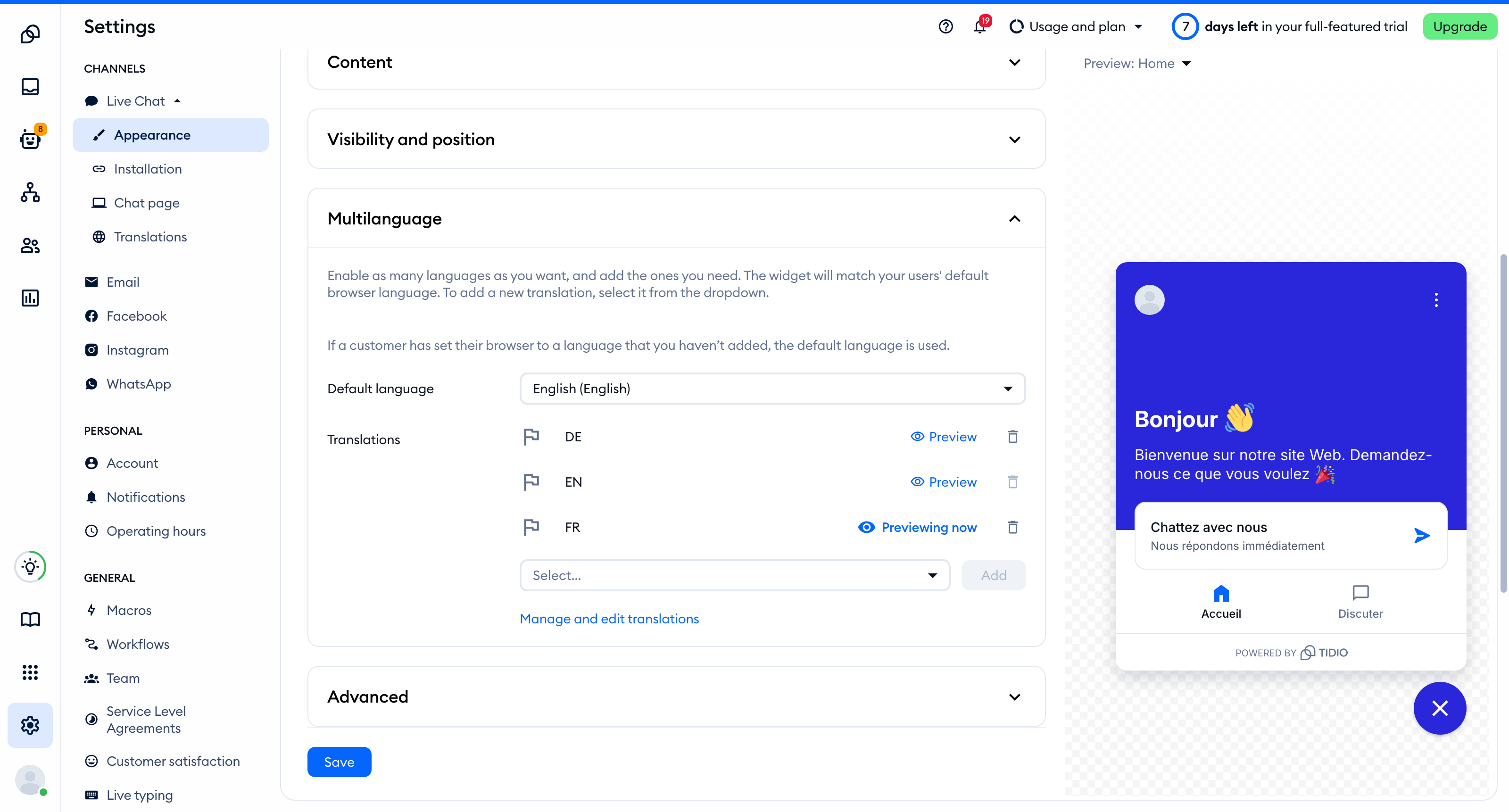
Next to each language, you'll find two options:
- Preview - shows your widget preview in that language (the language you're previewing is marked Previewing now). While you preview a language, the texts you edit in the sections above - like the header and the welcome message in Content - apply to that language (don't forget to save your changes).
- The trash icon - removes the language from your widget. You can't remove your default language (change the default language first), and your widget always needs at least one language.
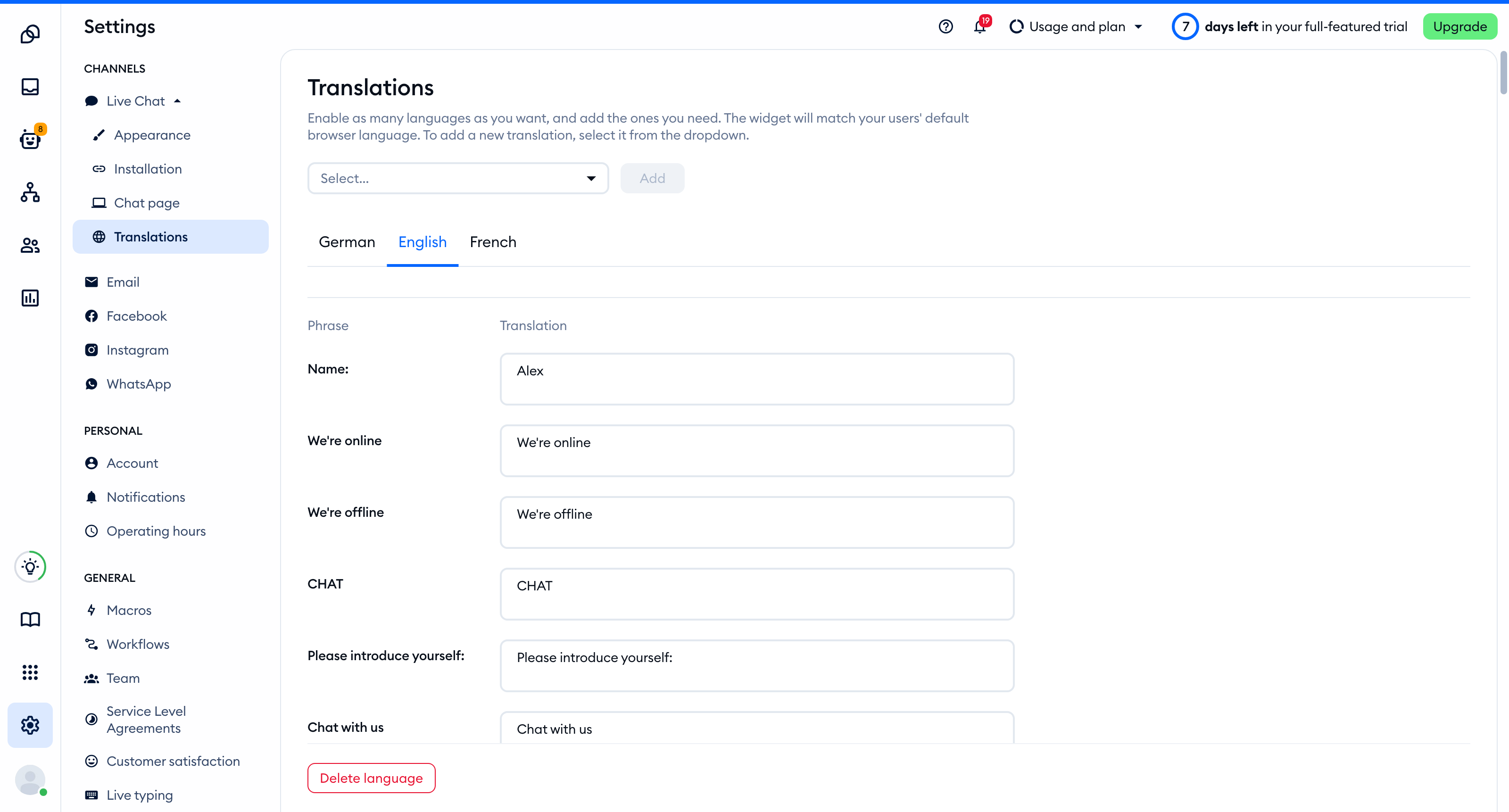
If you'd like to customize the phrases individually, click on the Manage and edit translations link below the drop-down list, and you'll be taken to the main Translations panel.
Please note: if Multilanguage isn't included in your subscription, you'll see a small diamond badge next to Multilanguage (and next to Translations in the Translations panel), and clicking on Add opens the upgrade window. You can still pick any language as your widget's Default language, and edit its phrases in the Translations panel.
The Translations panel
The Translations panel allows you to add and translate phrases for the chosen language. Each language appears as a separate tab (e.g., Danish, English, Polish, Chinese). Click on a language tab to access a list of available phrases - each Phrase with its Translation next to it. Simply edit the fields to align with your business requirements or your preferences. For a language from the Needs own translation group, make sure to go through all the phrases.
Please note that any changes you make are saved automatically as soon as you click outside the field! To remove a language, use the Delete language button at the bottom of its tab.
Troubleshooting
If you can't see the chat in the language you've set in Tidio:
- Try saving the settings in the Settings > Live Chat > Appearance section in the Tidio admin panel.
- Make sure you've set the language in your browser to the one you want to see in your Tidio widget. From our experience, it's easiest to edit your language settings in Firefox.
- Make sure you're visiting a refreshed window. The changes will appear once you visit your website in a new incognito/private window.
