Picking up a ticket with a long thread? Instead of scrolling through every email to find out what happened, check the AI summary at the top of the ticket. It tells you in a few lines why the customer got in touch, what's been done so far, what's still left to do, and where the customer stands right now.
You don't have to click anything to get it - the summary is there when you open a ticket, and it updates with each new message. It's a great help when a colleague hands a ticket over to you, or when a customer comes back to a thread after a few days.
Please note: the AI summary is part of the Inbox AI add-on, and it's available in tickets only (not in live conversations). If your project doesn't have the add-on, see this section.
In this article, you'll learn:
- How to read a ticket's AI summary
- How the summary stays up to date
- How to rate a summary
- How to see the summary in the mobile app
- What you'll see if your project doesn't have the add-on
Reading a ticket's AI summary
Open any ticket in the Inbox. You'll find the AI summary bar right at the top of the thread, above the first message:
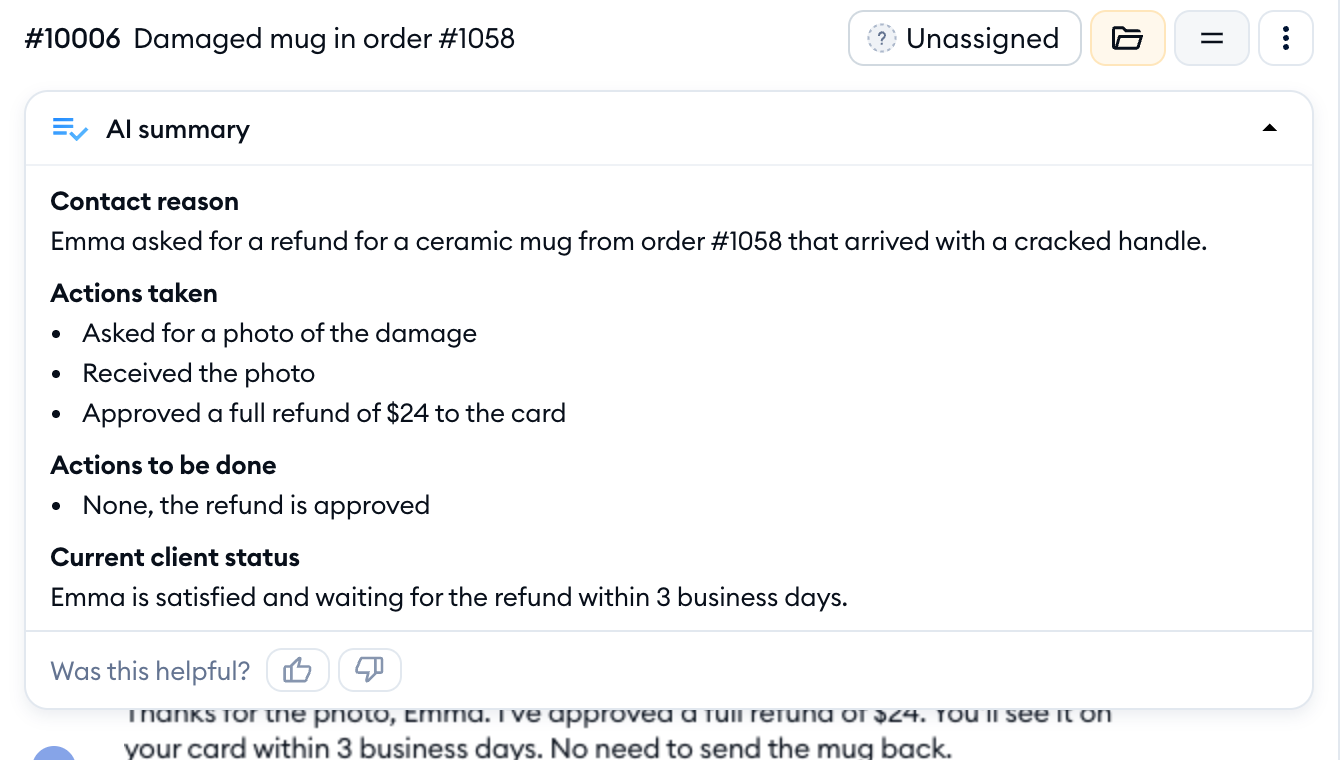
The summary is split into up to four parts:
- Contact reason - why the customer got in touch.
- Actions taken - what's already been done in the thread.
- Actions to be done - what's still left to do.
- Current client status - where things stand with the customer right now.
If there's nothing to say in one of the parts yet (for example, no actions have been taken), that part simply isn't shown.
Need more room for the thread? Click on the AI summary bar to collapse it. You'll still see the first line of the summary next to the title, so you can tell what the ticket is about at a glance. Click on the bar again to expand it:

Tidio remembers whether you prefer the summary expanded or collapsed, and shows it the same way in the next tickets you open (in the same browser).
How the summary stays up to date
The summary always covers the whole thread, up to the latest message. When a new message arrives in the ticket, Tidio updates the summary. While it's working, you'll see Summarizing... in the bar:
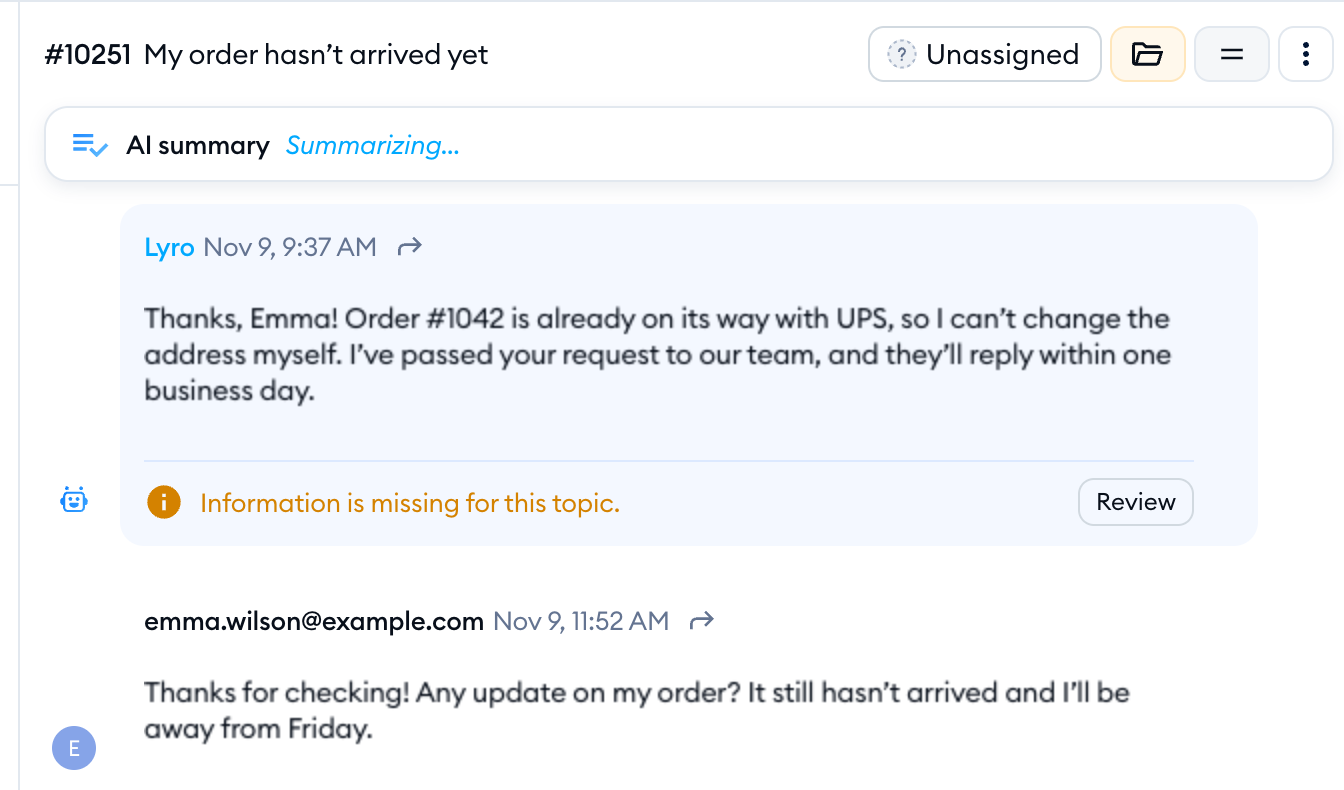
The bar appears once there's a summary to show. If something goes wrong, you'll see Sorry, we couldn't generate a summary. Please try again. (or Sorry, we couldn't update the summary. Please try again.) - just click on Try again in the message.
Please keep in mind that the summary is written by AI. It's a quick way to get the context, but it's always a good idea to check the messages themselves before you make a decision for your customer.
Rating a summary
Below the summary, you'll see Was this helpful?. Click on the thumbs up icon if the summary got it right. Your feedback helps us make summaries better.
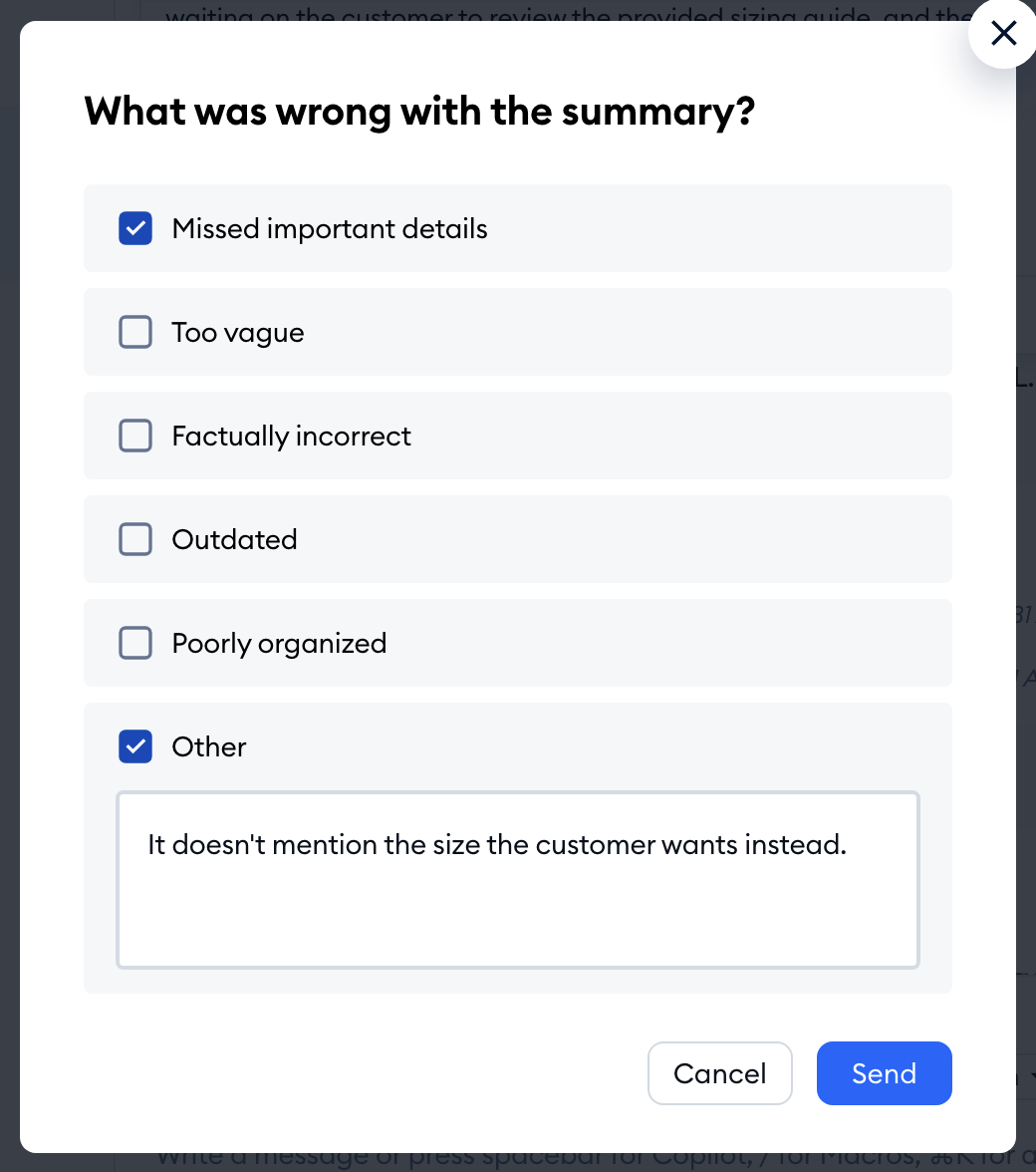
If the summary missed the mark, click on the thumbs down icon. In the What was wrong with the summary? window, select one or more reasons - Missed important details, Too vague, Factually incorrect, Outdated, Poorly organized or Other (where you can add a comment) - and hit Send:
You'll see Thank you for your feedback once it's sent.
Seeing the summary in the mobile app
The AI summary works in the Tidio mobile app too. Open a ticket, and you'll see the first line of the summary at the top. Tap it to open the full AI summary, and tap Close when you're done:
Screenshot coming soon
To get the app, please see Download the Tidio mobile app.
If your project doesn't have the Inbox AI add-on
Without the add-on, you'll still see the AI summary bar at the top of each ticket, with a small diamond badge next to it. Hover over the badge to see how to unlock the feature.
Clicking on the bar opens an upgrade window with the description Get an AI-generated summary of the ticket so your team can catch up faster. What it offers depends on your plan:
- On a plan that can take the add-on, you'll see the Get Inbox AI add-on window, where you can add it to your subscription in one click.
- On the free version, the window offers a paid plan together with the Inbox AI add-on.
- On a custom plan, you'll see the Contact Sales button instead.
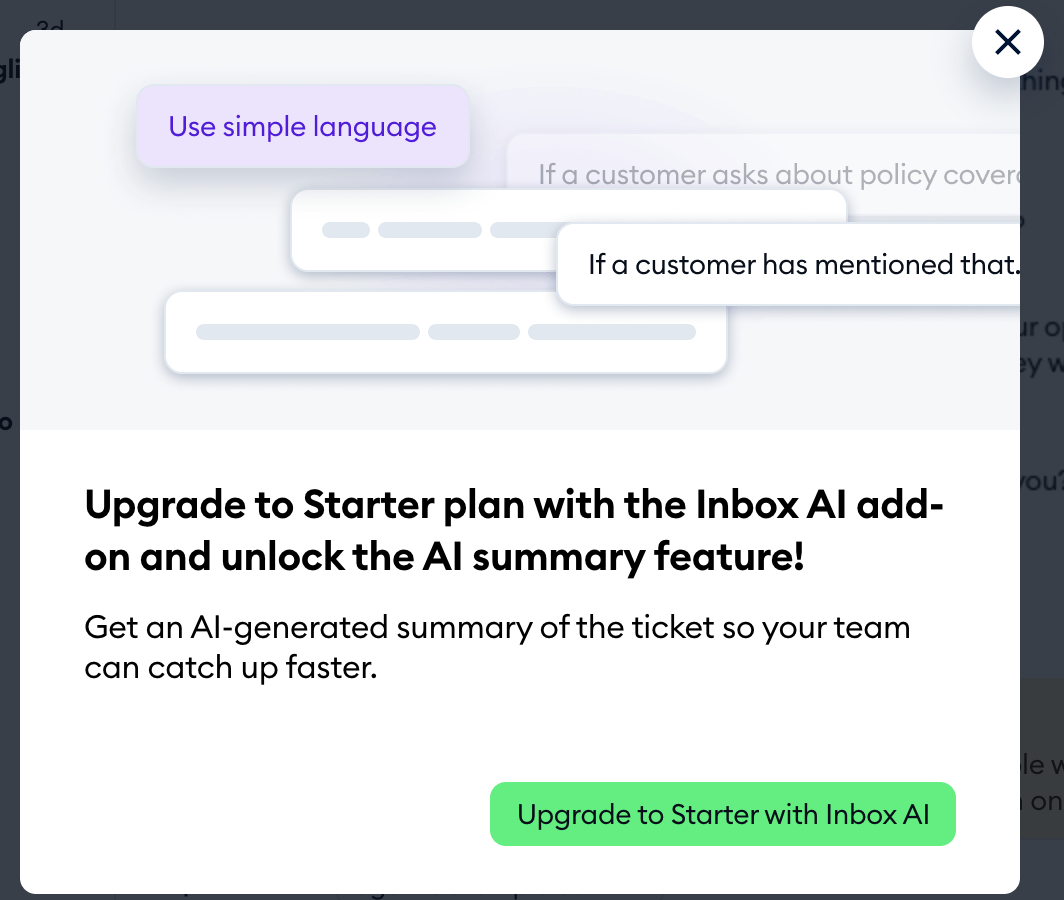
Please note: you need access to billing to buy the add-on. If the button is grayed out for you, please ask your project's owner or an admin. In the mobile app, tapping the bar shows Not included in your plan. To unlock it, log in to tidio.com on your computer. instead.
Looking for the Summarize option?
AI Writing Tools used to have a "Summarize" option that saved a summary of the ticket as an internal note. It's no longer there - the AI summary bar replaces it, so there's no need to generate a note yourself. AI Writing Tools now offer Rewrite, Elaborate and Shorten; see AI Tools (the reply assistant) for details.
