See how to download and install the Tidio mobile app on your iOS and Android devices to make the most out of Tidio on the go.
In this article, you'll learn:
- How to download and install the Tidio mobile app
- What features the Tidio mobile app includes
- How to troubleshoot the Tidio mobile app installation
Tidio mobile app installation
To have valid credentials to log into your mobile app, you need to have a Tidio account set up. If you haven't done that yet - you'll need to complete a quick configuration of your live chat upon the first login to register your email address.
What devices can I use it on?
You can install our mobile app on Android 7.0 and higher or iOS 15.1 and higher.
Download the app
To download the mobile app, navigate to Settings > Download apps section in your Tidio admin panel and click on the iOS or Android button (depending on your system).
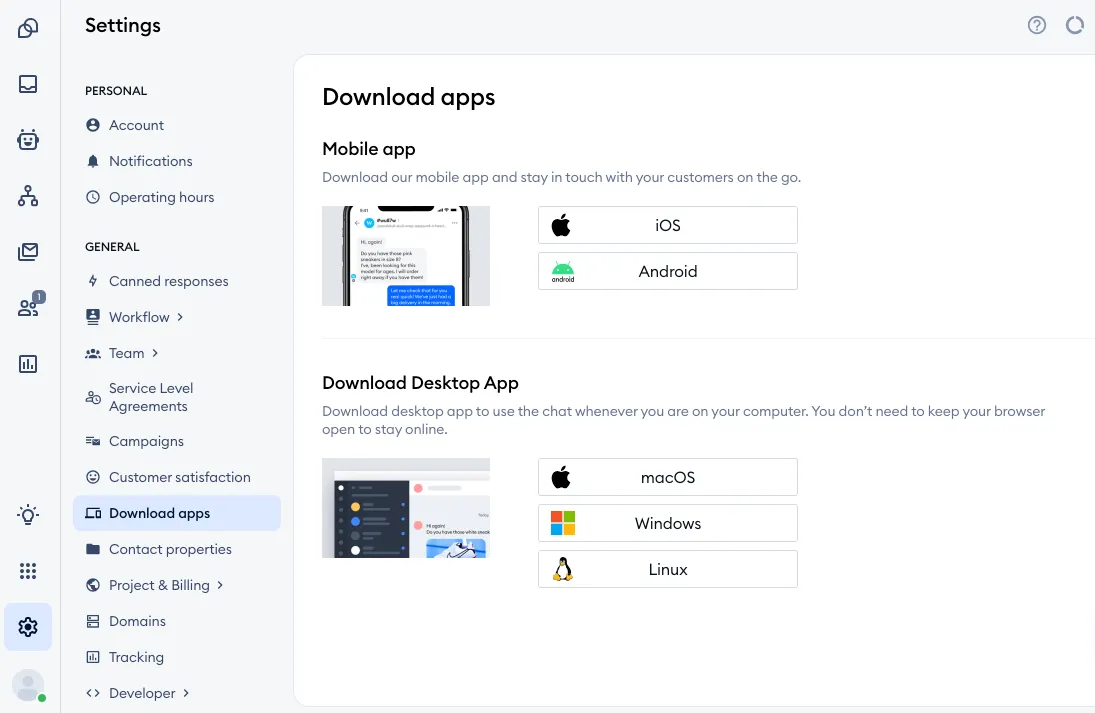
You can also download the app through the App Store on iPhone or Google Play on Android.
Installation
To log into the mobile app, use your email and password created via the online/desktop panel. Make sure you have finished the registration process in your chat plugin. Otherwise, your mobile app will not be connected to your chat.
If your team signs in to Tidio with Single Sign-On, tap Log in with SSO on the login screen instead, and sign in with your company account:
Screenshot coming soon
Please note: SSO is available on the Premium plan. Learn how to set it up in Single Sign-On (SSO) in Tidio.
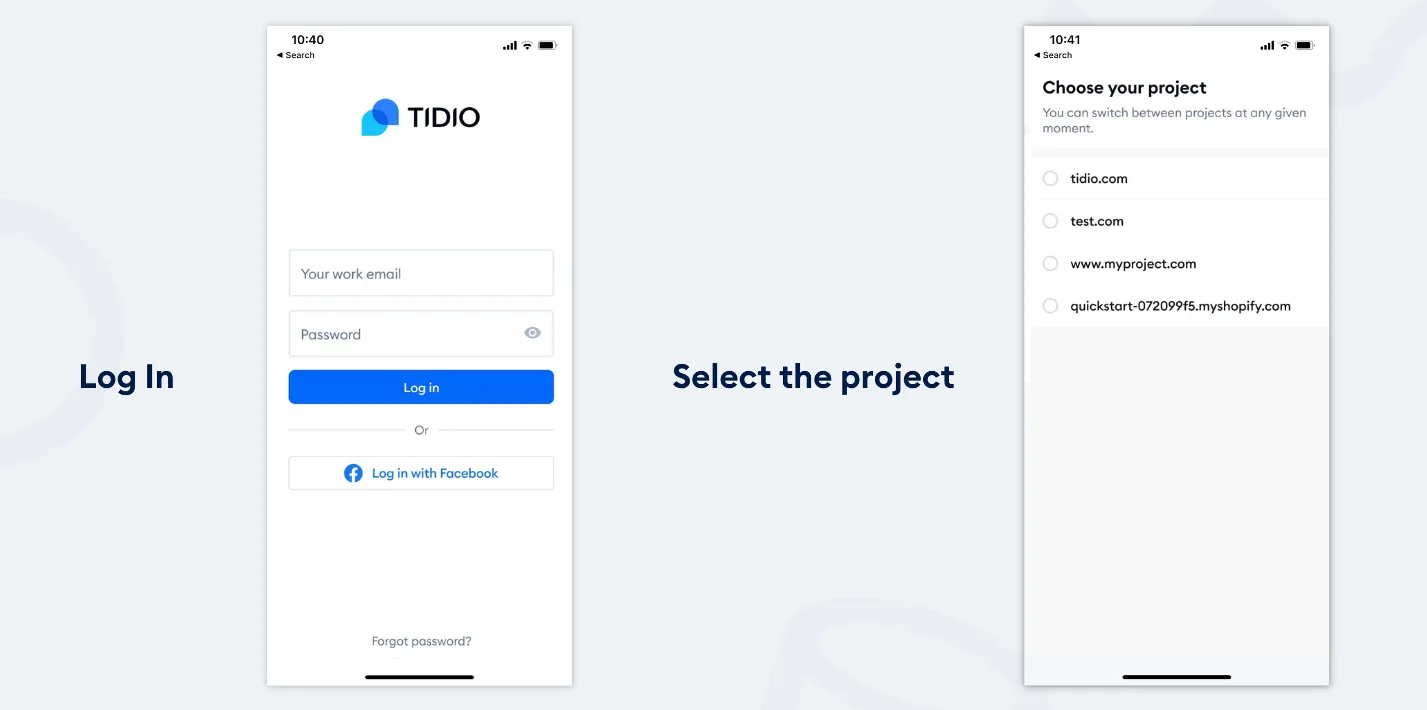
Choose the project you would like to use on your mobile app. You can always change and switch between the projects in the mobile app later on.
Make sure the notifications are turned on
Once you are logged in to the Tidio mobile app, head to the Settings > Notifications section to ensure the notifications are enabled. Most of the time, your device's system should ask you for permission for the notifications after opening the app for the first time, but we recommend making sure they are enabled.
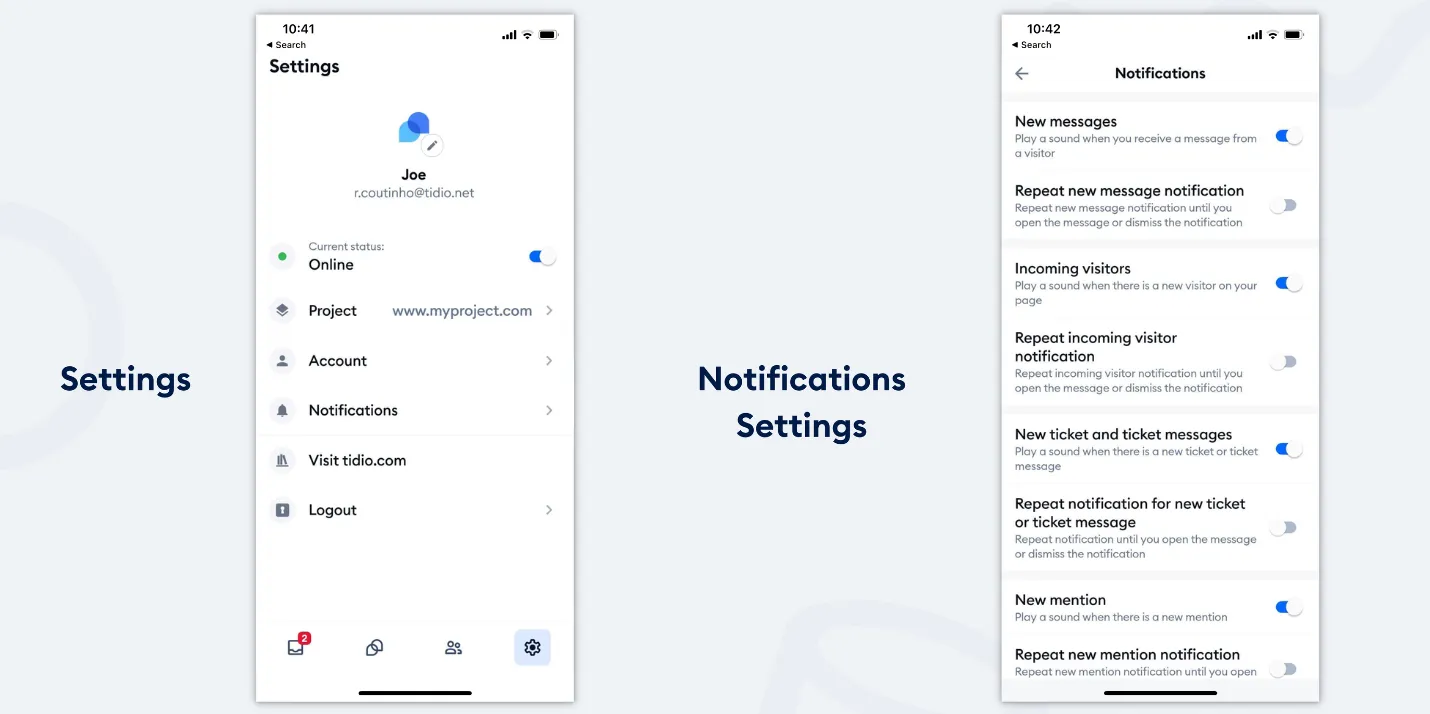
If you are using an iPhone device - you might also go to Settings > Notifications > Tidio inside your Apple device settings.
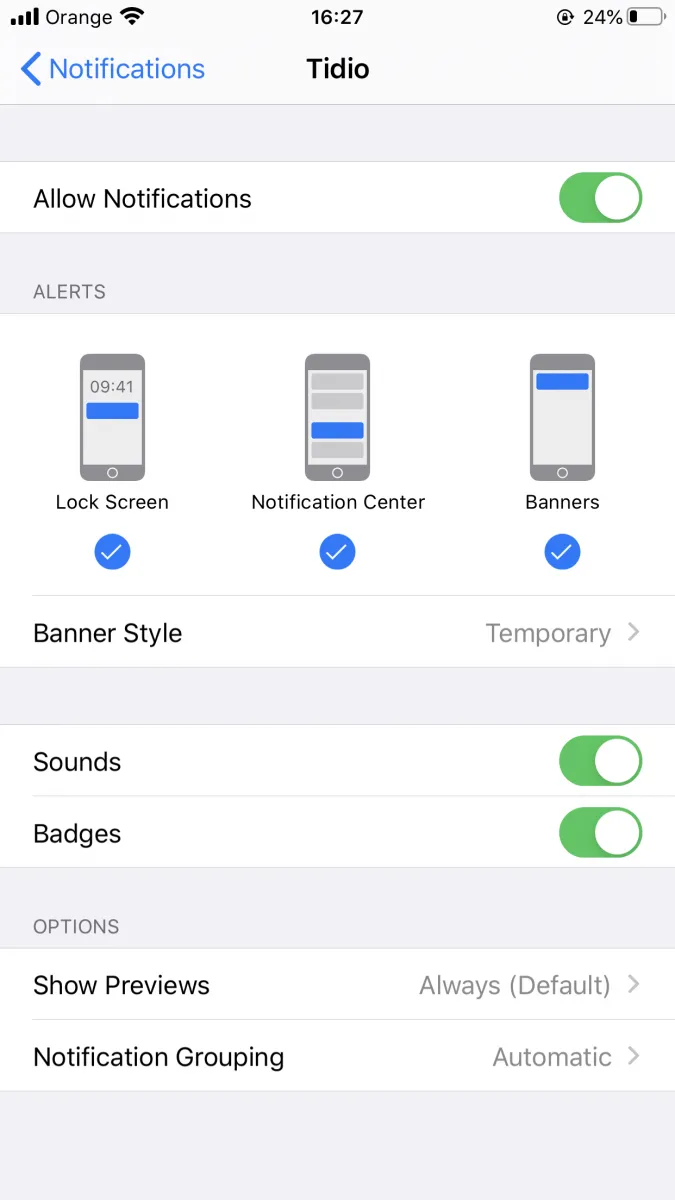
On the Android device, you can access those settings straight from the Tidio app by clicking on the Customize notifications button in the Settings > Notifications section. You can also see more troubleshooting steps in our article about mobile app notifications.
Tidio mobile app features
Tidio app comes in handy with all the features you need to stay in touch with your customers. You can manage all the communication channels close at hand. See what features the mobile app offers:
Visitors list
Keep track of your visitors, see what page they are on at the moment, what country they are from, and what browser they are using. This feature is available on the Starter plan and above. You can learn more about it in our article about paid plans.
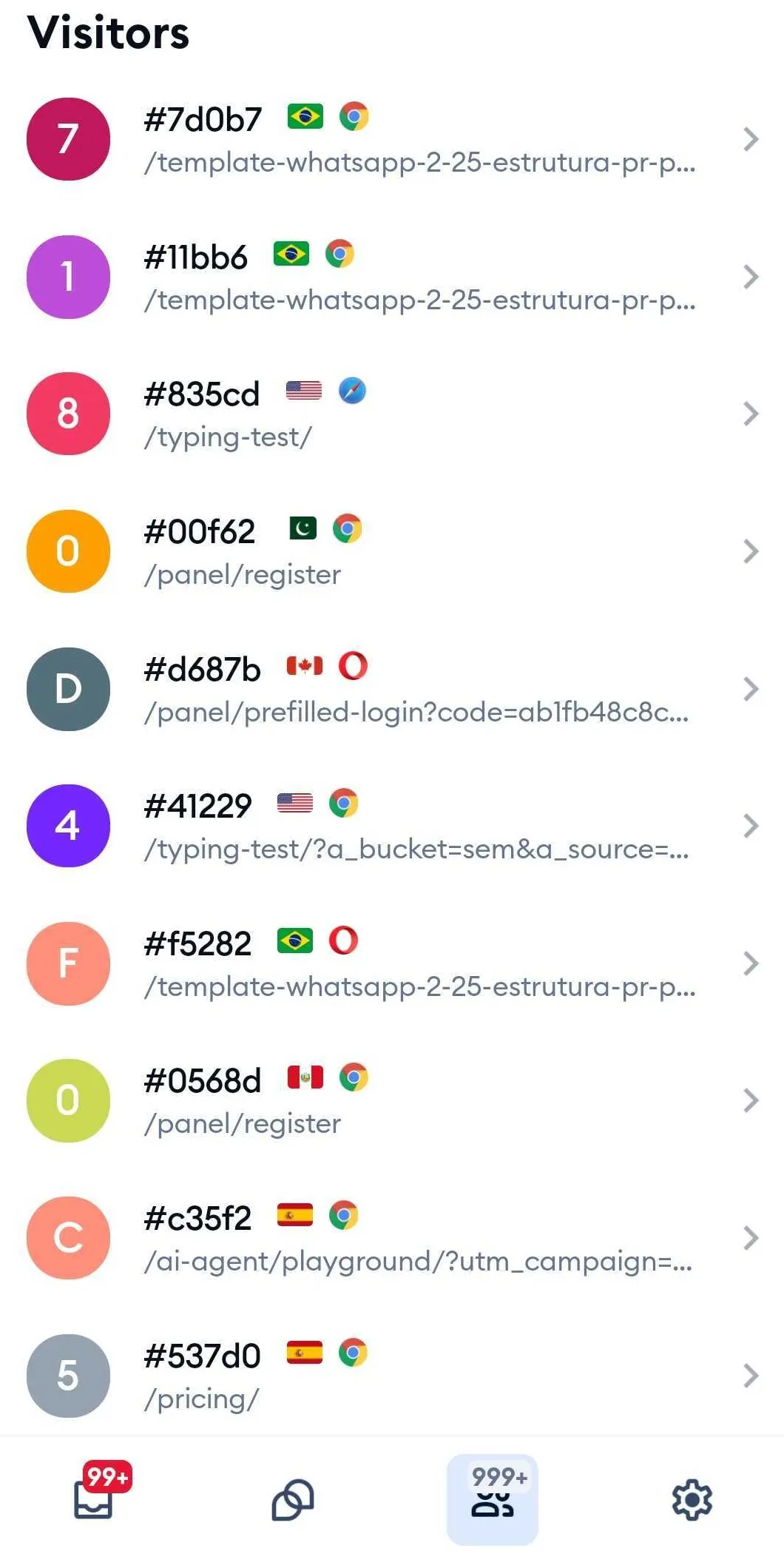
Click on the visitor to open up the chat conversation with that specific visitor.
Conversations and tickets
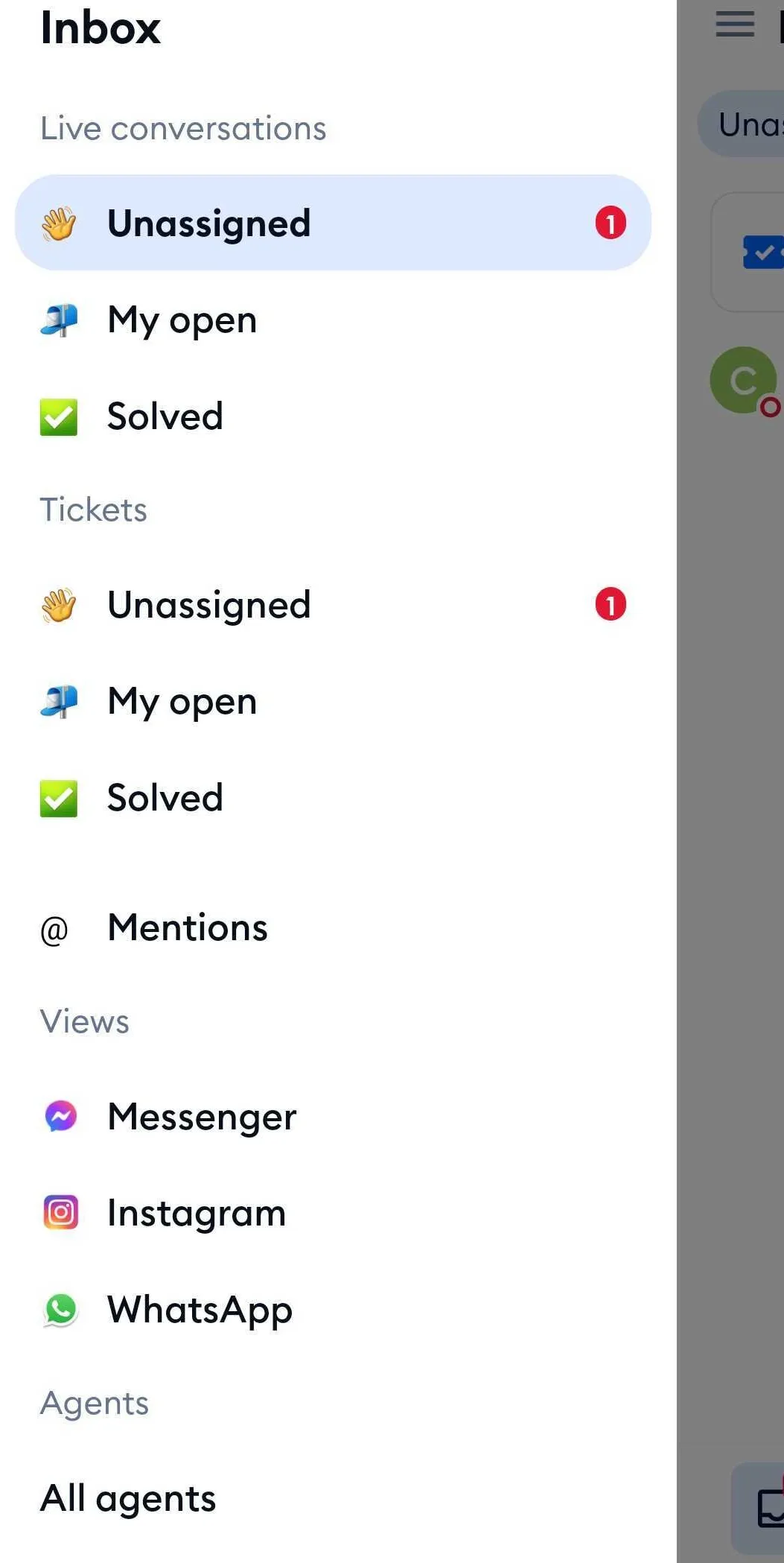
Look up all current and solved live conversations and tickets by clicking the three bars icon in the top-left corner of the app. A sliding menu with all folders and custom views will show up.
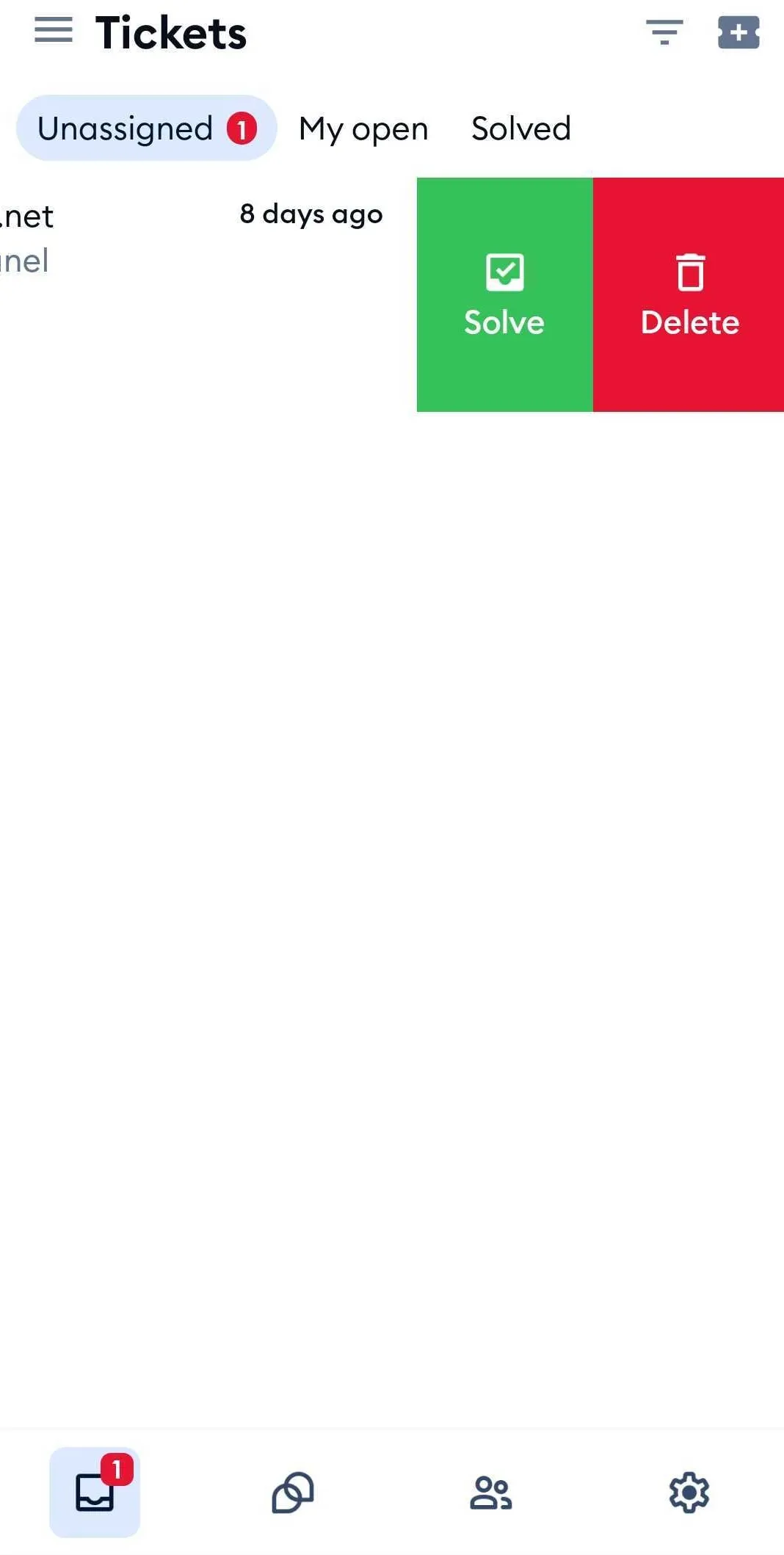
If you'd like to solve or delete a conversation, slide it to the left side, showing you two options: Solve (green button) or Leave (grey button), and Delete (red button). Delete appears only if you're allowed to delete conversations.
Visitor's info and Viewed Pages
Edit your visitor's info in an active chat or history so that you instantly know who they are when they come back. You can also see which pages your website's visitor has visited or is on currently.
You can access those settings by clicking on the three dots menu in the upper right corner of the opened chat conversation with the visitor.
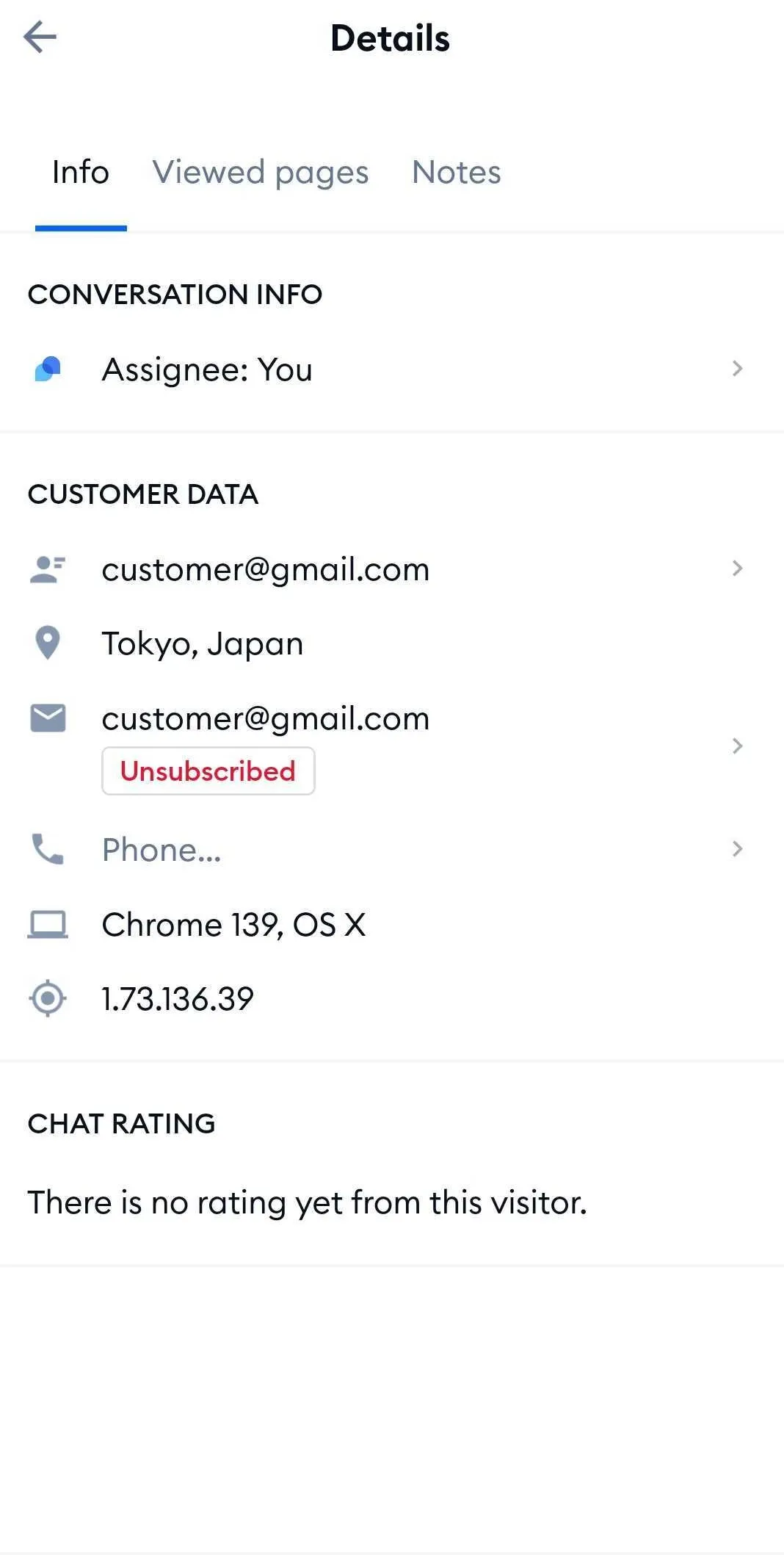
In the same menu, you'll also find options like Mark conversation as solved, Leave conversation, Reassign agent, Ban visitor and Delete.
Tickets, mentions and macros
The app isn't just for live chat - you can handle your tickets, too. In the menu in the top-left, you'll find your Tickets (Unassigned, My open and Solved), your custom Views, Mentions from your teammates and the Spam folder.
Inside a ticket, you can reply or add an Internal note, change the ticket's status and priority, fill in its custom fields, and use the three-dots menu to Reassign the ticket, Mark as spam or Delete it. Need a new ticket? Simply use Create ticket:
Screenshot coming soon
A few more things you can do on the go:
- Macros - type / in the reply box to pick one. If a macro has actions (like adding a tag or assigning an agent), they run when you send it.
- Take over a conversation from a Flow, when you want to step in yourself.
- Dashboard - see how many conversations were handled and how close you are to your plan's limits.
- AI features, like Copilot and translations, work in the app too, if your plan includes them. If it doesn't, you'll see Not included in your plan. To unlock it, log in to tidio.com on your computer.
Please note: some things can only be set up on your computer, in the web panel or the desktop app - for example, Flows, Lyro's knowledge, new macros and your plan.
Troubleshooting
Please see our article about Tidio Mobile App Troubleshooting to troubleshoot mobile notifications.
