If you experience trouble with the notifications coming from Tidio mobile app - you may want to check if certain phone settings on iPhone, Android devices, or third-party apps are blocking them. We will help you to navigate to them in this article.
Android menu names vary by manufacturer and OS version. The device-specific examples below include older versions. If a path does not match your phone, use its current notification and app battery settings instead. Changing battery optimization can increase battery use.
In this article, you'll learn:
- How to check Tidio before changing device settings
- How to check your Android device model
- How to check your Android operating system
- How to check iOS notifications on iPhone
- How to check third-party applications
Checking Tidio first
Open the Tidio mobile app and go to Settings > Notifications > Notification Troubleshooting. Follow the checks shown on your device.
If the checks show that your chat status is Offline, open your Tidio settings and change it. If your Operating Hours have set you offline, you will not receive notifications outside those hours. Review the schedule and its time zone in Tidio on your computer.
After making changes, tap Run again to repeat the checks, or Send a Test Message to test your notification settings.
Android device models
Android devices and models that tend to block notifications:
- Asus Zenfone
- Asus Zenfone 2
- Huawei Honor 6
- Huawei Honor 8
- Huawei P8 lite
- Huawei Mate 8 & Huawei Nova Plus
- Huawei P20 & P30
- LeEco/LeTV
- Lenovo
- OnePlus (Android 7.0 and earlier)
- OnePlus (Android 8.0 and later)
- OnePlus 3
- OPPO
- Samsung
- Xiaomi
Asus Zenfone
On current ASUS phones, open Settings > Battery > Auto-start Manager and allow Tidio to start automatically. The Android 7.0 steps below describe the older interface.
(Android 7.0)
Step 1: Ensure that Tidio is set to auto-start
- From the app drawer, press Settings.
- Press Power Management.
- Select Auto-start Manager.
- Find Tidio and ensure it's enabled.
Step 2: List Tidio as a protected app
- From the app drawer, press Mobile Manager.
- Press Boost.
- Press Enable Super Boost, then select the Protected app list.
- Verify that Tidio is on the list.
Asus Zenfone 2
Allow Tidio to run at startup
- From the app drawer, tap Apps.
- Press Auto-start manager.
- Toggle Tidio to Allow.
Huawei Honor 6
Step 1: List Tidio as a protected app
- From the app drawer, press Settings.
- Press Power Saving.
- Press Protected apps.
- Toggle Tidio to enable.
Step 2: Enable Tidio in the Notification Manager
- From the app drawer, press Settings.
- Press Notification Manager.
- Select Notify for Tidio to receive push notifications.
Huawei Honor 8
Step 1: List Tidio as a protected app
- From the app drawer, press Settings.
- Press Advanced Settings.
- Press Battery Manager.
- Press Protected apps (or Close apps after screen lock).
- Toggle Tidio to enable.
Step 2: Ignore battery optimizations for Tidio
- From the app drawer, press Settings.
- Press Apps.
- Press Advanced.
- Select Ignore battery optimizations.
- Choose Tidio and ignore the app.
Step 3: Allow notifications from Tidio
- From the app drawer, press Settings.
- Select the Notification Panel & Status Bar.
- Press Notification Center and find Tidio.
- Ensure that Allow Notifications and Priority Display are active.
Huawei P8 lite
Step 1: Enable Tidio to run at startup
- From the app drawer, press Phone Manager.
- Swipe left and press Startup Manager.
- Press Tidio and ensure that it's set to run automatically at system startup.
Step 2: Allow notifications from Tidio
- From the app drawer, press Phone Manager.
- Swipe left and press Notification Manager.
- Press Rules and ensure that Tidio is set up to send notifications to the notification panel. Check if any other settings in this view may be preventing Tidio from sending the notifications.
Huawei Mate 8 & Huawei Nova Plus
Ensure that Tidio is exempt from your device's battery optimization features:
- From the app drawer, press Settings.
- Press Advanced Settings.
- Press Battery Manager.
- Press Protected apps.
- Toggle Tidio to enable.
Huawei P20 & P30
- From the app drawer, press Settings.
- Press Apps.
- Press Tidio.
- Select Power usage, press App launch.
- Toggle Manage automatically to Off.
- Then, toggle Auto-launch, Secondary launch, and Run in Background to On.
LeEco/LeTV
Step 1: Enable Tidio to run at startup
- From the app drawer, press Settings.
- Press Permissions.
- Press Manage Auto Launch. You'll see "You've enabled [x] apps to auto launch" if you have enabled other apps to auto-launch.
- Toggle Tidio to enable.
Step 2: List Tidio as a protected app
- From the app drawer, press Settings.
- Select Battery, then tap Power saving management.
- Select App Protection.
- Toggle Tidio to enable.
You must disable Lock Screen Cleanup and Ultra Long Standby during Sleep to allow Tidio notifications if you have them enabled.
Lenovo
Enable the auto-start setting for the Tidio app:
- From the app drawer, press Settings.
- Press Power Manager.
- Select Background app management.
- Toggle Tidio to Allow auto-start.
OnePlus (Android 7.0 and earlier)
For versions earlier than Android 8.0 Oreo, check if Tidio is set to auto-launch:
- From the app drawer, press Settings.
- Press Apps.
- Press the gear icon in the top right.
- Select App Autolaunch.
- Toggle Tidio to enable.
OnePlus (Android 8.0 and later)
Step 1: Check that app storage is set to clear normally
- From the app drawer, press Settings.
- Press Advanced.
- Select Recent apps management.
- Ensure that Normal clear is enabled.
Step 2: Exclude Tidio from battery optimization
- From the app drawer, press Settings.
- Press Battery, then Battery Optimization.
- Press Apps not optimized and select All apps.
- Find Tidio and ensure it's set to Don't optimize.
OnePlus 3
Adjust your battery optimization to allow notifications from Tidio when it's running in the background:
- From the app drawer, press Settings.
- Press Battery.
- Select Battery Optimization.
- Press the Overflow menu in the top right of that screen.
- Select Advanced Optimization.
- Toggle Tidio to off.
OPPO
Step 1: List Tidio as a protected app
- From the app drawer, press Settings.
- Press Advanced Settings.
- Press Battery Manager, then Protected Apps.
- Toggle Tidio to enable protection.
Step 2: Ignore battery optimization for Tidio
- Press on Settings.
- Select Battery, then press on Energy Saver.
- Find Tidio and ensure that Freeze when in Background, Abnormal Apps Optimization and Doze are all disabled.
Step 3: Allow notifications from Tidio
- From the app drawer, press Settings.
- Press Notification Panel & Status Bar.
- Press Notification Center.
- Find Tidio and activate allow notifications and priority display.
Step 4: Add Tidio to start up manager
- Open the Security app.
- Select Privacy Permissions, then Start up manager.
- Find Tidio and ensure this setting is enabled.
Samsung
On current Samsung devices, check Settings > Apps > Tidio > Notifications and turn on Allow notifications. In battery settings, open Background usage limits and remove Tidio from Sleeping apps or Deep sleeping apps if listed. The steps below show older Samsung menus.
Step 1: Prioritize notifications from Tidio
- From the device shade/drawer, press Settings.
- Press Apps.
- Select Tidio.
- Under App Setting, press Notifications.
- Select New Messages. (then advanced in Android 9)
- Select Do Not Disturb Custom Exception.
Step 2: Exclude Tidio from battery optimization
- From the app drawer, press Settings.
- Press Device management.
- Select Battery.
- Press Unmonitored apps.
- Add Tidio to this list.
Xiaomi
Step 1: Check that Tidio is given permission to autostart
- From the app drawer, press Security.
- Press Permissions.
- Press Autostart.
- Toggle Tidio to enable.
Step 2: Ignore battery restrictions for Tidio
- From the device drawer/shade, press Settings.
- Select Manage Apps' Battery Usage.
- Press Apps.
- Press Tidio, then press No Restrictions.
Step 3: Allow notifications from Tidio
- From the device shade/drawer, press Settings.
- Select App Notifications.
- Press Tidio.
- Toggle on Set as a priority.
Android operating systems
The Android operating systems that are known to have issues with Tidio notifications:
Android version 6.0.1+
For Android version 6.0.1 and newer, check if your battery optimization is not blocking Tidio from sending you notifications:
- From the app drawer, press Settings.
- Select Battery.
- Press the Overflow menu icon and choose Battery Optimization.
- Press the downward caret and choose All apps.
- Press Tidio, then tap Don't optimize.
Android version 7+
From the app drawer, press Settings.
- Select Apps.
- Find and press Tidio.
- Select Battery, then press Battery Optimization.
- From here, select the Apps not optimized option and change it to All apps.
- Find Tidio in this list and set to Don't optimize.
Android version 9
For Android version 9, make sure the Adaptive Battery feature is not blocking Tidio from sending you notifications:
- From the app drawer, press Settings.
- Select Battery.
- Choose Adaptive Battery.
- Press Restricted apps, and make sure Tidio is not listed.
Android version 12
- From the app drawer, press Settings.
- Select Battery.
- Choose Battery optimization
- Find Tidio app
- Make sure the Tidio app is set to don't optimize
iOS (iPhone)
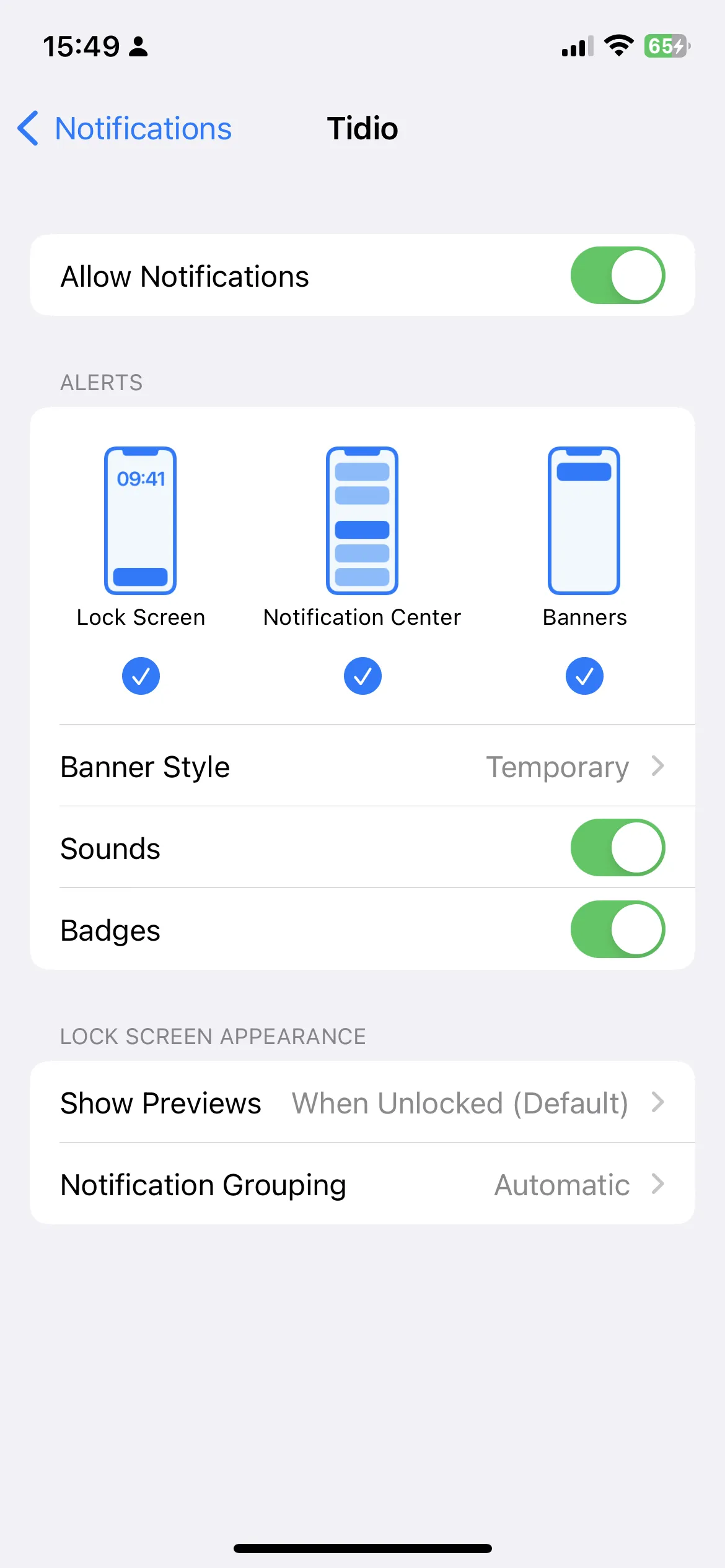
Our troubleshooting guide inside the Tidio Mobile App (Settings > notifications) should be able to find the root on iPhones, but if you're still experiencing some troubles with the notifications:
- Go to Settings on your iPhone device.
- Select Notifications and find Tidio.
- Make sure the Allow Notifications toggle is turned on, and the badges/sounds notifications are enabled.
Third-party apps
Third-party apps that are known to have issues with Tidio notifications:
Clean Master
This third-party app is used for battery and RAM saving management.
- Visit the app's Tools tab.
- Select the Notification Cleaner.
- Press the gear icon.
- Disable this feature for Tidio only, or for all notifications.
Security Master
This third-party security app may be preventing Tidio from sending notifications:
- Visit the app's NotificationCleaner.
- Press the gear icon.
- Ensure that Tidio is unchecked and listed under Apps - Notifications Allowed.
