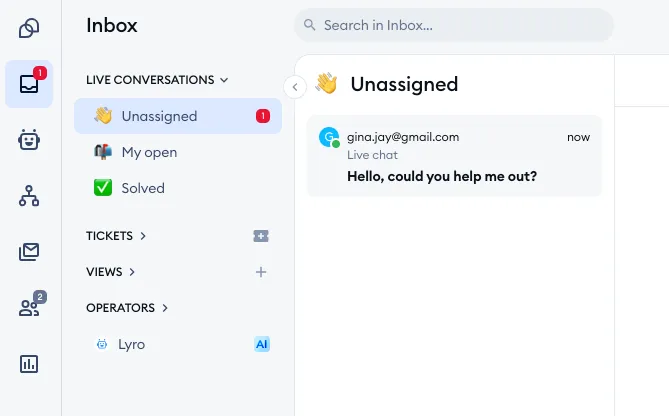
You can ban visitors during the chat conversation based on their IP address. Banned visitors will no longer be able to see your Tidio chat widget installed on your website. You can ban a visitor from the Inbox or from the Tidio mobile app, and the ban can be undone later in the Settings panel.
In this article, you'll learn:
Ban a visitor
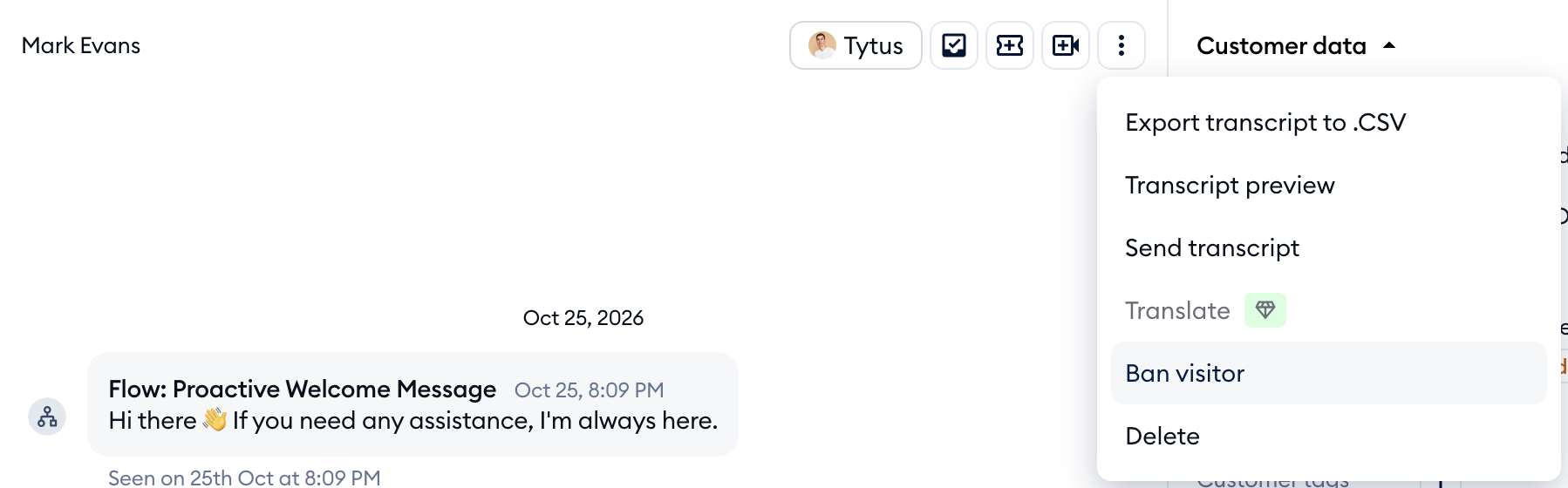
To ban a visitor, you need to enter the chat conversation with a chosen visitor in the Inbox. Click on the three-dots menu in the top-right of the conversation, and then select the Ban visitor option:
Confirm by clicking on Yes, ban visitor in the Are you sure? window.
Prefer the keyboard? Press Cmd + K (Ctrl + K on Windows) in the conversation to open the Search actions menu, type "ban" and choose Ban visitor - you'll find it in the Conversation management tab, too. See Keyboard shortcuts and the Search actions menu for more.
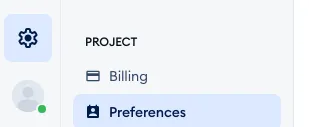
The visitor is now banned, and the conversation disappears from your Inbox. You can see all the banned visitors in Settings > Project > Preferences, in the Banned Visitors section.
Ban a visitor from the mobile app
You can also ban a visitor on the go. In the Tidio mobile app, open the conversation, tap the three-dots menu in the top-right corner and choose Ban visitor:
Screenshot coming soon
The app takes you back to your conversations list, and the visitor is banned.
Unban a visitor
To unban visitors, go to Settings > Project > Preferences and scroll down to the Banned Visitors section to see your list of banned visitors:
The list shows each banned visitor in the Visitor Id column, usually with their IP Address next to it. Click on the Unban option next to the visitor you'd like to remove the ban for:
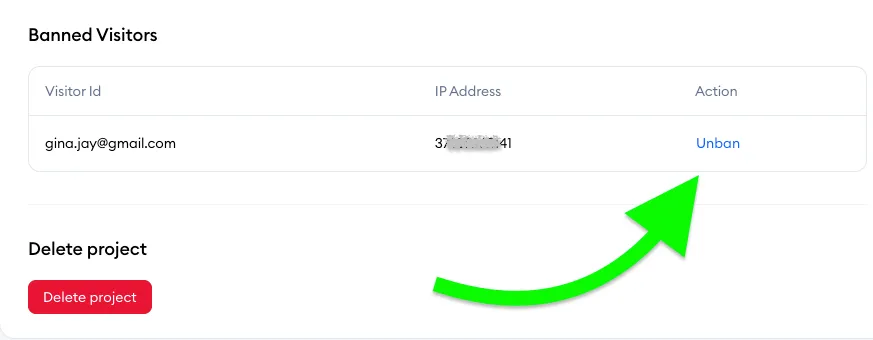
Now the visitor can write to you again, and their messages will be displayed in the Unassigned folder.
Please note: you can unban visitors only in the Tidio panel on your computer - the Tidio mobile app doesn't have the list of banned visitors. To manage the list, you need the Project preferences permission - without it, the section is greyed out with a note to contact an administrator.