Handling chat after chat, and ticket after ticket? Reaching for the mouse every time you want to assign, solve or add a note adds up quickly. With the Search actions menu and Tidio's keyboard shortcuts, you can do most of your Inbox work without taking your hands off the keyboard.
Press Cmd + K (on a Mac) or Ctrl + K (on Windows) in any chat or ticket, type a few letters of what you want to do, and hit Enter. The menu also shows the shortcut for each action, so you'll pick them up as you go.
In this article, you'll learn:
- How to open the Search actions menu
- How to find and run an action
- How to use every keyboard shortcut in the Inbox
- How to show and hide the folders and the details panel
- Where shortcuts don't work
Opening the Search actions menu
Head over to the Inbox and open any live conversation. At the bottom of the reply box, next to Macros and Flows, you'll find the Actions button. Hover over it to see its shortcut:

Click on Actions, or simply press Cmd + K (Ctrl + K on Windows), and the menu pops up:
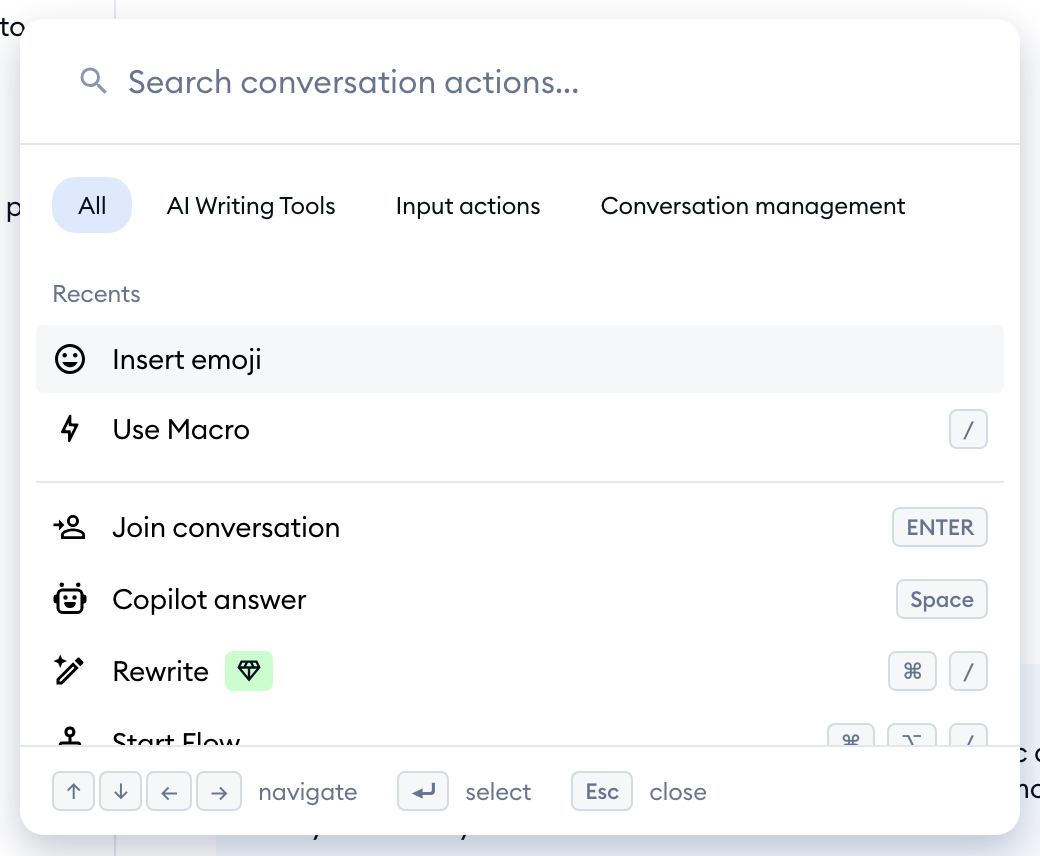
The same shortcut works in tickets too. Open any ticket and press Cmd + K (Ctrl + K) - this time, you'll see the ticket actions, like Forward, Merge into, Change priority or Mark as spam.
Please note: in tickets, there is no Actions button - the menu opens with the keyboard shortcut only.
Finding and running an action
The cursor is already in the search field when the menu opens, so you can start typing right away. Type a few letters (for example, "assign") and the list narrows down to the matching actions:
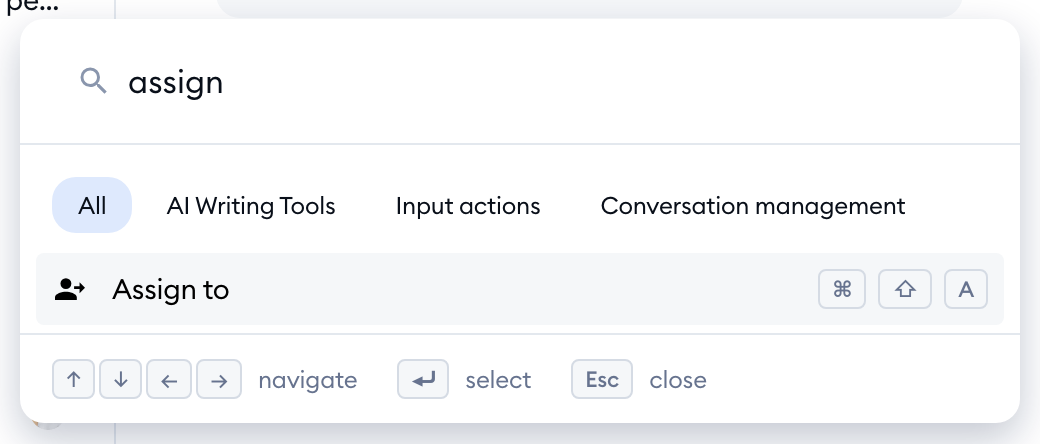
You can also browse the actions by tab:
- All - every action available in this chat or ticket. The two actions you used most recently are shown on top, under Recents.
- AI Writing Tools - AI-driven actions, like Copilot answer, Rewrite and Shorten.
- Input actions - everything you do in the reply box: Use Macro, Create internal note, Reply, Upload a file, Insert link, Insert emoji and more.
- Conversation management (in chats) or Ticket management (in tickets) - actions that handle the chat or ticket itself, such as Mark as solved, Assign to, Add customer tag, Export transcript, Ban visitor, Change status or Merge into.
Use the arrow keys to move around: ↑ and ↓ go through the list, ← and → switch between the tabs. Hit Enter to run the highlighted action, or Esc to close the menu. The footer of the menu reminds you of these keys:
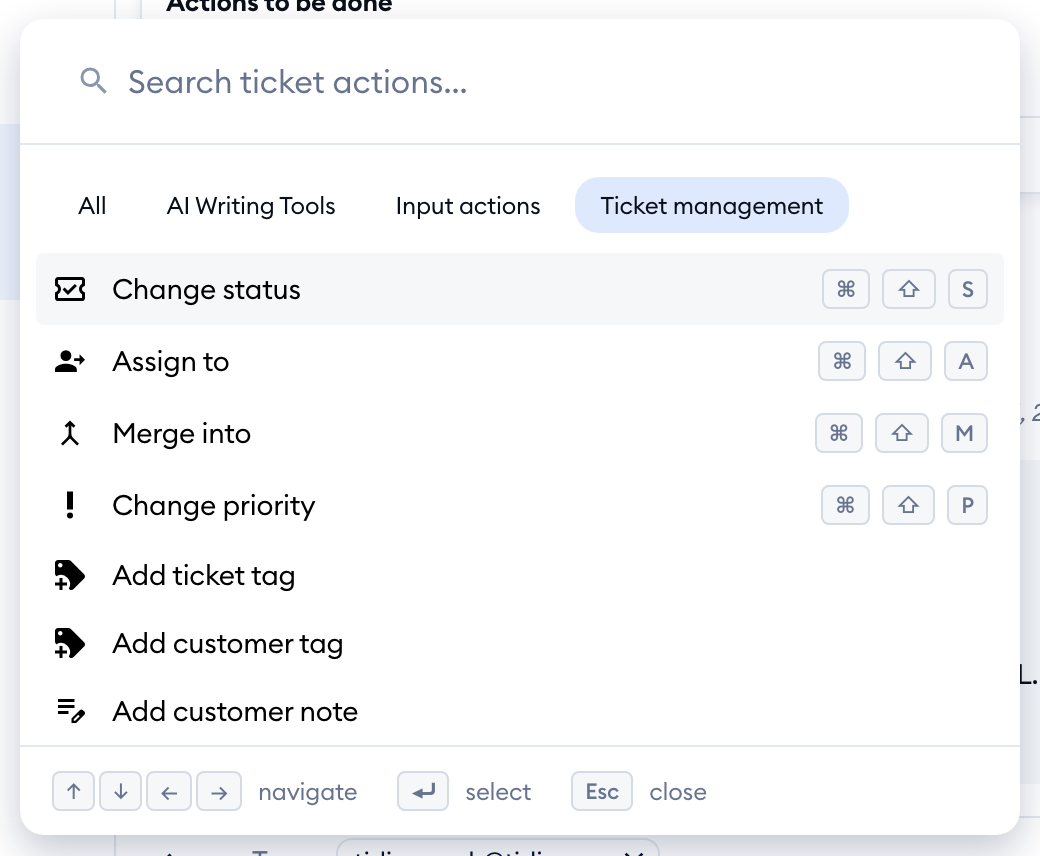
Some actions open a second step inside the menu - for example, Change status lists the statuses to choose from, and Assign to lists your agents. Pick an option with the arrows and Enter, or press ← to go back to the main list:
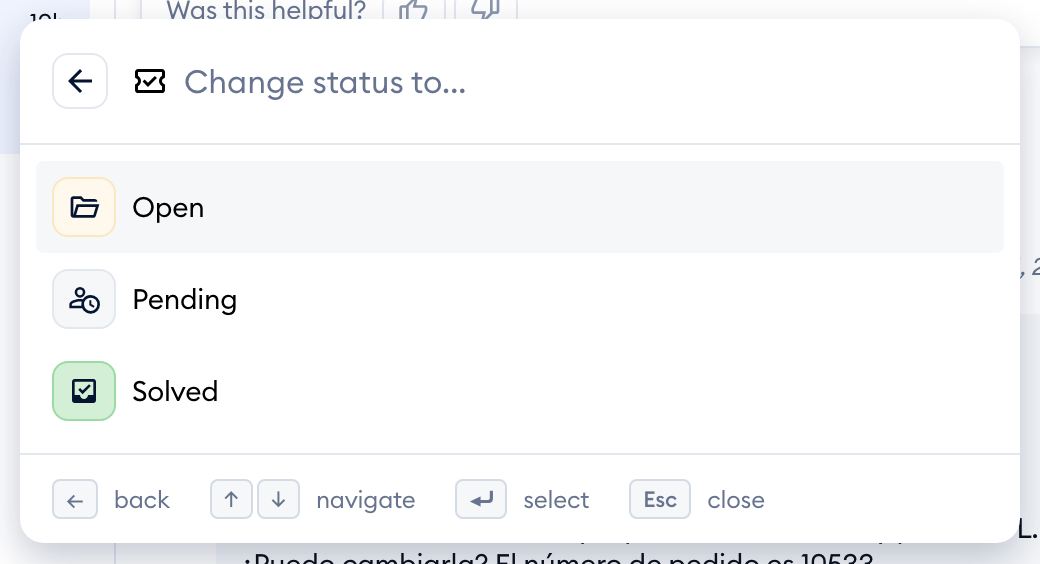
Please note: the menu shows only what you can do in the current chat or ticket. For example, the reply box actions disappear once a conversation is solved, and Merge into is greyed out when there are no other unsolved tickets from the same email address to merge with. Actions that are part of a paid feature your project doesn't have yet (like Copilot answer, Rewrite, Shorten or Translate) show a small badge next to their name.
Keyboard shortcuts in the Inbox
Most actions also have their own shortcut, so once you know them, you don't even need to open the menu. Shortcuts with Cmd or Ctrl work even while you're typing in the reply box.
On a Mac, the panel shows the keys as symbols: ⌘ is Cmd, ⇧ is Shift and ⌥ is Option (Alt). On Windows, simply use Ctrl wherever a Mac uses Cmd, and Alt instead of Option.
Chats and tickets
| Action | Mac | Windows | Works in |
|---|---|---|---|
| Search actions | Cmd + K | Ctrl + K | Chats and tickets |
| Assign to | Cmd + Shift + A | Ctrl + Shift + A | Chats and tickets |
| Reply | Cmd + Shift + R | Ctrl + Shift + R | Chats and tickets (switches the reply box back to a reply) |
| Create internal note | Cmd + Shift + X (tickets), Cmd + Option + X (chats) | Ctrl + Shift + X (tickets), Ctrl + Alt + X (chats) | Chats and tickets |
| Upload a file | Cmd + Shift + L | Ctrl + Shift + L | Chats and tickets |
| Insert link | Cmd + Shift + U | Ctrl + Shift + U | Chats and tickets |
| Rewrite | Cmd + / | Ctrl + / | Chats and tickets, with text in the reply box |
| Elaborate | Cmd + Shift + E | Ctrl + Shift + E | Chats and tickets, with text in the reply box |
| Shorten | Cmd + Shift + K | Ctrl + Shift + K | Chats and tickets, with text in the reply box |
| Create ticket | Cmd + Option + T | Ctrl + Alt + T | Anywhere in the Inbox |
| Delete | Cmd + Option + Backspace | Ctrl + Alt + Backspace | Chats and tickets (if you're allowed to delete them) |
Chats only
| Action | Mac | Windows |
|---|---|---|
| Mark as solved | Cmd + Shift + S | Ctrl + Shift + S |
| Create a ticket from this conversation | Cmd + Shift + T | Ctrl + Shift + T |
| Start Flow | Cmd + Option + / | Ctrl + Alt + / |
| Join conversation | Enter | Enter |
Enter joins the conversation when the reply box shows the Join conversation button (for example, when the chat is unassigned or another agent is handling it).
Tickets only
| Action | Mac | Windows |
|---|---|---|
| Change status | Cmd + Shift + S | Ctrl + Shift + S |
| Change priority | Cmd + Shift + P | Ctrl + Shift + P |
| Forward | Cmd + Shift + F | Ctrl + Shift + F |
| Merge into | Cmd + Shift + M | Ctrl + Shift + M |
| Upload an image (inline, in the reply text) | Cmd + Shift + I | Ctrl + Shift + I |
Single keys in the reply box
Two shortcuts don't need any modifier keys at all - the reply box placeholder reminds you of them:

- Spacebar (in an empty reply box) asks Copilot for a suggested answer - the same as Copilot answer.
- / (at the start of your message, or after a space) opens your Macros. Keep typing to filter them by name. In the Macros list of the Search actions menu (Use Macro), you can also type # to search by tags.
Text formatting
Where the reply box has formatting buttons (for example, in ticket replies), you can also format your text with Cmd + B for Bold, Cmd + I for Italic, Cmd + U for Underline, Cmd + Shift + 8 for a Bulleted List and Cmd + Shift + 7 for an Ordered List (Ctrl instead of Cmd on Windows). Hover over any button in the reply box toolbar to see its shortcut:
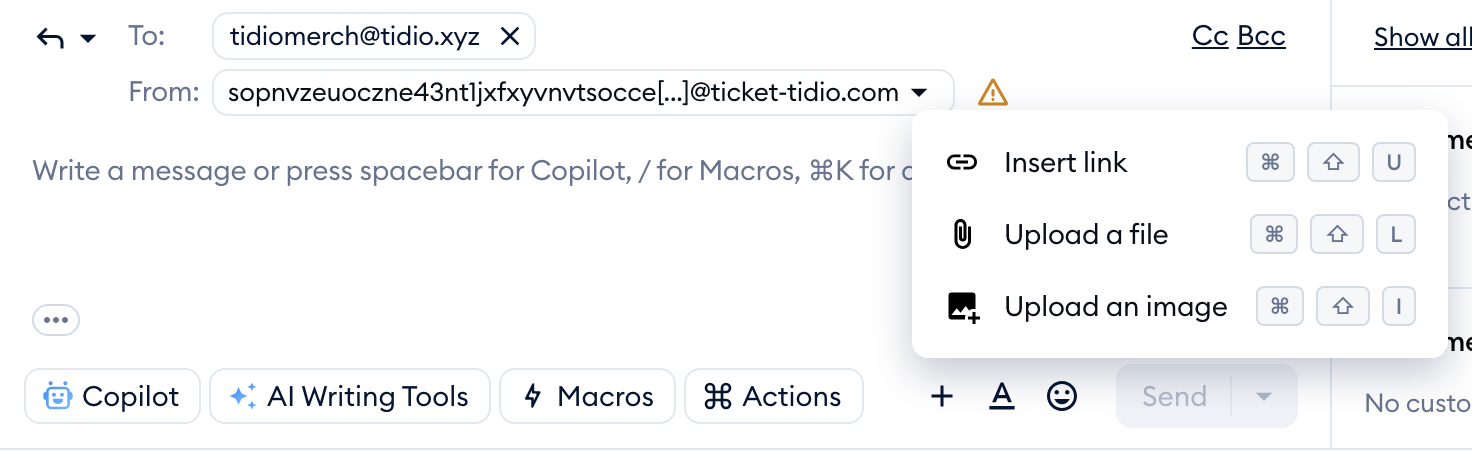
Please note: Use Macro needs Macros, available on the Growth plan and above. Copilot answer, Rewrite, Elaborate and Shorten work only if your project has access to those AI features - otherwise, you'll see a small badge next to the action's name.
Showing and hiding the folders and the details panel
Need more room for the conversation? Two keys let you hide the side panels of the Inbox:
- [ hides (or shows again) the folders on the left - the same as the Hide folders / Show folders button at the top of the folders list.
- ] hides (or shows again) the details panel on the right, with your customer's information - the same as the Show details / Hide details button.
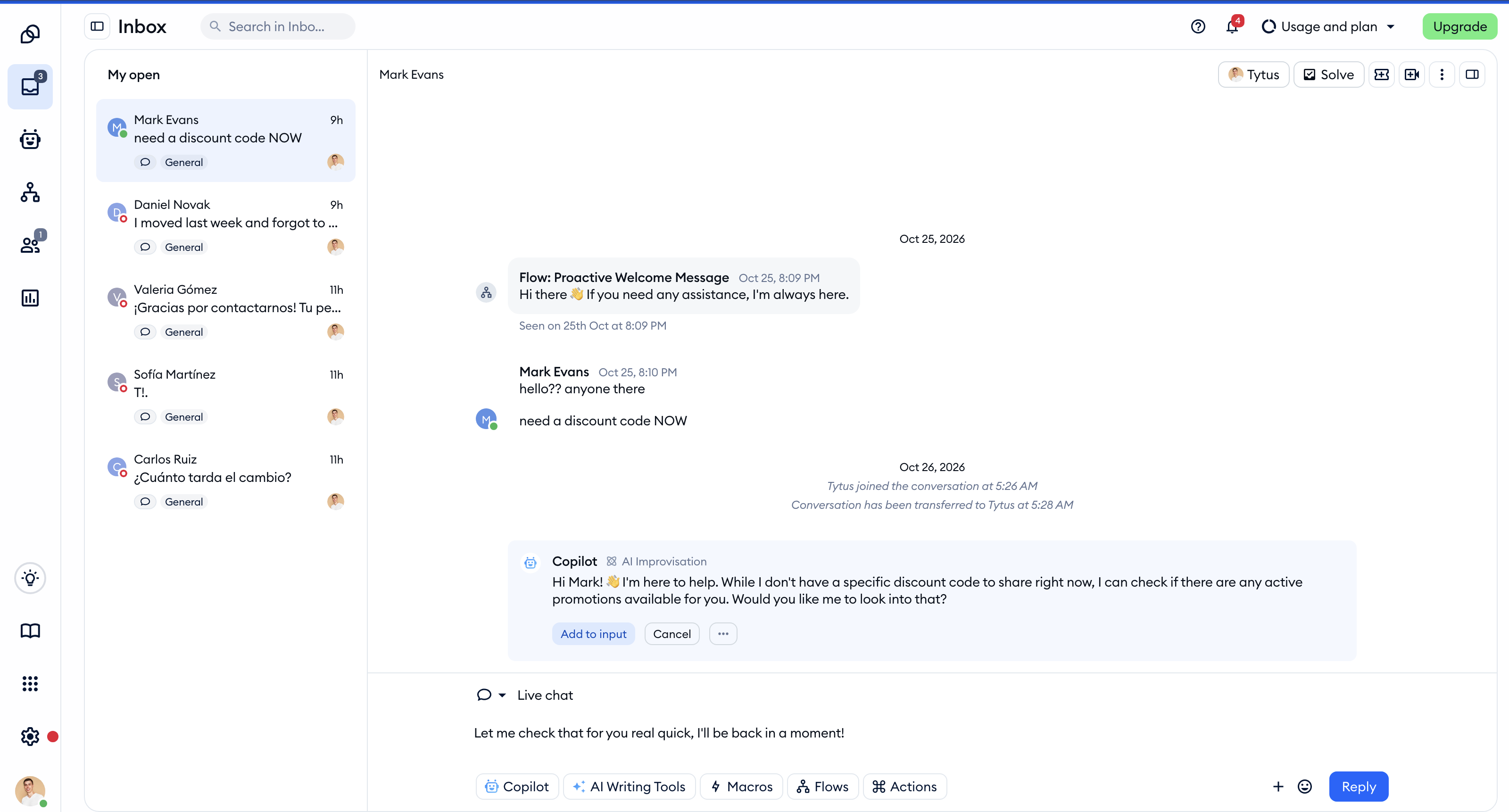
These keys work when you're not typing - click anywhere outside the reply box first, and then press [ or ].
Where shortcuts don't work
A few things to keep in mind:
- Cmd + K (Ctrl + K) opens the menu only when a chat or a ticket is open in the Inbox - not in the conversations list on its own, and not in other sections of the panel.
- The single keys [ and ] don't do anything while your cursor is in a text field (the reply box, a search field, a form). The spacebar asks Copilot only when the reply box is empty.
- While you're creating a new ticket, [ and Create ticket (Cmd + Option + T) are switched off.
- In a solved conversation, the reply box actions are hidden from the menu, and the Reply and Create internal note shortcuts don't switch the reply box. On WhatsApp, once you can no longer reply to the customer, most reply box actions are hidden from the menu too.
- In tickets from Messenger or Instagram, the actions for files, images, links and emoji aren't available.
- The Tidio mobile app doesn't have keyboard shortcuts.
- Shortcuts can't be turned off or changed, and there's no separate list of them in the panel - the Search actions menu (and the tooltips) are where you'll find the keys.
