Tidio's Inbox is a powerful view for managing tickets and conversations, and it serves as the main section of all your Tidio communication. In this article, we will guide you through the power and functionality of the Inbox, helping you streamline your communication processes and enhance your overall customer support experience.
In this article, you’ll learn:
- What the benefits of Inbox are
- How to use the Inbox
- How to use the Live conversations list
- How to use the Agents list
- How to use conversation Views
- How to create custom Views
Inbox benefits
Organize conversations smarter
Understand which conversations require your attention, thanks to the separate folders and new, clearer conversation counters.
Be there for your coworkers
Access your colleagues’ conversations with one click. Manage your team and assist your coworkers in a blink of an eye.
New Solved conversations folder
Sort out the conversations when they’re finished. When your discussions end, solve them to see a convenient preview of all your closed conversations in one designated folder.
One view for tickets and conversations
No need to jump between tabs. When you’re done with the most urgent chats, access tickets immediately.
Navigating the Inbox
You’ll see the Inbox view by logging in to your Tidio account; you can access it by clicking on the Inbox icon in the upper-left of your Tidio panel menu.
Live Conversations
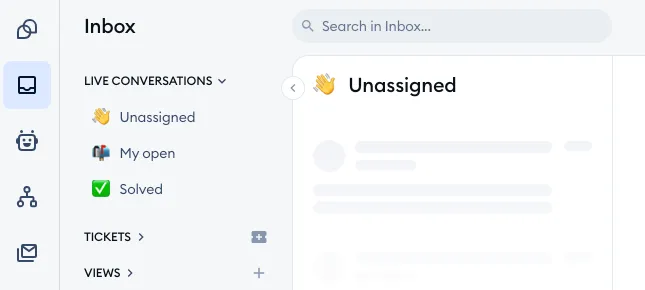
In your Inbox, you’ll see three main preview options for the live chat conversations that contain three tabs: Unassigned, My open, and Solved folders. Your tickets have the same three folders, in the Tickets section just below.
Unassigned
This tab shows you all incoming chats from your website visitors that haven’t been assigned to any agents. It’s the main folder from which you can pick up the conversation to join it and assign it to you as an agent.
My Open
This tab shows you all the conversations currently assigned to you as an agent.
Solved
This tab shows you all your finished chats. It’s a form of history or archive with all your finished conversations that you solved.
Please note: live conversations older than 30 days without a visitor's reply get solved automatically, even if you haven't turned on automatic solving.
The counters next to the Unassigned and My open folders will inform you about new messages from your website visitors.
Agents' activity
Under the Agents section of the Inbox menu, you’ll see All agents and a list of your agents, through which you can oversee their work and help them with their cases:
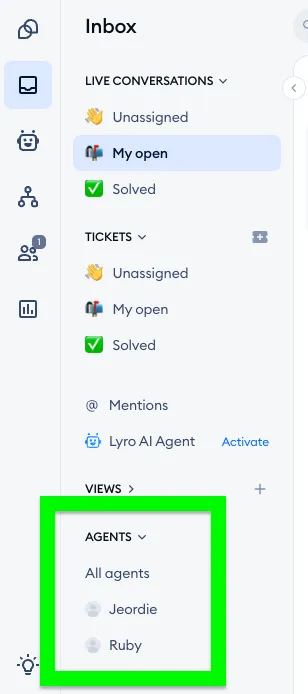
You can see the preview of other agents’ conversations without joining them by clicking on the chat under the chosen agent. Neither the agent nor the user will be able to see that you’re previewing the conversation. If you would also like to join the chat and be able to write, click on the Join conversation button. To leave a message for your teammate without joining, use Add internal note instead.
Using Views
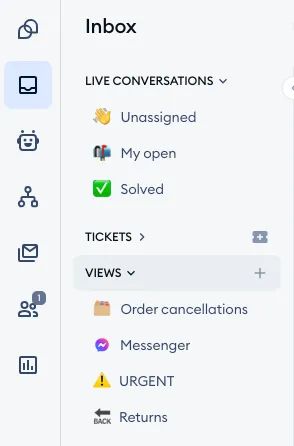
Views can help you prioritize your workload. They can help you learn about the conversation topics without even reading them and take care of those needing an urgent response first. It's a great help for all order-related issues & questions. It can help you and your team to manage the time more efficiently by dividing the conversation topics & channels between your agents or teams.
For live conversations, Views offer automatic (AI) recognition of visitors' intent, and channel recognition. When the intents are recognized, the conversations are grouped by the topics of the intents. Messages that come from Messenger, Instagram and WhatsApp are visible inside the specified channel views. You can also create views of your tickets, with many more filters - see Create custom views in the Inbox.
Creating custom Views
To help you create the most convenient view for your Inbox, you can customize the views to adjust them to your preferences.
Please note: every project can create views. The intent topics below are only available if you chose an online store as your type of business, and for now they're classified only for English conversations in online stores. The channel views are available to everyone.
At this moment, you can choose from the following topics:
- Account
- Discount code
- Generic support question
- Gift card
- Gratitude
- Greetings
- Job
- Location
- Open hours
- Order cancellation
- Order change
- Order damaged/wrong
- Order status
- Order support
- Payment
- Phone
- Pricing
- Product
- Product exchange
- Refund
- Return
- Shipping change
- Shipping delivery issue
- Shipping policy
- Shipping price
- Subscription cancelation
- Trial
- Wholesale
... and three communication channels:
- Messenger
Click on the plus (+) button next to the Views menu to add more views to your current list.
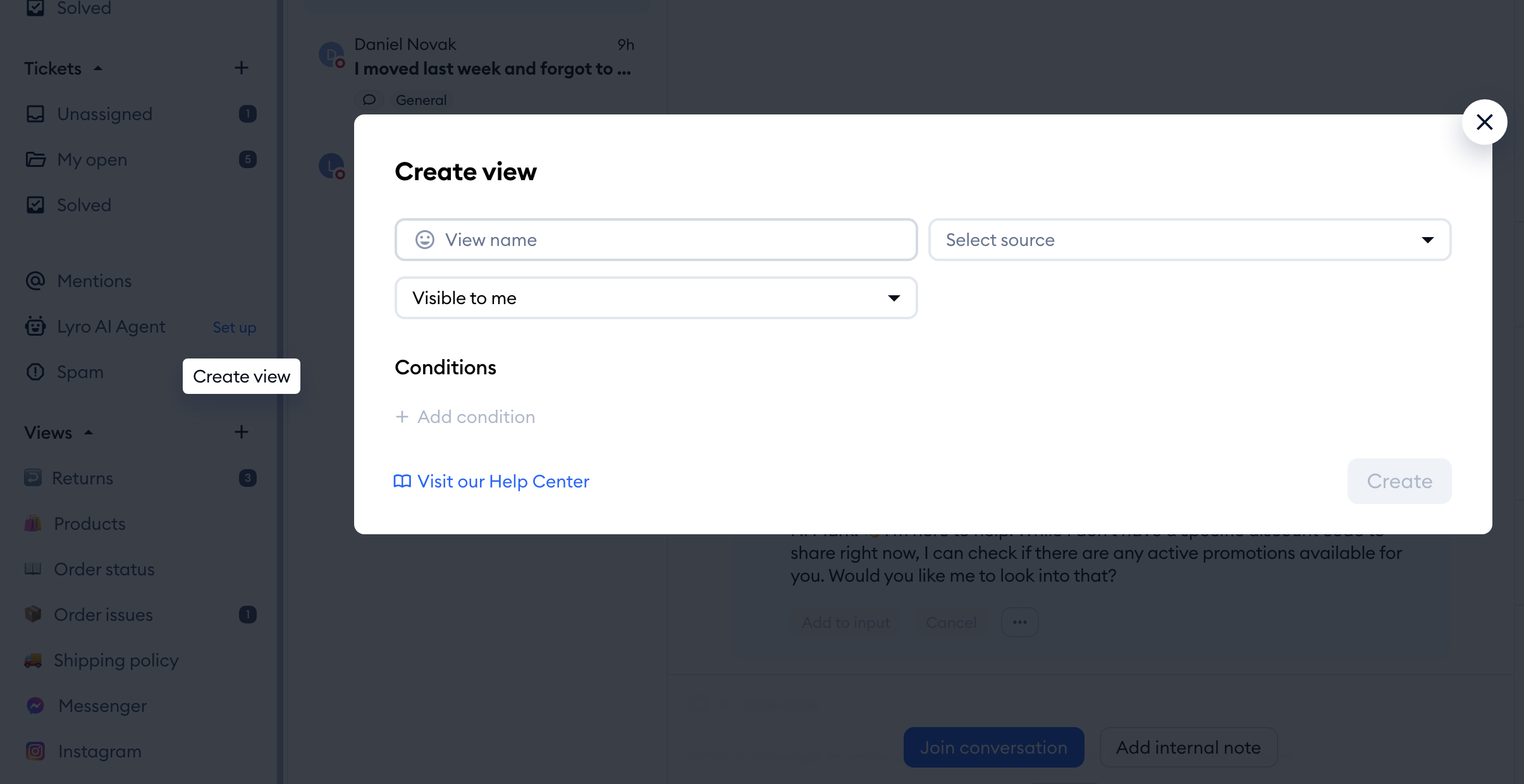
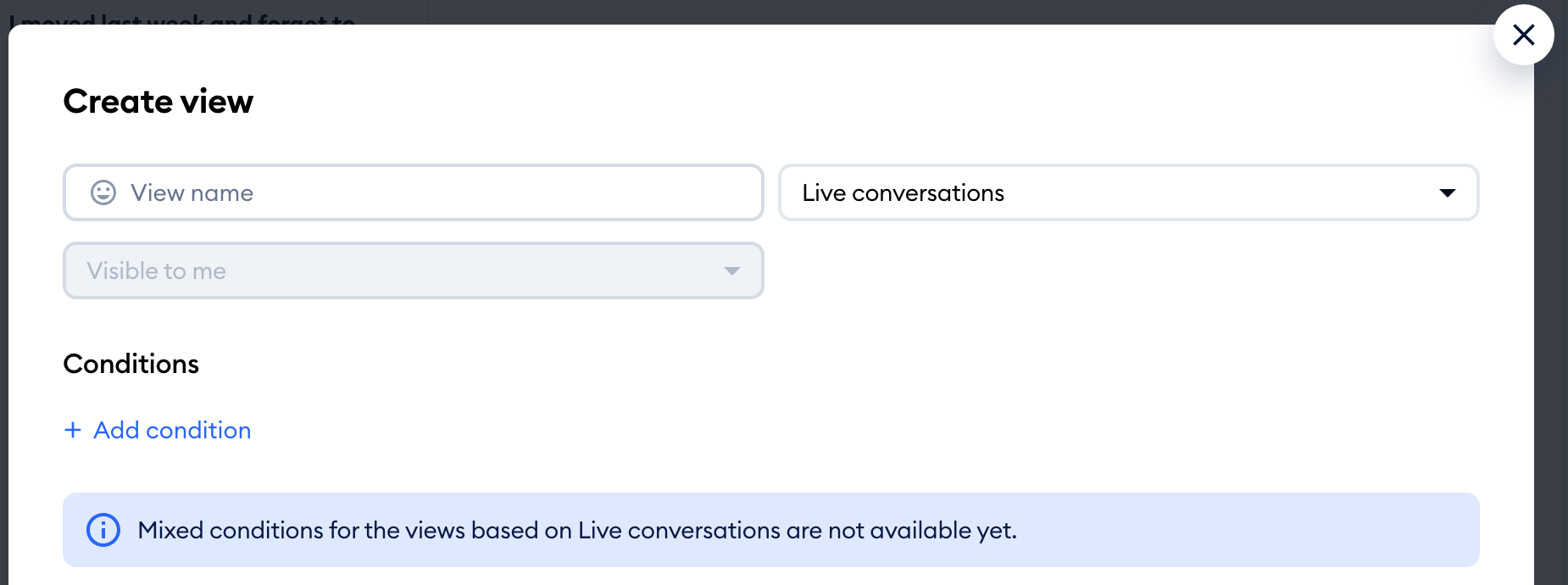
Type in the name of the view that you will see on your Views navigation menu (you can also add an emoji icon). Live conversation views are always Visible to me - every agent creates their own. Ticket views, on the other hand, can be shared with your whole team, selected agents or selected departments.
From the Select source drop-down menu, use Live conversations:
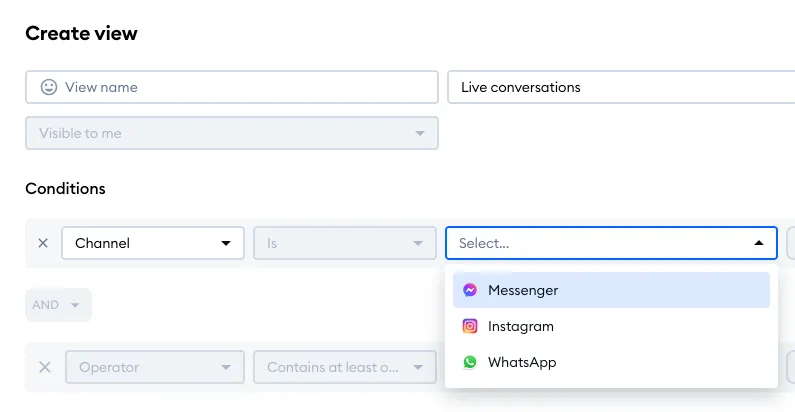
You can then add the condition(s) you need. These will determine what the view will actually show, according to the filters you set. For example, you can select a different channel, like Messenger, Instagram, or WhatsApp - so the view will only list chats from those channels (please note that the 'channel' condition is only available if you don't currently have all 3 channel views already added):
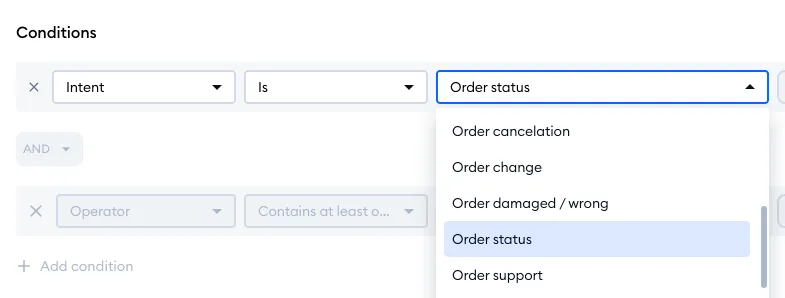
Most importantly, you can select the intent - this determines (with the help of AI) what the visitor may need from your support team. You can select from a variety of basic intents:
When you’re ready, click the blue Create button to confirm your choices.
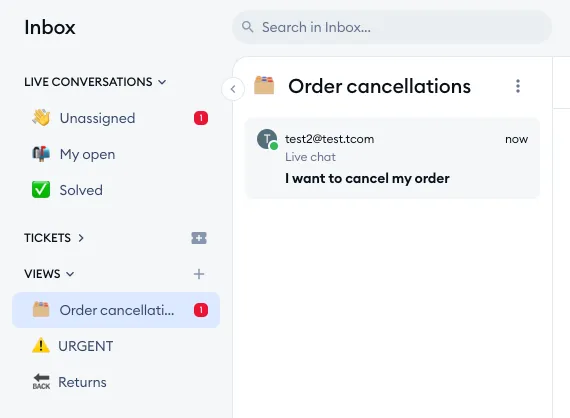
Once visitors start messaging you and communicate their intent (e.g. if they want to cancel an order), the appropriate view will list this incoming chat. Of course, it will also be listed in the Unassigned folder, as always:
To edit existing views - click on a chosen view from the list and then on the three dots next to the topic’s name at the top. Use the Edit option:
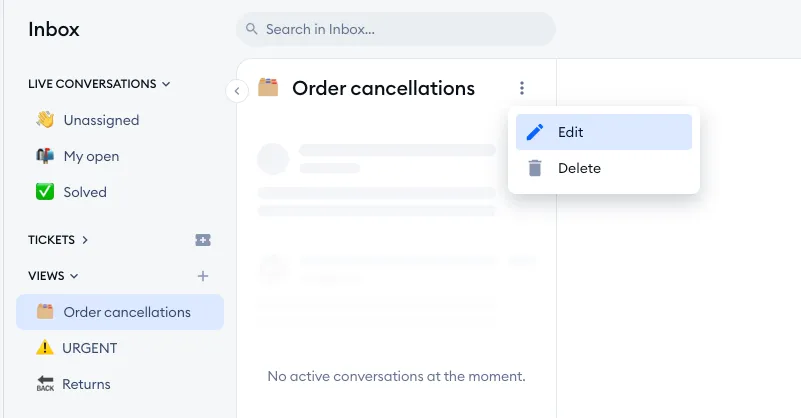
Now, you'll see the editing window, where you can adjust the view once again.
Please note: deleting the view will not delete the messages inside the view. The messages will still be available in other tabs like Unassigned or Solved.
Customizing the intent views in Tidio allows agents to tailor their workspace to their specific needs, making it easier and faster to respond to incoming messages. By prioritizing particular views and information, agents can work more efficiently and effectively, ultimately improving the customer experience.
Please note: you can change the order of all your views! Each agent can do this on their own, and the order will only change for them; it's an individual setting.
To change the order, hover your cursor over the view you'd like to move, and click on the icon that appears on the right - and drag it up or down to the position you prefer:
How do Views work?
When a new Unassigned message that contains one of the intent topics arrives or comes from the Instagram, Messenger or WhatsApp channels - it's automatically classified into one of the intents or channels folders with a notification (the message must be more than one word long to be classified).
A live conversation view lists the conversations with the intent or channel picked by the agent that are either Unassigned or assigned to that agent.
Please keep in mind that, right now, only conversations in English can be classified as topics, and our system only looks at the first message sent by the visitor. That means the messages with only one word, such as "hello" will not be classified into topic groups.
Custom Views for tickets
If you'd like to learn more about creating custom Views for your tickets - with filters like status, mailbox, priority or tags, AND/OR conditions, and sharing with your team - please see Create custom views in the Inbox.
