The Workflows section of your Tidio project includes the option to solve chats (and tickets) automatically. This feature will help you save time and keep your inbox tidy by solving finished live chat conversations and email threads for you.
Workflows allow for other automations as well - please see this dedicated guide for more information.
Please note: solving chats and tickets automatically with Workflows is available on the Growth plan and above (see Which upgrades do I need?).
In this article, you'll learn:
Benefits
Less manual work, more automation
At Tidio, we love automating tasks that can save time. Thanks to the automatic solve feature, you don't need to remember to solve each conversation manually. That's less manual work for you and your team!
Clear inbox
We know that with many conversations, it's hard to keep track of all finished conversations. Solving automatically will help you keep the Tidio inbox clear by solving all finished chats (and tickets), so you can focus only on those that still require your assistance.
Works in offline mode
With conversations and tickets being automatically solved, you don't have to worry about your assigned customers returning with more questions when you're offline, which can potentially lead to missed messages. After the conversation is solved, new messages from the returning visitor will go to the Unassigned folder. That ensures no message is missed, and other agents are notified to jump in and help immediately.
Enable automatic solving
The options you need are available inside the Workflows section. You can access it by navigating to Settings > Workflows in your Tidio project:
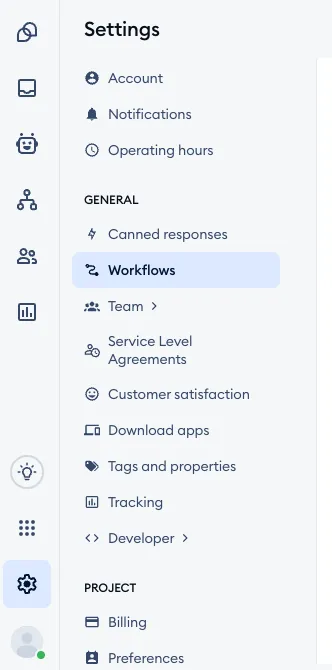
Inside, you will find two main tabs: My Workflows and Templates. This is where you manage all your workflows in general - see a list of your added workflows, create new ones, or browse the available templates.
To enable automatic solving (for conversations and/or tickets), you will need to access the Templates tab:
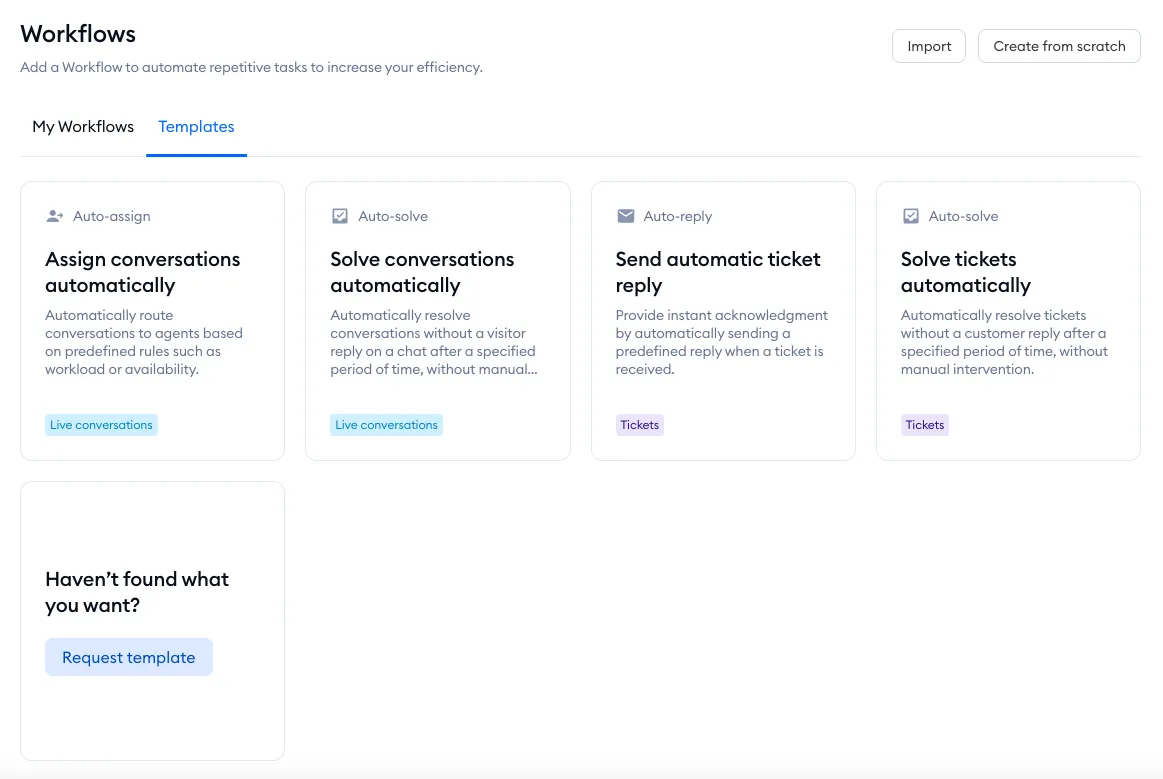
In there, you will find several templates ready to add and activate immediately (as well as the option to request a new template that you would find useful!). Each workflow template is marked with either the Live conversations or Tickets tag, letting you know which communication channel the particular workflow is meant for.
When you hover your cursor over a template, you will see the Learn more button appear:
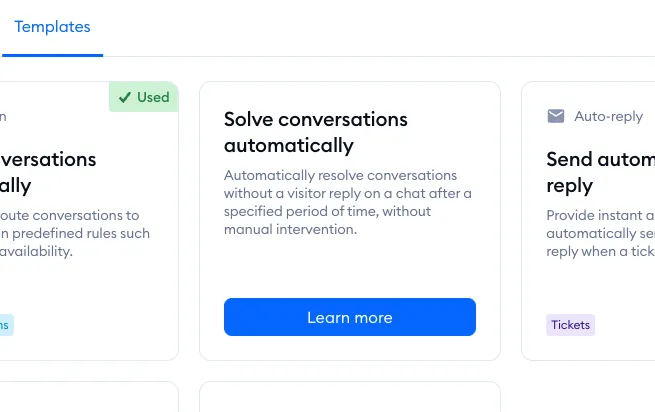
Clicking on it will take you to the template's setup screen, where you can see more details:
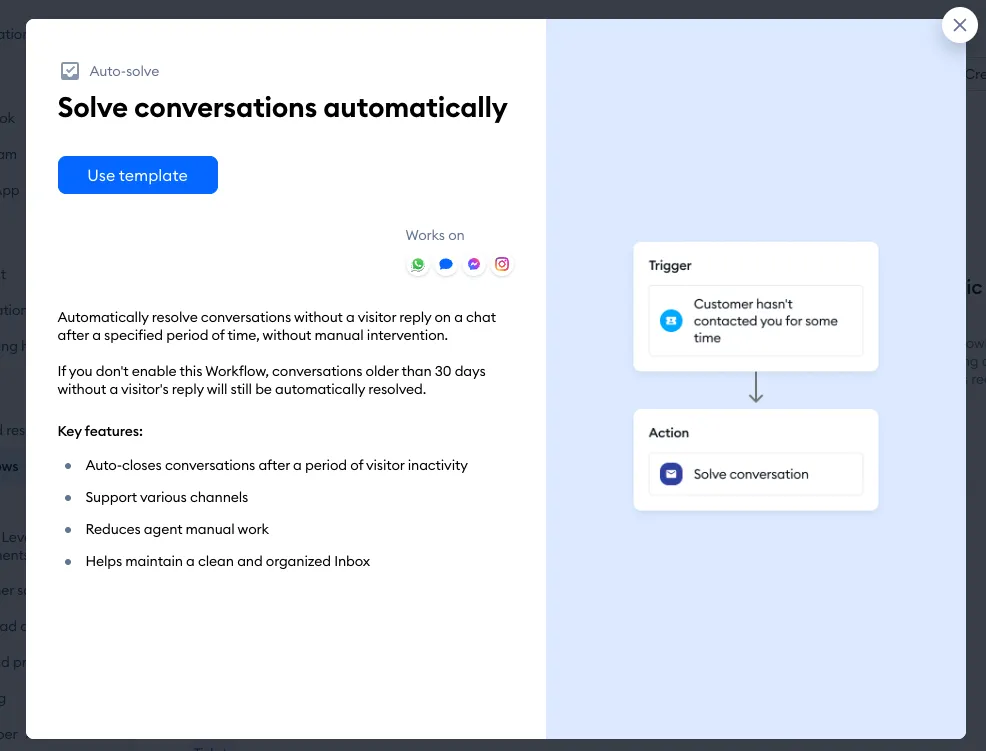
Hit the Use template button to customize the available aspects of the workflow.
Solve conversations automatically
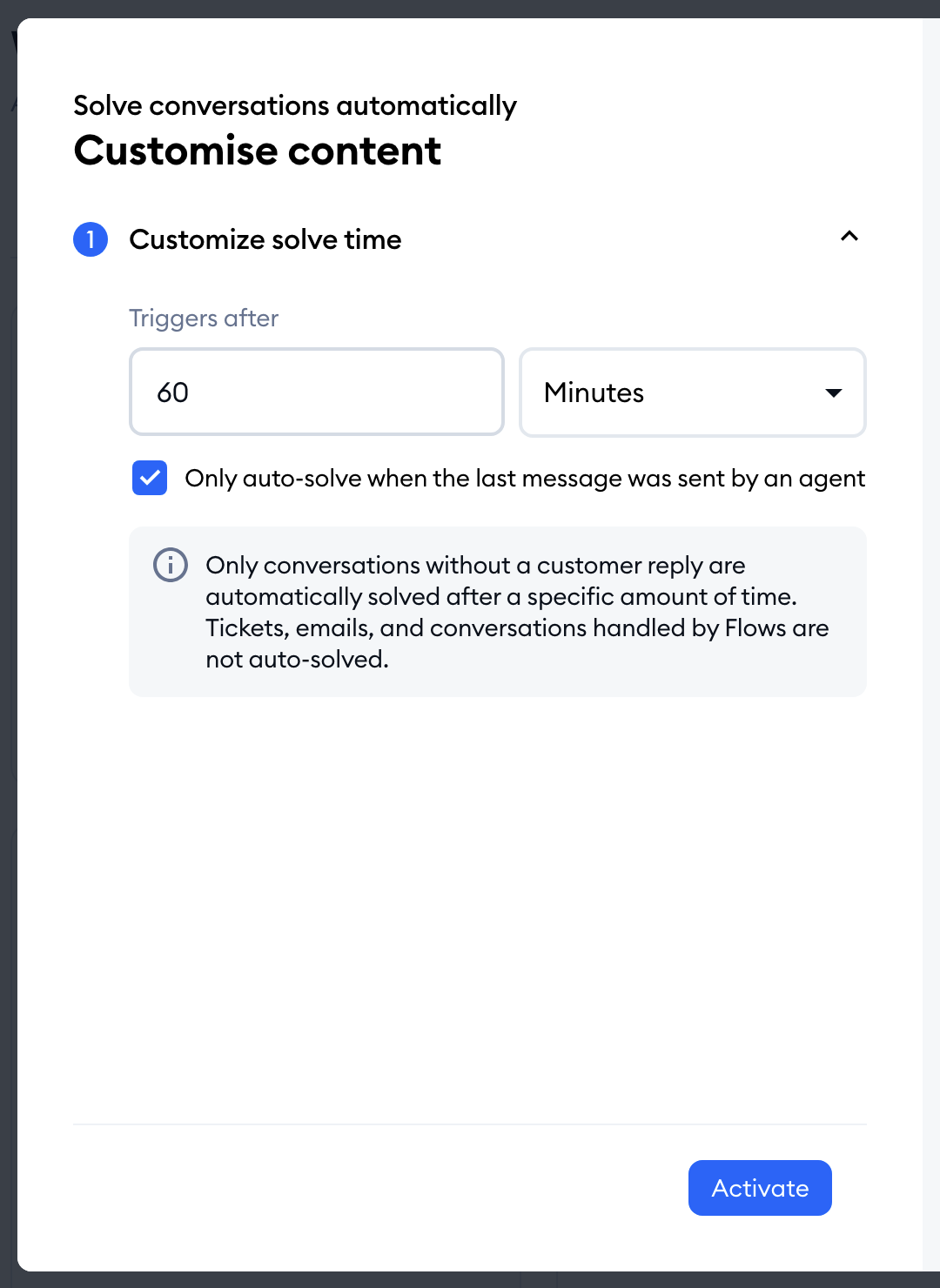
This workflow allows you to specify the amount of time after which conversations should be marked as solved automatically: under Triggers after, choose between 5 and 120 Minutes, or between 1 and 72 Hours (the default is 60 minutes).
With Only auto-solve when the last message was sent by an agent checked (it is by default), this only applies to conversations where an agent has responded, but the visitor hasn't given any further reply of their own. Uncheck it to also solve conversations where the visitor wrote last. With the box checked, you'll also see a reminder that tickets, emails and conversations handled by flows are not auto-solved. When you're ready, hit Activate.
Please note that without this workflow enabled, your conversations will still get automatically solved after 30 days without the visitor's reply; this is default Tidio behavior.
Solve tickets automatically
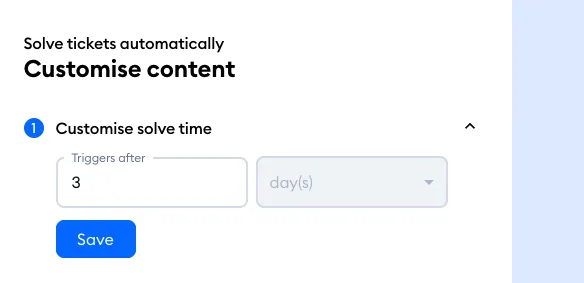
This workflow lets you specify the amount of time (in days) that needs to pass for a ticket to be solved automatically - under Triggers after, you can set anywhere from 1 to 365 days. This only applies to tickets where the agent has responded and there has been no further reply from the original sender.
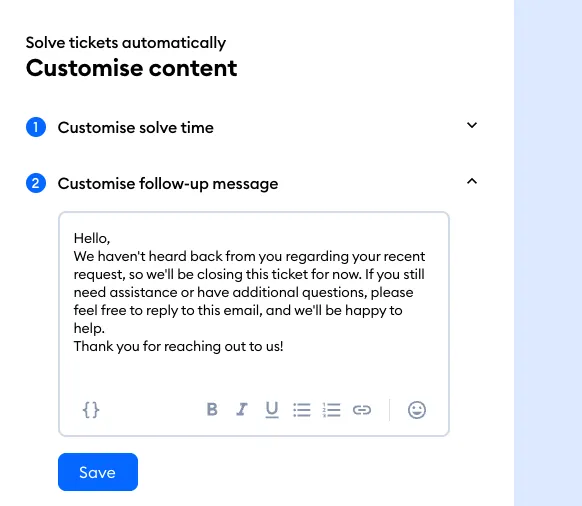
When a ticket is solved this way, there is also a follow-up message sent automatically; you can modify this message to your liking:
Further reading
