Tidio's AI Writing Tools are a kind of reply assistant designed to help customer service agents deliver high-quality, well-composed replies to customers faster. With the power of AI, they can rewrite, elaborate on or shorten the message you've typed - in conversations and tickets alike.
Looking for the option to summarize a ticket? Ticket summaries are now a separate feature - the AI summary at the top of each ticket.
In this article, you'll learn:
- How AI Writing Tools work
- How to get the most out of AI Writing Tools
- Where to find ticket summaries
Using AI Writing Tools
Tidio's AI Writing Tools use advanced machine learning algorithms to analyze the input provided by the agent and generate a new, well-composed reply. You can see the AI Writing Tools button in the bottom-left of your text input field, next to Copilot, whenever you're in a conversation (or ticket). On a narrow screen, the button shows only its stars icon - hover over it to see Use AI Writing Tools.
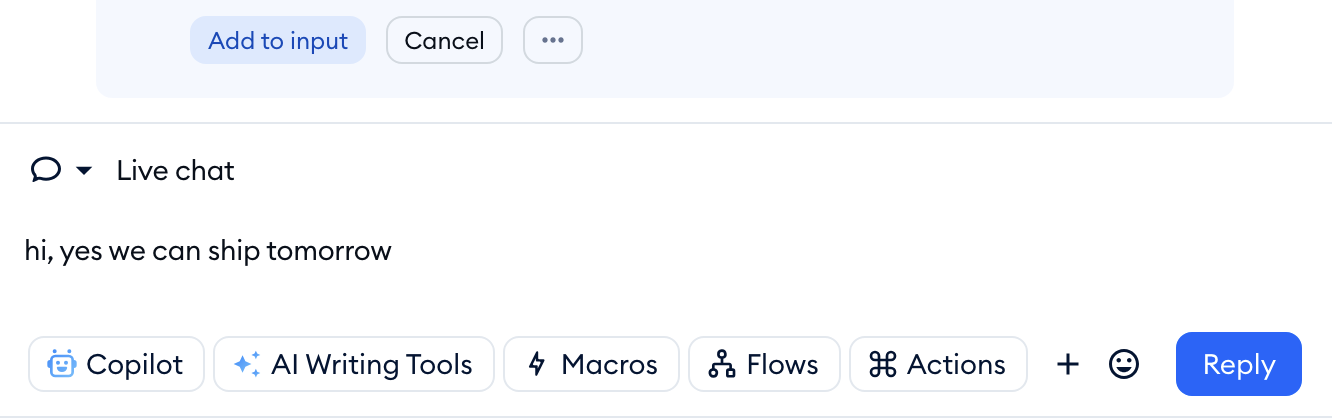
To properly use AI Writing Tools, you must first type in a message which will serve as the basis for generating a new response. If the reply box is empty, you'll see a reminder: You should provide some text, try with: “Hi!” or “Ask for order number” and try again.
Click on AI Writing Tools, and choose Rewrite, Elaborate or Shorten. The same three options are available in conversations and tickets, both in your replies and in internal notes. Each option shows its keyboard shortcut on the right:
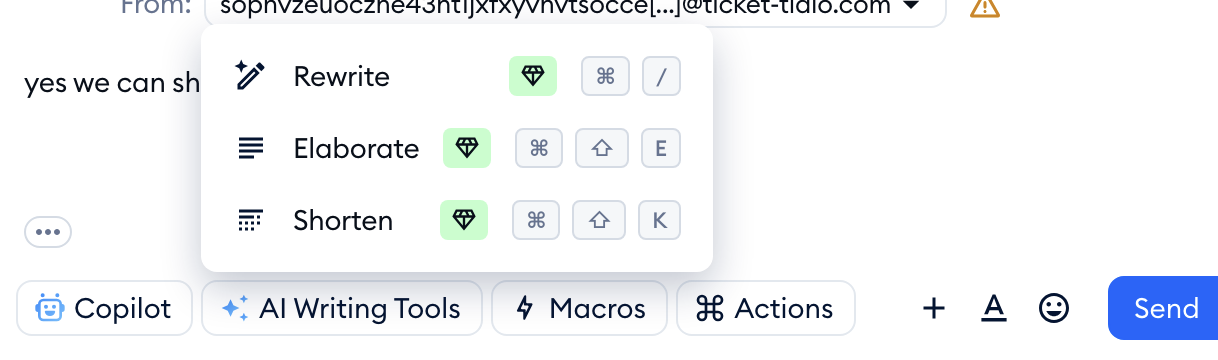
- Rewrite - Cmd + / (Ctrl + / on Windows)
- Elaborate - Cmd + Shift + E (Ctrl + Shift + E)
- Shorten - Cmd + Shift + K (Ctrl + Shift + K)
You'll also find Rewrite and Shorten in Search actions (Cmd + K, or Ctrl + K on Windows). While the new text is being generated, you can stop it by clicking on the X icon (Cancel) over the reply box. If your draft is too short to work with, you'll see Your text is too short or unclear. Please provide a proper one - just add a few more words and try again.
In the Tidio mobile app, tap the magic wand icon in the reply bar to rewrite your message.
Please note: if AI Writing Tools aren't included in your subscription, you'll see a small diamond badge next to each option. Hover over it to see how to unlock them - choosing an option opens the upgrade window. AI Writing Tools are one of the features of the Inbox AI add-on.
Rewrite - paraphrasing your response
The Rewrite option is very useful for changing the form of your message - recreating it using different words. It can be especially useful if you are writing in a hurry and you're worried about typos or non-ideal formatting. Please see an agent's example response below:
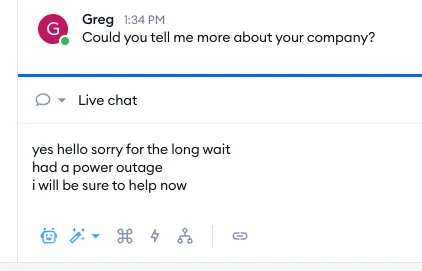
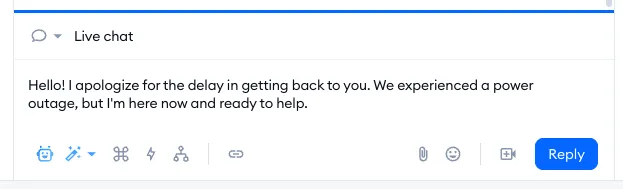
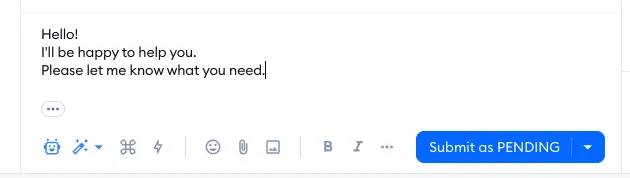
The AI's Rewrite option will then generate a reply based on this input, which you can review and edit as needed. The new reply should be well-composed and grammatically correct even if your input was far from perfect:
The tools works the same way for email responses, of course. An agent may write something simple and not fully appropriate:
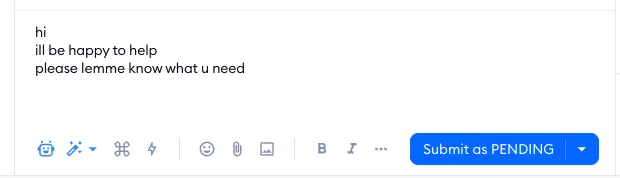
... and the Rewrite tool can transform the message:
Elaborate - expanding your response
The Elaborate tool can help you create a slightly longer response, which can be useful if you're worried that your short reply may be seen as too direct or hurried in some way, or if you'd simply like to try a different style for inspiration. Please see this example response from an agent:
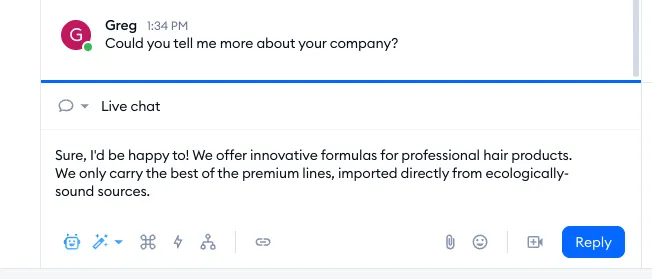
The Elaborate tool can expand this response, and the result may be something like this:

Of course, you should always use your own judgement and customize this response if you feel it's too much, or not ideal for your situation.
Shorten - minimizing your response
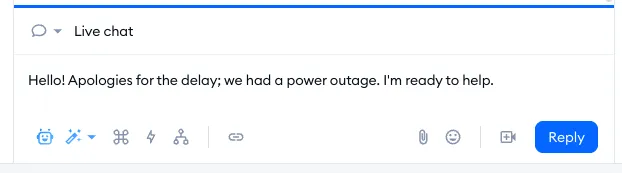
The Shorten tool can do the opposite of what Elaborate does - it can take your input and generate a message that is more concise. Lets take a look at an example written by an agent:
The Shorten tool can be used for a slightly more direct reply, which you may find more appropriate in certain situations:
Ticket summaries - now the AI summary
AI Writing Tools no longer include the Summarize option. Instead, every ticket now has its own AI summary bar right at the top of the thread - no need to generate a note yourself.
The AI summary bar opens expanded, and you can click on it to collapse or expand it. You'll see the thread summed up in four parts: Contact reason, Actions taken, Actions to be done and Current client status. Below the summary, let us know if it helped by answering Was this helpful?:
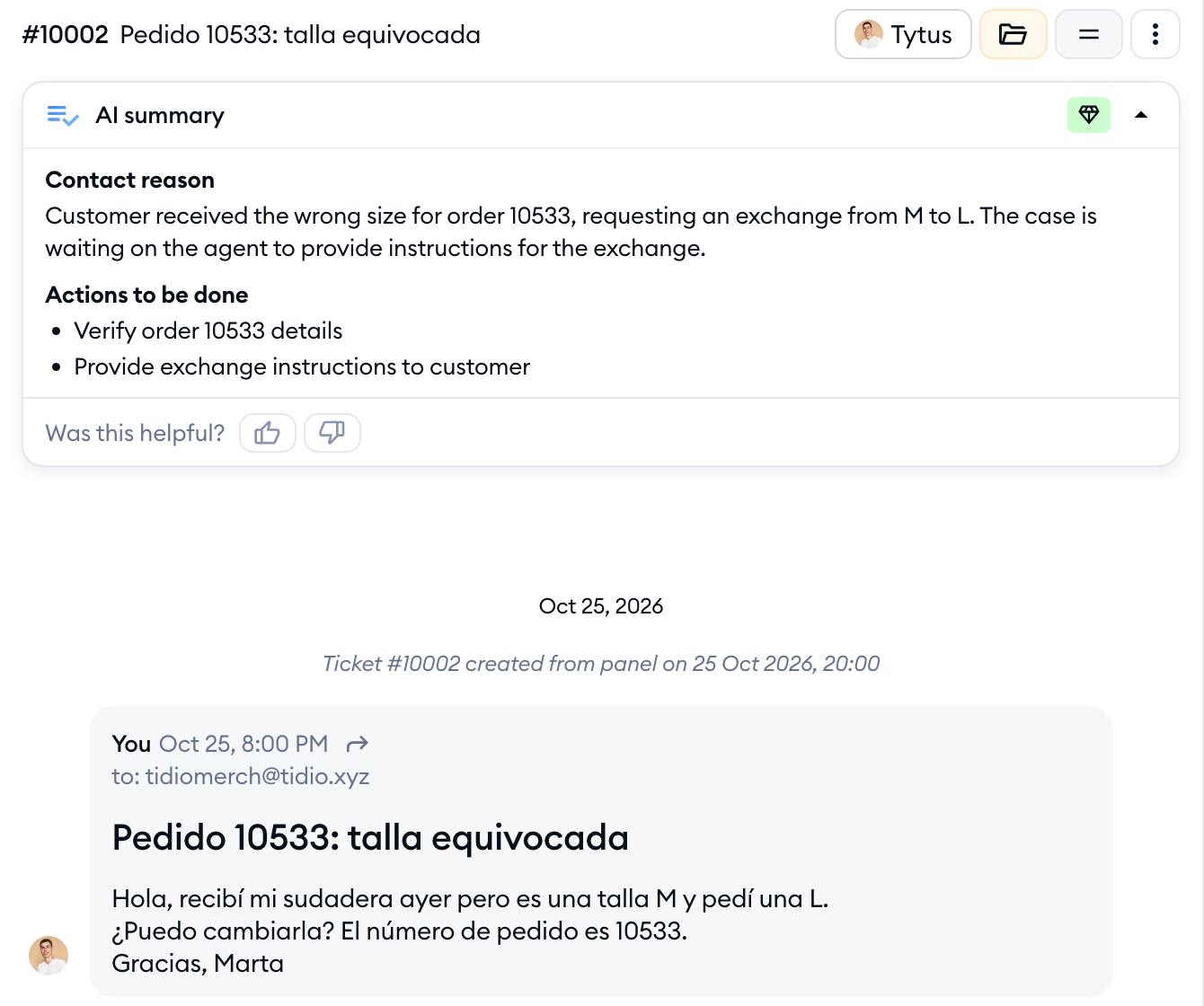
When new messages arrive, the summary updates (you'll briefly see Summarizing...). The AI summary is part of the Inbox AI add-on - without it, clicking on the bar opens the upgrade window.
Tips for getting the most out of AI Writing Tools
Provide clear and concise input
The more information you provide to AI Writing Tools, the better it will be able to generate a relevant and helpful reply. Make sure to articulate clearly the context of the conversation and the customer's inquiry.
Be specific with your input
The AI is trained to recognize specific types of inquiries and respond accordingly. Be specific with the type of inquiry being made and the information you would like to include in your reply.
Use a professional tone
AI Writing Tools are designed to generate professional, helpful replies. Make sure to use a tone that is appropriate for a customer service context.
Review and edit generated replies
While AI Writing Tools are designed to generate high-quality replies, it's always a good idea to review and edit the generated reply to ensure that it is accurate and relevant to the specific situation.
