Want your whole team to reply faster, catch up on long tickets in seconds, and talk to customers in any language? The Inbox AI add-on brings Tidio's AI tools right into the Inbox - for everyone on your team, not per seat.
The add-on is a single upgrade on top of your Tidio plan. This article explains what it includes, which plans can take it, how its price is calculated, and how to add it to your subscription.
In this article, you'll learn:
- What the Inbox AI add-on includes
- Which plans can take the add-on
- How the add-on's price is calculated
- How to get the add-on from the Inbox
- How to get the add-on in your Billing settings
What's included
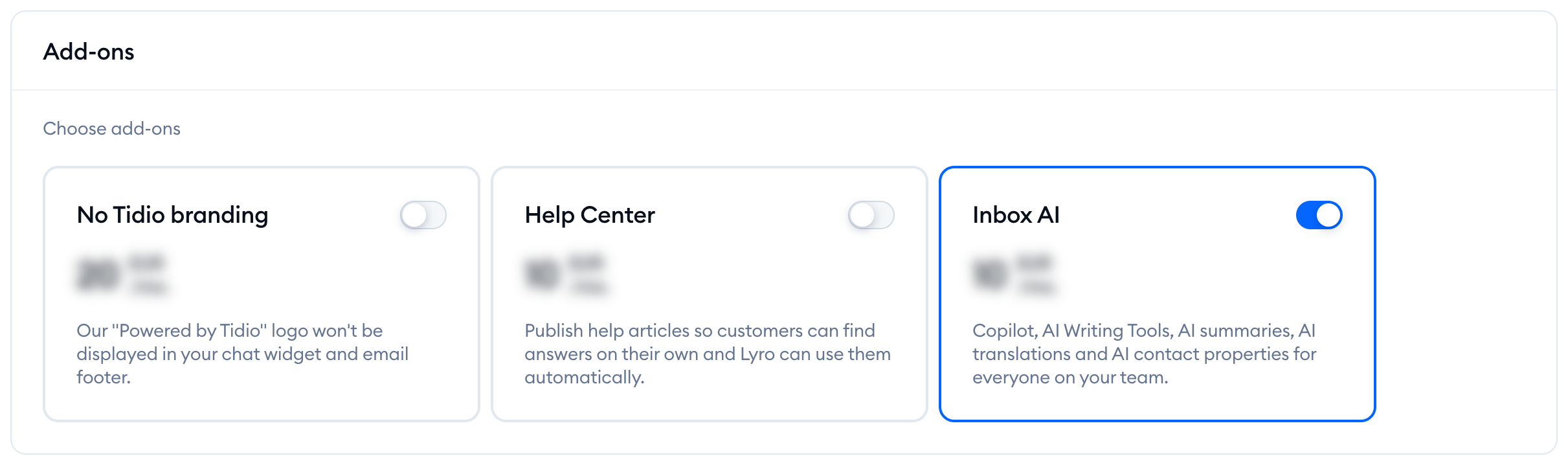
In your Billing settings, Tidio describes the add-on as Copilot, AI Writing Tools, AI summaries, AI translations and AI contact properties for everyone on your team. Here's what each of them does, and where you'll find it:
- Copilot - drafts replies to your customers' messages from your knowledge sources. Click on the Copilot button in the reply box of a conversation or ticket. See Copilot for more.
- AI Writing Tools - Rewrite, Elaborate or Shorten your draft before you send it. See AI Writing Tools (the reply assistant).
- AI summaries - the AI summary bar at the top of a ticket sums up the thread so far: Contact reason, Actions taken, Actions to be done and Current client status.
- AI translations - read your customers' messages in your language, and send your replies in theirs. See Translate conversations and tickets with AI.
- AI contact properties - the AI-powered fill mode for custom fields (Settings > Fields): AI fills this field based on the customer's first message. See Custom fields for tickets.
Not sure if a feature is already part of your subscription? Just look at it in the panel. If it isn't included, you'll see a small diamond badge next to it - hover over the badge to see how to unlock it:
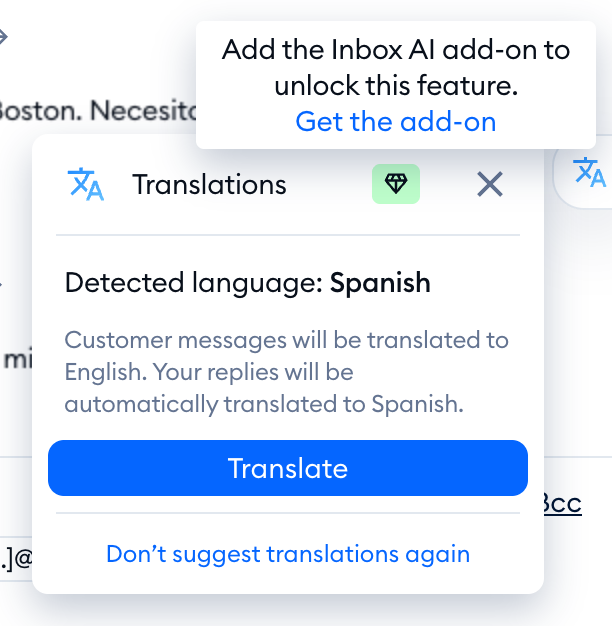
Please note: if your project takes part in the Inbox AI beta, the badge says Available free until beta ends instead. You can use these features free of charge for now, and the add-on isn't offered in your Billing settings.
Which plans can take the add-on
You can add Inbox AI to the Starter and Growth plans.
- On the free version, you'll be offered a paid plan together with the add-on.
- On Plus and Premium (custom plans), you'll see the Contact Sales button instead - our team will help you with your custom subscription.
To see which plan suits you best, please see Which upgrades do I need?
How the price is calculated
Inbox AI pricing is based on your billable conversations limit - the monthly number of conversations in your Starter or Growth plan. There's nothing extra to choose: the add-on always matches your plan's limit, with Unlimited use of its features for your whole team.
If you change your plan's conversation limit on the upgrade page, the Inbox AI add-on in your order changes with it. You'll always see the exact price before you confirm - in the Get Inbox AI add-on window, or on the upgrade page.
Getting the add-on from the Inbox
Whenever you try a feature that needs the add-on - for example, click on Translate, or open the AI summary bar of a ticket - Tidio will offer it to you. You can also click on Get the add-on in the diamond badge's tooltip.
If your plan can take the add-on, you'll see the Get Inbox AI add-on window. It lists what's included, the monthly (or yearly) price of the add-on, your new subscription total, and the amount Due today - a prorated charge for the rest of your current billing period. Simply hit the Add Inbox AI button:
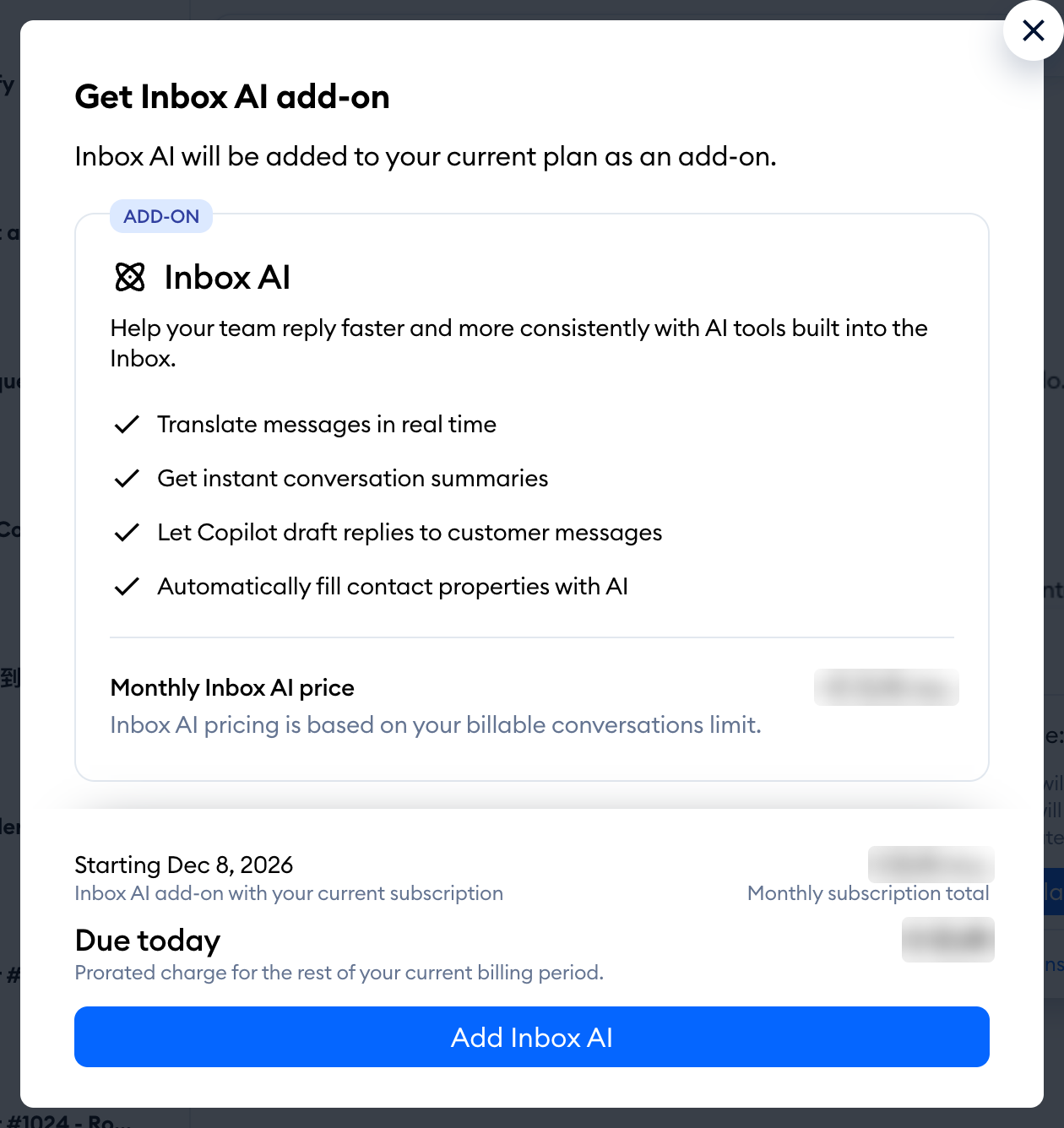
Once it's done, you'll see the Inbox AI added successfully to your subscription. message, and the AI features are ready to use for your whole team.
On the free version, the window suggests a paid plan with the add-on instead - its button names the plan together with the add-on (Upgrade to [plan] with Inbox AI). Click it to go to the upgrade page with both selected:
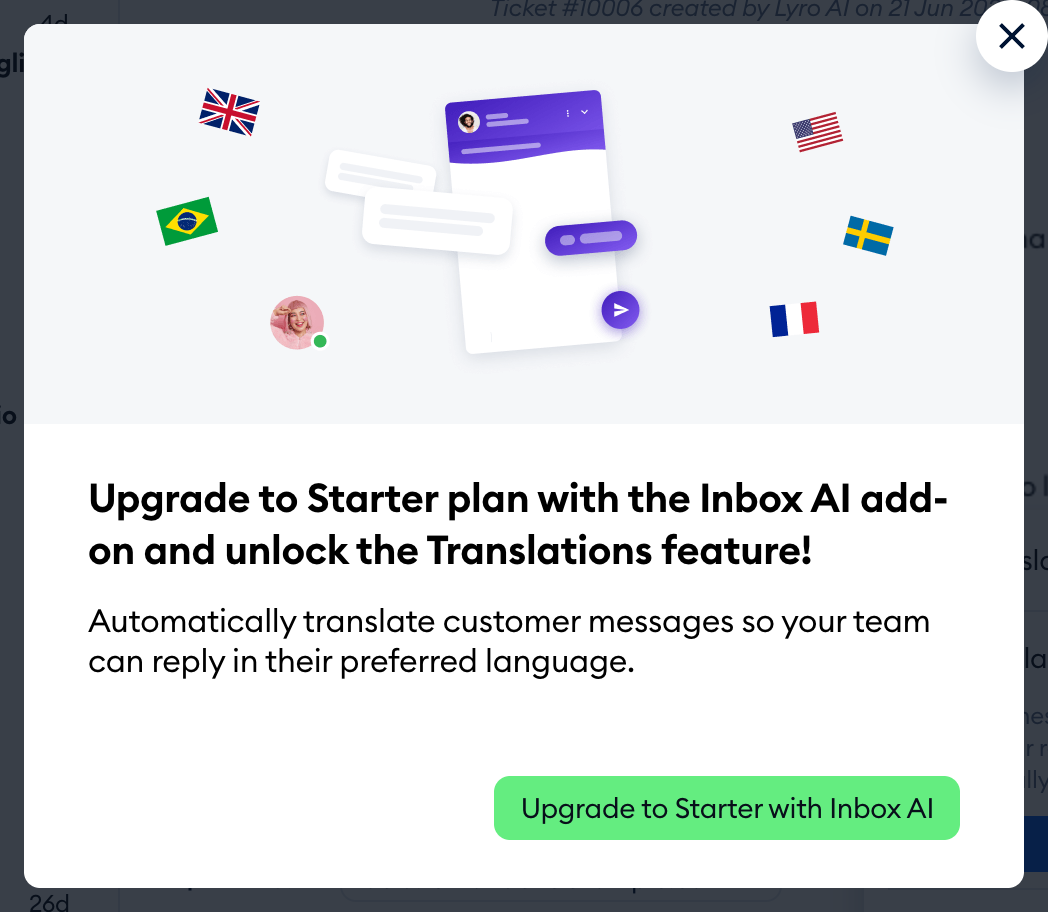
Please note: you need access to billing to buy the add-on. If the button is grayed out for you (or the badge says Ask your admin to upgrade.), please ask your project's owner or an admin. The upgrade windows in the Inbox don't open in a mobile browser, and the mobile app asks you to log in to tidio.com on your computer - please use a computer to get the add-on.
Getting the add-on in your Billing settings
You can also add Inbox AI in Settings > Billing. In the Subscription tab, scroll down to the Add-ons section, find the Inbox AI card, and hit the Upgrade button:
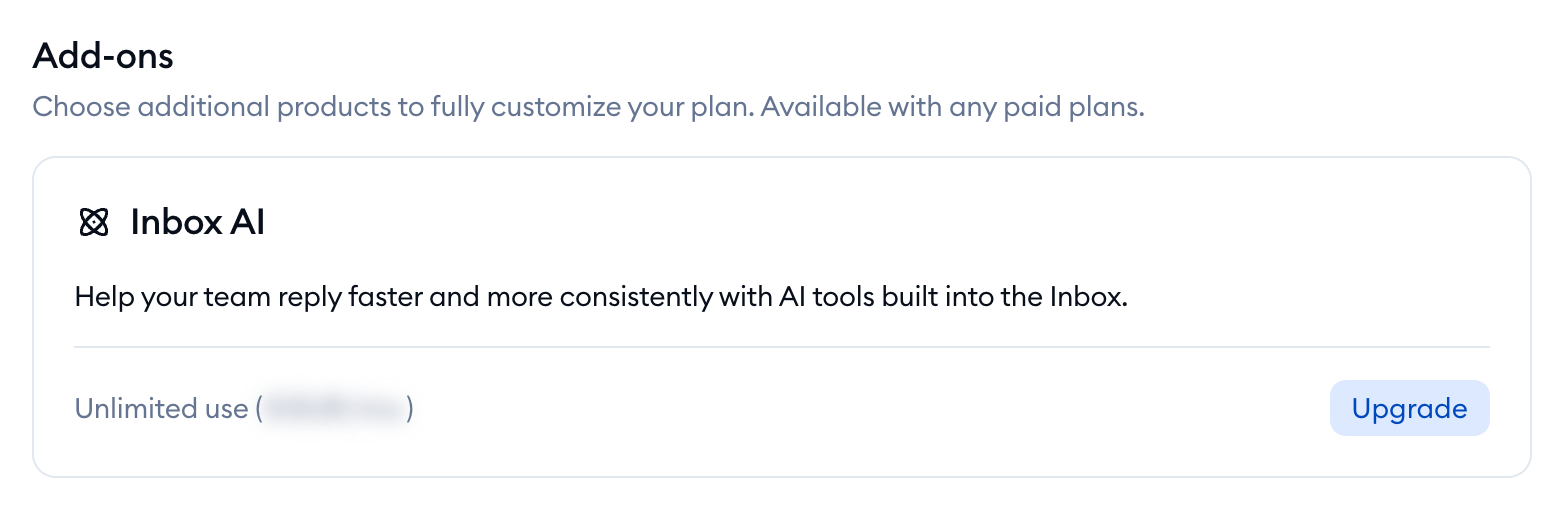
This opens the same Get Inbox AI add-on window. On the free version, the card is grayed out and the Upgrade button stays inactive until you choose a paid plan.
Prefer to change everything at once? Click on Edit subscription to open the upgrade page, and switch on Inbox AI under Choose add-ons:
Once you have the add-on, the Inbox AI card in your subscription shows the Paid add-on badge and your next billing date, along with the Edit add-on button. For more on managing your plan and add-ons, please see Manage your subscription.
