Talking to customers who write in another language? With Translations, you don't need to copy their messages into a translator and back. Tidio detects the language your customer is writing in, shows you their messages in your own language, and sends your replies in theirs.
Translations work in live conversations and in tickets, in the Tidio panel as well as in the mobile app. Each agent chooses their own translation language, so everyone on your team can read the conversation in the language they know best.
Please note: Translations are part of the Inbox AI add-on. If your project doesn't have it yet, Tidio still detects the language and suggests a translation - but clicking Translate opens the upgrade window instead. See this section for details.
In this article, you'll learn:
- How to translate a conversation or ticket
- How to reply in your customer's language
- How to switch between the original and the translation
- How to stop translating
- How to set your translation preferences
- How to translate in the mobile app
- What you'll see if your project doesn't have the add-on
Translating a conversation or ticket
When a customer writes in a language that isn't your translation language (or one of the languages you know), Tidio picks it up right away. A translate icon appears on the right side of the conversation, and the Translations panel opens next to it with the language it detected:
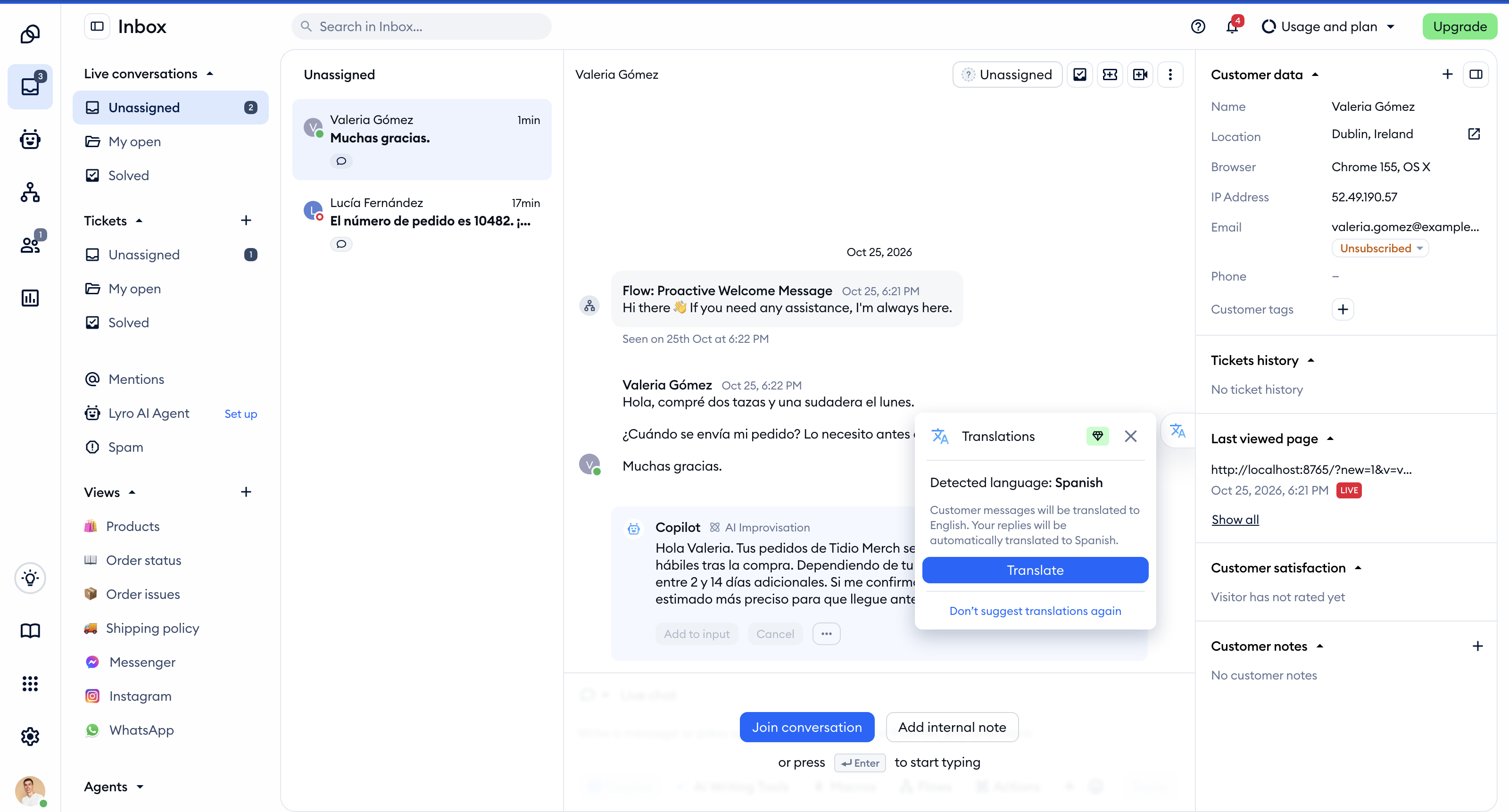
Simply hit the Translate button. You'll see Translating... next to the icon for a moment, and then your customer's messages appear in your language:
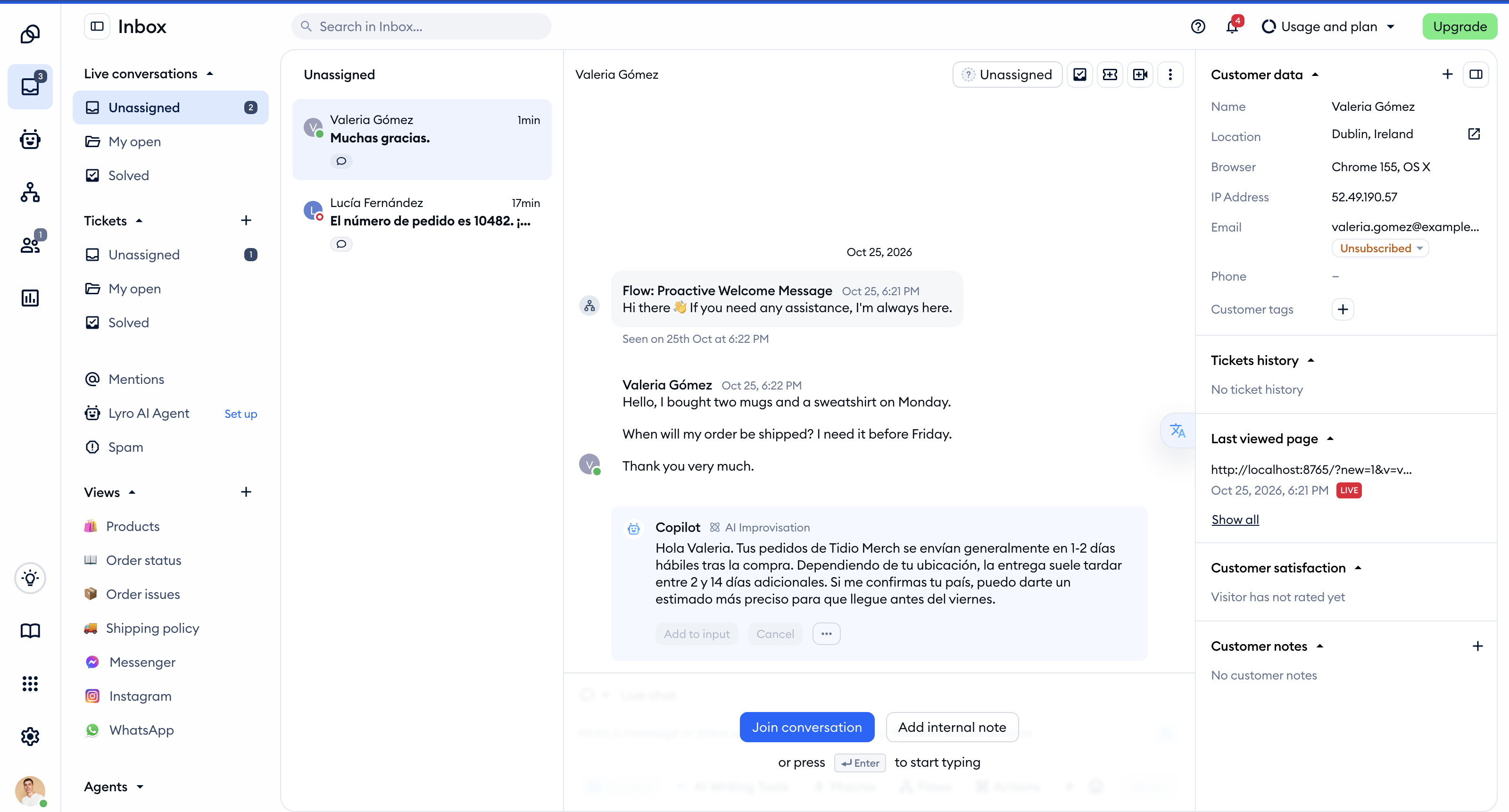
Closed the panel by accident? Just click the translate icon on the right side of the conversation to open it again.
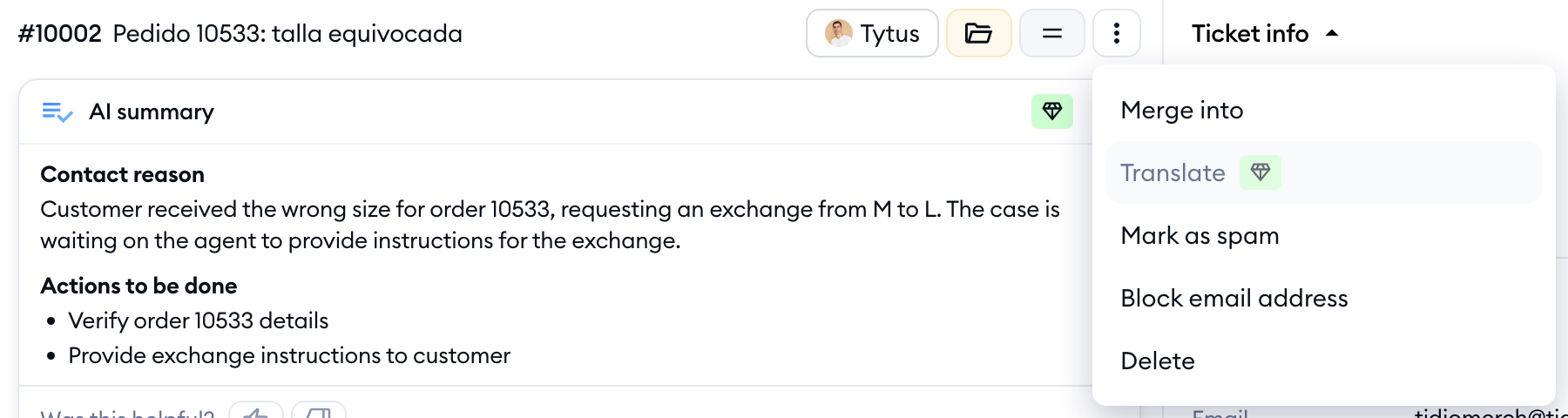
You can also start translating from the menu - this works even if you've turned translation suggestions off. Click on the three-dots menu in the top-right of the conversation or ticket, and choose Translate:
Prefer the keyboard? Press Cmd + K (Ctrl + K on Windows) to open Search actions, and pick Translate from the list.
If Translate is grayed out, there's nothing to translate yet, or the customer is already writing in your translation language or a language you know.
What gets translated
Once a conversation or ticket is translated, you'll see in your language:
- your customer's messages
- the ticket's subject
- your customer's comment from the satisfaction survey, in the customer's details
Replying in your customer's language
Here's the best part: you don't have to do anything special to reply. Type your message in your own language and send it as usual - Tidio translates it into your customer's language before it's sent.
While translation is on, you'll see a small translate icon in the top-right of the reply box. Hover over it to check which language your reply will be sent in:

A few things to keep in mind:
- Internal notes aren't translated. Notes stay exactly as you wrote them, since they're only for your team.
- In email tickets, only your new reply is translated - the quoted conversation below it stays as it was.
- If the translation fails, you'll see Something went wrong while translating your message. Please try again. and your reply isn't sent, so you can simply try again.
Switching between the original and the translation
Want to see exactly what your customer wrote? Hover over a translated message and click on the switch icon in its top-right corner - its tooltip says Show original. Click it again (Show translated) to go back to the translation:
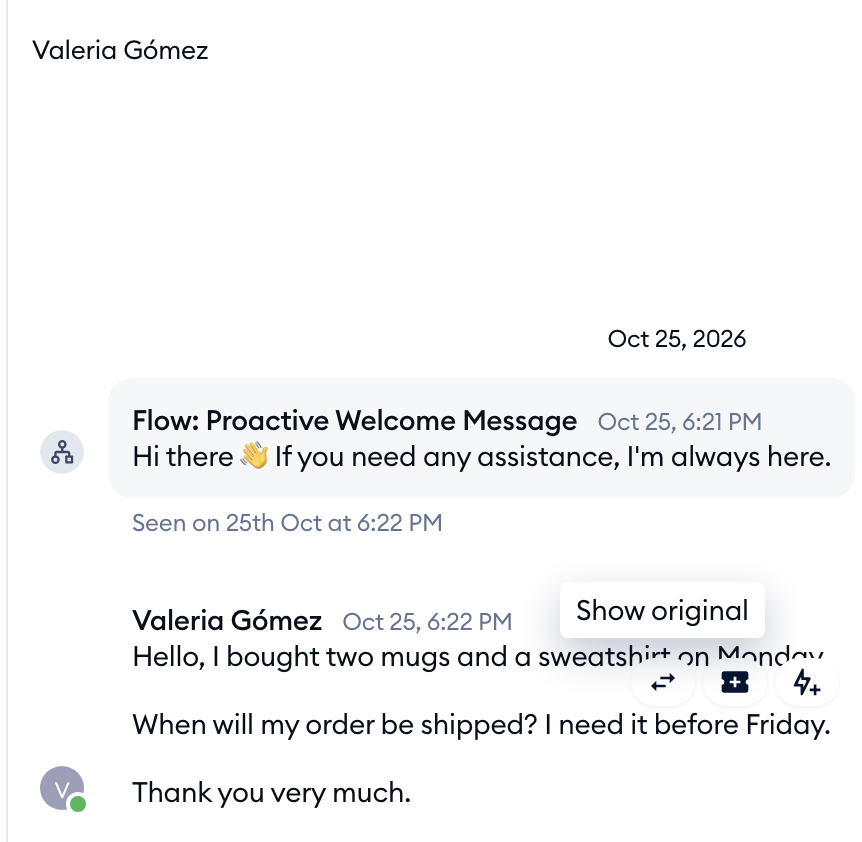
In tickets, you'll find the same icon in the header of each message, next to the forward icon. The ticket subject switches together with the first message.
Your own replies work the same way: you see them in the language you wrote them in, and the switch icon shows the version your customer received.
Stopping the translation
To turn translation off for a conversation or ticket, click on the translate icon on the right side of the conversation. The panel now says Translating from and to: with your customer's language - hit the Stop translating button:
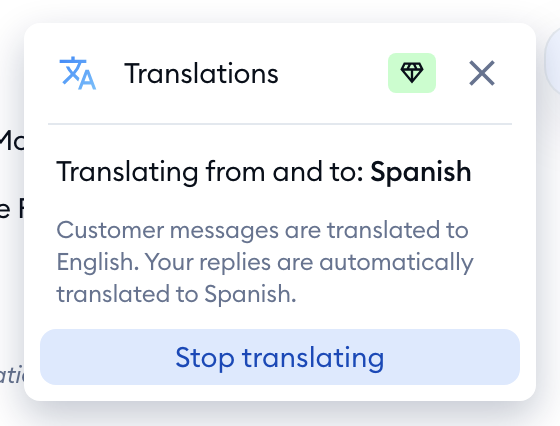
You'll also find Stop translating in the three-dots menu in the top-right, and in Search actions. Messages go back to their original language, and your next replies are sent exactly as you type them.
Setting your translation preferences
Translation preferences are personal - each agent sets their own. Head over to Settings > Account, and scroll down to the Translation preferences section of the Personal details tab:
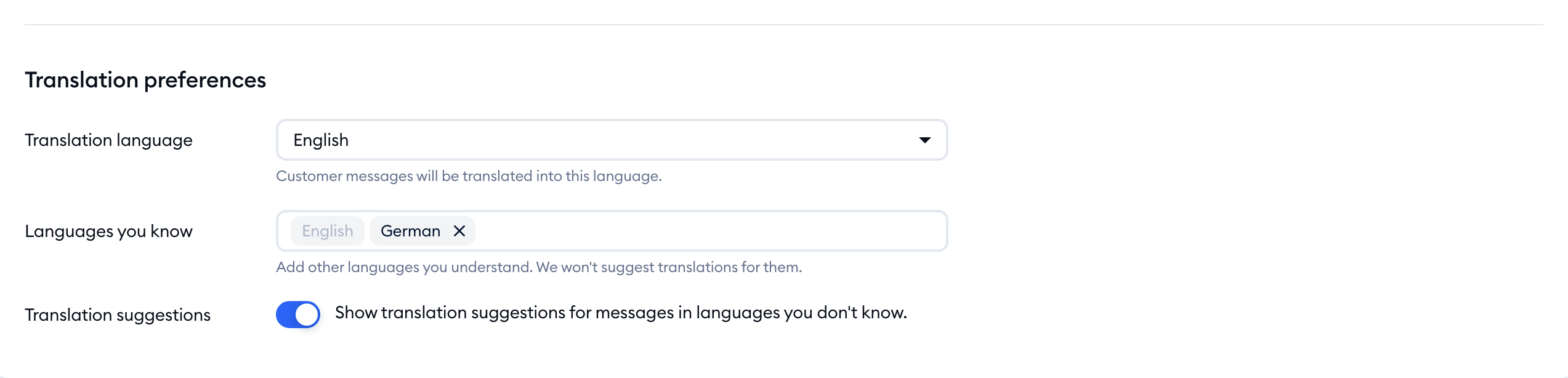
- Translation language - customer messages will be translated into this language. Until you choose one, it's the language of your Tidio panel.
- Languages you know - add other languages you understand, and Tidio won't suggest translations for them. Your translation language is always on the list.
- Translation suggestions - turn this switch off if you don't want the Translations panel to open on its own.
You can also turn suggestions off straight from a conversation: click on Don't suggest translations again in the Translations panel. You can still translate any conversation or ticket from the three-dots menu, and turn suggestions back on in Settings > Account anytime.
Translating in the mobile app
Translations work in the Tidio mobile app too, for both conversations and tickets, with the same preferences you set in the panel. When a customer writes in another language, you'll see the Enable translations button in the conversation or ticket. Tap it to open the Translations sheet, and tap Translate:
Screenshot coming soon
You can also choose Translate (or Stop translating) in the conversation's or ticket's more actions menu. To get the app, please see Download the Tidio mobile app.
If your project doesn't have the Inbox AI add-on
Without the add-on, Tidio still detects your customer's language and suggests a translation, and you'll see a small diamond badge next to Translations and Translate. Hover over the badge to see how to unlock the feature.
Clicking Translate opens an upgrade window with the description Automatically translate customer messages so your team can reply in their preferred language. What it offers depends on your plan:
- On a plan that can take the add-on, you'll see the Get Inbox AI add-on window, where you can add it to your subscription in one click.
- On the free version, the window offers a paid plan together with the Inbox AI add-on.
- On a custom plan, you'll see the Contact Sales button instead.
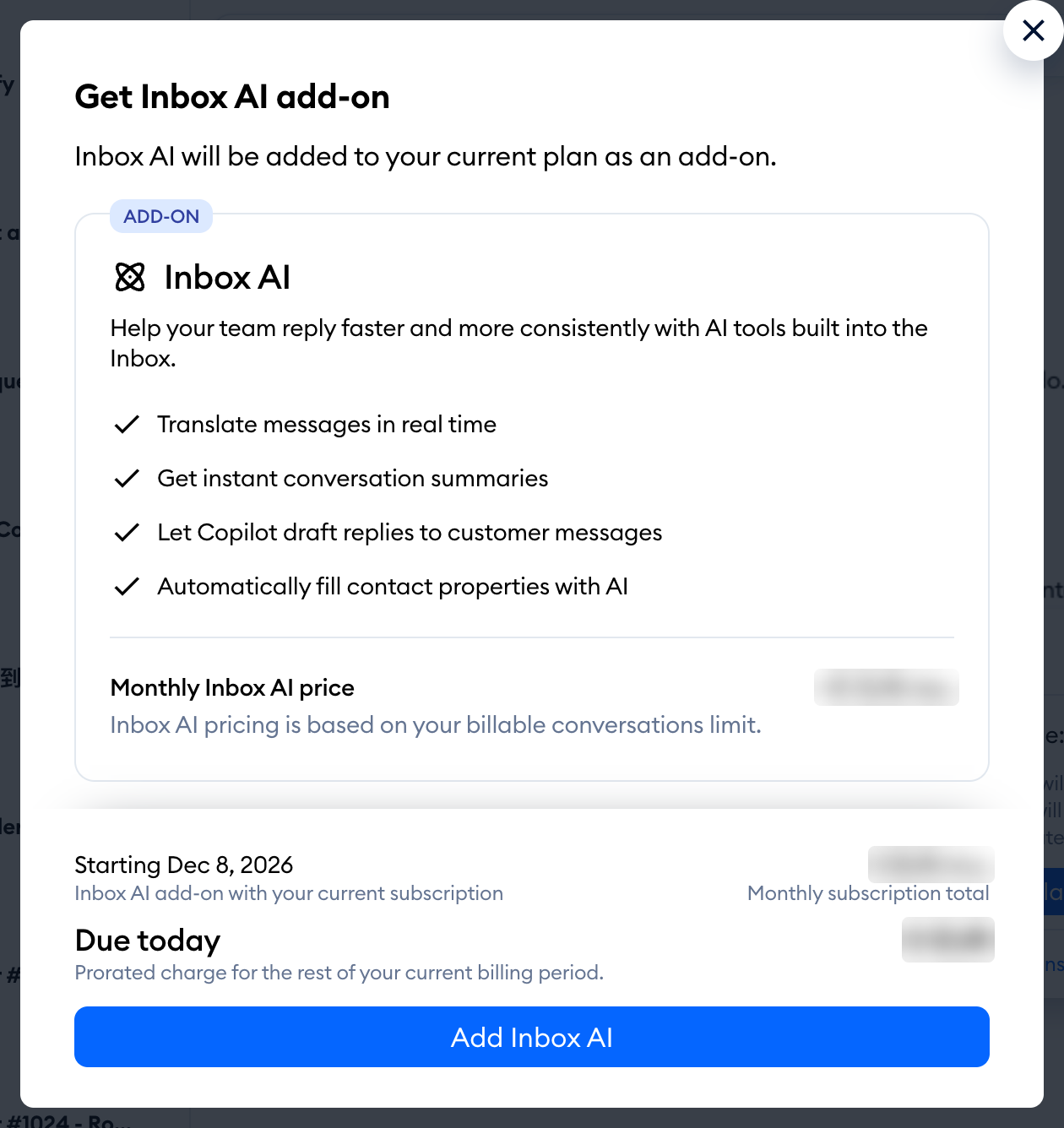
For everything about getting the add-on, please see The Inbox AI add-on.
Please note: you need access to billing to buy the add-on. If the button is grayed out for you, please ask your project's owner or an admin. In the mobile app, you'll see Not included in your plan. To unlock it, log in to tidio.com on your computer. instead.
