Apart from responding to chats and tickets, Lyro also generates suggestions for any missing knowledge. Please note, however, that this feature is only available for live conversations, and not for tickets (emails).
In this article, you will learn:
- How to navigate the Suggestions list
- How to manage your Lyro suggestions
- How to ignore suggestions you don't need
- What to read next for more details
Navigating Lyro's Suggestions
A very useful tool that you should check out is the Suggestions section (in the Lyro AI Agent section, under Knowledge > Suggestions) - it can help you create new Q&As (question-and-answer pairs) quickly:
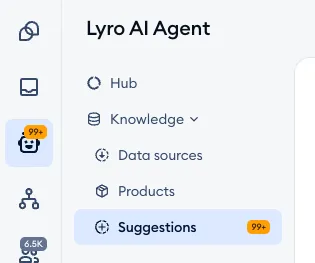
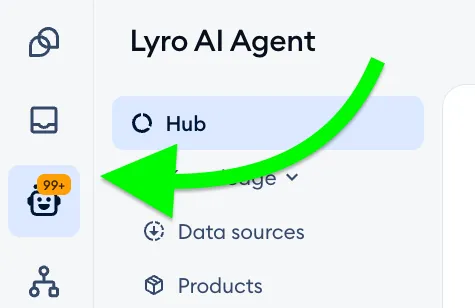
If there are any suggestions already available, you’ll see an orange counter next to Suggestions in Lyro's menu. A counter shows on the Lyro AI Agent icon in the main menu as well - please note that this one adds up your suggestions and any products that haven't synced (those are counted next to Knowledge > Products):
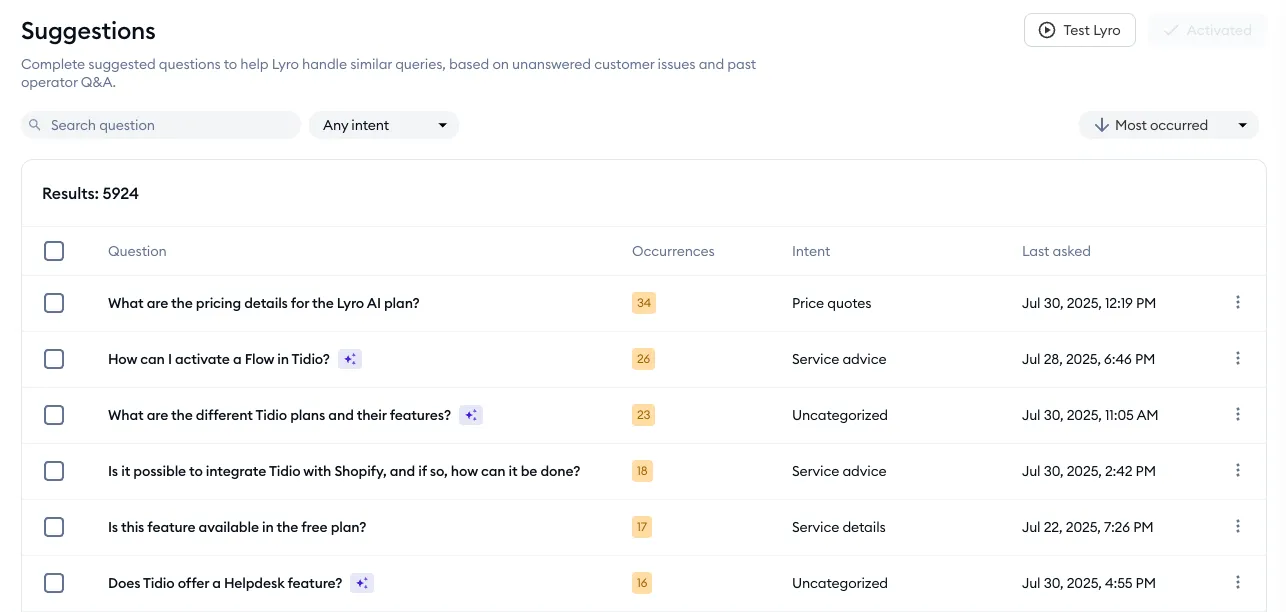
The Suggestions section lists questions that Lyro was unable to answer successfully when chatting with visitors live, as well as questions your agents have already resolved in their conversations with customers. This list allows you to address each such question individually, and add a proper answer for Lyro to use in the future. Once you save them, they’ll appear in Knowledge > Data sources and help both Lyro and Copilot respond better.
Managing the Suggestions list
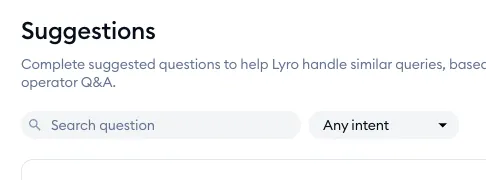
You can use the Search question field in the upper-left to search for suggestions that include specific keywords or phrases. You can also filter the list by intent (Any intent by default):
You'll see more options further to the right: you can sort the suggestions by the number of occurrences (Most occurred or Least occurred) or by date (Newest first or Oldest first):
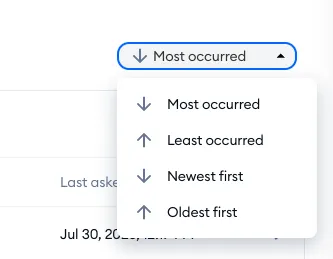
The suggestions listed will display the Question, the number of Occurrences, the detected Intent, and the date it was Last asked:

Some questions may get suggested pre-filled answers (marked Pre-filled), based on what Lyro was able to find in previous conversations between visitors and agents (you can see more about this feature in this section of the article):
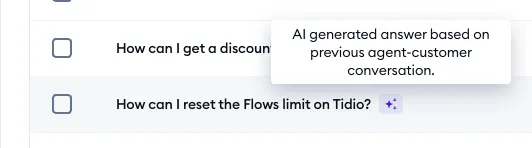
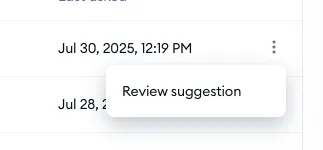
To manage a suggestion from this list, click on the listed question itself or hit the Review suggestion option available in the three-dots menu on the right:
In the Review suggestion panel that appears, you will be able to modify the suggestion and see other details - like the Source, number of Occurrences, detected Intent, and the date it was Created at. A short note tells you where the question comes from: The question comes from a conversation where Lyro didn't know the answer. or, for suggestions with a pre-filled answer, The question comes from a conversation between the agent and the customer.:
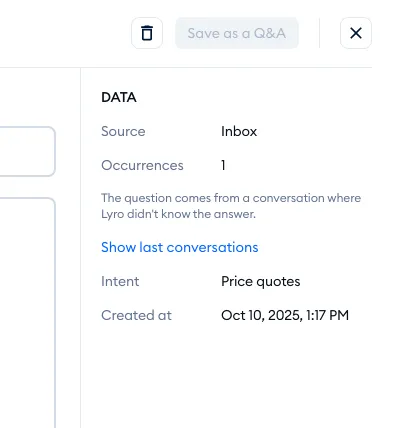
You can also click the 'Show last conversations' link to see a list of (up to 10) threads where the suggestion stems from:
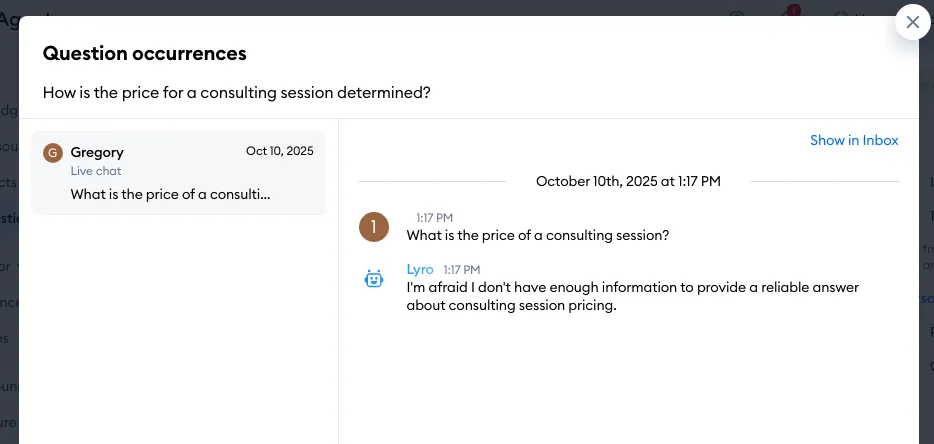
Inside each listed thread, there is a 'Show in Inbox' link as well, letting you go directly into the full conversation where the interaction took place.
Please note: If the suggestion comes with a pre-filled suggested answer, the 'Show last conversations' link is replaced with Show in conversation, which opens the conversation the suggestion came from in a new tab.
Naturally, to use the suggestion, complete the Answer field (if not already completed automatically by Lyro itself) and hit the Save as a Q&A button.
Once added, the new Q&A will be listed in Knowledge > Data sources, available for Lyro to use if the same question is asked again in the future.
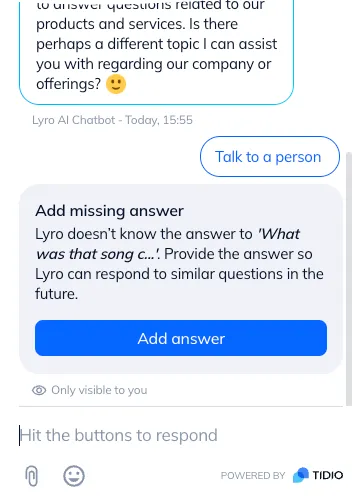
Please note: you can also add new Q&As directly from the Playground section! If you ask Lyro a question that it doesn't know the answer to, you can add the answer right there (see Test Lyro before it goes live):
Ignoring suggestions
You can ignore a suggestion if it is irrelevant, which lets you remove it entirely. In the Review suggestion panel, click on the trash icon (Ignore) next to Save as a Q&A.
To get rid of several suggestions at once, tick the checkboxes next to them in the list, and click on Ignore at the top of the list:
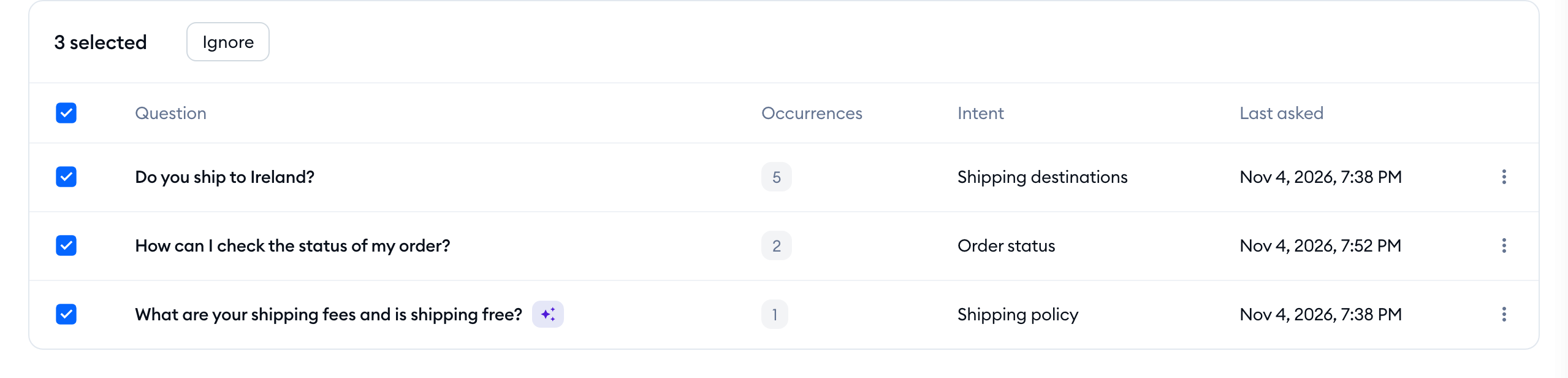
Either way, confirm with Yes, ignore in the Ignore questions window. Please keep in mind that this can't be undone.
Further reading
Please see this comprehensive guide on adding and managing data sources in general.
The article provides detailed information on different ways of adding knowledge to Lyro, including adding it manually, as well as extracting knowledge from solved chats or even importing it from external platforms - and more!
