The uninstallation process of the Tidio widget may be different for each user, depending on the platform on which your website stands. In this article, we will show the most common examples.
In this article, you'll learn:
If you do not want to delete Tidio from your website completely but temporarily hide the chat widget so that your website visitors will not be able to see it, check out our article on hiding the Tidio widget on your website.
Uninstalling the Tidio app or plugin
The plugin installation is available for certain platforms (e.g. Shopify and WordPress). Below, we explain where you can delete the Tidio app.
Shopify
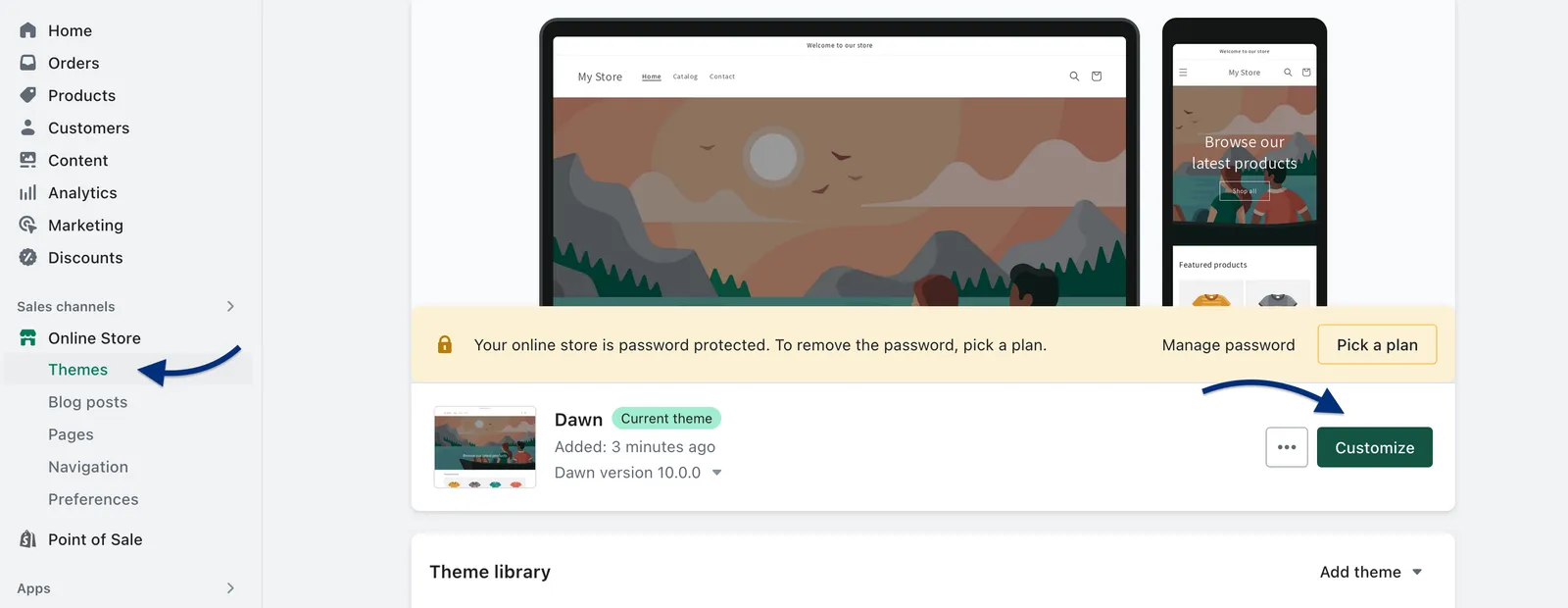
Prior to deleting the Tidio Shopify app, you need to disable the app also in your Store. In order to do that, open your Shopify admin panel and navigate to Online Store > Themes section. There, find the theme you want to edit, and click Edit theme.
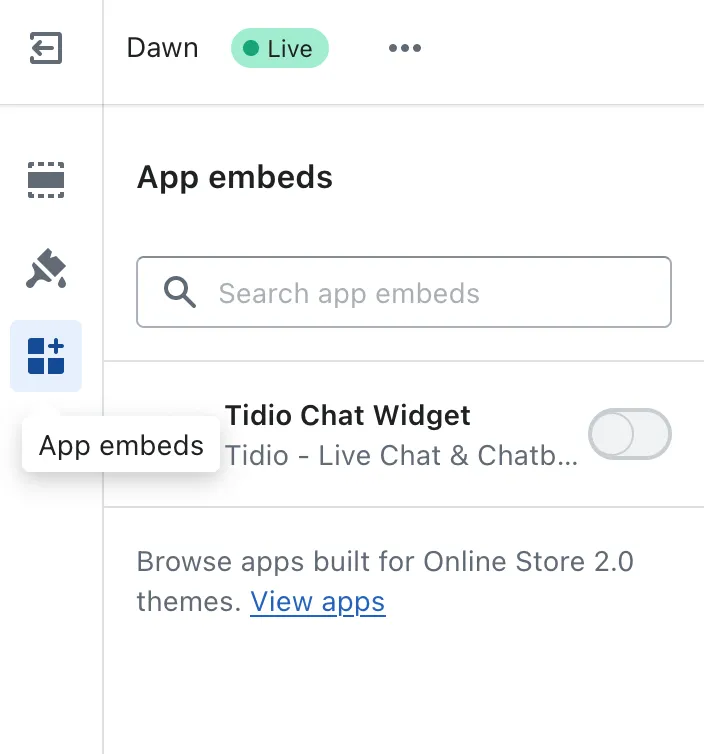
Click the App embeds icon in the sidebar. Select the Tidio Chat Widget or click the Search bar and enter Tidio Chat Widget to search through your installed apps. Next to the app embed name, you can see the toggle. Make sure the toggle is switched off.
To finalize the changes, click Save, and the Tidio Chat Widget will be removed from your store.
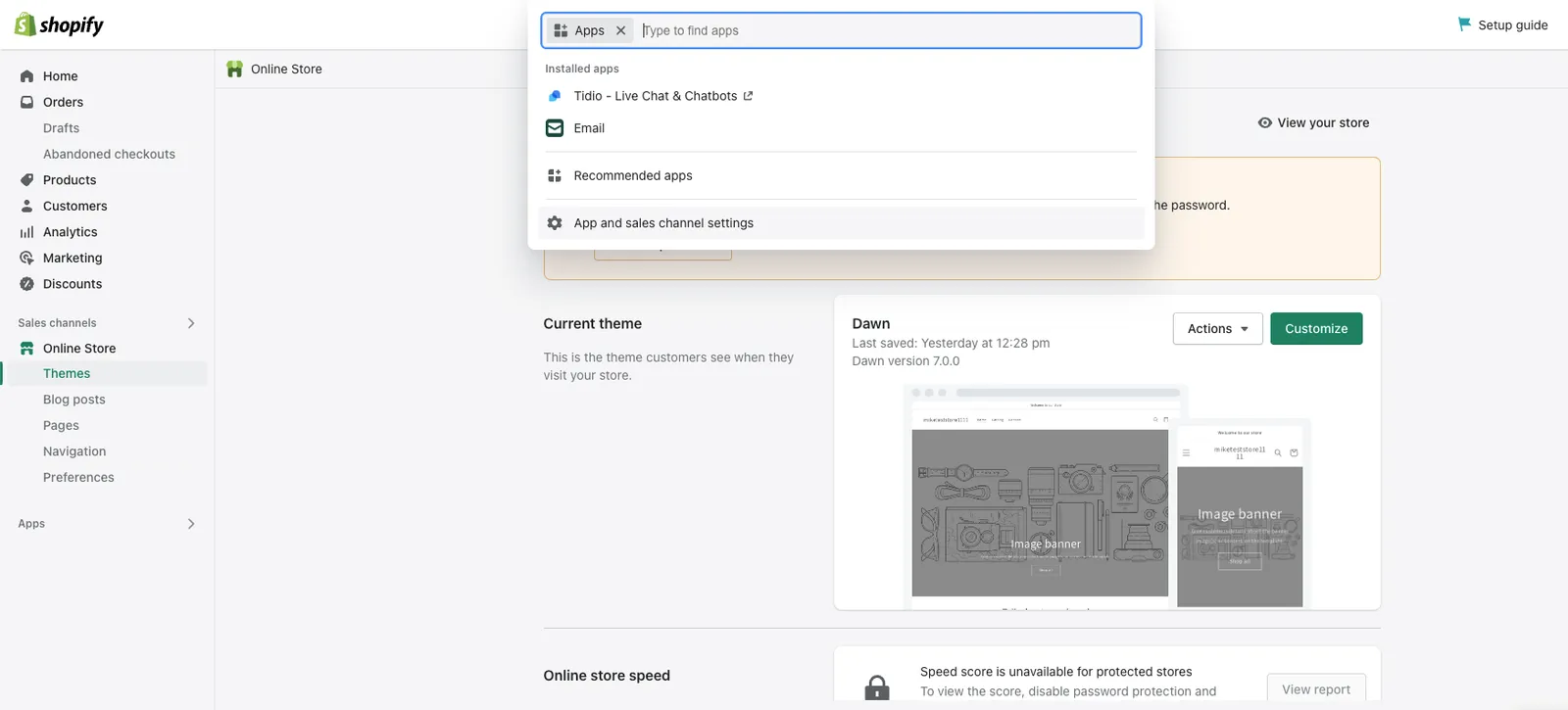
In your Shopify admin, go to Settings > Apps.
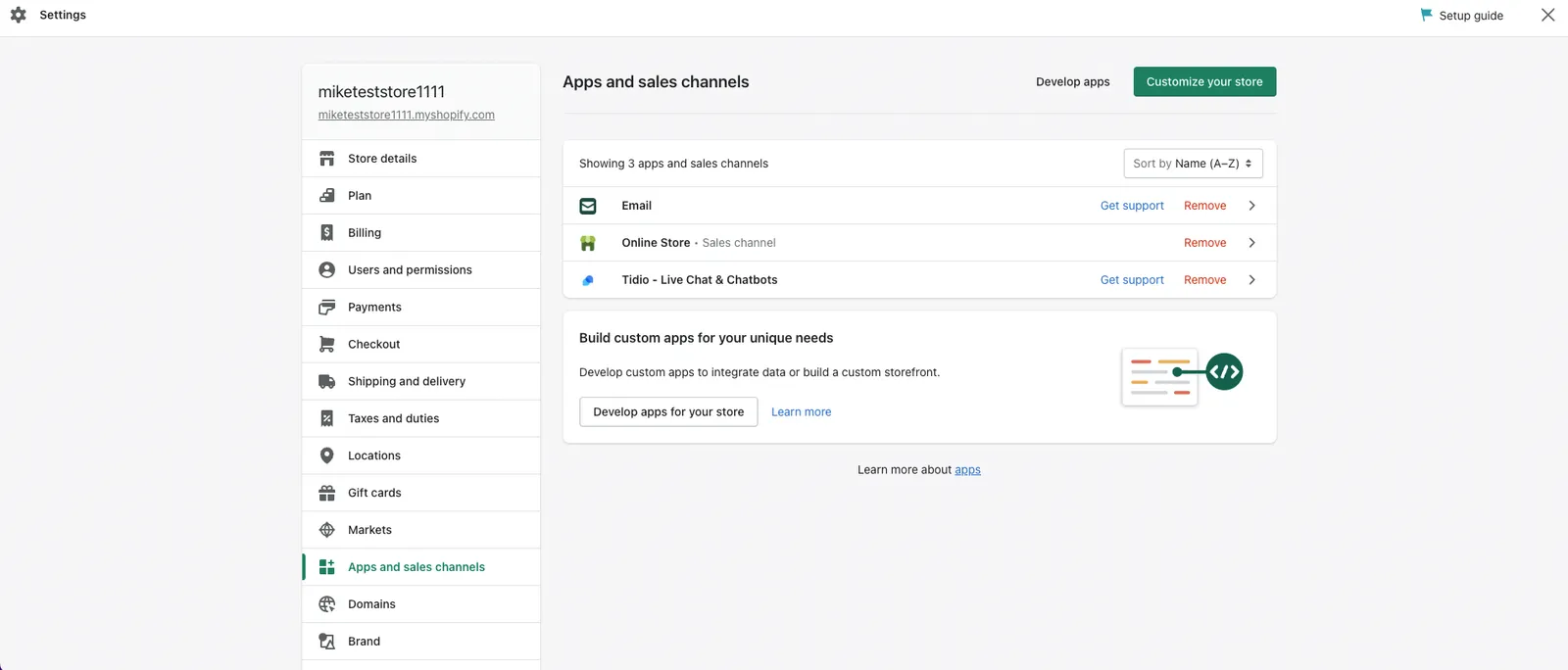
Next to Tidio, open the three-dot menu and click Uninstall.
Optionally select a reason, then click Uninstall to confirm.
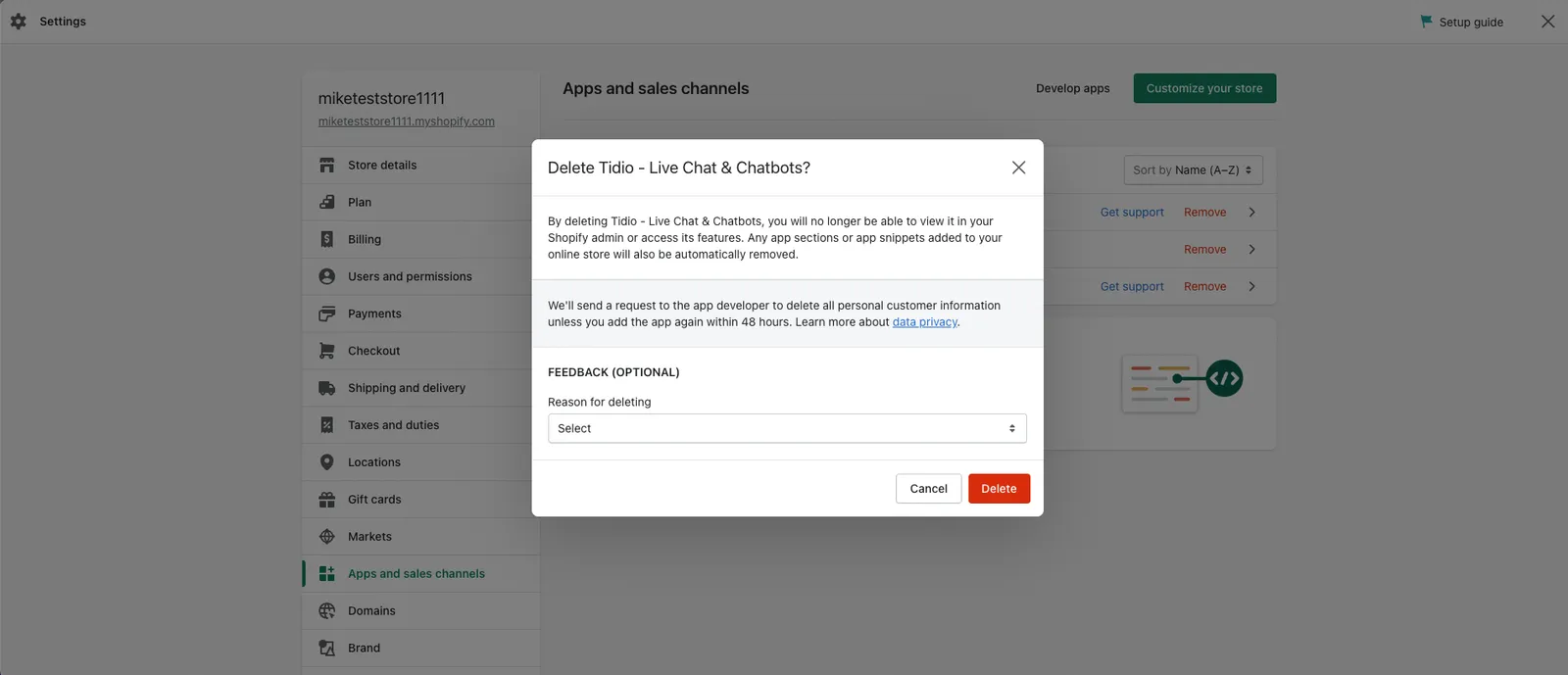
Please, keep in mind that removing the app in the Shopify admin doesn't necessarily remove the code that was injected into the theme when the app was uninstalled. If you still see the code in your website's source - please follow the Shopify JavaScript uninstallation process.
WordPress
To uninstall the Tidio app from your WordPress panel, please head to the Plugins > Installed Plugins section. Please click on the Deactivate button once you find the Tidio chat app on the list.
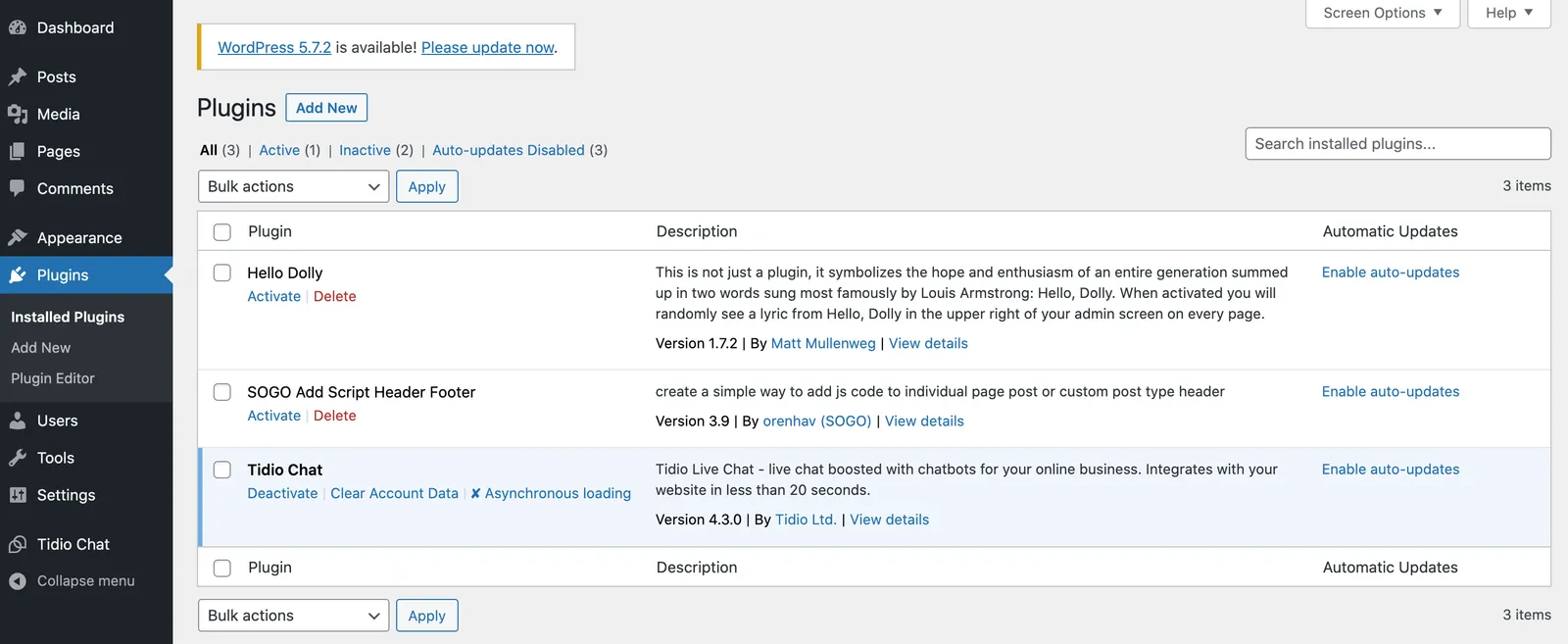
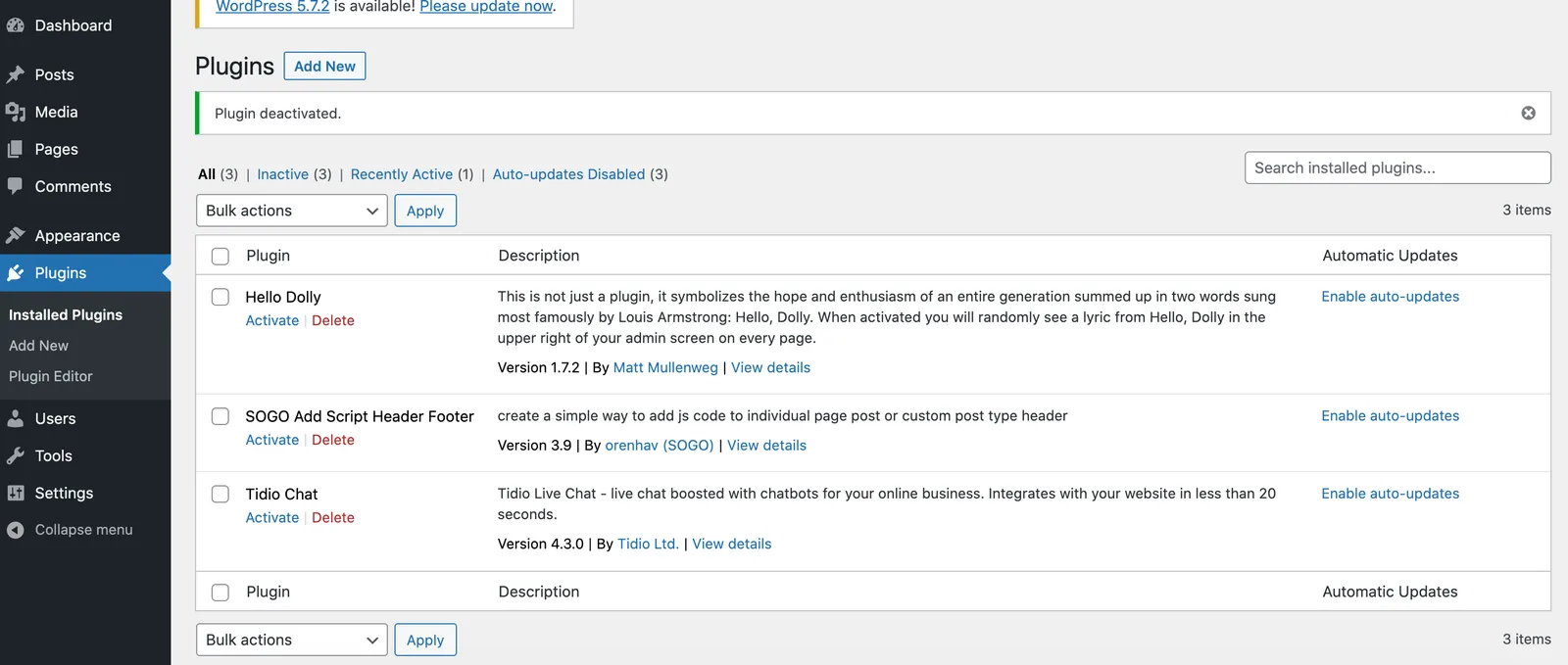
The deactivation button only hides the chat from your website, but the plugin is still installed on your WordPress platform. To fully delete the Tidio app - click on the Delete button once the plugin is deactivated.
Javascript Code Installation
If you installed Tidio via javascript code on your website, to fully delete the Tidio chat widget, you would need to delete the Tidio widget's code from your website's code. We always recommend placing the Tidio widget's code above the closing </body> tag in your website source, so, once you would like to delete the code, please look for this place of the code to delete the Tidio code line from there.
Shopify
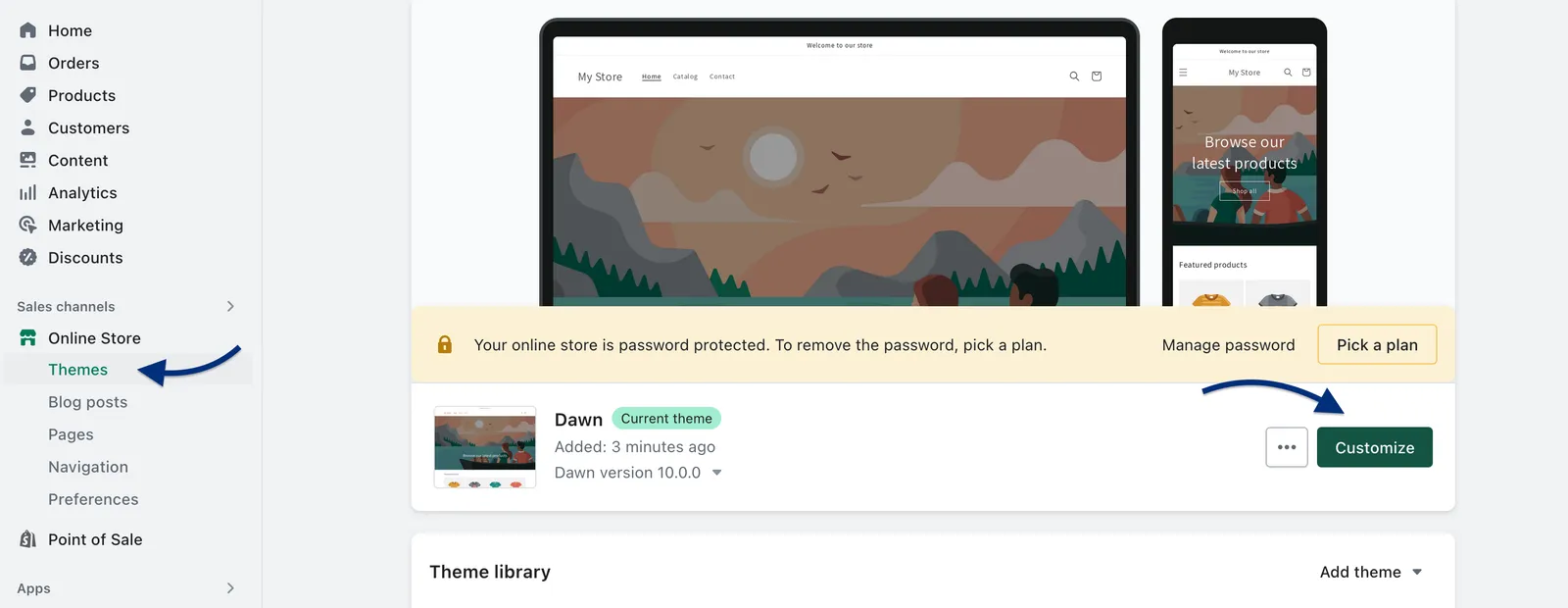
To delete the Tidio javascript code from your Shopify website, head to the Shopify panel and select the Online Store tab.
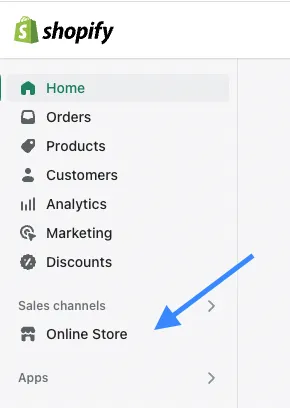
In the Themes section, under the Online Store settings, find and click on the Edit theme button.
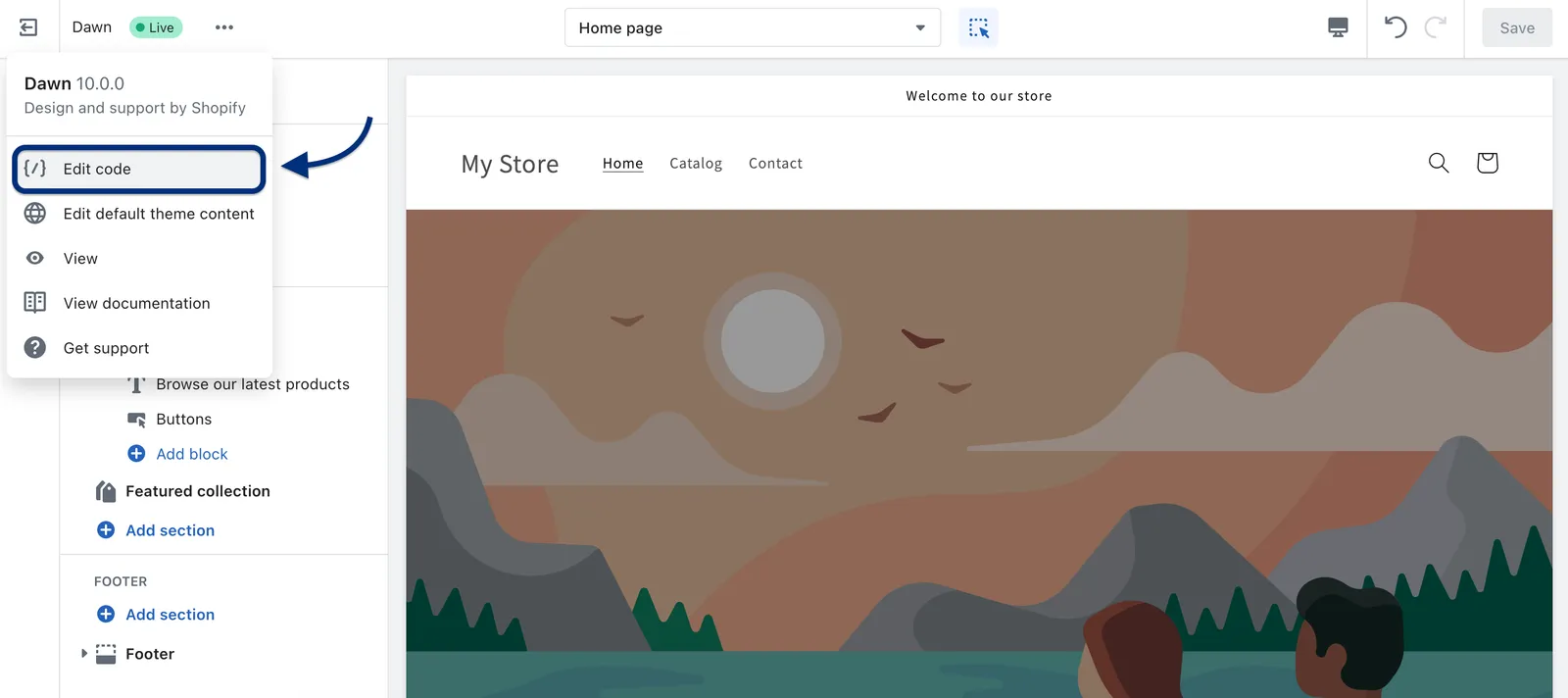
Click on the three dots menu on the left side next to the name of the Theme. The code editor will open in a separate tab.
theme.liquid file under the Layout folder. Now search for the pasted code in the website's source. The code, if placed correctly, should be shown above the closing </body> tag.
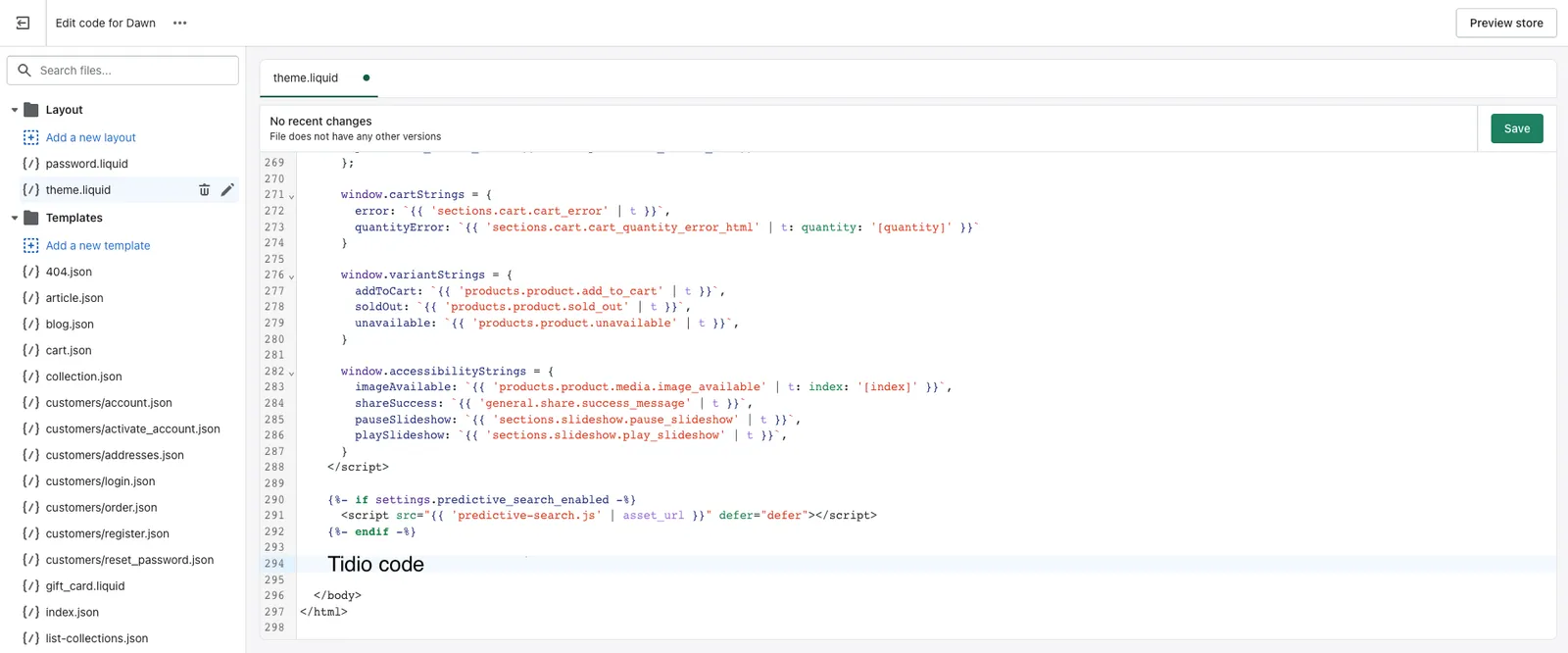
On Mac, use: Command+F
On Windows, use: Ctrl + F
Later on, delete the whole Tidio chat widget code, which looks as follow:
<script src="//code.tidio.co/herewillbeyouruniquetidioid.js" async></script>*For deleted Plugins, the code may look as follow:

Save the changes after you remove the code.
Once all the Tidio codes are deleted from your website's code - the chat widget is fully deleted from your website.
WordPress
Open the Theme Footer (footer.php) file located in your WordPress panel (Appearance > Theme File Editor) and look for the code above the closing </body> tag.
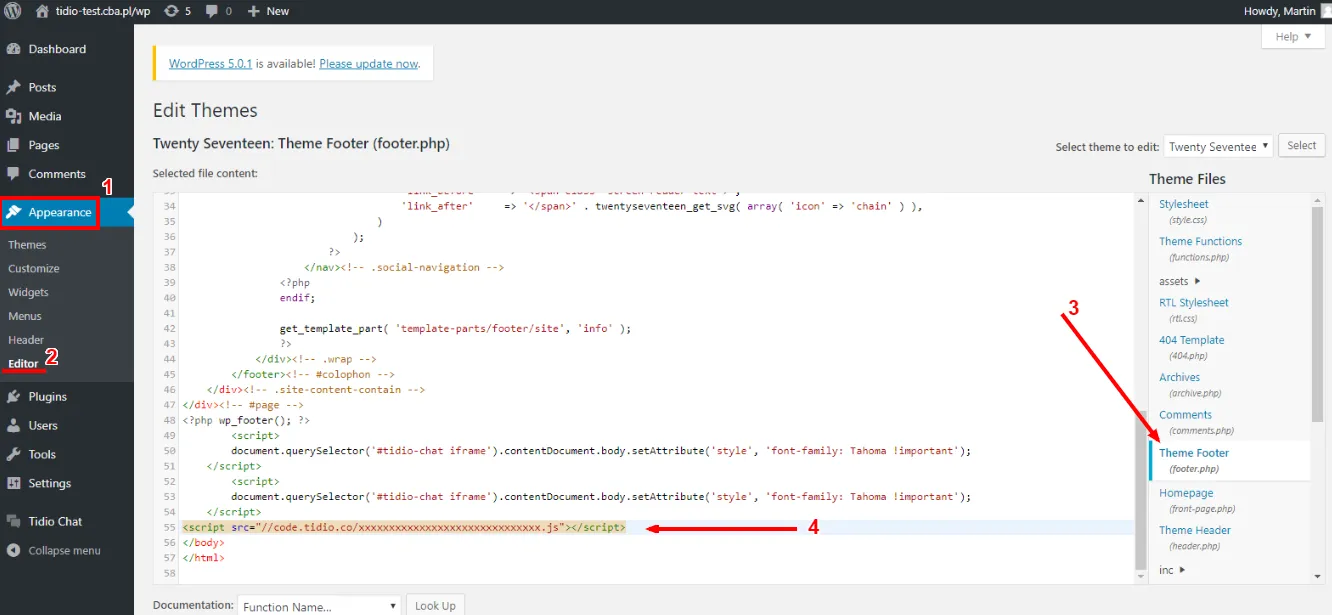
On Mac, use: Command+F
On Windows, use: Ctrl + F
Later on, delete the whole Tidio chat widget code, which looks as follow:
<script src="//code.tidio.co/herewillbeyouruniquetidioid.js" async></script>Remember to press the Update file and refresh your website once you are done deleting the code.
Other
Access the server on which your website is hosted with the tool allowing you to modify the files or log in to your respective platform Dashboard.
Now, while it might differ depending on how your website is built, the rule of thumb would be to search for the files with .html or .php extension.
Usually, it will be either index.html or index.php, but there might also be some additional subpages files. If you would have any doubts, please contact your web designer or respective platform support to learn where the Tidio code was placed.
Use the search tool or scroll down to the very bottom of the file to locate the closing </body> tag.
On Mac, use: Command+F
On Windows, use: Ctrl + F
Later on, delete the whole Tidio chat widget code, which looks as follow:
<script src="//code.tidio.co/herewillbeyouruniquetidioid.js" async></script>Remember to press the Update file and refresh your website once you are done deleting the code.
If you have trouble with deleting the Tidio code, please get in touch with our support team at support@tidio.net
