In your Tidio panel, you have the flexibility to control the visibility of the chat widget based on your availability or specific requirements. You can hide the Tidio chat widget when you're offline in your Tidio panel or hide it permanently regarding your status.
In this article, you'll learn:
- How to hide the widget when offline
- How to display widget on chosen devices
- How to hide the chat completely
- How to hide widget on specific pages only
- How to hide (or show) widget for specific countries
- How to show the widget only on your domains
Hiding the widget when offline
If you'd like to hide your Tidio widget whenever you go offline, navigate to Settings > Live Chat > Appearance, and open the Advanced section there:
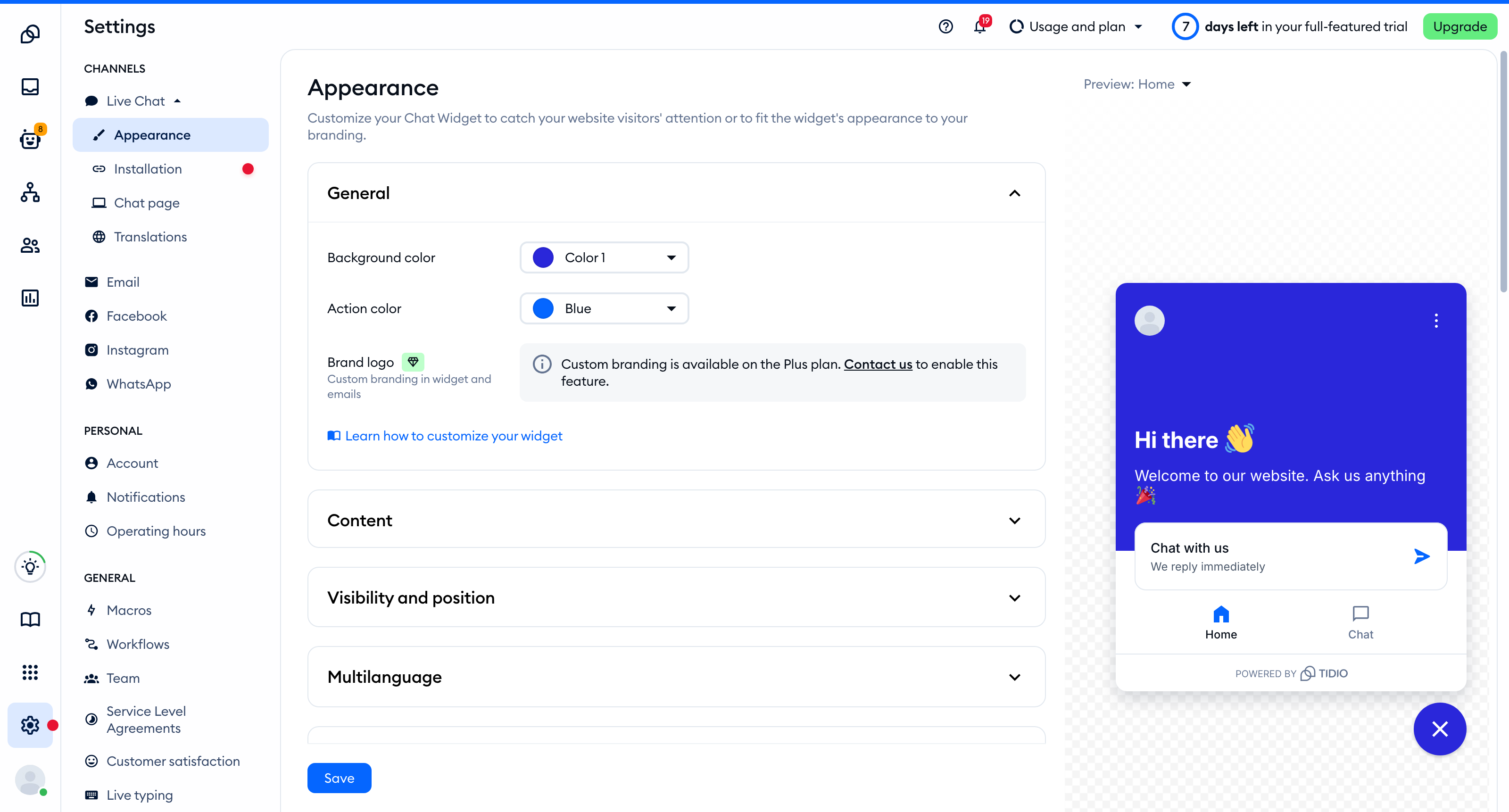
Disable the option labeled Display widget when agents are offline if you want Tidio to disappear whenever all your agents are offline, and hit Save:

Under the switch, Tidio reminds you who picks up when you're away: Lyro will take over conversations if Lyro (the AI agent) is active, or Visitors will be asked to create Tickets if your widget lets offline visitors leave a ticket.
Please note: a hidden widget hides Lyro, too. If Lyro answers while you're offline, keep this option on - otherwise your visitors won't be able to reach Lyro when your agents are away. In Lyro's settings, the Lyro responds option shows a reminder about this while the widget is hidden.
Displaying the widget on chosen devices
To access your widget's general visibility options, navigate to the Visibility and position section, located in Settings > Live Chat > Appearance:
Here you can determine where your Tidio widget is displayed and how. There are several options for the desktop version of your website as well as the mobile version, and you can decide about both aspects of your widget separately.
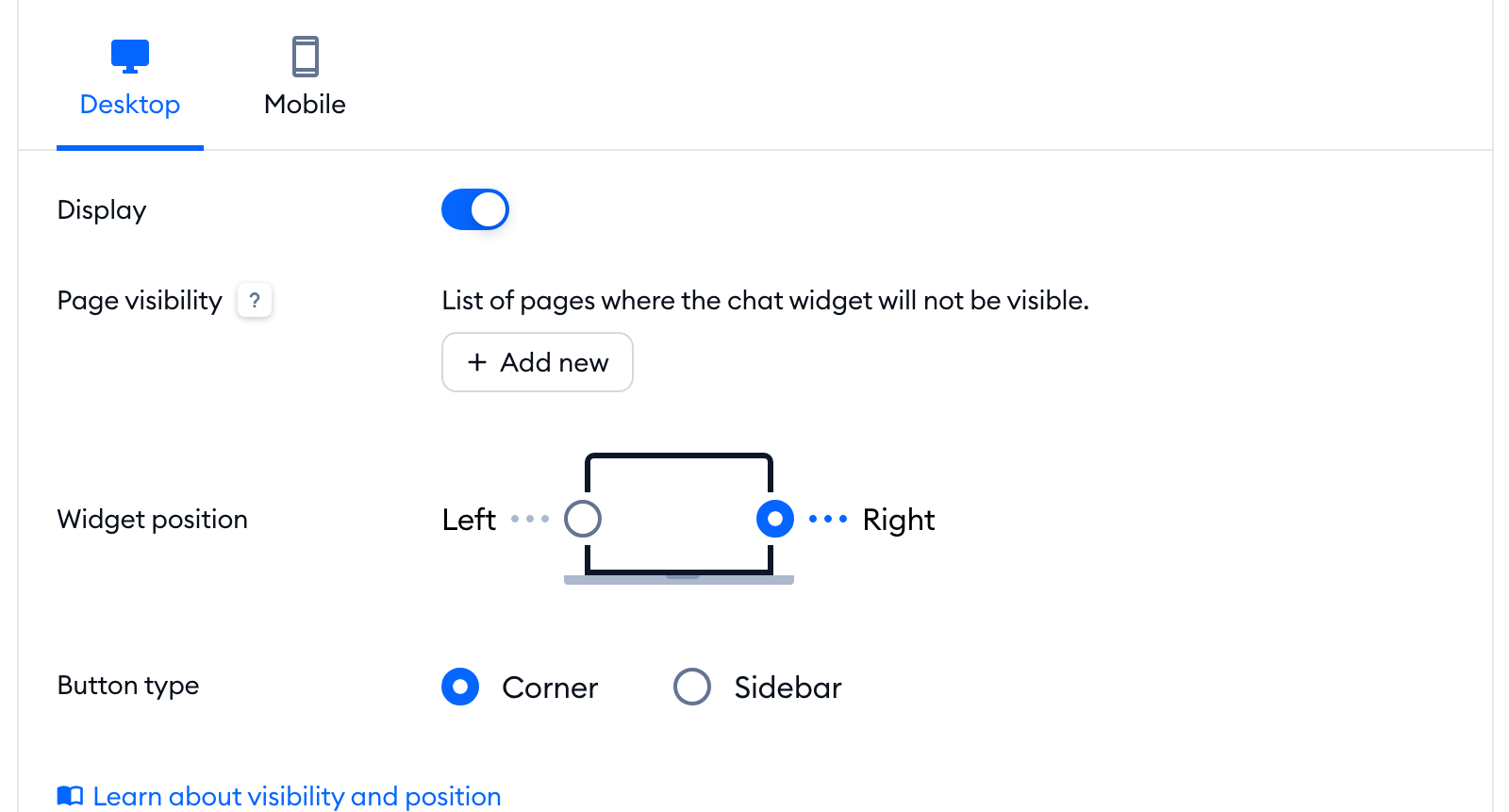
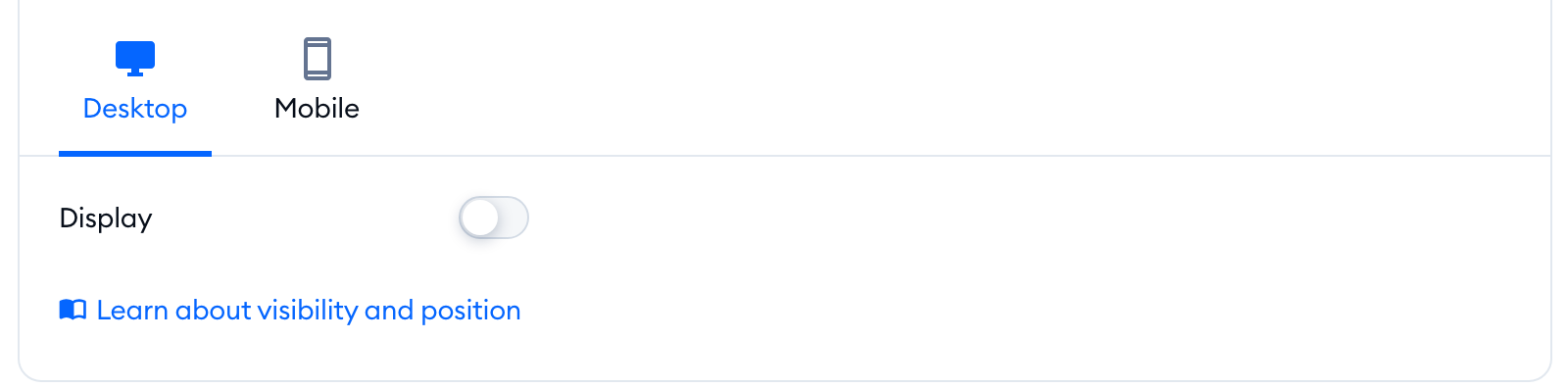
Use the Display switch to decide whether to show or hide the widget on your website in general - you can change this setting separately for the desktop version and for the mobile version of your widget. While the switch is on, you'll see the Page visibility and position options for that device underneath; turn it off, and they're hidden.
Please note: the Display switch isn't available on every plan. If it's dimmed and shows Available only in PRO plan when you hover over it, your current plan doesn't include these display options.
Disabling the chat entirely
If you wish to completely disable the chat widget on your website (without uninstalling it), disable the Display toggle located in the Visibility and position section (as described above). Make sure to do this for both the desktop and mobile version of your widget; this will hide the widget entirely on your website.
Hiding on specific pages
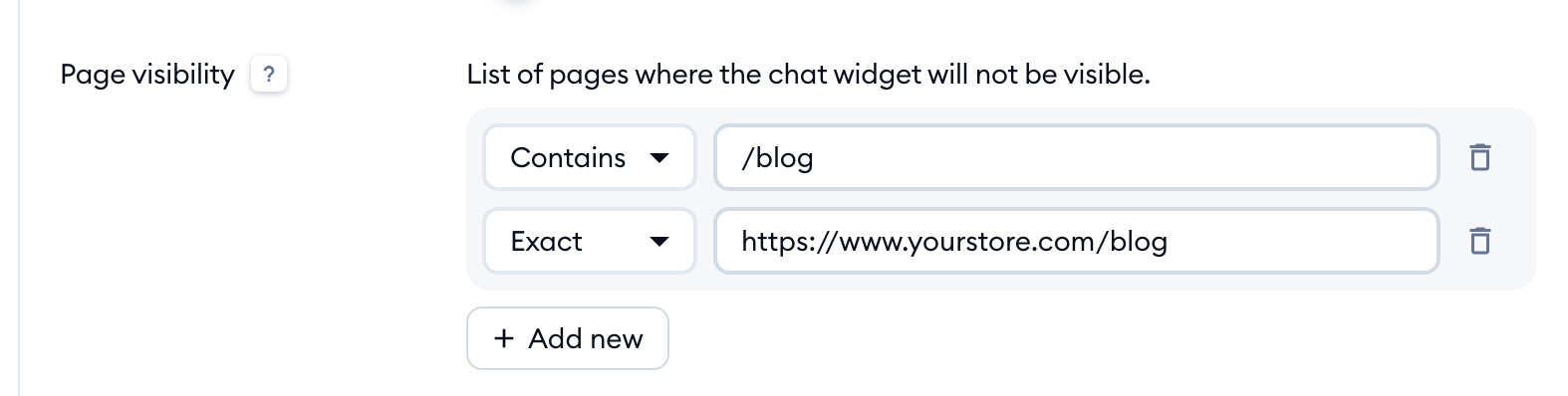
To hide the Tidio widget on specific pages only, you can use the Page visibility option located in the Visibility and position section. You can make the widget invisible on certain pages (desktop or mobile).
You can use the contains option if you want to hide Tidio on any URL that includes that particular string, or the exact option if you want to hide Tidio on some specific URLs.
Disabling Tidio for an exact URL
If you wish to hide the Tidio chat widget on specific pages, you'll need to use the Page visibility option and list all the necessary (and exact) URL addresses individually, by using the Add new button.
Select the Exact option, and type in the URL precisely as it appears in the browser for visitors who enter that page:
To save your new settings, click on the Save button at the bottom-left of the Appearance section.
Disabling Tidio for addresses that contain a word or string
If you'd like to disable the chat widget on pages whose URLs include a specific string of characters (like a word, or partial address) - the Contains option is for you. It allows you to hide the chat widget on more than just one page at a time, as long as the page's address contains what you've listed.
Use the Page visibility option and list all the necessary strings individually, by using the Add new button. Select the Contains option, then complete the field with the string you need:

To save your new settings, click the Save button at the bottom-left of the Appearance section.
Disabling (or enabling) Tidio for specific countries
In addition to the options described earlier, you can also decide about hiding Tidio for visitors who are coming to your website from particular countries (this is based on their IP addresses). You can also achieve the opposite: allow Tidio to be seen only by visitors from specified countries.
Go to the Country visibility options to manage this. Note that this only affects which visitors see your Tidio widget, and not who is allowed to enter your website.
Hide for specific countries
Use the Hide for specific countries option to make sure your Tidio widget doesn't appear to visitors from your list of countries. Select the countries from the drop-down menu underneath.
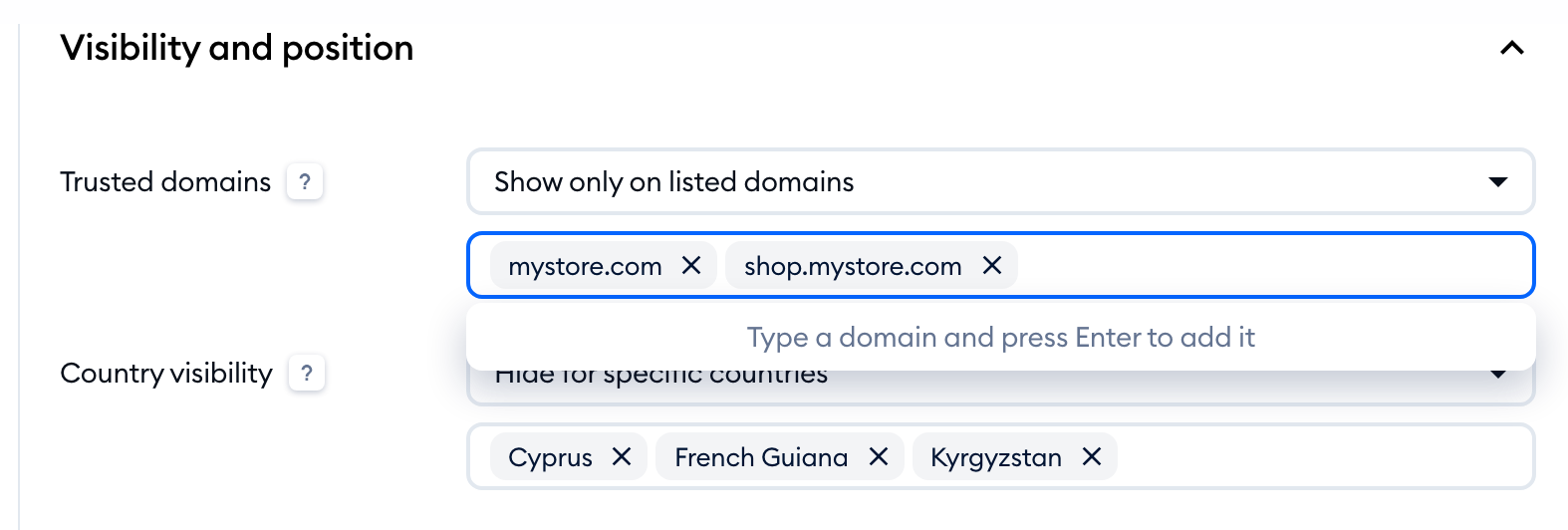
Show only in specific countries
Use the Show only in specific countries option to make sure your Tidio widget only appears to visitors from your list of countries. Select the countries from the drop-down menu underneath.
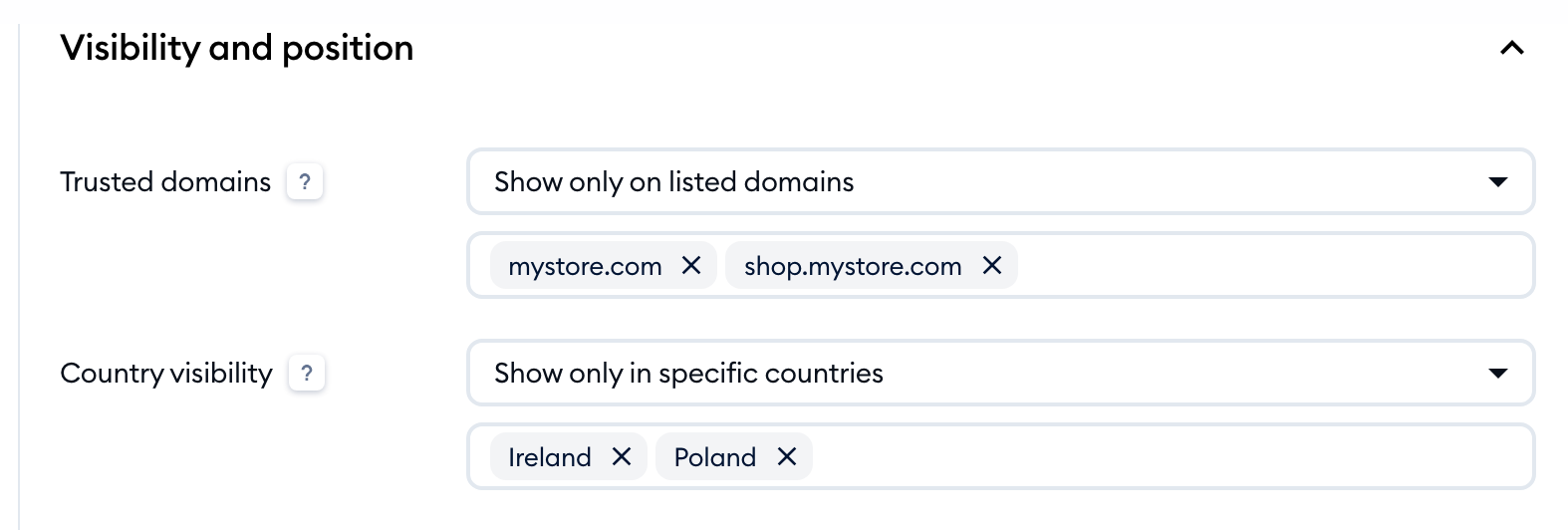
There's no need to hit Save here - your country settings are saved as soon as you change them. Please note that switching between Hide for specific countries and Show only in specific countries empties your list of countries, so pick the option first, then add the countries.
Showing the widget only on your domains
Your widget can also stay hidden on websites that aren't yours. At the top of the Visibility and position section, set Trusted domains to Show only on listed domains, type each domain and press Enter to add it, then hit Save. The widget won't appear on any domain that isn't on the list:
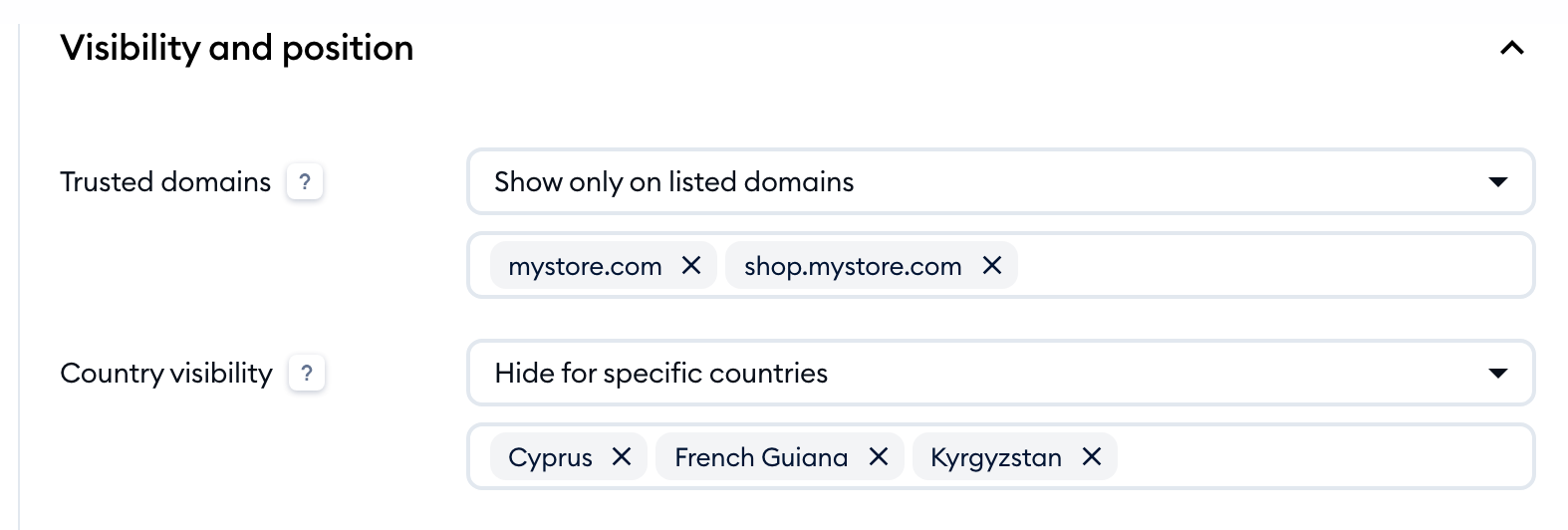
You'll find more about trusted domains in Disable Tidio on specific pages.
