The Send a coupon code node streamlines the process of offering discounts to your store customers, making it easy and efficient to provide quick and attractive deals.
In this article, you’ll learn:
- What are the benefits of using the Send a coupon code node for Shopify
- How the Send a coupon code node for Shopify works
- How to update existing flows with the Send a coupon code node
- How to check how your coupon codes perform
- How to send coupon codes if your store isn't on Shopify
Send a coupon code for Shopify
Benefits
Easy to use
You don’t have to leave Tidio anymore to set up the coupon codes. Set up the coupons at Tidio without leaving the panel!
Quickly add multiple coupons
A quick option to add multiple % discount coupons to your Shopify panel. Each new coupon you add via Tidio will automatically appear in your Shopify Discounts section for subsequent use.
See the revenue your coupon codes bring in
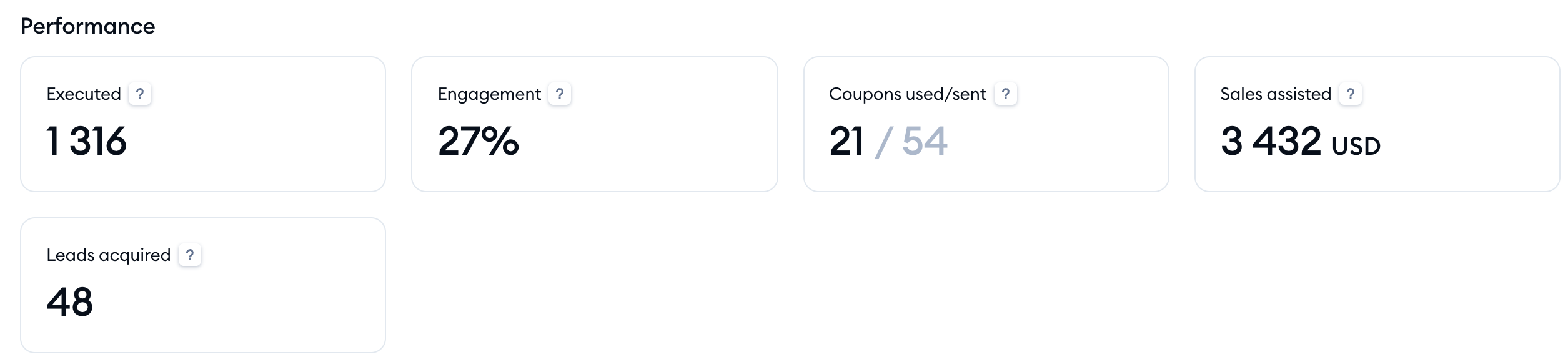
Tidio matches the coupon codes your flows send with the orders placed in your store. At the top of My Flows, you'll see how many codes were used compared with how many were sent (Coupons used/sent) and the value of the sales they helped with (Sales assisted) in the last 30 days - for example, 54 codes sent, 21 used, assisting 3,432 USD in sales. See below for the details.
How Send a coupon code for Shopify works
To add a Shopify Discount code via Tidio, all you need to do is edit an existing flow or create a new one from scratch. You will also find the coupon code node in our templates. To a newly created flow, please add the Send a coupon code node from the Shopify group of the Actions menu, at the place where you wish the code to be shown to your visitor.
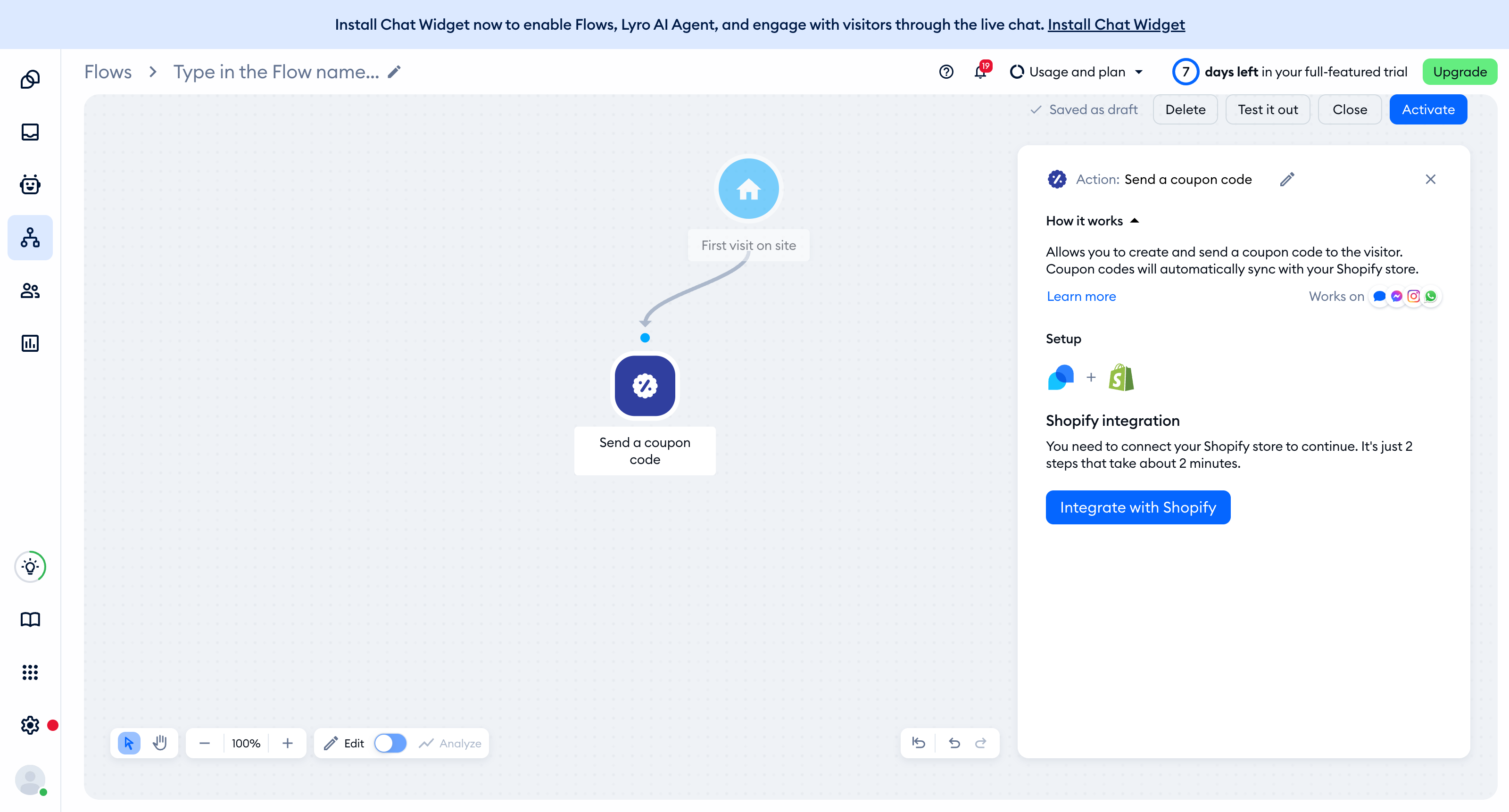
If you haven’t done that yet, Tidio will ask you to integrate with your Shopify store - simply click on Integrate with Shopify:
Once you're integrated with Shopify, the node will allow you to type a message you wish to show to the customer along with the code:
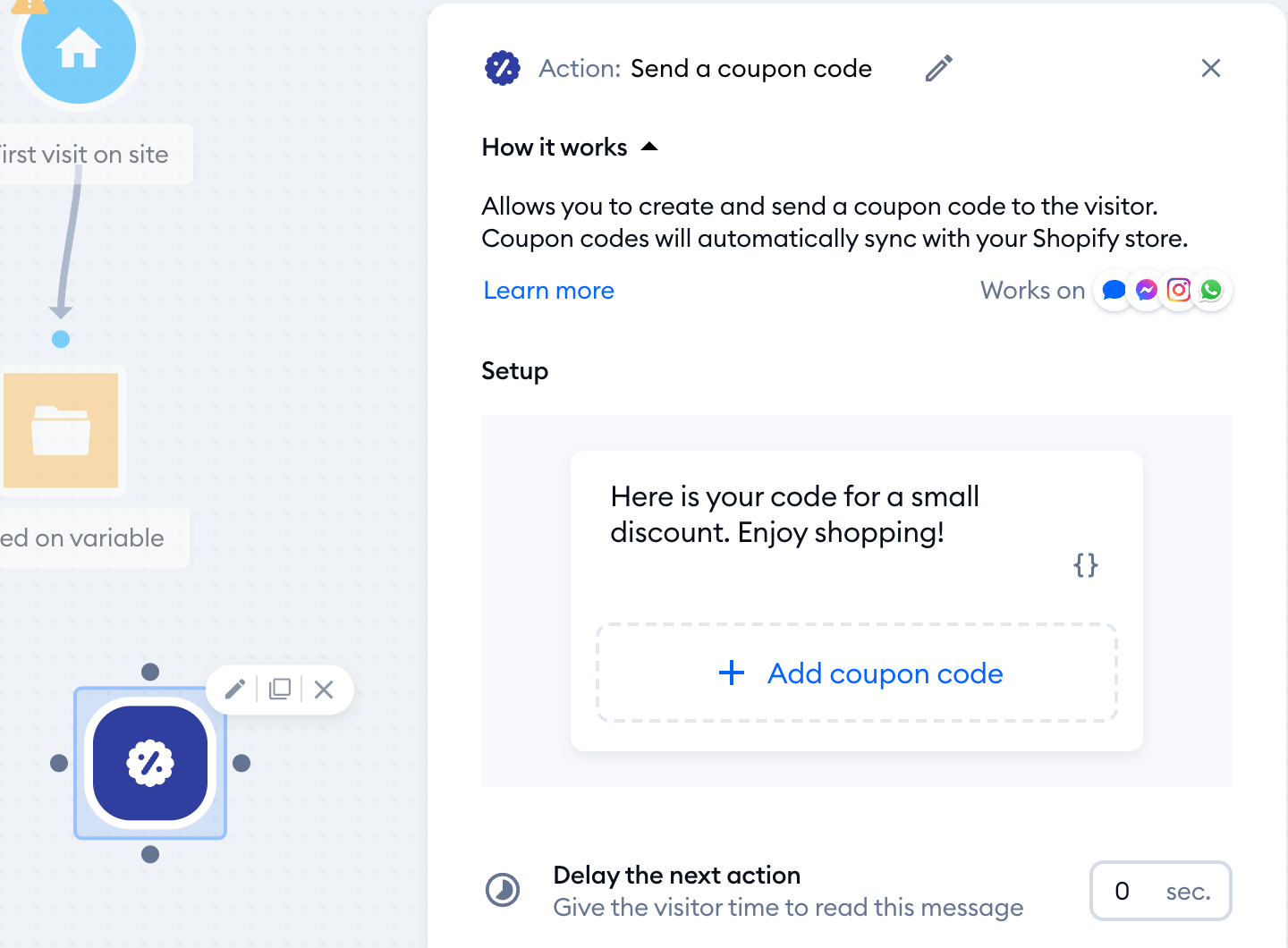
By clicking the Add coupon code button, you'll see the Coupon codes list of your Shopify coupons (percentage codes show their discount on the right). Type in the Coupon code name field to search, and click on a code to choose it - or create a completely new coupon.
To create a new coupon, click on the Add new button.
Now, in the Add new coupon code window, add a Coupon code name (up to 16 characters - this is the code your customers will enter at checkout) and a Discount Value between 1 and 100 %, which applies to the entire order.
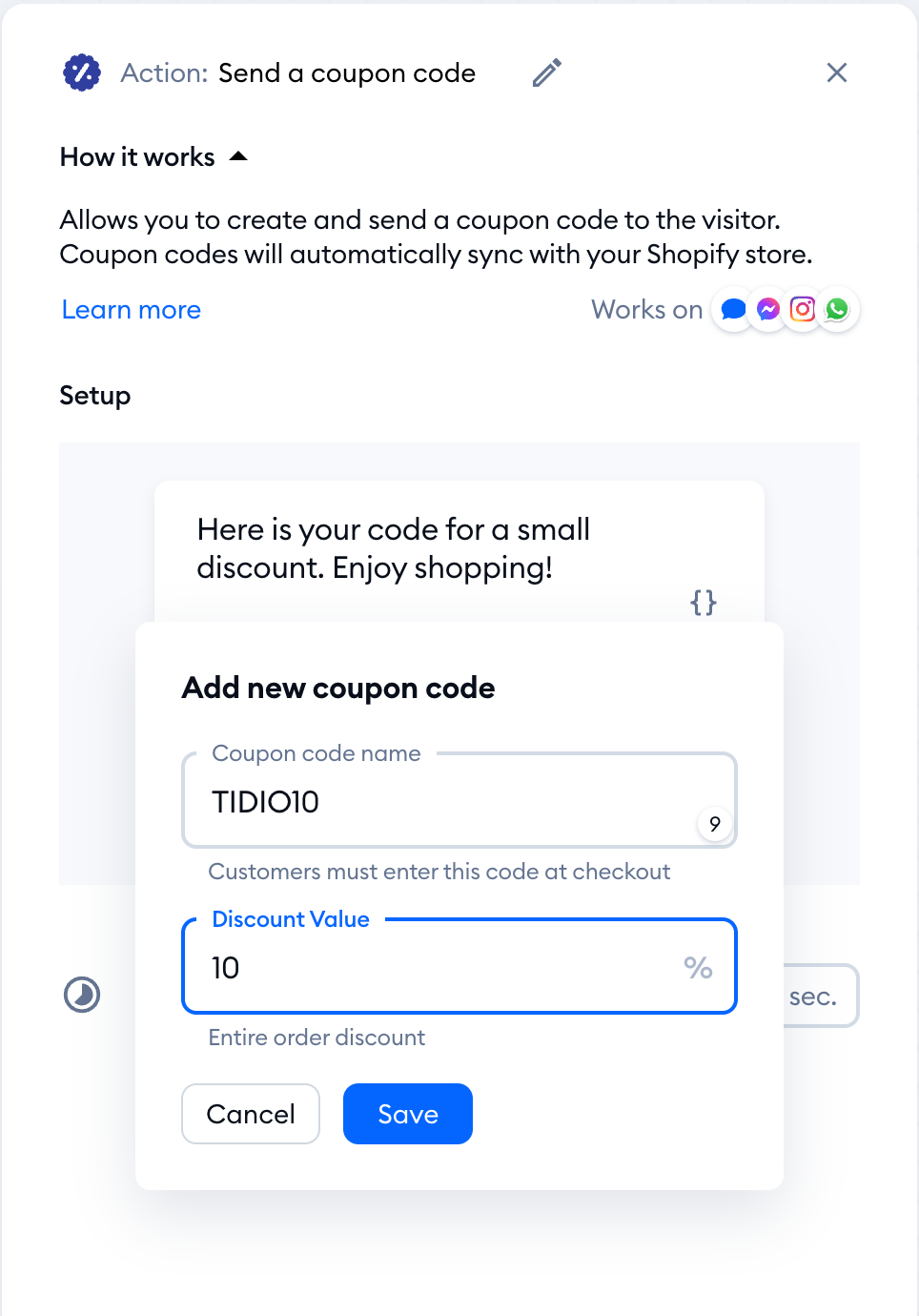
Once you click Save, the discount is automatically saved in Shopify, and you'll see The coupon code in Shopify was created successfully. If a code with that name already exists in your store, Tidio will use it with the rules created in Shopify.
Below the message, the node shows a card with your code's details, straight from Shopify: its status (Active, Expired or Deleted), the Discount value:, and the Active from: and Active until: dates. If a code expires or gets deleted in Shopify, you'll see a warning in the node (Your coupon code has expired. Add another one. or Your coupon code was deleted. Add another one.) - click on the pencil icon (Replace) next to the code to choose another one:
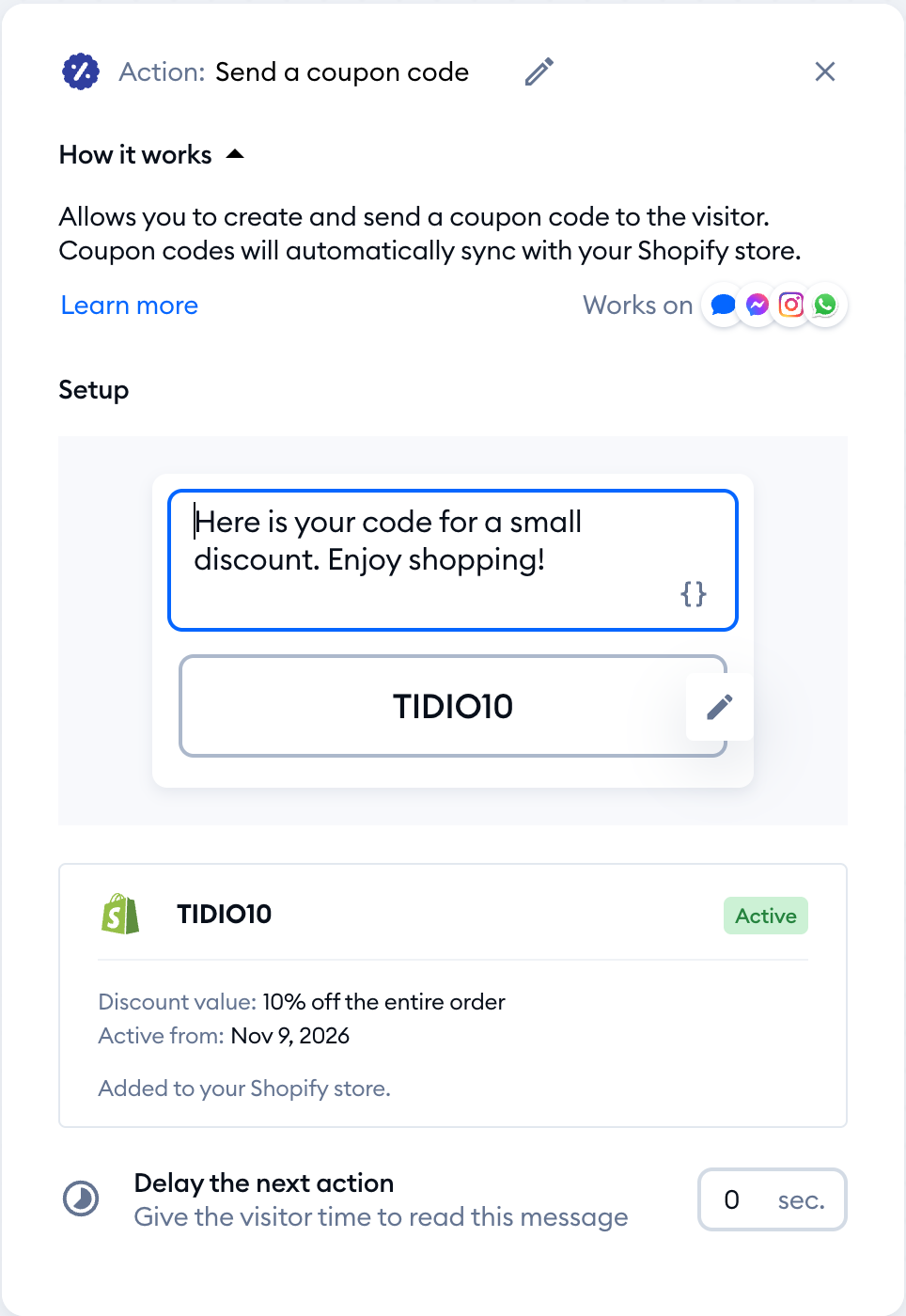
All you need to do now is to click the Activate button in the flow editor for your customers to see the discount in your flow.
Frequently asked questions about Send a coupon code for Shopify
May I adjust the discount value?
You can do that from the Shopify Panel. Remember that, for now, the node will help with a % value discount for the whole order. Trying to change the discount value of an existing code in Tidio will not reflect in the Shopify discount section. You are, however, free to create more new Discount Codes and use them.
If I create a new discount code in Tidio, will the other ones be deactivated?
No, they remain active until you disable or delete them in your Shopify Discounts section.
May I create a fixed amount discount with the coupon code node?
For now, we can only create a % discount for the whole order. If you choose an existing Shopify code that uses another type of discount, its card will say configured in Shopify.
Update existing flows with the Send a coupon code node
If you have an existing flow and would like to use a coupon code node inside of it, please follow the step-by-step guide below.
1. Go to the My Flows section in your Tidio admin panel and find a flow that sends discounts as regular chat messages (the Send a chat message action).
2. Click on the three dots on the right-hand side and choose the Edit button.
3. Delete the Send a chat message node that sends discounts and replace it with the Send a coupon code node (in the Shopify group of the Actions menu).
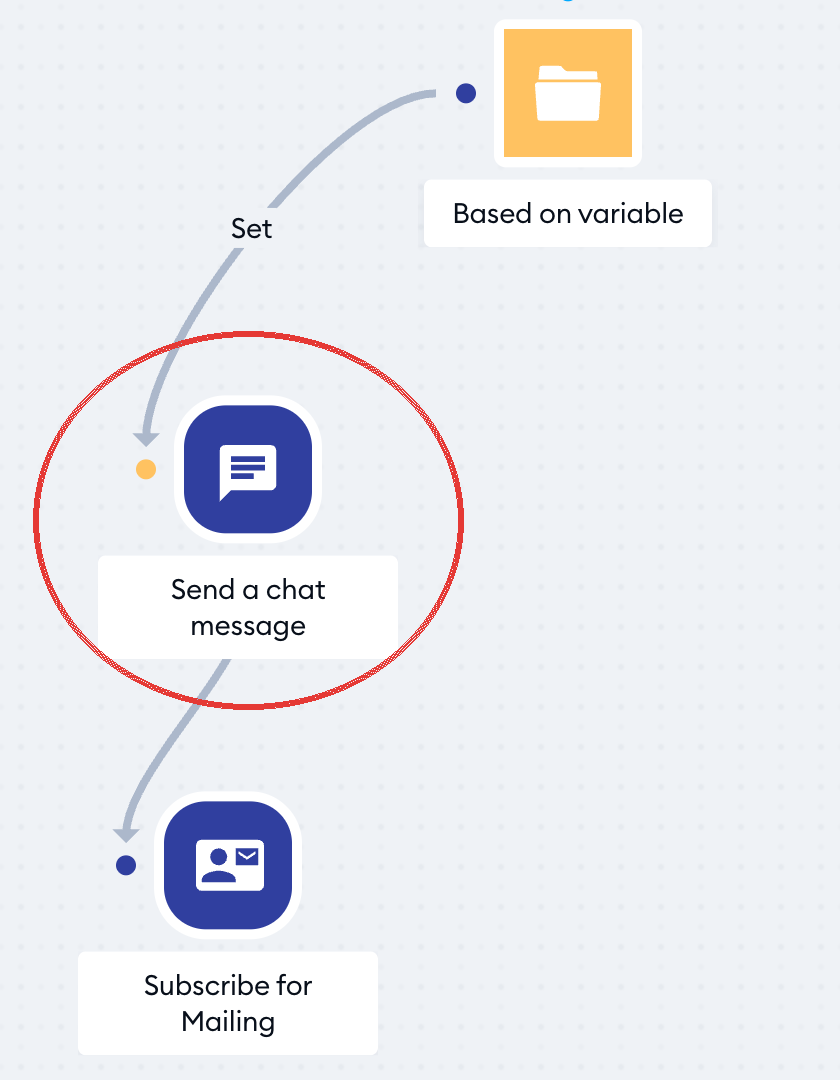
4. Drag and drop it to the editing map and connect with different nodes.
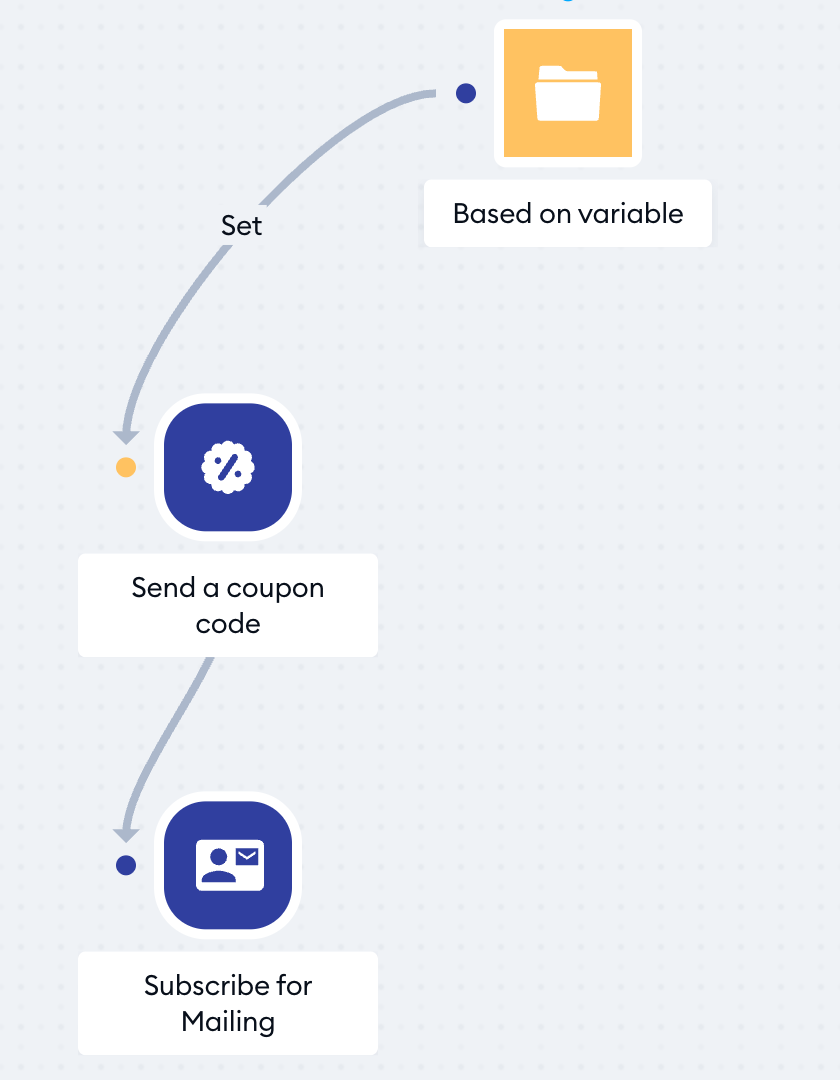
5. Now, add a coupon code.
6. Click Activate to put your changes live.
Your website visitors can easily copy the coupon code and paste it directly into the promo code fields at checkout. Back in My Flows, flows that send a coupon code are marked with a green discount icon (Flow sends coupon code).
Checking how your coupon codes perform
If your store is on Shopify, Tidio shows you how the coupon codes sent by your flows translate into sales in two places:
- My Flows - the Coupons used/sent and Sales assisted tiles at the top show the totals for all your flows in the last 30 days. If none of your flows sends a Shopify coupon code yet, the tiles are greyed out, with a link to Add Sales Flow.
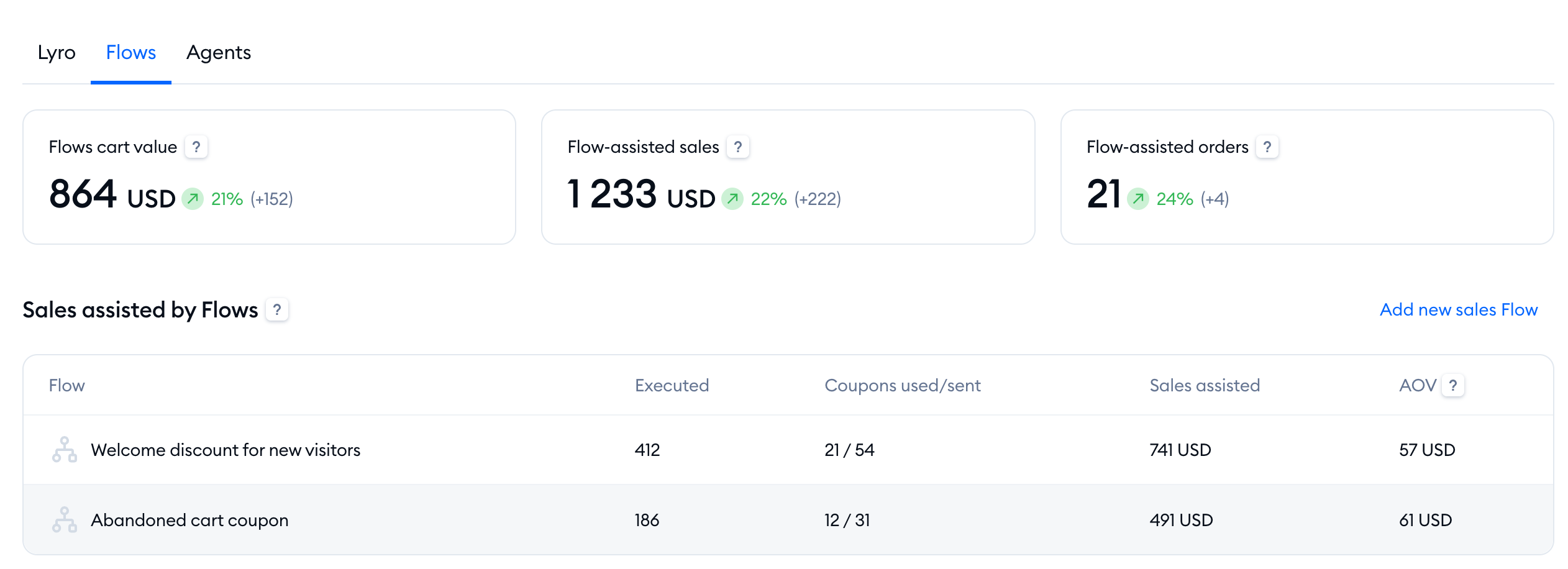
- Analytics > Sales - open the Flows tab and scroll to Sales assisted by Flows. The table lists each flow that sends coupon codes, with Executed, Coupons used/sent, Sales assisted and AOV (average order value) for the dates you pick at the top.
Coupon codes for all other users
Great news for all Tidio users! Coupon codes are now available to everyone, regardless of whether you use Shopify or not. This means you can offer your customers exciting discounts and promotions, no matter what platform you use for your online store.
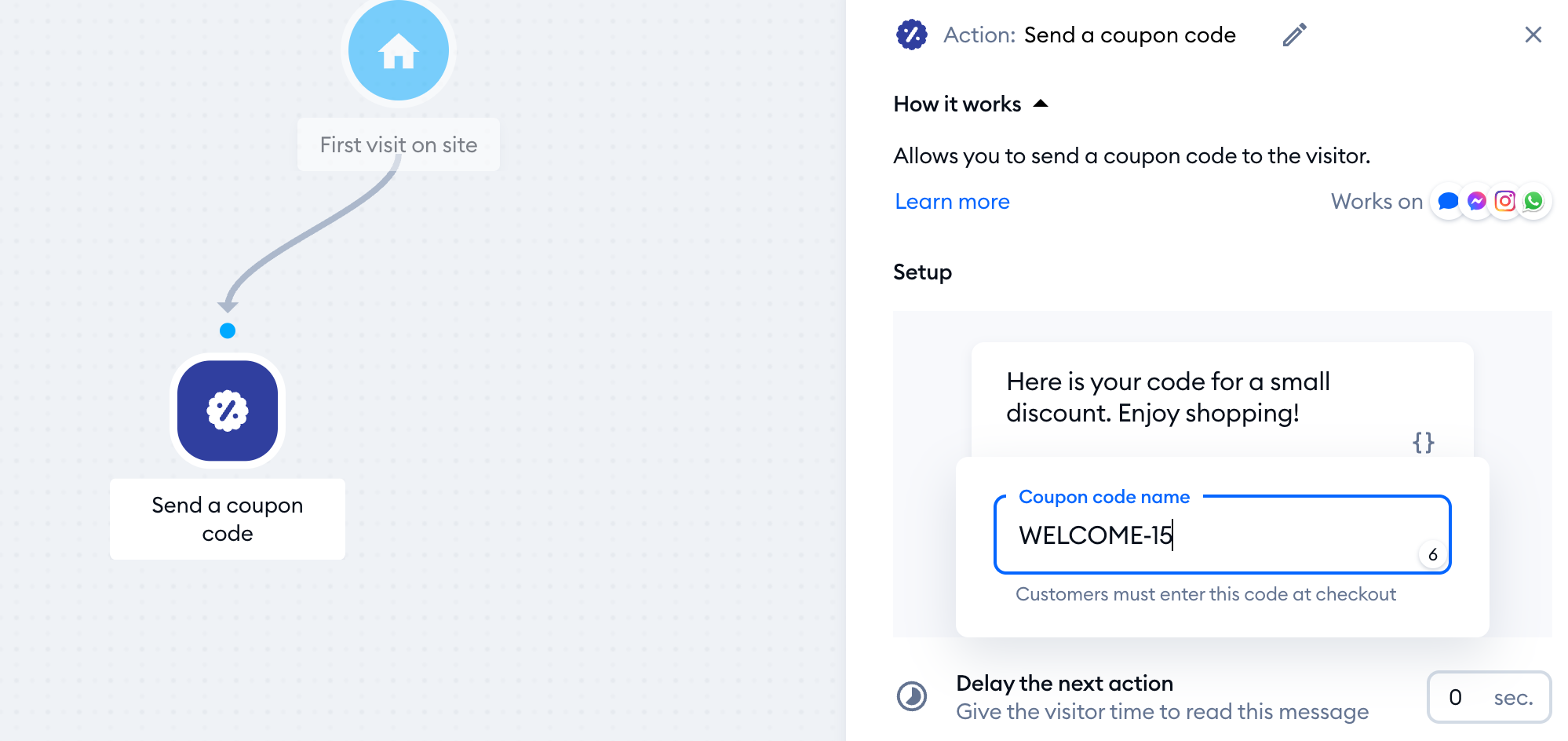
If your store isn't on Shopify, the coupon code you send needs to be manually typed into the node, but the design of displaying the coupon code inside the chat widget will be the same as we show above.
To add a coupon code, drag and drop the Send a coupon code action onto your flow's editing map.
You'll see an editing window on the right, where you can edit the message. Click on Add coupon code and type the discount code in the Coupon code name field (up to 16 characters). Make sure the code exists and is available for your customers in your store.
Here's how the message & discount will look on your website visitor side:
Your website visitors can easily copy the code and paste it directly into the promo code fields at checkout.
Great job! Now, see how your sales grow! We wish you all the best!
