The Flows section at Tidio empowers you to set up automated responses within your chat widget. Designed to handle the most common inquiries from your visitors, these flows streamline your customer interactions and enhance your overall efficiency.
In this article, you'll learn:
- How to navigate your Flows
- What pre-made Flows (templates) are
- What contextual Flows are
- What the Flows launcher is
Navigating your Flows
When you open the Flows section, you'll find these items in the menu on the left:
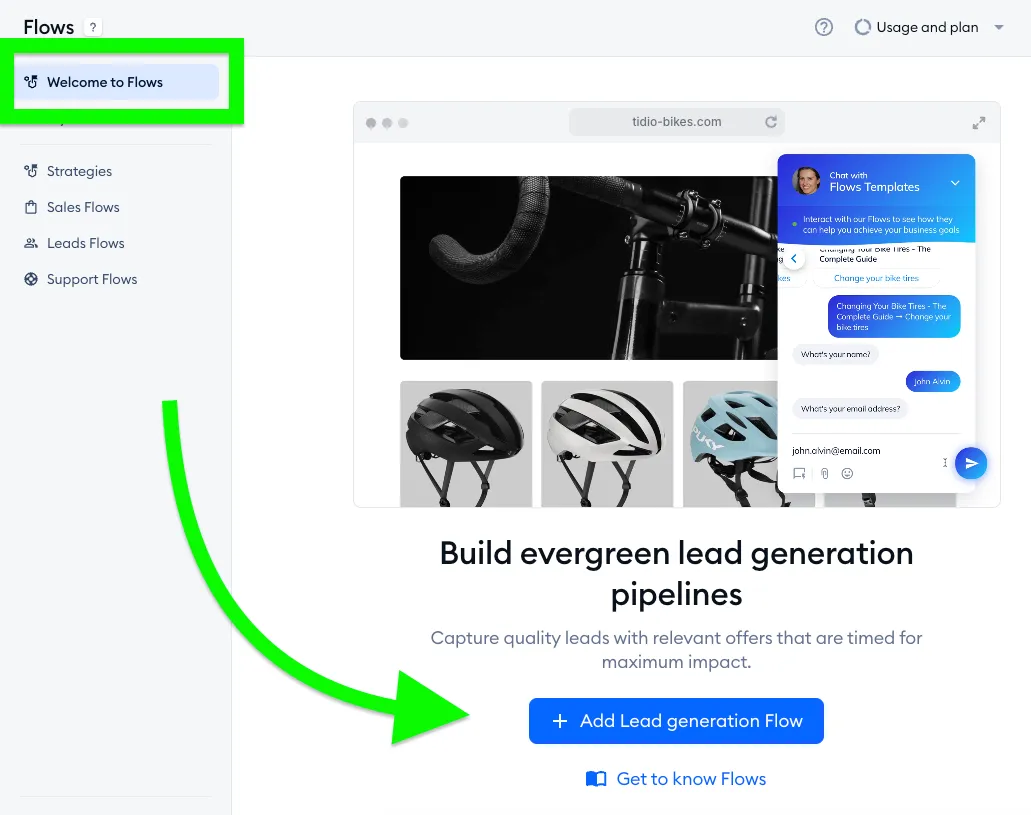
- Welcome to Flows - a getting-started screen, shown to newer projects only (see Contextual Flows below).
- My Flows - every Flow you've added, with their number next to the name.
- Strategies - sets of Flows we suggest for your business, when we have some for your project.
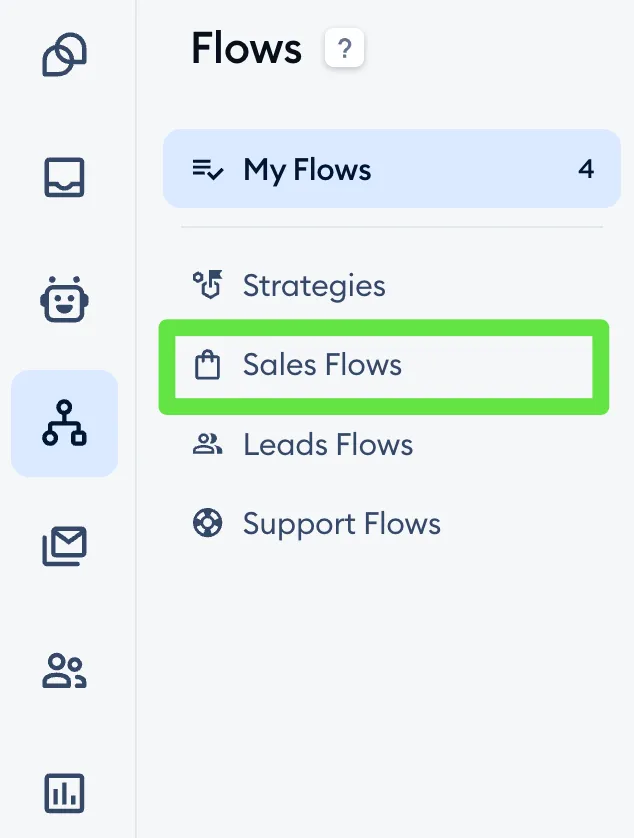
- Sales Flows, Leads Flows and Support Flows - the template lists.
- Flows launcher - at the very bottom of the menu (see below).
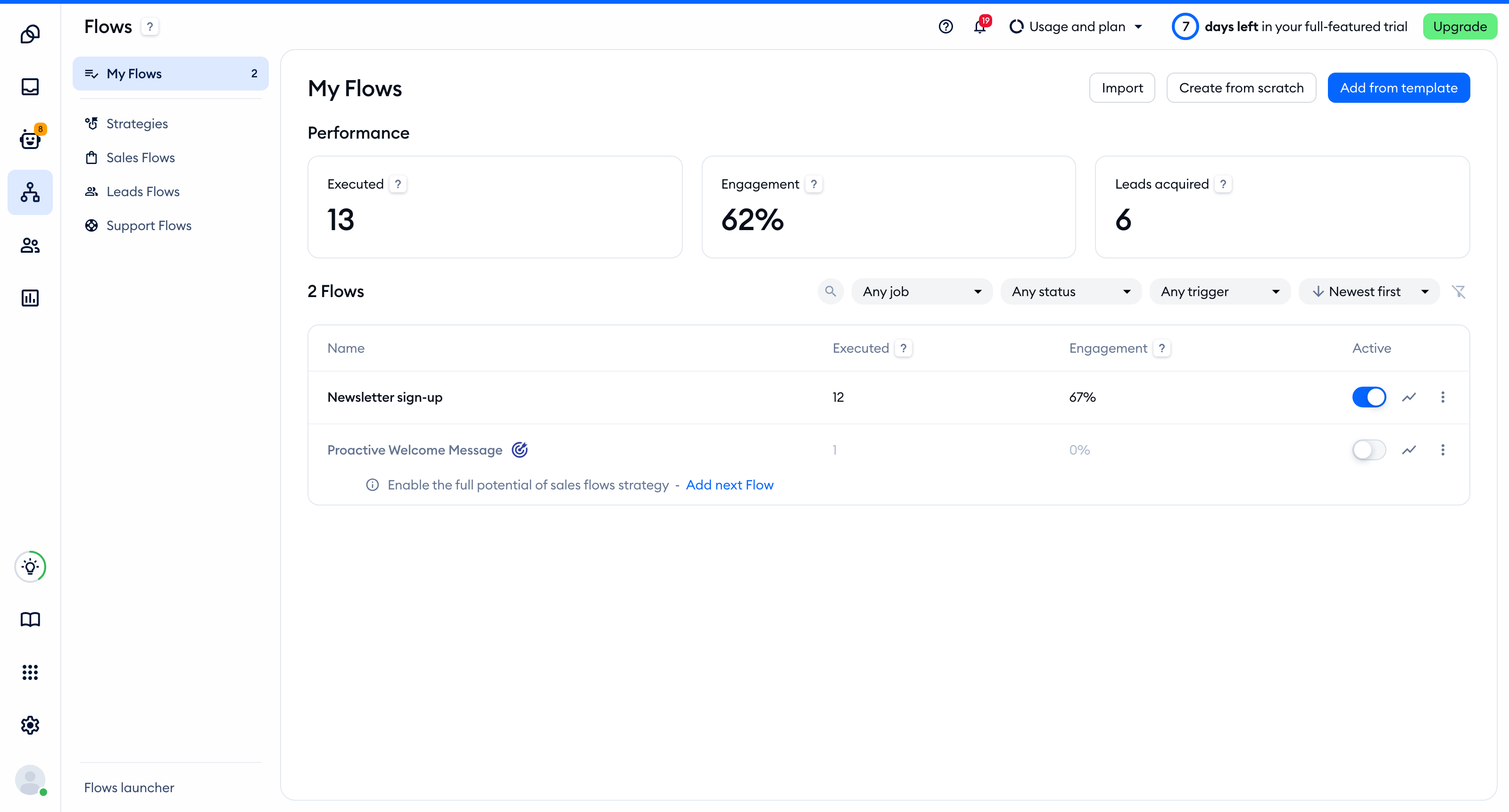
The My Flows tab is where all your currently added flows are listed:
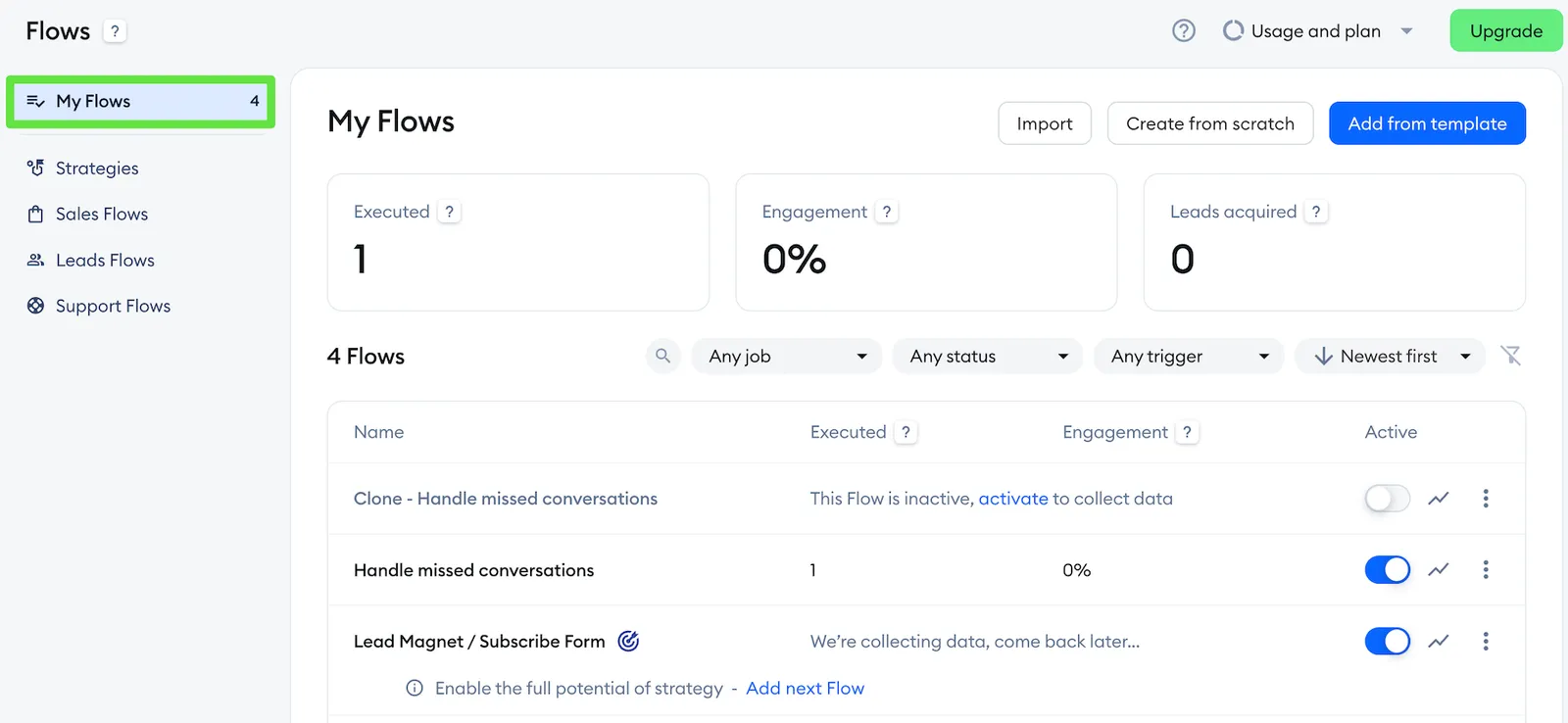
At the top of My Flows, you'll find three buttons: Import (to add a Flow from a JSON file), Create from scratch and Add from template.
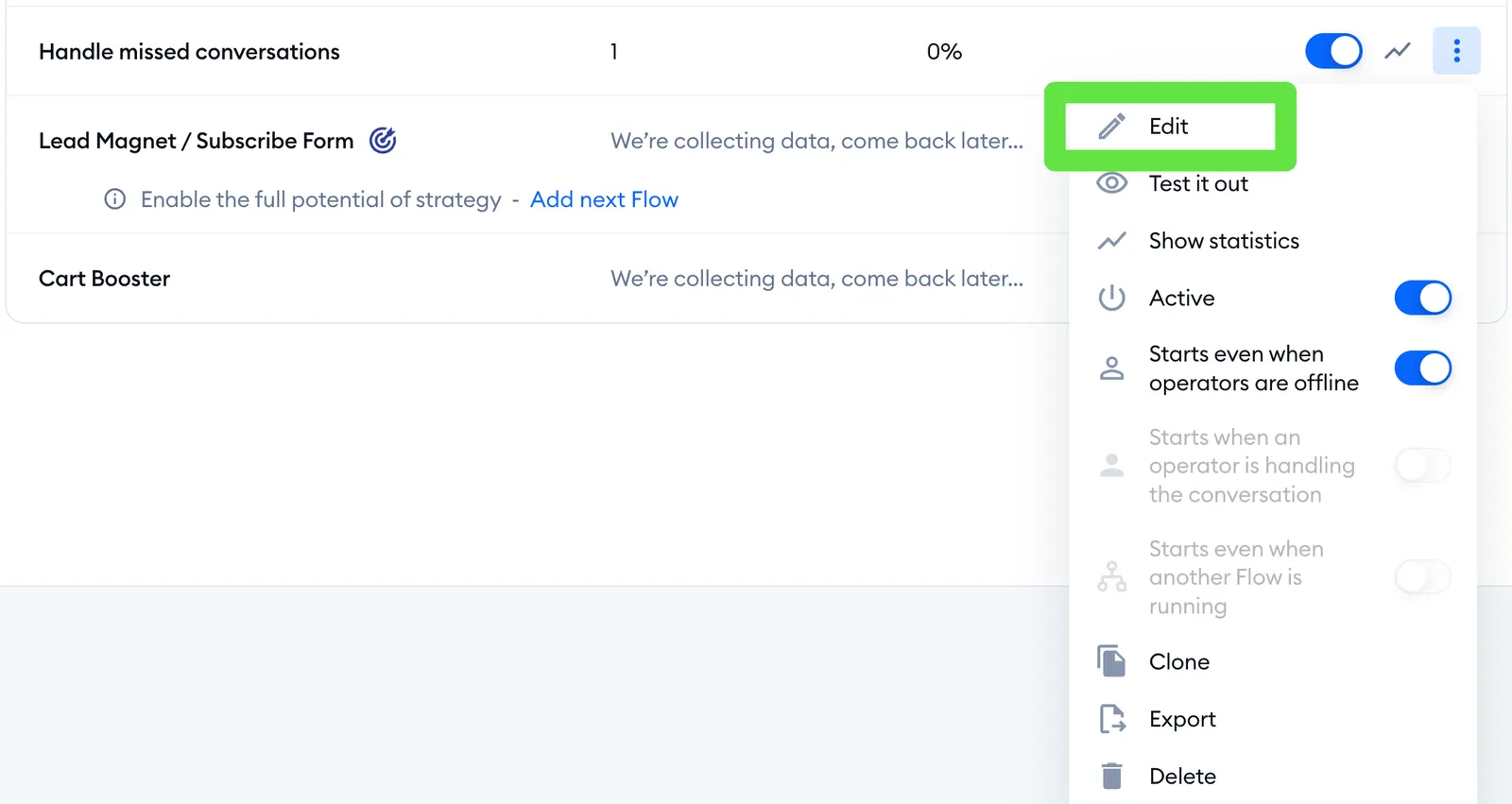
If you wish to edit an already existing flow from the My Flows section, click on the three dots menu on the right of the flow and select Edit:
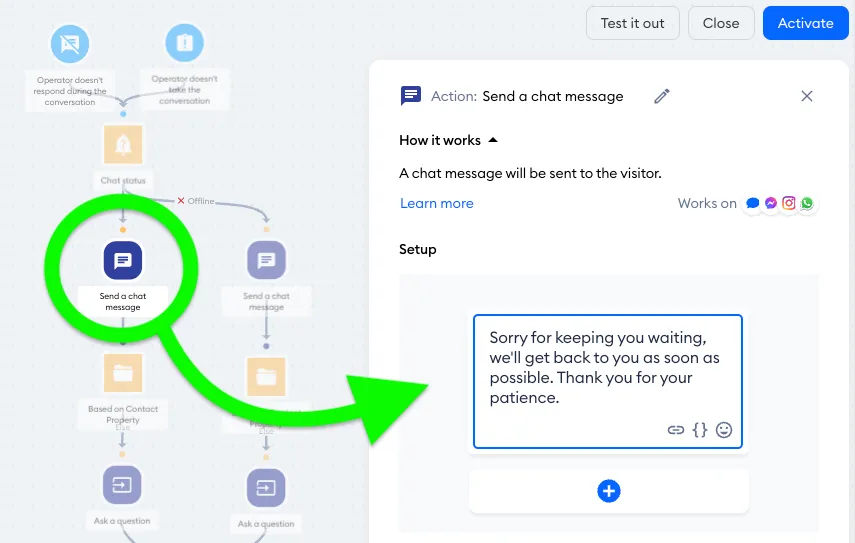
Inside the visual flow editor, you can edit the flow's text by clicking on the chosen node and editing the text in the right-side window.
To learn more about editing Tidio flows, see our article about creating a flow from scratch or editing the existing flows.
Pre-made Flows (templates)
Right below My Flows, you may see the Strategies tab. Based on the information you've provided during the registration process, this is the place where we suggest to you a series of flows that work together to help you achieve your business goals. The tab only appears when we have strategies to suggest for your project. You can learn more about Strategies here.
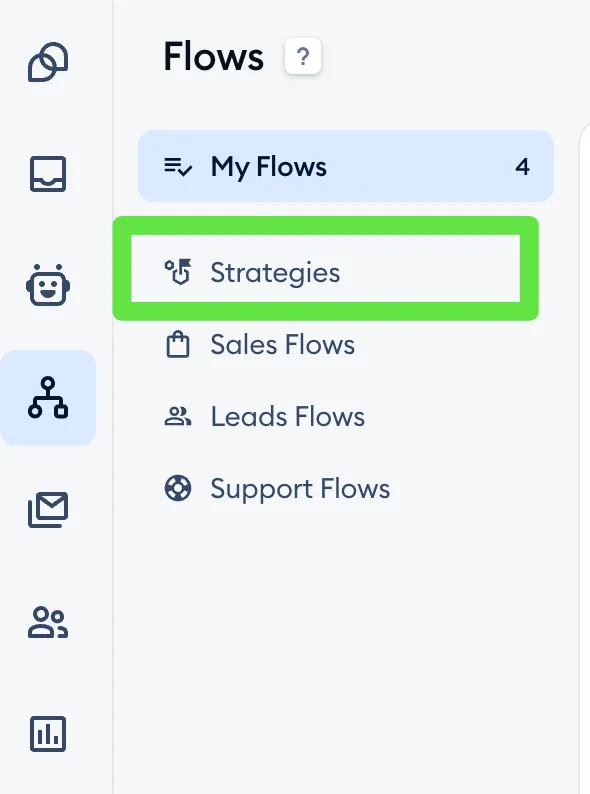
There's also a list of available templates, where you can browse all the individual pre-made flows and use them. The templates are categorized into 3 lists, which you can access from the menu on the left: Sales Flows, Leads Flows and Support Flows.
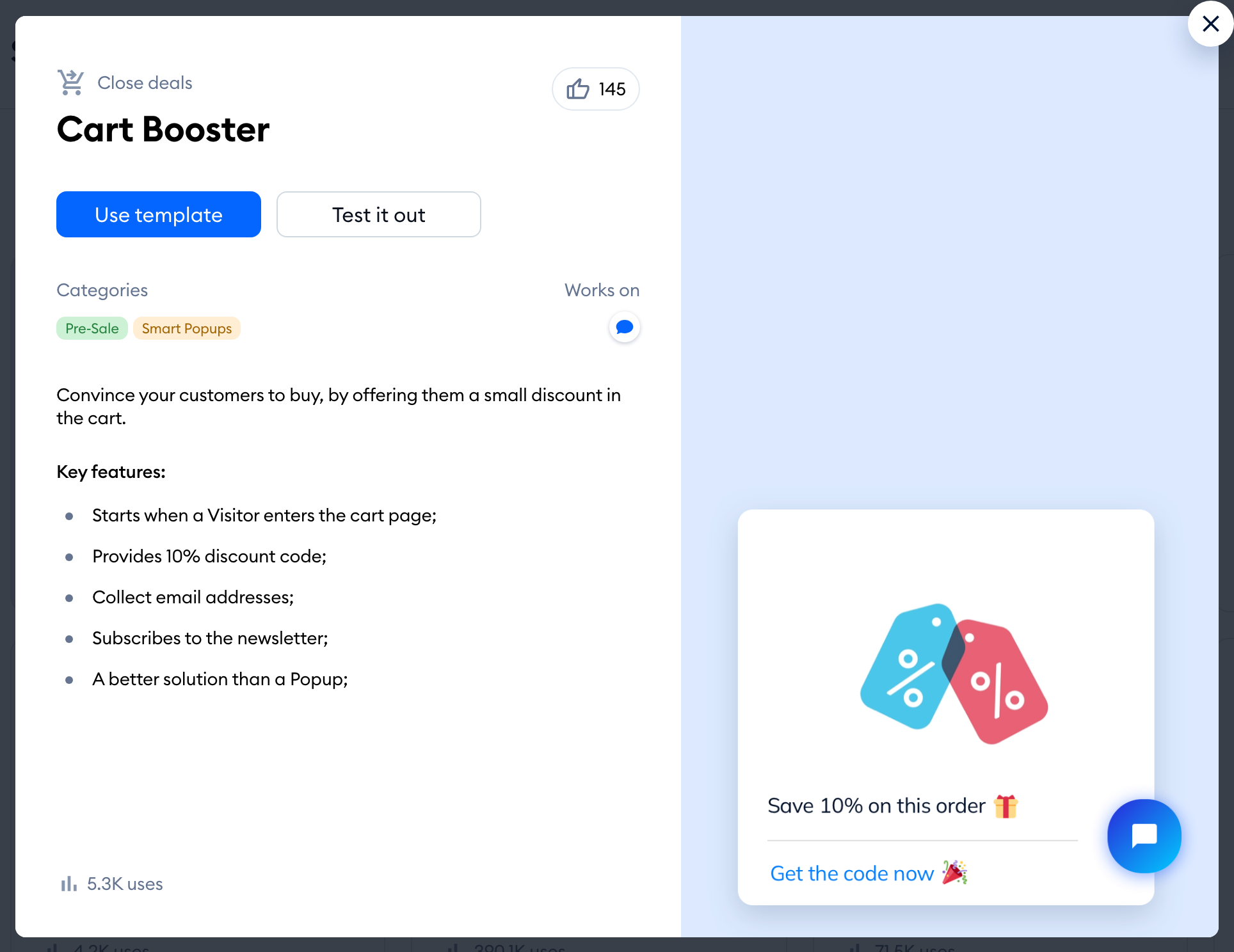
To pick a template, click on its Learn more button to see the details, and then hit Use template to add it and customize the messages sent to your website visitors. To learn more about available templates and how to use them, see our article about pre-defined flow templates.
Contextual Flows
New to Tidio and unsure where to start with Flows? If the current templates don't quite fit your needs, you can access the Welcome to Flows tab, available on the left side of your Flows section. This screen features a dedicated flow tailored for your specific Tidio project, offering clear recommendations for your next steps.
Please note: Welcome to Flows is shown to projects created after June 17, 2024, based on the goal you chose when you signed up. Once you add or activate your first Flow, the tab disappears and the section opens on My Flows.
The Flows launcher
At the bottom of the Flows menu, you'll find the Flows launcher. This is where you set up the Flow buttons your visitors can click in the chat widget, together with the Welcome message and the Flow ended chat message:
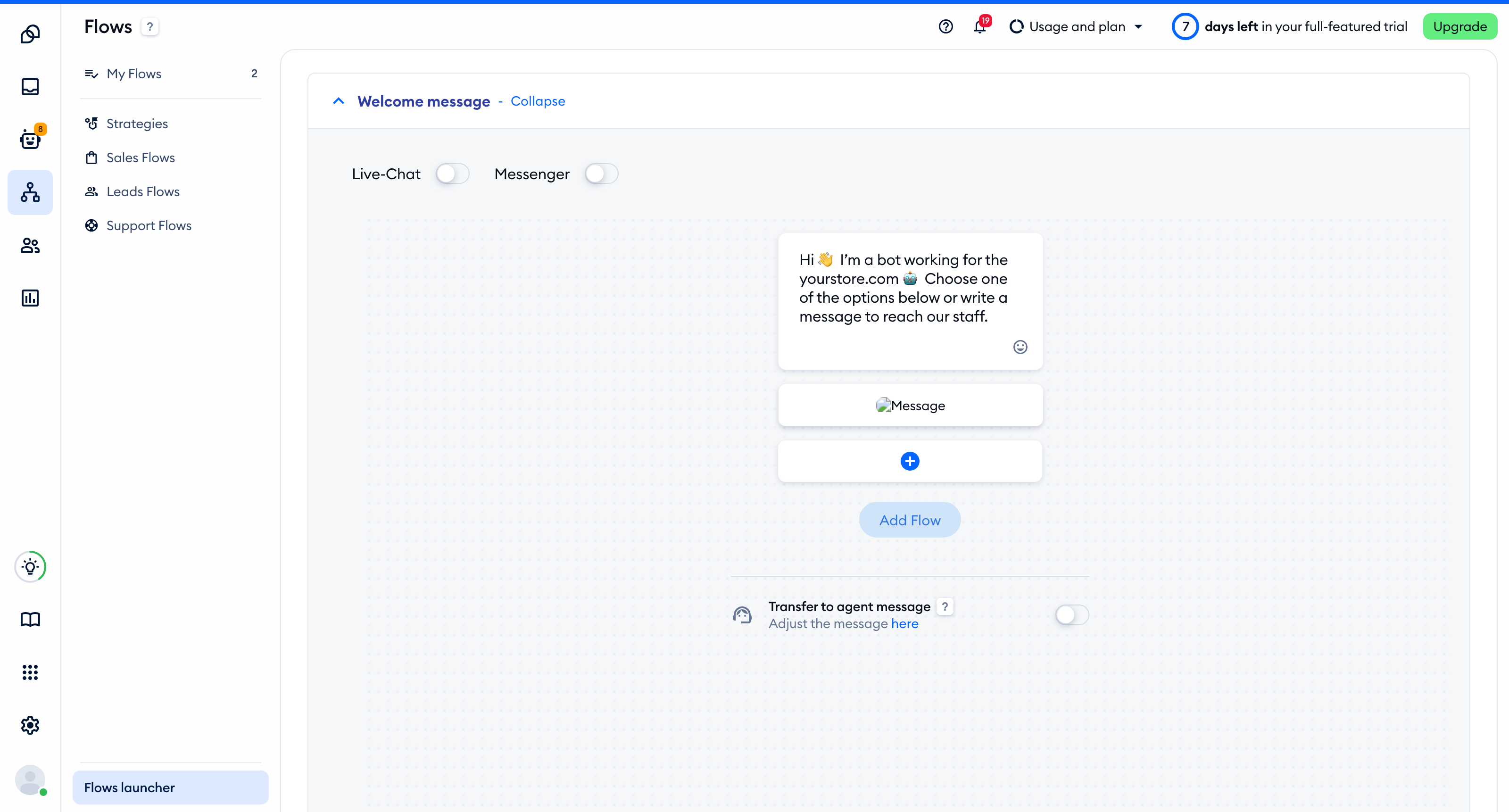
You can learn all about it in The Flows launcher: welcome message, Flow ended message and Flow buttons.
