At Tidio, we prepared ready-to-use flow Strategies to growth-hack your business by increasing conversion and improving the offline hours' experience for your visitors.
In this article, you'll learn:
About Flow Strategies
As you already have multiple things in your head around your business, coming out with another Strategy may be time-consuming and not always effective. Perhaps you've already tried many tactics that haven't worked and don't have the expertise to build a better plan.
In any of those scenarios, our flow Strategies are coming to the rescue! Choose which Strategy works for you from the Strategies list, found in your Flows section, right below My Flows:
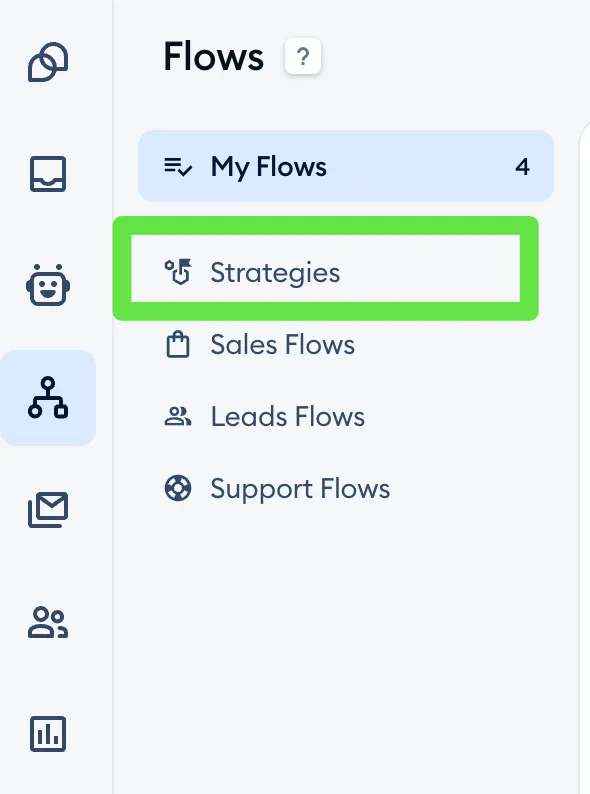
Please keep in mind that you may see different Strategies prepared for you, depending on your industry and the business survey you've completed when registering your Tidio account. Each Strategy card says how many flows it includes (Includes: 3 Flows, for example), and whether it's already Active or Inactive.
Please note: the Strategies tab only appears when we have Strategies to suggest for your project. If you don't see it in the Flows section, you can still start from the flow templates.
Sometimes, a Strategy comes with a bonus - you'll see it at the top of the list, e.g. Use one of the Flow strategies now to get Unlimited Flows for 7 days.
Activate the Strategies
Activating a Strategy for your flows couldn't be easier. The only thing you need to do is to choose the Strategy, and then activate the flows step-by-step, adjusting them to suit your business.
To activate a Strategy, click the Learn more button underneath the Strategy you want, and you will see more details - like the flows included in the Strategy (What’s inside?):
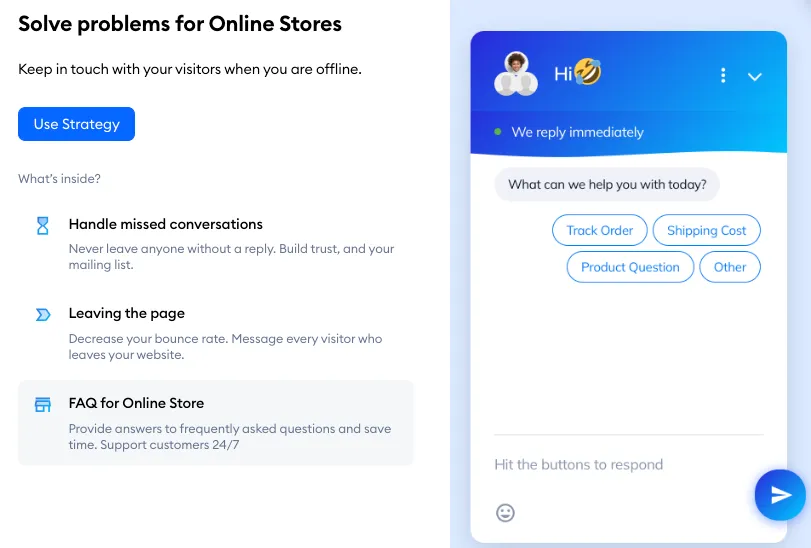
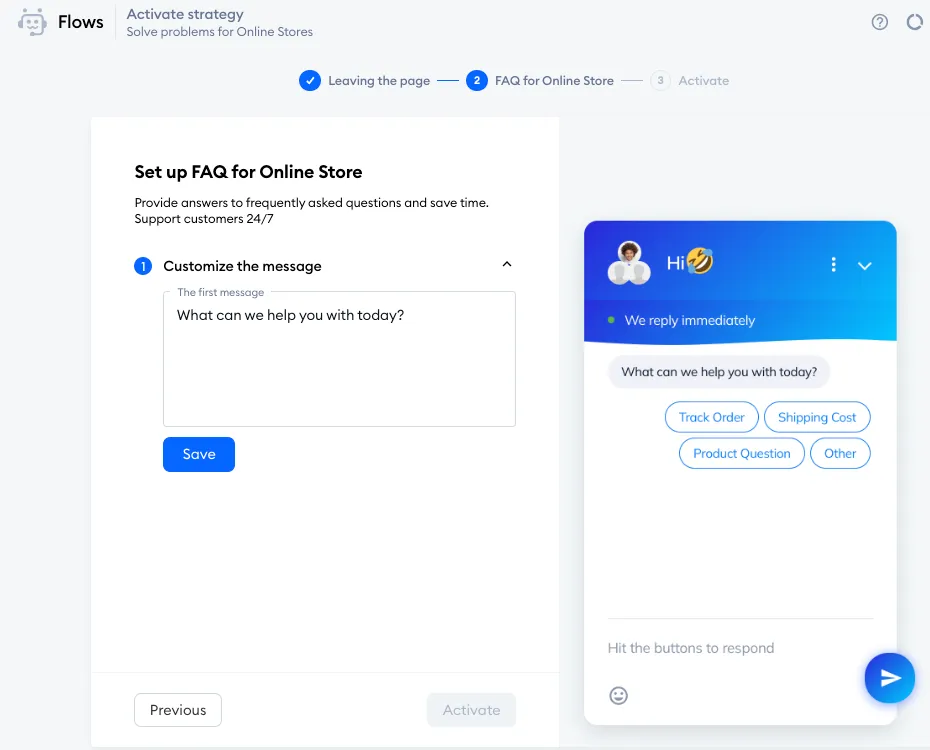
Here you can preview the flow templates quickly, and hit the Use Strategy button to start the setup. Once you do that, you will be taken through several steps: one for each of the flow templates included. In each step you will be asked to customize each flow's basic details, like a flow's initial greeting, and move on with the Next button:
Once you're done, the last step will be to Activate the Strategy (which basically means activating all the flows that you've just customized). You'll see Success! Strategy is activated., and the flows will simply be listed under the appropriate category in your My Flows list:
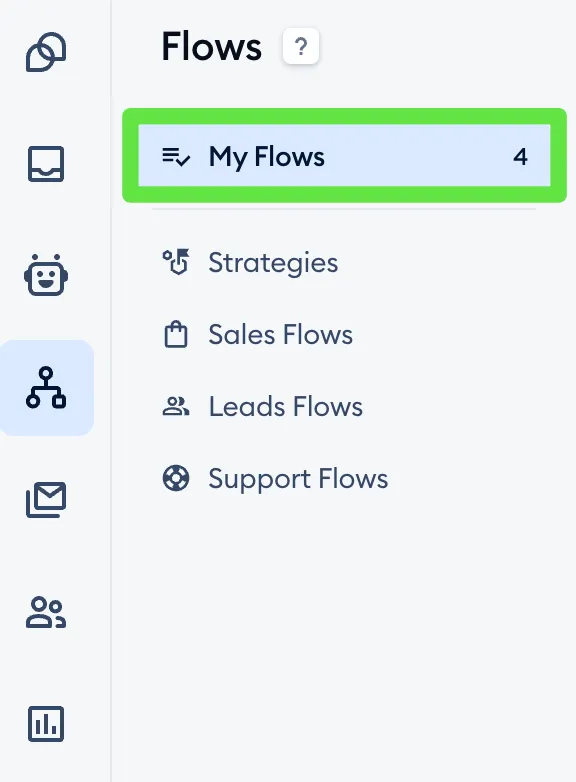
Once a Strategy is active, its card shows View strategy instead of Learn more - it takes you straight to My Flows.
All done! Monitor your results, modify your flows as needed, and see them benefit your business.
