We know switching between different tabs and panels can be confusing, but that's no longer the case. Tidio's integration with Shopify allows you to manage the most important order matters without leaving the Tidio panel - in live chat conversations and in tickets alike. You can cancel, refund and edit orders, and change their shipping address.
Want Lyro (the AI agent) to look up orders and change shipping addresses by itself, without an agent? That's done with Lyro Actions.
In this article, you'll learn:
- How to find your customer's orders
- How to cancel Shopify orders in the Tidio panel
- How to submit refunds for the orders
- How to edit an order (quantities and new products)
- How to change the shipping address
Finding your customer's orders
Once your Shopify store is connected to Tidio, open a conversation or a ticket in the Inbox and look at the customer's details on the right. In the Shopify section, you'll see how much the customer has spent in your store (Total spend), the Check all orders button with the number of their orders, and their Cart. In live chat conversations with visitors who are online, you'll also find Send a product card there:
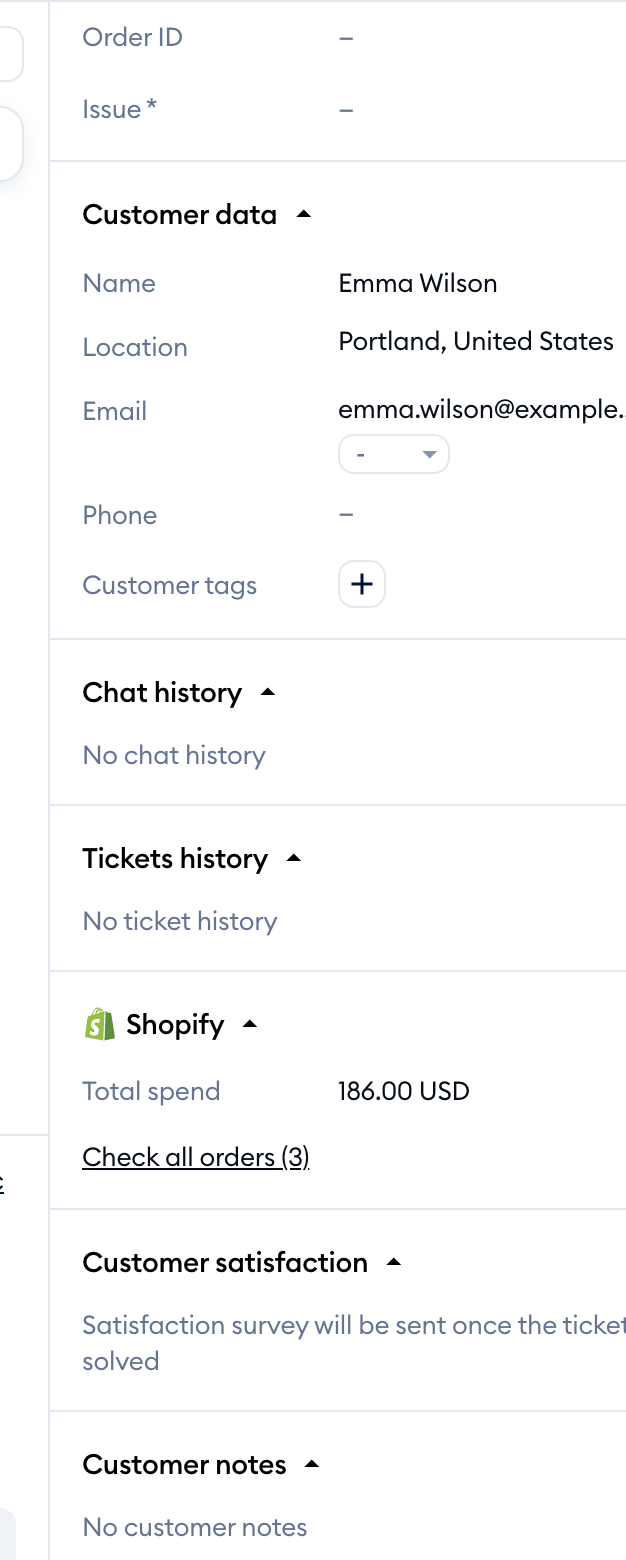
Tidio finds the orders by the customer's email address, so the customer needs an email in their contact details. Click on Check all orders to open the Orders list. You can look for a specific order with the Search by Order ID... bar at the top.
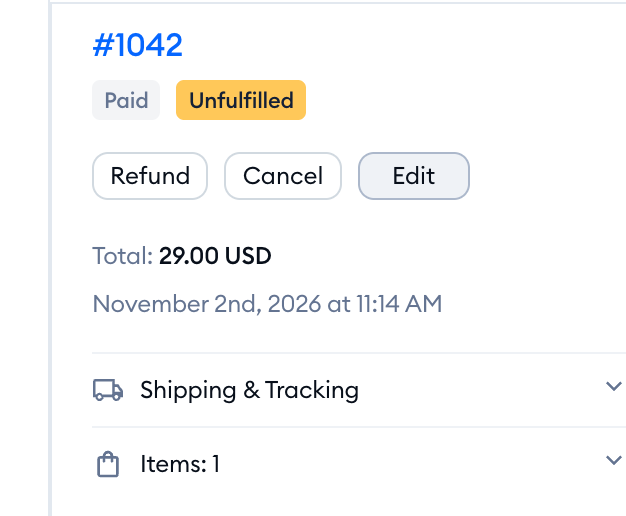
Each order shows its number (click on it to open the order in Shopify), its payment and fulfillment status, the buttons for the actions you can take on it, the total and the date. Expand Shipping & Tracking to see the shipping address and the tracking number, or Items to see the products in the order.
Please note: managing Shopify orders (cancel, refund, edit and changing the shipping address) is available on the Growth plan and above. On a lower plan, clicking on Check all orders opens the upgrade window.
Cancel orders
The Shopify cancel order feature is available on the Growth plan and above.
From now on, you can cancel orders that haven't been fulfilled yet, straight from your Tidio panel.
In the Orders list on the right-hand side of the conversation or ticket, the buttons for each order sit under the order's number. If the order hasn't been fulfilled yet, you'll see the Cancel button there.
Once you click on the Cancel button, a new window will appear. Under Refund payment, decide whether to give the refund to the customer right away (Refund with the amount) or Don’t refund now. Then pick a reason for cancellation under Why are you canceling this order?, and choose whether to Restock items and Send a notification to the customer - both are ticked by default.
To confirm the settings, click on the red Cancel order button. The order will be canceled now. Changed your mind? Click on Keep order instead.
To learn more about Tidio integration with Shopify, see our article about sending Shopify products to customers directly from Tidio and using coupon codes for Shopify orders.
Refunds
If your Shopify account is connected to Tidio, from now on, you can submit the refunds straight from the Tidio panel.
This feature is available on the Growth plan and above.
How to submit a refund
To submit a refund, click on the Refund button under the order's number in the Orders list on the right side of your conversation panel.
If you're an existing user and want to submit the refund (or use any other order action) for the first time, you may be asked to accept a new set of Shopify permissions by reintegrating your Shopify store with Tidio - simply click on Reintegrate Now in the window that appears.
For orders in multiple currencies, you'll see Refund in Shopify instead. Tidio can't manage orders in multiple currencies, so this button takes you straight to the order's refund page in your Shopify store.
Now, you will see the Refund order window with the available settings for the refund. Enter how many of each product you want to refund - the products are split into Unfulfilled products and Fulfilled products, and the Summary on the right updates as you go:
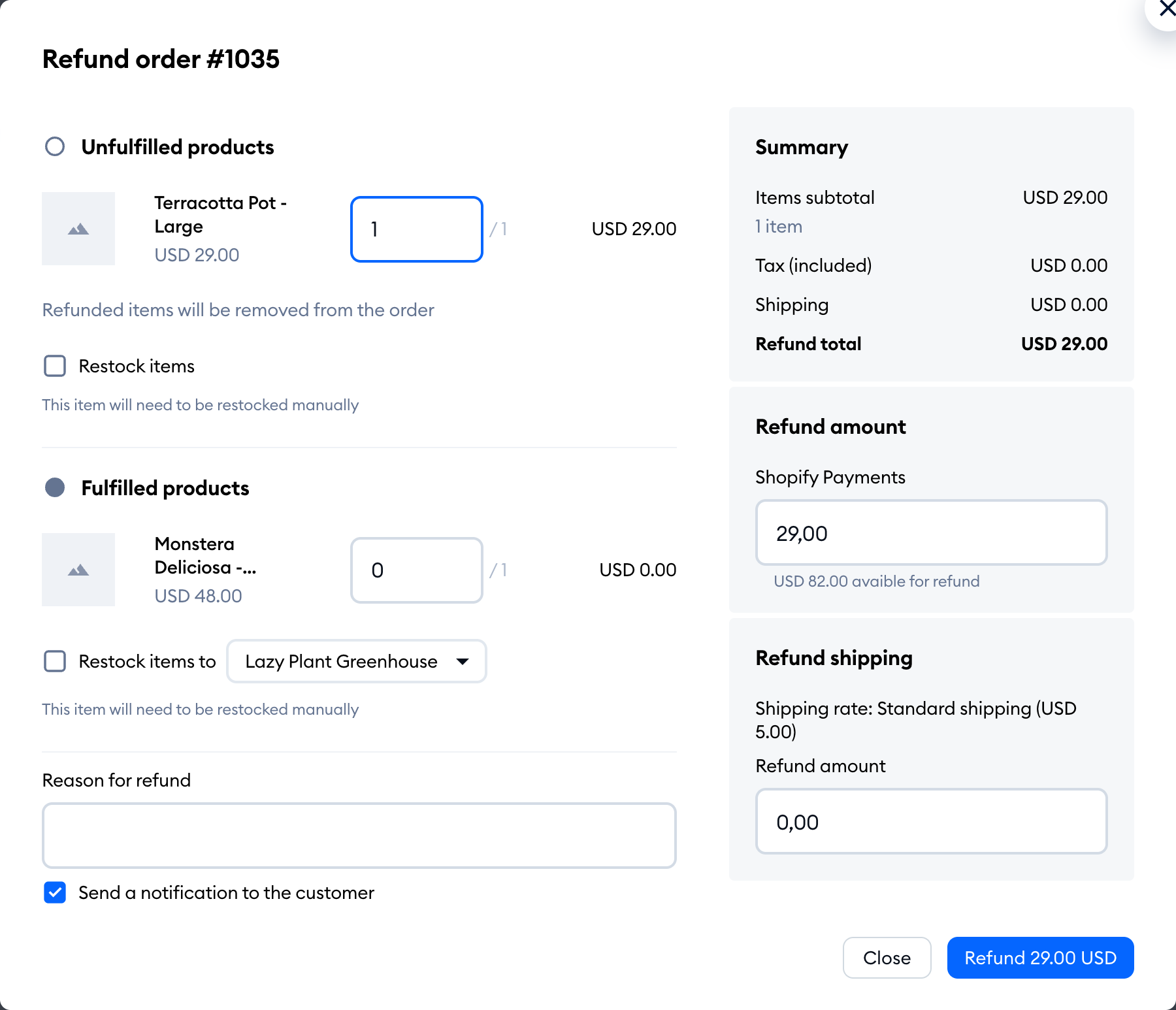
As an agent, you can:
- decide for which products (and how many of each) you want to submit the refund - refunded unfulfilled items are removed from the order
- restock the refunded items: Restock items for unfulfilled products, or Restock items to and a location for fulfilled ones
- decide whether you wish to refund the shipping costs (Refund shipping)
- refund duties and import taxes on the refunded items (Refund duties), if the order had any
- add a reason for the refund (Reason for refund)
- decide whether you wish to send an email notifying the customer
- decide on the payment method for refunding the money under Refund amount (you can only use the options used by the customer to pay for the order & one payment option can not refund more money than the customer has paid for the order - each one shows how much is available for refund)
Once you have adjusted the settings, click on the blue Refund button with an amount and your currency to confirm it.
Edit orders
Editing orders is available on the Growth plan and above.
Your customer wants two mugs instead of one, or forgot to add something to their order? You can change the order for them before it ships - change quantities, remove products and add new ones from your store.
Click on the Edit button under the order's number. You'll only see it when the order can still be edited:
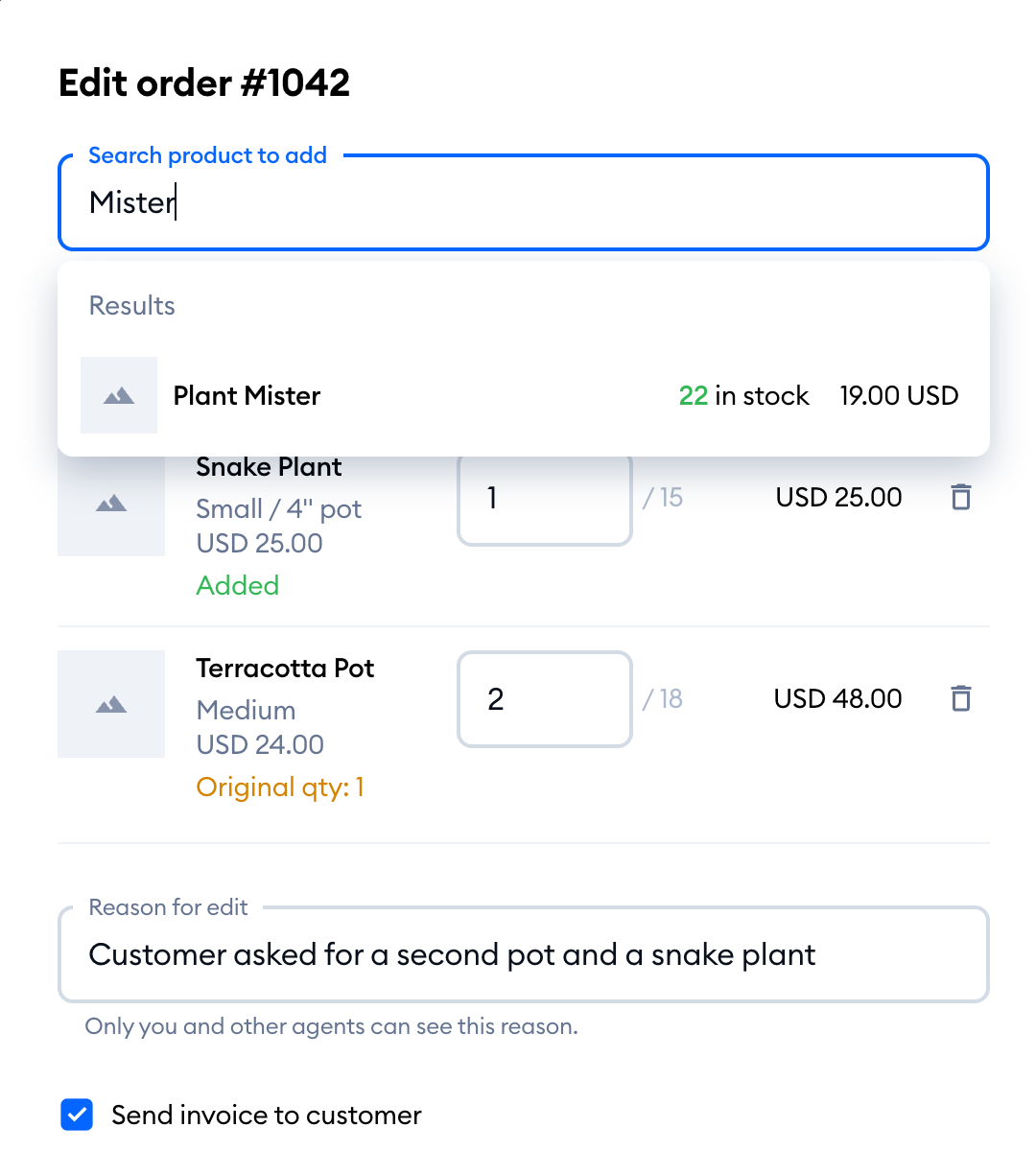
In the Edit order window, you'll see the order's Unfulfilled products - only unfulfilled products can be edited. For each product, you can:
- change the quantity - the number after the slash shows how many are in stock
- remove the product with the trash icon on the right
- put the items back in stock: when you lower the quantity, a checkbox to restock them appears (for example, Restock 1 item)
Products you've changed show their original quantity (for example, Original qty: 1), so you can always see what the customer ordered.
To add a product, start typing its name in Search product to add at the top, and pick the right variant. Each variant shows how many are in stock (for example, 12 in stock), or Item not available if it can't be sold. New products are marked Added:
On the right, the Payment box shows the order's Subtotal, Tax, Total and what was Paid by customer, and the Summary shows the Updated total, what was Paid, and the Amount to collect (or the Amount to refund, if the order now costs less).
Below the products, you can add a Reason for edit - only you and other agents can see it - and decide whether to Send invoice to customer (ticked by default). When you're ready, hit the Update order button:
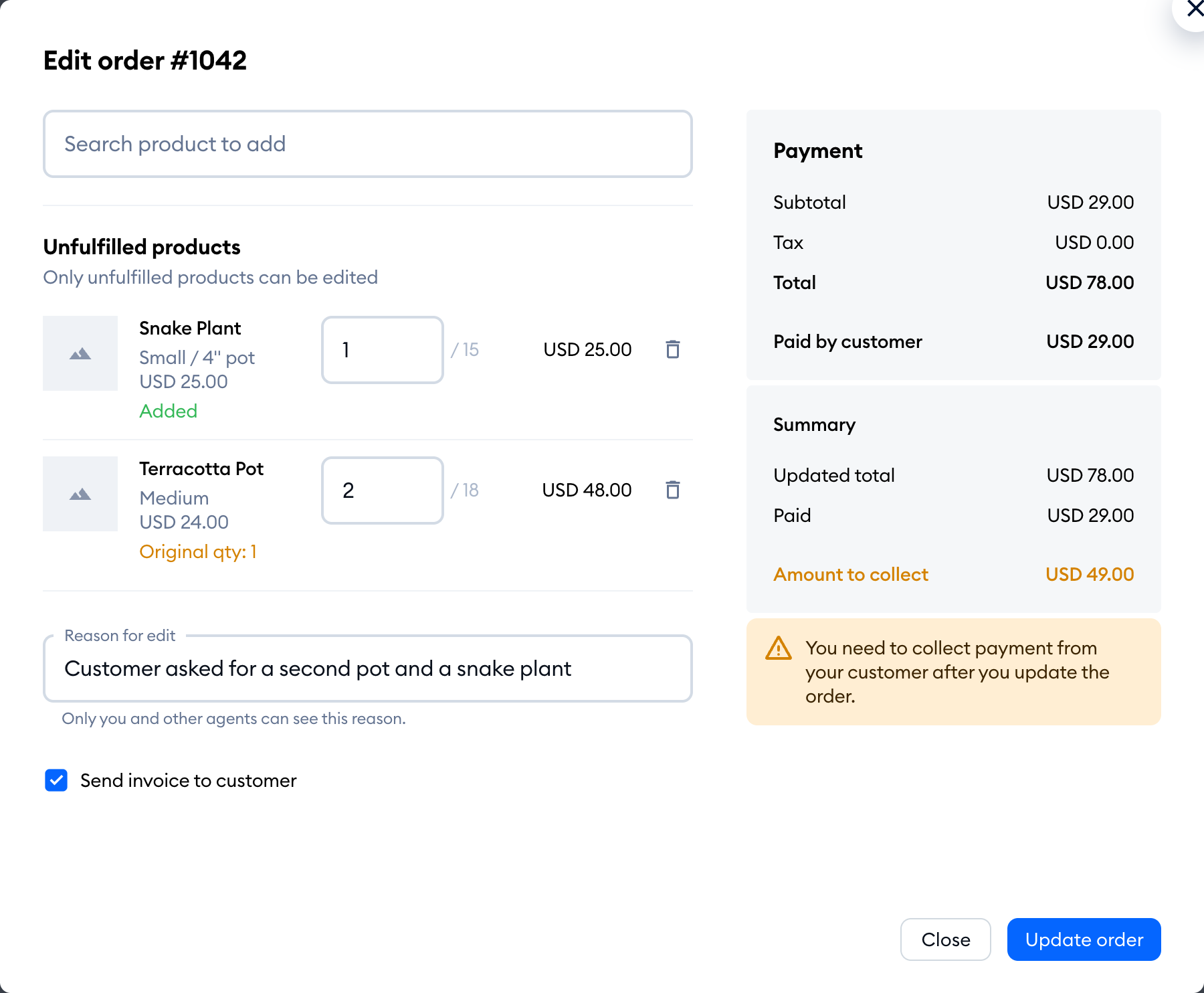
Please note: updating the order doesn't charge or refund your customer by itself. The window reminds you: You need to collect payment from your customer after you update the order. (or You need to refund your customer after you update the order.).
If the order has no unfulfilled products left, you'll see There are no products to edit - you can still add new products to the order.
Change shipping address
In your Tidio panel, you can also change the address connected to an order of your customer. Expand Shipping & Tracking in the order on the right side of the conversation panel to see the current address and an option to change it.
To change or edit the address, click on the Edit shipping address button under the Shipping & Tracking section.
Once you click on the edit button, you'll see a window where you can type in the new address.
To finalize, click Save to save the changes.
