In this article, you'll learn:
- How to install Tidio via Plugin (Shopify Market)
- How to connect an existing Tidio project
- How to activate the Tidio widget on your website
- How to install Tidio with the JavaScript code (advanced)
Install Tidio via Shopify plugin
The best way to install Tidio on your Shopify store is by our official plugin available in the Shopify App Market.
To install Tidio on Shopify, log into your Shopify account and select the store to which you would like to add Tidio. Next, click on the Apps tab and type in Tidio in the Apps search bar.
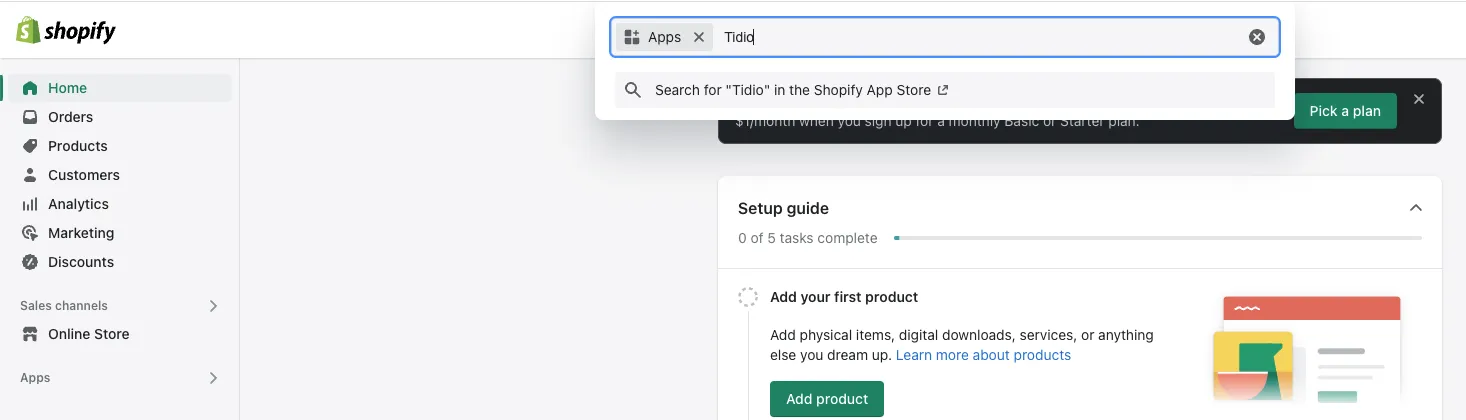
Select Tidio Live Chat & AI Chatbots and click on the Add app button to download Tidio and add it to your Shopify store.

Select the Install App button on the page that follows. That will transfer you to your Tidio panel where you can customize your chat.
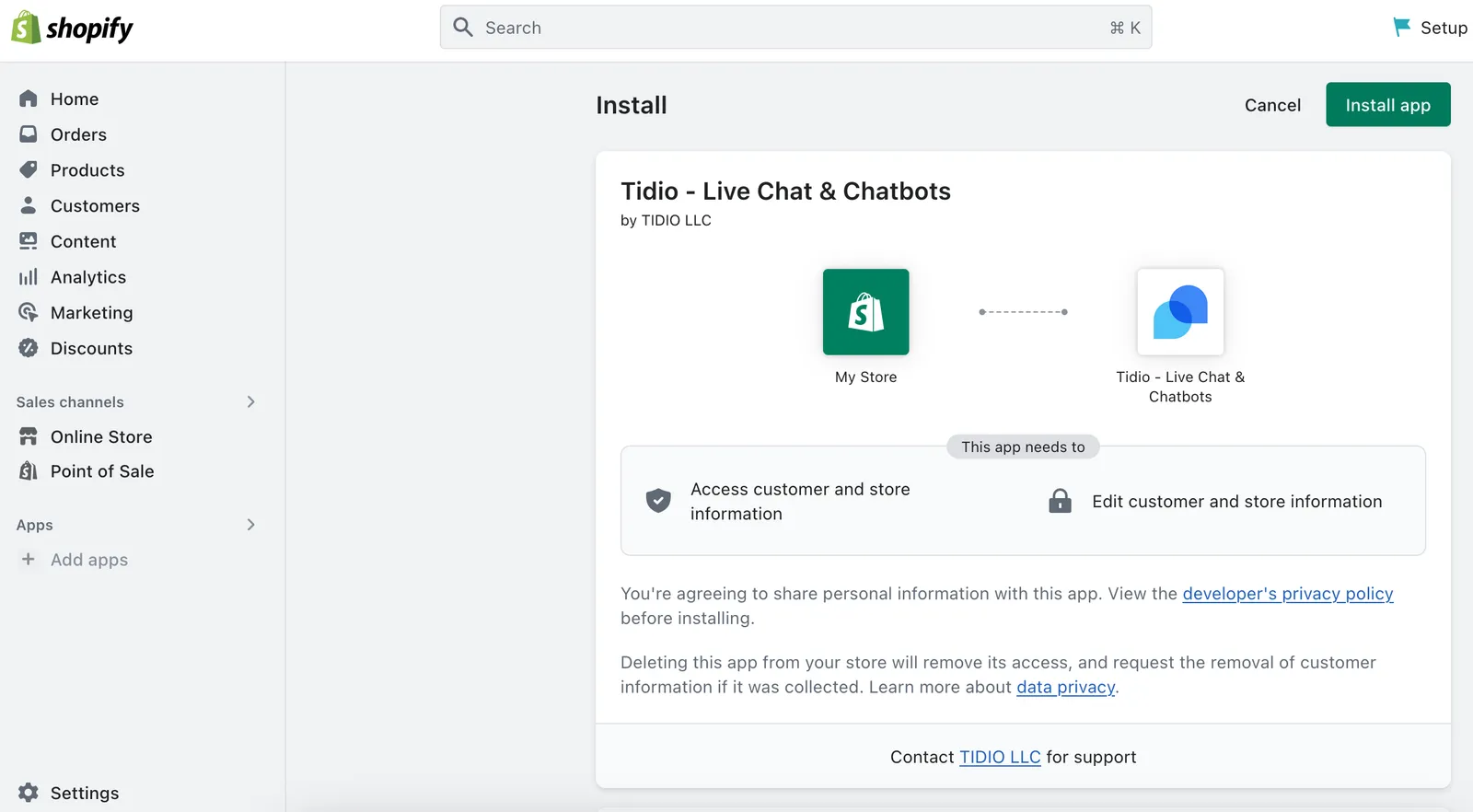
All set. Tidio Chat is installed!
The following steps will take you to your admin panel, where you can customize your chat widget.
Log into & configure the Tidio Chat Panel
Tidio opens the Welcome to Tidio page. New to Tidio? Click on Create a new account. As a new user, you'll begin the product tour, where we'll ask you some basic questions about your business and possible Tidio usage. Thanks to some additional information, we’ll adapt the Tidio to your need to improve your experience and help achieve better results.
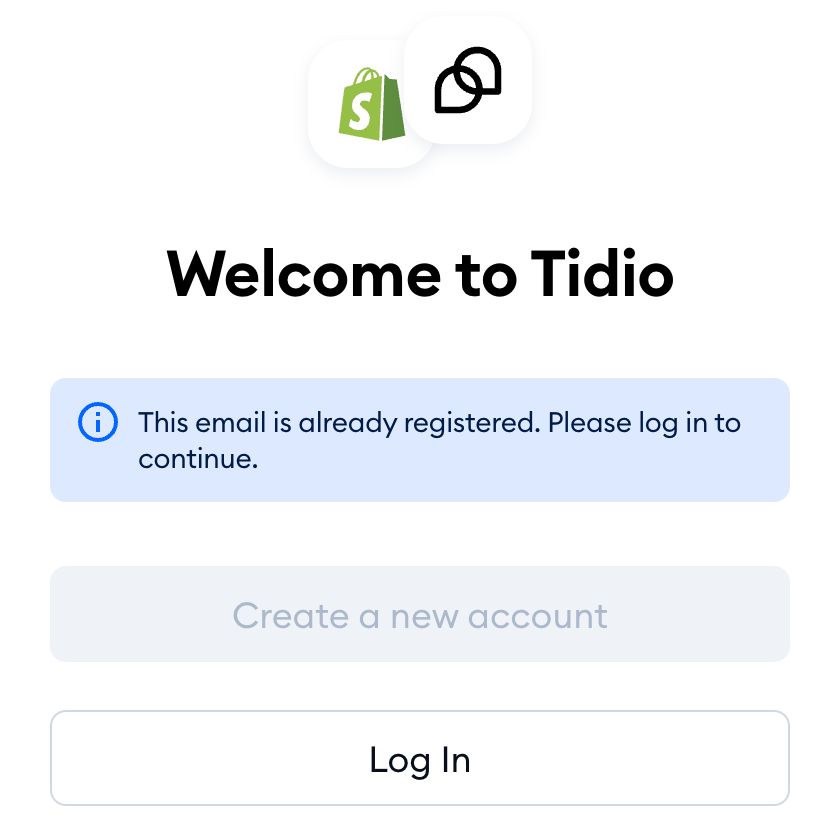
If you see This email is already registered. Please log in to continue., you already have a Tidio account - simply click on Log In and connect one of your projects, as shown below.
Connect an existing Tidio project
Already using Tidio? You can connect your project to your Shopify store through the app, too. Click on Log In and sign in with your Tidio email and password. On the Choose a project screen, pick your project in Select project and hit Integrate selected project. Prefer to start fresh? Click on Create one next to Would you like to integrate a new project?:
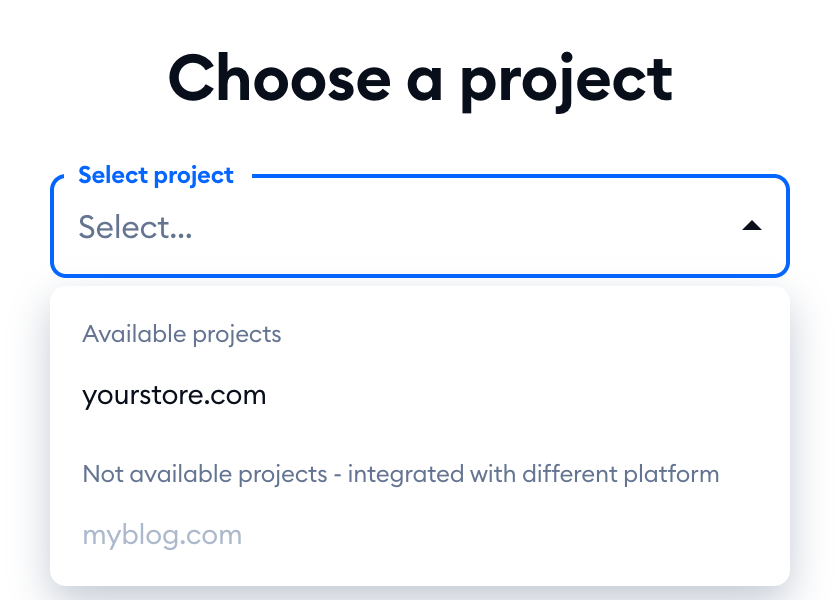
Projects that are already connected with another platform, or with a Shopify store, are listed under Not available projects - integrated with different platform, and you can't pick them. If none of your projects can be used, Tidio asks you to Create a new project instead.
Please note: only the owner of a project can connect it with a Shopify store - otherwise, you'll see Only the owner of the project can integrate platform. A project that already has an active Tidio subscription can't be connected either: you'll see Per Shopify terms, Shopify stores must be subscribed to Tidio through Tidio’s Shopify App. If that happens, please reach out to our support team at support@tidio.com - we'll help you with the change.
After the tour, our chat will be ready to use on your website. Your customers can now write to you on chat!

Activate Tidio App in Shopify
After installing the Tidio App, you need to make the widget visible to visitors to your website.
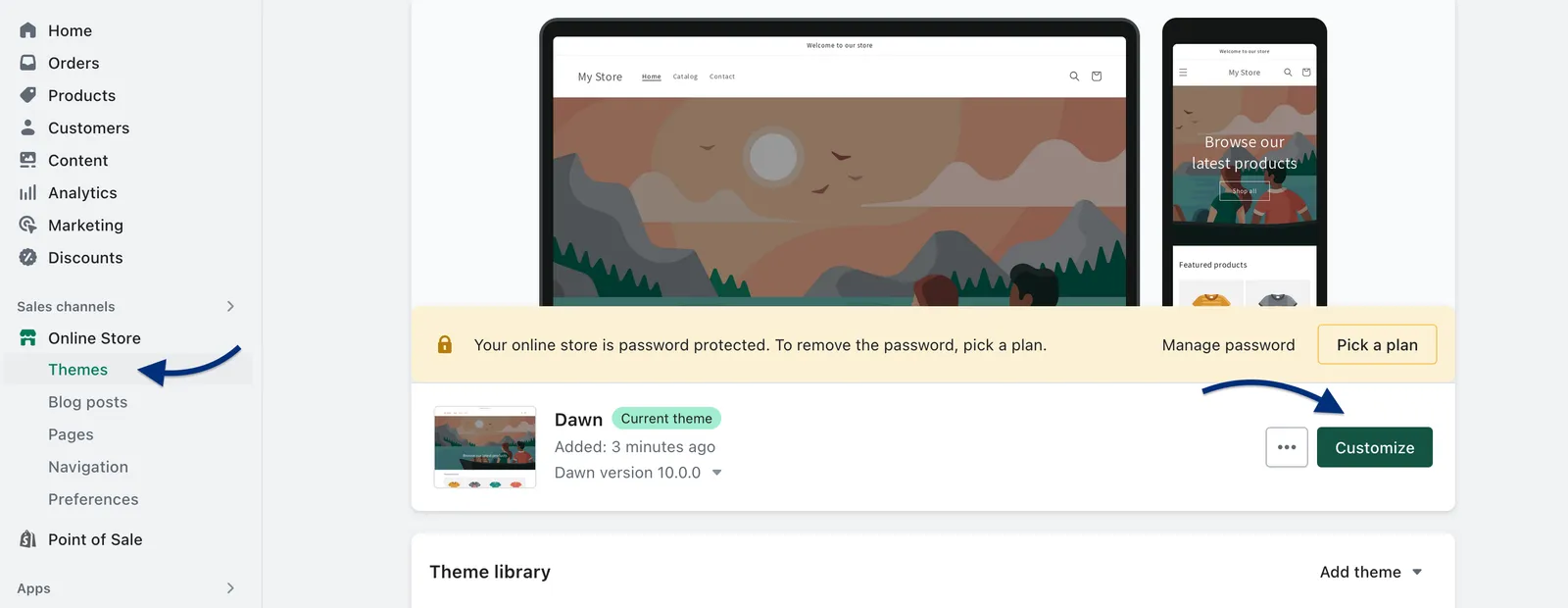
You will make the Tidio widget visible by opening your Shopify admin panel and going to Online Store > Themes section. There, find the theme you want to edit, and click Customize.
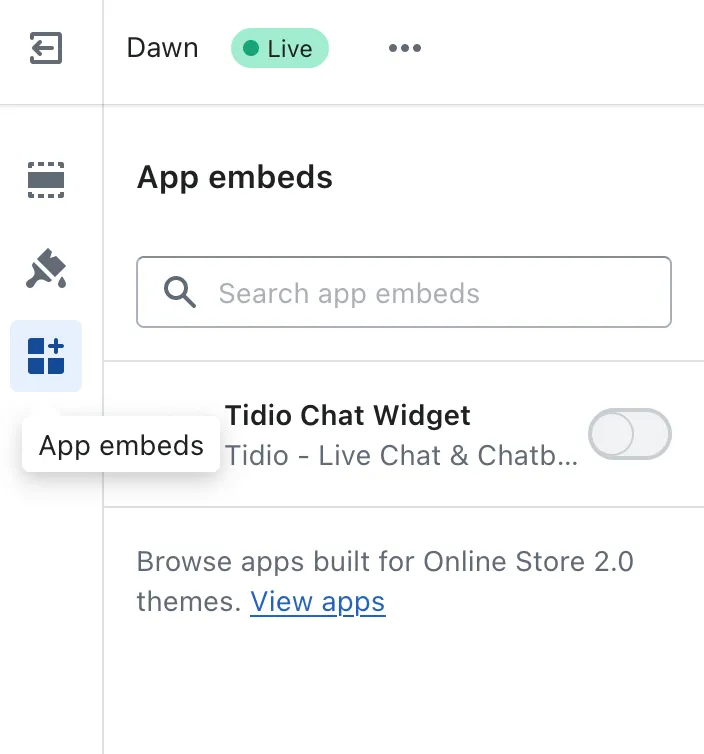
Open the App embeds tab.
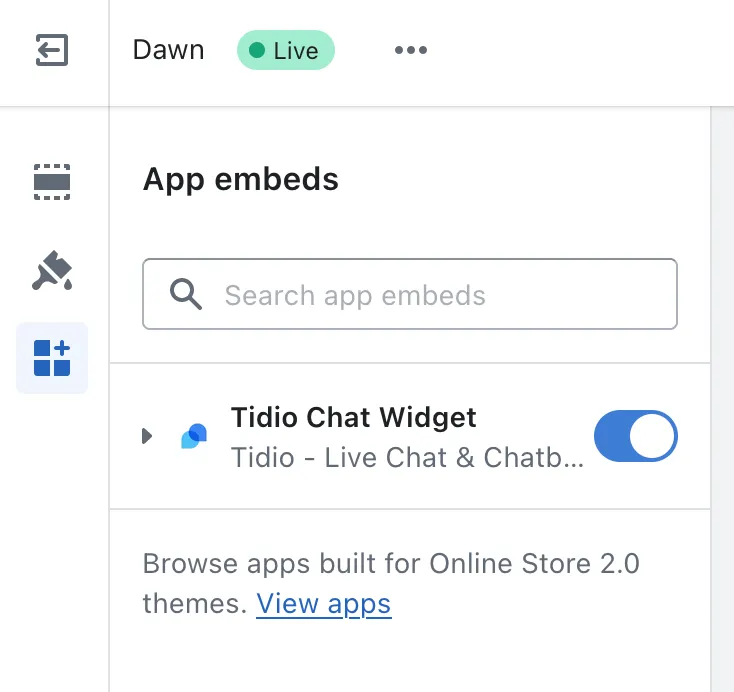
To activate Tidio on your website, enable the toggle next to the Tidio Chat Widget and save the changes.
Activate the widget from your Tidio panel
Your Tidio panel reminds you about this step, too. Until the widget is activated, you'll see Chat Widget is not visible to your customers. Go to Settings to finish the setup. at the top of the panel, with the Complete setup button, and a Show widget to your visitors task on your Getting started list. Both take you to Settings > Live Chat > Installation, which walks you through it in two steps:
- Click on Go to Shopify Theme Editor, turn on the Tidio app embed and save your changes.
- Click on Go to your website - visiting your store is required to activate the widget. Tidio shows checking widget activation until it detects the widget.
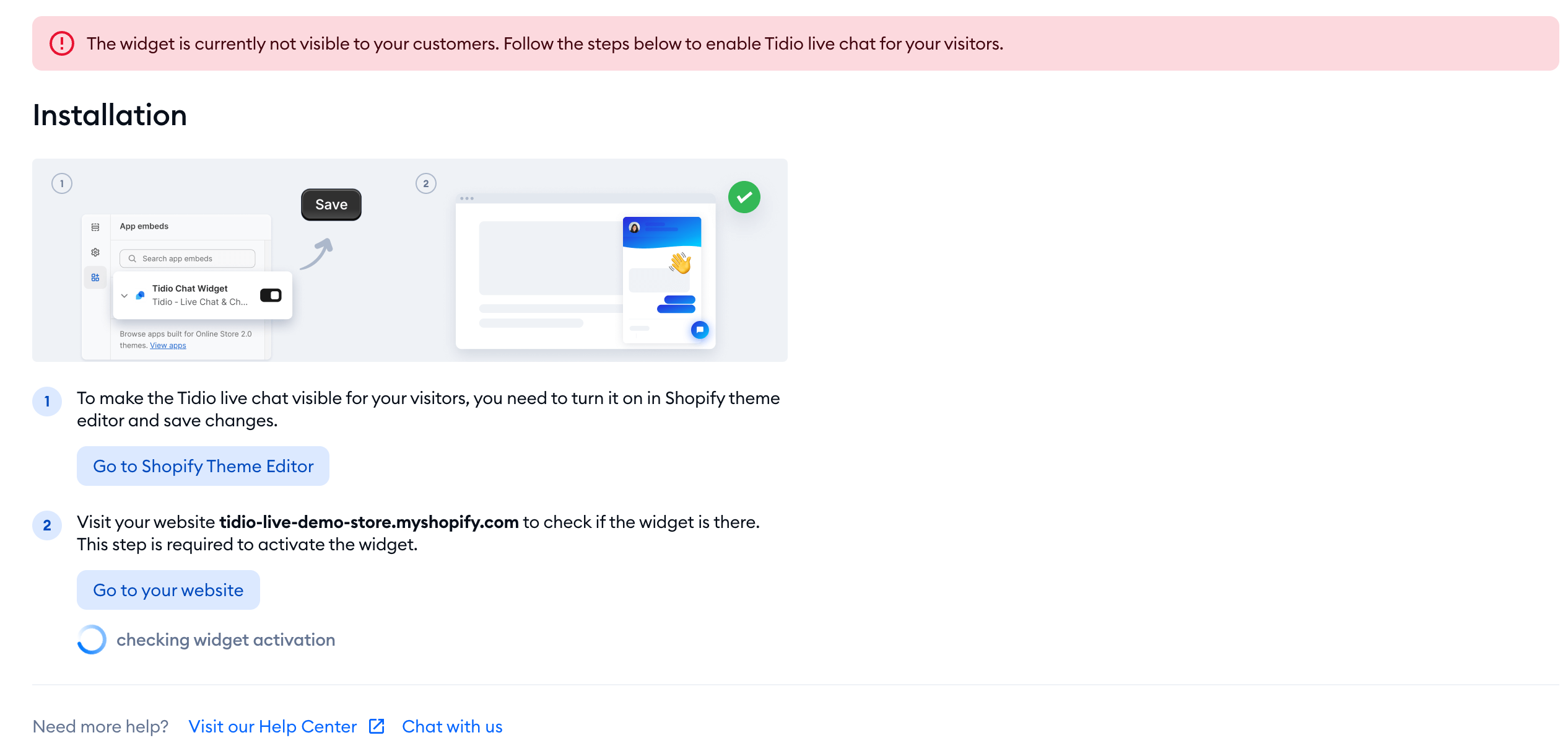
Once it's done, the screen says The widget is installed properly, and you can click on See on your website to check it out.
Alternative - Install Tidio via javascript code
If you prefer to add the chat to your store manually - this is the option for you! Shopify-exclusive flows and automation will still work correctly, although your billing will go directly through Tidio.
You can add an existing project to your Shopify website by adding the chat manually. If you want to transfer your chat from another website to Shopify, please copy the code snippet from your chat panel. You can find your unique javascript code in the Settings > Live Chat > Installation section.
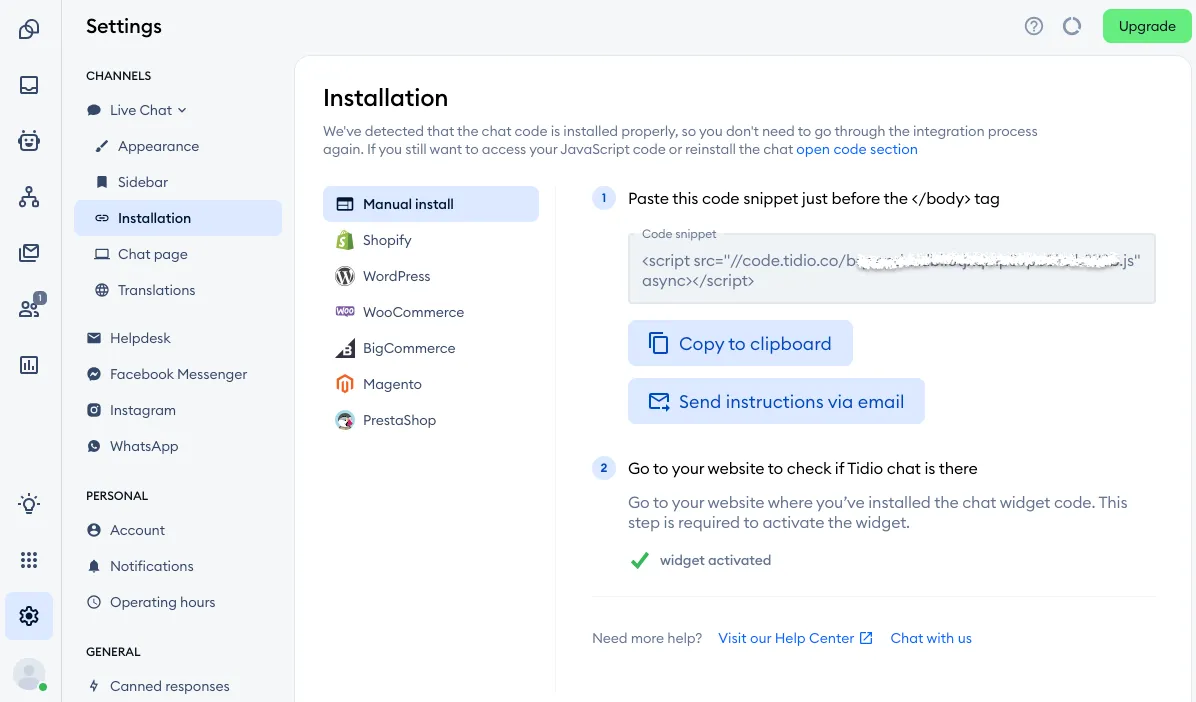
Copy the JavaScript code to your clipboard.
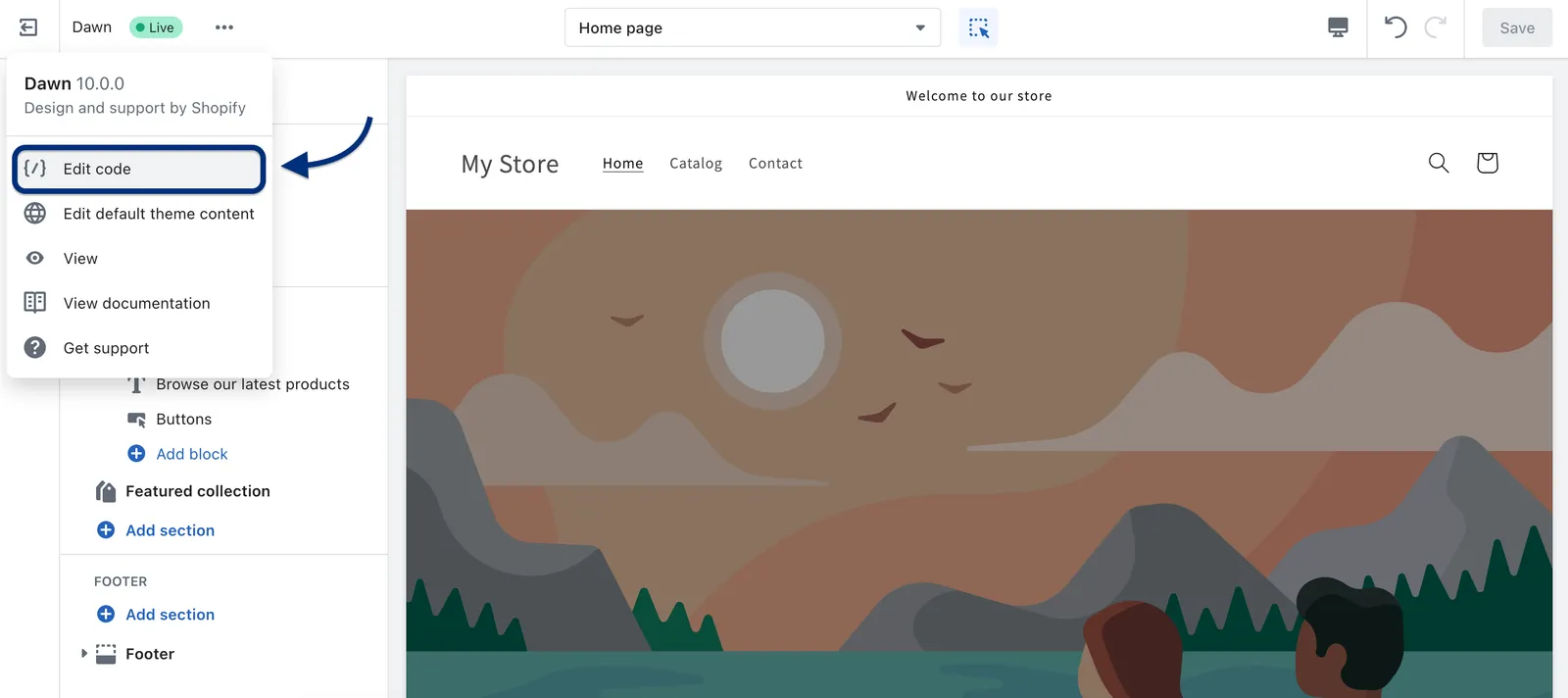
Come back to your Shopify panel. Open the Themes section under the Online Store settings and click on the Customize button.
Click on the three dots menu on the left side next to the name of the Theme. The code editor will open in a separate tab.
Choose the theme.liquid file under the Layout folder and paste the code from above, right before the closing </body> tag. The screenshot below will help you find this.
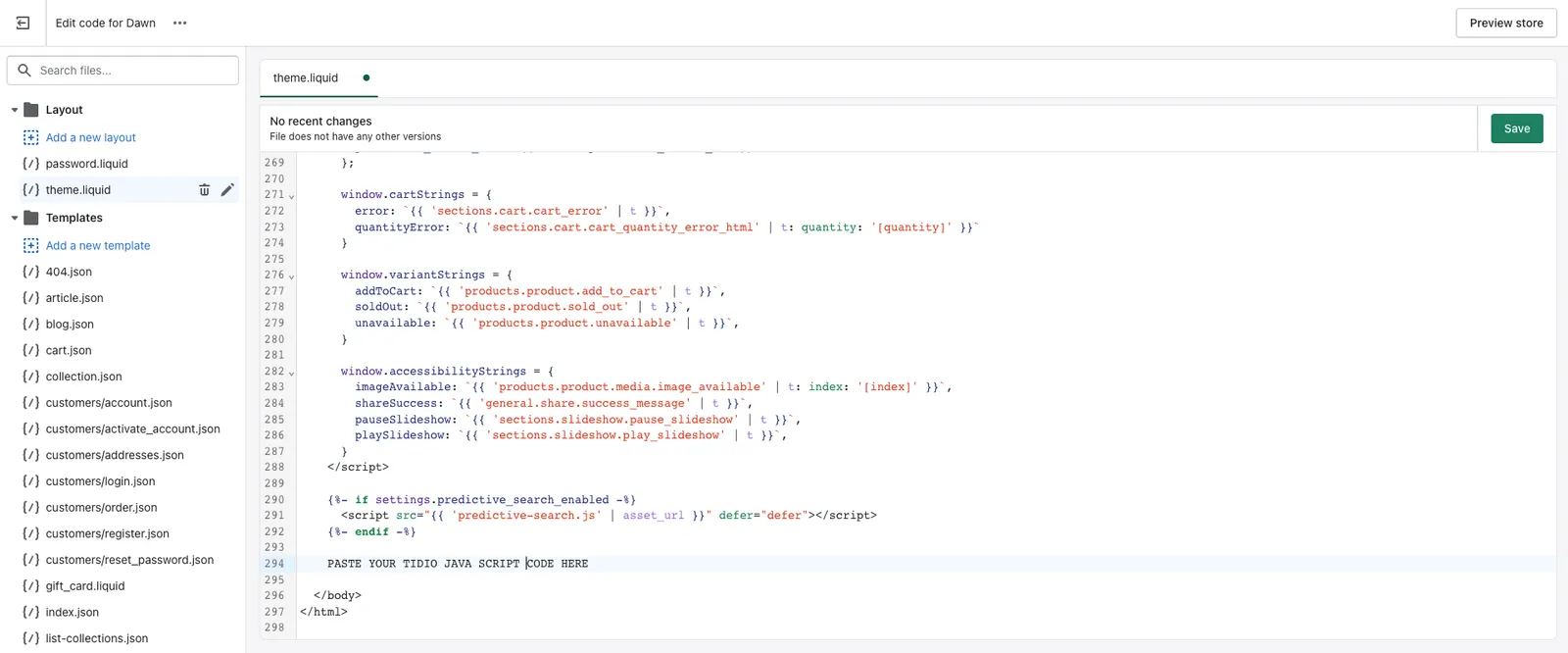
Please remember to Save the changes and refresh your website when you finish.