Each Tidio account has a monthly limit on the number of unique visitors your flows can reach. On the Free plan, the limit is 100 unique visitors per month. We sometimes refer to it as the monthly flow quota - in your Tidio panel, it's called Visitors reached.
This limitation means that your automated flows can only serve a specified number of unique visitors per month. It doesn't matter how many times your flows run for each of them. Once the limit is reached, the flows stop working temporarily; the quota resets automatically each month, and can be raised by upgrading to a higher package.
In this article, you'll learn:
Checking your flow limit
You can check your current available quota limit by heading over to the Tidio Dashboard section, where you'll find different insights about your Tidio account. In the Current usage section, the Flows line shows your Visitors reached this month, out of your limit, and the date of the next reset (Quota resets:):
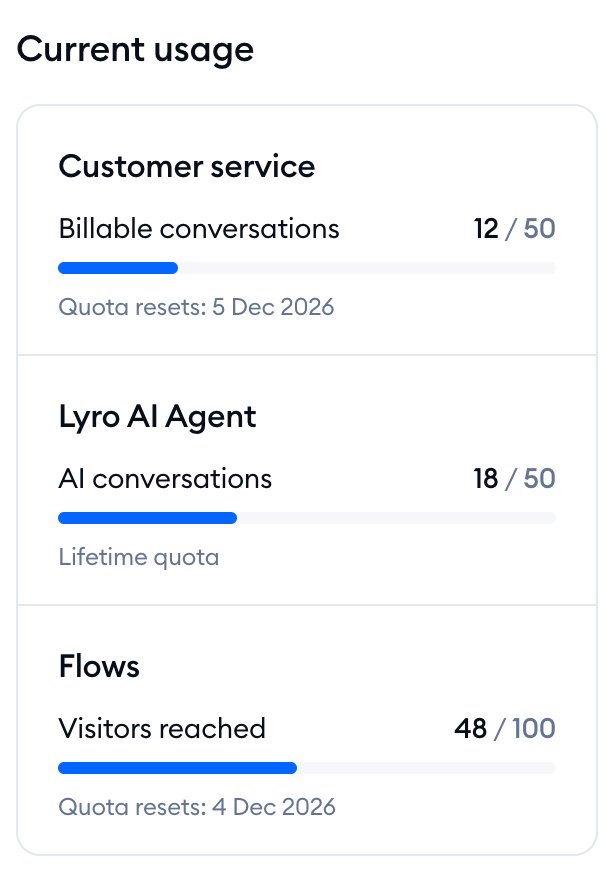
In the example above, the dashboard is showing 48/100 for the monthly limit - which means that the account's flows have reached 48 unique visitors so far (out of 100 available).
You can also check the current state of things by clicking on the Usage and plan button in the top-right of your Tidio panel:
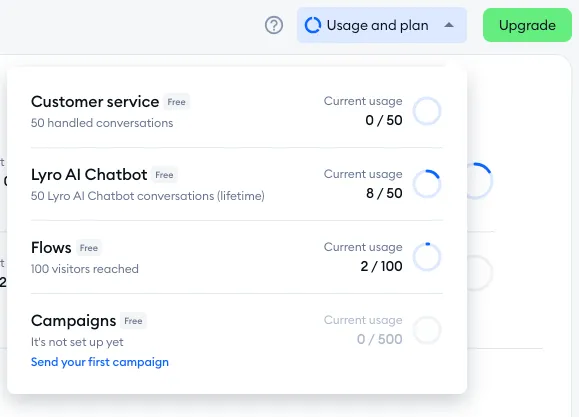
Please note: during your 7-day trial, the Flows line can show that your flows are unlimited until the trial ends, and how many visitors you'll be able to reach per month after that.
Calculating the flow quota
The available quota is calculated on the number of unique visitors who have been reached by your flows. It does not matter how many flows a single unique visitor has triggered, or how many times; what counts is only the number of actual people for whom flows have been executed.
Example A: Let's say you have added a flow that welcomes all your new website visitors. This flow will trigger and send a message each time a brand new (unique) visitor enters your site. That means one visitor will be deducted from your monthly quota for every new arrival on your website.
Example B: If you do not have a flow that welcomes every single new visitor, but rather a flow that only executes when someone clicks on the chat icon - then only those unique visitors will be counted against your available quota.
In conclusion: a single visitor on your site can trigger many flows during the month, and that would only count as one visitor reached against your monthly flow limit.
Please note: Lyro (the AI agent) can use your flows quota too. Proactive roles run on Flows and count toward your visitors reached, and so do Lyro Simple Actions (legacy) - formerly Lyro Tasks - as they are essentially flows executed during active Lyro conversations.
Reaching the flow limit
When you reach your monthly limit, the flows will stop working (e.g. stop greeting new visitors).
To keep track of your limit, check the Dashboard of your Tidio panel or click the Usage and plan button in the top-right. You will see how many more visitors your flows can still serve this month. In a flow's statistics (click on the flow's name in My Flows), the Executed chart also marks the days when the limit was reached and refreshed - hover over the icon to see Automation limit reached or Automation limit refreshed.
Please note: your live chatting ability is not affected by the flow limit. Your visitors can still chat with you as usual (unless you've also reached the monthly chat conversations limit). The flow limit resets every 30 days (counting from the day you've activated Tidio or purchased your Tidio upgrade), or immediately upon purchasing a higher package.
If you find you need to reach more than 100 unique visitors a month, you can consider upgrading to a paid Flows package, which increases your limit of visitors reached. See how to upgrade your Tidio account in this article.
