Each Tidio account has a limit on how many conversations you can handle each month. We refer to this as the monthly conversations limit (or quota), or the number of monthly billable conversations. The limitation is crucial if you are primarily using Tidio for responding to live chats. However, it also applies to communication via tickets (emails) as well as via Tidio's integrations (Messenger, Instagram, WhatsApp).
You can monitor your current quota anytime, and there are upgrades available if you require a higher monthly quota to accommodate the amount of incoming chats you need to reply to.
In this article, you'll learn:
- How to check your conversations quota
- How the conversations quota is calculated
- What to do when you reach your monthly limit
Checking your current limit (remaining quota)
On the Free plan, Tidio offers a monthly limit of 50 conversations. Starter gives you 100 conversations a month, on Growth you choose from 250 up to 2,000, and Plus and Premium come with a custom limit (see Which upgrades do I need?). As time goes by and your team responds to incoming messages, the available quota will gradually deplete.
You can check the current state of your monthly quota in your Tidio panel. Click on the Usage and plan button in the top-right, and you will see several useful pieces of information - including the amount of billable conversations this month:
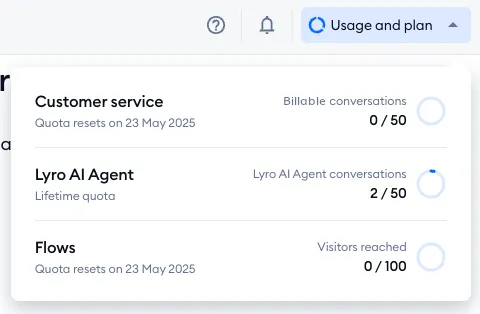
In the example above, the usage shows 0/50 as the current Customer service usage; in this case, it means that no agents have handled any conversations yet (out of 50 available).
The same menu shows when your quota resets next, under Customer service. For more details, including your usage over time, click on View usage details at the bottom of the menu, or head over to Settings > Project > Usage (see Manage your subscription).
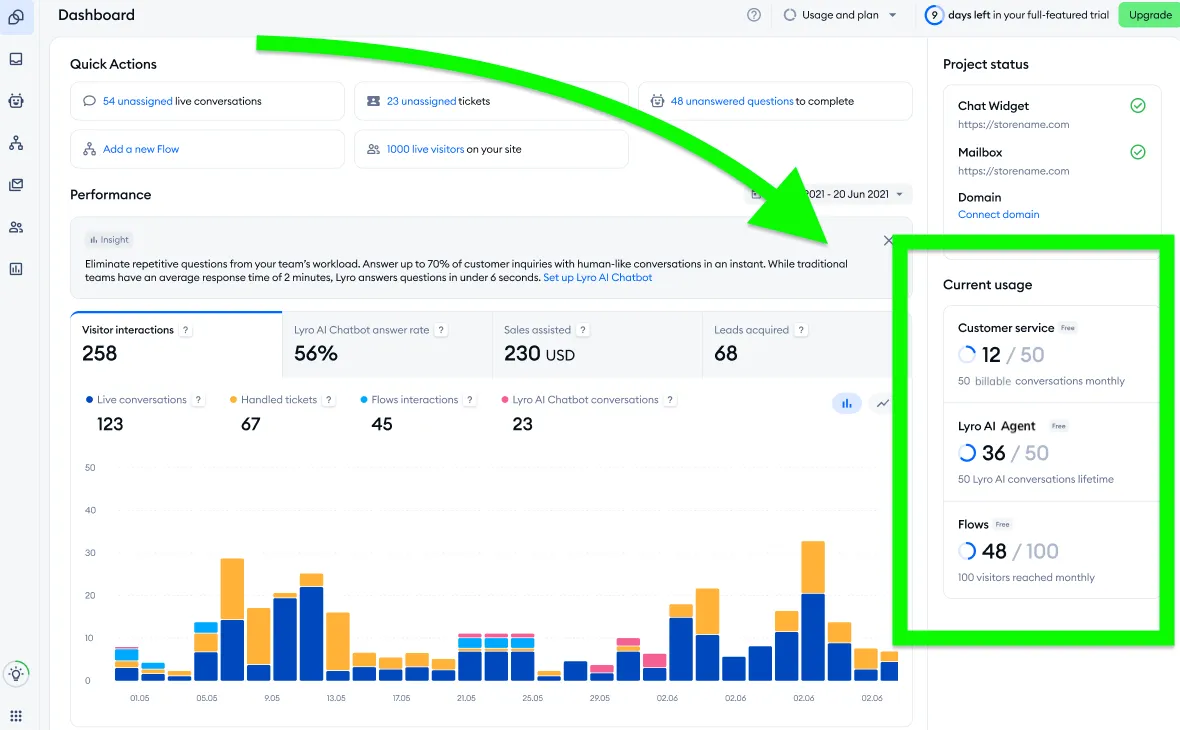
You can also see your current usage in the Dashboard section:
Usage calculation
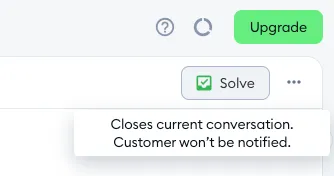
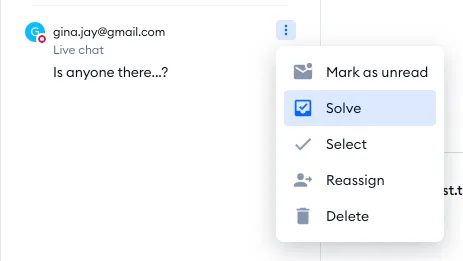
Every conversation your agents handle is counted as one conversation - conversations that only Lyro or your flows take care of don't count. When an agent finishes a conversation, they close it by hitting the Solve button, available in the top-right of every active conversation:
... and as one of the options when you click on the three dots for a specific conversation on the left:
In practice, that means each conversation thread (where an agent responds to incoming messages) is counted once it is finished - no matter how many messages have been exchanged in the process.
This applies to live chats coming from your website (or Chat Page), as well as conversations handled through Tidio's Messenger, Instagram, and WhatsApp integrations. Email communication within the Tickets folder is also counted, although every ticket thread is simply counted as one conversation handled, no matter how short or long the thread is.
Basically, all your Tidio communication between agents and end-users is calculated against the available monthly quota.
Reaching the limit
When you get relatively close to reaching your monthly limit (80% of what you have available), the Usage and plan button in the top-right turns into Limit almost reached. Click on it to see how much of your monthly limit you've used:
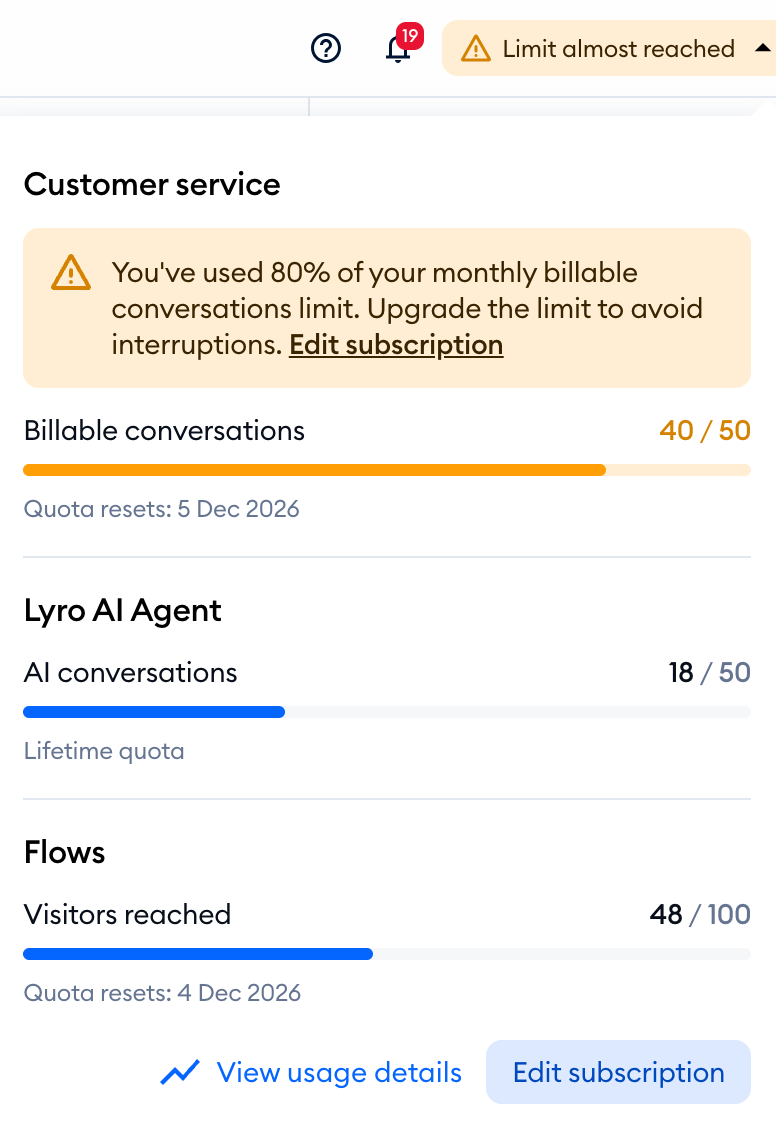
You will also be prompted to upgrade to a higher package in order to raise your available quota, as that will allow you to keep responding without the immediate risk of losing the ability to chat. Once you hit the limit, the button reads Limit reached.
If you do reach the limit at any point, however, you will no longer be able to respond to incoming messages, nor see their details:
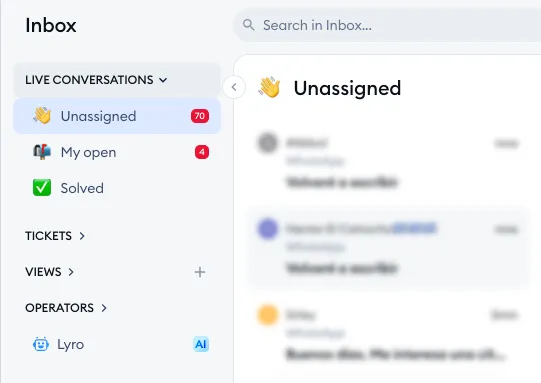
Apart from upgrading to a higher package (which would allow you to start chatting right away), you can also wait for the quota to reset automatically. The quota resets once a month - you'll find the exact date in the Usage and plan menu, under Customer service. If you ever have doubts about this functionality - don't hesitate to reach out to us!
On a monthly paid plan, you can also let Tidio raise the limit for you: with Automatically upgrade the limit once it's reached switched on, your limit moves to the next tier when you reach 95% of it. You'll find this switch in Settings > Project > Billing, under your package - it isn't available on annual or custom plans, or on the highest tier. Learn more in Automatic upgrades.
Of course, it is also a good idea to get familiar with the upgrades we offer. You can learn more about the available packages and their features in this article.
Further reading
- Which upgrades do I need?
- Automatic upgrades
- Manage your subscription
- The free version and downgrading your account
