If you're ready to unlock Tidio's premium features and take your experience to the next level, you're in the right place!
In this article, you'll learn:
- How to select the right plan
- How to upgrade your account
- How to manage your subscription
- What our refund policy is
See all of our current plans on our pricing page. If you'd like to see a general overview of what we currently offer, please see this article about our available packages.
Select your packages
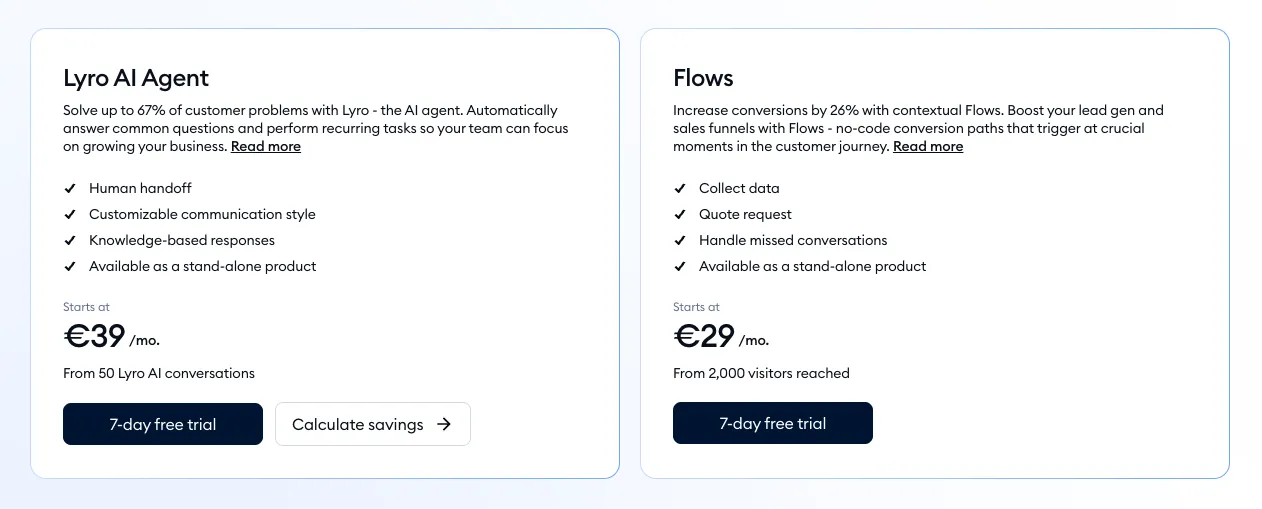
The pricing page will give you an overview of the available packages and their feature sets. When you enter the pricing page, you will see two main navigation options to choose from at the top: Lyro AI Agent + Tidio Help Desk and Lyro AI Agent only. This simply changes the layout of the pricing page and the visible options, so that you can focus on the aspect of Tidio that you're interested in.
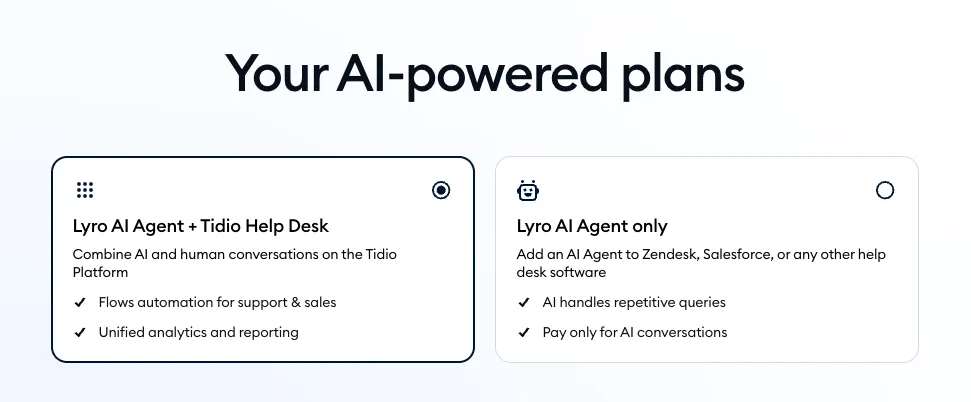
Underneath, you can also switch between the monthly and annual billing options, which let you see the different monthly costs associated with each.
Lyro AI Agent + Tidio Help Desk
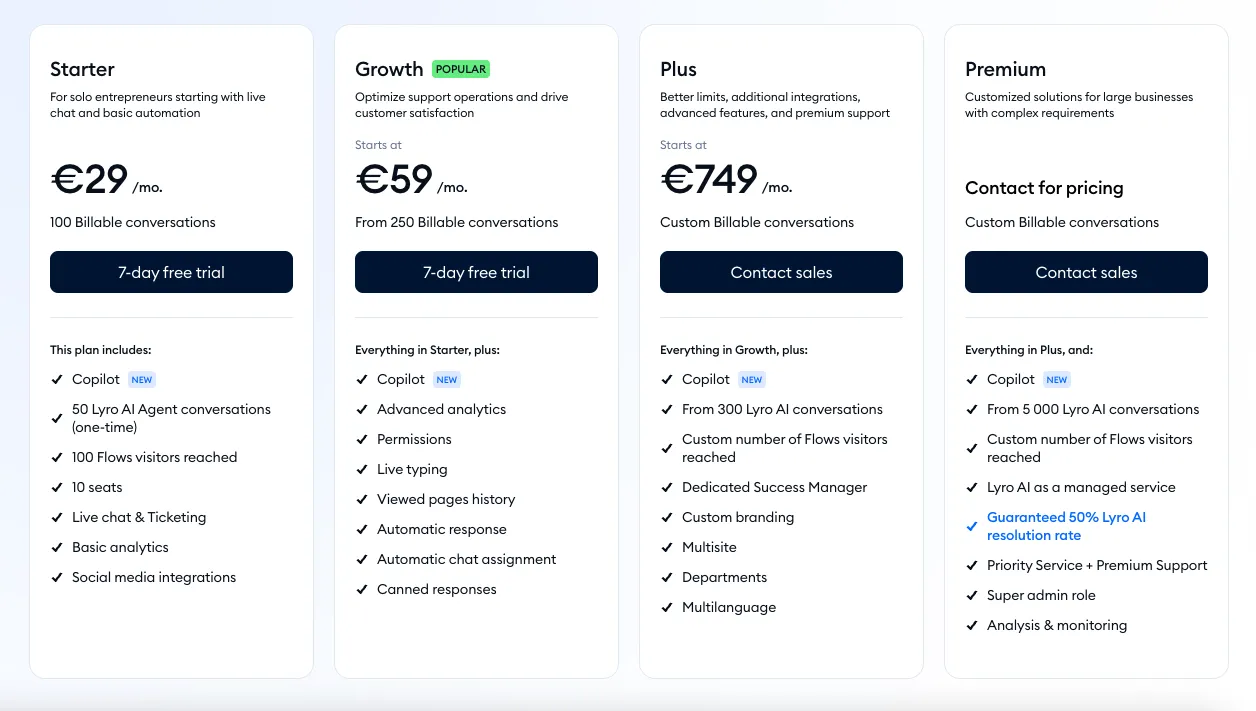
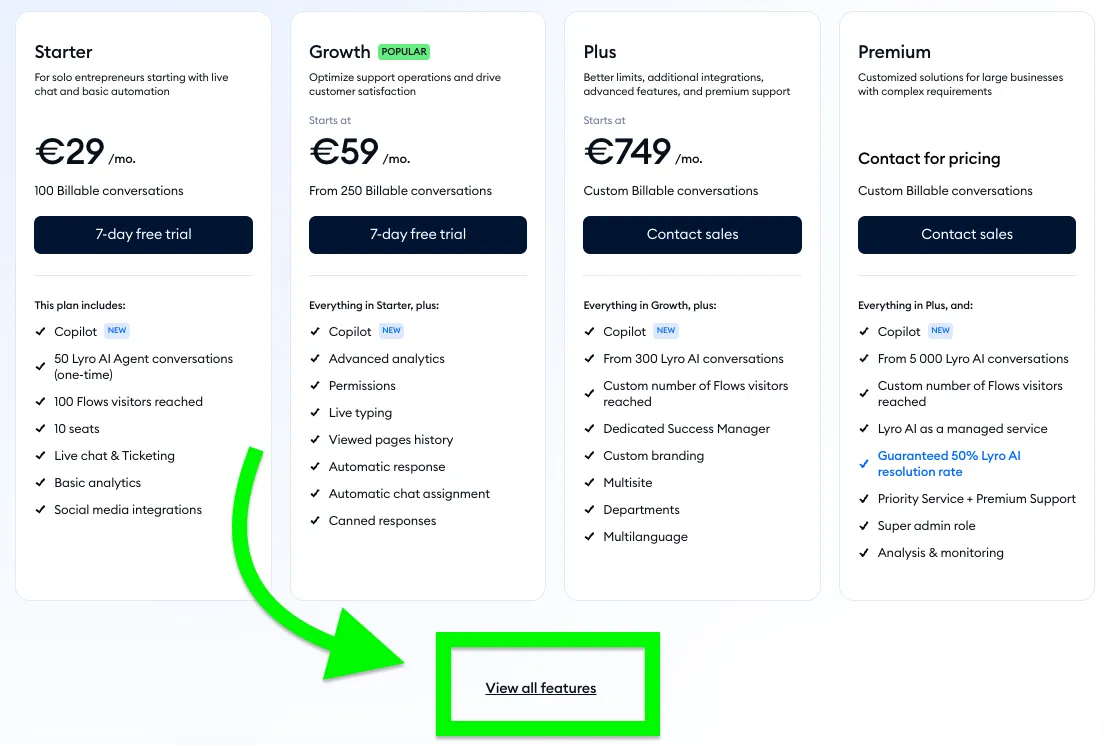
Under the Lyro AI Agent + Tidio Help Desk option, you will see four main packages with their highlights: Starter, Growth, Plus, and Premium:
In this mode of navigating the Pricing page, you can calculate your possible costs with a helpful tool. Use the available sliders to select the number of billable conversations you're expecting to have per month, as well as the number of Lyro AI conversations, and the number of visitors reached with Flows.
These packages include features useful for providing support through live agents, accessing detailed analytics, and customizing your workflow to suit your needs.
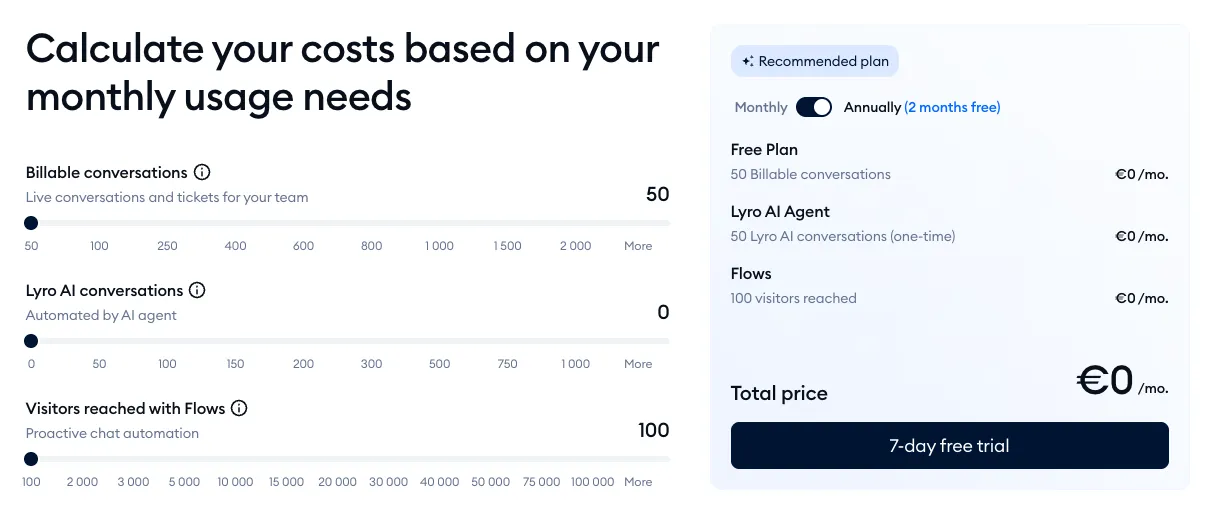
As you change these numbers, the recommended packages will be selected, and the final cost breakdown will be updated accordingly on the right. You can also switch between the monthly and annual billing modes.
Lyro AI Agent only
Under the Lyro AI Agent only option, you will see three packages: Core, Plus, and Premium:
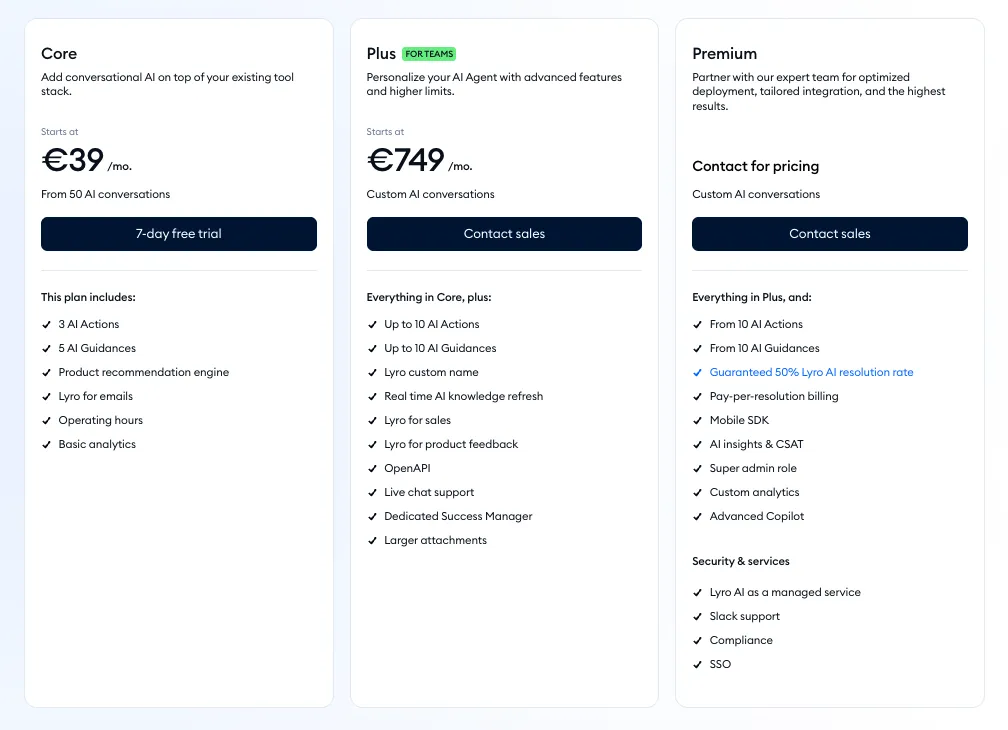
Overall, the two main options (Lyro AI Agent + Tidio Help Desk and Lyro AI Agent only) are independent of each other and can be purchased together or separately.
Deciding about the package(s) you need
All of Tidio's functionalities are separated into different packages, and you choose the packages you find most useful for your business. Every new project starts with a 7-day full-featured trial; when it ends, you choose the packages you need, or continue on the free versions.
There are two steps to selecting your plan in general: choosing one of the four main packages, and then choosing which versions of the Lyro AI Agent and Flows packages you'd like.
You can also see the full list of features (along with their brief descriptions) if you click on the View all features link underneath the four main packages:
How to upgrade
To upgrade your account, click the Upgrade button in the upper-right corner of your Tidio panel.

Please note: the Upgrade button is only shown to agents who have access to billing. Other agents see Ask your admin to upgrade. when they hover over a paid feature.
You'll see a screen with an overview of the available plans. Study the options listed to find out which features you think are best for your business needs.
If you have doubts regarding any of the features, head over to our article about what packages to choose.
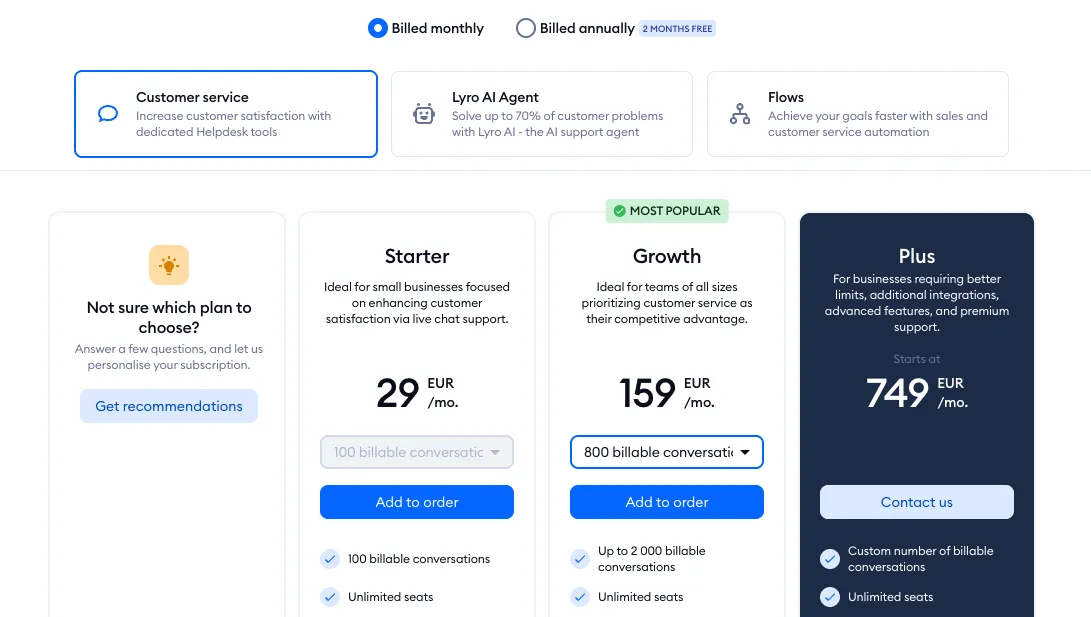
You can select a base Customer service package by clicking the Add to order button under one of the options (or Contact us for the Plus package, as that can only be activated by our dedicated team):
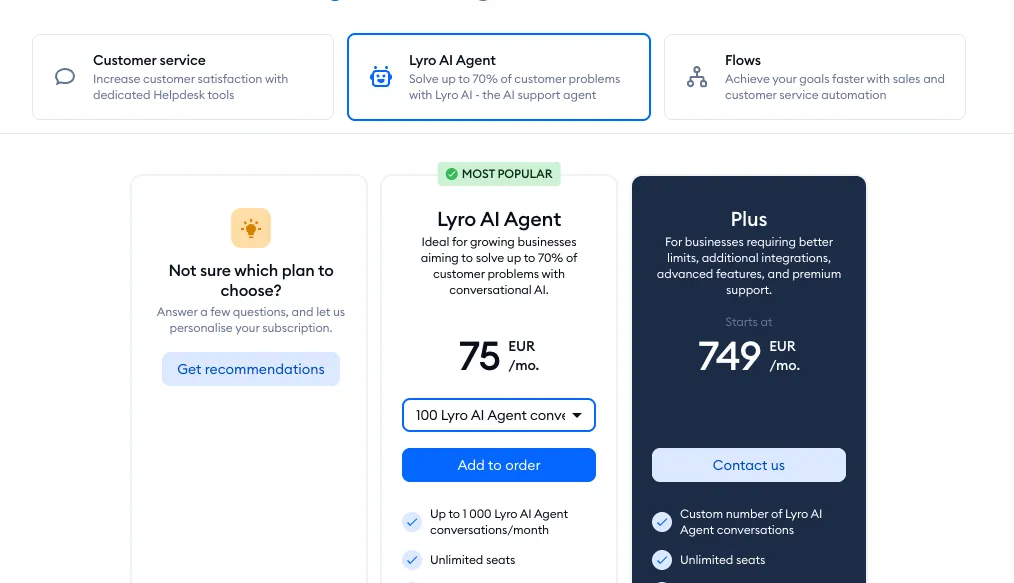
Of course, if you need the Lyro AI Agent upgrade, you can select the appropariate package for that as well:
The same goes for the Flows package, where you also choose the level you need:
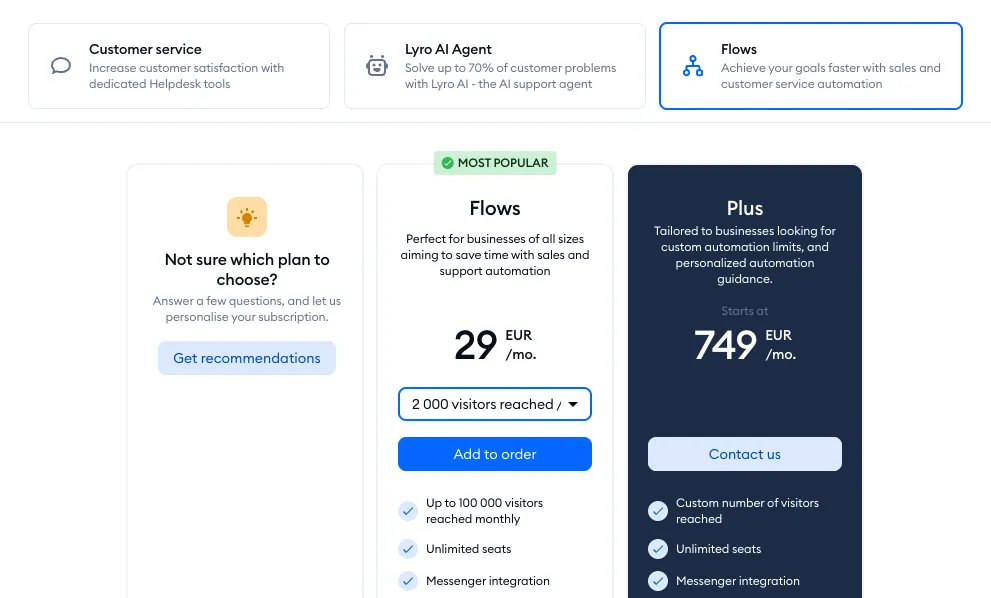
Make sure you also choose the monthly or annual billing mode at the top, depending on how you prefer to be billed:

You can review your order in the cart, and adjust any available details for every package you've added, as well as add a discount code if you have one.
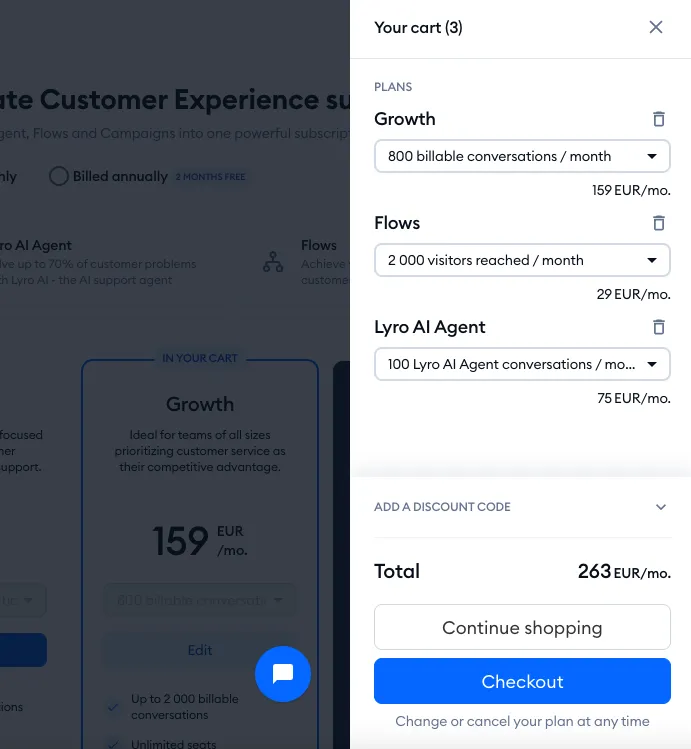
If you are satisfied with your order, you can click on the Checkout button to move onto the final step.
Now, you need to ensure everything is exactly the way you want it. Here you can still modify the package details (Manage your plans and Manage other limits) or billing mode (Choose your billing frequency). You can also decide if you want your subscription to be automatically upgraded to a higher level if any limit is reached, with the Automatically upgrade the limit once it's reached switch under a package (you can learn more about this option here). The switch isn't shown when you pay annually.
This is also where you can add add-ons to your plan, under Choose add-ons - for example Help Center, Inbox AI or No Tidio branding (the Voice add-on is currently in beta). Add-ons are available with paid plans only, so pick a plan first; you can read more in Add or change add-ons on your subscription.
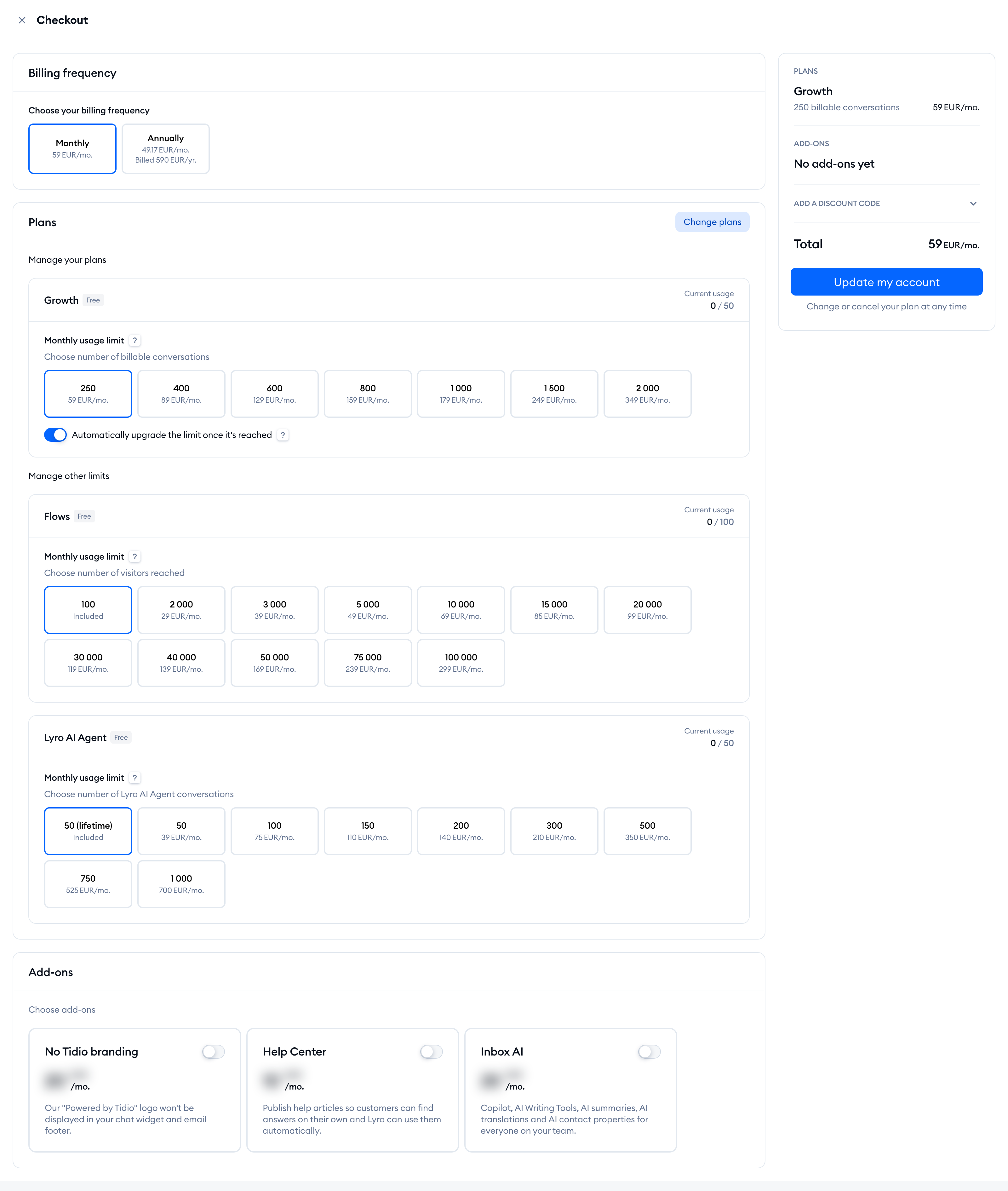
If all is in order, you can confirm your choices by hitting the Update my account button.
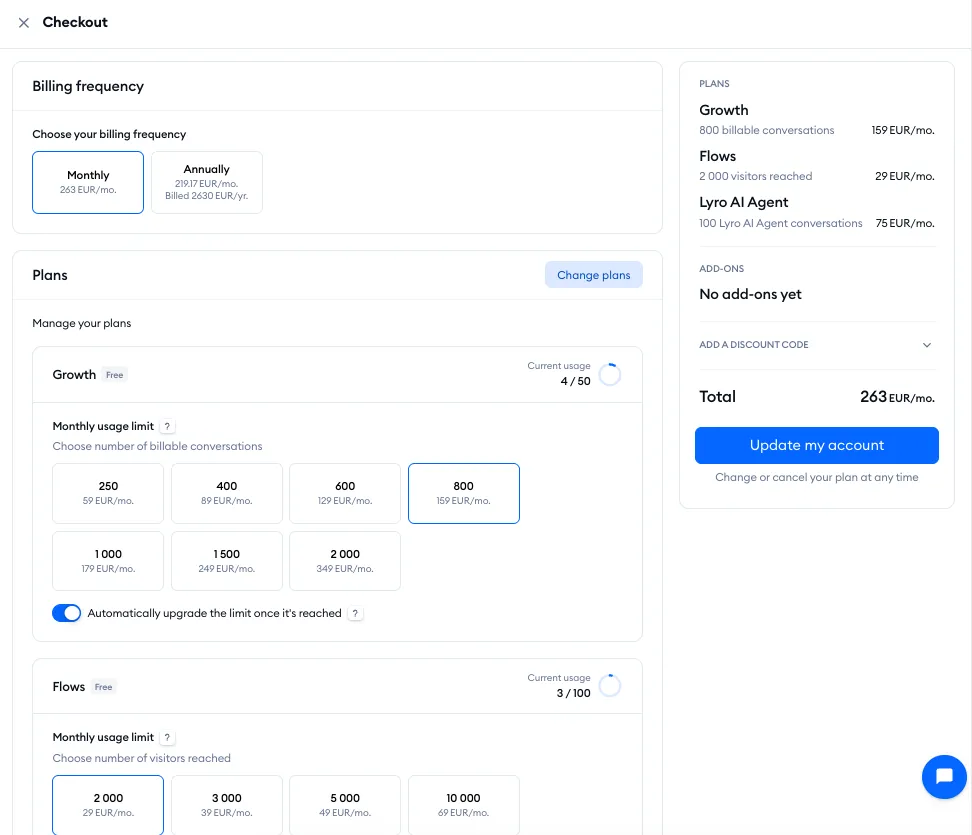
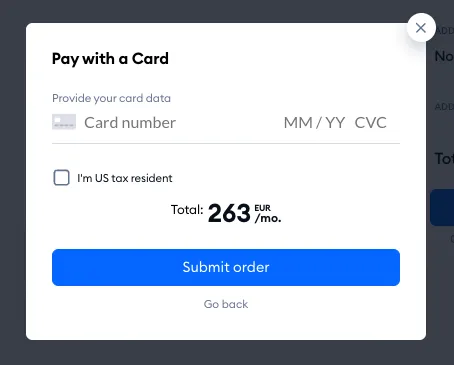
Once you do, you will see a popup to provide your card details. Fill out your card details in the Pay with card window and click Submit order to confirm:
After completing the payment, you should see a window confirming that the subscription has been added to your account.
Awesome! Now you can start using our premium features 🚀.
Manage your subscription
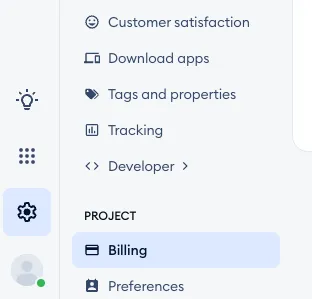
After successfully upgrading your account, you can manage your subscription in the Settings > Project > Billing section. On the Subscription tab, you can expand the account even further or cancel your subscription; on the Billing details tab (not shown if you pay through Shopify), you can update your billing details and download invoices. Your usage has its own page, Settings > Project > Usage.
To learn more, see our article about managing your existing subscription.
Refund policy
If you don’t want to subscribe to our paid plans anymore, you can cancel the subscription at any time and keep what you paid for. You’ll remain on the paid plan until your next payment is due. To learn more, check our article on canceling your paid plans. After that, your account switches to the Free plan.
In case of any more questions in regards to the refunds, please contact our support by sending us an email at support@tidio.net
