Want to get a little more out of your Tidio plan? Add-ons are extra products you put on top of your paid plan - AI tools for your whole team in the Inbox, a Help Center for your customers, or a chat widget without our branding.
You can add one in a couple of clicks, right from your Billing settings, and change or remove it later. This article shows you how.
In this article, you'll learn:
- Which add-ons are available
- How to add an add-on to your subscription
- How to add an add-on on the upgrade page
- How to change or remove an add-on
- What to do if you can't add an add-on
Available add-ons
To see the add-ons you can get, head over to Settings > Billing, open the Subscription tab, and scroll down to the Add-ons section - Choose additional products to fully customize your plan. Available with any paid plans.
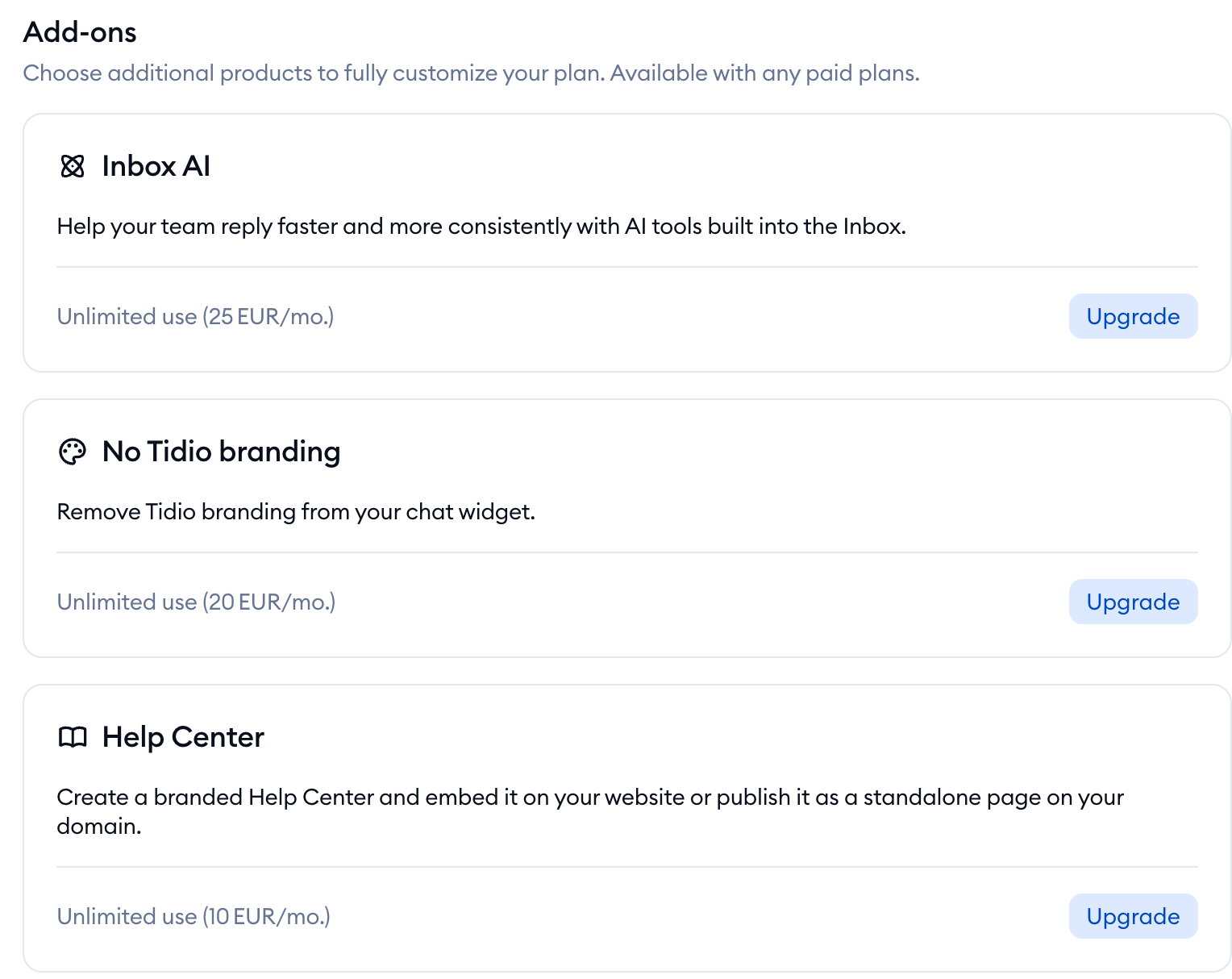
Here's what each add-on gives you:
- Inbox AI - Copilot, AI Writing Tools, AI summaries, AI translations and AI contact properties for everyone on your team. You can add it to the Starter and Growth plans. Its price is based on your plan's monthly conversation limit - the add-on window says Inbox AI pricing is based on your billable conversations limit. For more, please see The Inbox AI add-on.
- Help Center - publish help articles, so customers can find answers on their own and Lyro (the AI agent) can use them too. It's available with any paid plan. For more, please see The Help Center add-on.
- No Tidio branding - our "Powered by Tidio" logo won't be displayed in your chat widget and email footer. You can get it on the Growth plan.
Each card shows Unlimited use - there are no seats or usage limits to keep track of - and the add-on's price for your plan.
The Voice add-on, for answering customer phone calls in your Tidio inbox, is currently in beta.
Please note: only the project owner and agents with the Billing permission can open Settings > Billing and buy add-ons. Also, if your project takes part in the Inbox AI beta, you won't see the Inbox AI card - you can use its features free of charge for now.
Adding an add-on to your subscription
In the Add-ons section, find the add-on you'd like, and click on its Upgrade button. You'll see the Get [add-on] add-on window. It lists what's included, the monthly (or yearly) price of the add-on, your new subscription total, and the amount Due today - a prorated charge for the rest of your current billing period. Simply hit the Add [add-on] button:
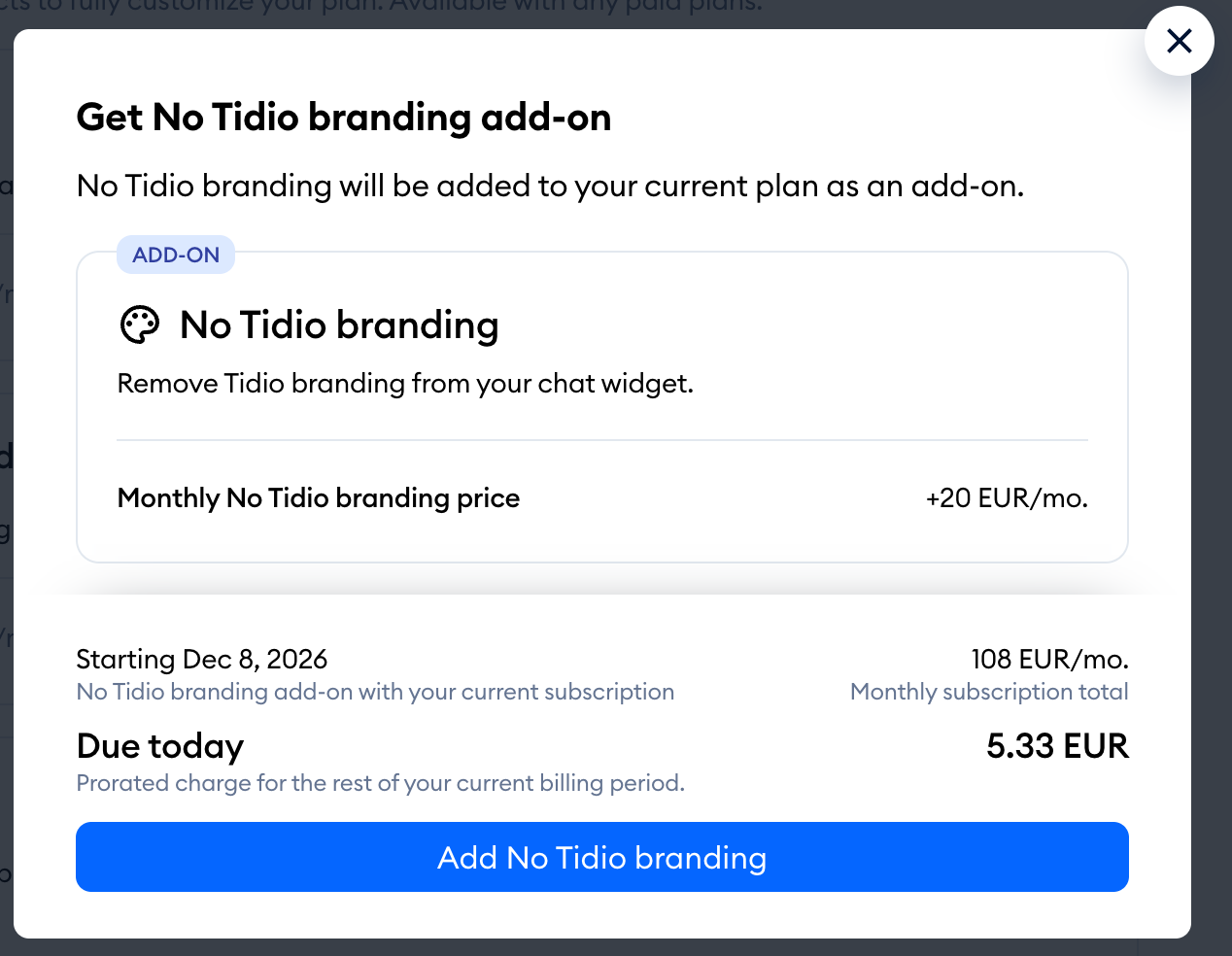
That's it! You'll see the [add-on] added successfully to your subscription. message, and the add-on is ready to use. In the Subscription tab, it now shows the Paid add-on badge.
A few things you might see along the way:
- If you've cancelled your subscription and your paid features are still running, the window says the add-on will be added to your current plan as an add-on, and your cancelled subscription will be resumed.
- If your card is declined, you'll see We couldn't charge your card for [add-on]. Update your card and retry the payment. - click on Retry payment to try again. If the payment is still going through, the message says Your payment for [add-on] is still processing. We'll add it once it goes through.
- If you pay for Tidio through Shopify, you'll be taken to Shopify to approve the change.
You can also get the Inbox AI and Help Center add-ons right where you need them - for example, when you click on Translate in a conversation, or try to publish your Help Center. Tidio will offer you the same window there.
Adding an add-on on the upgrade page
Changing your plan at the same time? Then add your add-ons on the upgrade page. Click on Edit subscription at the top of the Subscription tab, choose your plans, and go to the Checkout. Scroll down to the Add-ons section, and turn on the switch next to the add-on you'd like under Choose add-ons:
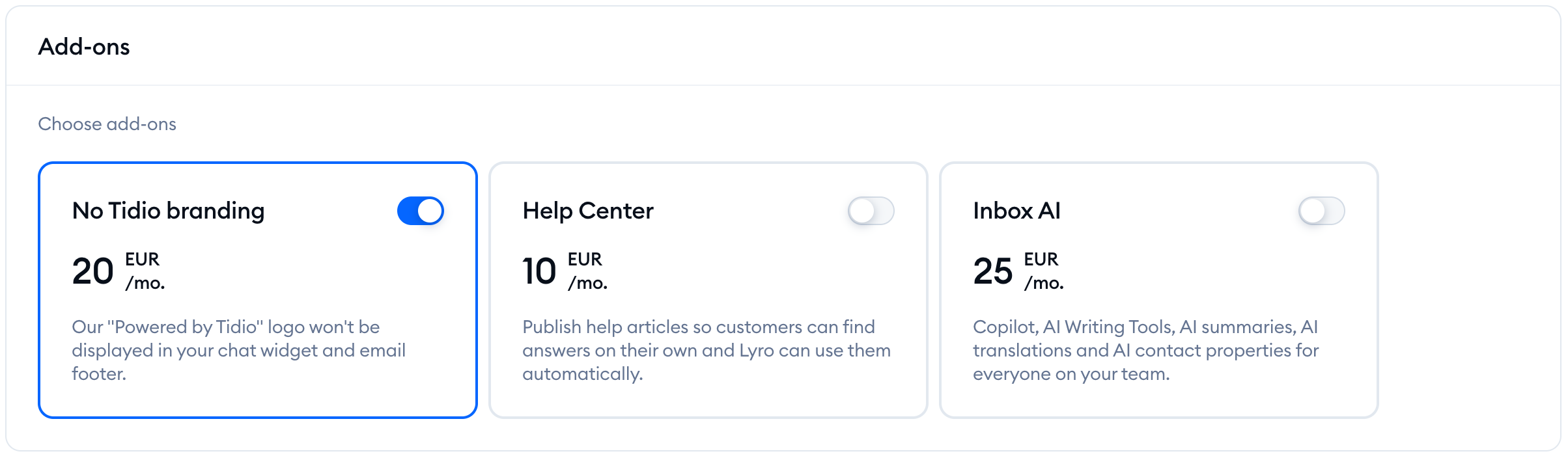
The add-ons are grayed out until you choose a plan they can be combined with - hover over one to see which plan you need. The Inbox AI row appears once you've chosen Starter or Growth, and it always matches your plan's conversation limit.
When you're ready, confirm your order with the button on the right - Update Subscription if you already have a paid subscription (or Update my account if you don't). For more on the upgrade page, please see Upgrading your Account.
Changing or removing an add-on
Once you have an add-on, its card sits right below your packages in the Subscription tab, with the Paid add-on badge, your next billing date, and the Edit add-on button:
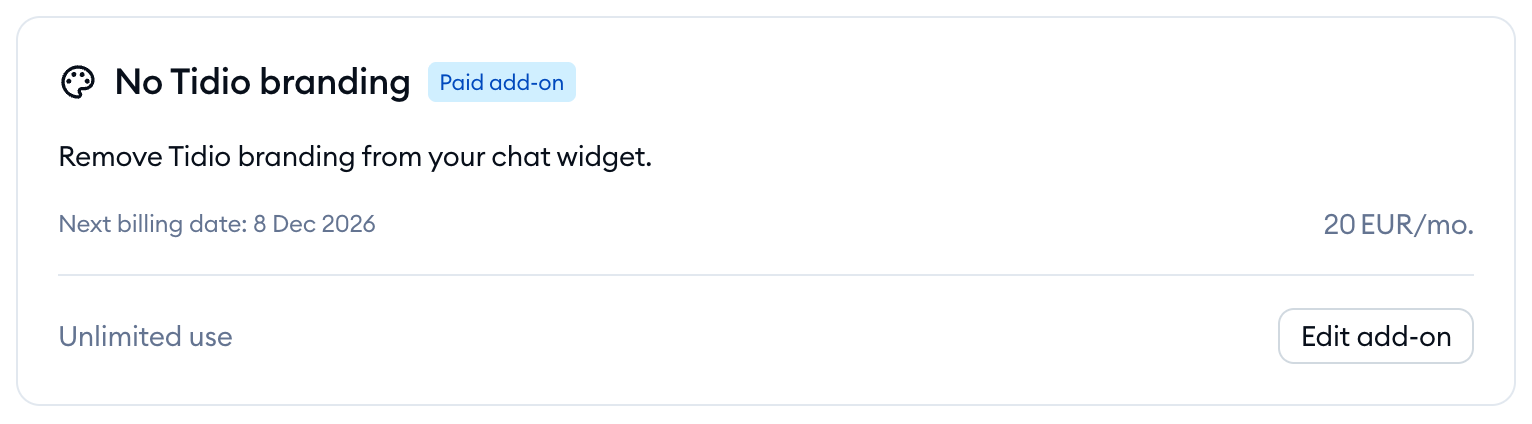
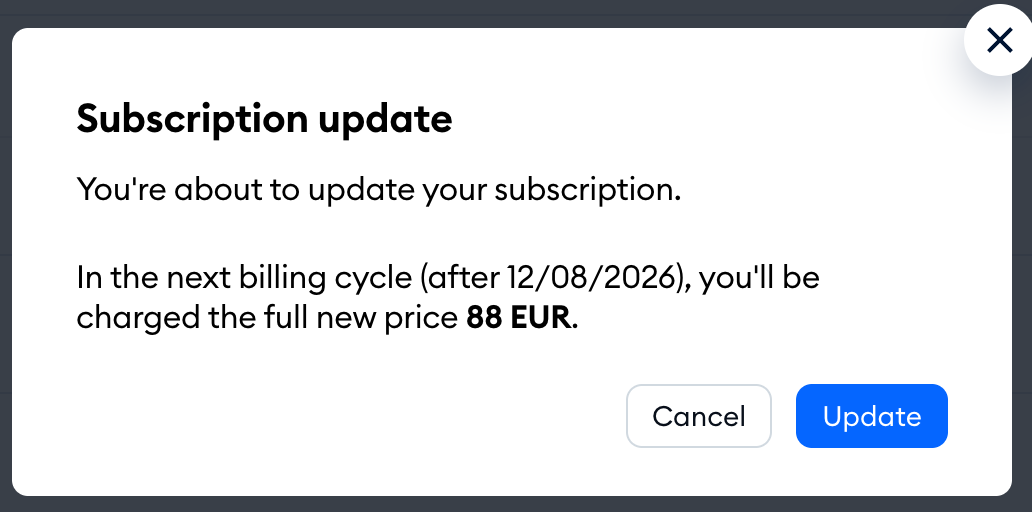
Click on Edit add-on to go straight to the Add-ons section of the Checkout page. To remove the add-on, turn off its switch, and click on Update Subscription. In the Subscription update window, check what changes in your Current billing cycle and Next billing cycle, and hit Update:
A couple of things to keep in mind:
- Inbox AI has nothing to choose - it follows your plan's conversation limit. If you change the limit of your Starter or Growth plan, the Inbox AI add-on in your order changes with it.
- If you switch to a plan an add-on can't be combined with, it's taken out of your order, and you'll see We removed add-on(s) that can't be combined with chosen plan(s).
- Removing the Help Center add-on unpublishes your Help Centers. See what happens to your content in The Help Center add-on.
Want to cancel your whole subscription instead? Please see Manage your subscription.
When you can't add an add-on
If an add-on's Upgrade button is grayed out, hover over it to see why:
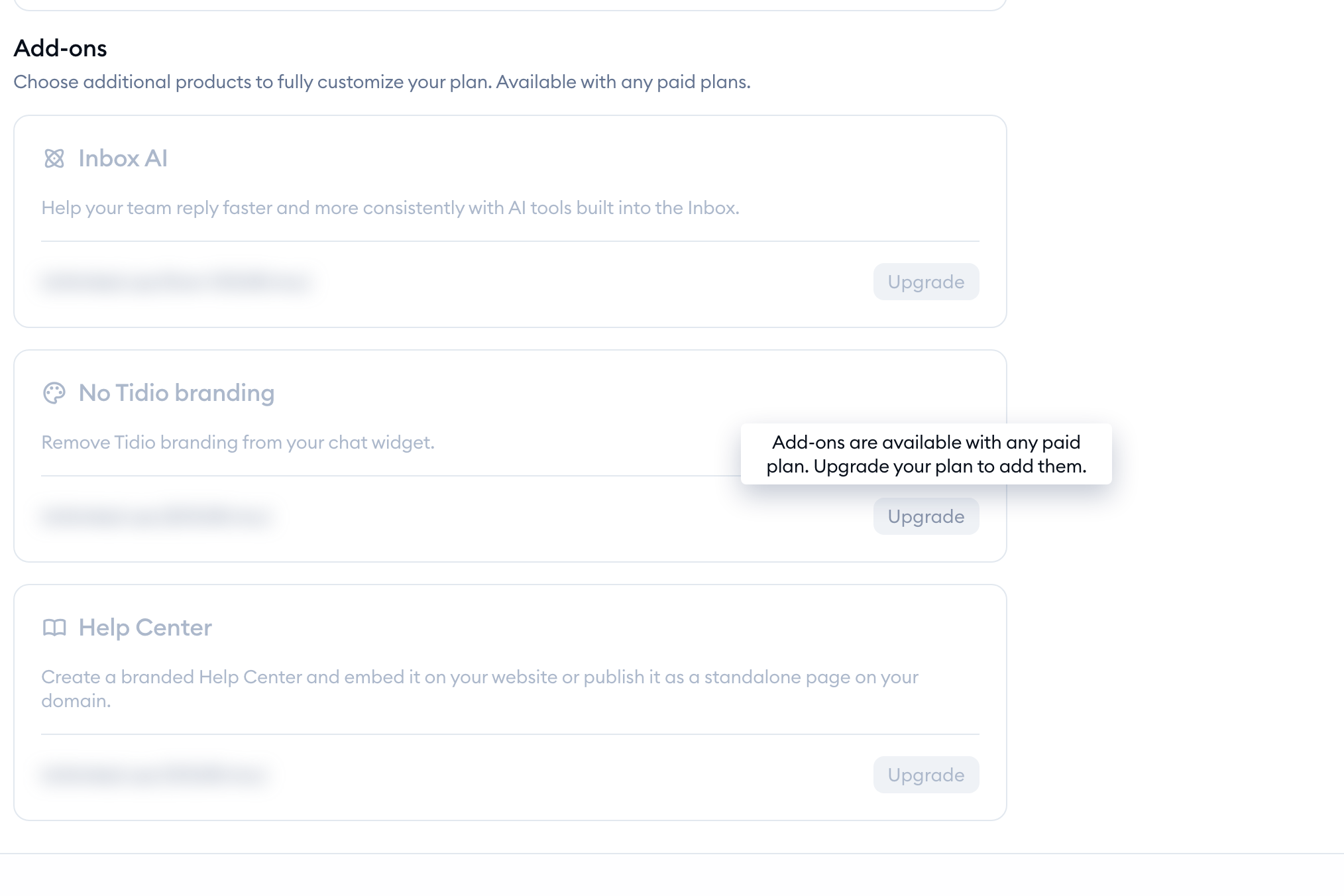
- Add-ons are available with any paid plan. Upgrade your plan to add them. (or [add-on] is available with [plan]. Upgrade your plan to add it.) - you're on the free version, or your plan can't take this add-on. Choose a paid plan first - see Upgrading your Account.
- Finish your pending subscription change to add add-ons. - a change to your subscription is still waiting to be completed.
- We are waiting for bank transfer confirmation - your bank transfer hasn't arrived yet.
- You are using a custom Tidio plan. Please reach out to your customer success manager or our support team if you have any questions about your contract. - on custom plans, like Plus or Premium, our team adds add-ons for you.
Further reading
- The Inbox AI add-on
- The Help Center add-on
- Manage your subscription
- Upgrading your Account
- Which upgrades do I need?
- Customize your chat widget
