You can build your first Help Center for free - but to put it live for your customers, and to let Lyro and Copilot use its articles, you'll need the Help Center add-on.
The add-on is a single upgrade on top of your paid plan, with Unlimited use - no seats or article counts to keep track of. This article explains what it unlocks, how to get it, and what happens if your plan stops including it.
In this article, you'll learn:
- What's free and what the add-on unlocks
- How to get the Help Center add-on
- What happens when your plan no longer includes the add-on
- How to restore access to your Help Center
- How to remove "Powered by Tidio" from your Help Center
What's free and what the add-on unlocks
Without the add-on, you can already:
- Create your first Help Center
- Add categories, and write and edit your articles
- Customize your Help Center's look on the Appearance tab, and set it up on the Setup tab
With the Help Center add-on, you can also:
- Publish your Help Center, so your customers can visit it
- Use your articles as knowledge for Lyro (the AI agent) and Copilot
- Create more than one Help Center
- Embed your published Help Center on your website with the code snippet
Please note: like all add-ons, the Help Center add-on is available with any paid plan. If you're on the free version, you'll be offered a paid plan together with the add-on. To see which plan suits you, please see Which upgrades do I need?
Getting the Help Center add-on
There are two ways to get the add-on: straight from the Help Center, or from your Billing settings.
From the Help Center
Whenever you try something that needs the add-on, Tidio will offer it to you. That happens when you:
- choose Published in your Help Center's status menu, in the top-right
- click on Create Help Center while you already have one
- turn on the Lyro AI Agent or Copilot switch in an article's sidebar
If your current plan can take the add-on, you'll see the Get Help Center add-on window. It shows what's included, the monthly (or yearly) price of the add-on, your new subscription total, and the amount Due today - a prorated charge for the rest of your current billing period. Simply hit the Add Help Center button:
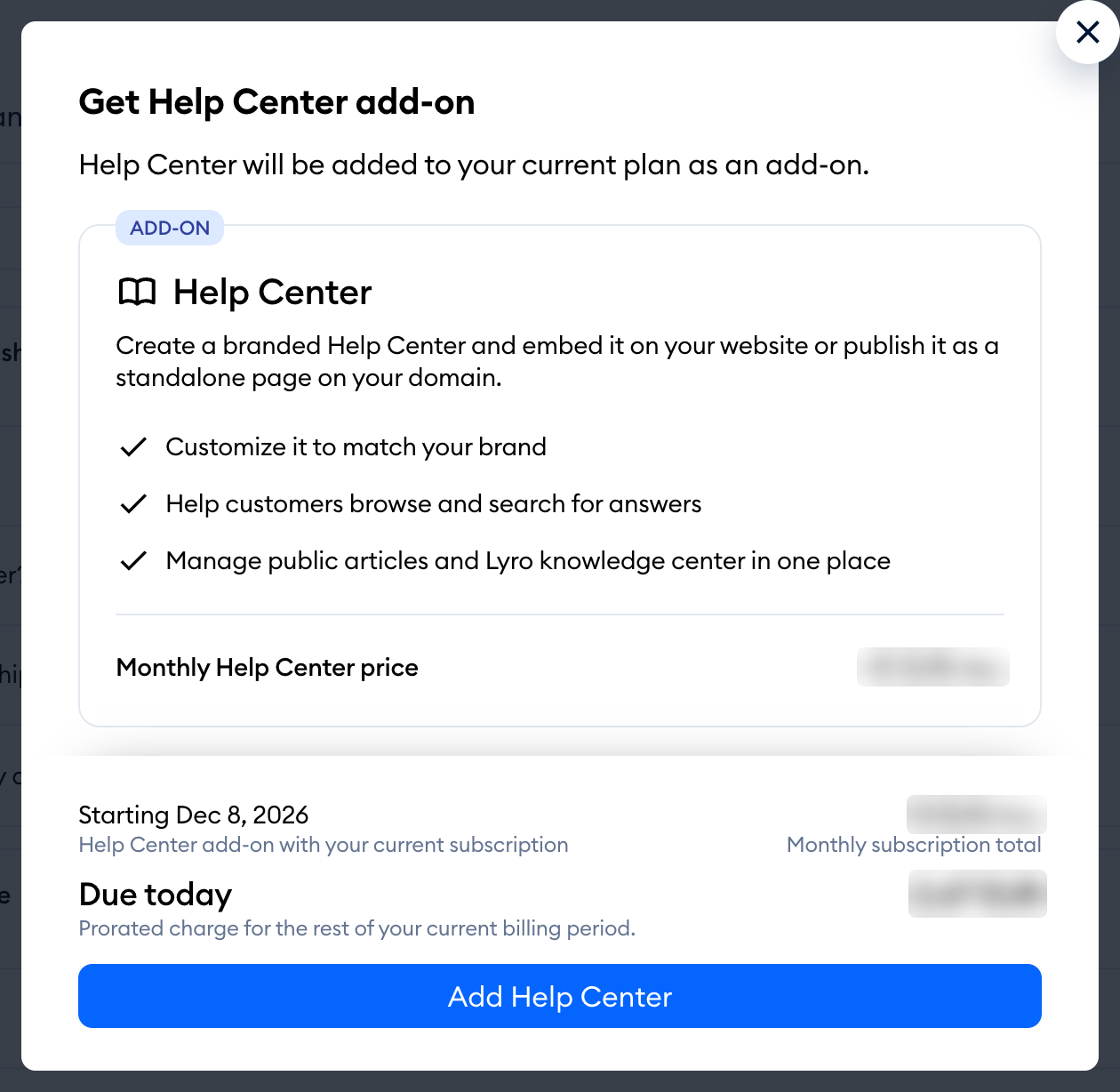
Once it's done, you'll see the Help Center added successfully to your subscription. message, and you can go ahead and publish.
If you're on the free version, the window will suggest a paid plan that includes the add-on instead - its button names that plan together with the add-on (Upgrade to [plan] with Help Center). Click it to go to the upgrade page with both selected:
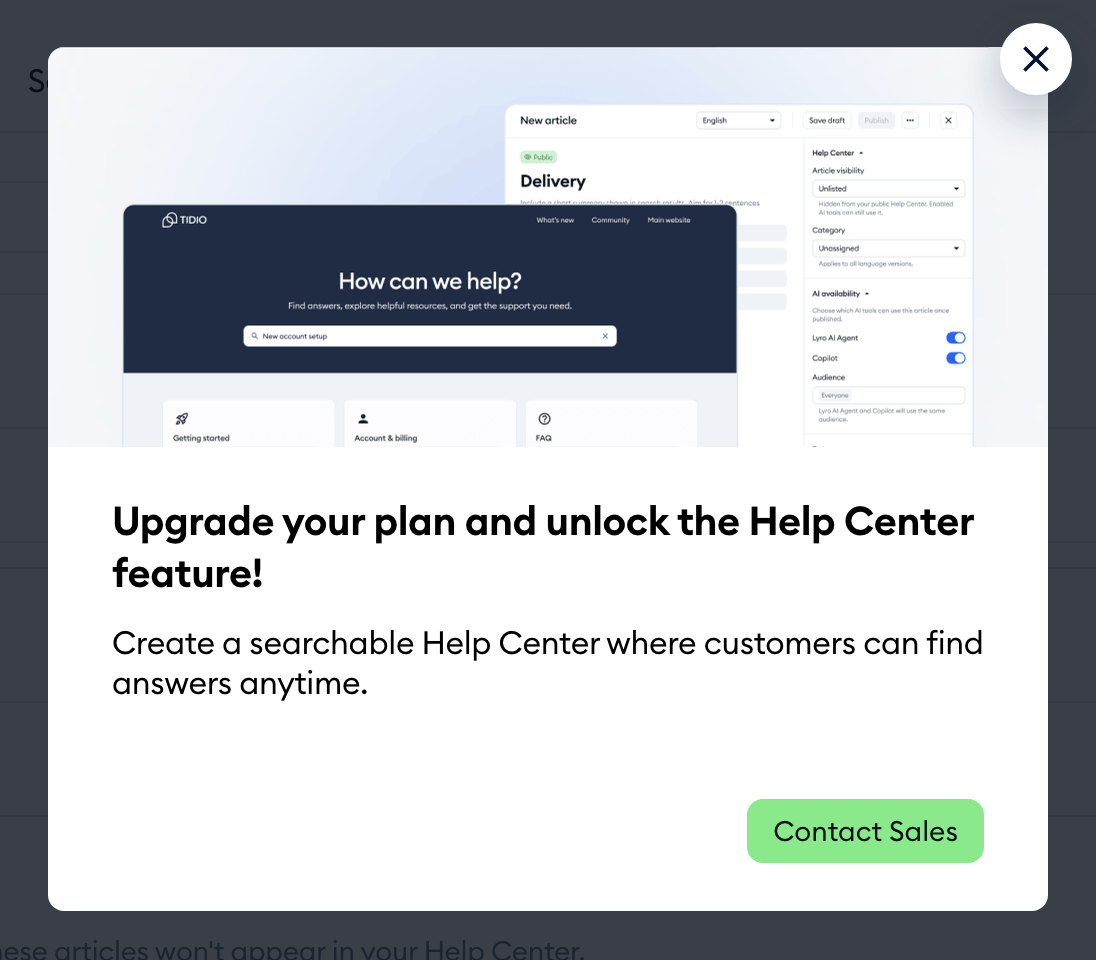
Please note: you need access to billing to buy the add-on. If the button is grayed out (or missing) for you, please ask your project owner to get it. If you're on a custom plan (like Plus or Premium), you'll see the Contact Sales button instead - our team will add it for you.
If you try to publish right after buying, you might see Your Help Center add-on is still being activated. Try again in a moment. - just give it a few seconds and try again.
Please note: the add-on windows in the Help Center section don't open in a mobile browser. Please use a computer to get the add-on.
From your Billing settings
You can also add it in Settings > Billing. In the Subscription tab, scroll down to the Add-ons section, find the Help Center card, and hit the Upgrade button:
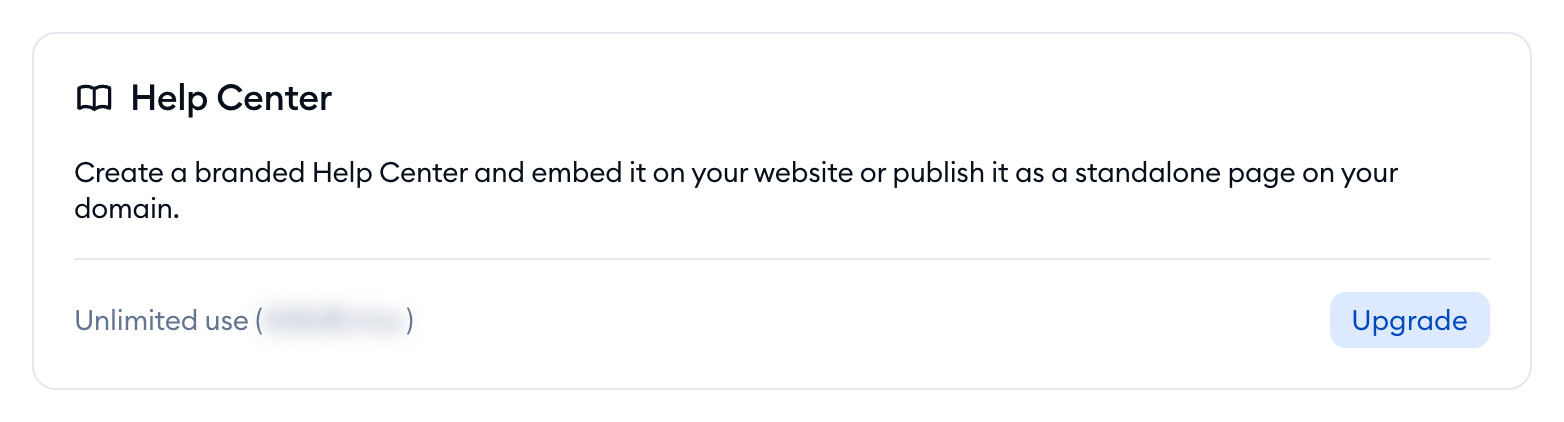
On the free version, the Upgrade button stays inactive until you upgrade your plan.
Once you have the add-on, the Help Center card shows the Paid add-on badge and your next billing date, along with the Edit add-on button. For more on managing your plan and add-ons, please see Manage your subscription.
When your plan no longer includes the add-on
Don't worry - your content is saved. Here's what changes if your plan stops including the Help Center add-on:
- Your published Help Centers are unpublished, and their status changes to Unavailable. Your customers can no longer visit them.
- Lyro and Copilot stop using the articles. In each article's sidebar, you'll see Your plan no longer includes the Help Center add-on, so this article is not used by Lyro AI Agent or Copilot.
- The content of an Unavailable Help Center becomes read-only: you can still open and read your articles, but you can't add or edit them.
- A red badge appears next to Help Center in the main menu, so you don't miss it.
Open the Help Center, and you'll see what happened in the status menu in the top-right:
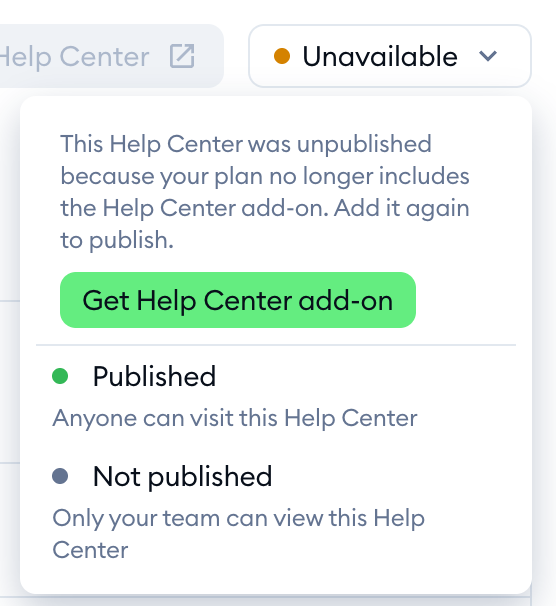
Restoring access to your Help Center
An Unavailable Help Center shows the Restore access to your Help Center call-out right at the top of the page. Click on the Get Help Center add-on button (or Upgrade your plan, if your current plan needs to change first):
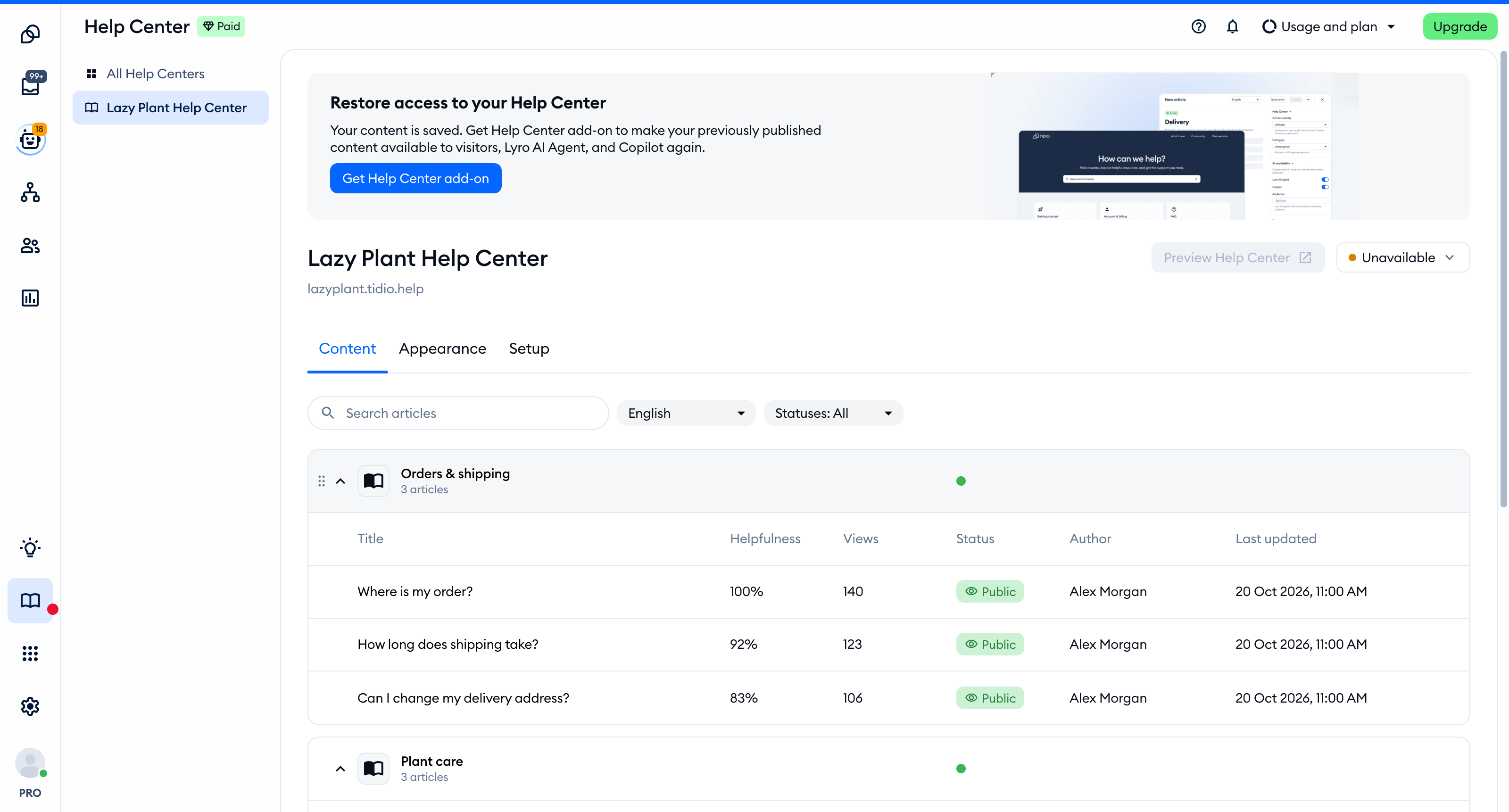
Once the add-on is back, your previously published content becomes available to your visitors, Lyro, and Copilot again.
Please note: if you choose Not published while a Help Center is Unavailable, it stays unpublished when you get the add-on back. Use this if you don't want a Help Center to go live again.
Removing "Powered by Tidio"
Your Help Center's footer shows a small "Powered by Tidio" note. Removing it isn't part of the Help Center add-on - it comes with the separate No Tidio branding add-on, which also removes our branding from your chat widget and email footer.
You'll find the Powered by Tidio row in the Footer card of the Appearance tab. Click on its switch to see the add-on:
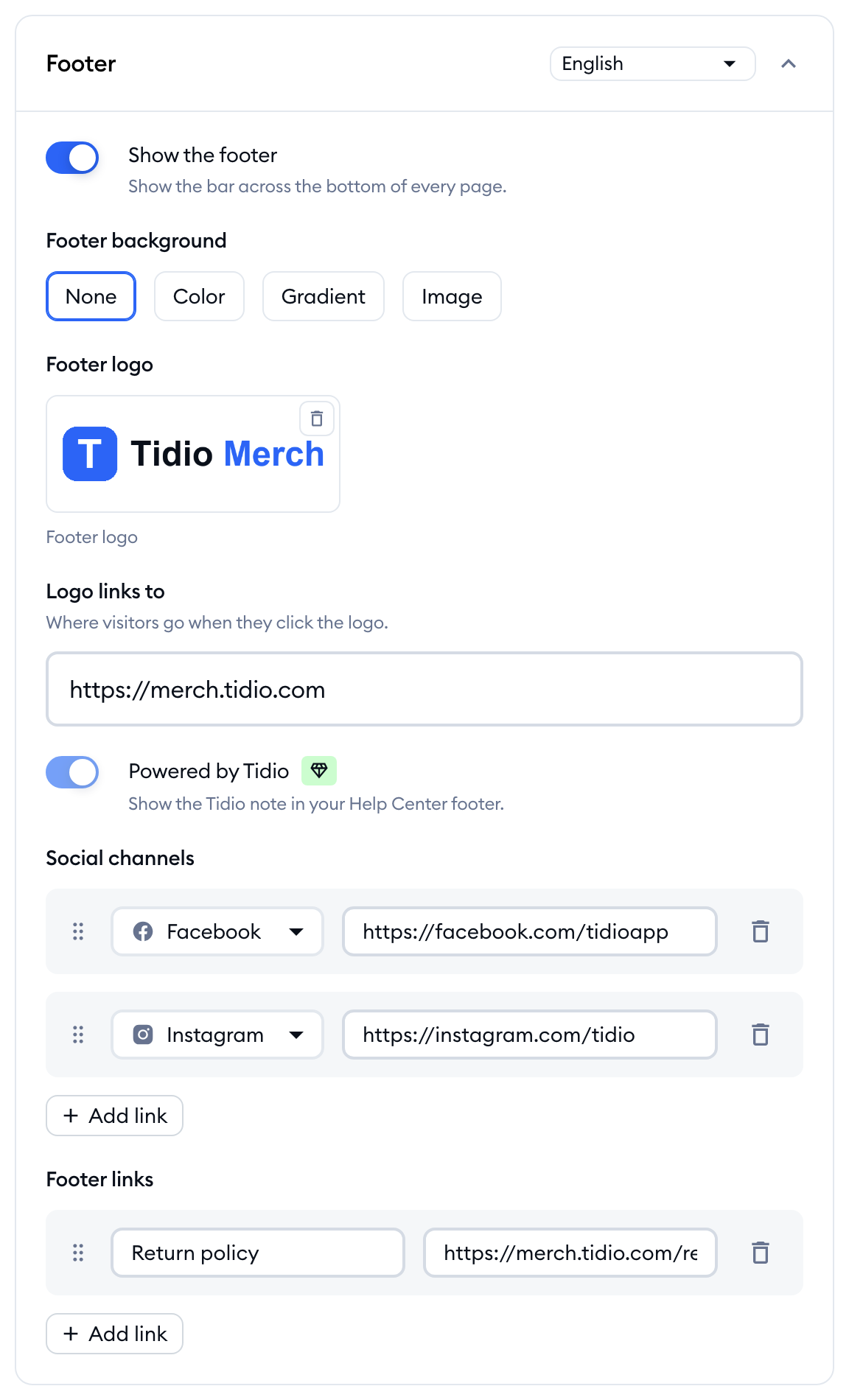
Once you have No Tidio branding, the row disappears from the Footer card.
