Your Help Center articles can do double duty. Besides helping the customers who read them, they can become knowledge for Lyro (the AI agent) and Copilot. Write an answer once, and Lyro can use it when it chats with your visitors, while Copilot can use it when it suggests replies to your agents.
You decide which articles they use, one article (and one language) at a time. You can even write articles just for them: Unlisted articles never appear on your public Help Center, but Lyro, Copilot and your agents can still use them.
In this article, you'll learn:
- How to make an article available to Lyro and Copilot
- How to choose who an article is used for
- How to write internal articles that only Lyro, Copilot and your team can use
- How to find your articles in Lyro's Data sources
- How it works without the Help Center add-on
- What to read next
Please note: using Help Center articles in Lyro and Copilot is part of the Help Center add-on. Lyro itself is still covered by your Lyro AI Agent plan: every conversation Lyro handles counts as one of your Lyro conversations, whichever data source it answers from.
Making an article available to Lyro and Copilot
Head over to the Help Center section, open your Help Center, and go to the Content tab. Click on the article you'd like Lyro and Copilot to use, and hit the Edit button at the top of the article (or create a new article - see Write and format Help Center articles).
On the right side of the article editor, you'll find the Lyro AI section, with two switches:
- Lyro AI Agent - Lyro can use the article to answer your visitors.
- Copilot - Copilot can use the article when it suggests replies to your agents in conversations and tickets.
Simply switch on one of them, or both:
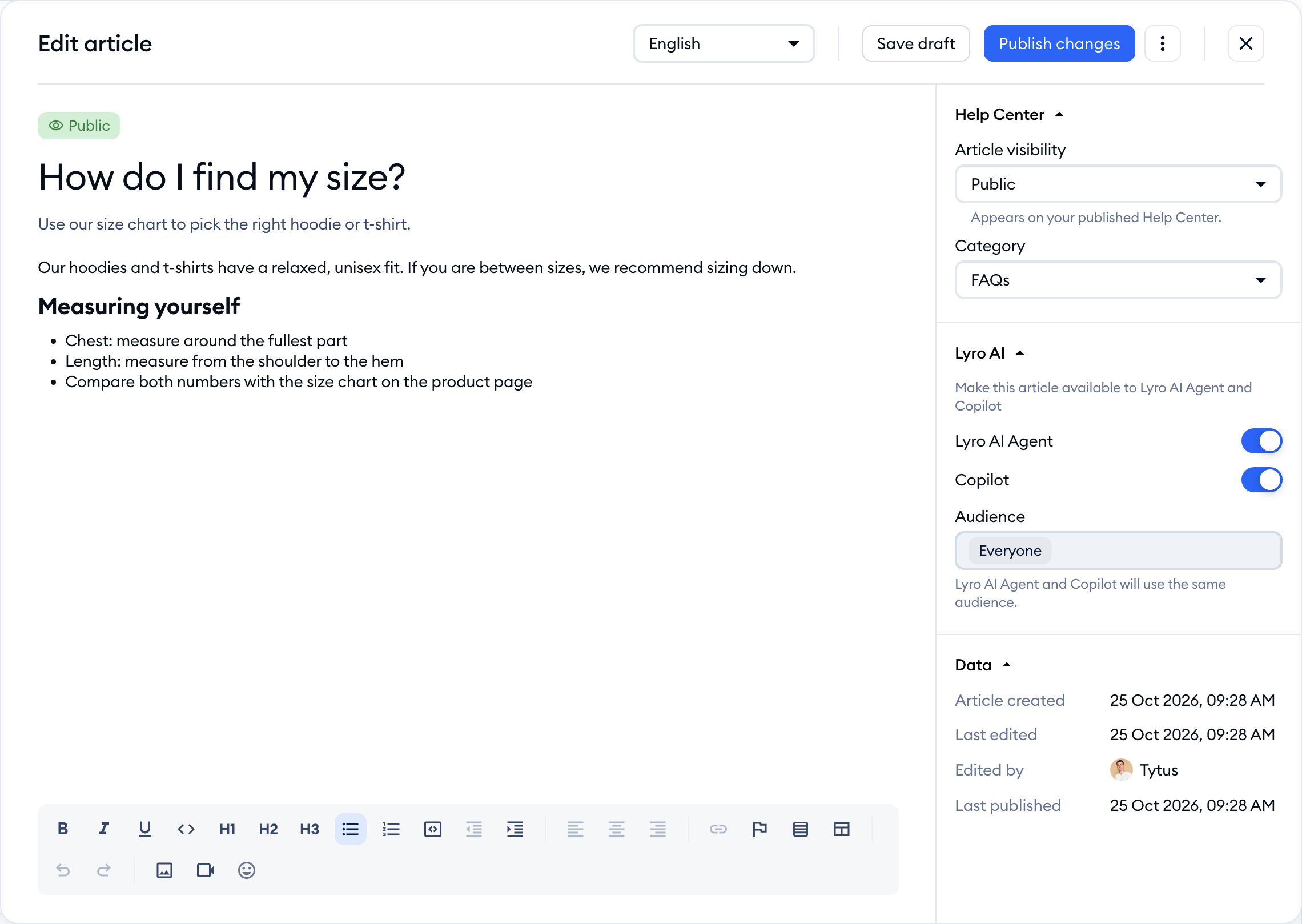
Your choice is saved together with the article, when you click on Save draft or Publish.
Lyro and Copilot work from the published version of the article. A brand new article starts with both switches off, and nothing reaches Lyro or Copilot until the article is published. If you unpublish an article later, it stops being used by Lyro and Copilot as well. You can learn more about publishing in Publish, preview and manage articles.
Please note: the switches belong to the language you're editing. If your Help Center has several languages, each language version of the article has its own switches and its own audience, so you can let Lyro use the English version while the French one is still a work in progress. See Run your Help Center in several languages for more details.
Also, keep in mind that a Public article reaches Lyro and Copilot only once your Help Center itself is published. Unlisted articles (see below) don't need that.
Choosing the audience
Right below the switches, the Audience field lets you decide who the article is used for. By default, it's set to Everyone.
If you've created custom audiences for Lyro, you can pick one or more of them here, so that the article is only used for those visitors. The audience you choose applies to both of them - as the field itself says, "Lyro AI Agent and Copilot will use the same audience."
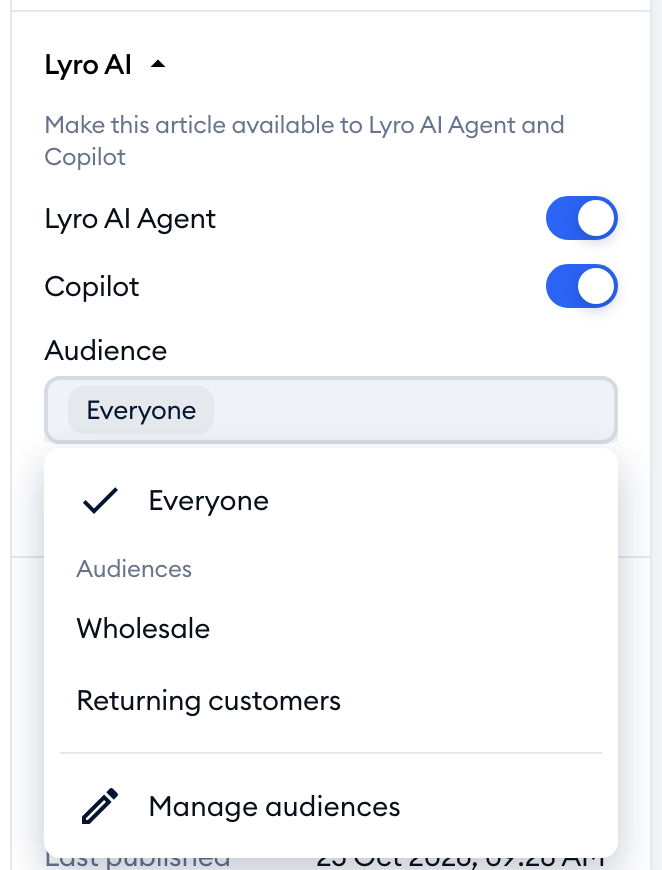
To go back to the default, select Everyone again. To create or change your audiences, use the Manage audiences option at the bottom of the list - it takes you to Lyro's audience settings. You can learn more about audiences in this section of the Data sources article.
Please note: custom audiences are available on the Plus plan. On other plans, the Audience field stays on Everyone, and hovering over it shows how to get access.
Writing internal articles
Not every piece of knowledge belongs on your public Help Center. Internal procedures, edge cases, or details you'd rather explain in a conversation can still help Lyro, Copilot and your agents - and that's exactly what Unlisted articles are for.
In the Help Center section of the article sidebar, open the Article visibility field and choose between:
- Public - "Published in your Help Center and available to visitors."
- Unlisted - "Not published in your Help Center. Available only to Lyro, Copilot, and human agents."
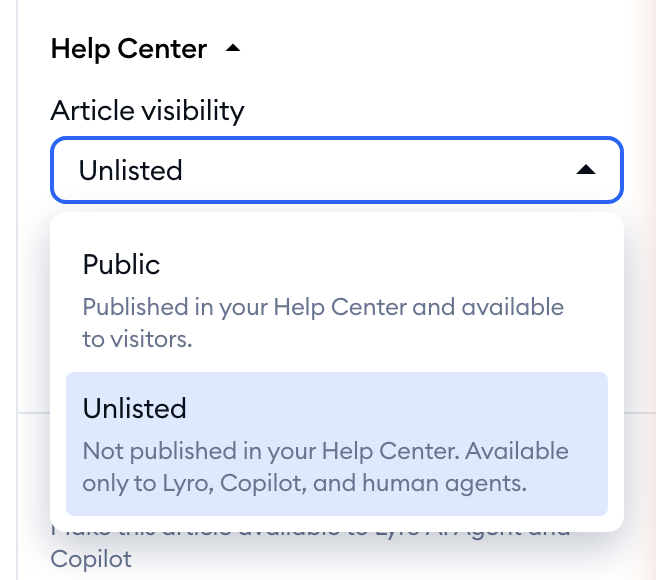
Every new article starts as Unlisted, so nothing goes public by accident. To let Lyro or Copilot use an Unlisted article, switch them on in the Lyro AI section and publish it, as described above. Like any article you publish, it needs a Category.
Once published, an Unlisted article shows the Unlisted status in your article list. It has no public page, so your customers can't open it, while your team can read it in the Help Center section of Tidio.
Finding your articles in Lyro's Data sources
Articles you share with Lyro and Copilot are also listed together with the rest of Lyro's knowledge. Head over to the Lyro AI Agent section, and open the Data sources tab. Your Help Center articles are marked with a book icon and the Article source. To see only them, use the Sources: filter and select Article:
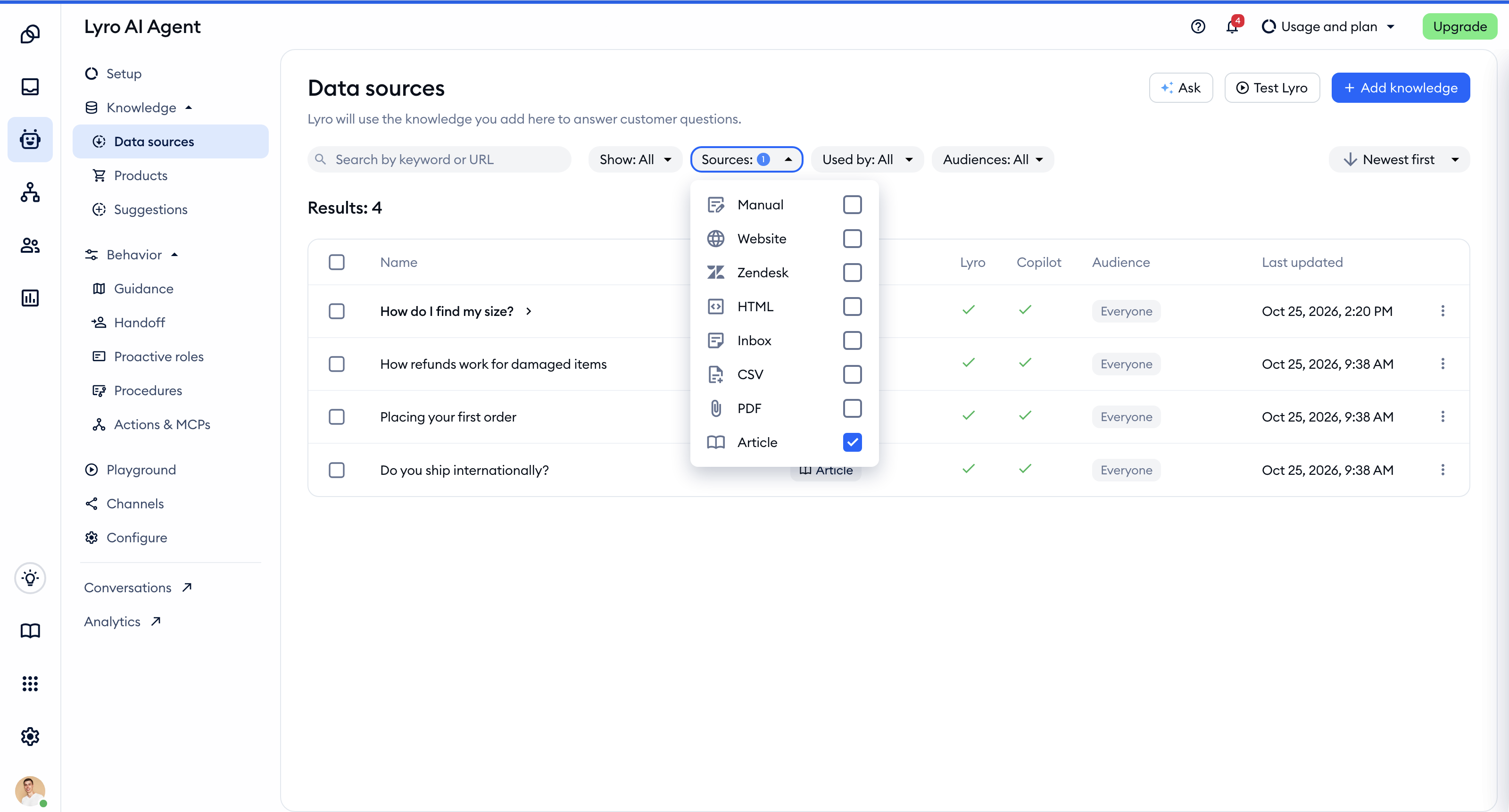
Click on an article to see its language versions. For each language, you'll see the Article title, the Language, the Used by column, and when it was Last updated:
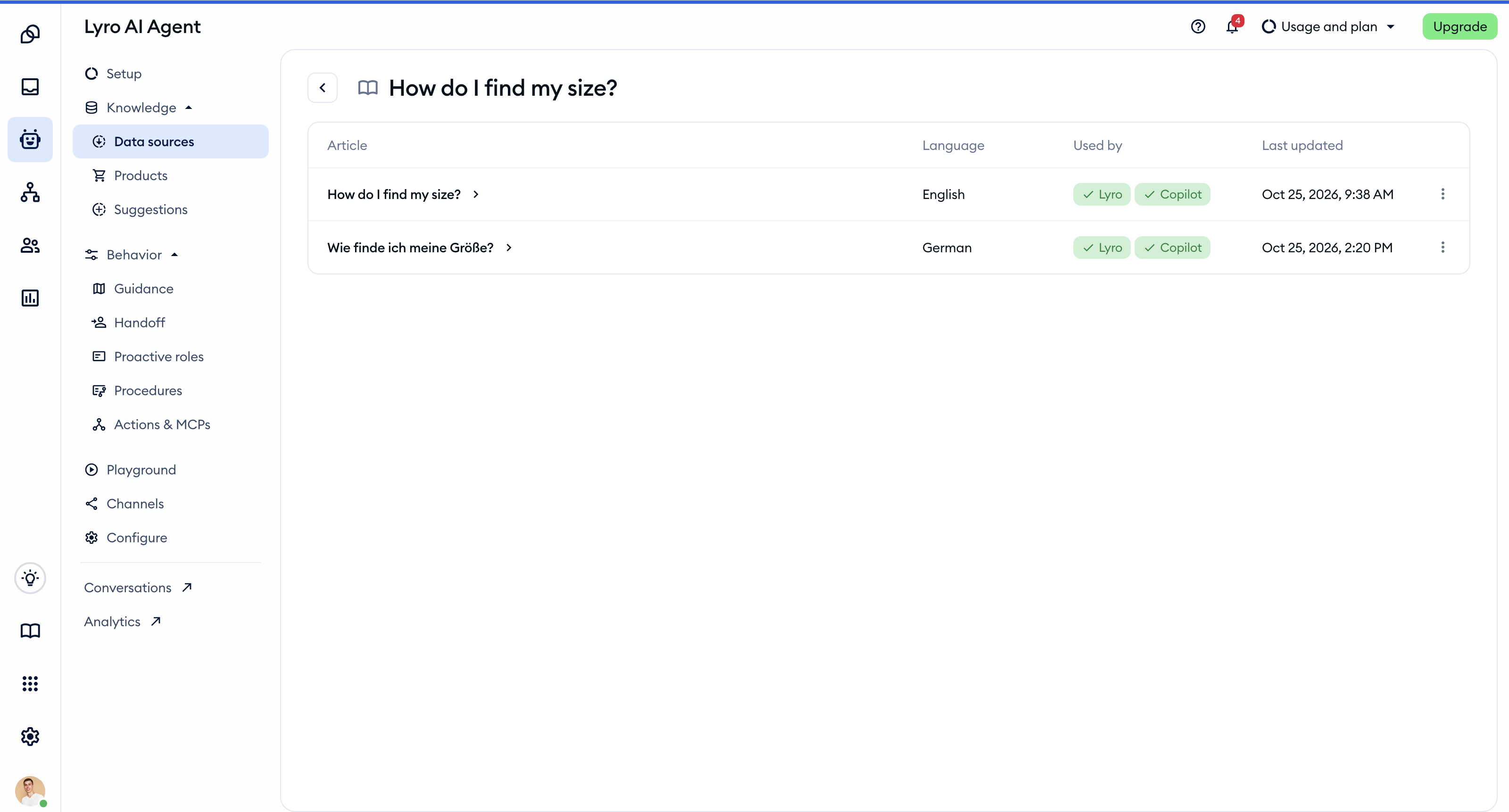
The Used by column shows the Lyro and Copilot tags when everything is in place. Otherwise, you'll see one of these labels (hover over a label for details):
- Pending - the language was switched on recently and is still being picked up.
- Not used - this language is switched off for both Lyro and Copilot.
- Not available - the Help Center isn't published yet, or the language is switched off for the Help Center.
- Sync failed - the article couldn't be prepared for your AI agents. Republishing the article in the Help Center retries it.
Click on a language to preview the article. To change it, hit the Edit in Help Center button, which takes you straight to the article editor:
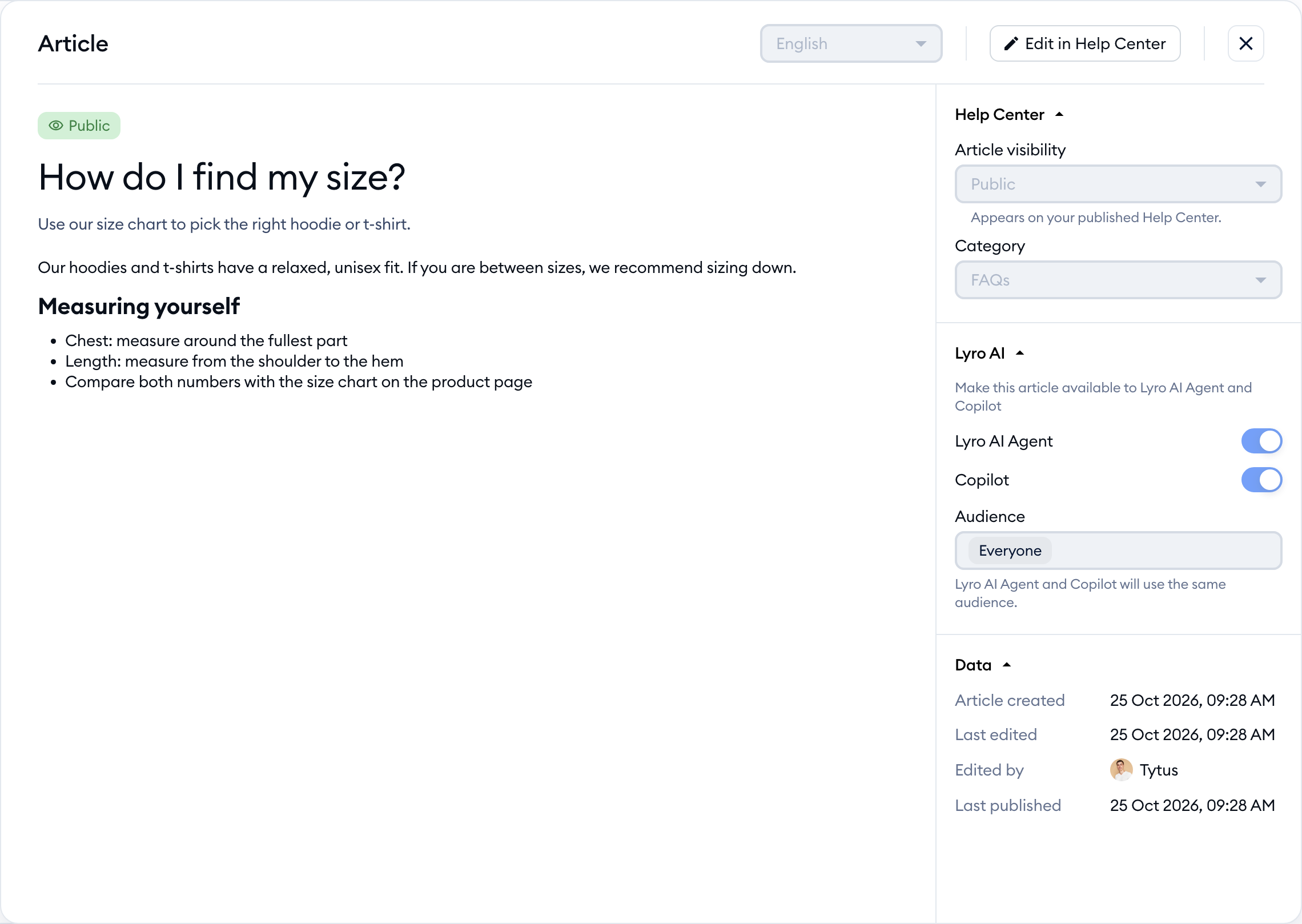
Always make your changes in the Help Center: the article there is the original, and it's what Lyro and Copilot get each time you publish.
If you'd like Lyro and Copilot to stop using an article, you can also do it from here. Use the Delete option in the three-dots menu on the right. Don't worry - this doesn't delete anything from your Help Center. In the Stop using this article? window, click on Stop using:
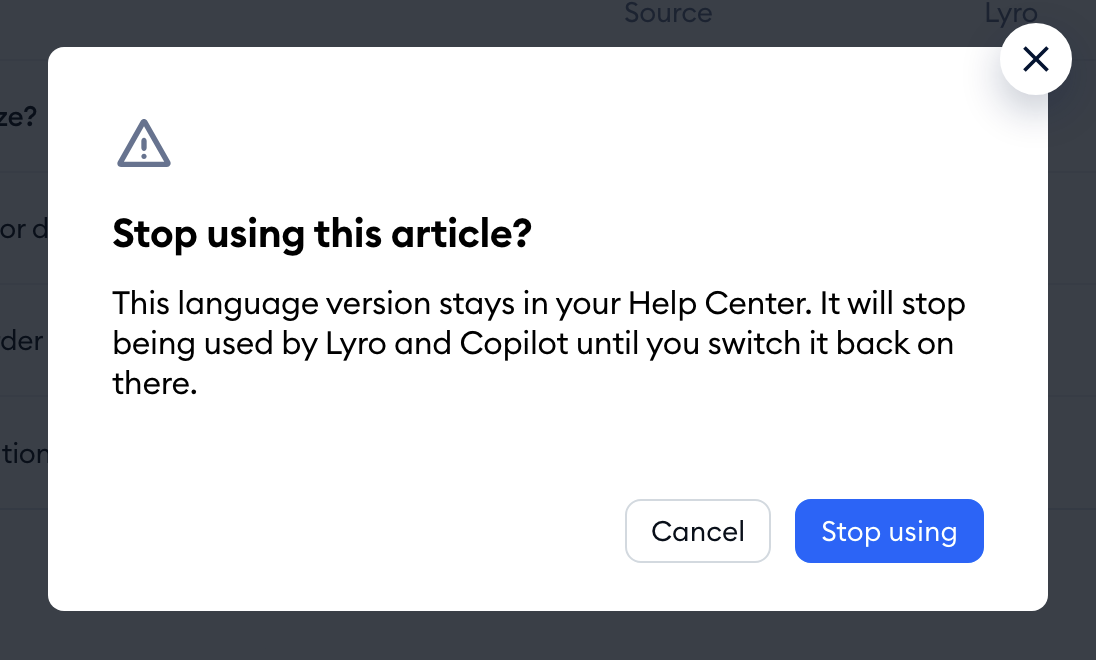
The article stays in your Help Center, and Lyro and Copilot stop using it until you switch them back on in the article editor.
Naturally, the Review sources button in your conversations works for articles too: when Lyro answers based on a Help Center article, the source is shown as an Article.
Without the Help Center add-on
You can write articles before you have the Help Center add-on, but Lyro and Copilot can only use them once the add-on is active:
- The Lyro AI section in the article sidebar says: "Your plan no longer includes the Help Center add-on, so this article is not used by Lyro AI Agent or Copilot".
- Switching on Lyro AI Agent or Copilot opens a window where you can get the add-on. If you had unsaved changes in the article, they're saved as a draft first, so you won't lose your work.
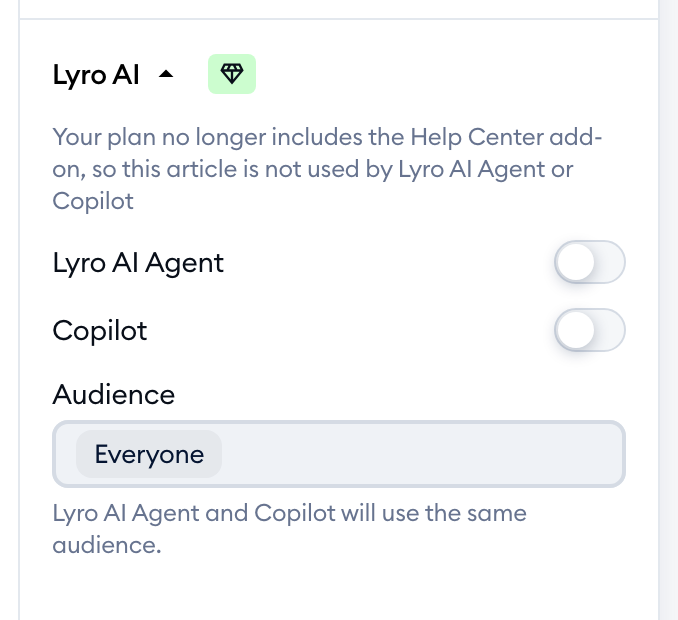
If your add-on ends, your Help Center is unpublished (it shows as Unavailable) and its articles stop being used by Lyro and Copilot. Your content is kept, though. Once you add the Help Center add-on again (with the Get Help Center add-on button in your Help Center), your previously published content becomes available to visitors, Lyro and Copilot again. Learn more in The Help Center add-on.
Further reading
- Data sources - Lyro's knowledge base - all the other ways of adding knowledge to Lyro.
- Copilot - how your agents get suggested replies.
- Write and format Help Center articles
- Publish, preview and manage articles
- Run your Help Center in several languages
- The Help Center add-on
