Once your article is written, it's time to share it. Tidio lets you preview a draft exactly as it will look in your Help Center, publish it with one click, and keep editing it later without your customers seeing half-finished changes.
This article also covers who sees each article - your customers, or only Lyro (the AI agent), Copilot and your agents - and how to find your way around a growing list of articles.
In this article, you'll learn:
- How article statuses work
- How to choose who sees an article
- How to preview a draft
- How to publish an article
- How to update a published article
- How to unpublish or delete an article
- How to find articles in the list
Please note: your customers only see your articles once the Help Center itself is published, and publishing a Help Center needs the Help Center add-on. The add-on is also what lets Lyro and Copilot use your articles. See The Help Center add-on for more.
Understanding article statuses
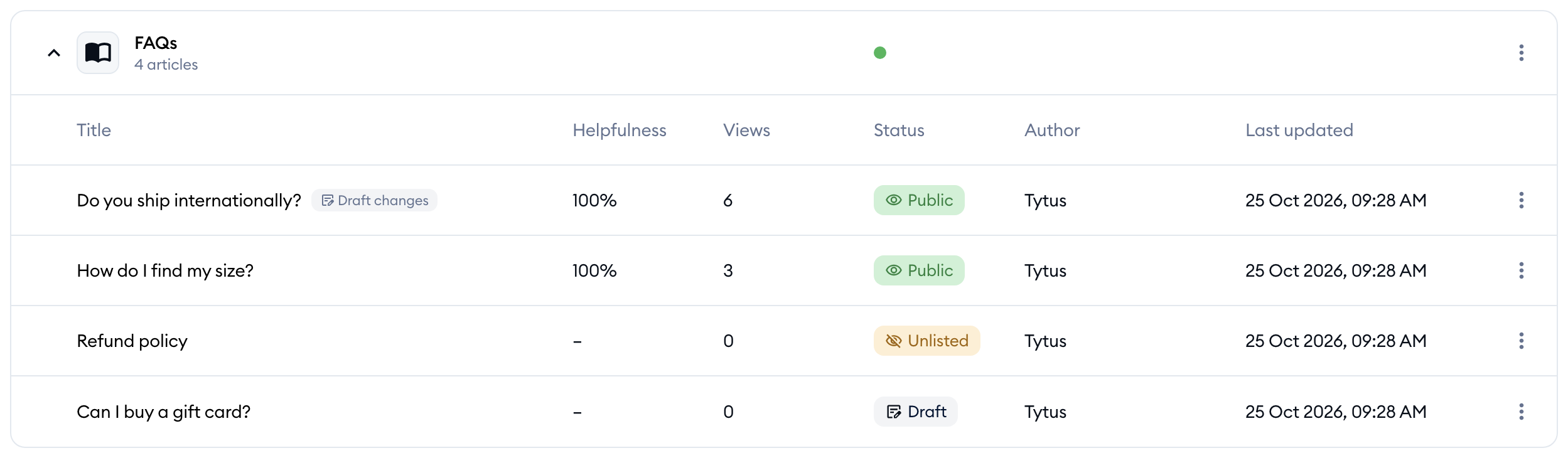
Each article in the Content tab has a status tag in the Status column:
- Draft - saved, but not published. Nobody outside your team sees it.
- Public - published and shown in your Help Center.
- Unlisted - published, but kept off your Help Center (see the next section).
A published article can also carry the Draft changes tag next to its title. It means you've saved edits that aren't published yet - your customers still see the published version.
Choosing who sees an article
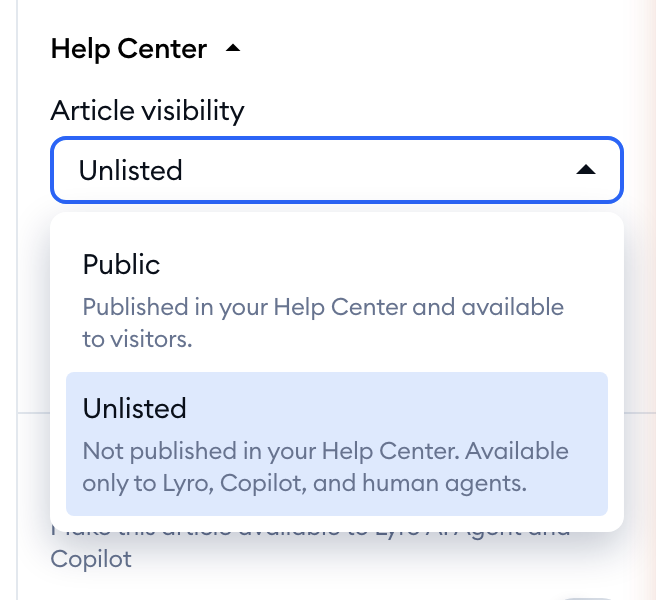
Open the article and look at the Article visibility field in the sidebar on the right:
- Public - published in your Help Center and available to visitors.
- Unlisted - not published in your Help Center. Available only to Lyro, Copilot, and human agents. Handy for internal procedures, or answers you'd like Lyro to know without listing them on your site.
Please note: every new article starts as Unlisted. If your customers should see it, switch Article visibility to Public before you publish.
Unlike the text of the article, visibility and the category are saved as soon as you click Save draft, even on an article that's already published. Whether Lyro and Copilot use the article is set in the Lyro AI section just below - see Use Help Center articles with Lyro and Copilot.
Previewing a draft
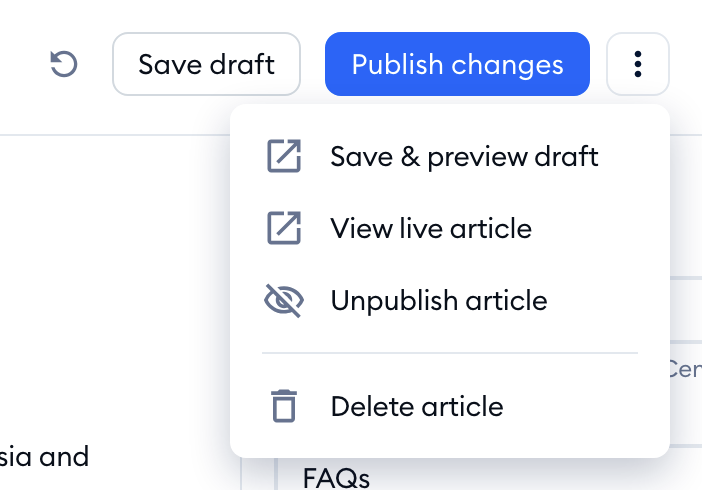
Want to see your article the way your customers will? Open an article you've saved at least once, click on the three-dots menu in the top-right of the panel, and choose Save & preview draft:
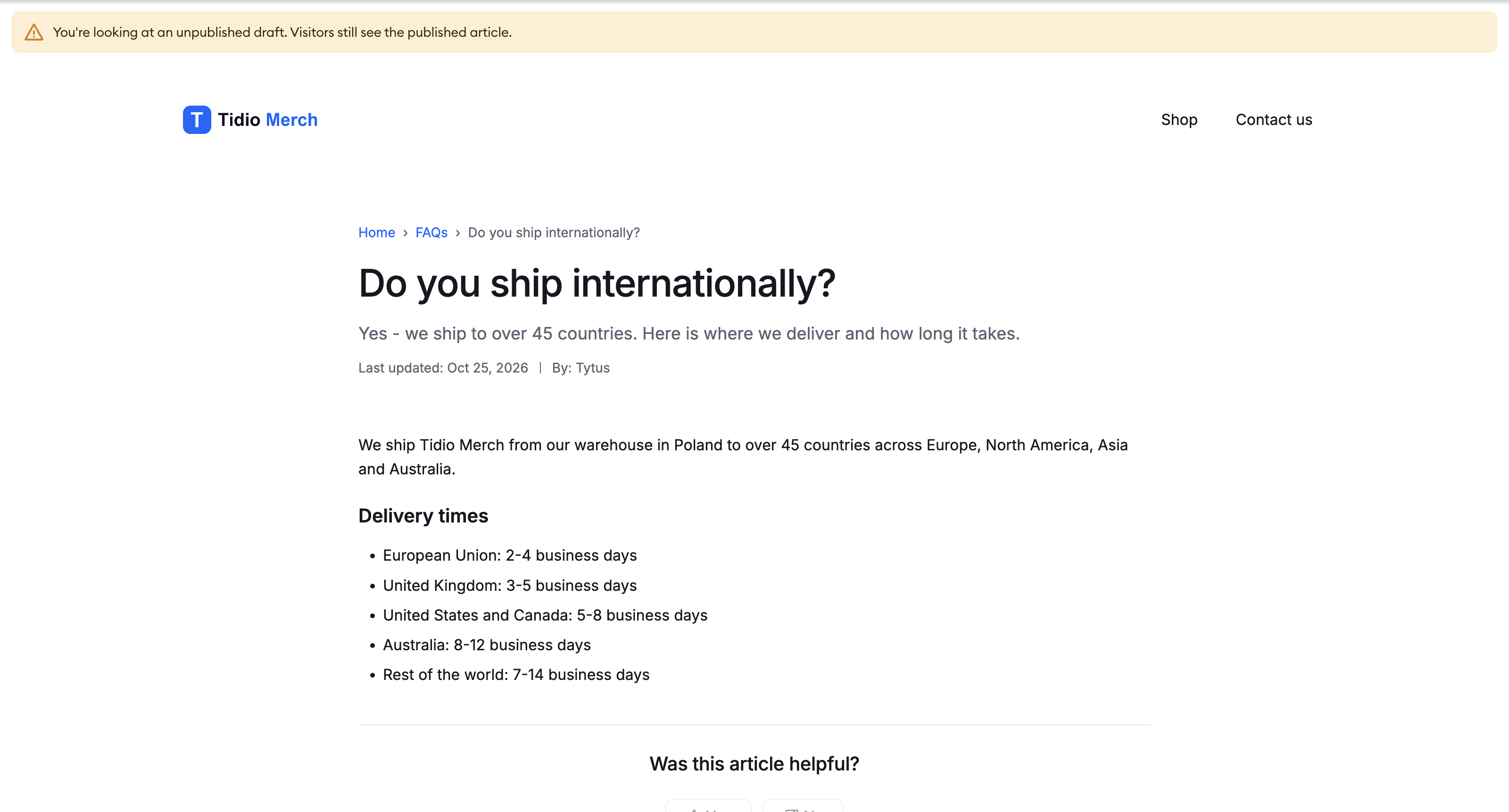
Tidio saves your changes as a draft and opens the preview in a new window, styled like your Help Center. The note at the top reminds you: "You're looking at an unpublished draft. Visitors still see the published article."
If nothing opens, your browser blocked the window - you'll see "Allow pop-ups for Tidio to preview your draft." The preview also needs you to be logged in to Tidio in the same browser.
Publishing an article
When your article is ready, make sure it has a Category in the sidebar - a published article always has to be in a category. Then hit the Publish button in the top-right:
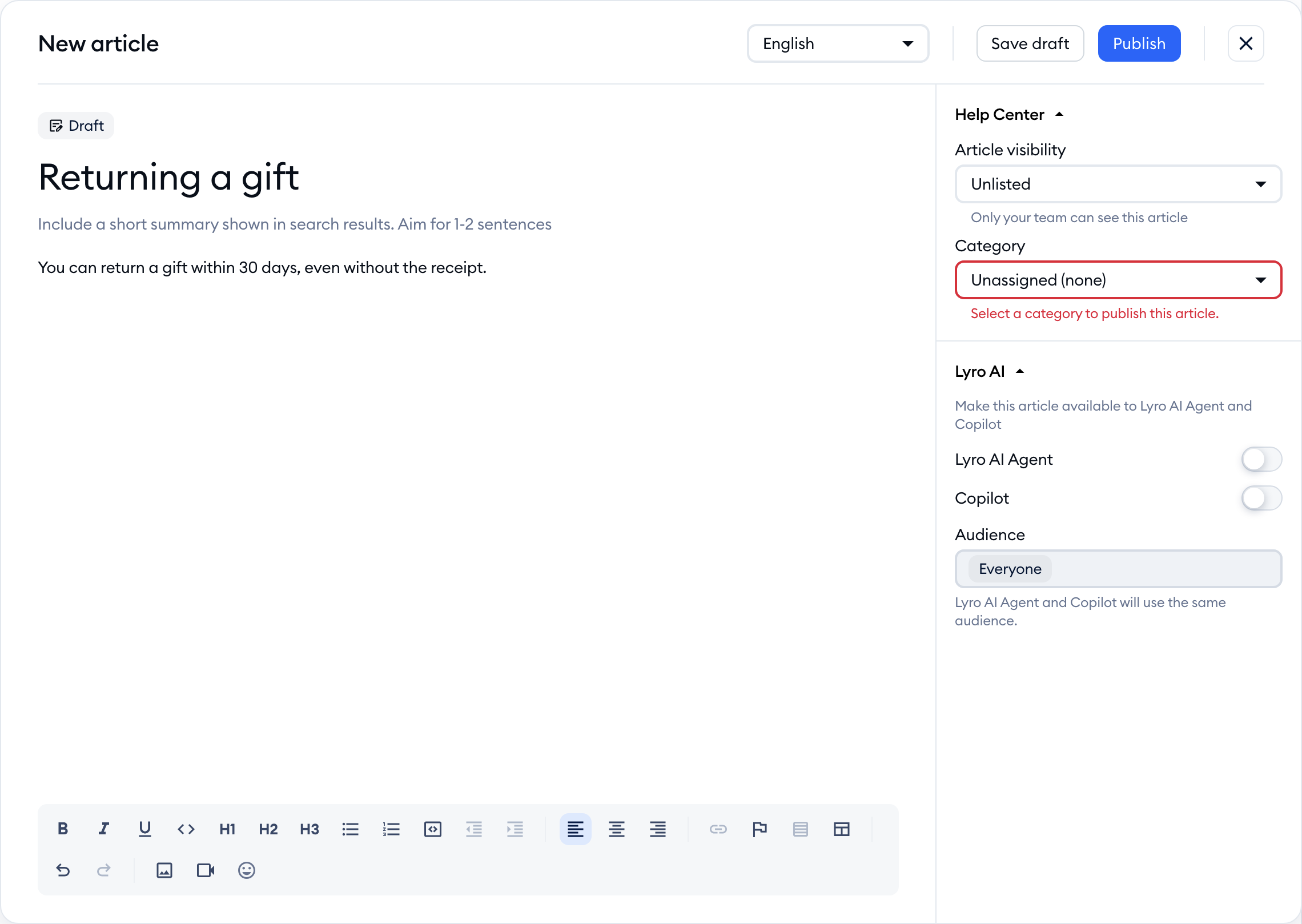
If you forgot the category, Tidio points it out ("Select a category to publish this article.") instead of publishing. Otherwise, the article is published straight away, and its tag in the list changes to Public or Unlisted.
You can also publish a draft without opening the editor: click on the article's title in the list to open it, and hit Publish there.
Your Help Center itself has to be published, too, for customers to see the article. Its status is shown in the top-right of the Help Center page (Published or Not published) - see Create and manage your Help Centers.
Updating a published article
Click on an article's title in the list, and it opens in the read-only View article panel. Hit Edit at the top to start making changes (or choose Edit in the article's three-dots menu to go straight to the editor).
When you Save draft on a published article, your edits are kept as a draft and the article gets the Draft changes tag. Your customers keep seeing the published version until you're ready. From there:
- Hit Publish changes to make your edits live.
- Click on the Discard changes button (the round arrow next to Save draft) to throw the draft away and go back to the published version. This happens right away, without asking first.
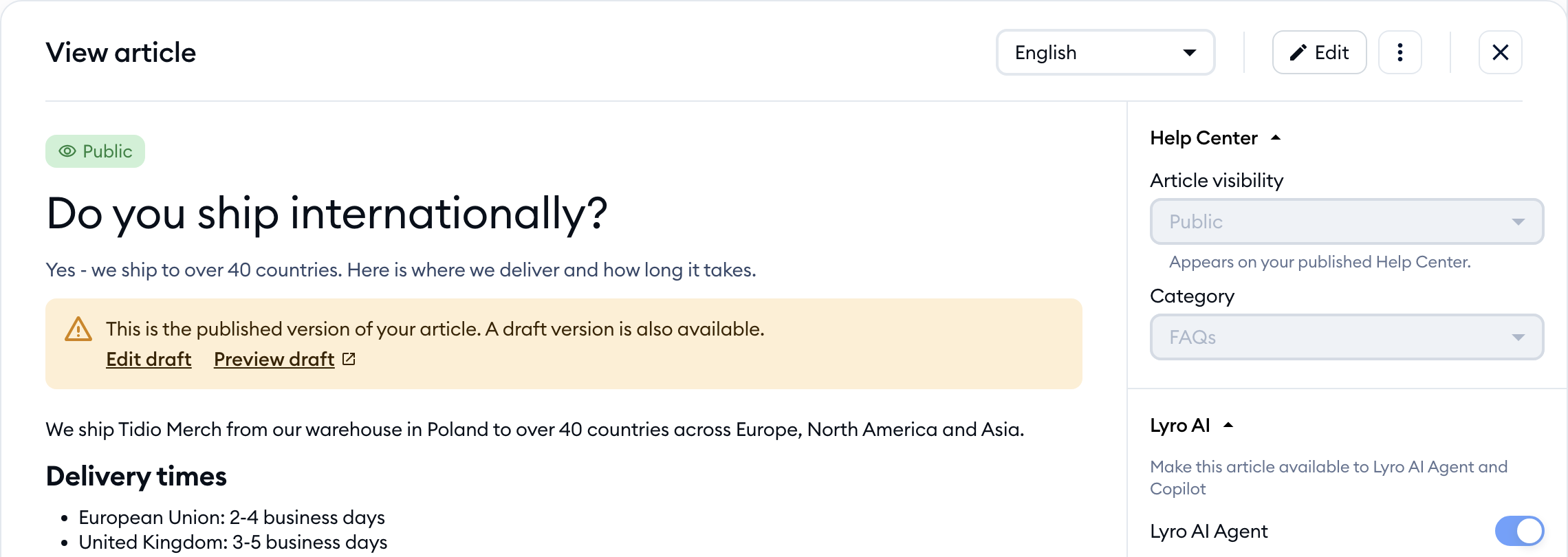
To check what's live right now, choose View live article in the three-dots menu. It opens the published version in your Help Center. The option is greyed out when there's no public page to open - hover over it to see why (for example "This article is unlisted, so it has no public page" or "This Help Center isn't published yet").
Unpublishing or deleting an article
To take an article down, open it, click on the three-dots menu, and choose Unpublish article. Confirm with the Unpublish button:
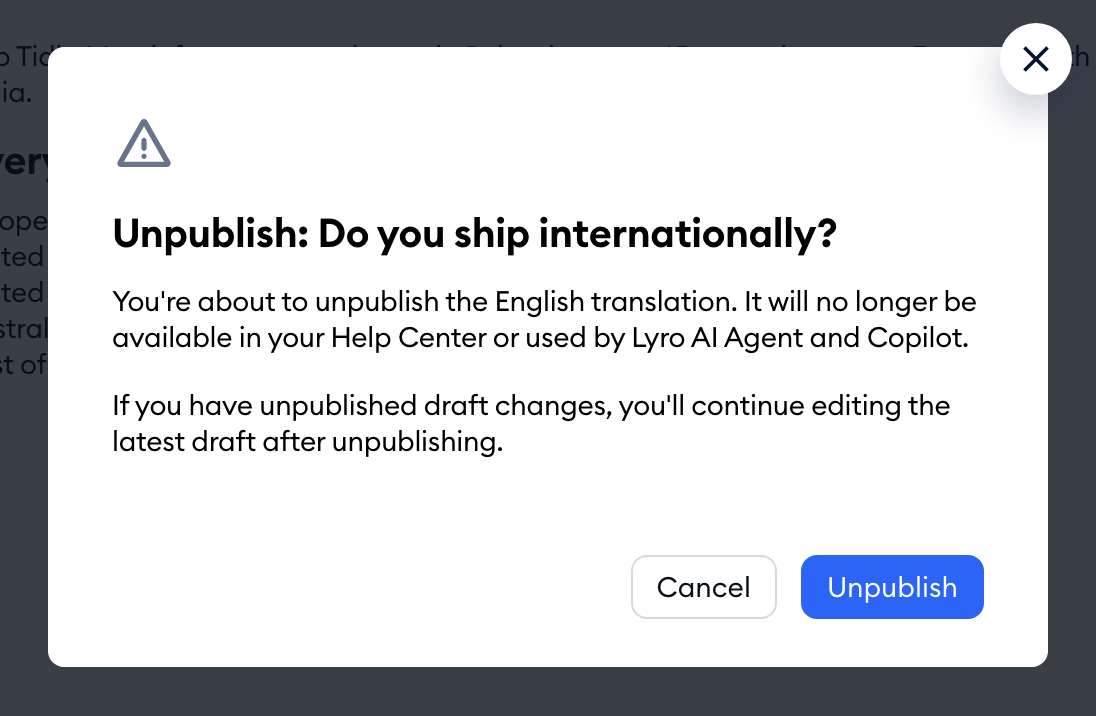
The article goes back to Draft ("Article reverted to draft."), so it's no longer in your Help Center or used by Lyro and Copilot. Unpublishing works one language at a time - other translations stay published.
To remove an article for good, choose Delete article - either in the article's three-dots menu in the list, or in the panel's three-dots menu - and confirm with Delete. A deleted article can't be restored.
Finding articles in the list
As your Help Center grows, the bar at the top of the Content tab helps you find things fast:
- Search articles looks through titles (in every language), summaries and authors. The results show up in one table with a Category column, and the matching words highlighted.
- The Statuses: All filter shows only Public, Unlisted or Draft articles - pick one or more.
- The language filter switches the list to another language - see Run your Help Center in several languages.

Next to each article you'll also see its Helpfulness, Views, Author and Last updated date (more on helpfulness in Article feedback: see which articles help). The three-dots menu on the right of an article offers Edit, Remove from category (for drafts only) and Delete article. To move an article to another category, drag it there or change its Category in the sidebar - see Organize articles into categories.
Found an article in Lyro's data sources? Its Edit in Help Center button brings you straight to that article here.
Please note: teammates whose Help center content permission is Able to view can open articles, but don't get the Edit, Publish or three-dots options. The same read-only view applies to everyone while a Help Center is Unavailable because the add-on has ended.
