Do your customers speak more than one language? Your Help Center can too. You can add several languages to each Help Center, write every article and category in each of them, and your visitors will see the Help Center in their own language whenever it's available.
One language is always your default language: it's the language your content is written in first, and the one shown when a translation is missing.
In this article, you'll learn:
- How to add languages to your Help Center
- How to change the default language
- How to remove a language
- How to write articles in each language
- How to translate your categories
- How to translate your Help Center's name, homepage and links
- What your customers see
- What to read next
Please note: you write each language version yourself - Tidio doesn't translate your articles automatically. To change languages and other Help Center settings, you need the Help center settings permission; writing articles needs Help center content.
Adding languages
You pick the Default language (and any other languages) when you create your Help Center. You can add more at any time.
Head over to the Help Center section, open your Help Center, and go to the Setup tab. You'll find the Languages card there, with your Default language and your Available languages:
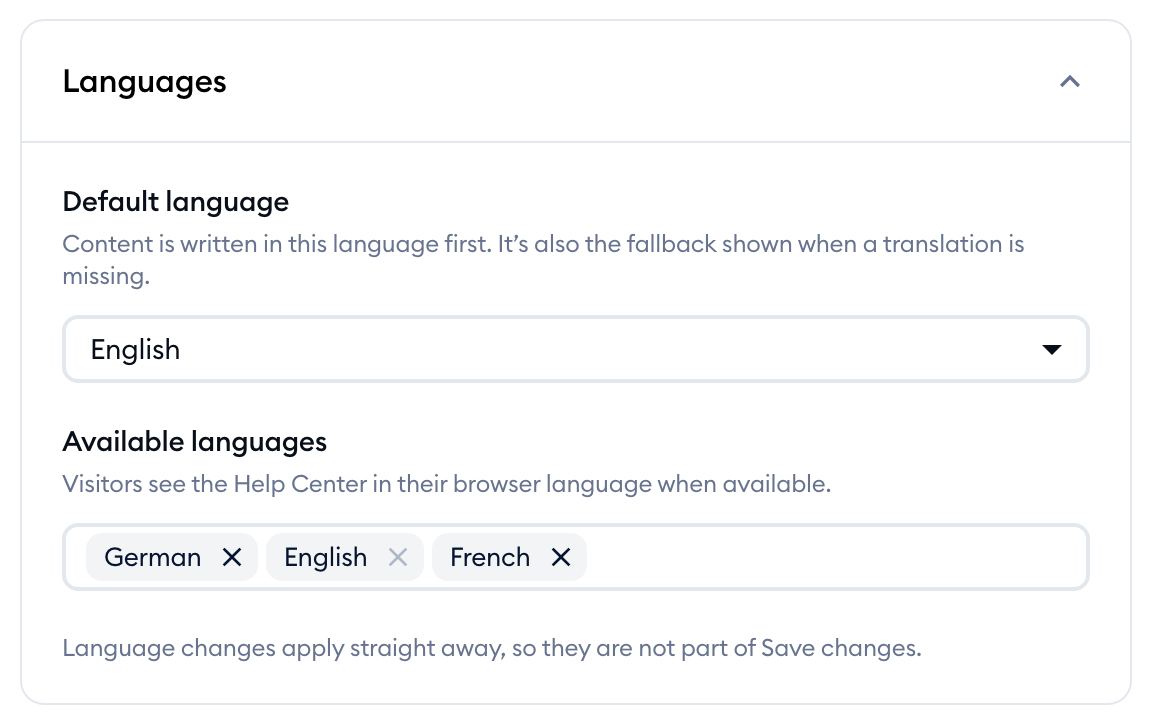
Click on the Available languages field (it says Add language), and pick the language you'd like to add. You can type to search the list:
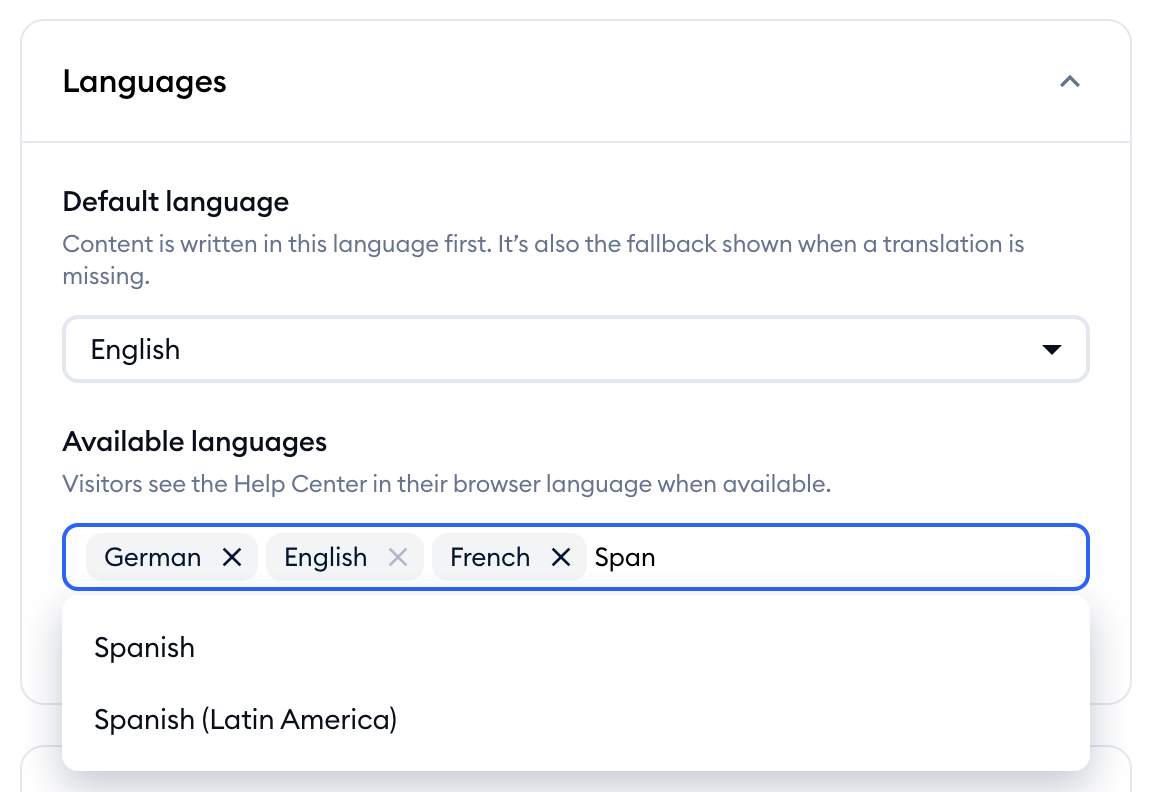
That's it! There's no need to save: as the card says, "Language changes apply straight away, so they are not part of Save changes."
You can choose from 51 languages, including regional versions like Portuguese-Brazilian, Spanish (Latin America), Chinese (Simplified) and Chinese (Traditional), as well as right-to-left languages such as Arabic and Hebrew.
A new language starts empty: you'll write its articles, categories and texts as described below. There's one handy exception - categories you picked from the popular categories list get their name in the new language automatically (as long as you haven't renamed them).
Changing the default language
The Default language field in the Languages card lets you pick any of the languages you've already added. As the card explains: "Content is written in this language first. It's also the fallback shown when a translation is missing."
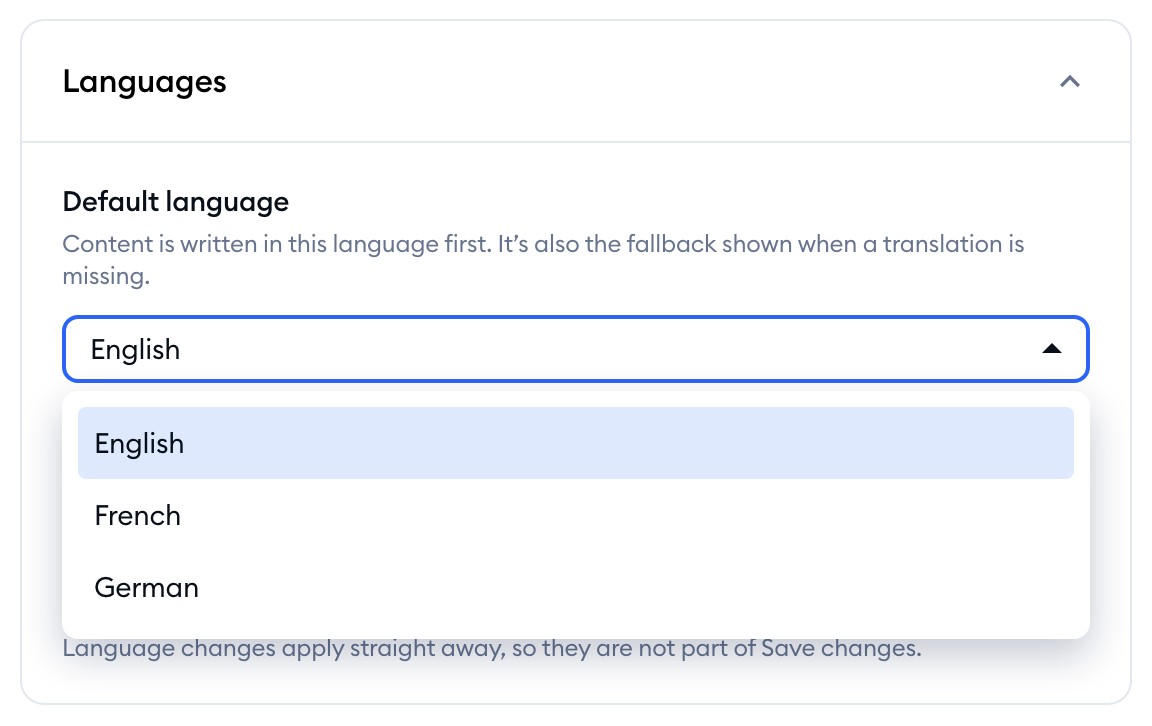
To make a new language your default one, add it to Available languages first, then select it in the Default language field.
Removing a language
To remove a language, click on the small x on its tag in the Available languages field. You'll be asked to confirm:
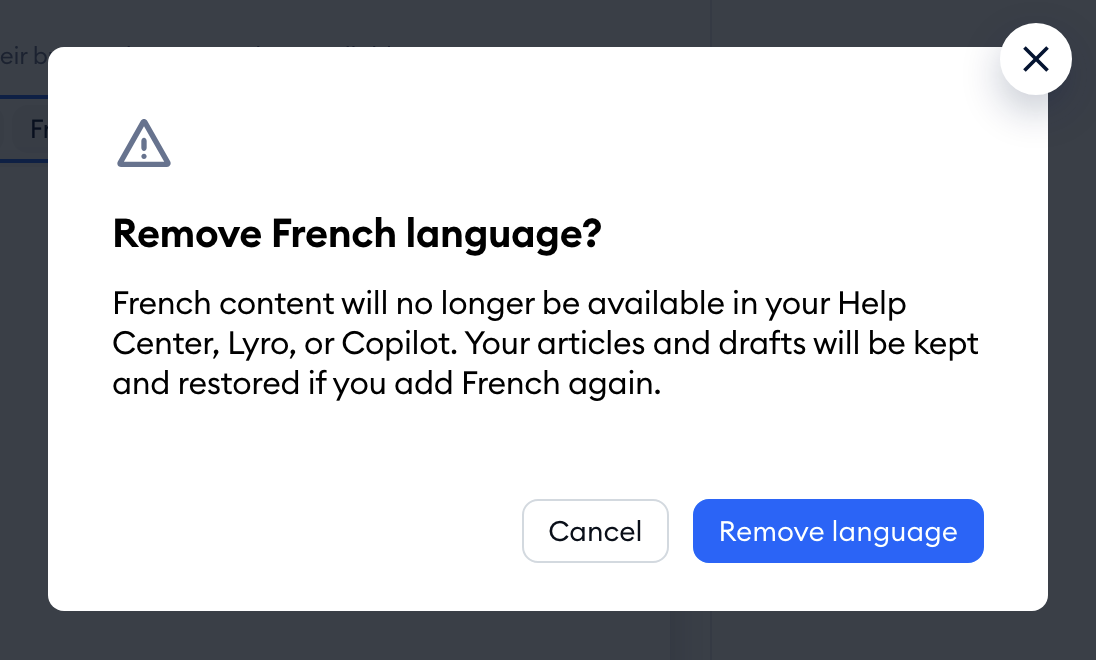
Once you click on Remove language, the content in that language is no longer available in your Help Center, Lyro, or Copilot. Nothing is deleted, though: your articles and drafts are kept, and they're restored if you add the language again.
Please note: your default language can't be removed. To remove it, make another language the default one first.
Writing articles in each language
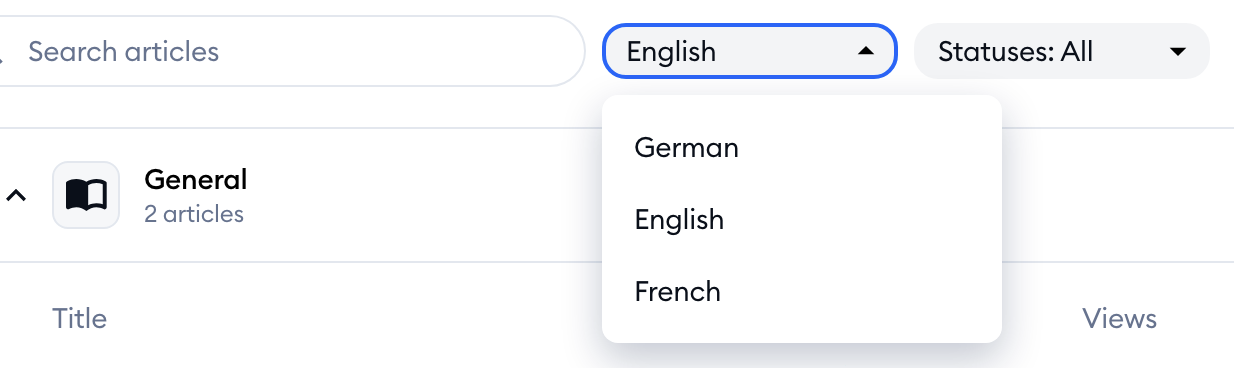
Each article has a separate version for every language. In the Content tab, use the language filter next to the search bar to see your articles in a given language:
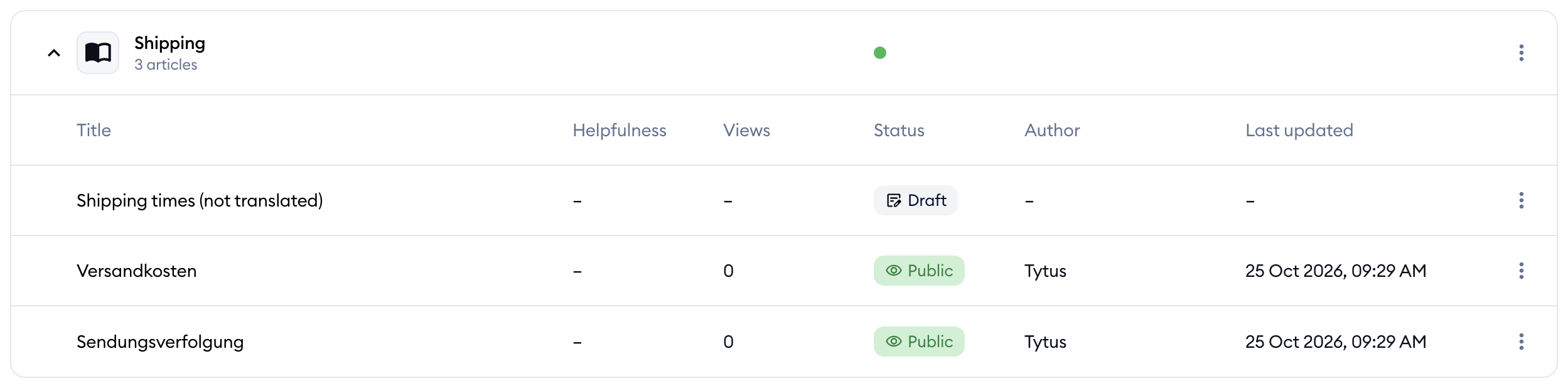
Articles that don't have a version in the selected language yet are still listed, with their default-language title followed by (not translated), and the Draft status. This makes it easy to see what's still missing:
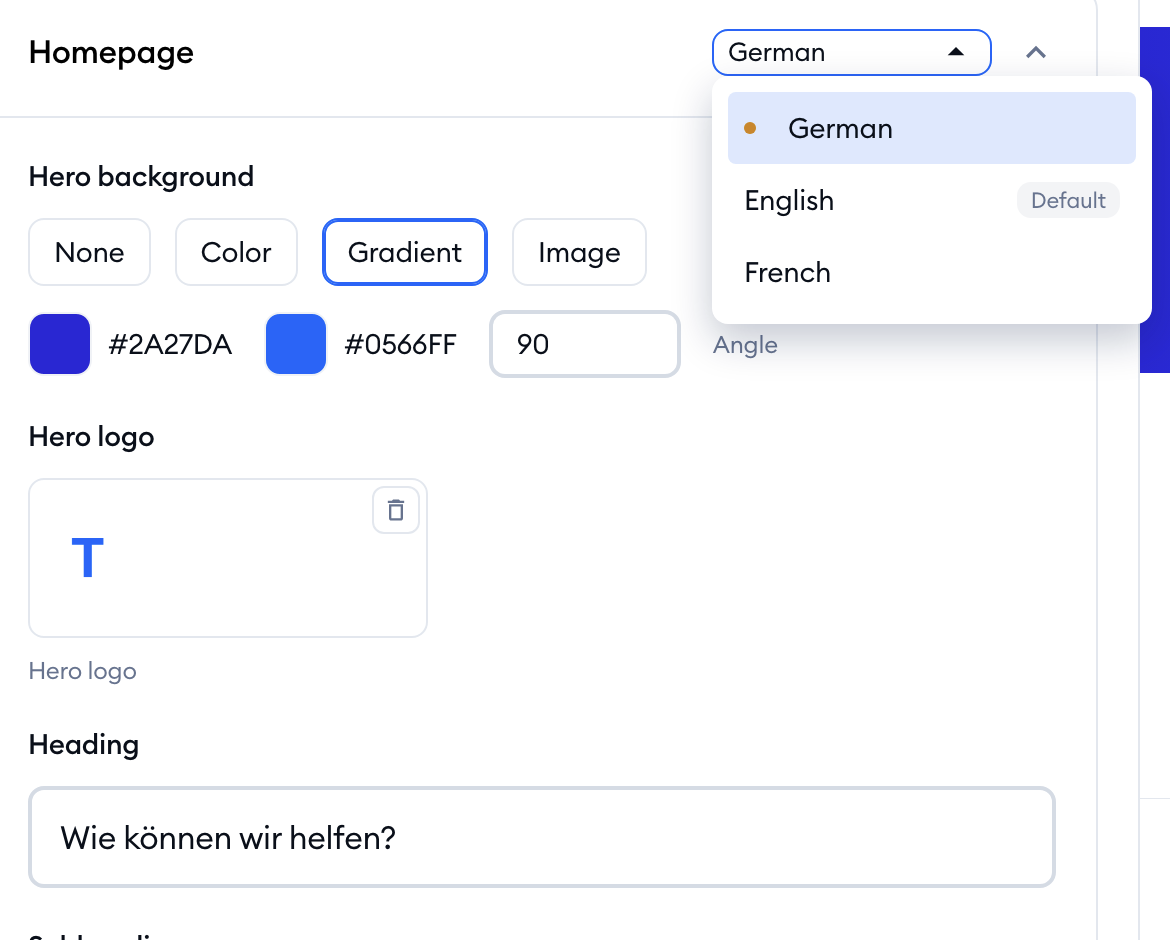
To write a language version, open the article, click on Edit, and pick the language in the language field in the top-right of the article editor (your default language is marked with the Default tag):

A new language version starts empty, so you can write its title, summary and content. Each language version also has its own Article visibility, its own Lyro AI switches and audience (see Use Help Center articles with Lyro and Copilot), and is published on its own. When you unpublish one language, the other translations remain published. The Category is the same for all languages of an article.
If you switch languages with unsaved changes, Tidio will ask what to do: Save draft keeps your work, Change anyway drops it, and Cancel takes you back to the editor.
For everything about writing and publishing, see Write and format Help Center articles and Publish, preview and manage articles.
Translating categories
Categories have a name and description per language as well. In the category list, a category that doesn't have a name in the selected language is marked as Category not translated to this language (hover over its status dot to see it).
To translate it, use Edit category in the category's three-dots menu, pick the Language at the top of the window, and fill in the Name and Description. Learn more in Organize articles into categories.
Translating your Help Center's name, homepage and links
A few texts of your Help Center are set per language too:
- Setup > General - the Help Center name.
- Setup > SEO & Search - the SEO title and Meta description (see Help Center visibility in search engines).
- Appearance > Homepage - the Heading, the Subheading, and the search bar's Placeholder text.
- Appearance > Header and Footer - your Header links and Footer links.
Each of these cards has its own language field in its top-right corner. Pick a language, type the texts for it, then switch to the next language. A dot next to a language in that list means it has unsaved changes. When you're done, hit Save changes once to save all languages:
Please note that the Help Center name can't be left empty in any language.
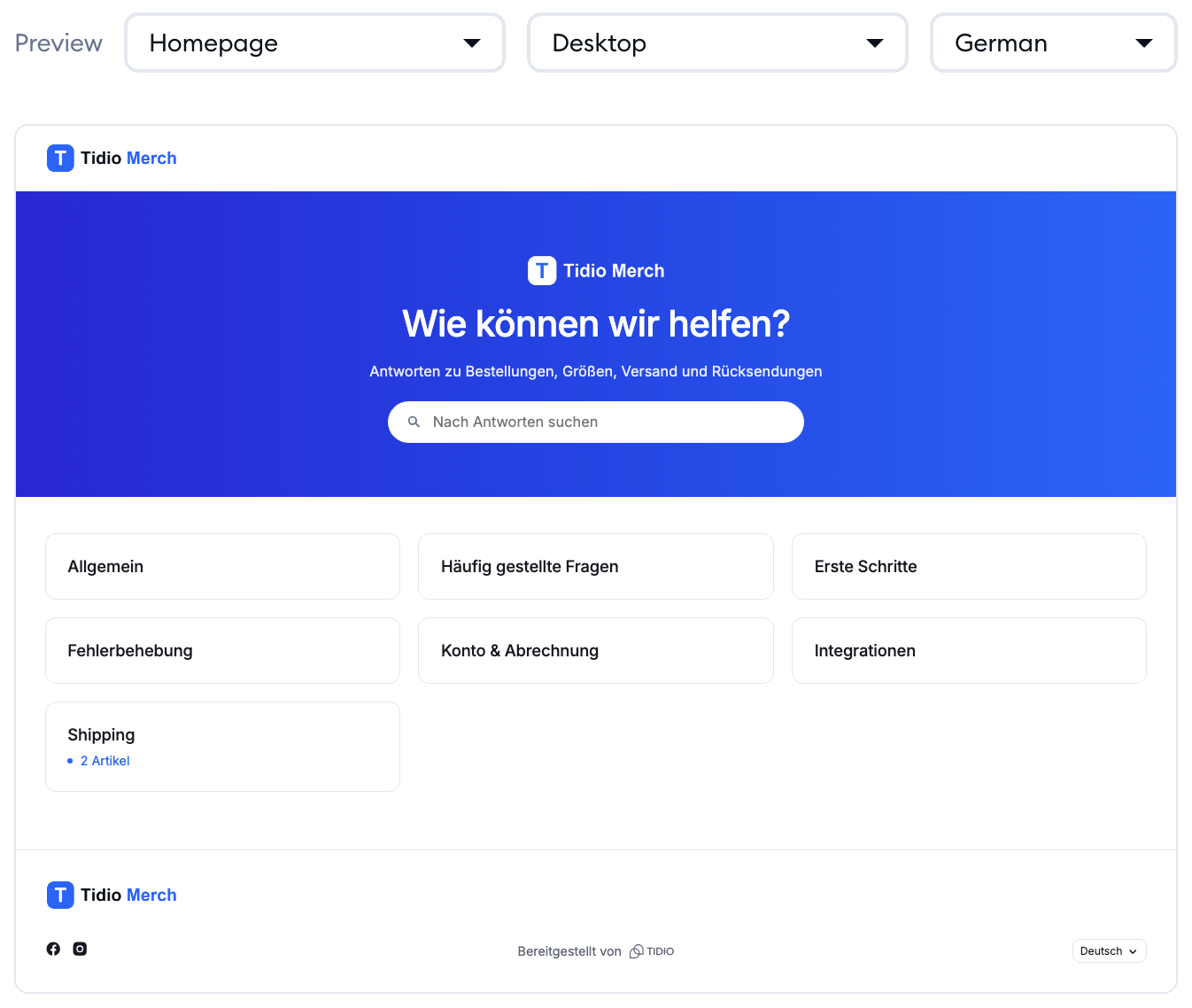
Want to check the result? The preview on the right of the Appearance tab has its own language field in its toolbar, so you can see your Help Center in each language:
You can learn more about these settings in Customize your Help Center's appearance.
What your customers see
Visitors see the Help Center in their browser language when it's available. When a translation is missing, your default language is shown instead.
Each language has its own address, with the language code in it - for example, a German article lives under /de/articles/ on your Help Center's domain. A category shows up in a language only once it has a name in that language.
And since Lyro and Copilot use each language version separately, every language you add can also help them answer in that language - as long as you switch them on for it.
