Many of your customers will look for answers on Google before they ever contact you. With the SEO & Search settings, you decide whether search engines can show your Help Center, and how it's presented in search results.
In this article, you'll learn:
- How to set your Help Center's SEO title and description
- How to hide your Help Center from search engines
- What you can and can't set for search engines
Setting your SEO title and description
Head over to the Help Center section, open your Help Center, and go to the Setup tab. Scroll down to the SEO & Search card:
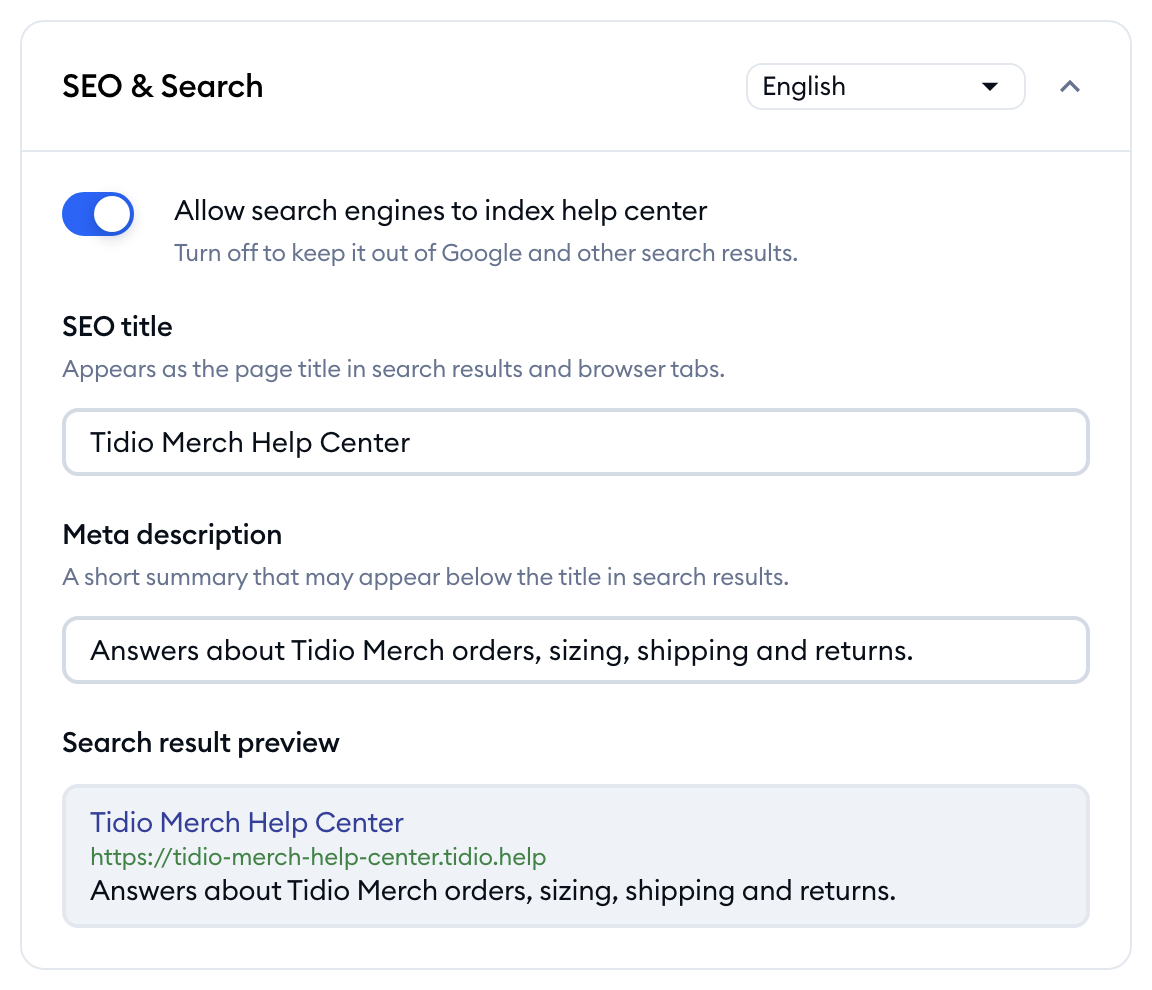
Here you can fill in:
- SEO title - the title of your Help Center in search results and in the browser tab. It can be up to 70 characters long.
- Meta description - a short summary that may appear below the title in search results. It can be up to 300 characters long.
As you type, the Search result preview at the bottom of the card shows roughly how your Help Center could look on Google: the title, your Help Center's address and the description. If you leave the fields empty, the preview shows your Help Center's name and a default description instead:

If your Help Center is available in several languages, use the language dropdown in the top-right of the card to write a title and description for each language. A dot next to a language means it has unsaved changes. You can learn more about languages in Run your Help Center in several languages.
When you're done, hit the Save changes button at the bottom of the tab.
Please note: search engines can only find your Help Center once it's published (see Publish, preview and manage articles). It's also a good idea to connect your own domain first, so your Help Center builds up its search ranking on your own address. The address in the preview always follows the domain your Help Center currently uses.
Hiding your Help Center from search engines
By switching off Allow search engines to index help center, you can keep your Help Center out of Google and other search results. Your customers can still open it with a direct link, or wherever you've embedded it:
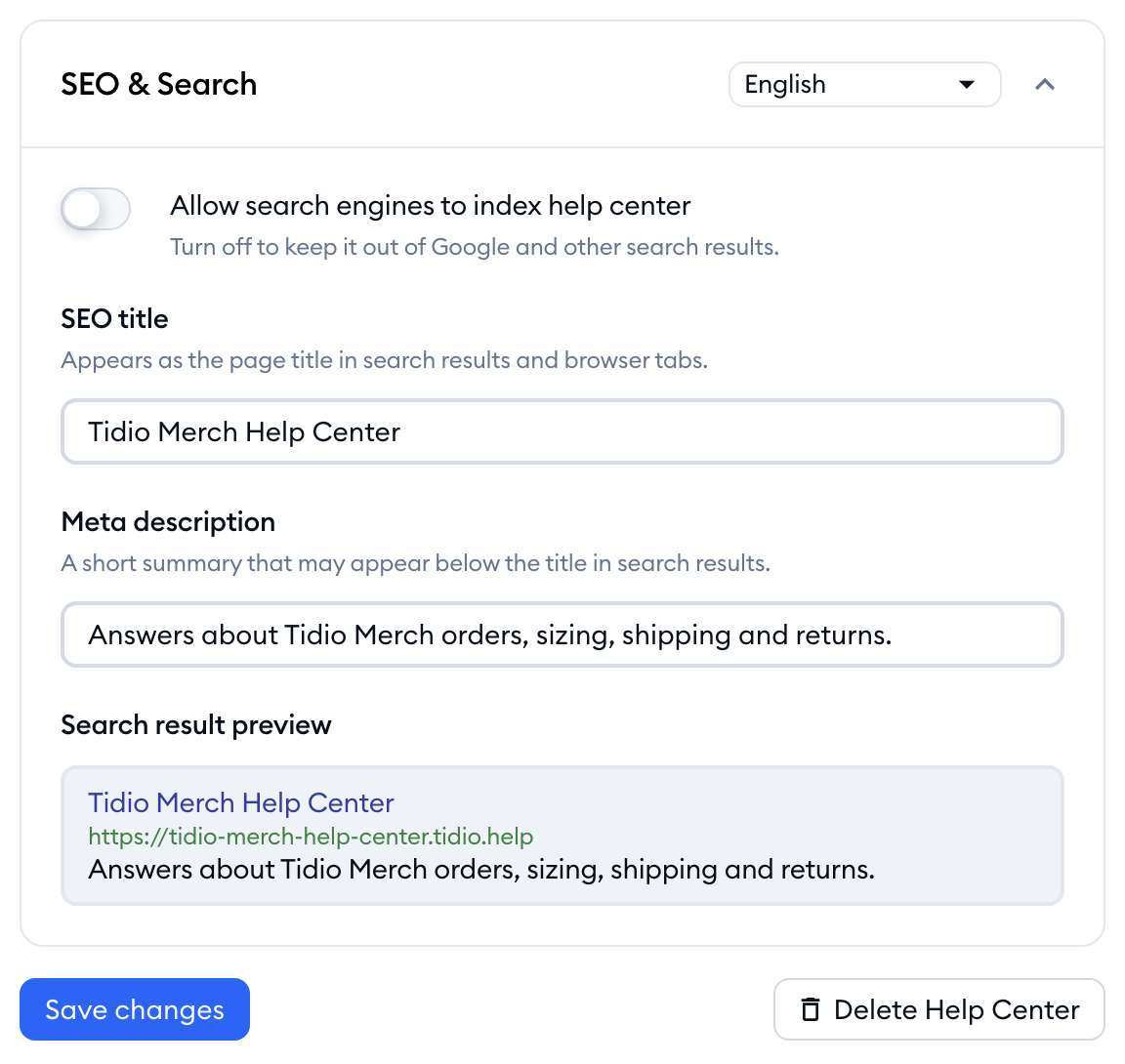
Naturally, don't forget to hit Save changes. This switch applies to the whole Help Center, in every language.
Please note: if a Help Center has already been indexed, it may take search engines some time to drop it from their results after you switch this off.
What you can and can't set
The SEO & Search card is the only place with search engine settings for your Help Center. To be clear about what's available:
- Each Help Center has its own SEO title, meta description (per language) and indexing switch.
- Articles don't have their own SEO title or description fields. When you write an article, you can add an Article summary - a short description of the article, shown in search results (see Write and format Help Center articles).
- To keep a single article off your public Help Center, set it to Unlisted. It will still be available to Lyro, Copilot and your agents (see Publish, preview and manage articles).
- Sitemaps, redirects and tracking codes (like Google Analytics) can't be set up in the Help Center settings.
