At Tidio, every user can use our product for free on the basic version, which is free forever. When you register your account, you receive a free 7-day trial of the paid plans so that you have a chance to test out all the premium features we offer and then decide whether you want to subscribe to the paid plan or downgrade to the free version.
In this article, you'll learn:
- What the free plan offers
- How the 50 conversations limit is calculated
- What happens when your trial ends
- How to downgrade to the free version before the trial ends
- How to downgrade paid subscriptions
The free plan
The free plan is an excellent choice to get your small website started, as no commitment is required.
If you are just starting with your business and do not expect many visitors, live chat conversations, or customer inquiries that can be automated, choose the Free version as your baseline. You do not need to pay for it, and we do not ask you to provide any payment details to the system.
With the Free version, you can have up to 10 live chat agents, conduct up to 50 conversations per month, your flows can serve up to 100 unique visitors per month. You will also have access to third-party app integrations and will be able to connect with Messenger, Instagram, and WhatsApp, and you can download our desktop and mobile apps to handle conversations on the go. You can also have up to 5 active pieces of Lyro Guidance, and your first Lyro Action is free.
50 conversations limit
On the free, basic version of Tidio, you can have 50 conversation threads with your visitors per month. The limit is counted per project, not per agent. When the limit is reached - you'll be notified about that, and you won't be able to see more incoming communication nor respond to it.
To check your current billable conversations limit, click on the round Usage and plan button in the top-right. You'll see the current state of all the relevant limits listed - the first one from the top being the Customer service limit, which refers to your billable conversations quota:
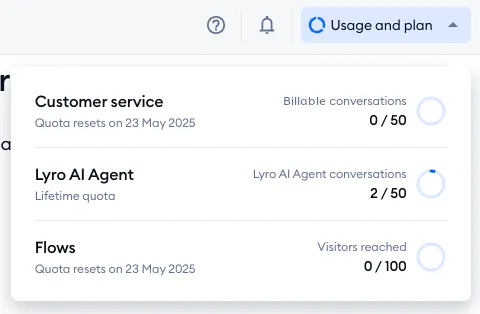
The conversations limit resets monthly, and the exact date depends on your account activation date (or the date of purchase if you're already using an upgraded account). Please note that other limits include the Lyro AI Agent quota (which is a one-time quota of 50) as well as the Flows quota (which is monthly).
End of trial
Each new Tidio project starts with a 7-day trial of the premium features. You can track how many days you've got left in the upper-right:

... and in the Usage and plan menu next to it, or in Settings > Project > Billing.
You can learn more about the trial in this article.
Once your free trial ends, you'll see the Your 7-day full-featured trial has ended screen, and you'll have the option to choose: either sign up for a subscription (paid plan) with Choose your plan, or downgrade to the basic Free plan with the Downgrade button at the bottom, under Downgrade to Free plan. The rest of the panel opens again once you've made your choice.
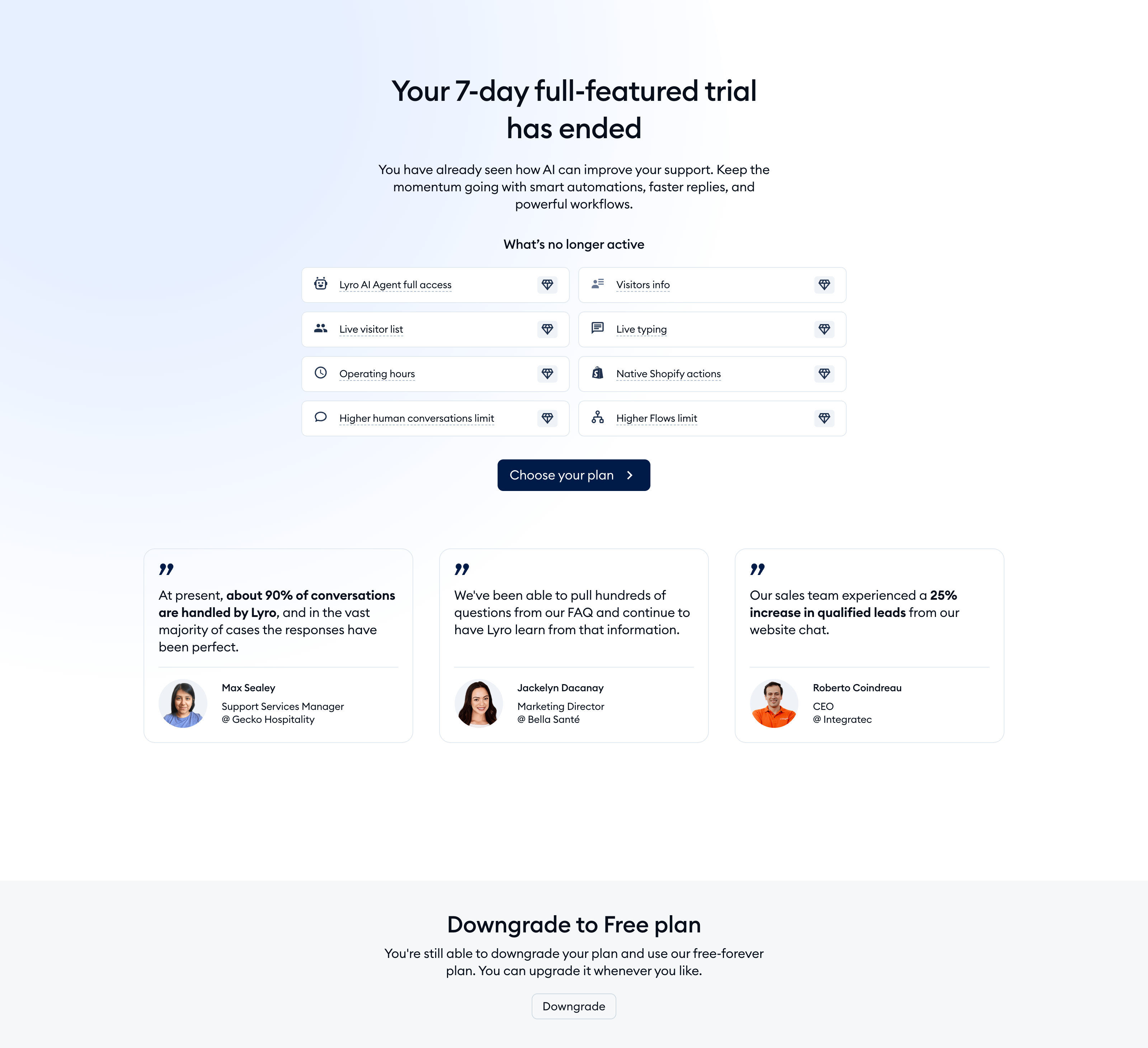
Choosing Downgrade opens a window where you confirm your choice:
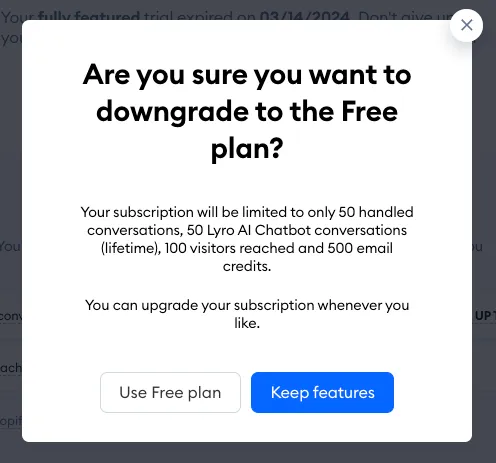
After pressing Use Free plan (and then Ok, got it!), the Tidio panel will refresh, and you'll be able to continue using the service. You can check your account's status and limits by clicking on Usage and plan in the upper-right corner of the page.
Please note: only the project owner can choose the Free plan or a paid plan. If another agent tries, they'll see the message Sorry, you don't have permissions to choose the payment plan. Only the project owner (…) can do it., with the owner's email address.
You can add more features at any moment by clicking on the Upgrade button in the top-right:
Downgrade to Free before the trial ends
You can also skip the trial and go for the free version immediately after logging in to the chat admin panel. The downgrade option will appear once you click on the Usage and plan icon (next to the Upgrade button) in the upper-right corner of the admin panel page; you'll see the click here link to downgrade at the bottom:
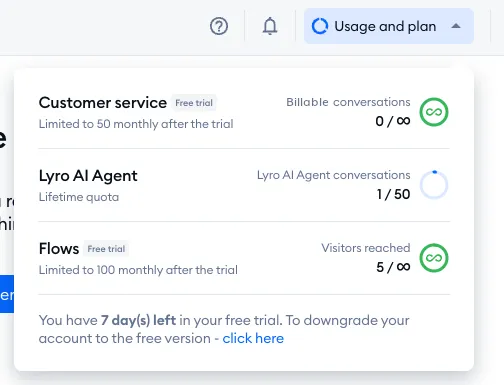
You can also do this in Settings > Project > Billing: on the Subscription tab, scroll down to To downgrade your account to the free version click below and hit the Downgrade button.
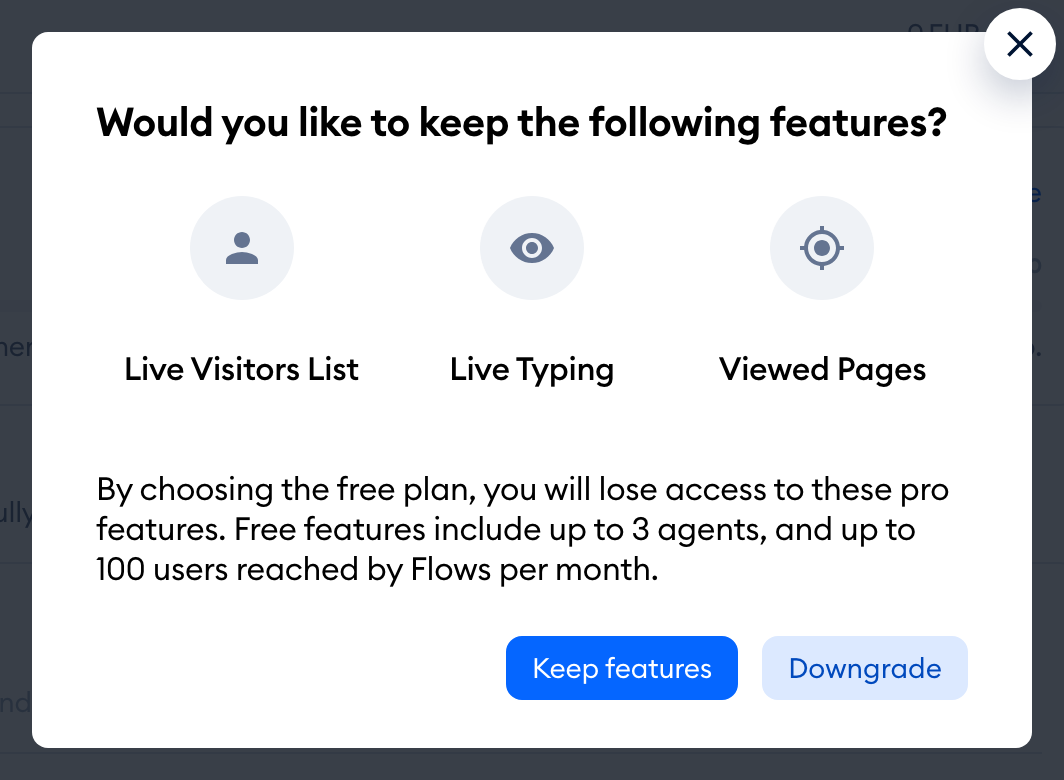
Either way, a window asks Would you like to keep the following features? - click Downgrade to switch to the Free plan right away, or Keep features to look at the paid plans instead:
Downgrade from a paid subscription
Please take a look at our cancellation guide for more details about downgrading your existing paid subscription.
