A very useful tool in Lyro's arsenal is your ability to add specific tasks, which Lyro will carry out in specified situations. These tasks are called Simple Actions - they are basically flows that you create manually, and they are triggered by specified words or phrases. Simple Actions do not interrupt Lyro's conversation with a visitor; they become part of it. Simple Actions can be triggered during active Lyro conversations, or they can be the first thing that triggers in response to the visitor's initial message.
With Simple Actions, you can allow Lyro to check the status of a customer's order (if you're integrated with Shopify), provide information about current discounts, or make Lyro act in a pre-prepared way in response to particular phrases or questions.
In this article, you will learn:
- How to navigate the Actions section
- How to create your own Simple Actions
- What the usage limit (quota) for Simple Actions is
Please note: Simple Actions is a legacy tool that is not available to all Tidio users, and is distinguished from Smart Actions (which allow advanced use of API). You'll only see Simple Actions if your Tidio project already has some, or still has access to the old version of this feature - otherwise, everything you create in Actions & MCPs is a Smart Action, and this article won't apply to you.
Navigating the Actions section
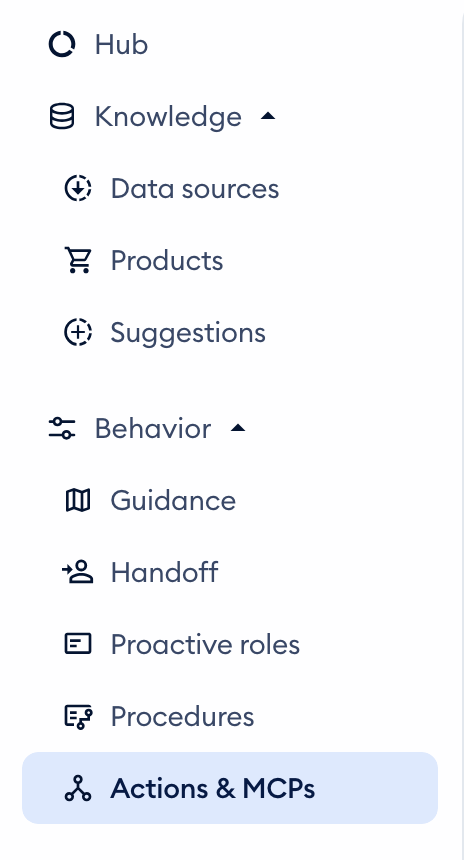
You can access the general Actions tool in your Tidio project's Lyro AI Agent section, under Behavior > Actions & MCPs:
Inside the Actions tab, you will find a list of any Actions (both Smart Actions and Simple Actions) that you may have already added. Of course, you also get the option to create entirely new Actions with the Create button, and the option to test Lyro with Test Lyro. (The MCPs tab next to it is for connecting Lyro with MCP servers.)
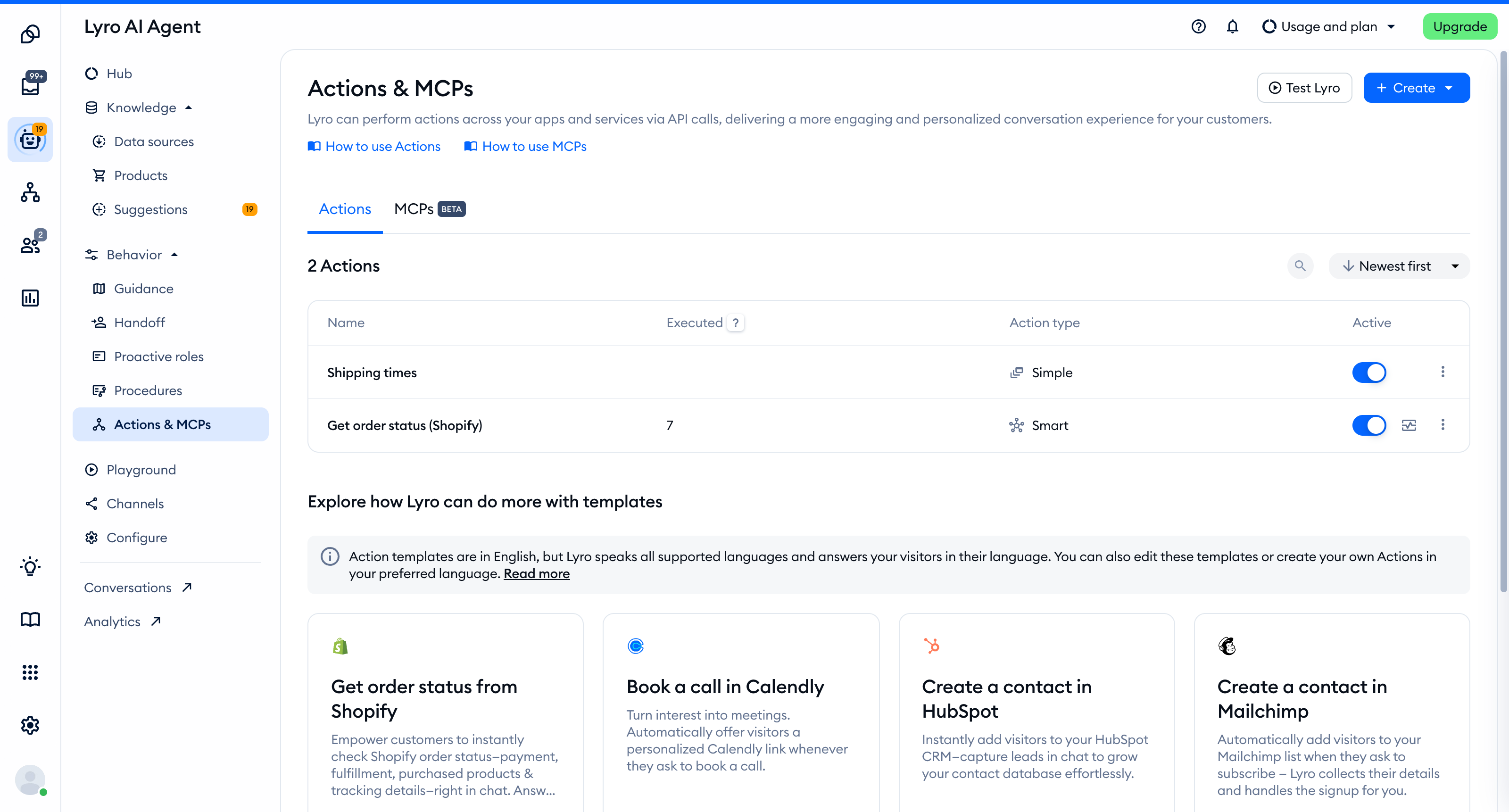
Your Actions
In the Actions tab, you can see a list of all the Actions that you've added so far; this includes both Smart Actions and Simple Actions. The Action type column tells you which is which - Simple or Smart:

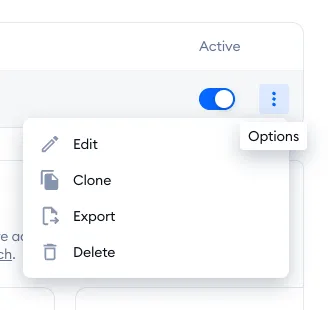
These Actions can be disabled or enabled manually, as well as edited or deleted (please note that Smart Actions can also be cloned and exported, and have logs). All the available options are listed on the right of every particular Action:
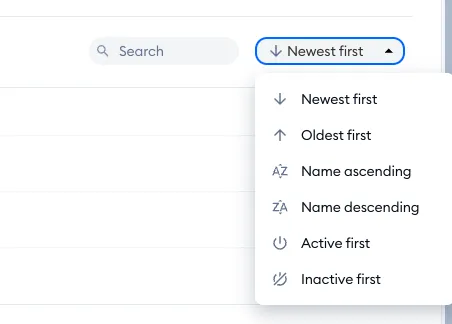
In the Actions list, you can also use the Search tool to quickly find an Action you're looking for, as well as well as sort the listed Actions by different filters:
Templates
There are no templates for Simple Actions any more. The templates you'll find at the bottom of the Actions tab are Smart Action templates - see Lyro Action templates to learn how to use them.
Please note that the general Actions tool in Lyro offers not only Simple Actions, but also Smart Actions - which are built differently and have different purposes. Simple Actions are relatively basic Lyro automations with pre-programmed replies; they can be useful for handling certain repetitive tasks, such as collecting information from a customer when they're asking for more details or assistance.
If you want to tackle more advanced scenarios (such as AI-driven conversations that integrate external data), you'll need to create a Smart Action. Please see our dedicated guide on using Smart Actions here.
Adding Simple Actions
You can create your own Simple Actions from scratch, and edit the ones you already have. Creating and modifying Simple Actions works just like creating and modifying flows in Tidio, so you may already be familiar with the editor and its options.
Creating a custom Simple Action from scratch
Creating your own Simple Action can be a very powerful tool, as it allows you to build a customized flow with different conditions and actions.
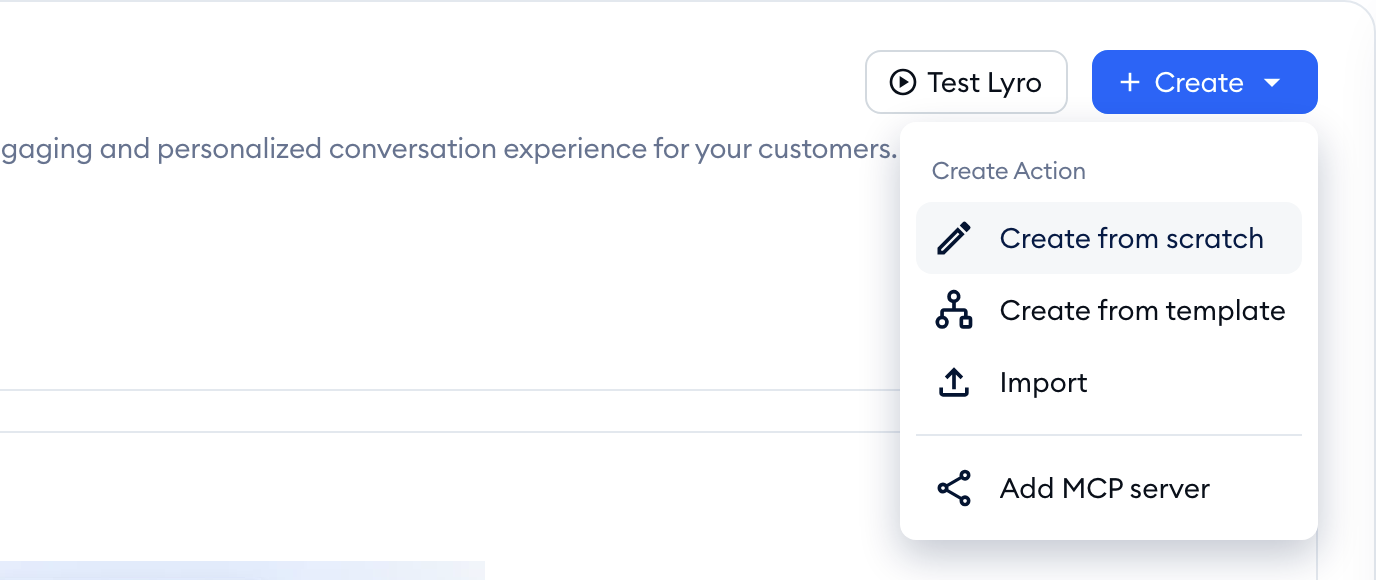
In Actions & MCPs, click on the Create button in the upper-right corner, and select Create from scratch:
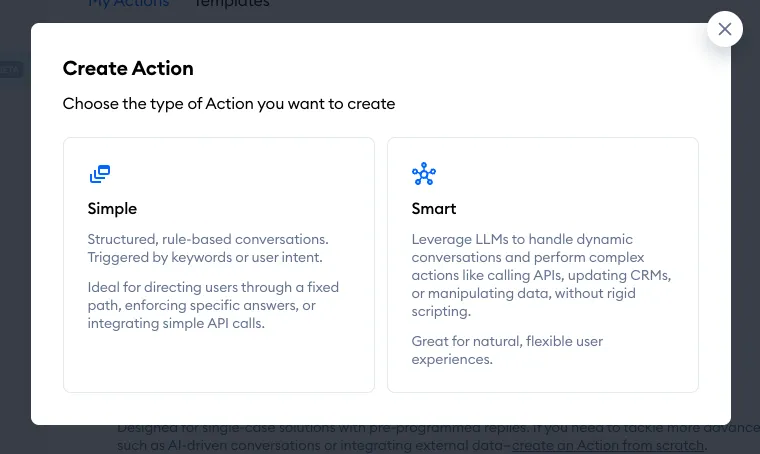
A Create Action window will pop up, asking you to decide about the type of Action you'd like to create: Smart or Simple. In this case, we need to create a Simple Action. (If your project no longer has access to Simple Actions, you won't see this window - Create from scratch takes you straight to a new Smart Action.)
This will let you start creating your Simple Action in the editor, with all the tools normally associated with creating regular flows (except a Simple Action always starts with the Visitor says trigger - as that is how Lyro will recognize the visitor's question):
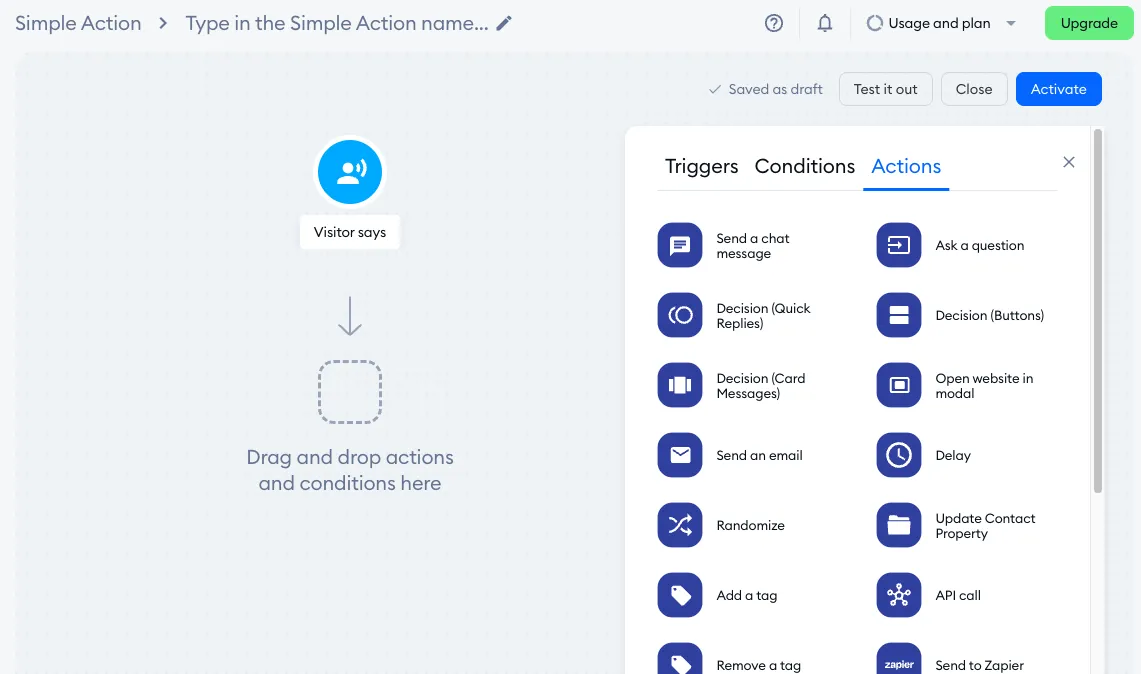
Please note: if your widget creates tickets when your agents are offline, the Visitor says trigger shows a warning: activating it will disable creating tickets from the widget when agents are offline.
Once you finish creating your Simple Action and activate it, you will be asked to name it - and it will become visible in the Actions list, along with any other Actions (both Simple and Smart) that you may have added:
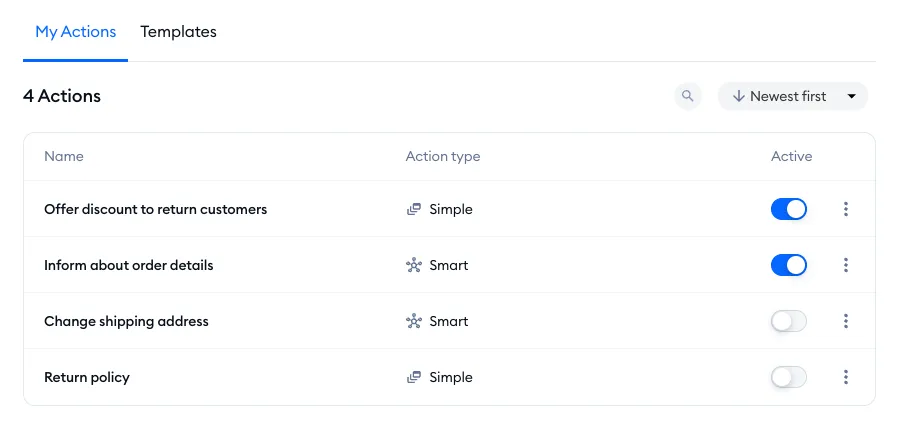
There you can disable or enable particular Actions, as well as edit them whenever necessary, or delete them permanently. You also get the option to use the Search tool as well as the option to sort the Actions list.
The quota for Simple Actions
When a Simple Action is triggered, it is essentially a flow executed during a Lyro agent conversation. Since they are part of the Lyro interaction in general, Simple Actions use your project's Lyro quota.
If you need to learn more about how the Lyro quota works, please see The Lyro AI agent limit.
The way this Simple Action usage is calculated is similar to the general Lyro AI agent usage, or even the flows usage. One unique visitor who triggers a Simple Action is counted as 1 (one) deducted from your Lyro quota. The same unique visitor can continue to trigger other Simple Actions, or chat with Lyro, and nothing more will be deducted from the quota.
Please note: if a visitor triggers a Simple Action during an active Lyro conversation, nothing will be deducted. That's because 1 (one) from the Lyro quota has already been deducted when the Lyro conversation started.
Simple Actions also don't count toward the limit of active Actions described in Lyro Actions - that limit applies to Smart Actions.
