A condition in Tidio is a flow node that checks whether specific visitor criteria are met to choose the next step in the flow.
In this article, you'll learn:
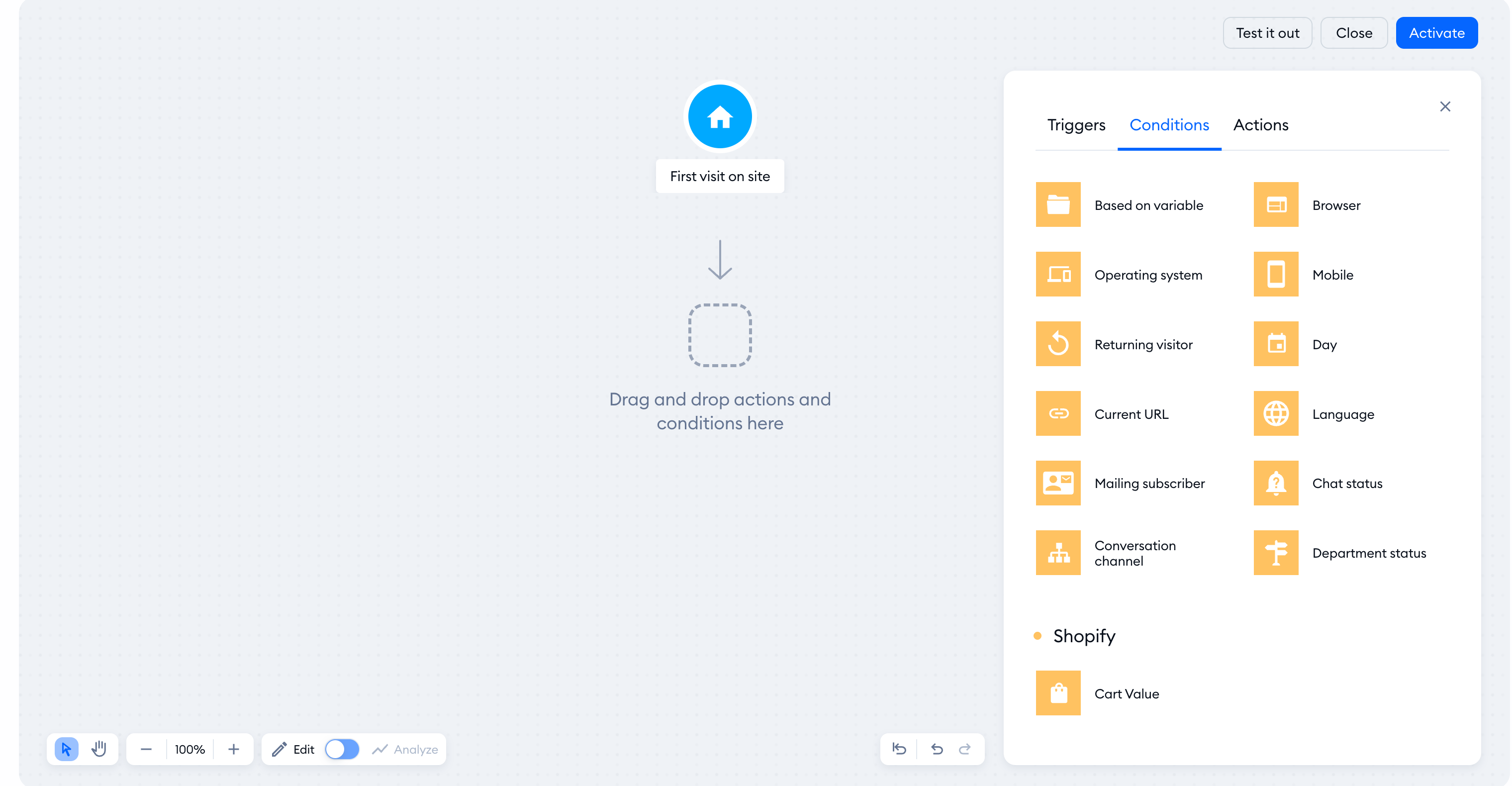
How conditions work
The conditions in Tidio allow you to narrow down the targets of your flow's actions by setting up requirements. A condition can be used to apply a filter; for example, it allows you to change the way the flow will behave depending on your chat status, the visitor's browser, or the page they're currently visiting on your website. Conditions can also check what the visitor's preferred browser language is, so that you can send them different versions of messages.
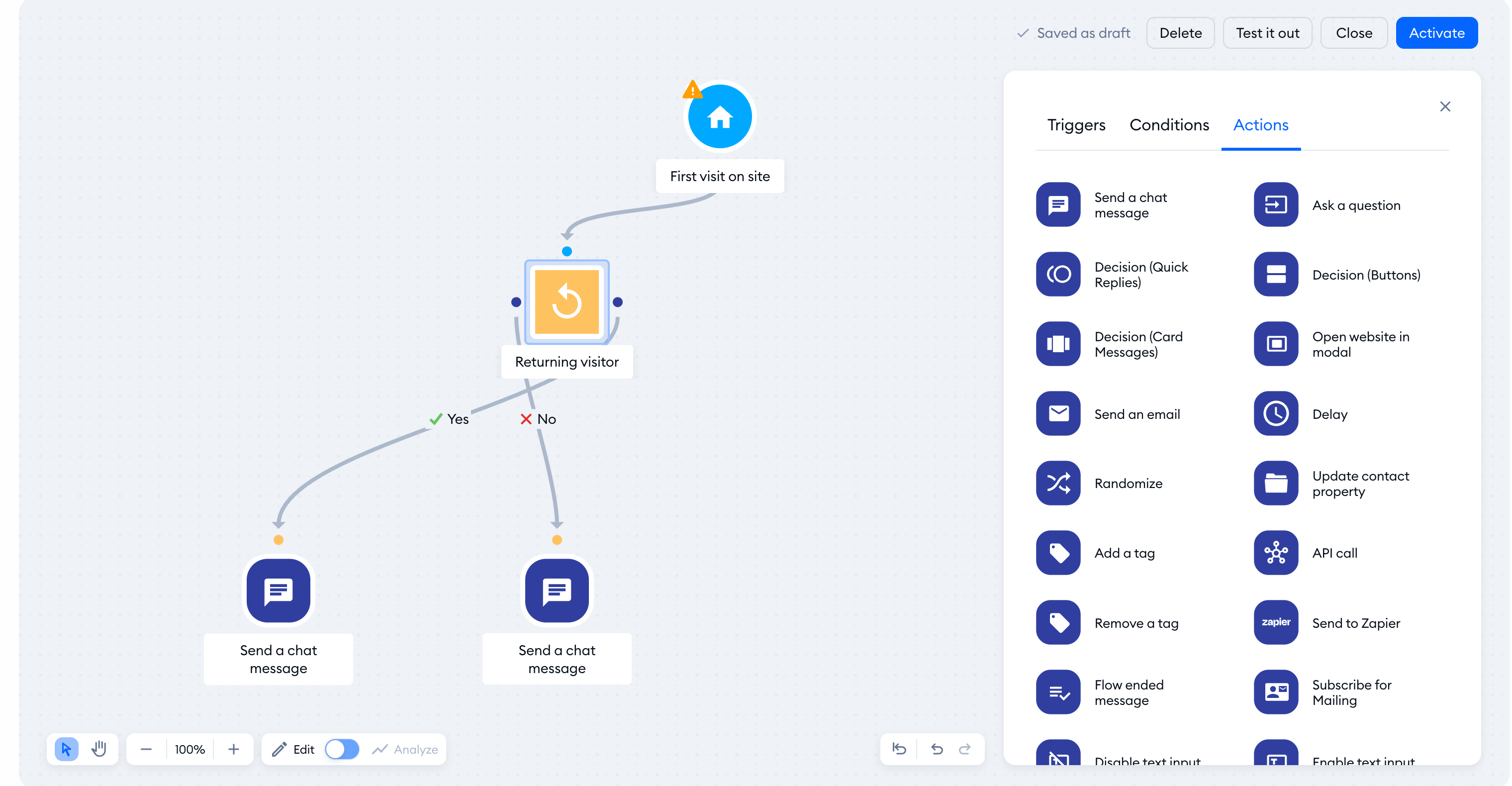
Binary (yes/no) outcomes
Some conditions let you choose either the Yes or No outcomes - meaning that you decide what the flow does if the condition is met, and what it does when the condition is not met:
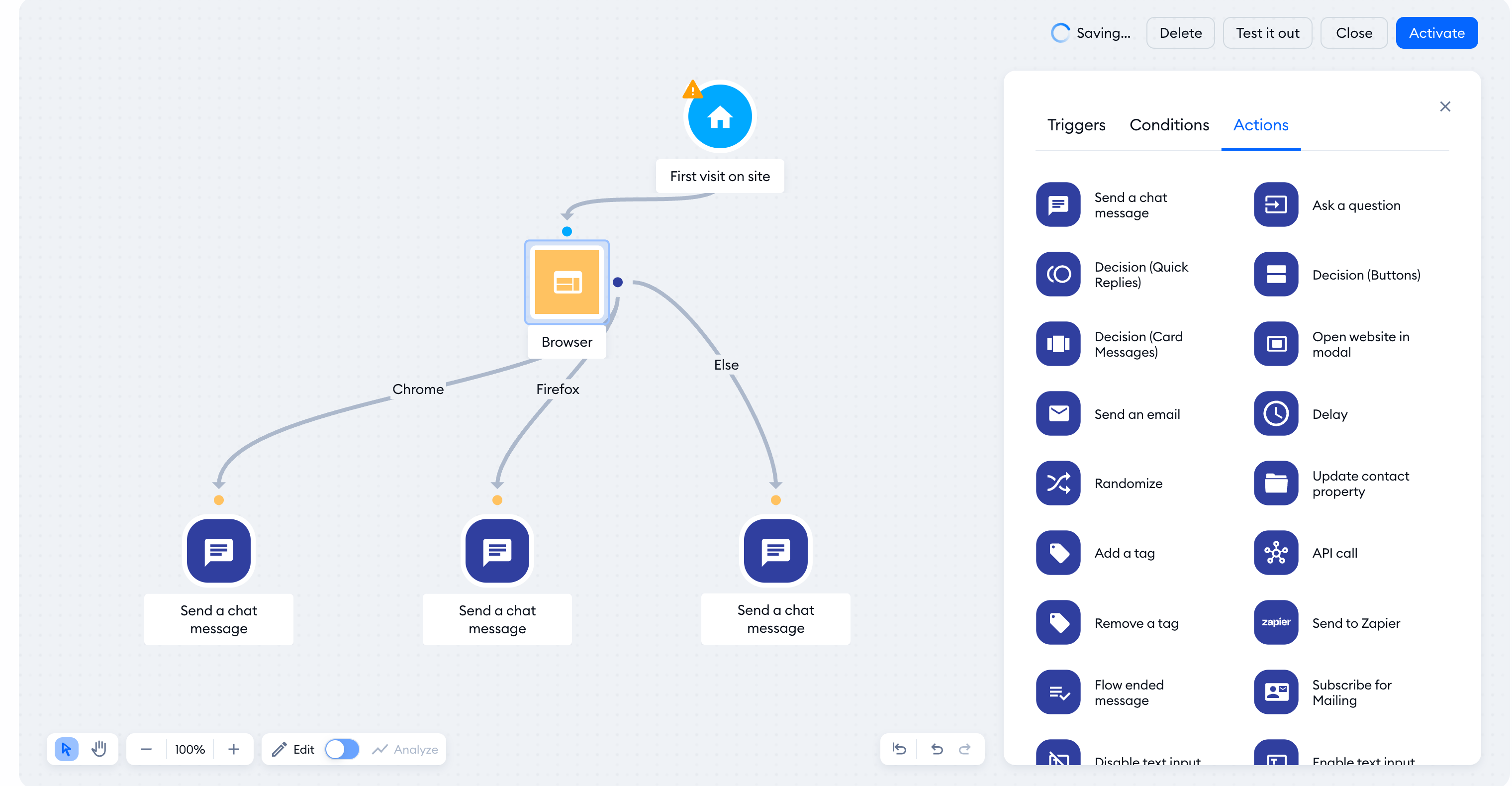
Multiple outcomes
Available conditions
Here are the conditions covered in this article:
- Based on variable
- Current URL
- Chat status
- Conversation channel
- Browser
- Operating system
- Mobile
- Returning visitor
- Day
- Language
- Mailing subscriber
- Department status
- Cart Value (Shopify only)
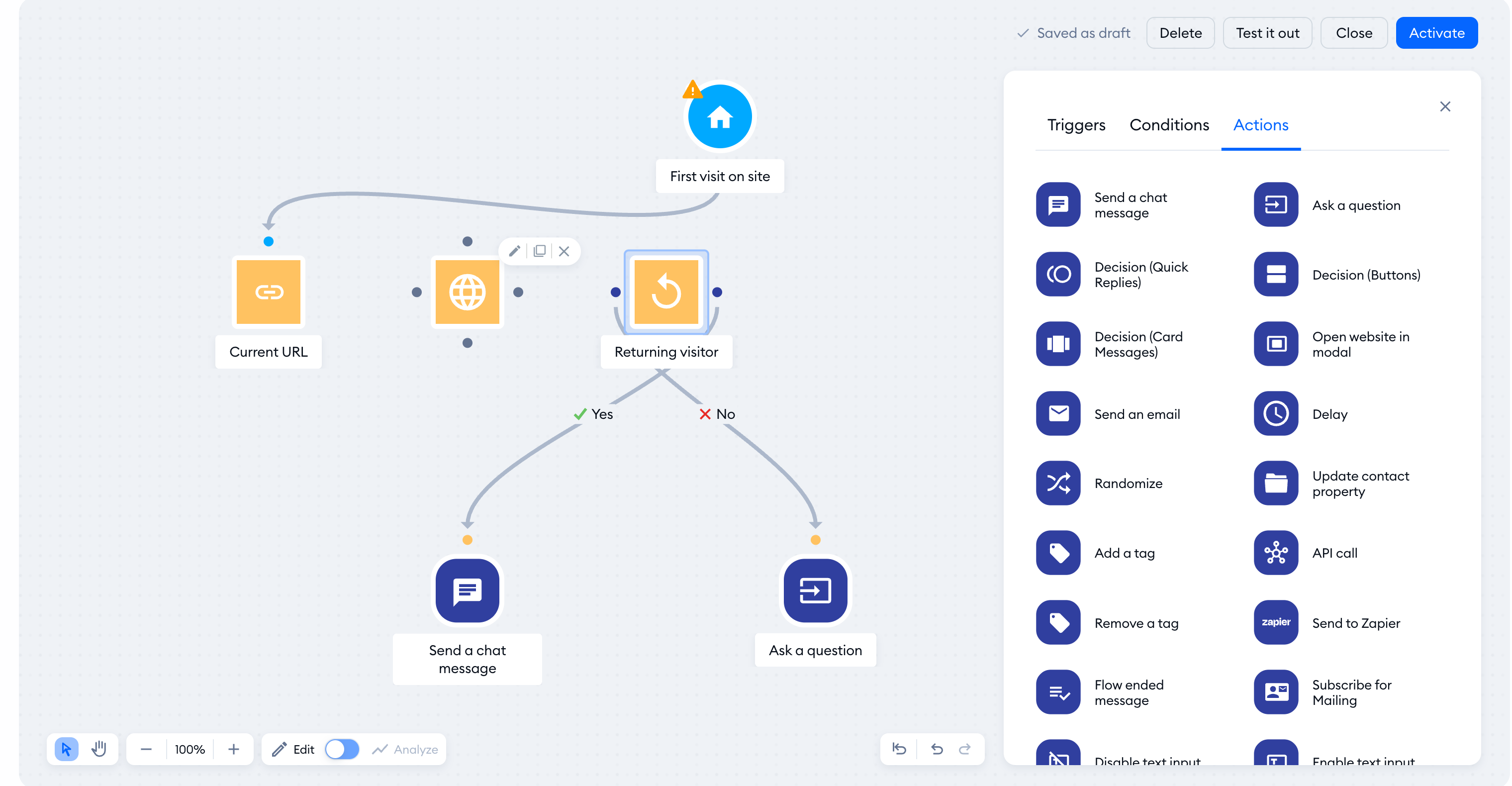
You'll find all the conditions listed on the right-hand side menu, inside the flow editor, next to the triggers and actions.
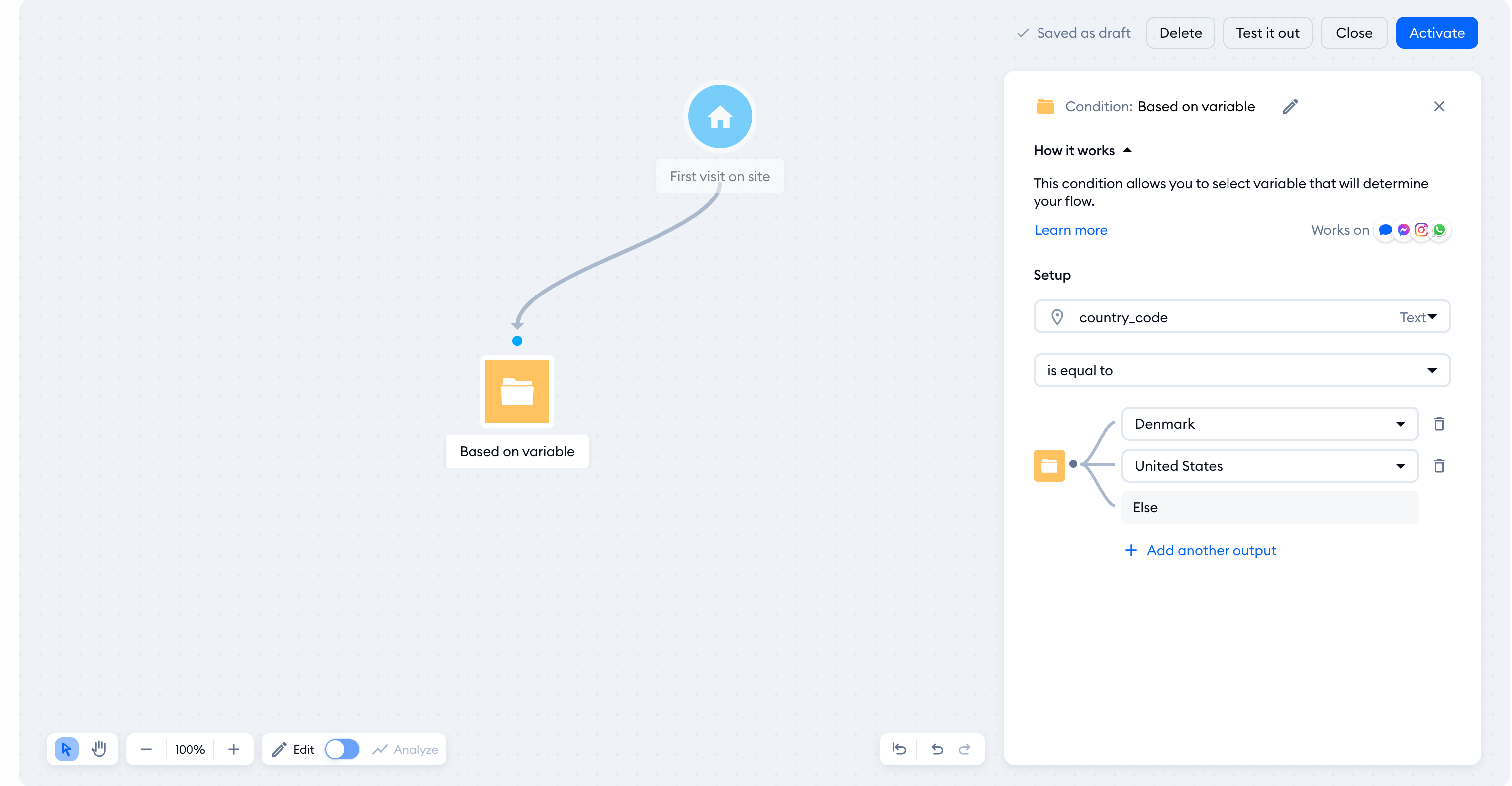
Based on variable
This condition allows you to select a Contact Property or temporary session variable that will determine the flow of your flow. See our article about Contact Properties to learn more.
Current URL
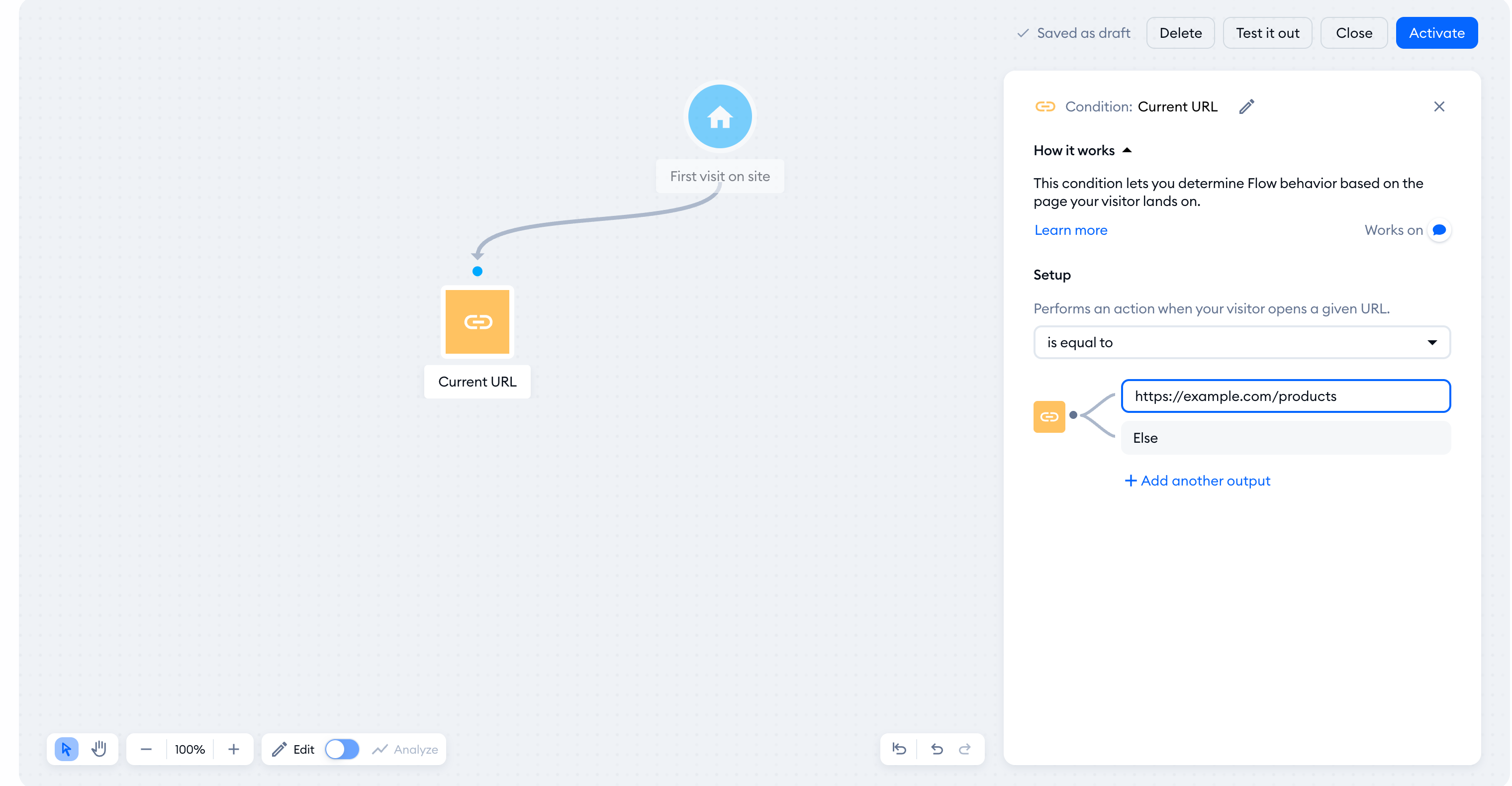
This condition lets you determine flow behavior based on the page your visitor is currently browsing. Let's say that you wish to activate a flow when a visitor moves their mouse cursor out of the browser window - but you only want that to happen on a specific URL. You can achieve this thanks to the Current URL condition.
Chat status
The Chat status condition lets you adjust your flow's behavior depending on your chat status: Online or Offline.
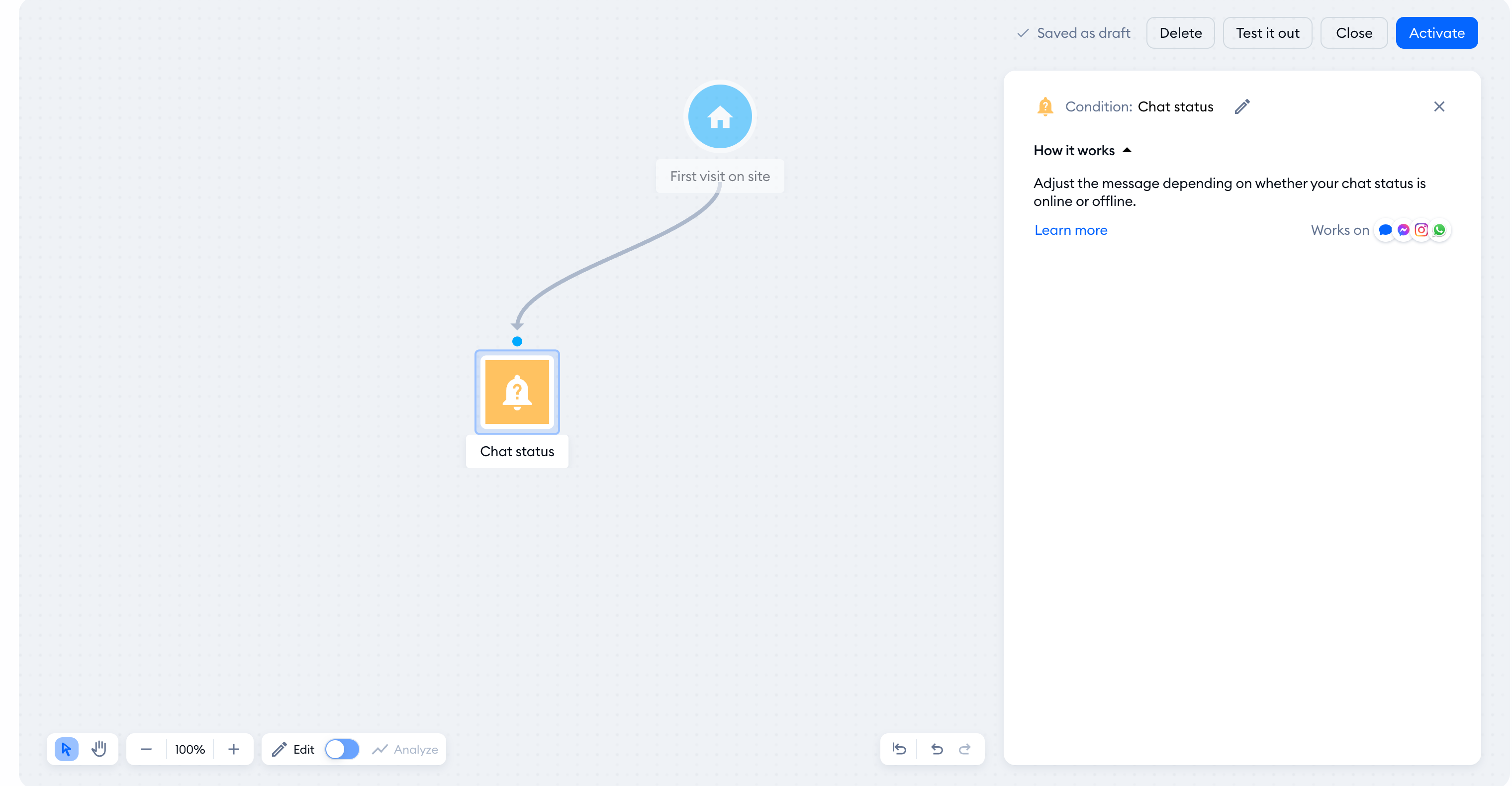
This feature comes in handy when you wish to display a specific flow message when your chat is online and a different one when your chat is offline.
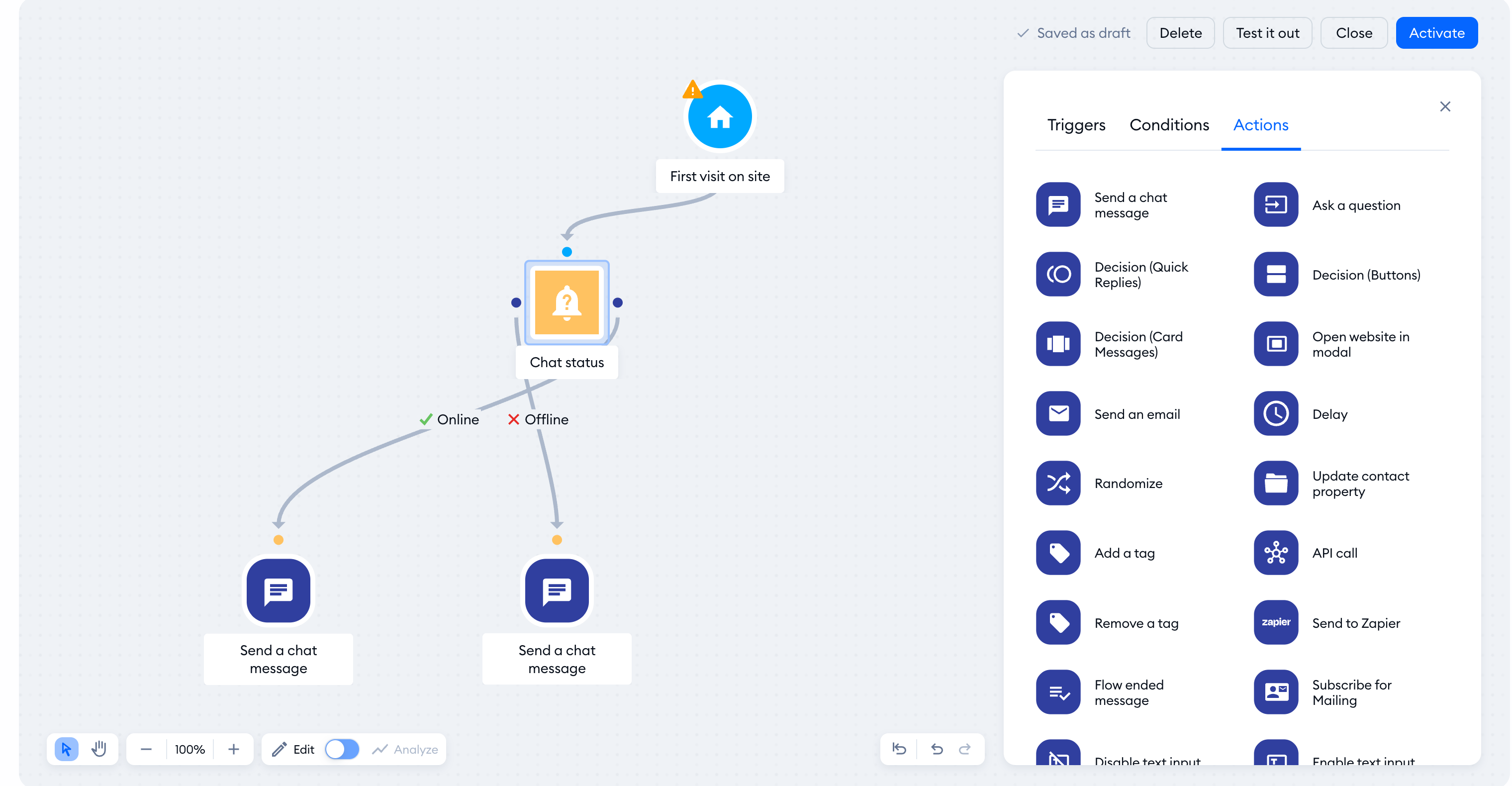
The example above presents a flow that sends a warm welcome message to your visitors when your chat status is online but asks for an email and informs them that you will reach out to them later on when you cannot respond to the request.
Conversation channel
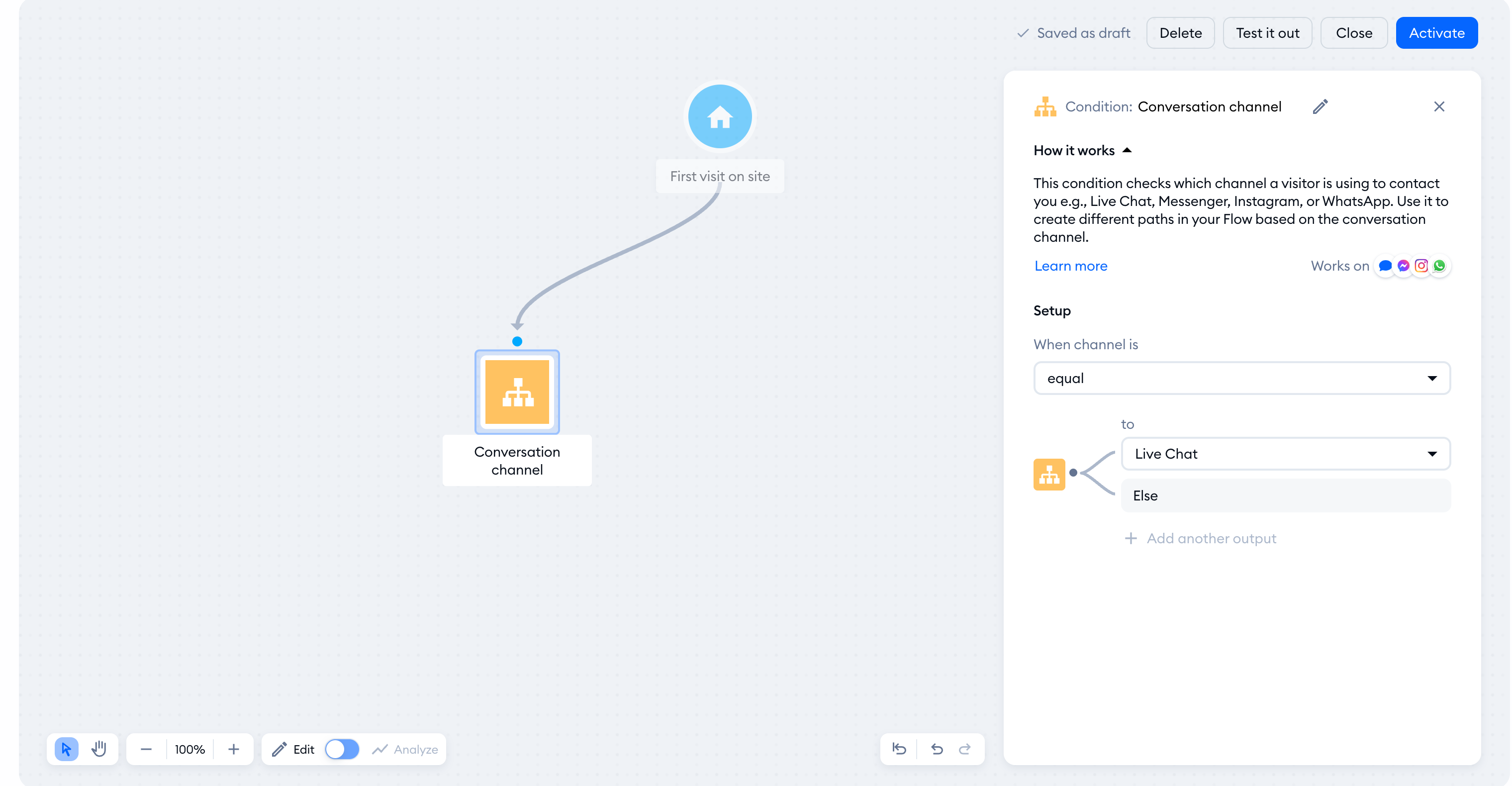
This condition allows you to decide how the flow behaves depending on the visitor's current communication channel. Inside the condition, you can select Live Chat, Messenger, Instagram, or WhatsApp. This way, you can create different flow scenarios based on how your customers are communicating with you.
If you're missing any of the relevant integrations in your Tidio project, the channel will be unavailable. In such cases, you will see a shortcut to integrate with the associated app and make the channel available.
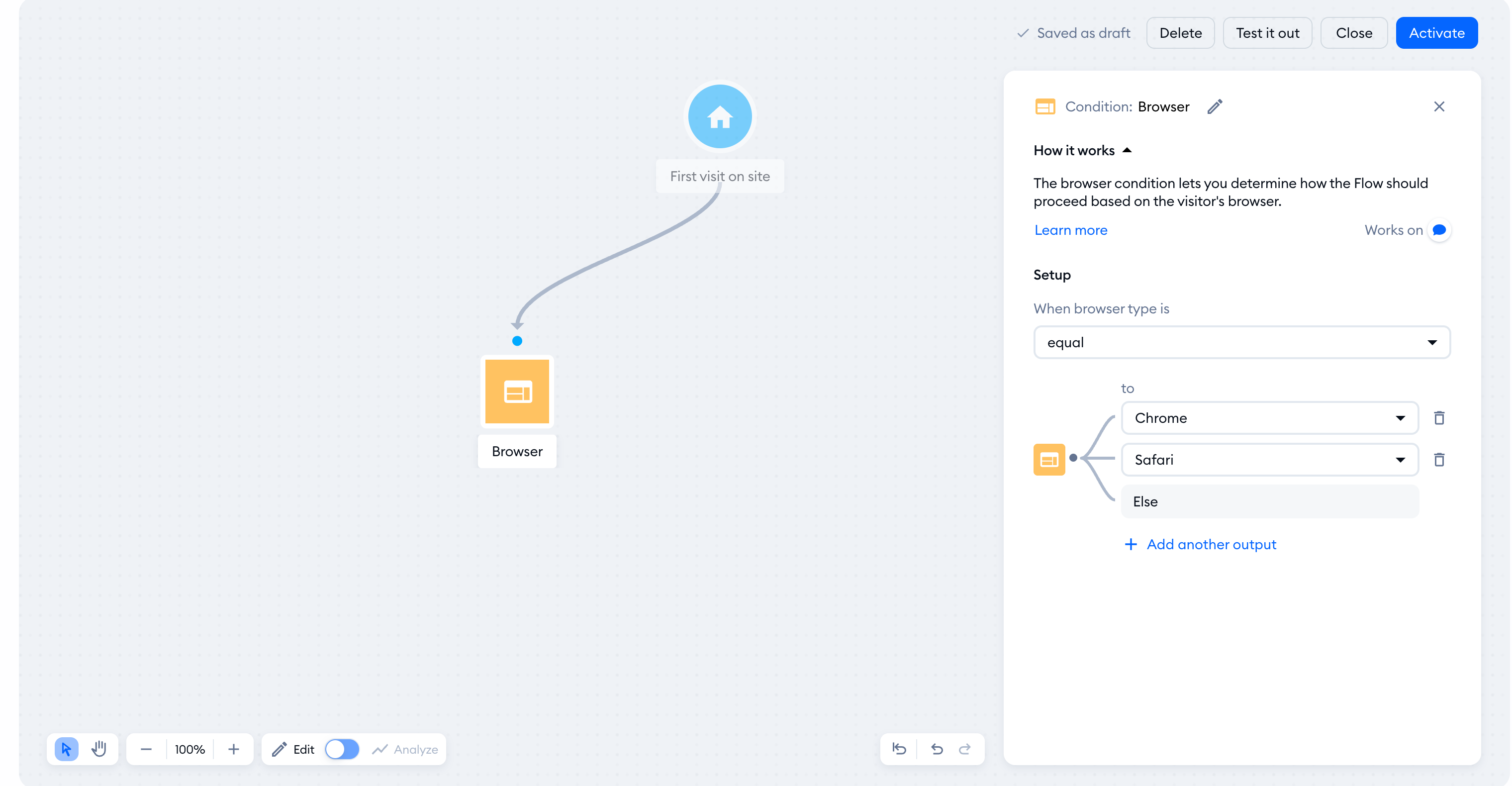
Browser
This condition lets you determine how the flow should proceed based on the visitor's browser. You can, for example, make the flow message only those users who are using a specified web browser.
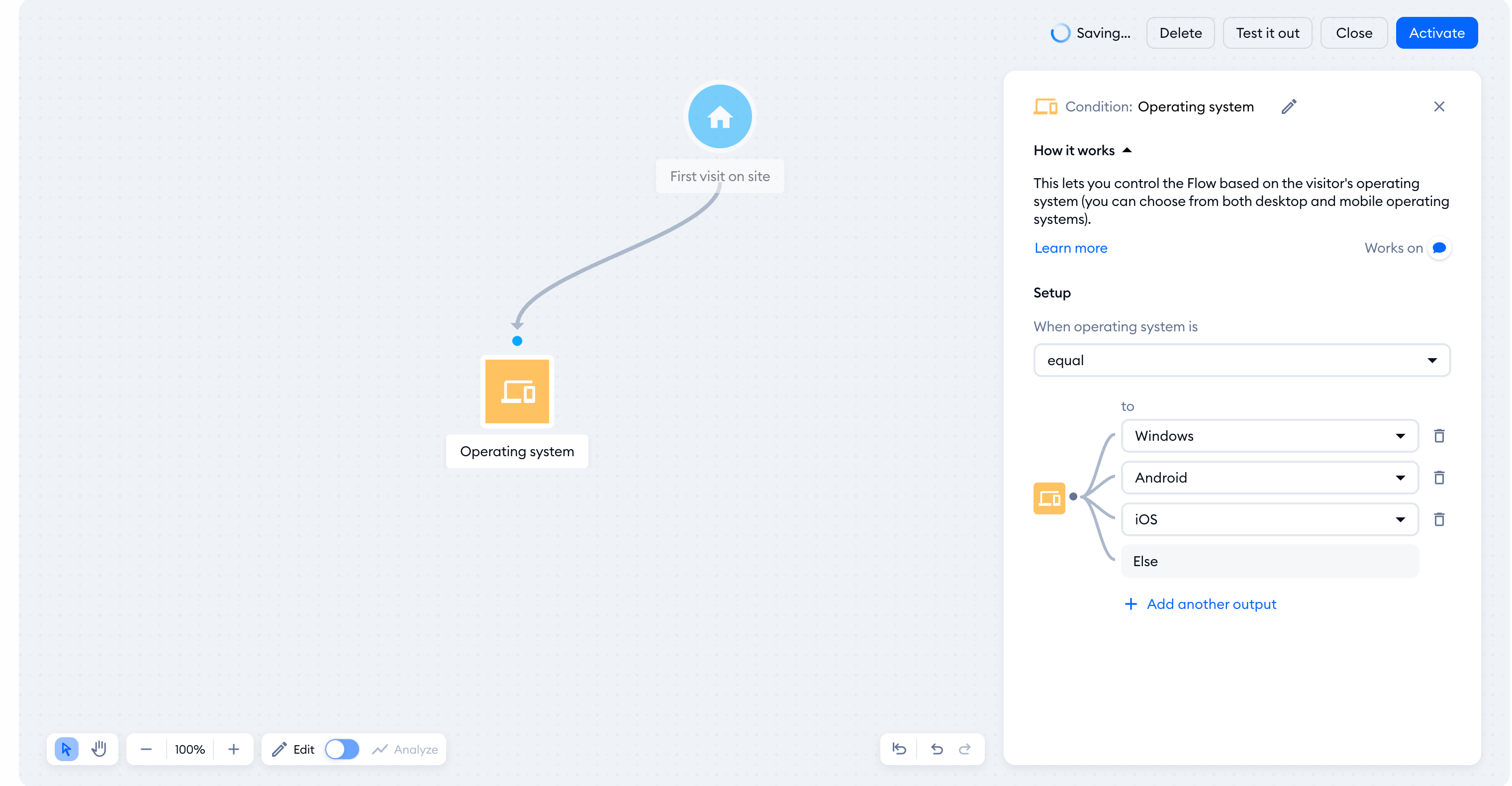
Operating system
Similar to the Browser above, the Operating system condition lets you control the flow based on the visitor's operating system (you can choose from both desktop and mobile operating systems).
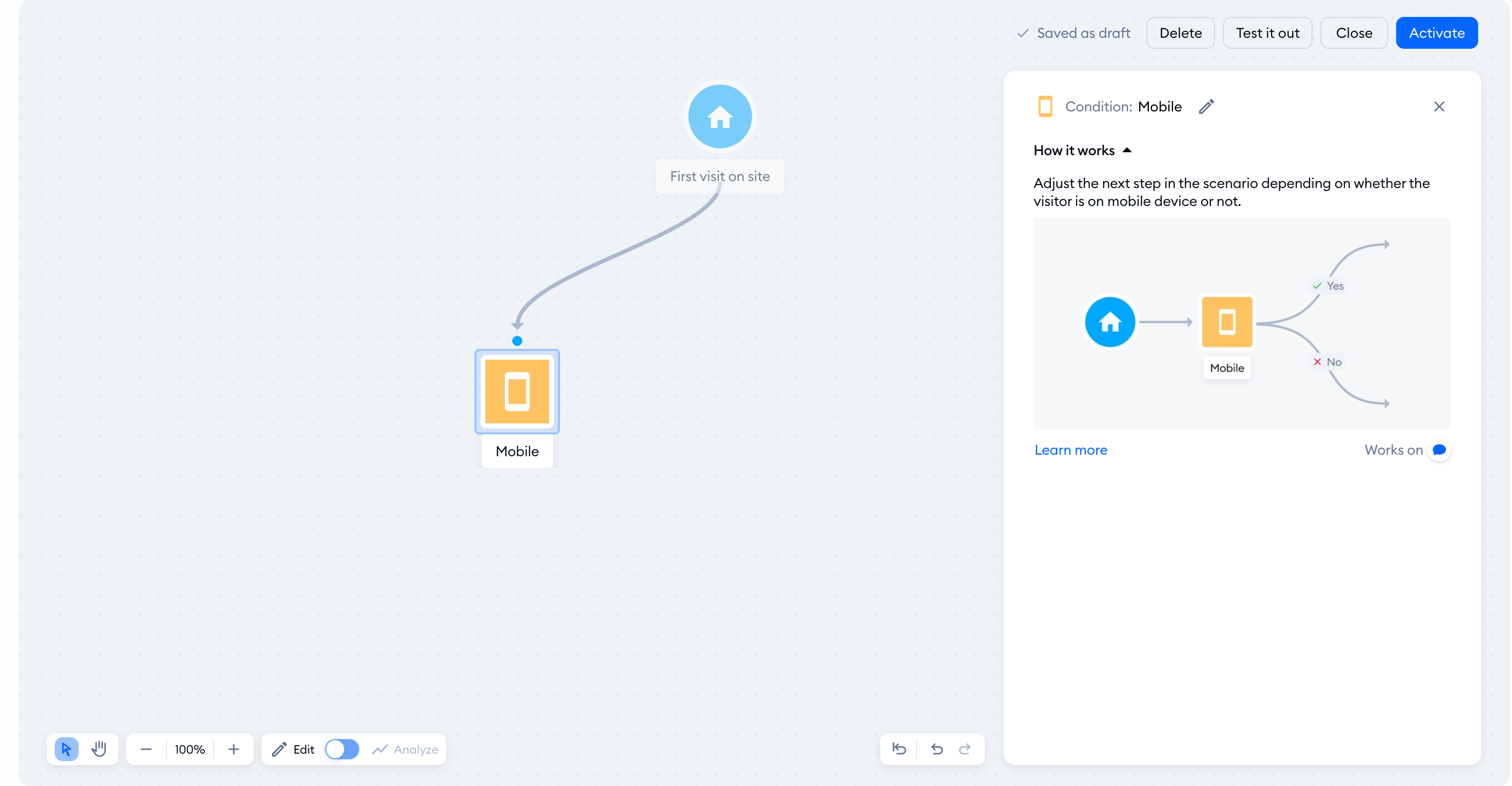
Mobile
With this condition, you can create different paths for users using mobile devices. For instance, you could create a path that offers mobile users a more streamlined checkout process while desktop users are presented with a more detailed product catalog.
Returning visitor
This condition enables your flow to act differently towards new and returning visitors on your site. It's different than using the Visitor returns to the site trigger in your flow - because you can create a flow with a different trigger that you need (e.g. Visitor clicks on chat icon) and attach that condition, creating a scenario that isn't possible otherwise.
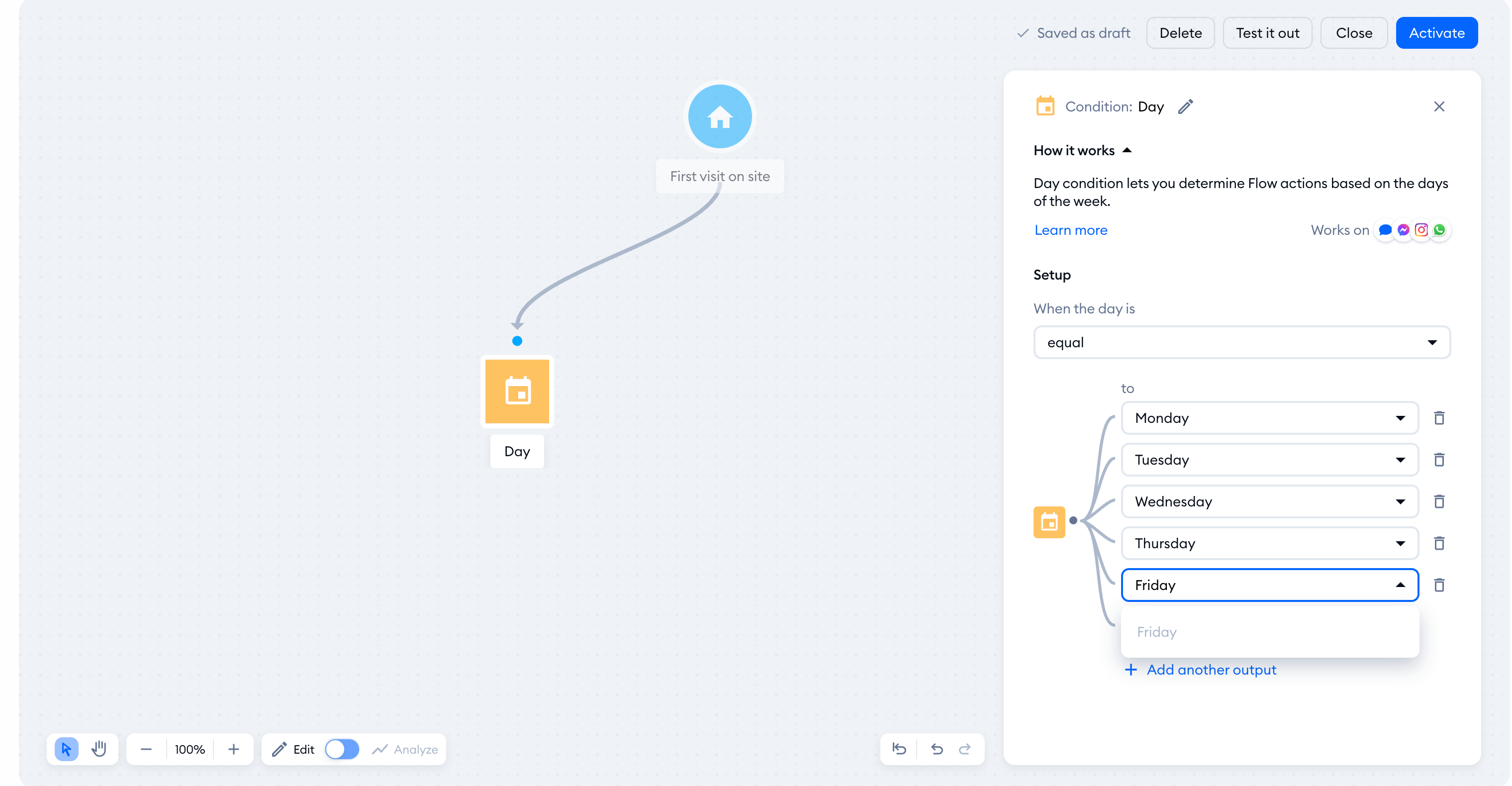
Day
This condition lets you determine flow actions based on the days of the week.
Language
This condition lets you create a flow that will, for example, send automated messages in more than one language (or carry out other actions based on language). The flow will detect the visitor's default browser language and base its actions on that.
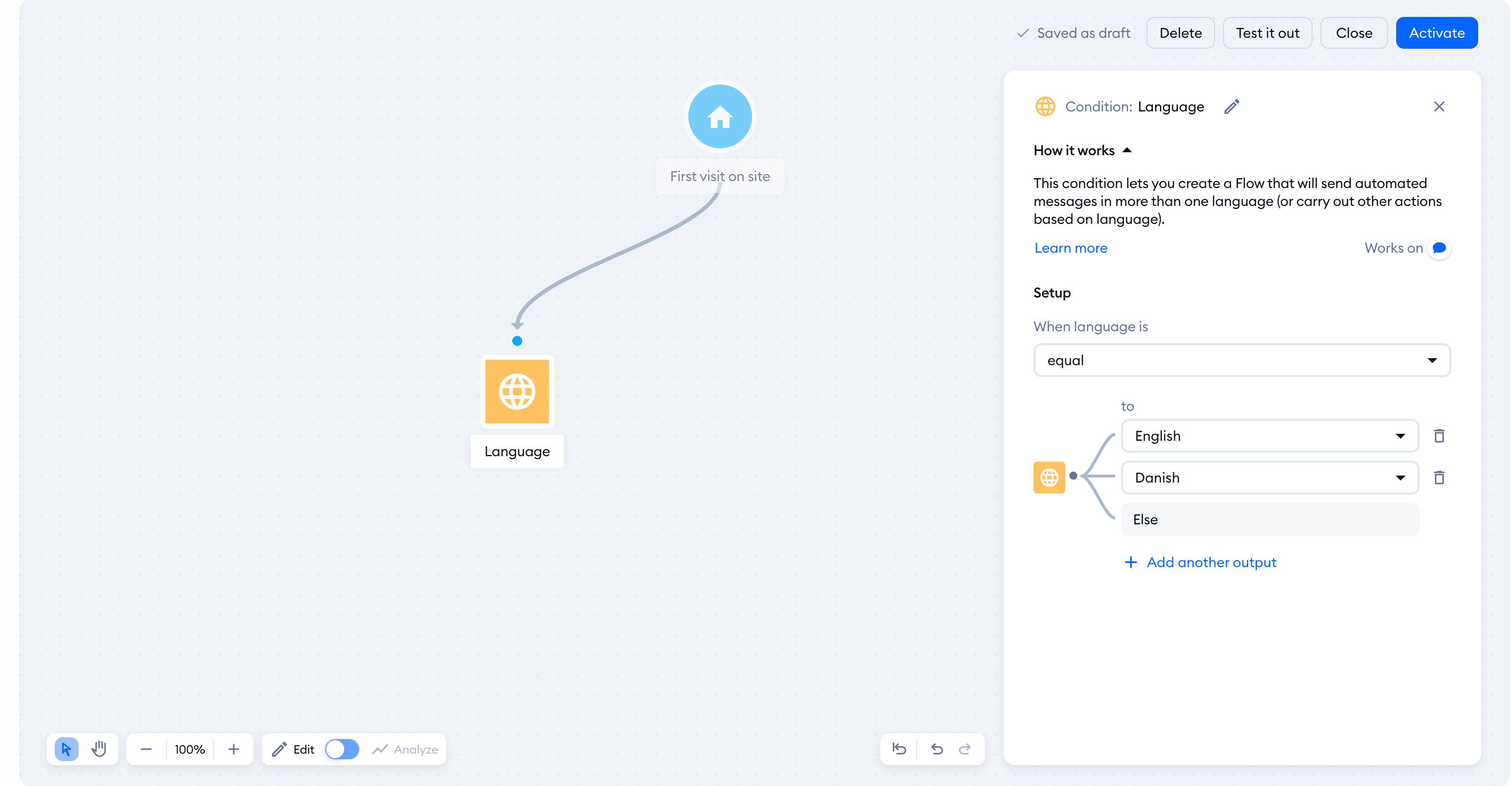
You can read more about implementing the Language condition in the article How to Create a Multilingual Flow.
Mailing subscriber
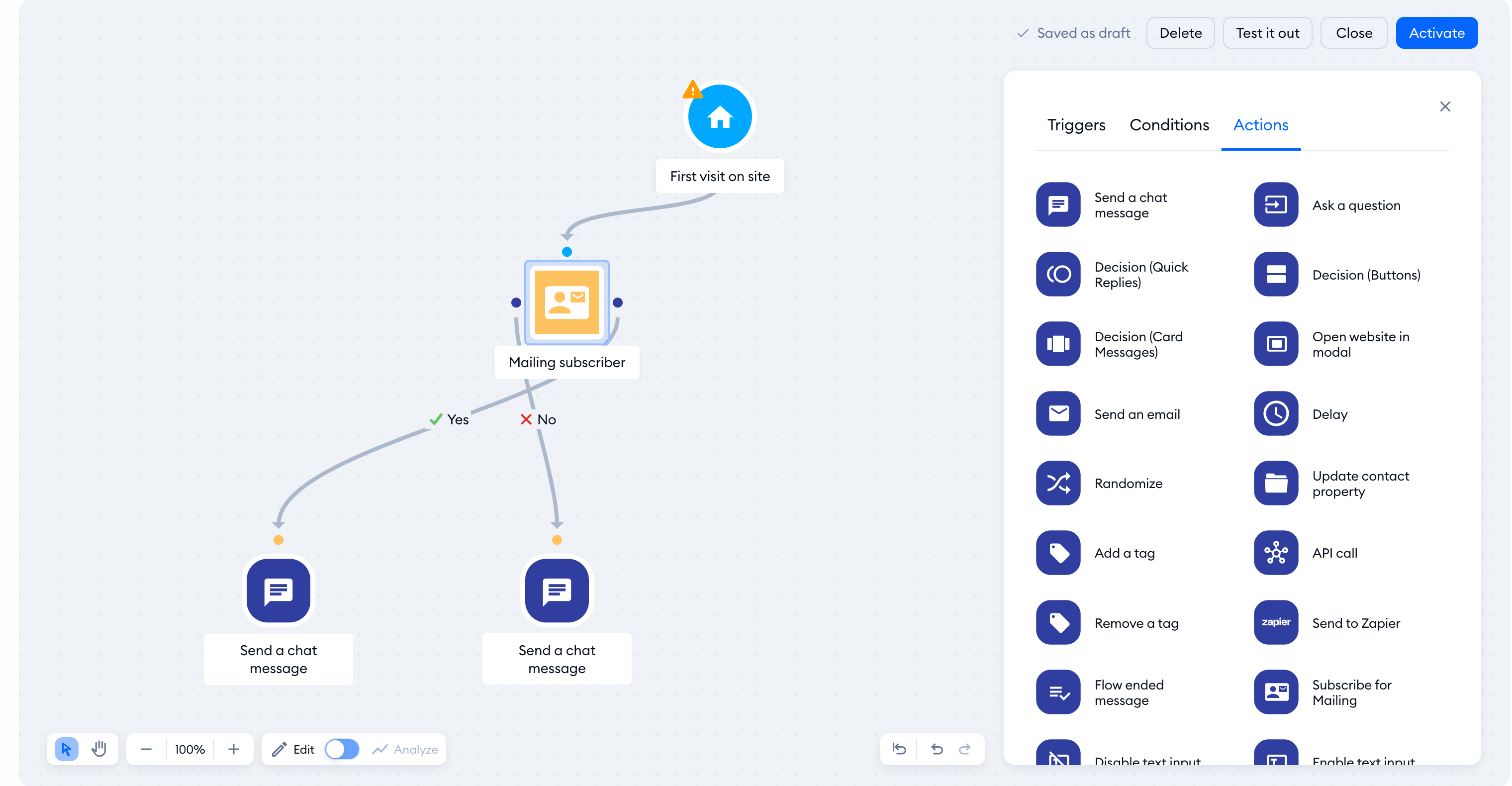
This condition allows your flow to filter visitors by their subscription status, and perform actions based on that.
In the example below, the flow sends a welcome message to every mailing subscriber who enters a specific page. If a visitor is not subscribed yet, the flow asks them for an email address and subscribes them if the address is provided.
Department status
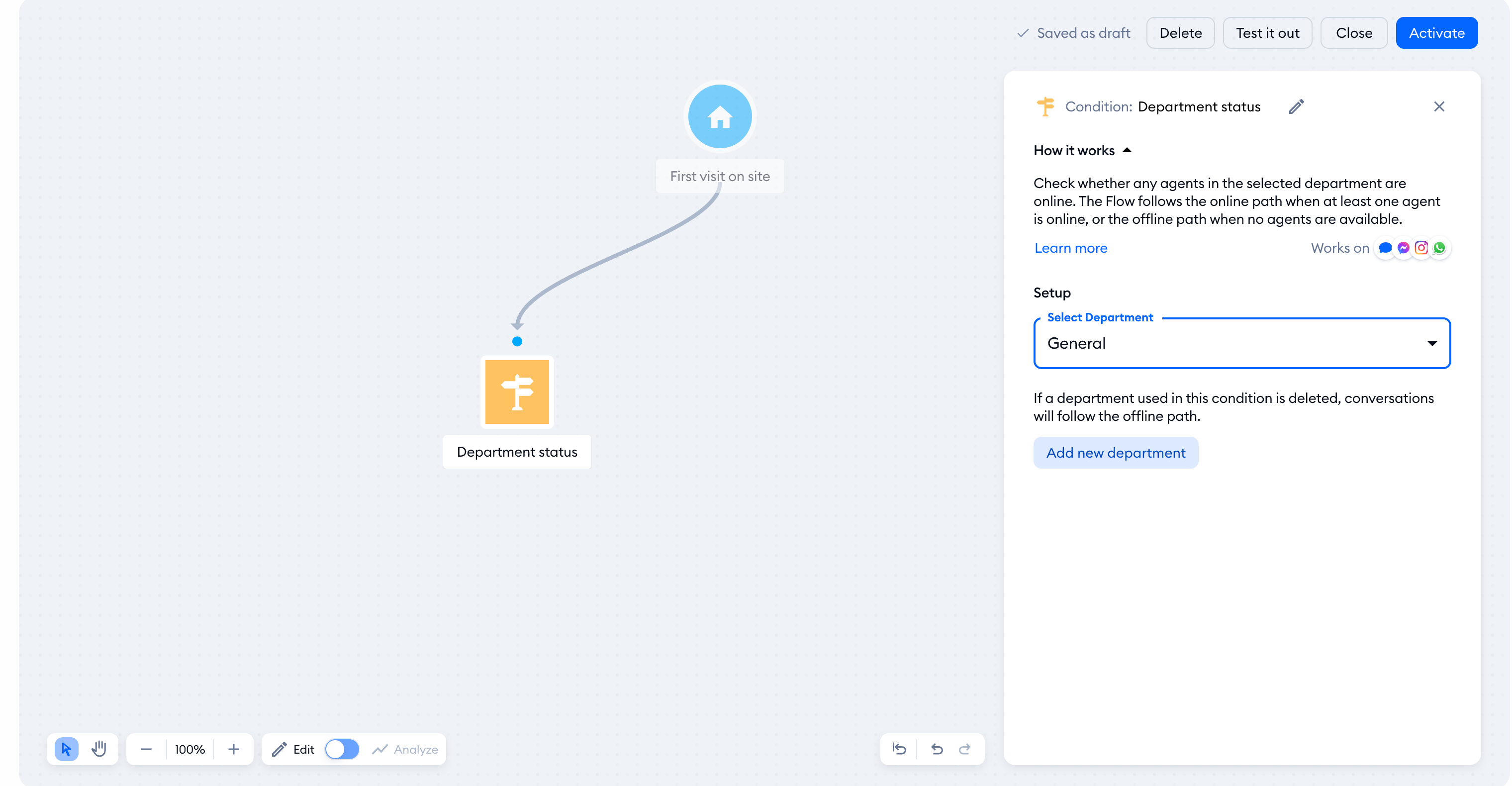
The Department status condition allows your flow to perform different actions based on agent availability in the selected department. Please note: this condition only works on Tidio projects that have access to the Departments feature (it is available on the Plus plan and above).
In the condition's settings, you select a specific department (you also get the option to create a new department). The condition checks if the selected department has any online agents; if at least one agent from the selected department is online, the department is online as well. This allows you to decide what happens in the flow next, depending on the department's current status.
Cart Value
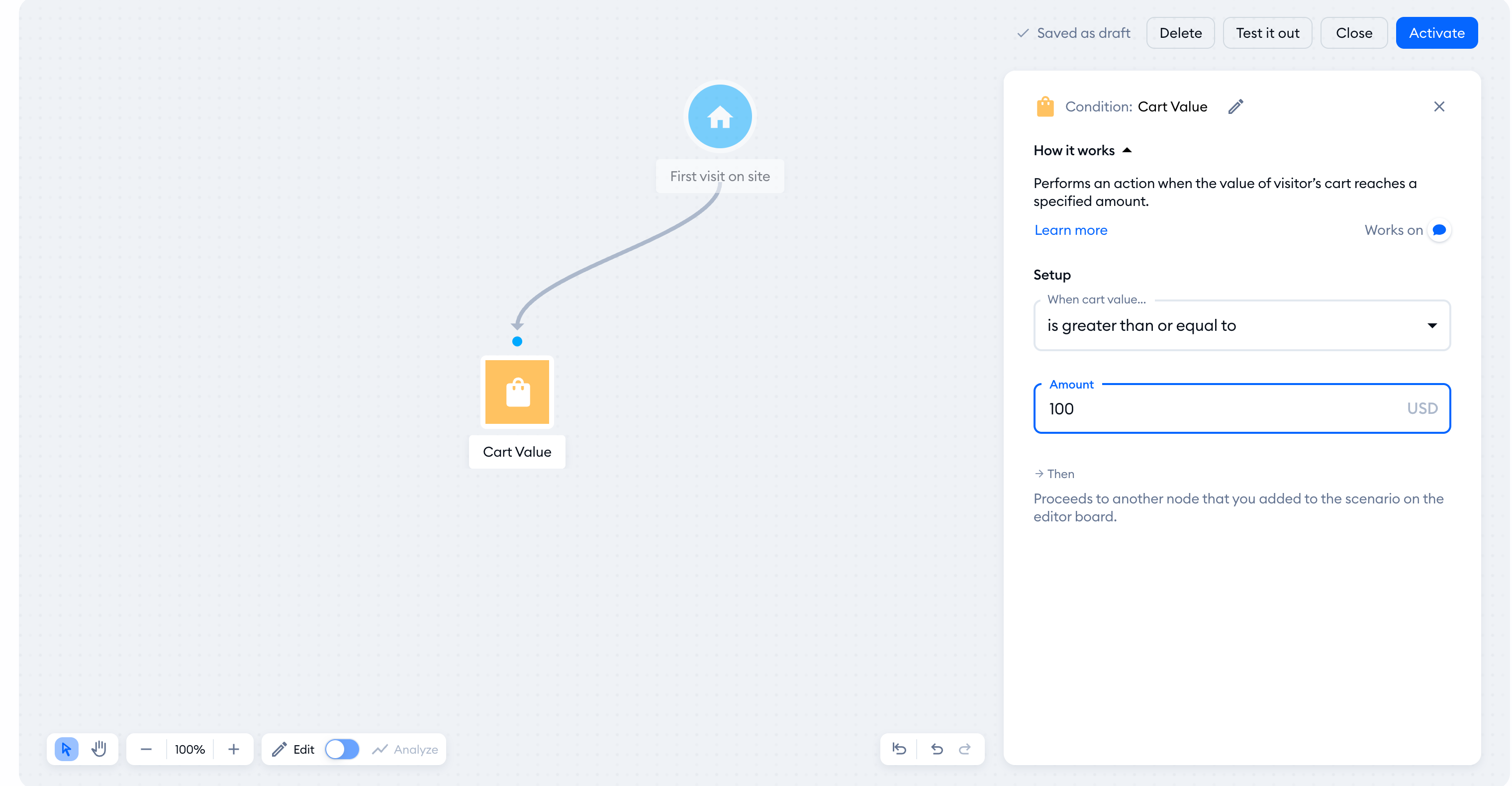
The Cart Value condition allows your flow to perform different actions based on the visitor's cart contents (or the value of those contents, to be more specific). Please note: this condition only works on Tidio projects that are integrated with a Shopify store.
Choose whether the cart value must be less than, greater than, less than or equal to, or greater than or equal to your specified amount. For example, you can inform the customer about the minimum required value to get free shipping, or engage customers who are planning to purchase items of high value.
Further reading
- Adding a new Flow
- Flow editor: Conditions
