In Tidio, at your disposal you have several different tools for providing live assistance: chatting with agents, using automated flows, and chatting with the Lyro AI agent. These main features let you conduct customer support effectively, but how do they all work together?
While it is up to you to find the most efficient way of using Tidio, we'd like to make sure it's clear how these three distinct tools interact with each other, allowing you to be more successful with your customer service.
In this article, you will learn:
- The general rule for live chat priorities
- How flow interactions work
- How Lyro interactions work
- How live agent interactions work
- A brief summary of all priorities
How are live chat priorities handled in general?
For the purposes of this article, let's establish that the Tidio project is using all three modes of interaction with visitors: flows, Lyro, and live agents. All these modes can work on your different live communication channels (the Tidio widget on your website, Facebook Messenger, Instagram, and WhatsApp).
As a general rule, we can say that the order in which a visitor will interact is as follows:
- Flows
- Lyro
- Live agents
Naturally, how each interaction works depends on your specific setup and available channels - and the priorities may change to some extent, as a result. You can use different triggers and conditions for your flows; different channels where Lyro is allowed to respond, and whether it responds always or only when your agents are offline; as well as various online/offline options and handoff settings. All this can be unique to how you handle your live chat requests. Think of each mode as different coworkers that work independently.
Please note: in this article, we focus on live chat, the more time-critical and immediate aspect of Tidio. Email (tickets) is a separate channel: there are no flows on email, and Lyro can answer the emails that arrive in the mailboxes you choose - including your customers' follow-up replies in the same thread. To learn more, please see Lyro on email: answering whole email threads and these Help Center articles about email.
Let's look at some of the most important aspects and common setups to consider below.
Flow interactions

Normally, flows will be the first point of contact for your visitors in Tidio. While flows usually take priority over other interactions, this also depends on how you configure your flows in detail. You decide about how each flow works by setting up the triggers and conditions you want (for each flow separately).
Please note: flows do not normally inform agents about any interactions (unless you use the Send notification action, as covered later on), nor can they transfer visitors to Lyro. We will focus on these details further in the article, but the general rule is: live agents and Lyro respond to incoming chat messages, while flows (and Lyro's proactive roles) can also start a conversation.
Flows can be either proactive (starting an interaction, based on visitor behaviour) or reactive (triggering in response to visitor messages). A proactive flow will trigger before a visitor sends a chat message, which allows the flow to take priority over Lyro's replies (Lyro answers incoming messages, unless one of its proactive roles starts the conversation).
Flows are also highly customizable and versatile: anything they do needs to be configured in the flow editor, and flows can never do anything outside of their configuration. They can be as simple or as complex as you need; from greetings, through autoresponders and forms, to entire FAQs.
In the paragraphs below, we will look at the following things to consider:
You can also learn more about flows from the articles found here.
Flows: triggers, conditions, and delays
The very first element that determines if a flow starts at all is the trigger (or multiple triggers, for allowing the same flow to start in different situations).
Triggering immediately
Some triggers make the flow work immediately, e.g. when a brand new visitor arrives on the website (the First visit on site trigger) or if a visitor enters a specific page (the Visitor opens a specific page trigger). These types of triggers do not require any additional action from the visitors, just their arrival.

Triggering in response to actions
Other triggers are based on the visitor's further behavior, i.e. actions they take while already visiting your website. This includes things like opening the Tidio widget (the Visitor clicks on chat icon trigger) or sending a chat message that includes a specific word or phrase (the Visitor says trigger).

Triggering internally
There are also triggers that activate the flow based on what the agent decides. This can be, for example, when an agent triggers the flow manually during a conversation (the Agent starts the Flow trigger) or if the current flow starts due to another flow being connected to it (the From another Flow trigger).

You can learn more about the available triggers in this guide.
Triggering with conditions and/or delays
When a specific trigger is used to start a flow, it still doesn't mean the flow will carry out its actions immediately. The flow's starting behavior can be modified by setting up conditions or a delay.
There are various condition nodes available, and they can be used anywhere necessary in the flow's setup (either at the beginning, directly after the initial trigger; or later on, in subsequent steps in the flow). Placing a condition at the beginning of the flow allows you to decide the details of when the flow should start, or if it's going to start at all in certain situations.
For example, using the Chat status condition lets you decide about the flow's behavior based on the Tidio project's current status (online or offline). You can either create alternative versions of the flow for both situations, or make sure that the flow only works for one of these situations. Another popular condition is Current URL, which allows the flow to check if a visitor is currently on a particular page that you've specified - and you can base subsequent flow actions on that.
You can learn more about the available conditions in this guide.
To augment your flow's behavior further, you can use the Delay action; anything that comes after - will be delayed by a specified amount of time. You can set the delay to as short as a few seconds, or as long as several days.
Flows: channels
Another aspect of flows is where they are able to work; it's what we call channels. This refers to the communication channels that your visitors/customers are using to contact you. The available Tidio channels are:
- live chat (the Tidio widget installed on your website)
- Facebook Messenger
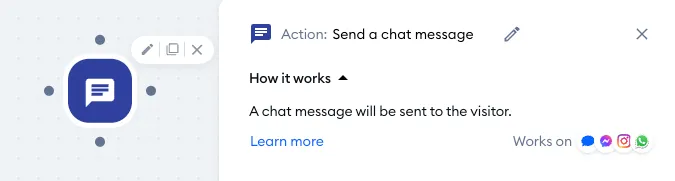
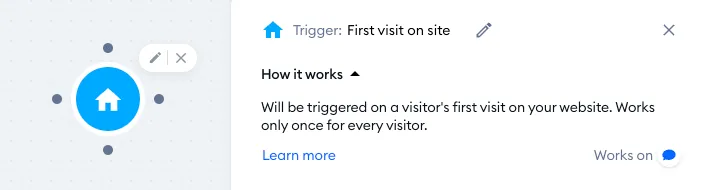
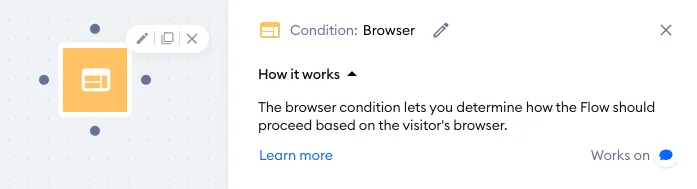
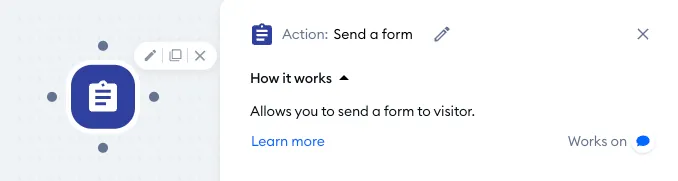
Channels apply to triggers, conditions, and actions. You can see which channel(s) a particular node works on when you check its details in the editor - the channels will be listed in the bottom-right.
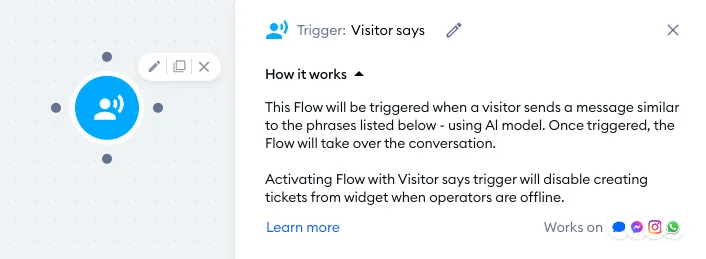
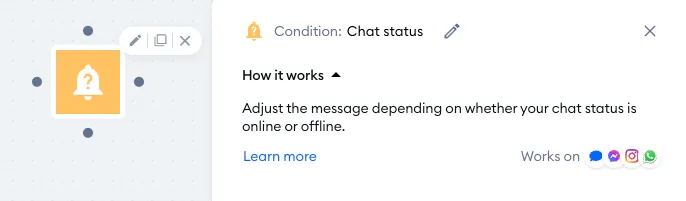
A lot of nodes work on all available channels, like the Visitor says trigger, the Chat status condition, or the Send a chat message action:
Some nodes, however, are limited to certain channels only - like the First visit on site trigger, the Browser condition, or the Send a form action, which can only work on live chat:
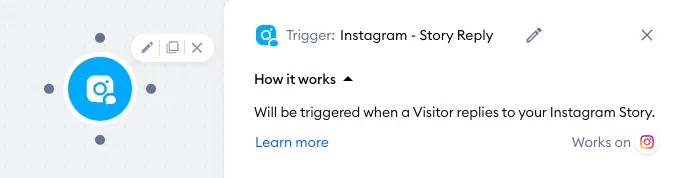
Some nodes are unique, like the Instagram - Story Reply trigger - this one only works on Instagram, as its purpose is strictly associated with that platform:
Flows: general settings
Apart from how you build your flows in the editor, another important aspect of flows is their general setup. This refers to each flow's individual settings, which can be found and modified in your My Flows list (inside the general Flows section).
To see a flow's general settings, click on the three dots on the far right:
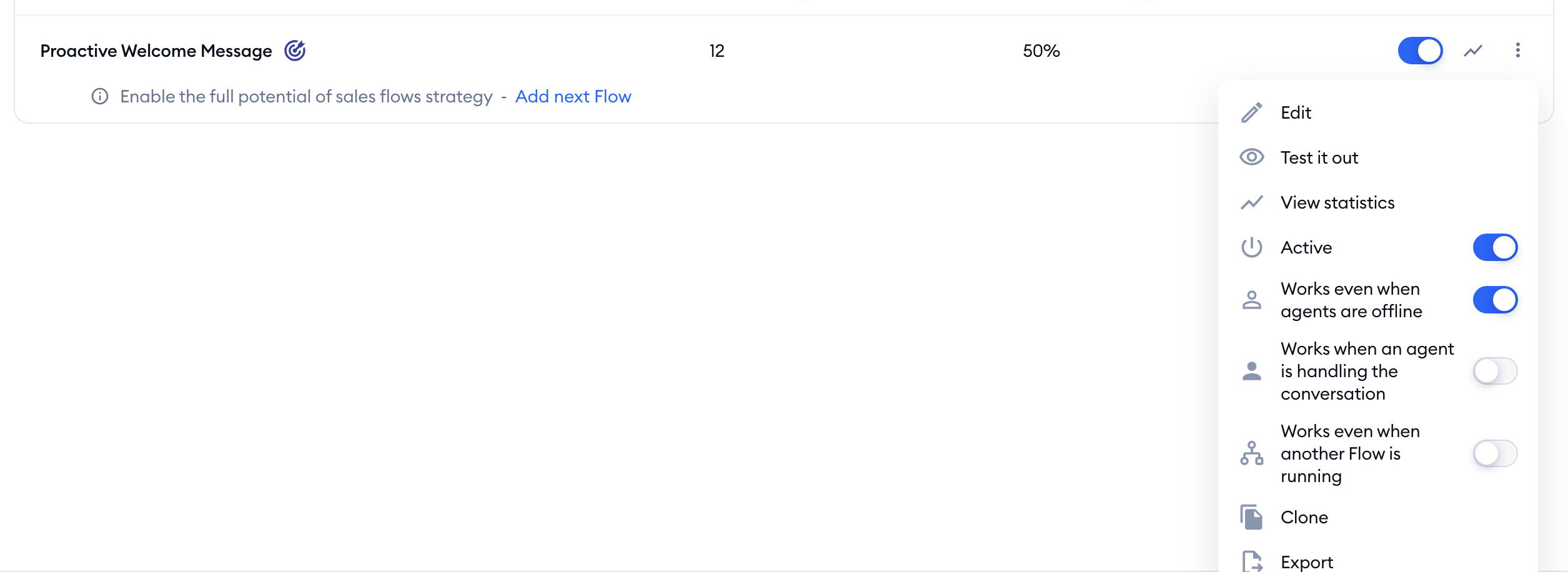
There, you can modify how this flow works, or if it's active at all. Apart from the Active switch (which lets you turn the flow on and off), you can see a list of other options:
- Works even when agents are offline
- Works when an agent is handling the conversation
- Works even when another Flow is running
By using these settings, you can decide when a particular flow is going to work - regardless of its triggers or conditions. These switches can only be changed while the flow is active, and some flows have them fixed (hover over a greyed-out option to see why).
Please note: the flow editor saves your changes as a draft automatically (Saved as draft). A new flow that has only been saved as a draft can't be switched on from the My Flows list - click on Edit to open the editor first, and then hit the Activate button. If a flow's menu shows Edit draft, it has changes in the editor that aren't live yet; open it and hit Activate to make them work.
Flows: notifying agents
Normally, a flow interaction does not generate any notification for agents; the flow simply runs its course from start to finish (or however far the visitor decides to go), and the interaction ends. The visitor can decide to ignore or interrupt the flow by sending a chat message, and that is when a live agent - or Lyro - can take over. Please note that the visitor won't be able to interrupt your flow if you've used the Disable text input action in the setup!
That is where the Send notification action comes useful. You can place it anywhere in your flow, and if the visitor reaches that point in the interaction - the flow will notify your agents with a customized message.
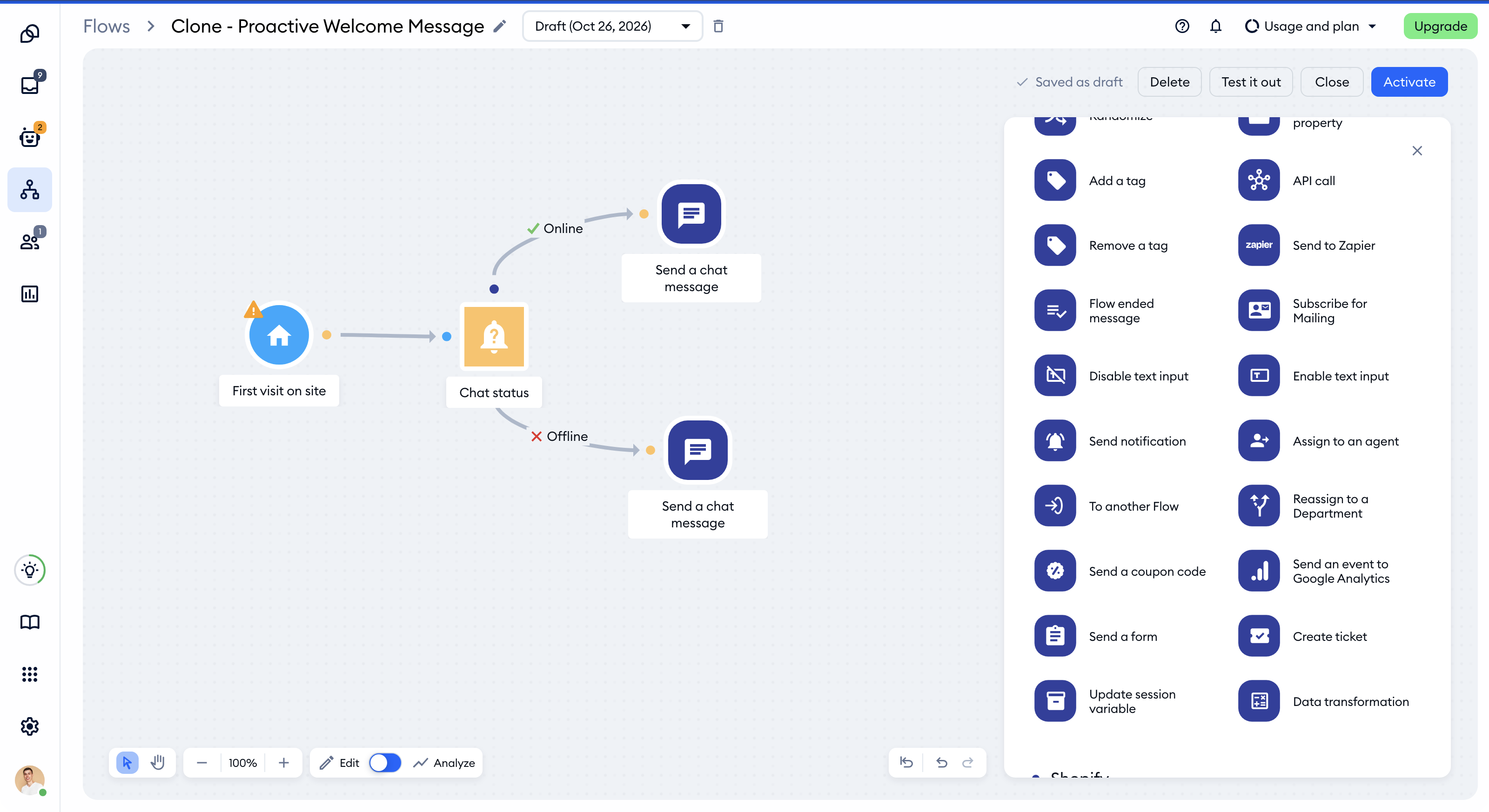
That notification message works similarly to an incoming chat message from the visitor - it appears like a new conversation in the Unassigned folder. If an agent is online, they will be alerted immediately; if all agents are offline, this notification message can generate an offline email notification (if email notifications are enabled in Settings > Notifications).
Lyro will not react to the Send notification message, so this method can be used to alert your agents only.
Lyro interactions

Tidio's AI-powered agent, Lyro, is a powerful tool that can supercharge your customer success capabilities. Lyro is mostly reactive - it responds to visitors' chat messages. Lyro's knowledge is based on the information you upload as data sources - these can be question-and-answer pairs, specific web pages, entire websites, files, or even external databases from your existing support tools (please note that some of these options depend on your plan, however).
Lyro can also be proactive: with proactive roles, it can start a conversation by itself - for example, when a visitor opens a specific page or adds a product to their cart. There are many details and settings available for you to decide how (and when) Lyro is going to work on your project.
Please note: when you activate Lyro, any flows using the Visitor says trigger will be disabled. This is to make sure Lyro can handle your live conversations. However, you can enable your Visitor says flows back again anytime, even if Lyro is active.
In the paragraphs below, we will look at the following things to consider:
You can also learn more about Lyro in Lyro - the conversational AI agent and the articles found here.
Lyro: channels
Inside the Lyro AI Agent section, you will find the Channels page. In there, you can decide about the channels where Lyro works. The Live conversations tab is for chats, and the Emails tab for tickets:
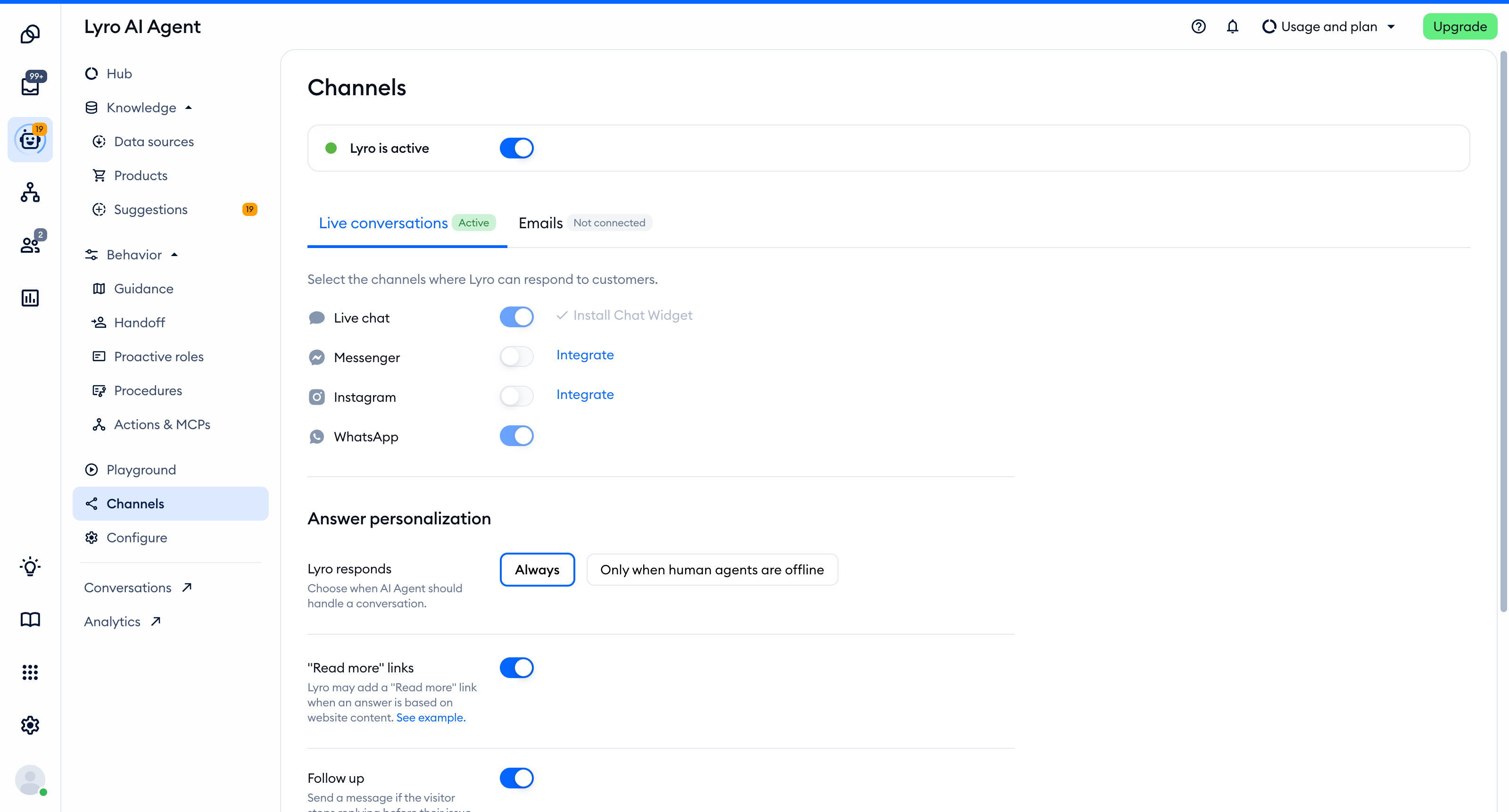
Lyro works on all available interactive channels - Live chat (the widget installed on your website), Messenger, Instagram, and WhatsApp. If a channel is unavailable (e.g. because you haven't installed Tidio or you haven't integrated a particular platform), it will give you the option to install (Install Chat Widget) or integrate (Integrate).
Naturally, if Lyro is active on a given channel, it will be able to respond to incoming messages there (e.g. when a WhatsApp user messages you on your integrated WhatsApp number). If you disable a channel, Lyro will simply not be available there - and the users will only be able to interact with you live on chat, or via any flows you may have set up.
This is useful if you do not wish users to interact with the AI-powered agent, and instead chat with your team directly or interact with the available flows. Conversely, you may prefer some channels to only use Lyro, and not provide support in any other way.
On the same tab, under Answer personalization, the Lyro responds setting decides when Lyro handles a conversation: Always, or Only when human agents are offline. With the second option, your agents take the chats while they're online, and Lyro steps in when they're not.
Lyro: conversation handoff
A very handy tool is the ability to decide how Lyro behaves during handoff situations. This means situations in which Lyro lacks the required knowledge to respond, or when the visitor requests a live agent.
You can find the Handoff page in the Behavior menu of the Lyro AI Agent section. Under Default rules, click on Handoff behavior:
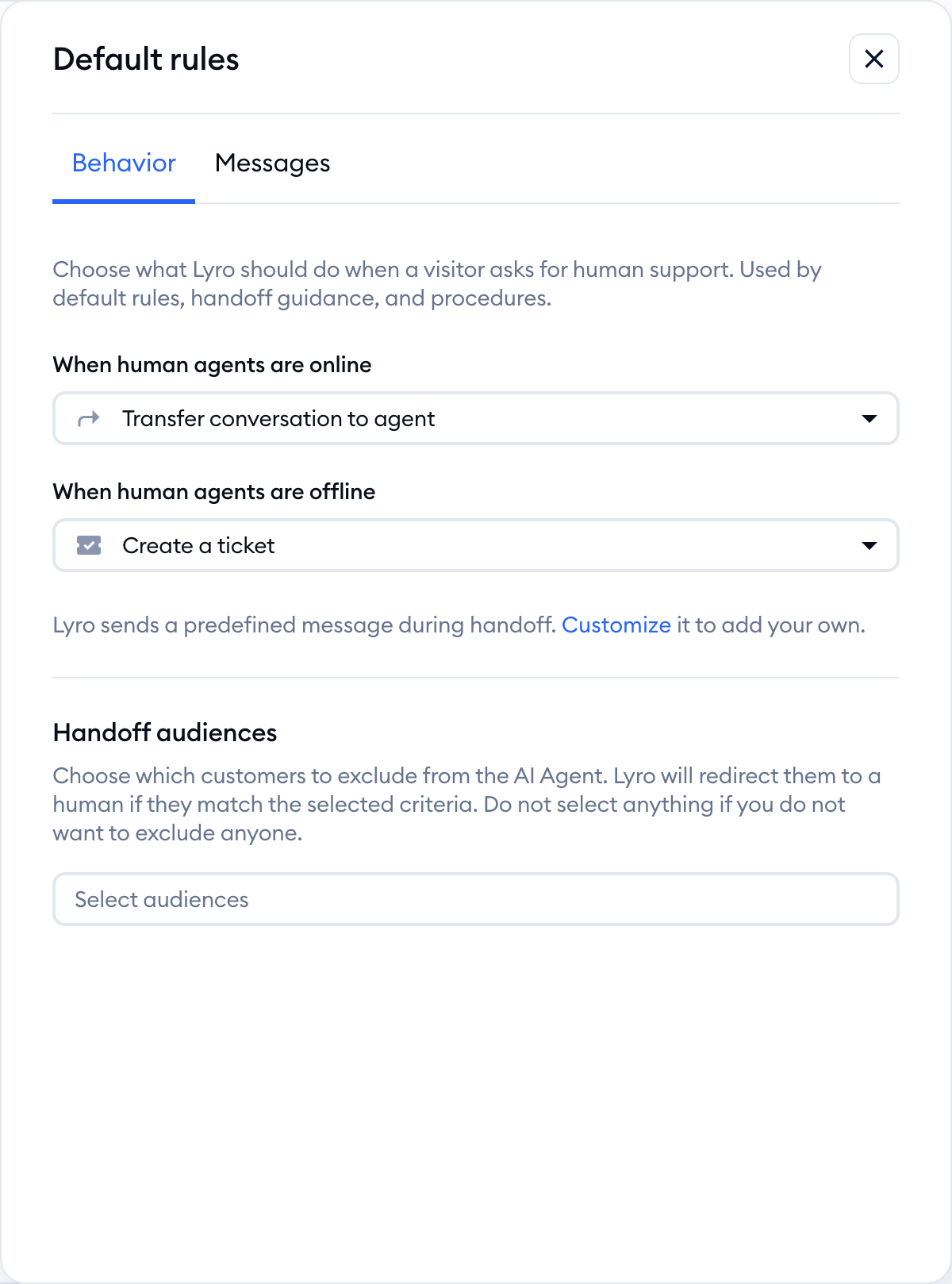
You can decide about how these situations are handled separately for When human agents are online and When human agents are offline, which allows you to control your visitors' interactions. There are three available actions you can choose from:
- Transfer conversation to agent
- Keep conversation (no transfer to agent)
- Create a ticket
Below them, Handoff audiences let you choose customers who should skip Lyro altogether: if a customer matches one of the selected audiences, Lyro redirects them to a human straight away. And with handoff guidance (the Create guidance button on the Handoff page), you can tell Lyro in your own words when it should pass a conversation to your team.
With these handoff options, you can take detailed control over how Lyro handles visitors who wish to (or should) communicate with a member of your team.
You can learn more about Lyro's handoff options in this guide, and about guidance in Lyro Guidance.
Lyro: Actions
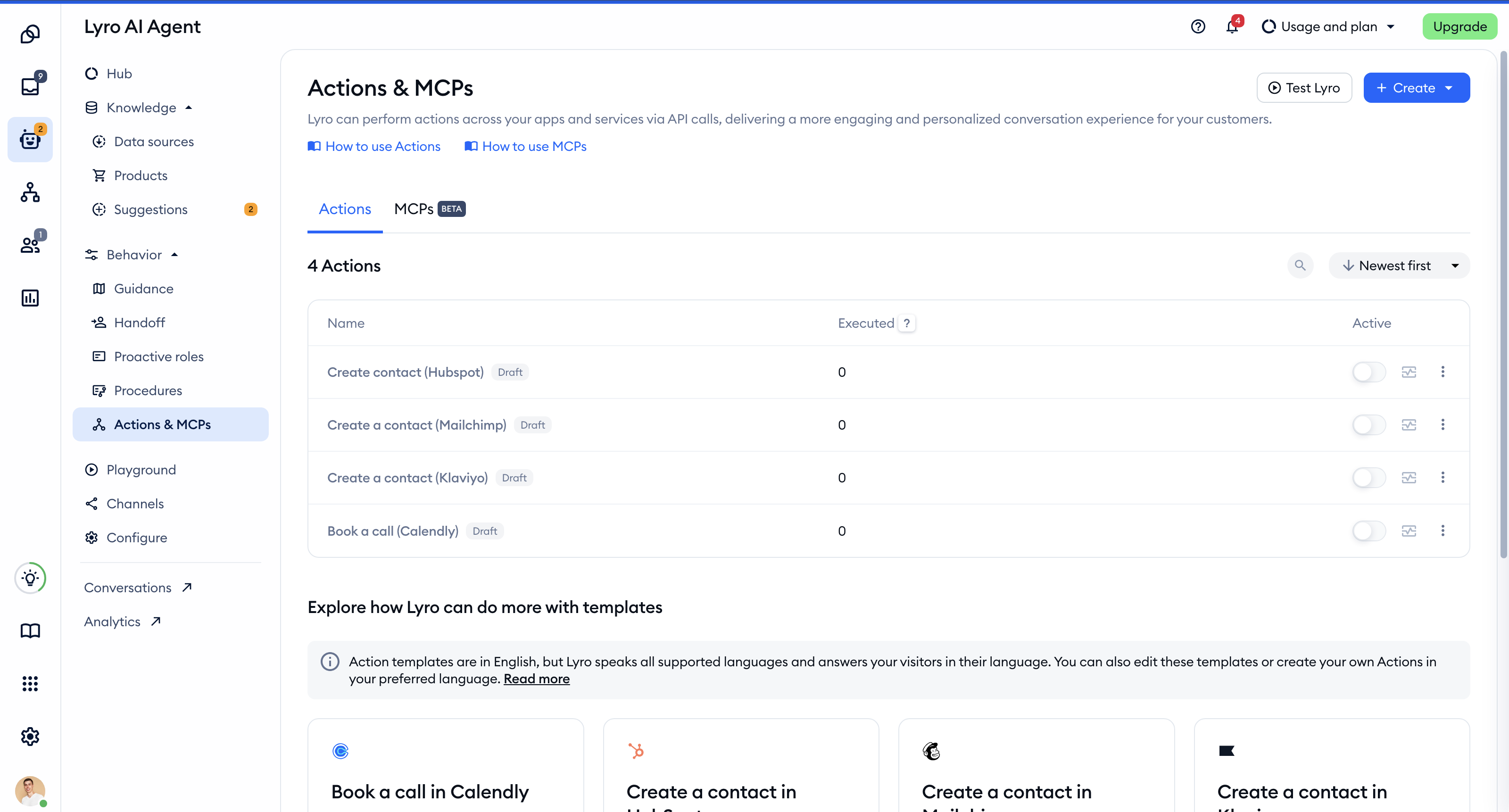
Another tool that Lyro has to offer (but not to be underestimated) is Actions. They let Lyro connect with external systems through their APIs during a conversation - for example, to check an order's status or change a shipping address - without interrupting the chat; the result becomes an integral part of the current conversation.
You can find them in the Behavior > Actions & MCPs section of the Lyro AI Agent. Lyro understands when a customer needs information from an external system and runs the right Action by itself:
You can learn more about Lyro Actions in this guide.
Please note: some projects still have the older Simple Actions (formerly known as Lyro Tasks). These are built in the flow editor and triggered by specific words or phrases, just like flows using the Visitor says trigger. The priorities below apply to them. You can learn more in Lyro Simple Actions (legacy).
A Lyro conversation can start with a Simple Action, as long as the visitor uses a word or phrase that is listed inside its trigger. Once the Simple Action is finished, Lyro continues chatting with the visitor - unless it leads to a flow which isn't part of Lyro (e.g. when you use the To another Flow action inside it); in such cases, the flow takes over instead, and the Lyro interaction is finished.
Considering the above, there are some priorities to keep in mind regarding how things work between regular Visitor says flows, Lyro's Simple Actions, and the Lyro agent itself:
Visitor says flows become disabled by default
When you activate Lyro, any flows using the Visitor says trigger are disabled. This helps make sure that the flows do not interfere with how Lyro works in general, and how Simple Actions work in particular. You can re-enable these flows manually, however; this lets them trigger during chats again, even if Lyro is active. If a Visitor says flow shares keywords/phrases with a Simple Action, the flow takes priority and triggers first.
Simple Actions take priority overall
If a visitor uses a keyword/phrase that is listed inside a Simple Action, it will be the first thing to trigger. There should normally be no conflict between Simple Actions and Visitor says flows, as these flows are automatically disabled upon activating Lyro. However, if you've manually enabled a Visitor says flow while Lyro is active, and that flow contains the same keywords/phrases as the Simple Action - the flow will trigger first, as mentioned above.
The Lyro AI agent takes last priority
In general, Lyro will start answering last (by this we are referring to the AI-powered agent answering a visitor's message, not Simple Actions or proactive roles). This means Lyro will take over a conversation only if there is no Simple Action and no flow available to handle the conversation.
Lyro: proactive roles
With proactive roles, Lyro doesn't wait for a visitor's message - it starts the conversation itself, to generate leads, recommend products or collect feedback at the right moment. You'll find them in the Behavior > Proactive roles section of the Lyro AI Agent. Each role has a trigger (for example, a visitor opening a specific page, adding a product to their cart or showing exit intent), the message Lyro sends, and instructions Lyro follows for the rest of that conversation:
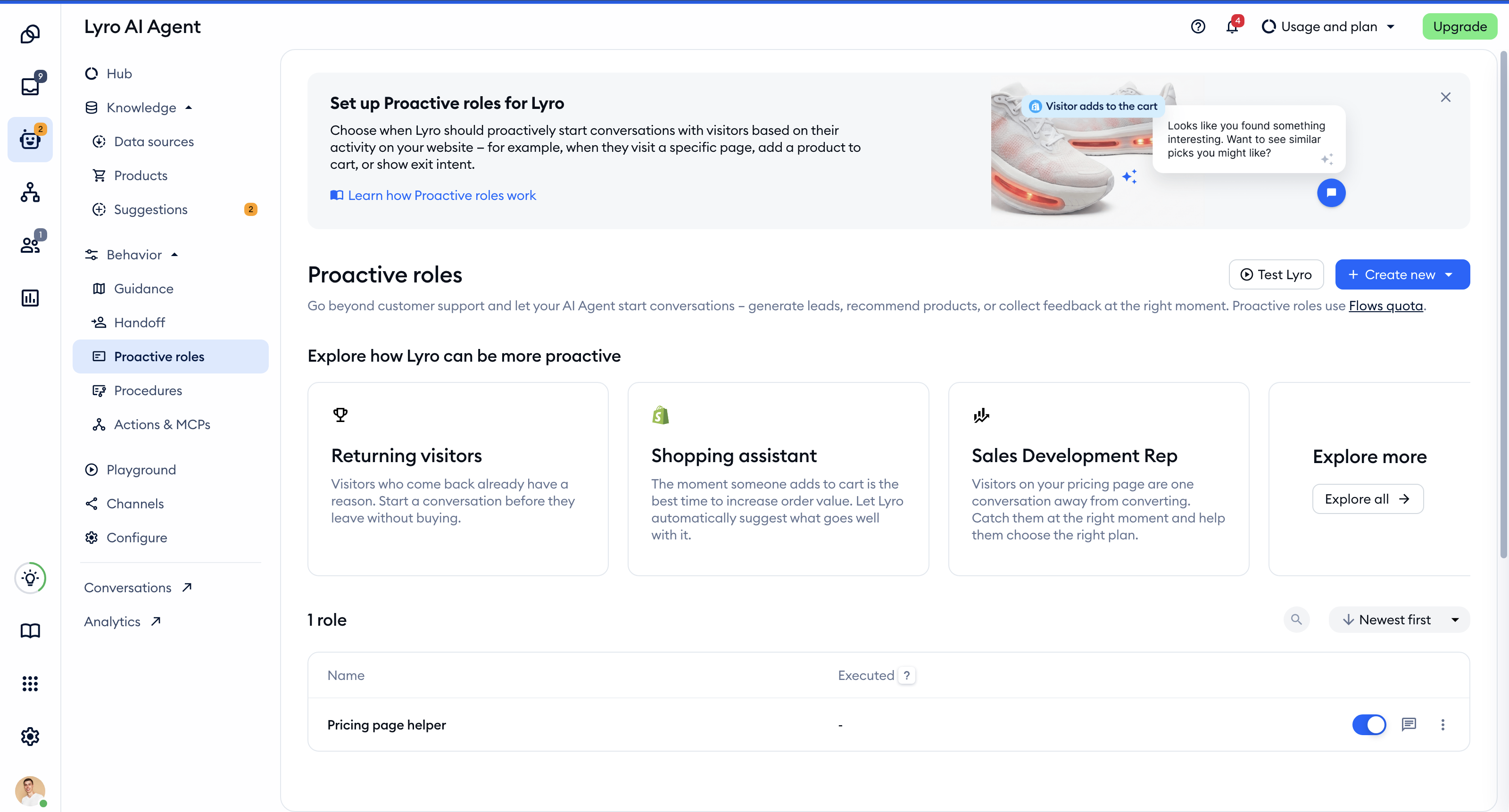
Proactive roles and flows can use the same triggers. If you activate a flow or a proactive role whose trigger is already used by another flow or role, Tidio warns you with a Conflicting triggers message: all of them may start at the same time, and the visitor may get several messages at once. So, it's a good idea to pick one of them for each situation.
You can learn more in Lyro - Proactive roles.
Live agent interactions

Speaking with a live agent is perhaps the most traditional live chat communication channel. In Tidio, it can be the last channel your website visitors are going to use - as long as you're using flows and/or Lyro as well.
Lyro, if enabled on a channel, will take over new incoming chats there first, and it will do its best to respond correctly - unless you've set Lyro responds to Only when human agents are offline, or the customer matches one of your Handoff audiences. Flows, on the other hand, are triggered precisely according to your setup (e.g. a flow can trigger immediately, prompting a new visitor to interact with the flow; it could also trigger if a visitor enters a specific page, etc.). This means your team of agents won't necessarily be the first line of contact with visitors - in many cases, agents will quite likely be the last stage of a visitor's support experience!
Joining and re-assigning chats
If Lyro is disabled and a visitor sends you a message via the chat widget - your agents will see it in the Unassigned folder of the live conversations inbox:
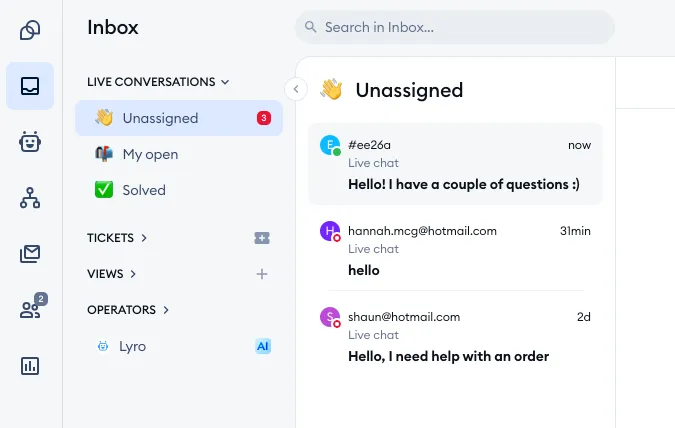
From there, agents can pick up chat requests (either by using the Join conversation button or assigning the chat to themselves through the three dots menu). Of course, if you've enabled automatic chat assignment, then agents receive chats in a round robin manner - without the option (or need) to join chats manually. Agents can also re-assign chats to other agents anytime, and they can join others' conversations as well.
You can learn about chat assignment options in this guide.
Importantly, agents can take over a conversation anytime if needed. There are also situations (mentioned to some extent in earlier sections of this article) in which agents can be notified by Lyro or flows, and asked to take action. You can take advantage of all these options to create a support experience that works best for your team and your customers.
In the paragraphs below, we will cover the following scenarios:
- Agents taking over Lyro chats
- Agents receiving chats from Lyro (handoff)
- Flows notifying agents
- Agents starting flows manually
Lyro: agents taking over conversations manually
As an agent, you can see all of Lyro's current conversations in the Inbox. On the left, underneath the Agents list, you can see the Lyro folder:
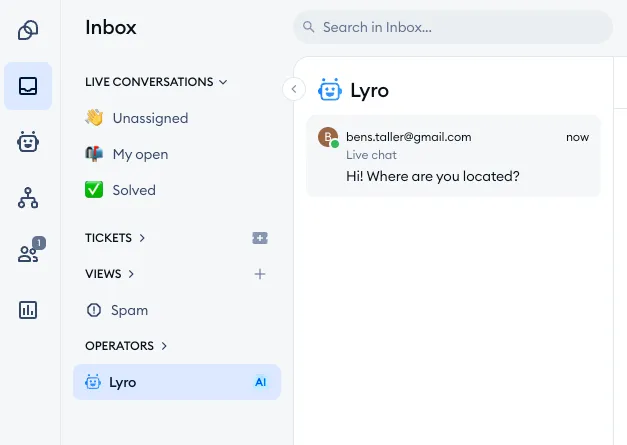
An agent can select any chat available there and join it using the Join conversation button:
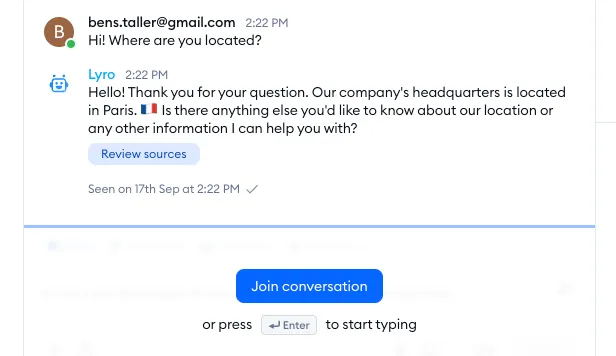
This lets the agent take over the conversation as they please, without any prompt from Lyro itself.
Lyro: handing chats off to agents
A common scenario is when a visitor asks Lyro to transfer the chat to a live agent. This option needs to be enabled in Lyro's Handoff section, under Handoff behavior (Transfer conversation to agent). Lyro can also hold on to conversations, or create a ticket instead; these options can also be different depending on whether your agents are online or offline.
When Lyro transfers a chat to agents, it simply becomes visible in the Unassigned folder, and can be picked up by any agent available:
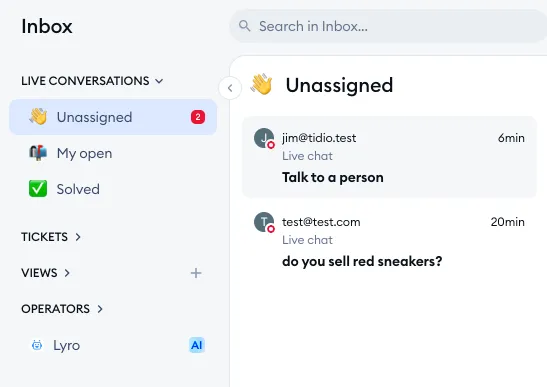
To learn more about Lyro's handoff options, see this detailed guide.
Flows: notifying agents
Normally, flows do not notify the agents in any way - they simply allow the visitor to interact with them according to their setup. If a visitor ignores the flow, or interrupts it, or if the flow ends and the visitor sends you a chat message - you will be notified about that only. However, flows have the ability to notify you about any step of the interaction, if that's what you'd like.
The Send notification action will send a notification to the agents when they're online - this acts similarly to receiving a brand new chat request. You customize the notification message inside the action itself. Your website visitors will not see the notification; it is only meant for agents.
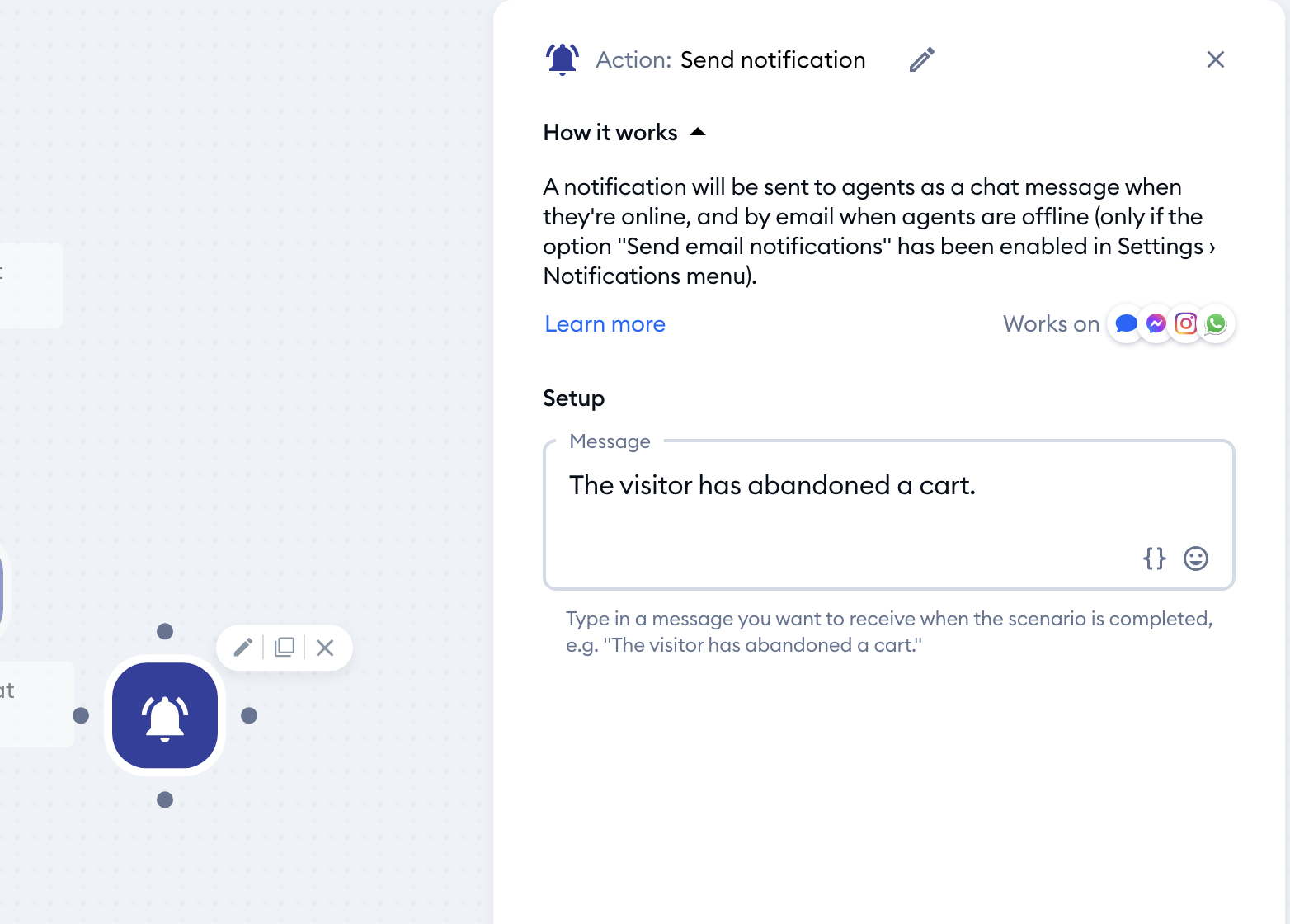
If the Send notification action is reached during an interaction, your available agents will see it in the Unassigned folder, and will be able to pick it up:
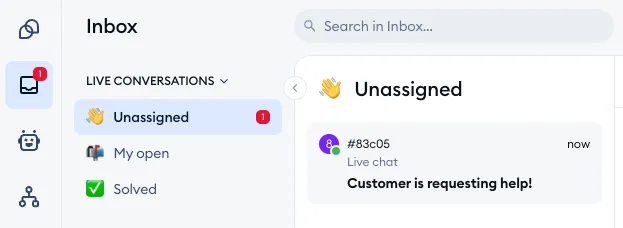
If all agents are offline, an email will be sent to their configured inboxes as well (only if email notifications are enabled in Settings > Notifications).
Flows: agents starting flows manually
Agents also have the ability to launch a flow during their own conversation with a visitor; the flow then takes over the chat. This can be achieved if you use the Agent starts the Flow trigger in your setup. That flow then becomes available via the Flows menu in the bottom-left of your conversation:
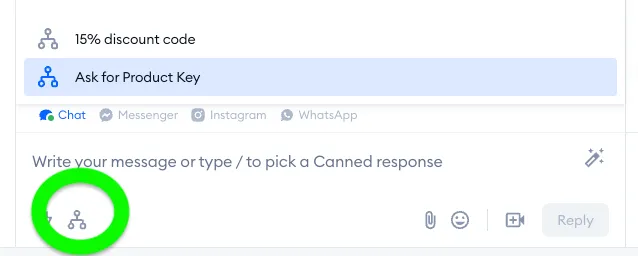
Once triggered, the flow runs its course with the visitor, and if completed (or interrupted), the conversation continues with the same agent as before. The entire interaction can be seen in the conversation thread:
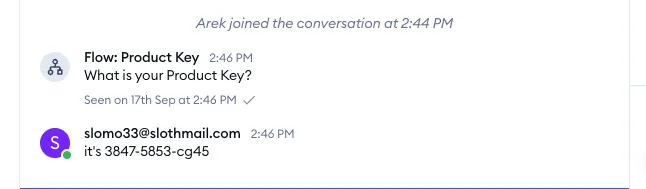
Of course, the conversation may be transferred to another flow entirely, using the To another Flow action; the agent is then effectively unassigned from the conversation.
A summary of priorities
Hopefully, the scenarios and rules described above will help you better understand how Tidio works, and - most importantly - allow you to unlock the full potential of Tidio's features.
To sum up what we've covered so far, below is a very simplified order of interactions in Tidio:
1. Flows in general (but not Visitor says flows) and Lyro's proactive roles
- Their starting behavior is based on triggers and conditions
- Can be ignored or interrupted if the visitor sends a chat message
- Flows can notify agents if the Send notification action is used
- Flows can transfer to other flows if the To another Flow action is used
- A flow and a proactive role with the same trigger may start at the same time
2. Flows using the Visitor says trigger
- Become disabled if Lyro is activated, but can be re-enabled manually
- Allow for the same actions and conditions as other flows
3. Lyro Simple Actions (legacy)
- Are basically the same as Visitor says flows, but work as part of Lyro conversations
- If there is an active Visitor says flow with the same keyword/phrase, the Simple Action takes lower priority
4. Lyro AI agent
- Takes over any incoming live conversation on its channels, but only if no flow or Simple Action has taken over already
- Can respond always, or only when your agents are offline
- Uses its Actions to get information from your other systems during the conversation
- Transfers conversations to live agents, keeps them, or creates a ticket - according to your Handoff settings; customers in your Handoff audiences go straight to your agents
5. Agents
- Can monitor and join conversations at will, including Lyro chats and other agents' chats
- Can only take action if currently logged into Tidio
Further reading
- Lyro - the conversational AI agent
- Lyro Actions
- Lyro - Proactive roles
- Lyro on email: answering whole email threads
- Flow editor: Actions
