Welcome to Tidio, the customer experience app that will revolutionize how you communicate with your customers. If you're ready to take your first steps with Tidio - this is the perfect place to start! After reading this article, you will be using Tidio in no time!
In this article, you'll learn:
- How to create a Tidio account
- How to configure your account
- How to install Tidio on your website
- What is a trial period
- How to log in to your account
Creating Tidio account
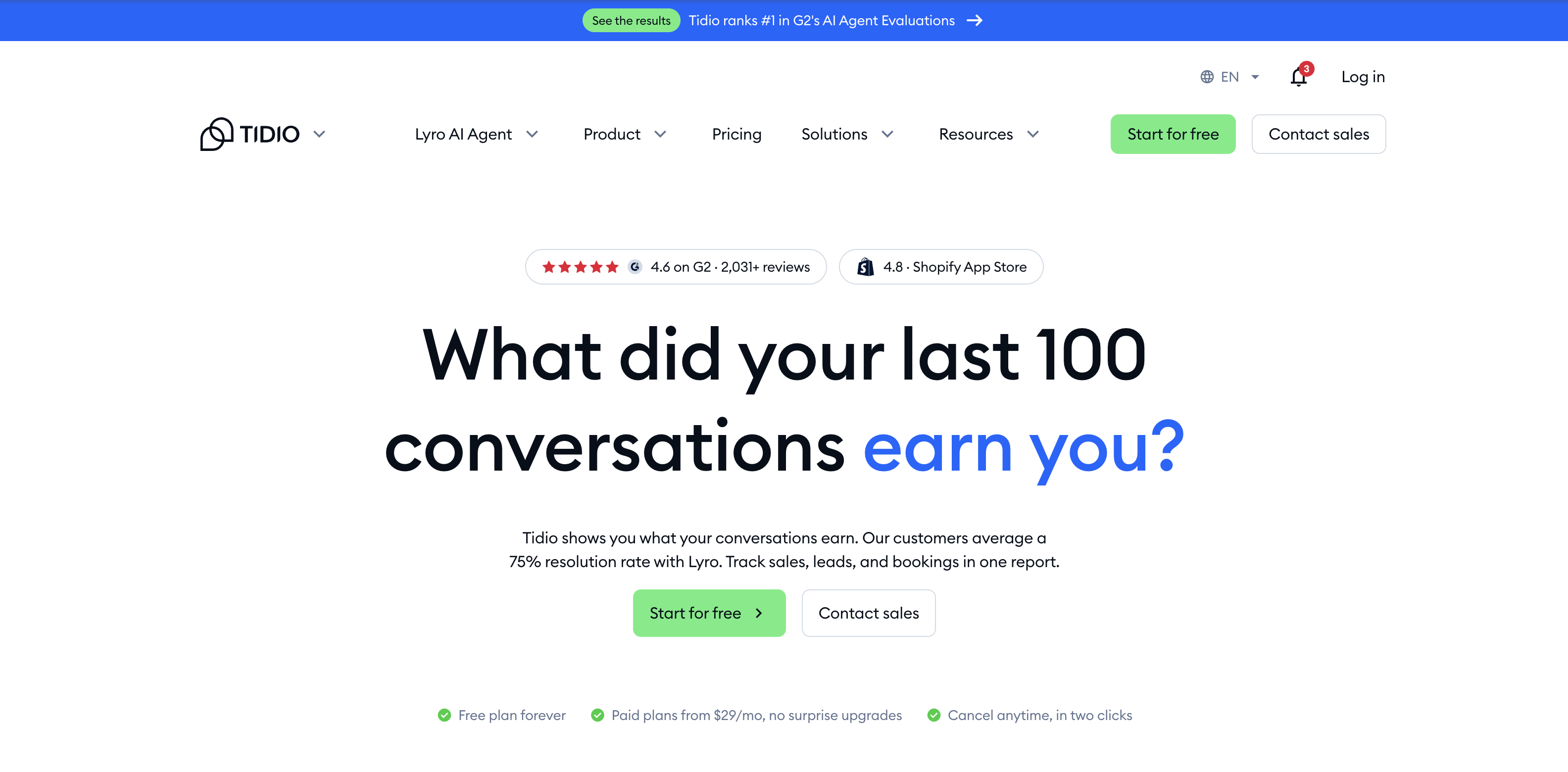
You can create a new Tidio account by visiting our website, www.tidio.com, and clicking on Get started free button. This step will take you to our registration tour.
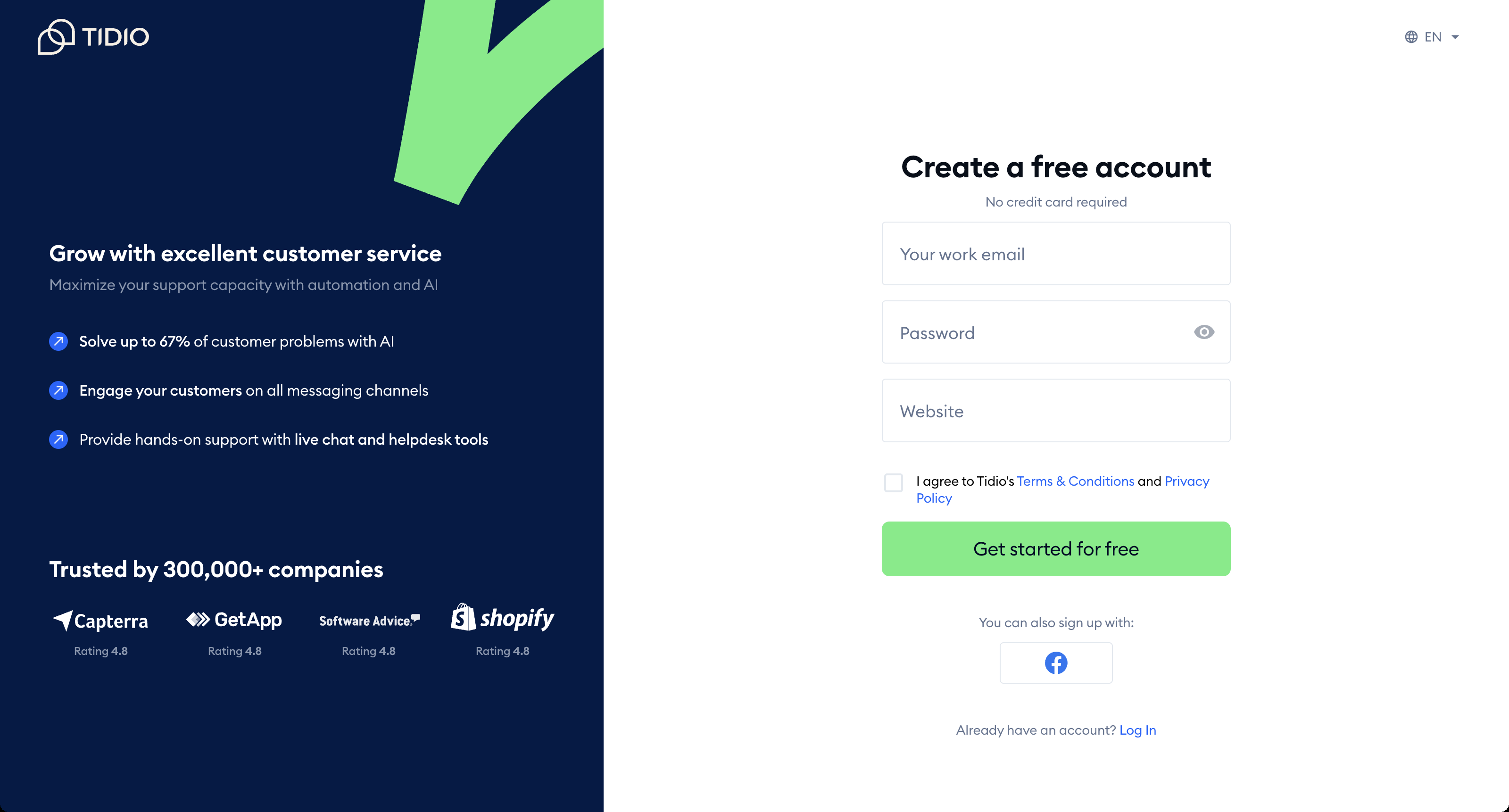
You'll now see a signing-up window where you'll need to provide your email address, password, and website URL to create a new account. Alternatively, under You can also sign up with:, you can sign up with your Facebook account. If your website runs on one of the available platforms, you can also start from our ready-to-use Tidio plugin - to see the full list of available plugins, see our article about Installing Tidio.
As the first step in registering your Tidio account, you will need to provide your login email, create a password, and provide your website address. When you're ready, accept the Terms & Conditions and Privacy Policy and click Get started for free.
You'll now enter our configuration tour, where you will be asked a few questions about you and your business.
Configure your live chat
The registration tour is made up of up to five short steps. Simply answer the questions on each screen and hit Next - the button becomes active once you've answered all the questions on the screen.
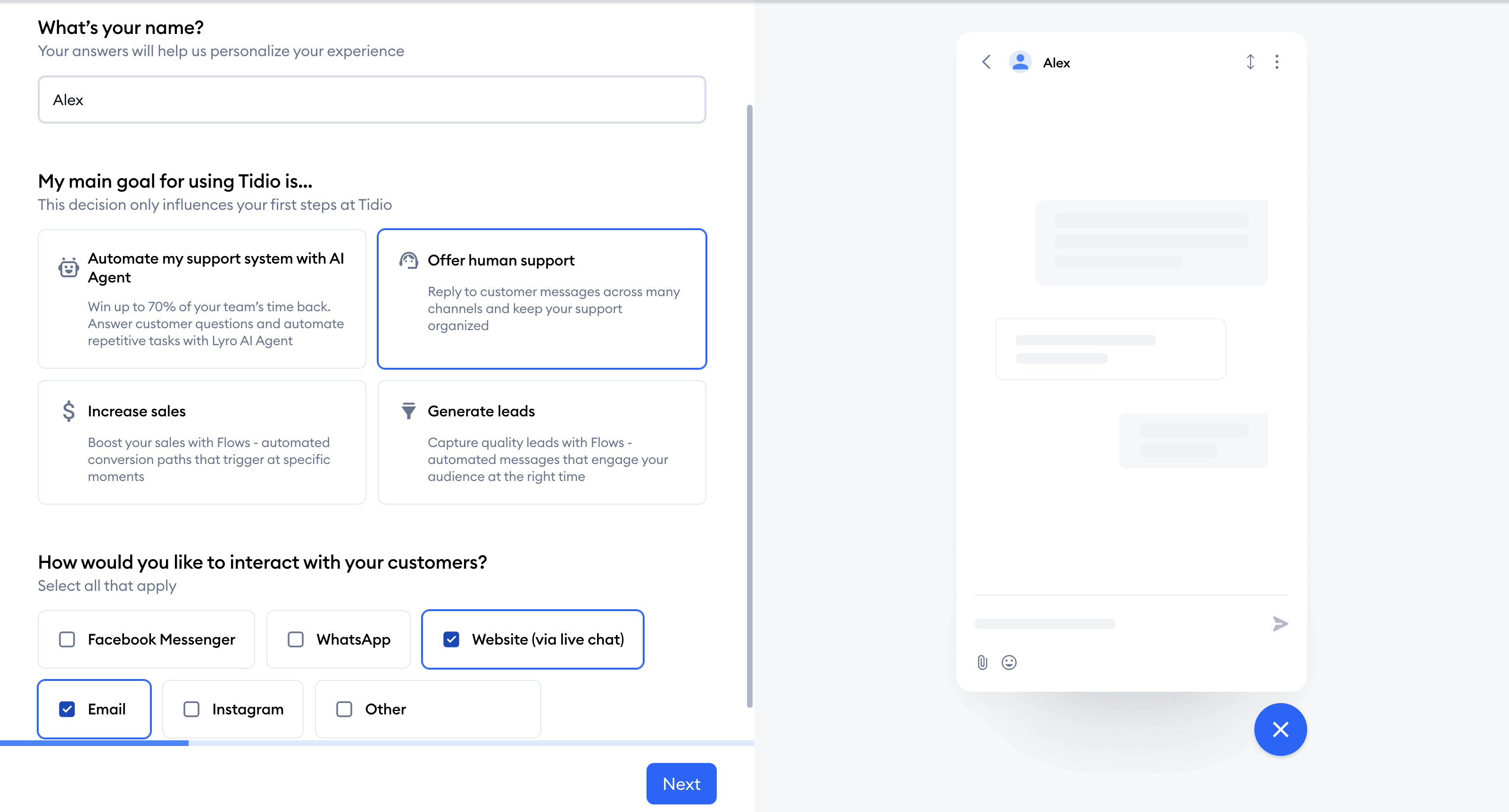
Firstly, you will be asked for your name and your main goal for using Tidio (My main goal for using Tidio is...): Offer human support, Generate leads, Automate my support system with AI Agent or Increase sales. Don't worry about choosing the "wrong" one - you'll have access to all the features anyway, and this decision only influences your first steps at Tidio. Below, choose how you'd like to interact with your customers (Website (via live chat), Email, Facebook Messenger, Instagram, WhatsApp or Other - select all that apply):
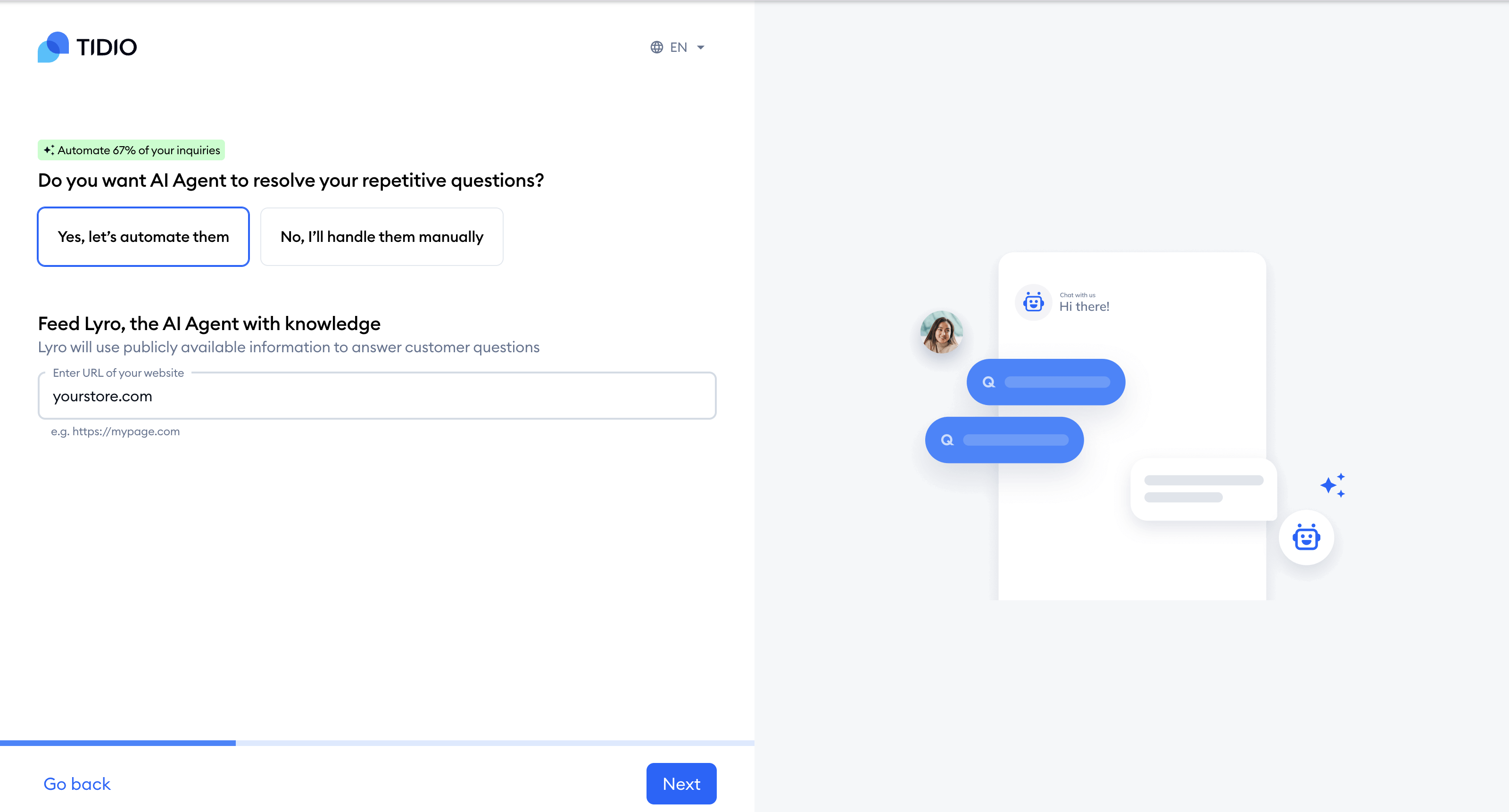
Secondly, we'll ask: Do you want AI Agent to resolve your repetitive questions? If you choose Yes, let's automate them, confirm your website address under Feed Lyro, the AI Agent with knowledge - Lyro (the AI agent) will learn from the publicly available information on your website. If you choose Automate my support system with AI Agent as your goal, this answer is already set for you.
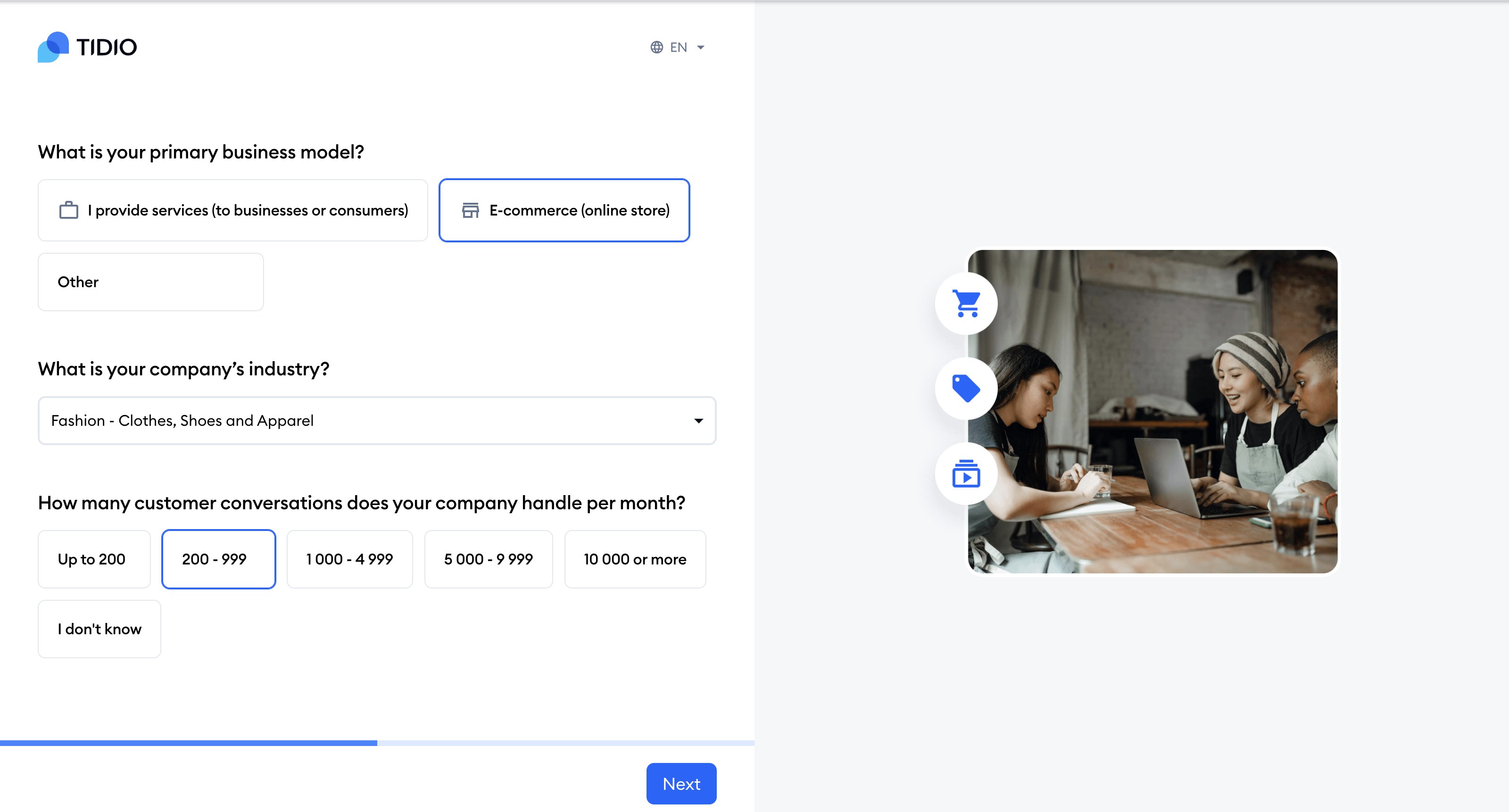
Next, we will ask you about basic data regarding your business (your business model, your industry, and how many customer conversations your company handles per month), as this information will help us personalize your experience with Tidio:
Lastly, you will be asked about some information regarding your use of Tidio: the department you work in, where you learned about Tidio, how many visitors your website gets each month, what platform powers your website, how many customer support agents you have, and whether you'd be interested in a live product demo. If you answer Yes to the demo question, you may be offered a calendar to book a demo call:
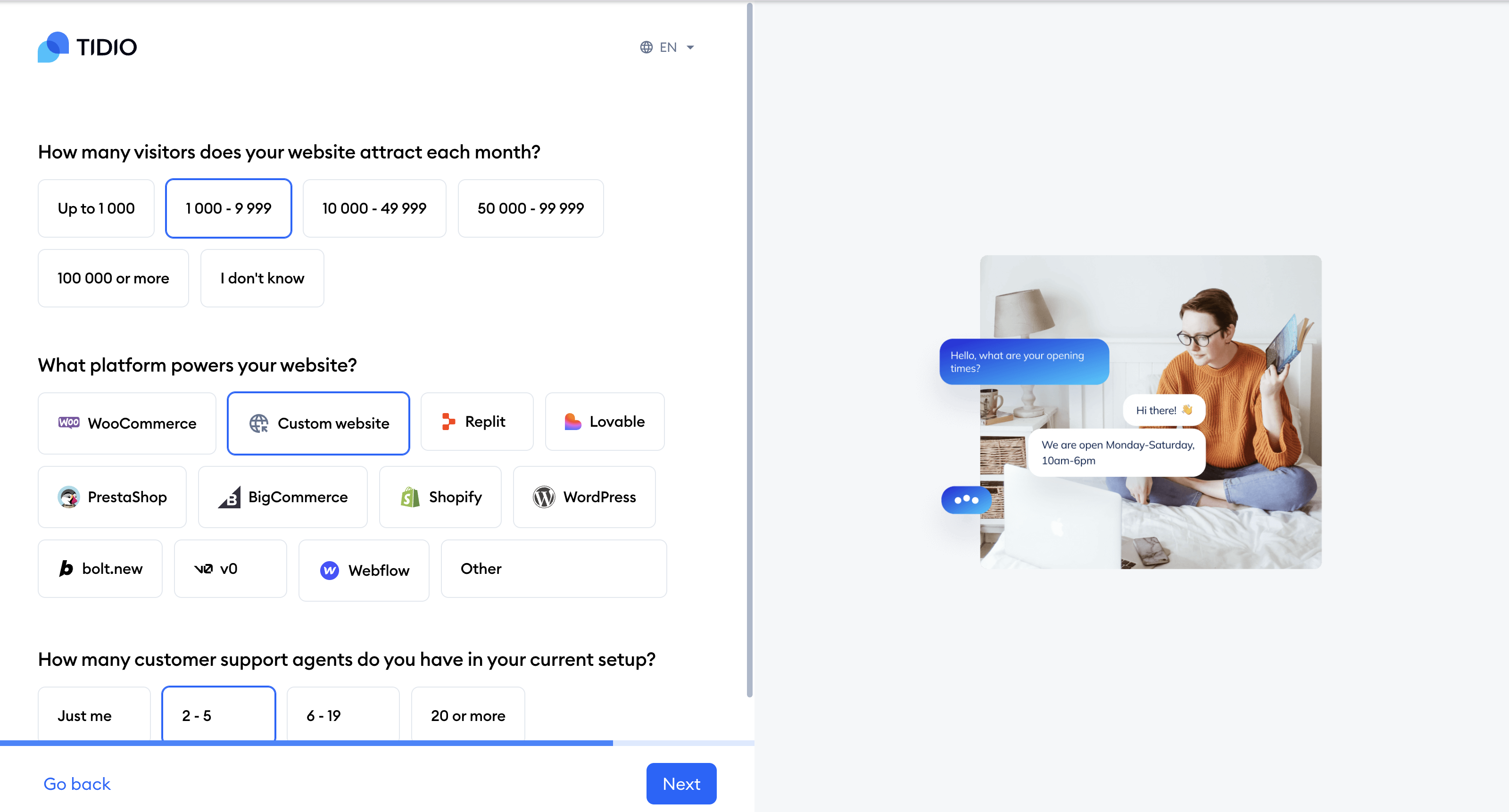
Please note: you may see fewer questions. For example, if Tidio already knows your website's platform (because you started from a plugin), we won't ask about it, and if you sign up on a phone, you'll get a shorter version of the survey.
If you asked Lyro to learn from your website, you'll see a short loading screen while Lyro gets to know your content:
Once you're done with the survey, you'll be taken straight to your new project. While your trial lasts, you'll land on the Getting started page with Your first steps - a checklist of things you may want to focus on first (e.g. installing the chat widget on your website, connecting your mailbox, or adding knowledge for Lyro). The tasks depend on the main goal you chose in the survey:
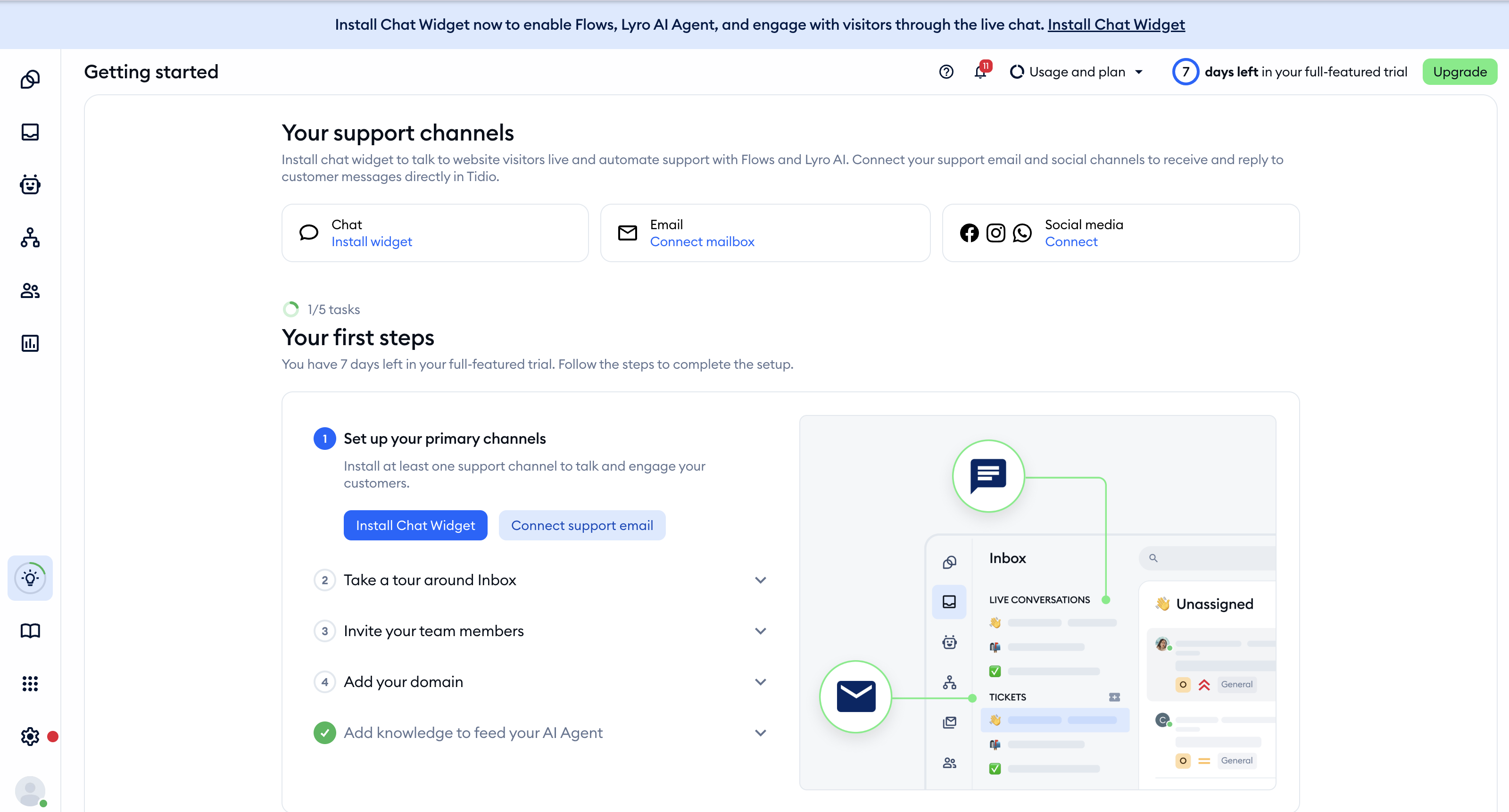
Of course, you can skip these if you prefer, and manage your project in any order you like - and come back to any settings you might need later on. The Getting started page is simply there to help you start using Tidio - and you can always get back to it from the main menu on the left (the light bulb icon). You can read more about it in Getting started: your first steps in Tidio.
If you chose to automate your support with Lyro, you may be taken to Lyro's settings instead, to test Lyro with the knowledge it has just learned from your website, or to check its data sources. When all your Getting started tasks are done (or your trial has ended), you'll land on the Dashboard.
Install Tidio on your website
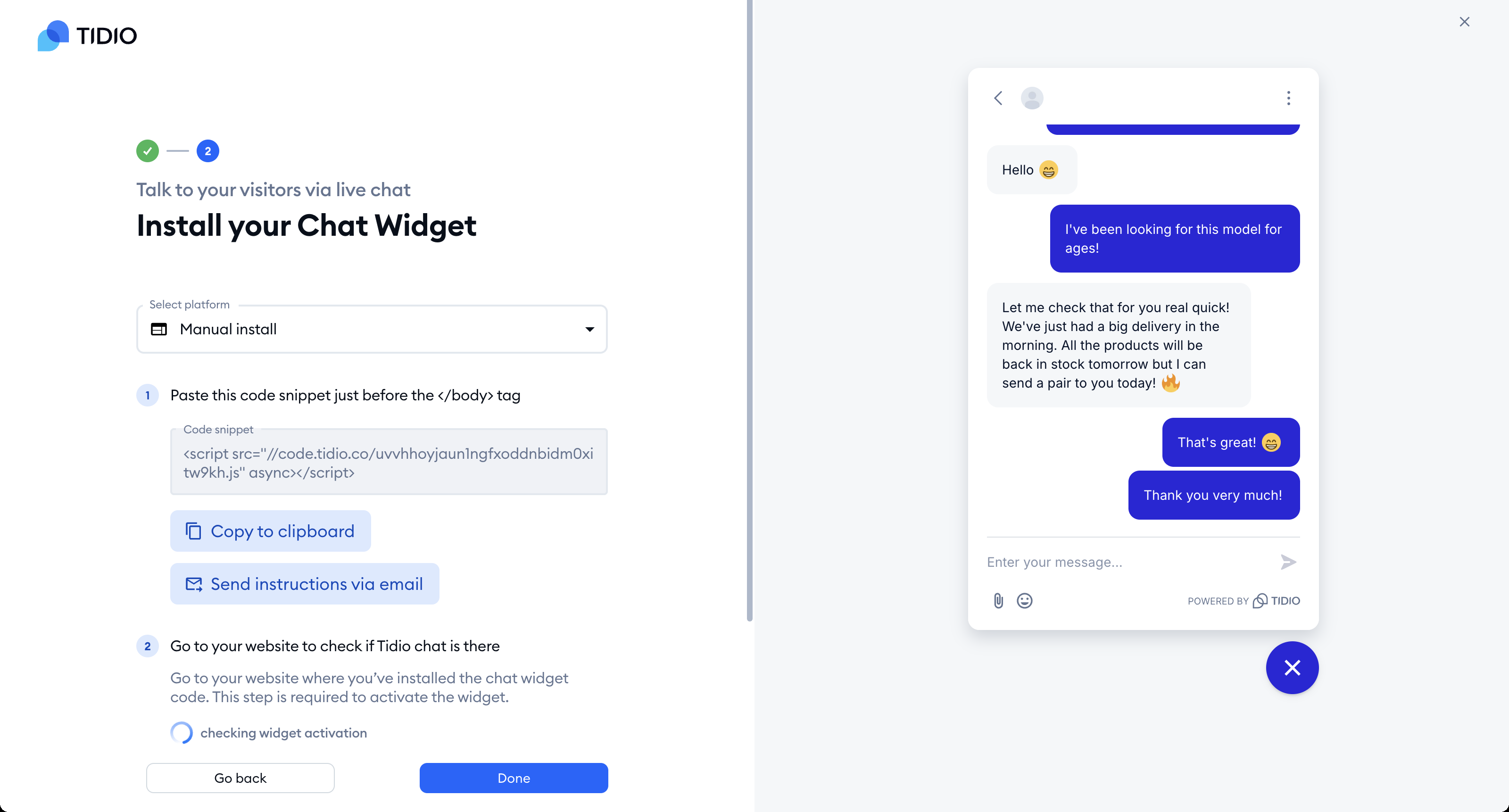
We will also provide you with a quick guide on how to install Tidio on your website. On the Getting started page, click on Install widget on the Chat card (or Install Chat Widget in the Set up your primary channels task). First, adjust your widget's appearance, and hit Continue. Then, under Install your Chat Widget, choose your platform in Select platform and follow the instructions. If you need more guidance, follow our detailed instructions in Install Tidio on your Website.
If you're using a web developer for helping you set up Tidio, you can also send them instructions directly to their email address. To do that, choose the Send instructions via email option. You'll find the same instructions at any time in Settings > Live Chat > Installation.
Trial Period
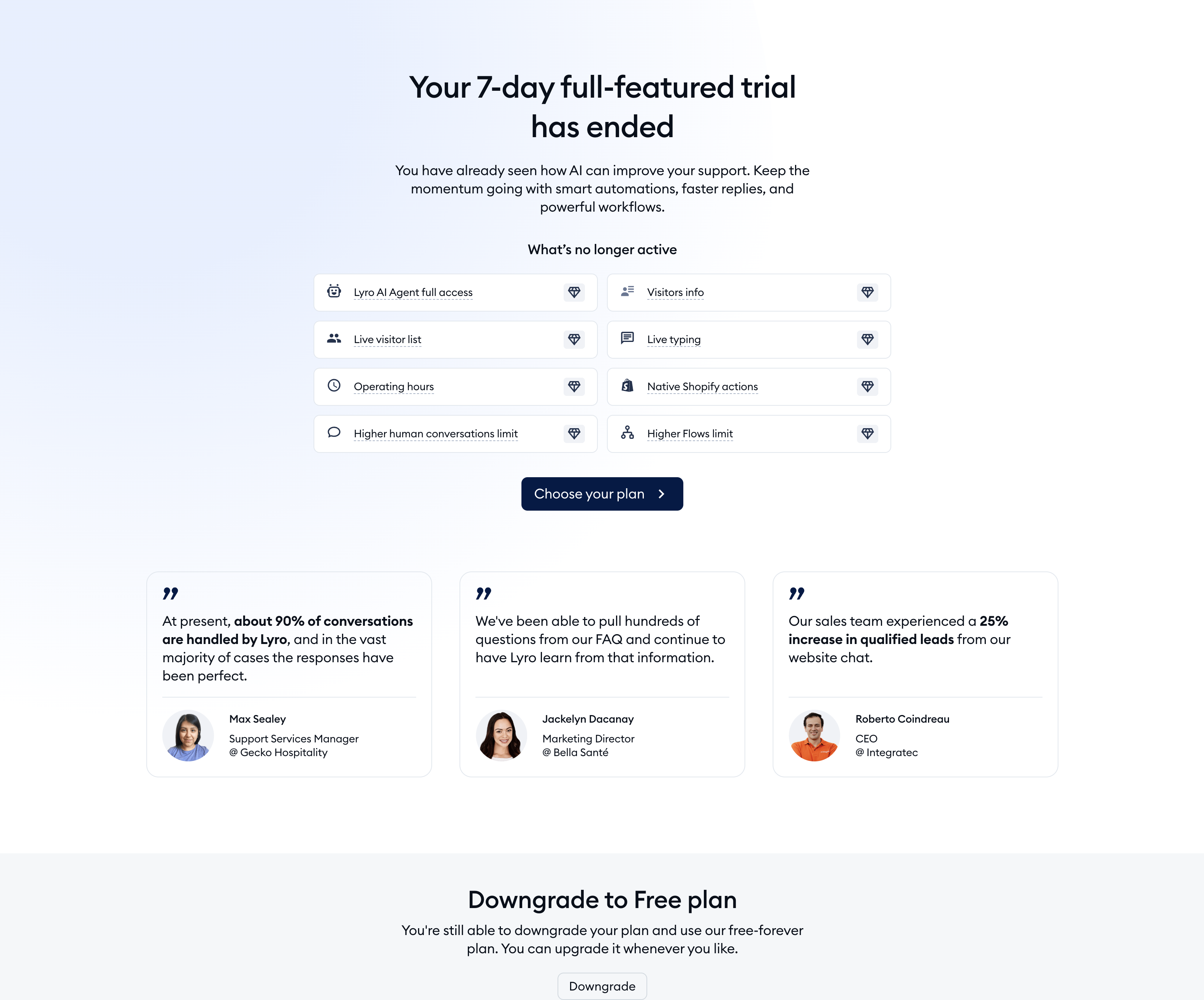
Upon signing up, you'll get a 7-day full-featured trial with access to all premium features. Once the trial expires, you'll see the Your 7-day full-featured trial has ended screen. You can then click on Choose your plan to subscribe to a paid plan, or scroll down to Downgrade to Free plan, click on the Downgrade button, and confirm with Use Free plan. The Free plan gives you 10 agent seats and 50 conversations a month. Visit our pricing page for detailed information on available plans and features, and The Tidio trial version for everything about the trial.
Logging into your account
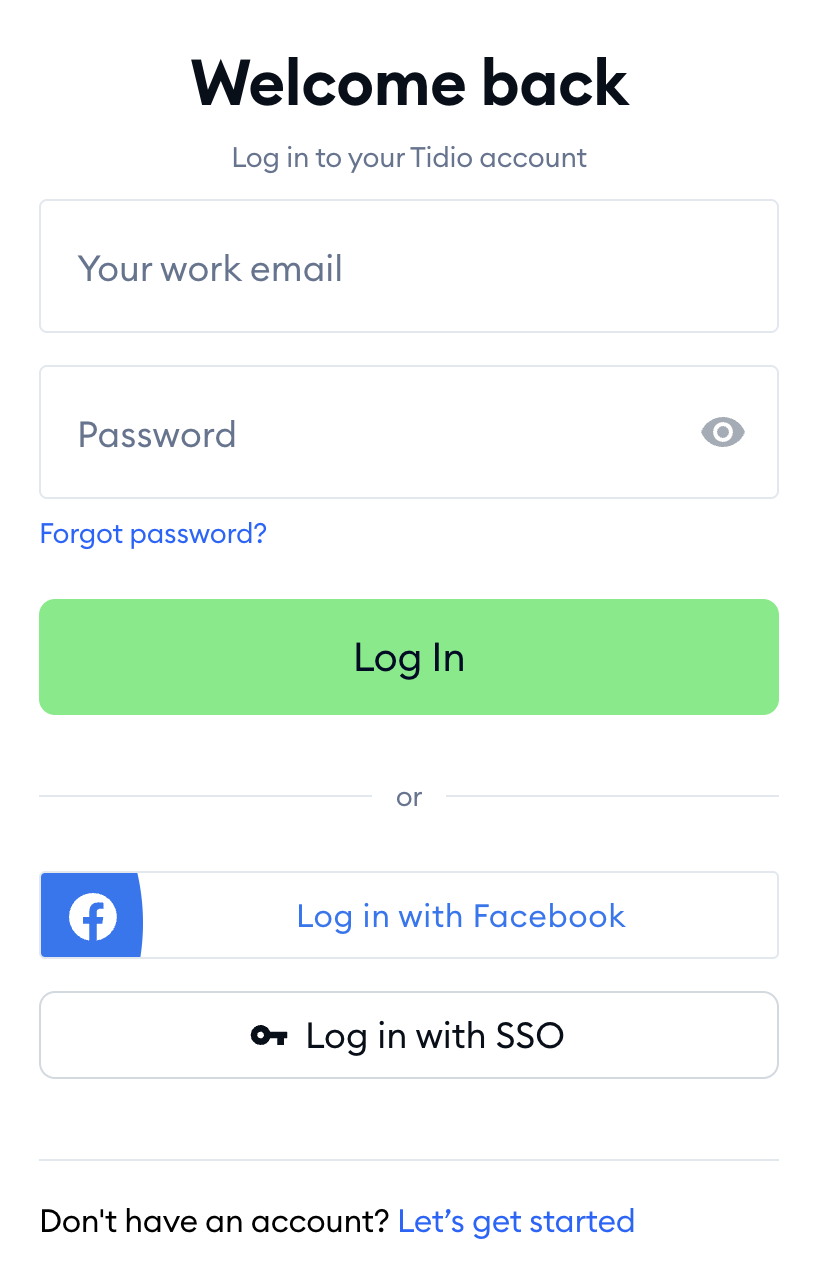
You can log in to your Tidio account anytime by heading to the Tidio login page. Enter your email and password, and click on Log In. You can also use Log in with Facebook (if you signed up with Facebook), or Log in with SSO if your company uses Single Sign-On (available on the Premium plan). Can't remember your password? Click on Forgot password? - see Forgotten password or email for the details.
If you'd like to log in via our mobile and desktop apps or on www.tidio.com, use the email address and password that you registered with.
