If you want to start using the desktop version of our Tidio panel, you can download the Tidio desktop app for MacOS, Windows & Linux devices.
In this article, you'll learn:
- Where to download the desktop app
- How to install the desktop app on Windows
- How to install the desktop app on Mac
- How to receive chat messages on the desktop app
- How to extend notifications on Windows 10
- How to update the desktop app
Download the desktop app
To log into your desktop app, you'll need to have a registered Tidio account. To create one, please follow our Getting Started with Tidio article. If you already have an account, keep reading.
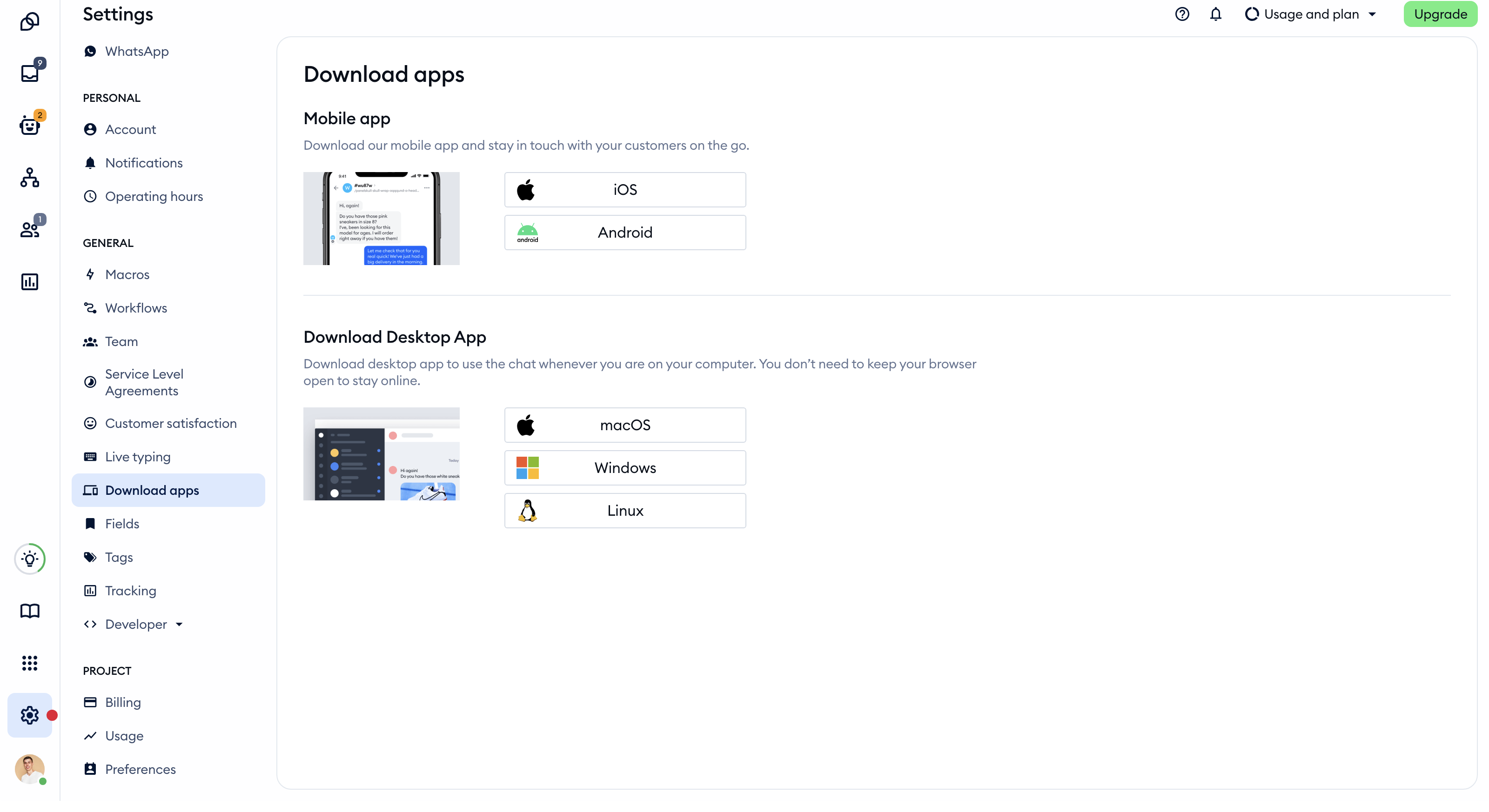
You can download the desktop app in the Settings > Download apps section of your Tidio panel. Under Download Desktop App, click the Windows, macOS or Linux button to download the desktop app - the system you're using is listed first.
Please note: if your company uses Single Sign-On (SSO), you can log in to the desktop app with Log in with SSO too (version 5.7 and above). Learn more in Single Sign-On (SSO) in Tidio.
Install Tidio on Windows
To download the Tidio desktop app on Windows, follow the instructions below.
-
Click Windows
Click the Windows button in Settings > Download apps to download the Tidio app on your computer.
-
Download the .exe file and open it.
The installer is called Tidio Setup 5.7.0.exe (the number is the app's current version). If you can't see it, it should be saved in your Downloads folder by default:
C:\users\*username*\downloads\Tidio Setup 5.7.0.exe
Where *username* is the profile name you're logged into on your PC. -
Follow the instructions to install the app.
It might ask you for administrator's permissions - if it does, hit yes and continue.
-
Log into your account
Now, you are ready to chat with your customers.
Install Tidio on Mac OS x
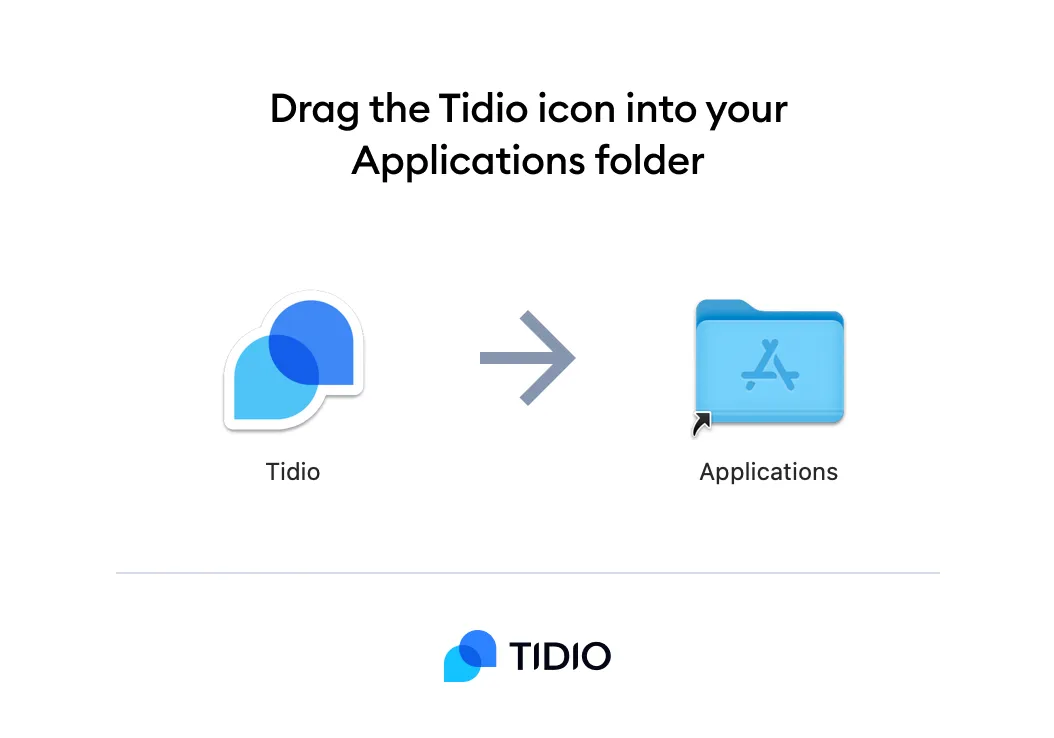
Once you download the Tidio desktop app, it will show as the .dmg file on your computer (for example, Tidio-5.7.0.dmg). Please open it and drag the Tidio icon into your Applications folder.
In some cases, information about unidentified developers may appear. Please review our Troubleshooting macOS desktop app article to proceed with the installation.
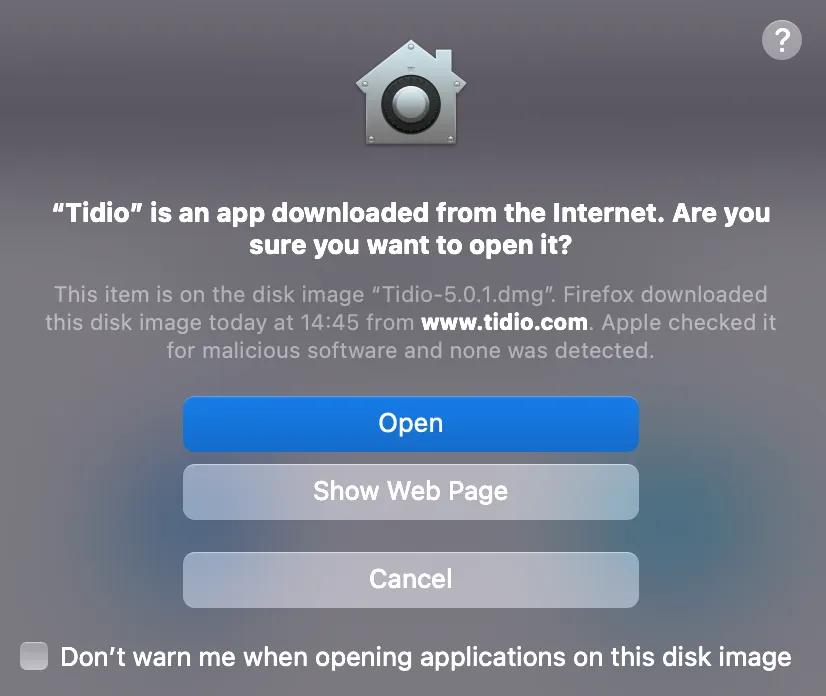
You can also go directly to Settings > Security & Privacy settings on your macOS computer and click Open Anyway. Now, try to install the desktop app again.
Log into your account - and that's it! You are ready to chat with your customers. You can hit the x button to minimize the app and keep it online in the dock.
See recent chat messages in the desktop app
When your computer goes into sleeping mode, you may not see the most recent messages in the Tidio desktop app. The app disconnects from the server when the computer is switched off or put to sleep. To see all the recent messages inside the desktop app, click the desktop app settings button on Mac or right-click on Windows, and choose Clear storage.
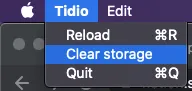
That step will ensure you see the most recent messages inside your Tidio desktop app.
Extend Windows 10 Notifications
To configure the amount of time notifications display on the screen in Windows 10, go to Settings > Ease of Access on your computer.
Click Other Options and select how long you want the notifications to be shown. You can choose anywhere from five seconds up to five minutes.
Update the desktop app
From time to time, we release a new version of the desktop app. If you're using an older version, the app shows the Get the performance and security update window: "Download the latest version for a faster and better experience with Tidio's application. Your current version will stop working soon." Click Get the new app to download the latest version for your system, and install it just like the first time:
Screenshot coming soon
Please note: in some cases, this window can't be closed - you'll need to install the new version to keep using the desktop app.
Further reading
- Unable to install the Desktop App on my Mac
- Download the Tidio mobile app
- Tidio notifications
- Single Sign-On (SSO) in Tidio
