Keeping up with customer messages is essential for effective communication and customer support. Tidio offers a range of notification settings that allow you never to miss a message from your customers.
In this article, you'll learn:
- What types of notifications are available at Tidio
- How to adjust Tidio web panel notifications
- What offline email notifications are
- How to adjust Tidio mobile app notifications
- How to adjust Tidio desktop app notifications
Types of notifications
You can set up the Tidio notifications for the Web Page panel, Mobile App & Desktop App & email communication. We differentiate the following notification types:
New chat request
Notifies you about all new chats started by your website visitors. All the new chats are visible in the Unassigned folder inside the Tidio Inbox. There's no separate email setting for it - new chats are covered by the New message email option.
New message
Notifies you about all new messages sent to you by your website visitors.
Incoming visitor
Notifies you about new visitors entering your website. This notification works together with the live Visitors list, available on the Starter plan and above, and it's a web notification only - its Email option shows Not available.
New ticket and ticket messages
Notifies you about new incoming tickets (emails) and new replies in your tickets.
New mention
Notifies you when another agent mentions you in an internal note. See Internal notes and mentions to learn more.
Notify agents
Notifies you about visitors reaching certain points during automated flow interactions. This notification can be set up in the flow editor using the Send notification action.
See how to set up each notification for different devices below.
Web panel notifications
Web Notifications
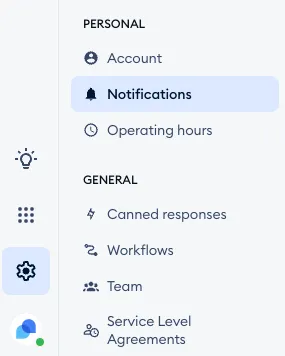
To set your Tidio web panel notifications, head over to the Settings > Notifications section in your Tidio admin panel.
In the Notifications section, you can set up the New message, New chat request, Incoming visitor, New ticket and ticket messages and New mention notifications. For each Notification type, tick the Email and Web notification boxes, and pick a Web notification sound:
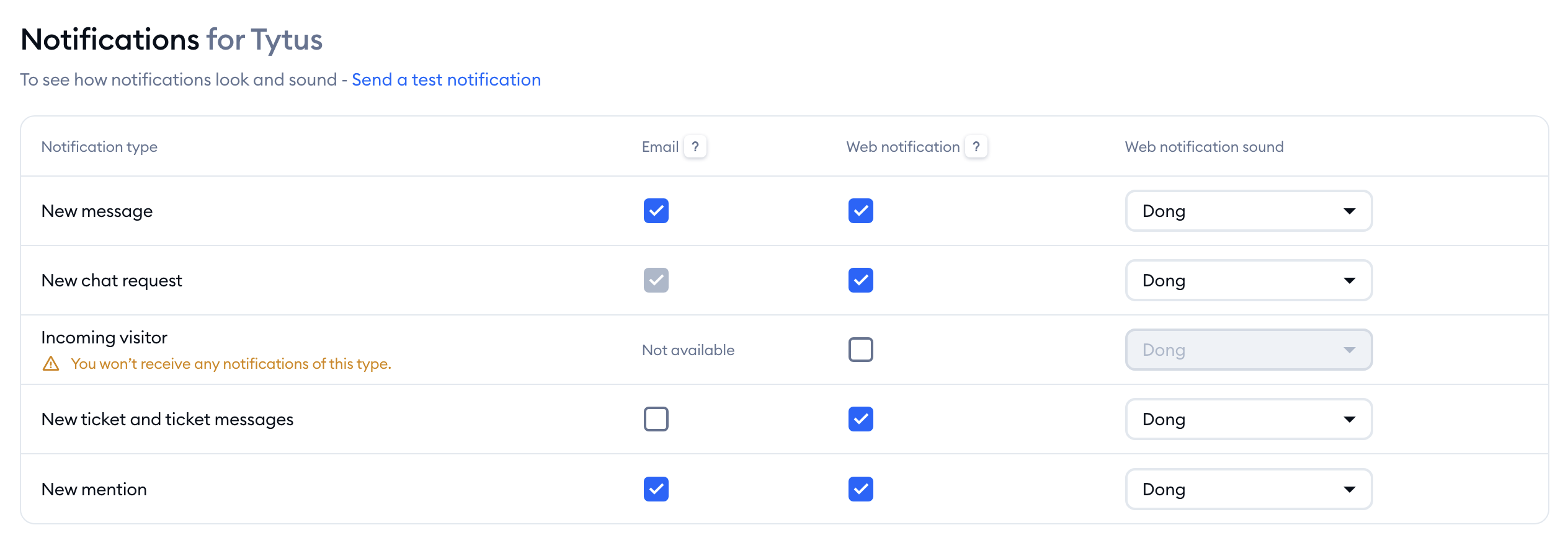
The notifications are differentiated into web notifications (pop-ups, which you get when you're online) and offline email notifications (email to your mailbox). You can also choose a web notification sound on the right for each type of notification. Remember to hit Save at the bottom when you're done. We'll explain the offline email notifications more in-depth later in this article.
Please note: you can check if the pop-up and sound notifications are working in your web browser using the Send a test notification link above the notification settings. If your browser hasn't allowed notifications yet, you'll see Notifications are disabled. at the top instead - click on Enable notifications. If you see Your browser blocks notifications., follow our article on how to allow notifications in your browser.
Offline email notifications
To start receiving offline email notifications, check the boxes under the Email column in the Settings > Notifications section. The offline email notification option allows you to receive your website visitors' inquiries directly to your email when nobody can answer them in the panel - as the column's tooltip says, You will receive email notifications only when your whole team is offline.
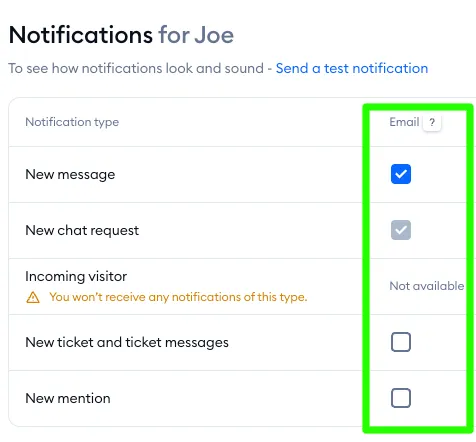
In the offline email notifications, there is a 5 minutes delay time which is counted from the last message received. This is made to avoid sending you all the messages in separate emails. Instead, the system will collect all those chat messages that have been written on the chat and send them to you in just one mail.
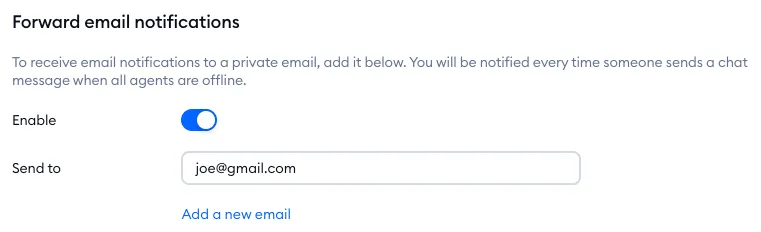
The email notifications are always sent to the email address you used to create a Tidio account. If you'd like to receive them in another mailbox as well, turn on Enable in the Forward email notifications section, type the address under Send to, and use Add a new email to add more. Forwarded notifications go out every time someone sends a chat message when all agents are offline.
If you would like to learn more, see our article about offline email notifications.
The Tidio mobile app
You can set up the notifications for your Tidio Mobile app by heading over to the Settings > Notifications section of the mobile app and making sure the notifications are enabled.
If you enabled the notification but still experiencing some problems, open our notification troubleshooting center in the Settings > Notifications of your Tidio mobile app.
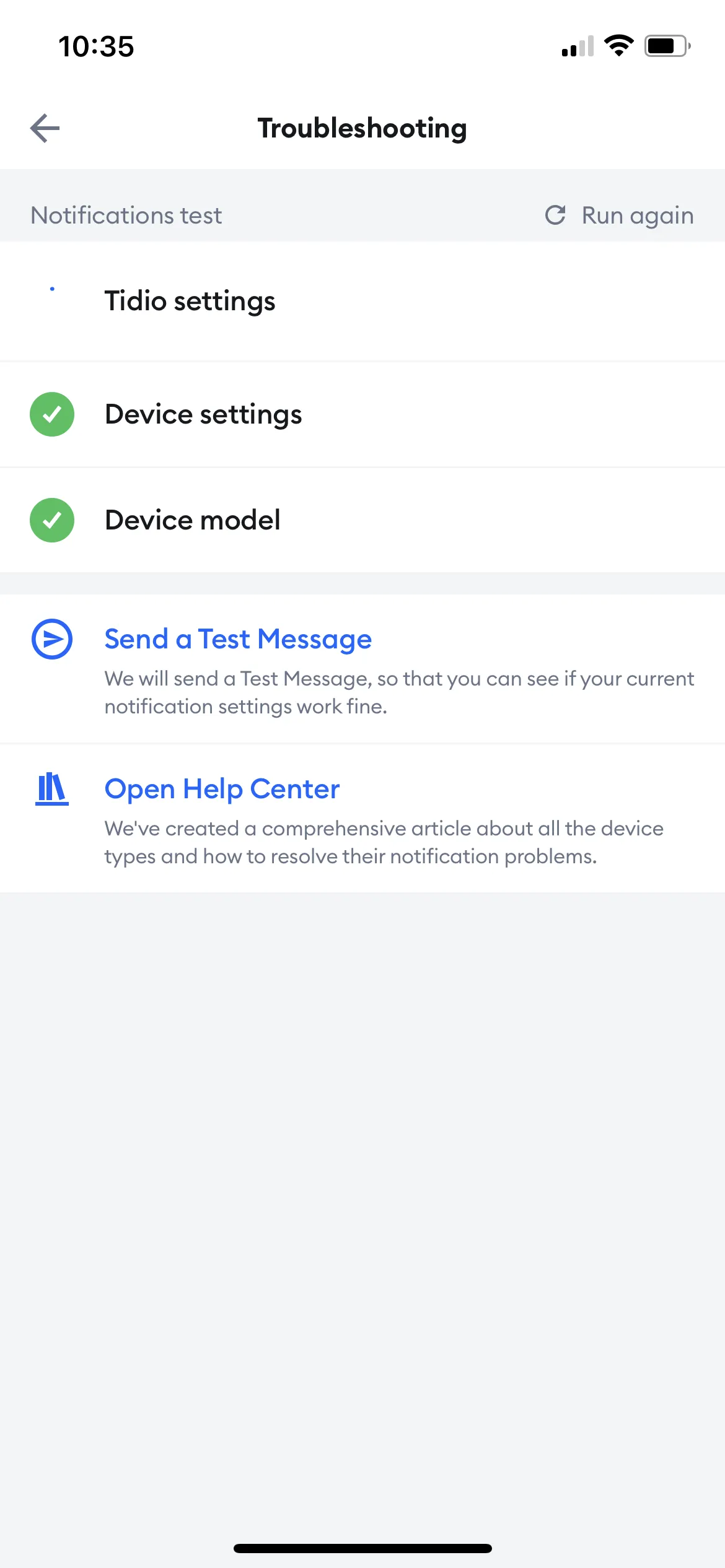
The phone will automatically run a test for you, and in case of any incorrect settings on your mobile device, the app will navigate you to the correct section to adjust them.
You can also request the test manually by clicking on the Send a Test Message button or opening our Help Center to find more troubleshooting steps for each mobile device.
The Tidio desktop app
You can download our Tidio desktop app on your Windows, macOS and Linux computers - you'll find the download links in Settings > Download apps. We explain how to download the Tidio desktop app in more detail in our article about desktop app installation.
Once you have your Tidio desktop app installed, setting up the notification for the desktop app is similar to setting up your notifications in the web browser panel.
To set your Tidio desktop app notifications, head over to the Settings > Notifications section in your Tidio desktop app. The settings in our desktop app are similar to our web panel settings.

