In this article, we'll explore how offline email notifications can enhance your communication. The offline email notification option allows you to receive your website visitors' inquiries directly to your email.
In this article, you'll learn:
Offline email notifications
When you're online 🟢, Tidio can send you push notifications to keep you informed about new chats, messages, and visitors. However, when your whole team is offline ⚪️, you can stay updated by receiving email notifications for all missed conversations.
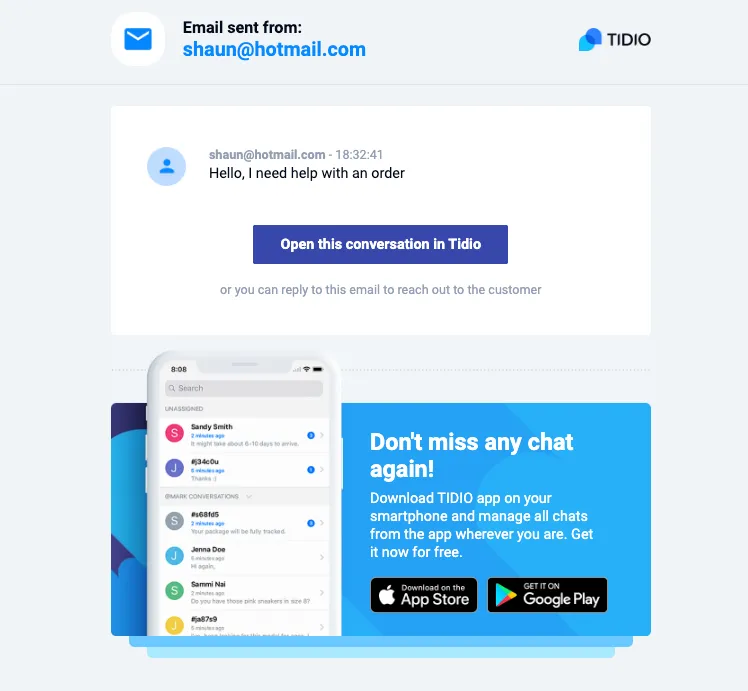
The Offline Email Notification includes visitors' data and the content of the chat message. This allows you to stay up-to-date and promptly respond to their inquiries.
You can reply to their messages by simply responding to the offline email notification straight from your mailbox. You can also log in to your Tidio chat panel and answer the messages through Tidio's inbox.
Enable offline email notifications
If you would like to receive email notifications for messages that come in while all your agents are logged out or set to Offline, you can configure that under the Settings > Notifications section (you'll find Notifications under the Personal heading of the Settings menu). There is a 5-minute delay time which is counted from the last message received. This is made to avoid sending you all the messages in separate emails. Instead, the system will collect all those chat messages that have been written on the chat and send them to you in just one email 🙂
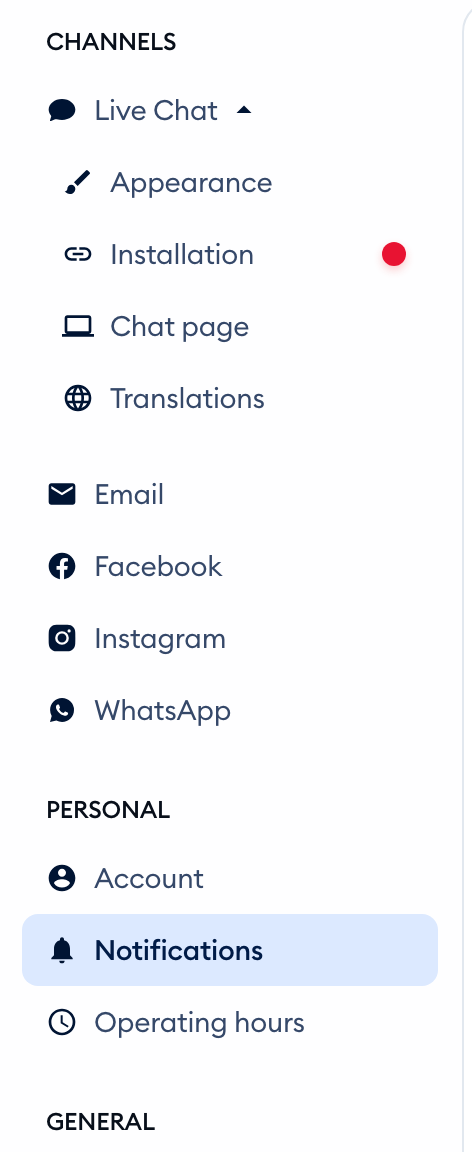
Notifications sent to your Tidio login address
To set up the offline email notifications - make sure the box under the Email column is checked for New message, and hit Save at the bottom of the page. The New chat request box follows New message automatically (you can't change it on its own) to ensure you will receive both - the new chat request messages and messages from the conversations you're already assigned to.
As the tooltip next to the Email column says: "You will receive email notifications only when your whole team is offline." So as long as at least one of your agents is online, no email notification goes out:
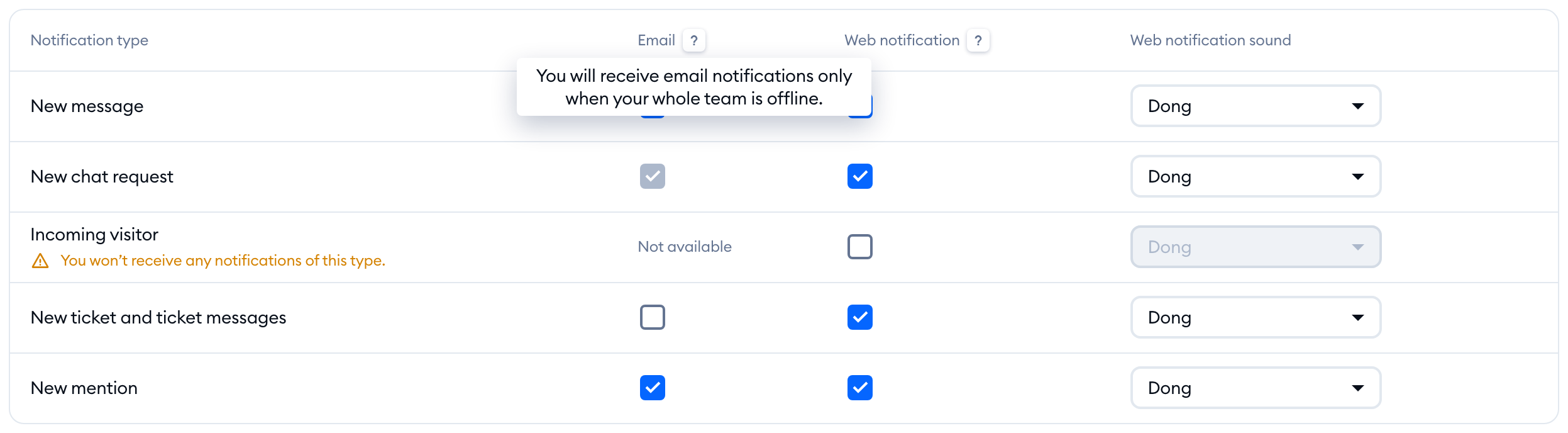
The Email column also lets you get emails about New ticket and ticket messages and New mention. Email notifications aren't available for Incoming visitor.
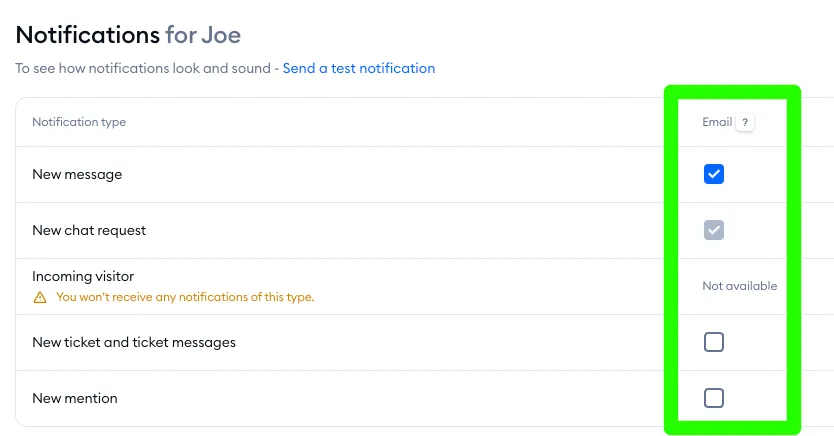
When the box is checked, the notifications are sent to the email address you're using to log into Tidio. The same applies to other agents; if they enable this in their Notifications settings, they will start receiving offline email notifications at their Tidio login addresses.
Notifications sent to other addresses
Perhaps you would like to add an additional email address to receive the notifications there, and not under your Tidio login address? In that case, you can use the Forward email notifications option that is below the main Notifications setting, and add a different email (or emails) manually.
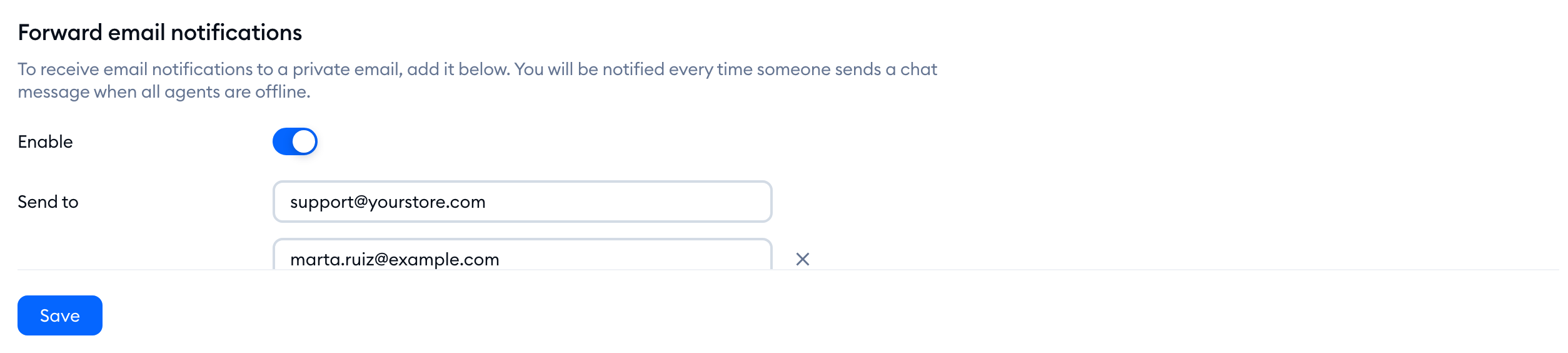
Switch on Enable, type the address in the Send to field, and use Add a new email for more addresses. As the section says, you will be notified every time someone sends a chat message when all agents are offline. Don't forget to hit Save - and with the switch on, add at least one address, or your changes won't be saved.
Please note: the Email checkboxes are your own setting, but the Forward email notifications list is one list for the whole project. Every agent sees the same addresses in their Notifications settings, so if any agent changes the list, it changes for everyone.
If you wish to receive email notifications only at this additional address (or addresses), you can safely un-check the checkboxes under Email from before. That way, the offline email notifications will no longer be sent to your Tidio login address and only to the additional address(es) you've added under Forward email notifications.
An example
In the example below, a visitor sent a message while the chat was offline; five minutes later, an email notification was sent successfully. This is thanks to the chat remaining offline and no agents picking up the incoming message during the initial 5-minute period.
The 5-minute delay has been added to ensure each message is included in the notification you receive. It's very common for visitors to send their inquiries in multiple chat messages instead of a single message. With this delay, you'll have a complete picture of the customer's issue, and you'll be able to react more efficiently.
