By default, any website that uses push technology requests visitors' permission to notify them. We will explain how to allow the Tidio notifications in your web browser.
In this article, you'll learn:
- How to enable and test the notifications in Tidio
- How to enable notifications in Google Chrome
- How to enable notifications in Google Chrome for Windows 10
- How to allow notifications in Mozilla Firefox
- How to allow notifications in Microsoft Edge
- How to allow notifications in Safari
Test notifications at Tidio
On your first visit to the Tidio panel, we asked you if you'd like to allow or deny the notifications. If you've allowed them while visiting the website - you're all done! However, if you haven't allowed the notifications - you will need to unblock them. This way, you'll be sure not to miss any live chats!
To choose which notifications you get, head over to the Settings > Personal > Notifications section. Each notification type has its own row: New message, New chat request, Incoming visitor (depending on your plan), New ticket and ticket messages and New mention.
For every type you'd like to hear about, tick the Web notification checkbox and pick a sound from the Web notification sound list next to it. You'll get web notifications while you're online. The Email checkbox sends you an email instead - only when your whole team is offline. When you're done, hit Save at the bottom of the page:
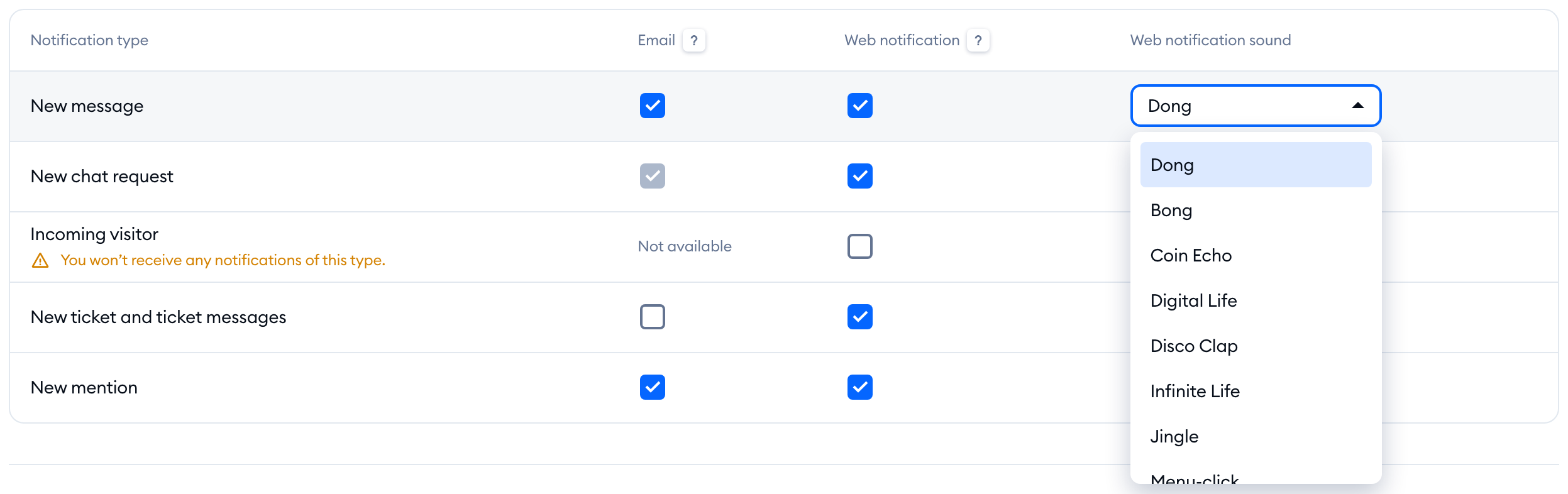 Personal > Notifications with the table of notification types (New message, New chat request, Incoming visitor, New ticket and ticket messages, New mention), the Email and Web notification checkboxes ticked for New message, and the Web notification sound list open on that row" width="929" height="315" loading="lazy" decoding="async">
Please note: the sound list is available only once Web notification is ticked, and Tidio plays each sound as you pick it. If both checkboxes in a row are empty, you'll see You won’t receive any notifications of this type. under its name. To get emails at a private address when nobody's online, see Offline email notifications.
Tidio also offers an easy way to check if your web browser is blocking the notifications. Once your browser allows notifications, you'll see a line under the Notifications title: "To see how notifications look and sound -" followed by a Send a test notification link. Click on it:
 Personal > Notifications in a browser that allows notifications, with the "To see how notifications look and sound - Send a test notification" line under the Notifications title and the Send a test notification link highlighted" width="704" height="293" loading="lazy" decoding="async">
You'll hear a short sound and get a web notification from Tidio saying Test notification.
If your browser blocks notifications, there's no test link. Instead, a red alert appears at the top of the page: Your browser blocks notifications. You might miss some incoming chats. Click on Read how to allow notifications in your browser in the alert, and follow the steps for your browser below.
 Personal > Notifications in a browser that blocks notifications for Tidio: the red alert "Your browser blocks notifications. You might miss some incoming chats. Read how to allow notifications in your browser" above the Notifications title, with no test link under the title" width="708" height="389" loading="lazy" decoding="async">
If your browser hasn't asked you yet, the alert says Notifications are disabled. instead. Simply click on Enable notifications in the alert, and allow them in your browser's pop-up.
Allow web notifications
Below we explain how to enable the notifications for the following web browsers:
Google Chrome
You can check the current state of notifications in Google Chrome by clicking on the padlock icon near the URL of the Tidio website.
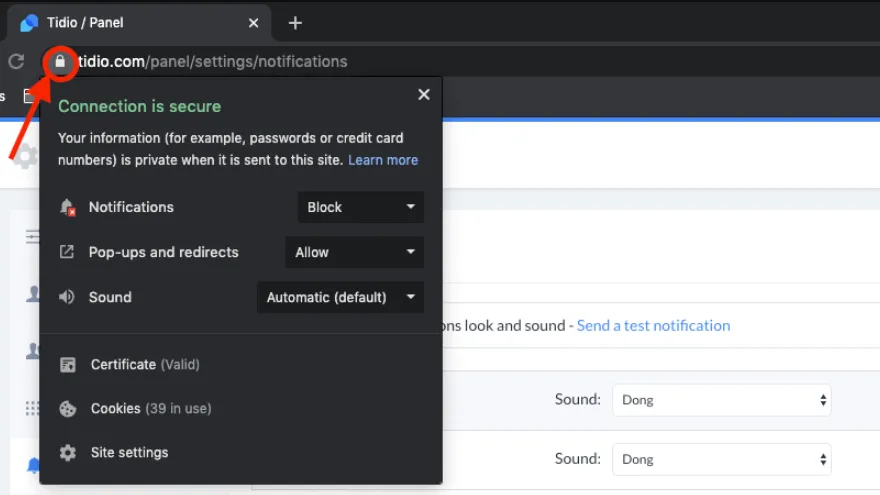
If the notifications are blocked - block will be displayed on the right side of the bell icon. To allow the notifications - click on block and choose allow from the drop-down list. Refreshing the Tidio website will allow your web browser to send notifications.
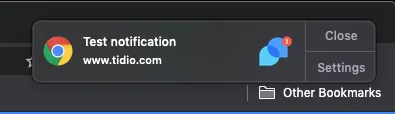
You should start getting notified correctly now. You can do one more test; the notification should display as below:
Google Chrome on Windows 10
Windows 10 users can have Chrome notifications blocked in the Windows system settings.
To enable the Google Chrome notifications, please head over to the Settings > Notifications & actions > make sure to enable the notification toggle and another toggle next to the Google Chrome app under the Get notifications from these apps section to receive the notifications.
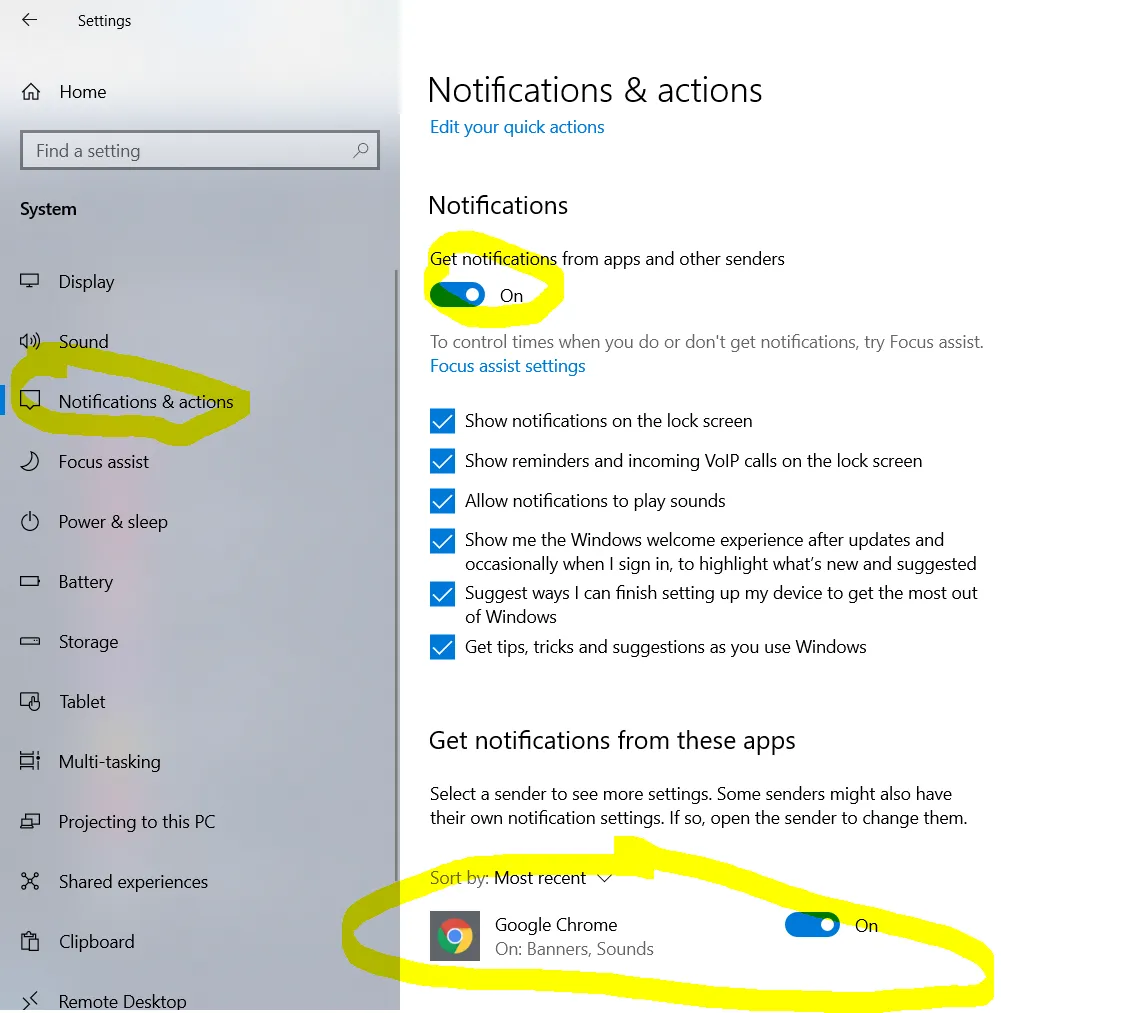
If you don't use the Windows 10 Action Center - you can disable the system's native notifications in Chrome settings.
Additionally, make sure your Windows Focus Assist is set to allow notifications.
Focus Assist settings can be edited by selecting Start > Settings >System >Focus assist. Or you can type Focus assist into the search box on the taskbar, and then select Focus assist settings from the list of results.
Mozilla Firefox
To allow notifications in Mozilla Firefox, you need to click on the icon on the left of the website's URL.
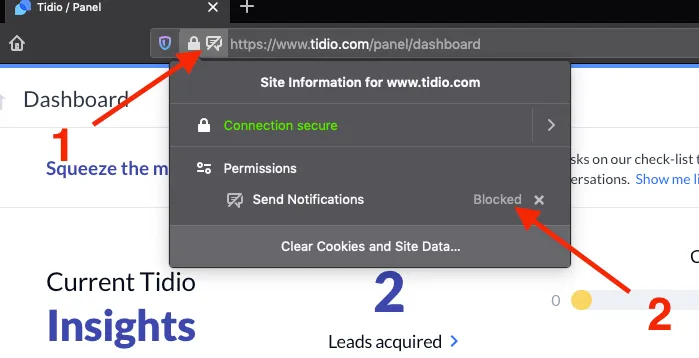
If they're getting blocked by Firefox - remove the block by clicking on the x to the right of the blocked label. After doing that, refresh the website - it will ask for your permission to be notified. Pressing allow will fix the issue.
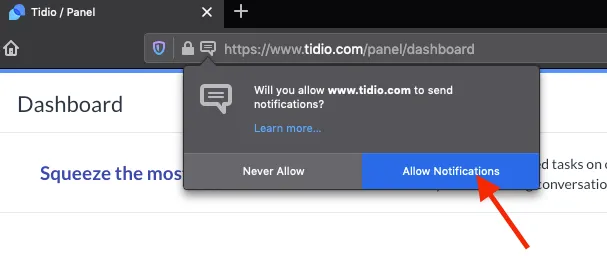
The test notification should be unblocked now. You can test it and check if it's being sent correctly, as below:

Microsoft Edge
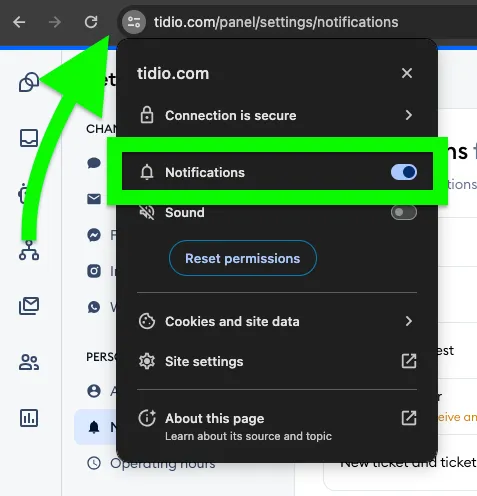
You can allow notifications in Microsoft Edge by clicking the padlock icon to the left of the website's URL.
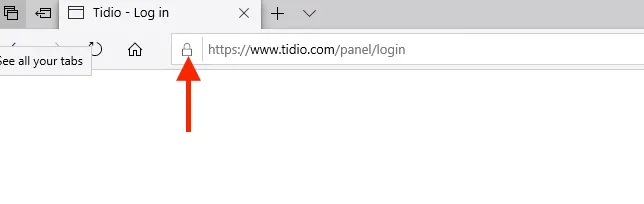
Once you click on the icon, a menu will appear. There you can change the settings to match the screenshot below:
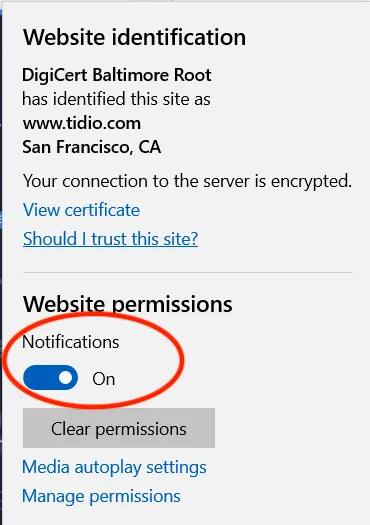
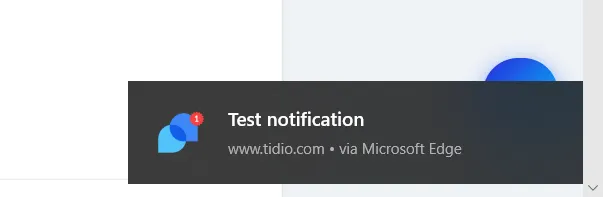
After you enable that permission, refresh the Tidio website. That will apply the changes, and you should see the notification as below:
Safari
To be notified in Safari, open the browser's preferences. You can do that by clicking on the Safari menu bar > Preferences on mac.
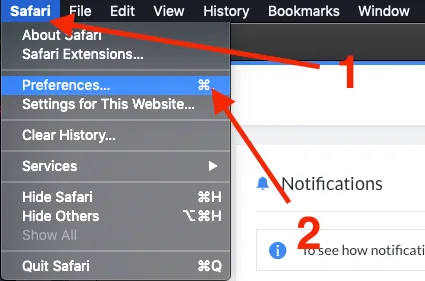
In the preferences window, select the websites tab, where you can edit the permissions for websites that you've visited. Open the notifications section on the left, and you should see Tidio listed there. You may see deny selected for Tidio; please select allow instead.
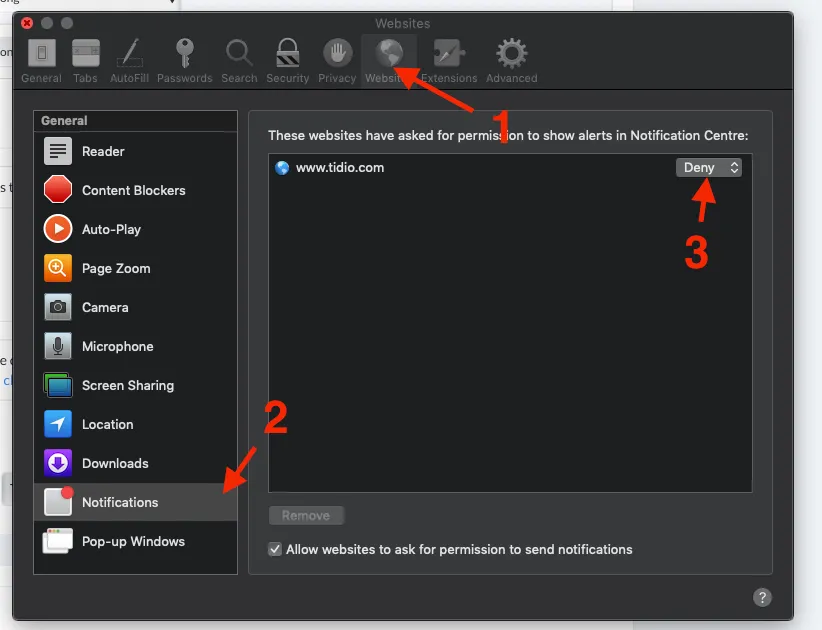
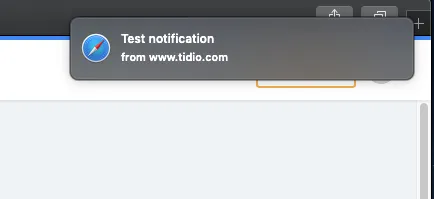
After changing the permission - refresh the Tidio website. Now you can run the test and check if Safari notifies you as below: